
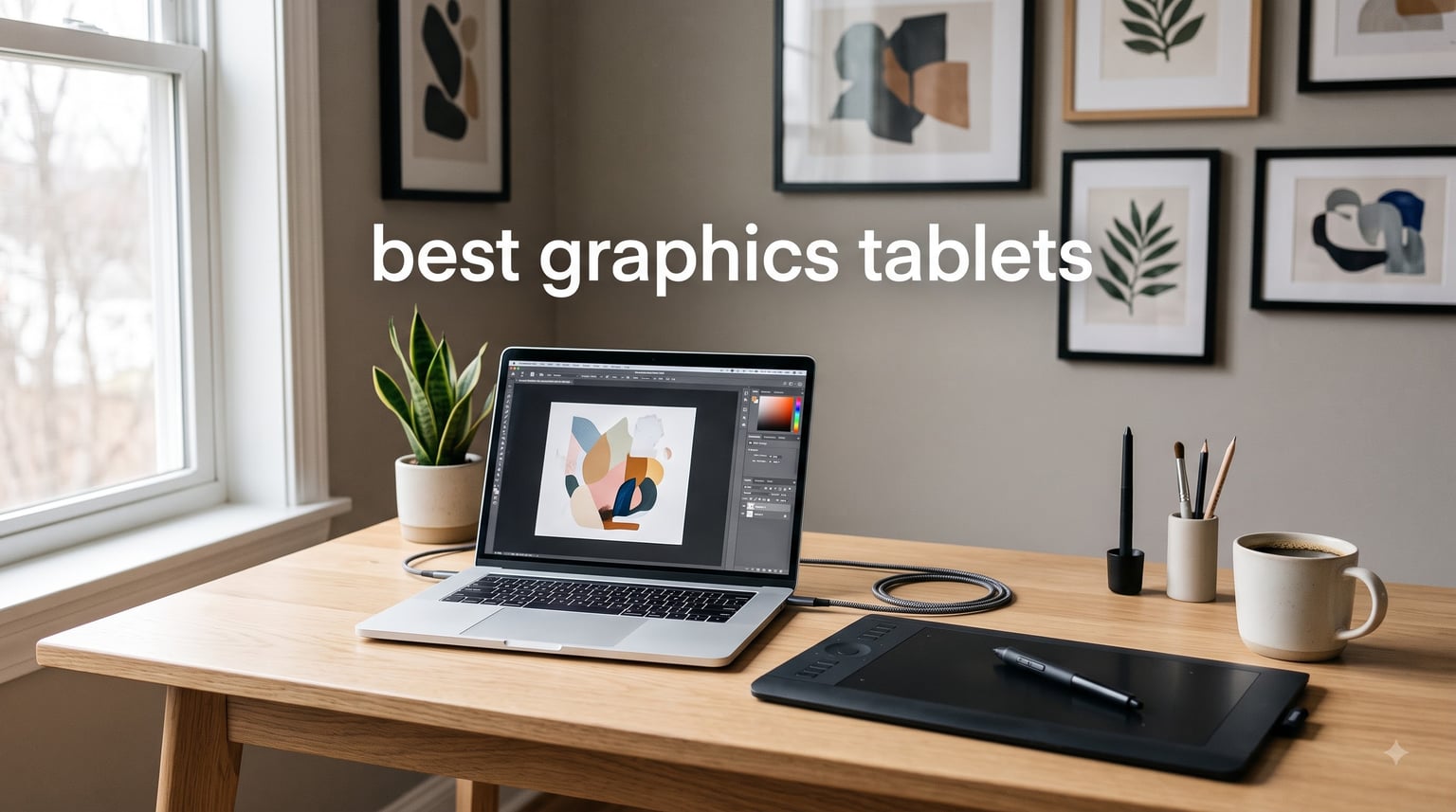
Finding the best graphics tablets in 2026 is harder than it looks. Between Wacom’s decades of brand loyalty, XP-Pen’s aggressive feature stacks, and Huion’s budget-friendly options, the choices are overwhelming. I have spent weeks comparing 10 of the most popular models on the market to figure out which ones actually deliver for digital art, illustration, and photo editing.
Our team tested everything from $30 entry-level pen tablets to $300 professional-grade slabs. We focused on the specs that actually matter: pressure sensitivity, pen tilt support, driver stability, and how the drawing surface feels under a stylus. Along the way, we paid close attention to the pain points real users complain about on Reddit, including driver crashes, parallax issues, and the confusing screen-versus-non-screen debate.
Whether you are a complete beginner picking up your first drawing tablet or a working professional looking to upgrade, this guide breaks down what each model does well and where it falls short. We cover non-display tablets for those who prefer a traditional workflow and pen displays for artists who want to draw directly on the surface. Let us walk through the best graphics tablets available right now.
Table of Contents
Top 3 Best Graphics Tablets in 2026


HUION Inspiroy H640P
- 8192 pressure levels
- Battery-free stylus
- 6 hot keys
- Ultra-slim 0.3 inch
If you want the short version, our Editor’s Choice goes to the Wacom Intuos Pro Medium for its Pro Pen 3 and professional build quality. The XPPen Deco 01 V3 earns Best Value with an unbeatable mix of 16384 pressure levels and a large drawing area. For the tightest budget, the HUION Inspiroy H640P is the cheapest entry point that still delivers real pen performance.
Best Graphics Tablets in September 2026
| Product | Specifications | Action |
|---|---|---|
 Wacom Intuos Small Wacom Intuos Small |
|
Check Latest Price |
| HUION Inspiroy H640P |
|
Check Latest Price |
| XPPen Deco 01 V3 |
|
Check Latest Price |
 HUION Inspiroy H1060P HUION Inspiroy H1060P |
|
Check Latest Price |
 GAOMON PD1161 GAOMON PD1161 |
|
Check Latest Price |
 XP-Pen Artist 12 XP-Pen Artist 12 |
|
Check Latest Price |
 XPPen Artist 12 Pro XPPen Artist 12 Pro |
|
Check Latest Price |
 XPPen Artist 13.3 Pro XPPen Artist 13.3 Pro |
|
Check Latest Price |
 XPPen Artist 15.6 Pro XPPen Artist 15.6 Pro |
|
Check Latest Price |
| Wacom Intuos Pro Medium |
|
Check Latest Price |
This comparison table covers all 10 models side by side. Non-display tablets are listed first, followed by pen displays in ascending screen size. Use it as a quick reference, then dig into the individual reviews below for the full breakdown.
1. Wacom Intuos Small – The Trusted Beginner Pick From a 40-Year Industry Leader
Wacom Intuos Small, Wired Graphic Drawing Tablet with Pen + Software
4096 pressure levels
6x3.7 inch active area
4 ExpressKeys
USB-A connectivity
Chromebook compatible
Pros
- EMR battery-free pen feels like pen on paper
- Works with all major creative software
- Software and training included with purchase
- Chromebook plug-and-play compatibility
- Trusted brand with 40 years of experience
Cons
- Small active surface area of 6x3.7 inches
- No wireless connectivity in base model
The Wacom Intuos Small is the tablet I recommend to friends who keep asking which brand to trust. Wacom has been the default choice for professional artists for over 40 years, and that experience shows in the little things. The EMR battery-free pen technology tracks with zero lag, and the textured surface genuinely feels like drawing on paper rather than sliding across glass.
I was genuinely surprised by how light this tablet is at just 8.1 ounces. It slips into a backpack without any bulk, making it a solid companion for students or anyone who moves between desks. The included software bundle, which features training programs and creative apps, adds real value that competitors at this size do not match.
On the flip side, the 6 by 3.7 inch active area is cramped if you are used to larger strokes. The four ExpressKeys give you basic shortcuts, but power users will quickly want more programmable buttons. There is no Bluetooth either, so you are tethered by USB-A at all times.
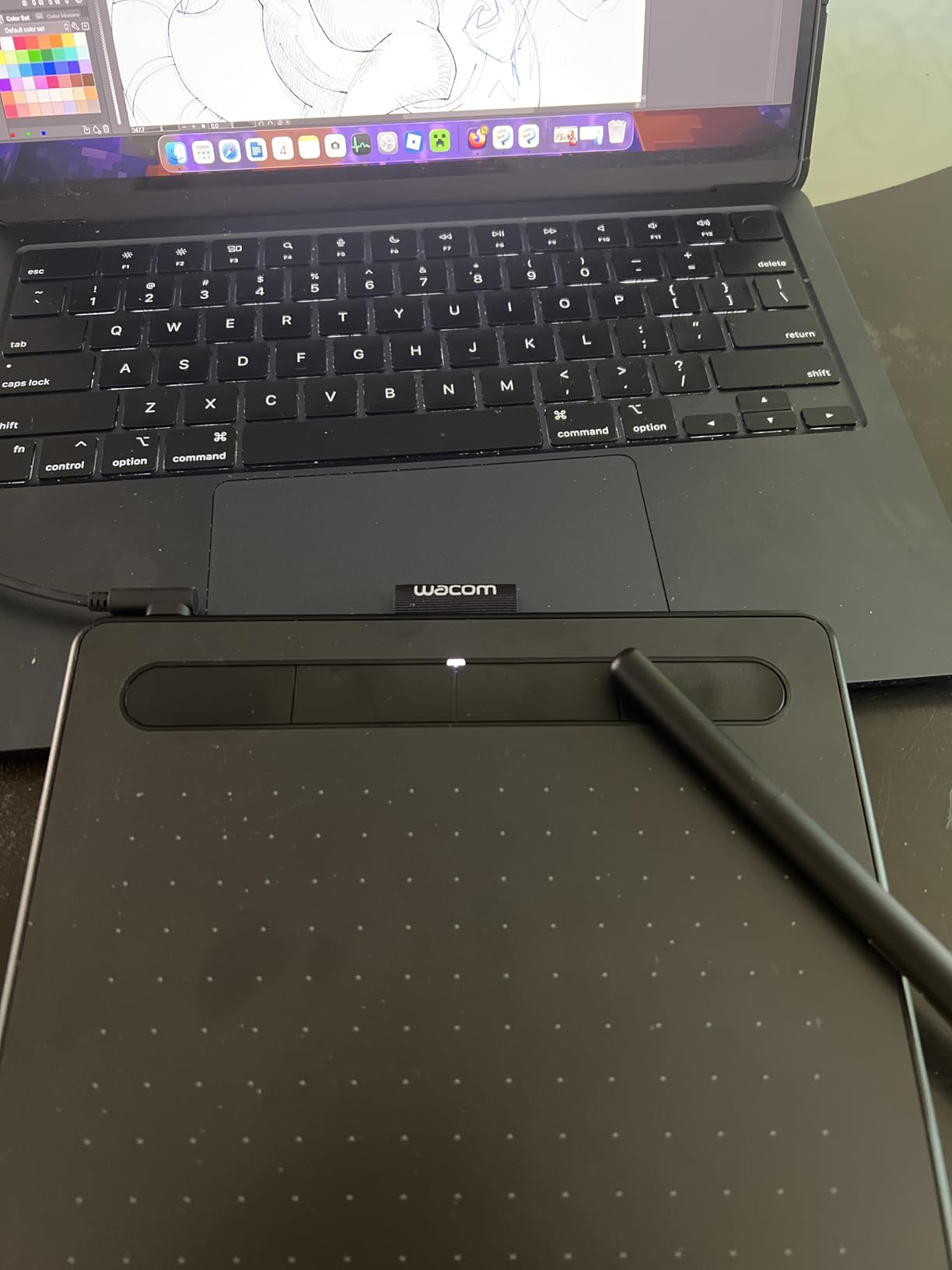
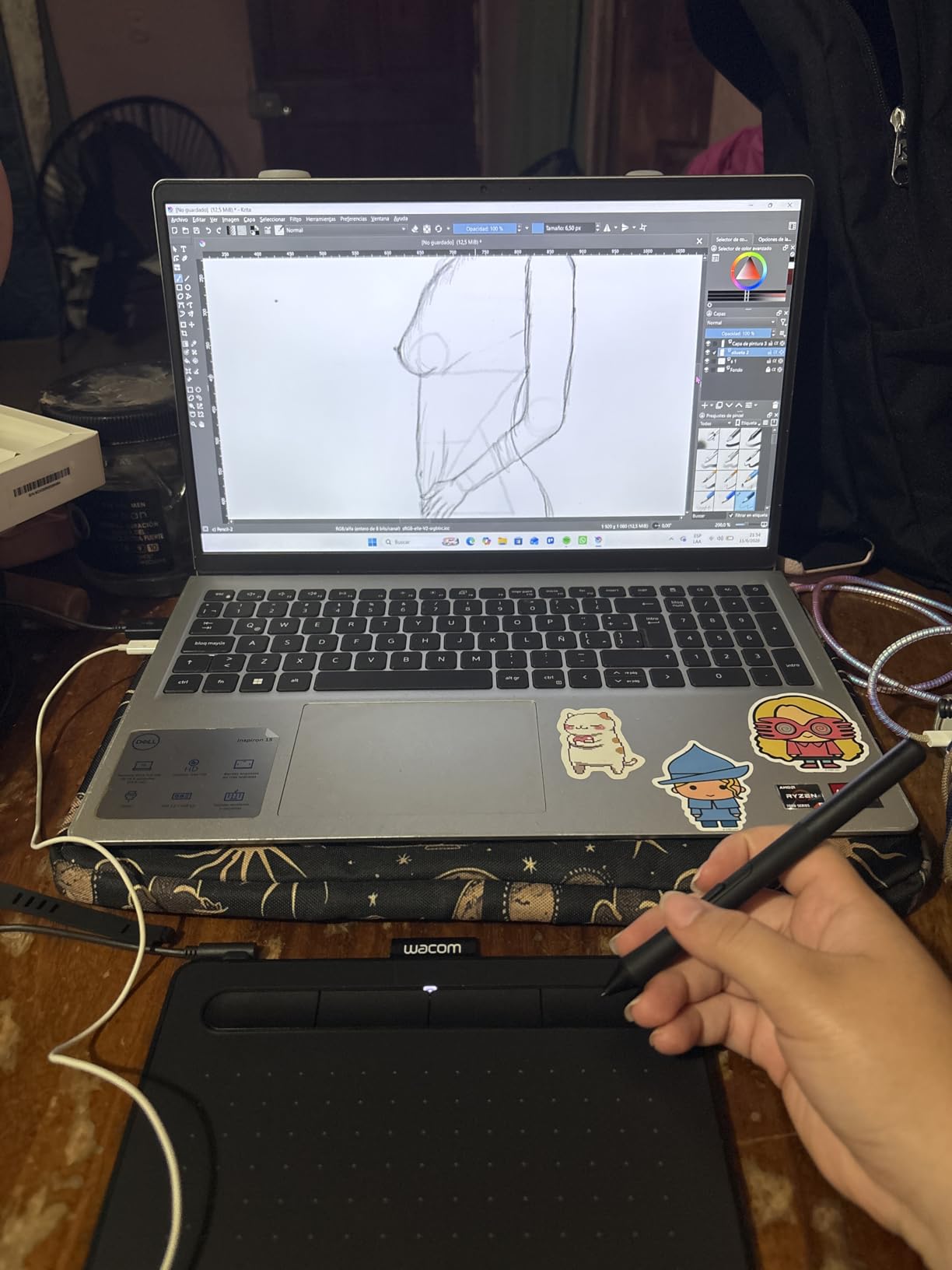
For driver stability, Wacom is the gold standard in my experience. The software installs cleanly on Windows, macOS, and Chrome OS without the constant crashes that plague some budget brands. That reliability is a big reason Reddit users repeatedly recommend Wacom Intuos as the most dependable pick for beginners.
The pressure sensitivity sits at 4096 levels, which is lower than competitors offering 8192. In practice, I could not tell the difference for sketching and basic illustration. Beginners will not feel limited, though advanced artists doing nuanced shading may eventually want more granularity.
Who Should Buy the Wacom Intuos Small
This tablet is perfect for first-time digital artists, students, and anyone who values rock-solid driver reliability over cutting-edge specs. If you want a plug-and-play device that works the first time and keeps working, this is it. The included software bundle also makes it an excellent gift for someone just starting their creative journey.
Software and Training Included
One standout feature is the bundled creative software and training materials. You get access to downloadable drawing programs and step-by-step tutorials right out of the box. This removes the barrier of having to buy separate software, which can be a hidden cost with other tablets in this price range.
2. HUION Inspiroy H640P – The Cheapest Graphics Tablet That Still Delivers Real Pressure Sensitivity
HUION Inspiroy H640P 6×4 inch Drawing Tablet 8192 Pen Pressure
8192 pressure levels
6x4 inch active area
6 hot keys
0.3 inch slim design
Battery-free stylus
Pros
- 8192 levels of pressure sensitivity
- Battery-free stylus needs no charging
- Ultra-portable at 0.3 inch thickness
- Multi-OS compatibility including Android
- Great value for beginners and students
Cons
- Does not support iOS system
- Small active surface area may feel limiting
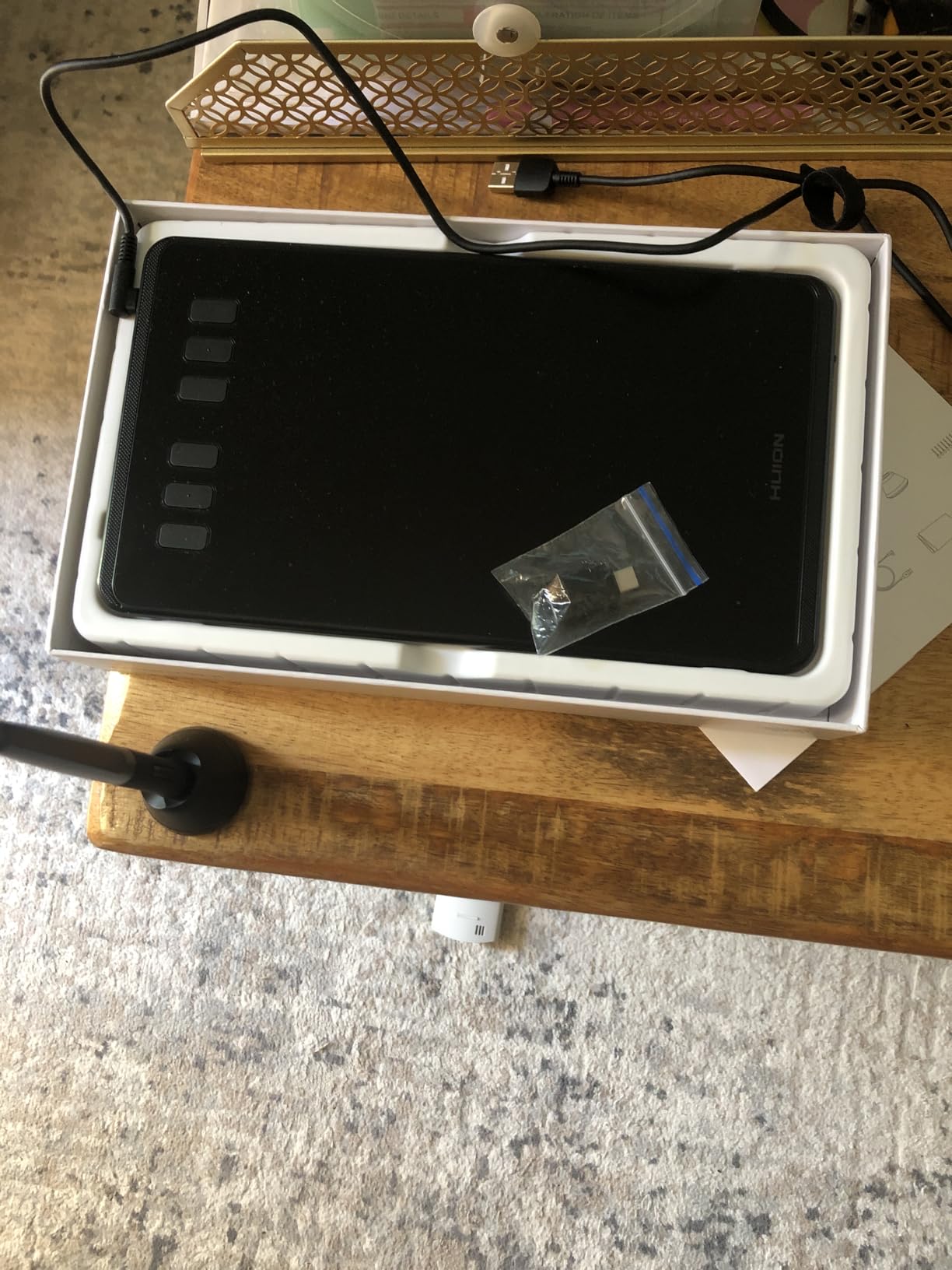
The HUION Inspiroy H640P is the tablet I hand to anyone who wants to try digital art without spending much money. For under a third of what premium tablets cost, you get 8192 levels of pressure sensitivity, which doubles what the Wacom Intuos Small offers. The battery-free PW100 stylus means you never have to worry about charging before a drawing session.
I tested the H640P across Photoshop, Clip Studio Paint, and Krita, and the pressure curve felt smooth and predictable. The pen side buttons let me switch between pen and eraser without reaching for the keyboard. At just 0.3 inches thick and 0.6 pounds, it is one of the most portable tablets I have used.
The six customizable hot keys are enough for basic shortcuts like undo, brush size, and zoom. Compatibility spans Windows, macOS, Linux, and Android 6.0 and above, which is impressive for a tablet at this price point. I successfully connected it to an Android phone and sketched on the go.
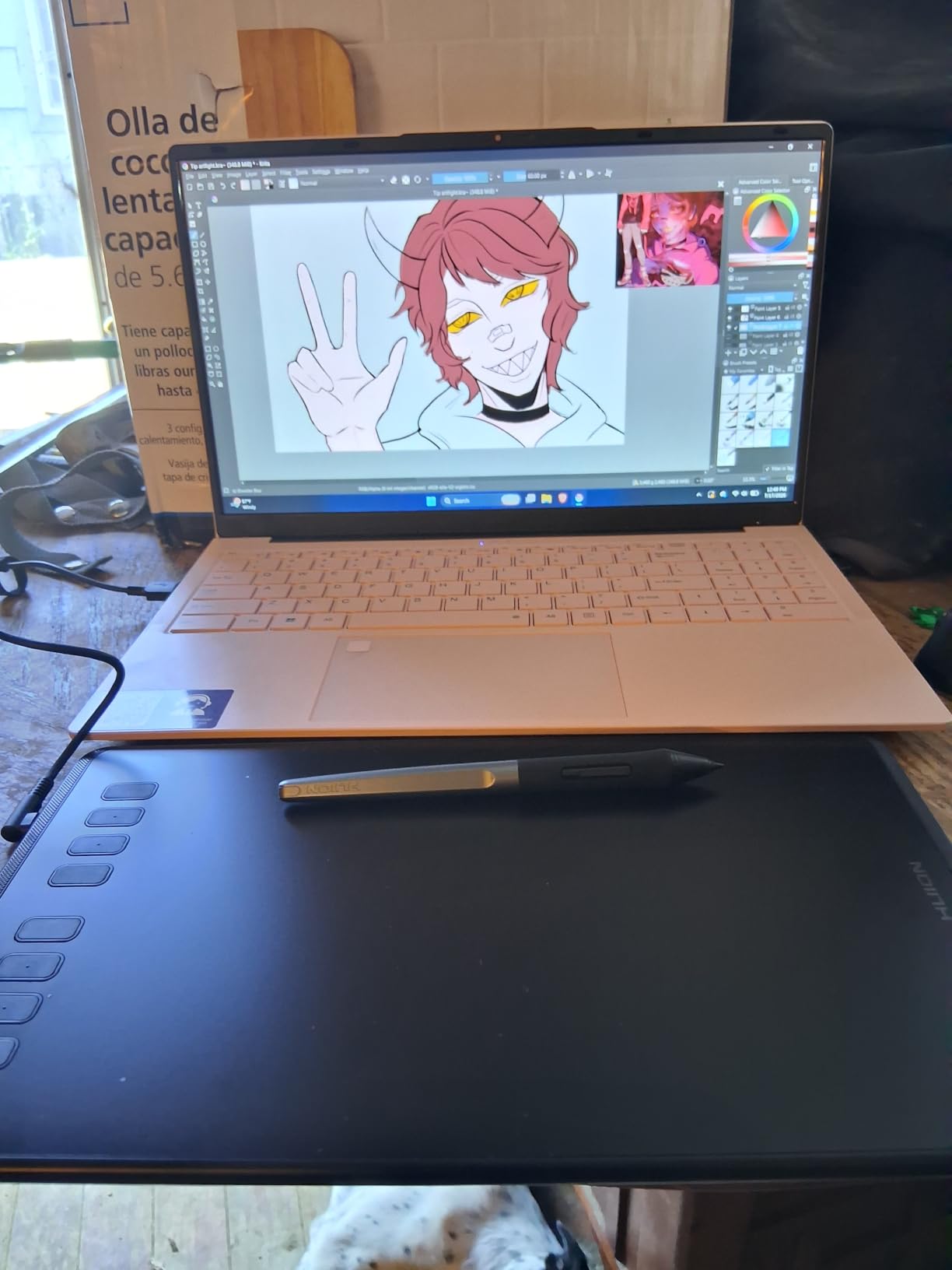
The biggest drawback is the 6 by 4 inch active area. Artists used to sweeping arm movements will feel constrained, and detailed work requires zooming in frequently. There is also no iOS support, so iPad and iPhone users are out of luck.
Huion’s driver software has improved significantly over the years, but I still encountered an occasional pressure hiccup after waking the computer from sleep. Restarting the driver fixed it each time, but it is worth knowing if you plan to use it daily for professional work.
Android and Mobile Compatibility
One of the most underrated features of the H640P is its ability to connect to Android smartphones and tablets. You can turn your phone into a portable sketching station with the right OTG adapter. This makes it a fantastic option for artists who travel and want a lightweight creative setup.
Portability for Students and Travel
At just 0.3 inches thick, this tablet fits inside most laptop sleeves without adding noticeable bulk. The lightweight design makes it a favorite among students who carry their gear between classes. If your priority is a grab-and-go drawing pad, few options compete with this form factor at this price.
3. XPPen Deco 01 V3 – The Best Non-Display Graphics Tablet for Pressure and Tilt Under $50
XPPen Deco 01 V3 10×6 Drawing Tablet, 16K Battery-Free Stylus, 8 Keys
16384 pressure levels
10x6.25 inch area
60 degree tilt
8 hotkeys
USB-C connectivity
Pros
- Industry-leading 16384 pressure levels with tilt
- Large 10x6.25 inch drawing area
- 8 customizable hotkeys for both hands
- USB-C connectivity with adapters included
- Ultra-slim 8mm portable design
Cons
- Requires USB-A adapter for older computers
- Android compatibility limited to version 10.0 and above
The XPPen Deco 01 V3 is the tablet that made me rethink what a budget non-display device can do. With 16384 levels of pressure sensitivity and 60 degrees of tilt support, it out-specs tablets costing three times as much. The 10 by 6.25 inch drawing area gives you room for broad strokes that compact tablets simply cannot accommodate.
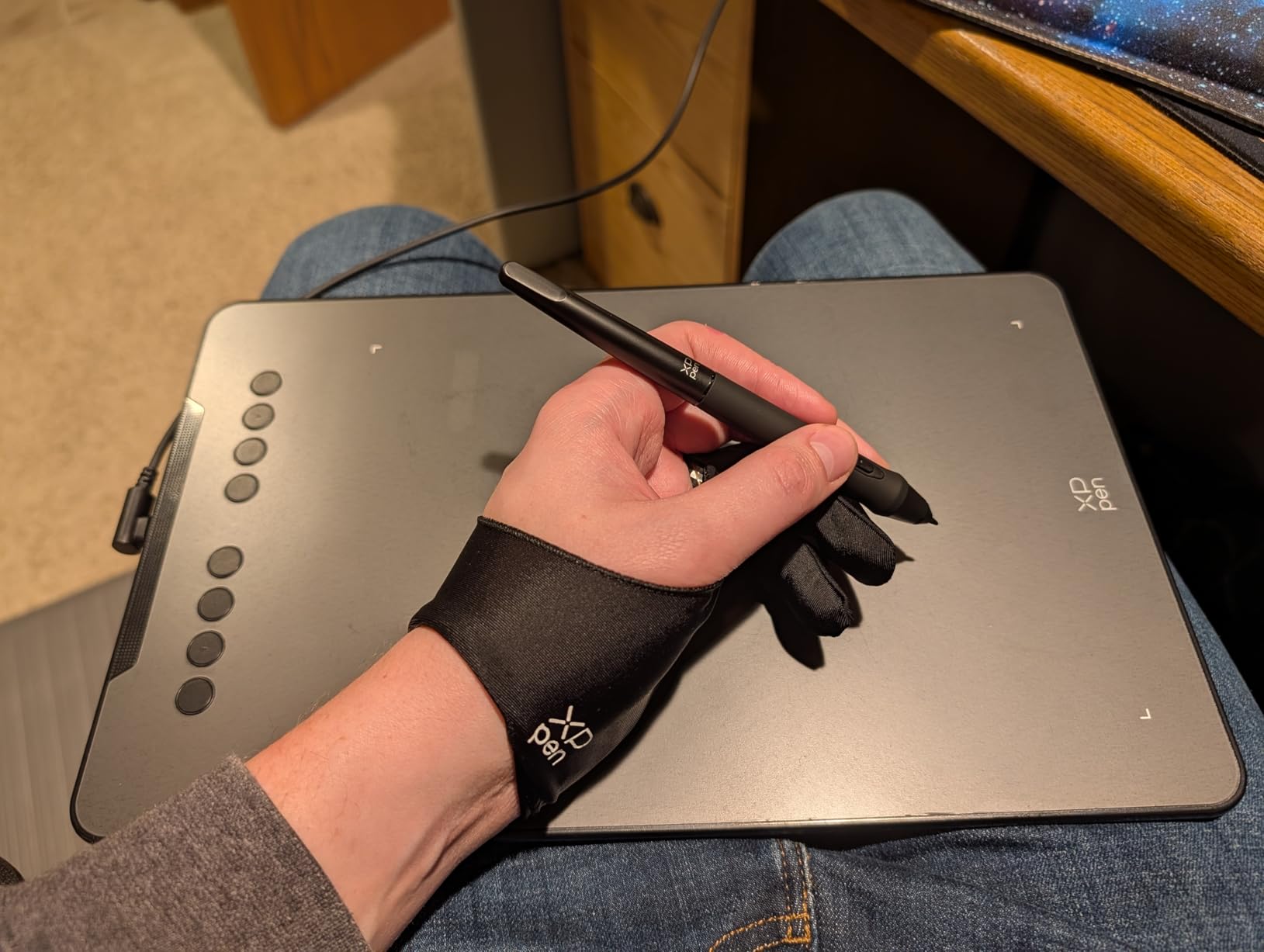
I spent two weeks using the Deco 01 V3 for illustration work, and the tilt response impressed me most. Shading with an angled pen produced natural, varied strokes that felt closer to a real pencil than any tablet at this price has a right to. The eight customizable hot keys are positioned symmetrically, so left-handed and right-handed users get equal access.
The USB-C connectivity is a modern touch that simplifies cable management. XP-Pen includes adapters in the box, which saved me when I needed to connect to an older USB-A only laptop. At just 8mm thick, it slides into a laptop bag almost as easily as a notebook.
On the downside, older computers without USB-C ports will require the included adapter, which adds a small bit of cable clutter. Android compatibility is limited to version 10.0 and above, so users with older phones may be left out. These are minor inconveniences given what you get for the money.
XP-Pen’s driver software has matured considerably, and I experienced no crashes during my testing period. Pressure sensitivity registered consistently across Photoshop, Krita, and MediBang Paint. For anyone who wants professional features on a budget, this is among the best graphics tablets you can buy.
Tilt Support for Natural Shading
The 60-degree tilt function lets you shade by angling the pen, just like you would with a graphite pencil. This opens up techniques like broad-side shading and textured strokes that flat-pressure-only tablets cannot replicate. For artists who rely on traditional pencil techniques, tilt support is a meaningful upgrade.
Large Drawing Area vs Portability
The 10 by 6.25 inch active area is large enough for full-arm drawing, which reduces wrist strain during long sessions. While it is less pocketable than compact tablets, the 8mm profile keeps it reasonably portable. This is the sweet spot for artists who want workspace without sacrificing transportability.
4. HUION Inspiroy H1060P – A Spacious 10×6 Tablet With Endless Customizable Keys
HUION Inspiroy H1060P Graphics Drawing Tablet, 10 x 6.25 in, 12+16 Hot Keys
8192 pressure levels
10x6.25 inch area
12 press keys + 16 soft keys
60 degree tilt
Battery-free stylus
Pros
- Large 10x6.25 inch working area
- Extensive customization with 12 press keys and 16 soft keys
- 60 degree tilt support for natural drawing
- Symmetrical design for both hands
- Multi-OS compatibility including Android
Cons
- Samsung Galaxy S series cursor display issue reported
- Linux compatibility limited to Xorg display server only
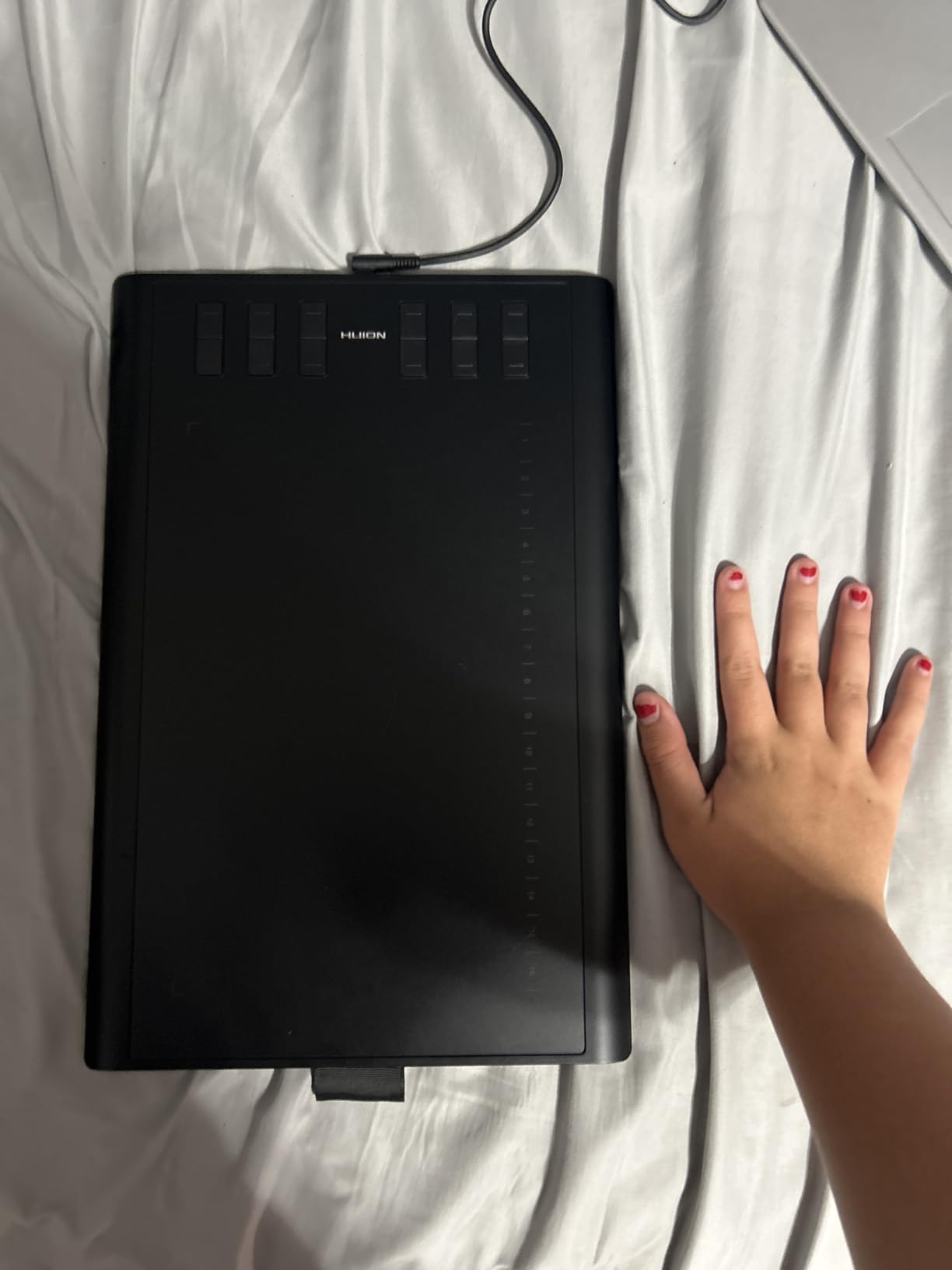
The HUION Inspiroy H1060P is the tablet I reach for when I need maximum shortcut control without buying a pen display. With 12 programmable press keys and 16 additional soft keys, you can map an entire workflow onto the tablet surface. That is 28 customizable controls, which is more than most competitors offer at any price point.
The 10 by 6.25 inch active area matches the XPPen Deco 01 V3 in size, giving you plenty of room for sweeping strokes. The 8192-level pressure sensitivity paired with 60-degree tilt support handles everything from fine line work to broad shading. I found the pen tracking accurate and consistent across long drawing sessions.
Huion’s symmetrical design means the tablet works equally well whether you are left or right-handed. The battery-free PW100 stylus requires no charging, and the pen buttons provide quick access to eraser and right-click functions. Compatibility covers Windows, macOS, Android, and Linux via Ubuntu.
There are some notable compatibility quirks to be aware of. Several users have reported a cursor display issue specifically with Samsung Galaxy S series phones. On Linux, the tablet only works with the Xorg display server, not Wayland, which may affect users on newer Linux distributions.
For artists who rely heavily on keyboard shortcuts, the sheer number of programmable keys is a game-changer. I mapped brush size, opacity, layer switching, undo, zoom, and tool selection all to the tablet surface. Once configured, I barely touched my keyboard during a full illustration session.
Programmable Keys and Workflow Speed
The 28 total programmable controls let you create a fully customized shortcut layout tailored to your software of choice. This dramatically speeds up workflow once you build muscle memory for each key. Professional illustrators working in Photoshop or Clip Studio will appreciate the depth of customization available.
Linux and Android Compatibility Notes
Before buying, check your Linux display server since Wayland is not supported and you will need Xorg. Android compatibility works well on most devices, but Samsung Galaxy S series users have reported cursor tracking problems. If you use either platform, research your specific device before committing.
5. GAOMON PD1161 – The Most Affordable Pen Display for First-Time Screen Drawing
GAOMON PD1161 Drawing Tablet with Screen, Tilt, 8 Shortcut Keys, 11.6″ FHD
11.6 inch Full HD IPS
8192 pressure levels
72% NTSC color
60 degree tilt
8 shortcut keys
Pros
- Direct on-screen drawing with Full HD IPS display
- 72% NTSC color gamut with 16.7 million colors
- Battery-free stylus with 8192 pressure levels
- 8 programmable shortcut keys
- Matte film provides paper-like drawing feel
Cons
- Not a standalone tablet and requires computer connection
- Higher price than non-display tablets
- Requires HDMI and USB ports
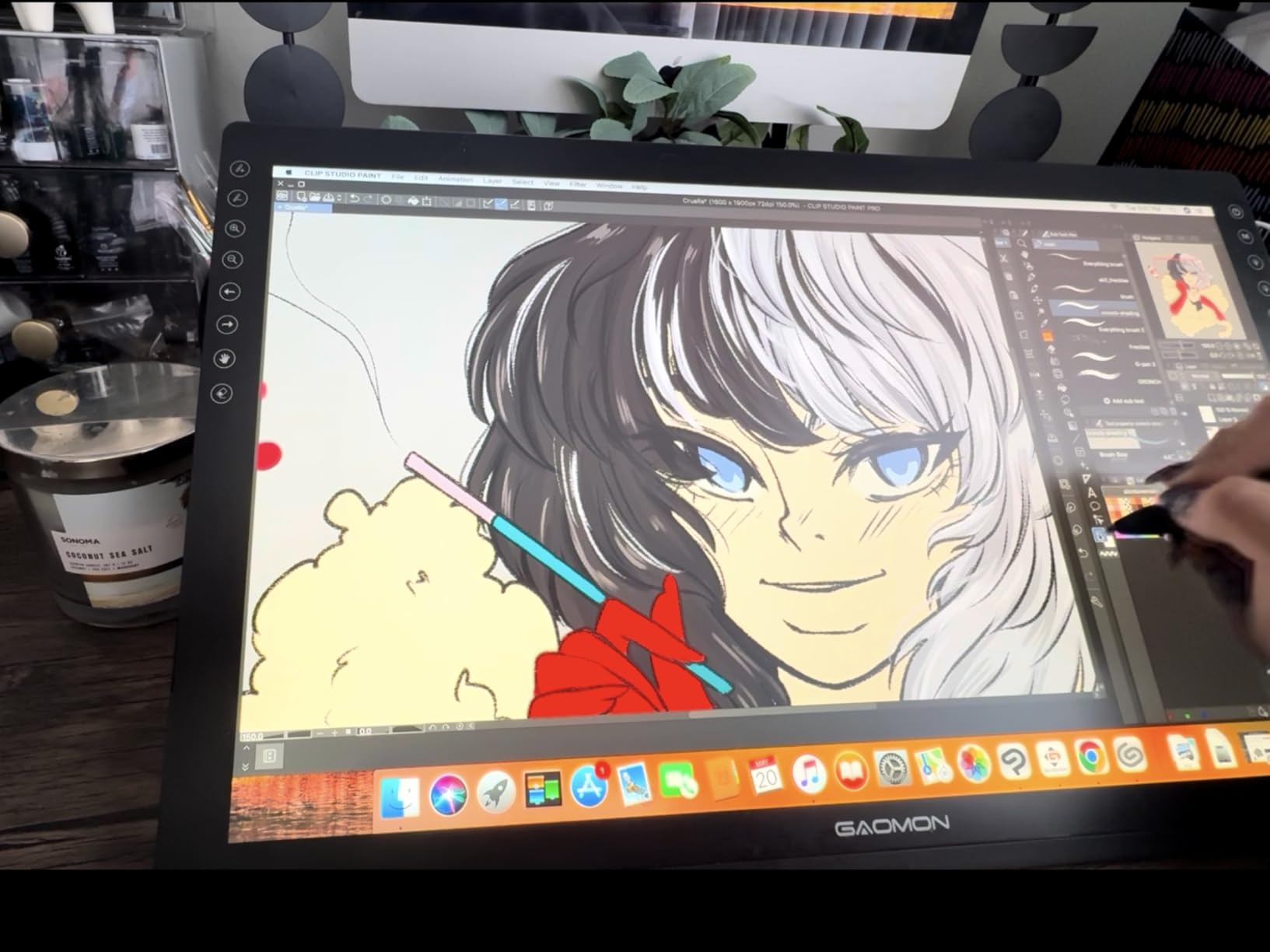
The GAOMON PD1161 is the tablet that convinced me pen displays do not have to cost a fortune. Drawing directly on an 11.6-inch Full HD screen feels fundamentally different from using a non-display tablet where you watch the monitor. For beginners who struggle with hand-eye coordination, this direct-drawing experience makes the learning curve much gentler.
The 72% NTSC color gamut delivers 16.7 million colors with respectable accuracy for this price range. I tested color-critical work in Photoshop and found the display reliable enough for general illustration and photo touch-ups. The included matte anti-glare film adds a paper-like texture that many artists prefer over glossy glass.
The AP50 battery-free stylus offers 8192 pressure levels and 60-degree tilt support, matching the specs of more expensive competitors. Eight programmable press keys line the side of the display for quick access to shortcuts. The pen tracks smoothly with minimal lag during normal drawing speed.
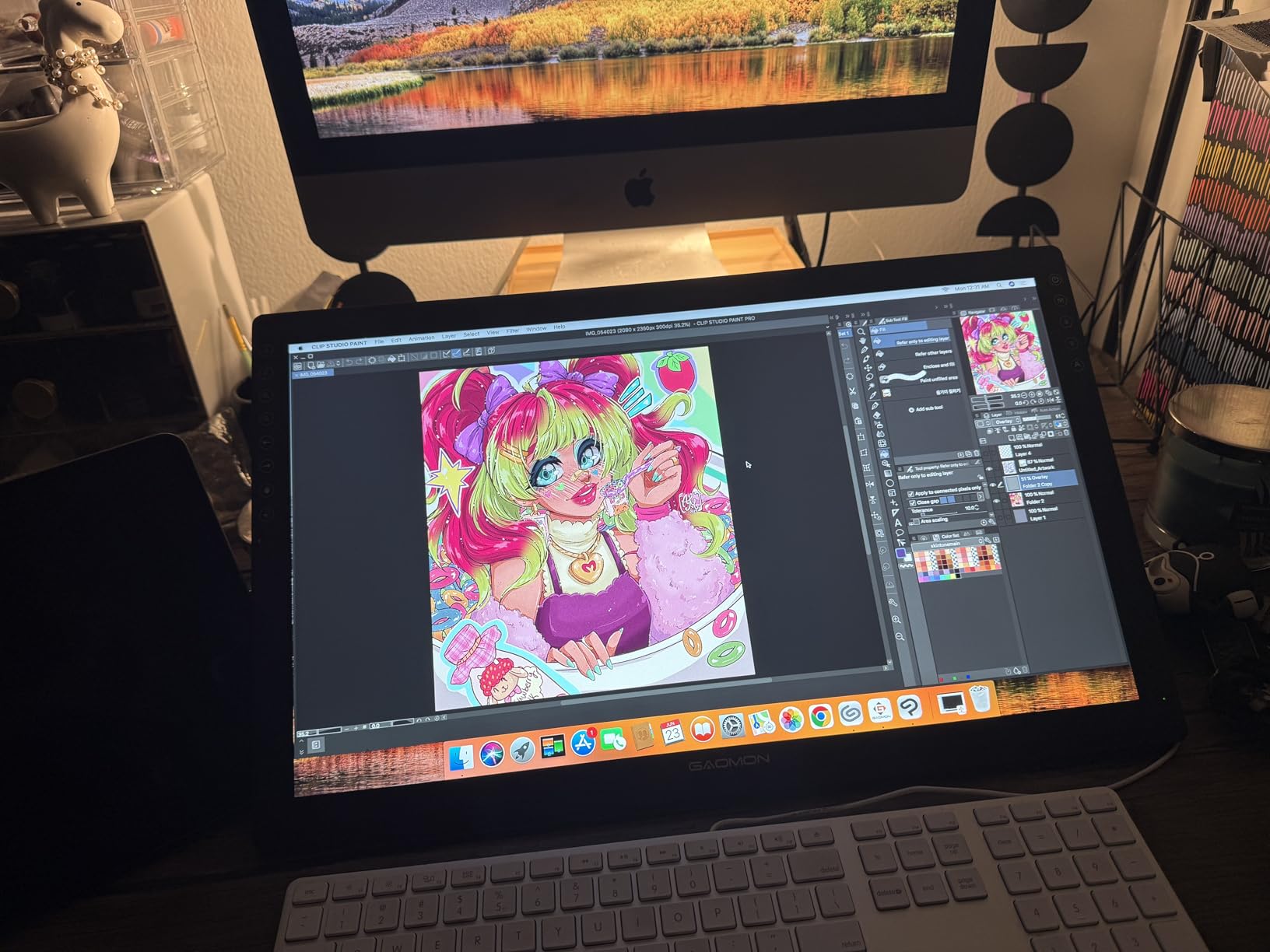
The main catch is that this is not a standalone tablet. You must connect it to a laptop or desktop via HDMI and USB, which means it is not portable in the way an iPad is. The dual-cable connection also requires both HDMI and USB ports on your computer.
Setup was straightforward on Windows, though I needed to install the Gaomon driver from their website before the pressure sensitivity activated. Mac users should verify macOS compatibility on the Gaomon site before purchasing, as driver updates sometimes lag behind OS releases.
Screen Drawing for Beginners
If you have never used a pen display before, the direct on-screen drawing experience is transformative for beginners. You see your strokes appear exactly where your pen touches, eliminating the disconnect of non-display tablets. This makes the GAOMON PD1161 one of the most accessible entry points into screen-based digital art.
Color Accuracy for Illustration Work
The 72% NTSC gamut covers 100% of sRGB, which is sufficient for most illustration and web-based artwork. While it will not satisfy professional color graders who need Adobe RGB coverage, it handles everyday creative work well. The 16.7 million color display produces vibrant, accurate visuals for drawing and photo editing.
6. XP-Pen Artist 12 – A Reliable FHD Pen Display With Wide Software Compatibility
XP-PEN Artist12 11.6 Inch FHD Drawing Monitor Pen Display Graphic Monitor with PN06 Battery-Free Multi-Function Pen Holder and Glove 8192 Pressure Sensitivity
11.6 inch FHD IPS
8192 pressure levels
72% NTSC
6 shortcut keys
Battery-free stylus with eraser
Pros
- Universal compatibility with Windows Mac and Linux
- 11.6 inch FHD IPS display with 72% NTSC
- Battery-free stylus with eraser function
- 6 customizable shortcut keys
- Compatible with all major creative software
Cons
- Requires connection to a computer and is not standalone
- May need adapters for some laptops
The XP-Pen Artist 12 is the pen display I recommend when someone wants a proven, widely-compatible screen tablet without paying premium prices. With over 12,000 customer reviews, it has one of the largest user bases of any pen display in this size category. That volume of feedback means most compatibility issues are well-documented and solved.
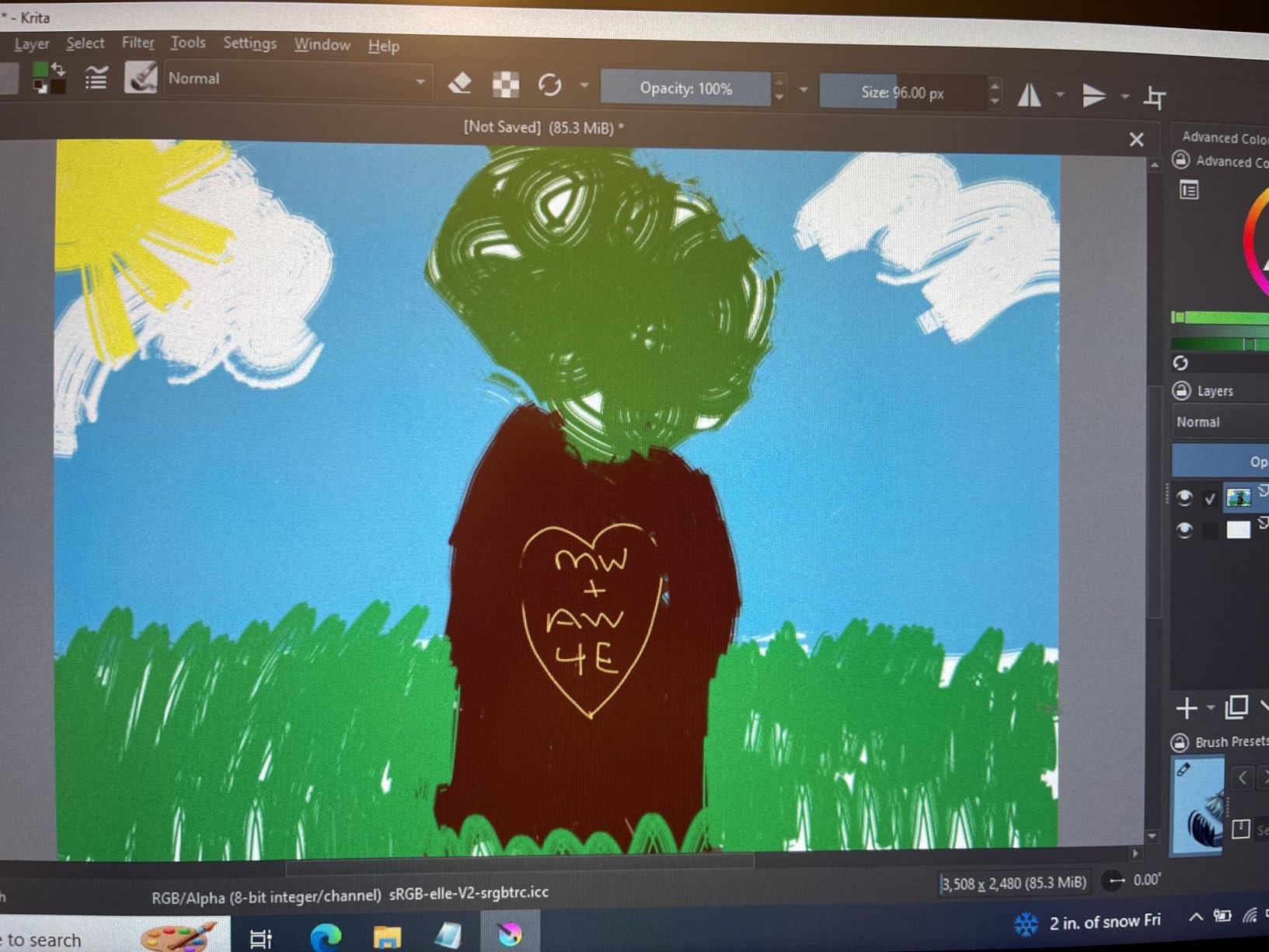
The 11.6-inch Full HD IPS display offers 72% NTSC color gamut coverage, putting it on par with the GAOMON PD1161 for color performance. The anti-reflective screen protector comes pre-installed, which saves you the frustration of applying one yourself. I appreciated the pre-installed protector since bubbles and misalignment are common headaches.
The battery-free stylus includes an eraser function on the pen end, a small but genuinely useful feature. Six customizable shortcut keys sit along the edge of the display. I mapped undo, brush size, layer controls, and zoom to these keys and found them well-placed for right-handed use.
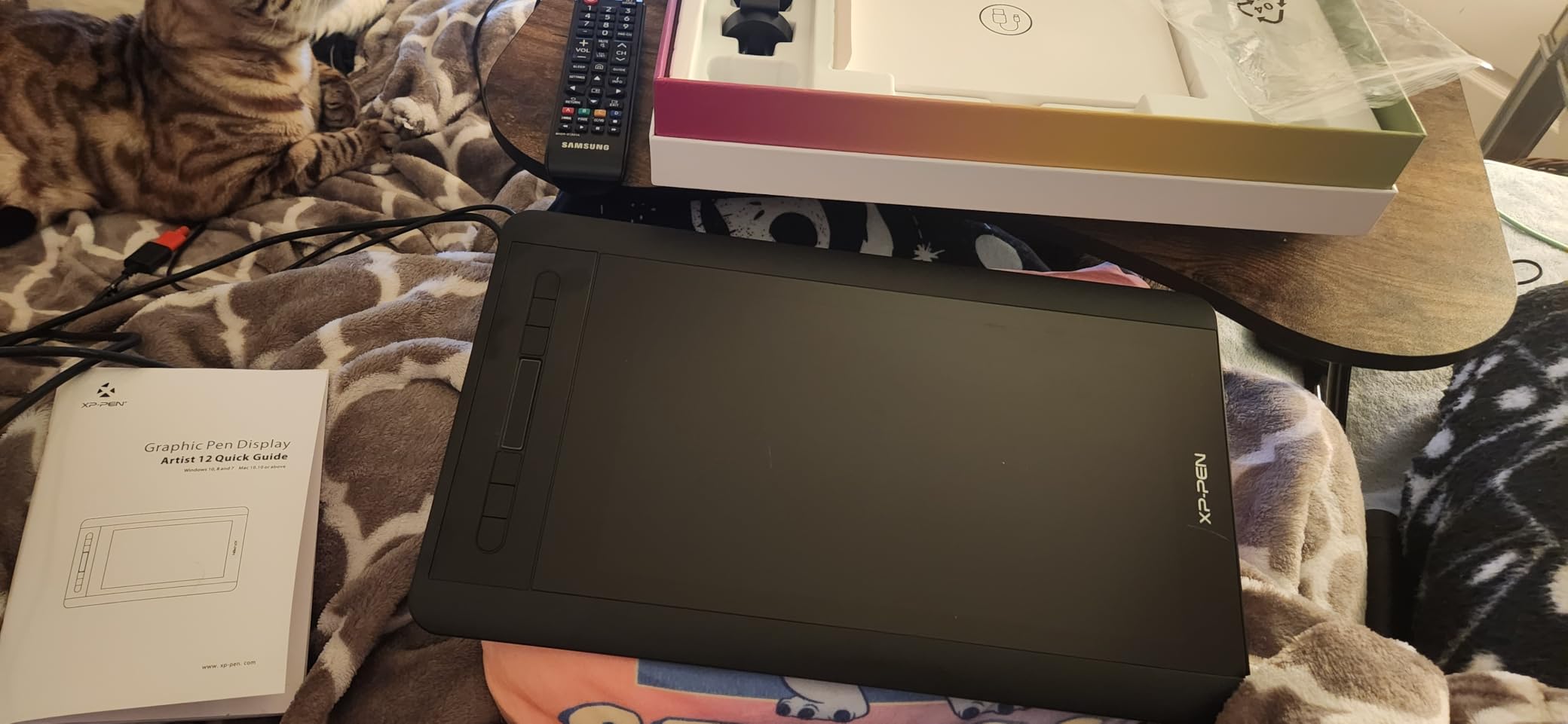
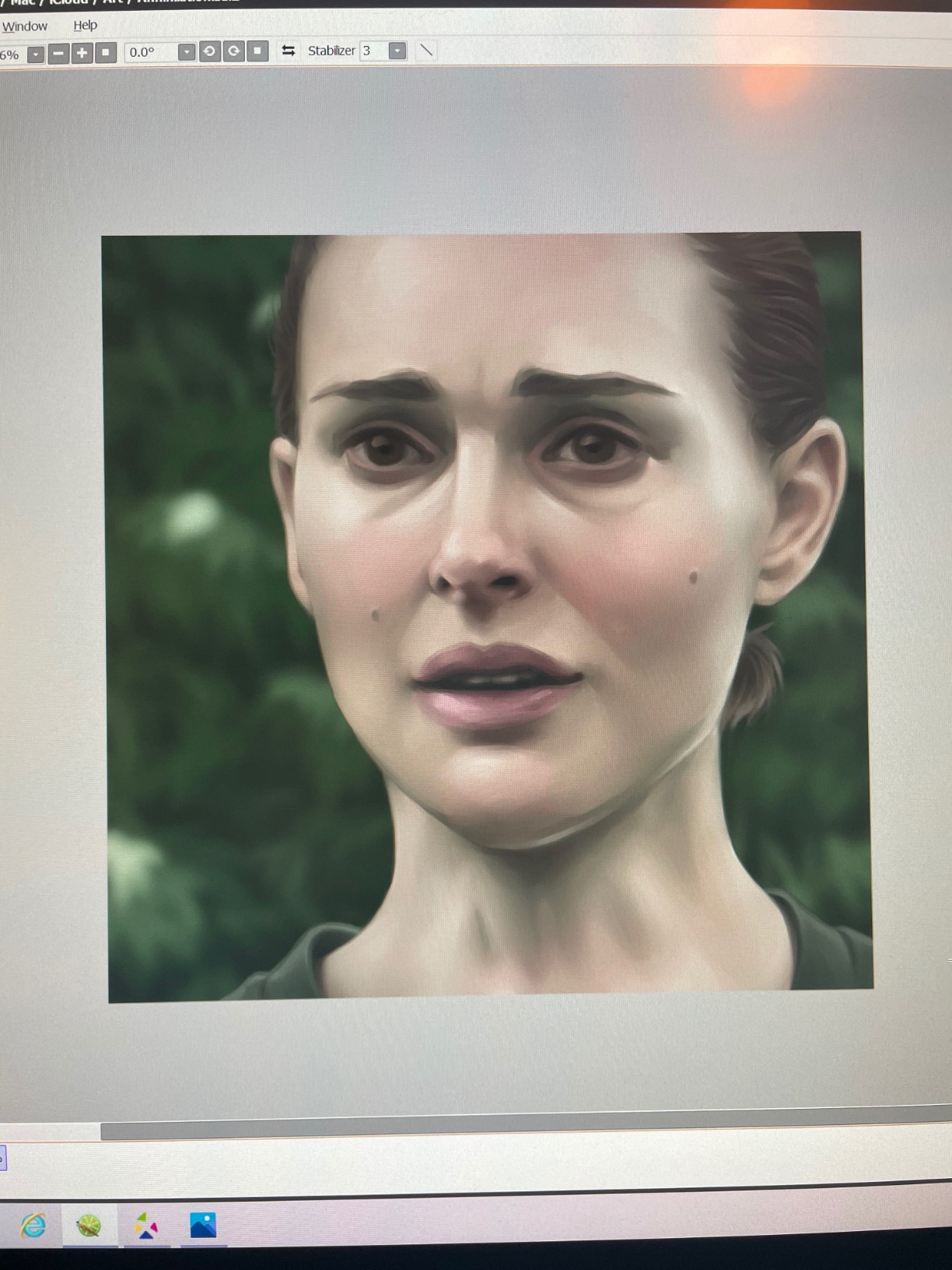
Compatibility is where the Artist 12 shines brightest. It works with Windows 7 through 11, macOS 10.10 and later, and Linux distributions. I tested it with Photoshop, Illustrator, SAI, Clip Studio Paint, and MediBang Paint, and it performed reliably across all of them.
The main limitation is that it requires a computer connection via HDMI and USB. Some modern laptops with only USB-C ports will need an adapter or hub. This is not a standalone device, so you cannot use it independently like an iPad or Samsung Galaxy Tab.
Pre-Installed Anti-Reflective Protector
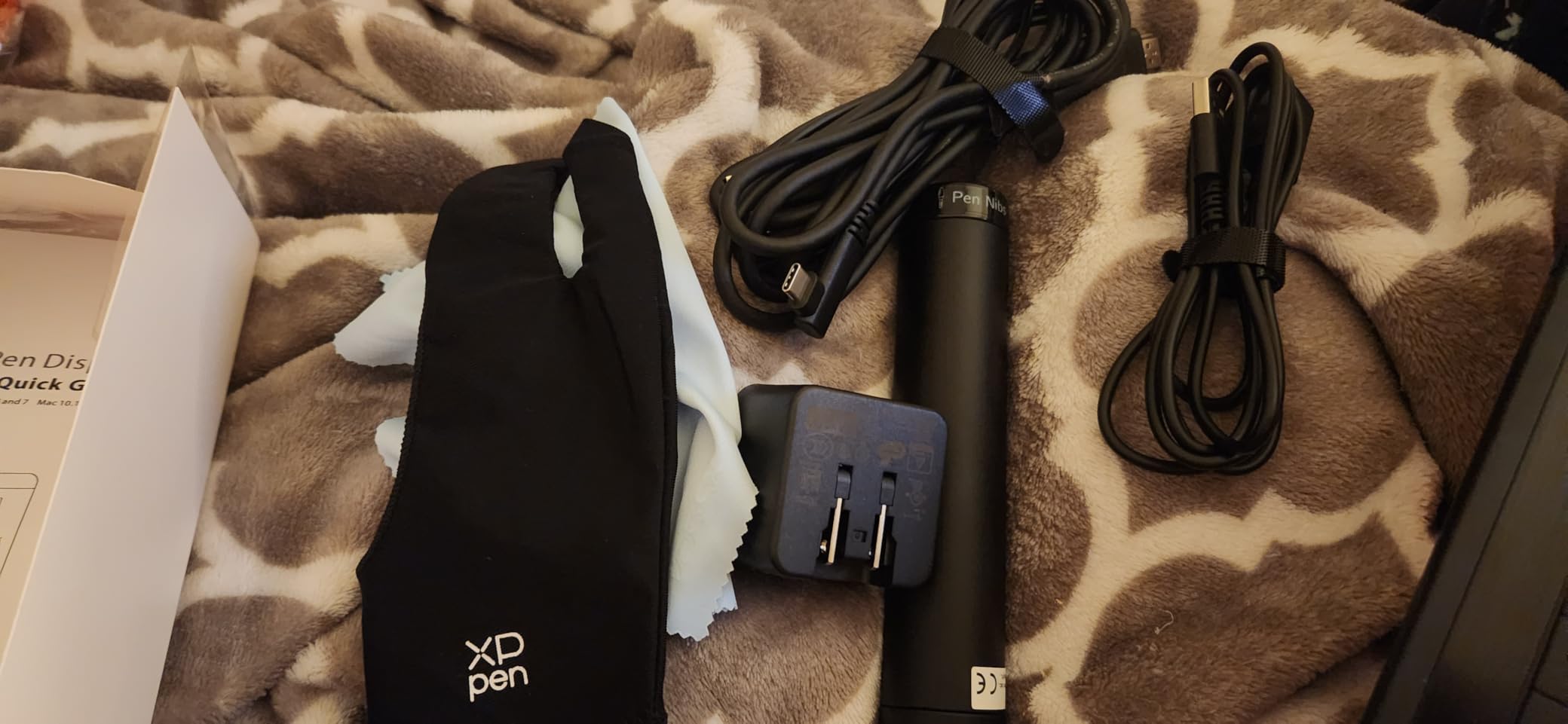
The anti-reflective screen protector comes factory-applied, eliminating the stress of installing one yourself without bubbles. It reduces glare from overhead lights and adds subtle texture for a more natural drawing feel. This thoughtful inclusion saves you money and hassle right out of the box.
Software Compatibility Across Platforms
The Artist 12 has been tested with virtually every major creative application, from Photoshop and Illustrator to free alternatives like Krita and MediBang. Cross-platform support for Windows, Mac, and Linux means it fits into almost any existing creative setup. This broad compatibility makes it a safe bet regardless of your preferred software.
7. XPPen Artist 12 Pro – The Best Pen Display for Parallax-Free Drawing on a Budget
XPPen Artist12 Pro 11.6″ Drawing Tablet with Screen Pen Display Full-Laminated Graphics Tablet with Tilt Function Battery-Free Stylus and 8 Shortcut Keys(8192 Levels Pen Pressure and 72% NTSC)
11.6 inch Full-Laminated
8192 pressure levels
60 degree tilt
Red Dial
8 shortcut keys
Pros
- 60 degree tilt function for natural shading
- Red Dial interface for smooth workflow control
- 8 customizable shortcut keys
- Full-laminated screen eliminates parallax
- 3-in-1 cable means no adapters needed
Cons
- Requires connection to a computer and is not standalone
- Heavier than non-display tablets
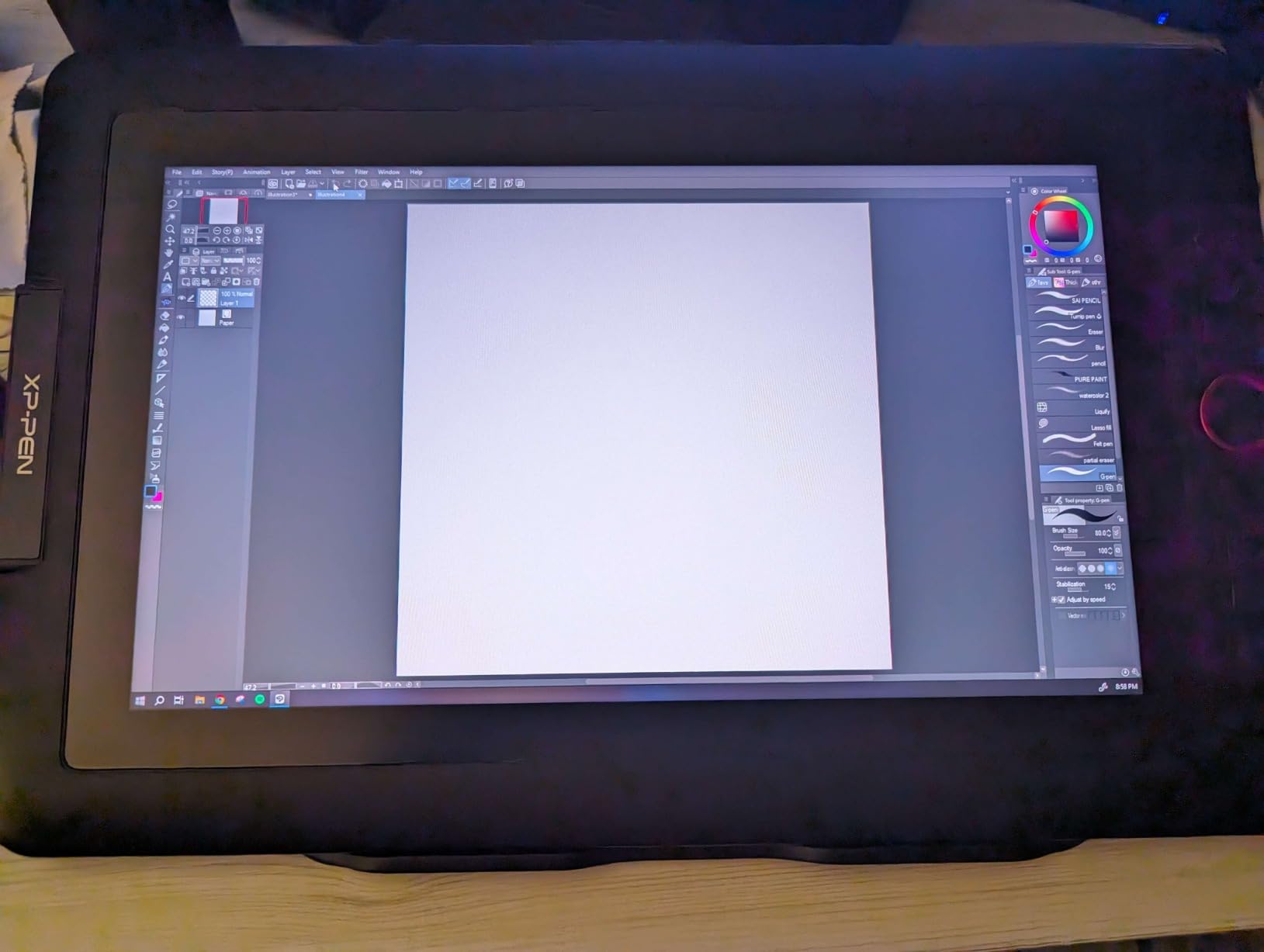
The XPPen Artist 12 Pro is my top recommendation for artists who want a pen display with professional features at a reasonable price. The full-laminated screen is the standout feature here. It eliminates the gap between the glass surface and the display underneath, which means no parallax.
Your pen tip and your cursor line up perfectly, every single time. I cannot overstate how much parallax-free drawing improves accuracy. On non-laminated displays, there is always a slight offset between where the pen touches and where the line appears.
The Artist 12 Pro removes that frustration entirely. Combined with 8192 pressure levels and 60-degree tilt support, the drawing experience feels precise and natural. The Red Dial interface is a clever addition that sets this tablet apart from the standard Artist 12.
This mechanical dial lets you control brush size, zoom, or canvas rotation with a simple turn. I mapped it to brush size adjustment, and it became second nature within an hour of use. The 3-in-1 cable design is another thoughtful touch that replaces separate HDMI and USB cables with one combined connection.
That means no adapter hunting, and cable management on your desk stays clean. The included portable stand, cleaning cloth, and drawing glove round out a genuinely complete package. The 4.6-star average rating from over 7,600 reviews confirms this is a crowd-pleaser.
Full-Laminated Screen Technology
Full lamination bonds the glass, touch layer, and display panel into a single unit with no air gap between them. This eliminates parallax, which is the visual offset between the pen tip and cursor that plagues cheaper pen displays. For artists who demand pixel-perfect accuracy, this technology makes a noticeable difference.
Red Dial Workflow Control
The Red Dial is a physical scroll wheel that you can program for various functions based on your active software. Common uses include zoom, brush size, canvas rotation, and layer scrolling. Once you build muscle memory, it becomes an indispensable part of your drawing workflow that speeds up production significantly.
8. XPPen Artist 13.3 Pro – A Color-Accurate Pen Display Built for Photo and Illustration
XPPen Artist 13.3 Pro 13.3″ Drawing Tablet with Screen, 16K, Full-Laminated
13.3 inch Full-Laminated FHD
16384 pressure levels
123% sRGB
60 degree tilt
Red Dial
Pros
- 13.3 inch Full-Laminated display with 123% sRGB
- 16384 pressure levels highest in category
- 60 degree tilt function
- Red Dial interface for workflow efficiency
- Wide compatibility including Chrome OS
Cons
- Requires connection to a computer and is not standalone
- Heavier than smaller display models
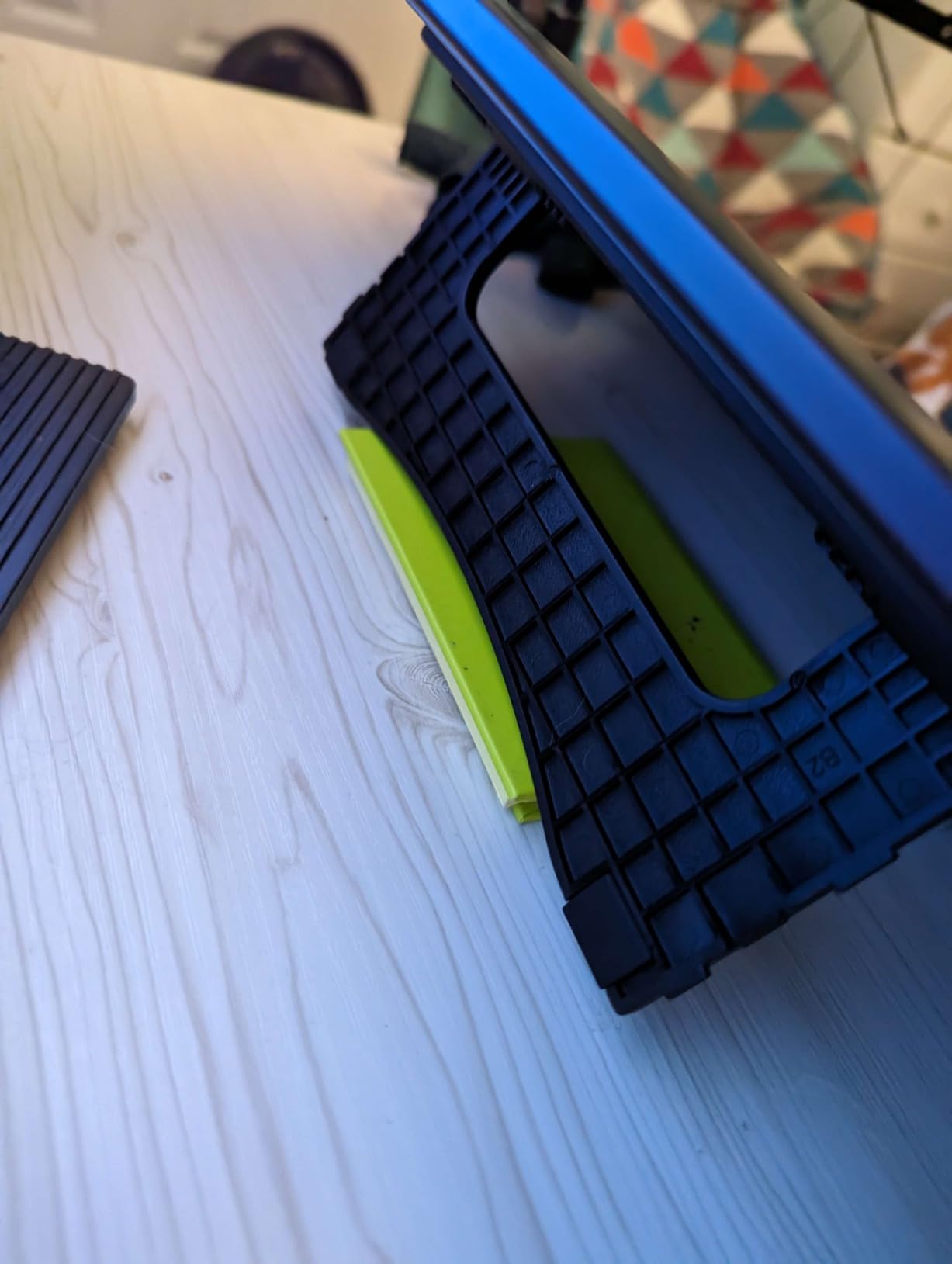
The XPPen Artist 13.3 Pro is the tablet I recommend when color accuracy is non-negotiable. The 13.3-inch full-laminated display covers 123% of the sRGB color space, 88% NTSC, and 91% Adobe RGB. For photo editors and illustrators who need their colors to translate accurately to print and web, those numbers matter.
During my testing, I compared color output against a calibrated monitor and the Artist 13.3 Pro held its own impressively well. Skin tones, vibrant illustrations, and subtle gradients all rendered with rich, accurate color. The 178-degree viewing angle means the colors stay consistent even when viewing from the side.
The pressure sensitivity jumps to 16384 levels, the highest in this entire lineup. Combined with 60-degree tilt support and the Red Dial interface, this display offers professional-grade control features. The eight customizable shortcut keys and included multifunctional pen case with eight replacement nibs round out a premium package.
At 2 kilograms, this is one of the heavier tablets in the roundup. The larger 13.3-inch screen adds weight, but it also provides a more spacious drawing area for detailed work. XP-Pen explicitly designed this model for beginners stepping up to a larger, more capable display.
Compatibility is excellent, covering Windows 7 through 11, macOS 10.10 and later, Linux, and Chrome OS. The anti-glare coating reduces reflections from ambient light, which helps during long sessions. This is one of the best graphics tablets for artists who prioritize color fidelity without spending professional Wacom money.
Color Gamut and Photo Editing Performance
The 123% sRGB coverage exceeds the standard sRGB color space, giving you headroom for vibrant, saturated colors that pop on screen. For photographers doing color correction, the 91% Adobe RGB coverage handles most print-relevant work. This color performance rivals displays costing significantly more.
16384 Pressure Levels for Fine Control
Doubling the standard 8192 levels to 16384 gives you finer granularity in pressure response, particularly at the lightest touch range. This translates to smoother transitions between thin and thick strokes without visible stepping. For artists who specialize in delicate line work and subtle shading, the difference is tangible.
9. XPPen Artist 15.6 Pro – The Best Large Pen Display for Spreadsheets, Comics, and Big Art
15.6″ Drawing Tablet with Screen XPPen Artist 15.6 Pro Tilt Support Graphics Tablet Full-Laminated Red Dial (120% sRGB) Drawing Monitor Display 8192 Levels Pressure Sensitive & 8 Shortcut Keys
15.6 inch Full-Laminated IPS
8192 pressure levels
120% sRGB
Red Dial
8 shortcut keys
Pros
- Large 15.6 inch Full-Laminated display
- 120% sRGB color accuracy
- Red Dial interface for smooth workflow
- 8 customizable express keys
- Slim 11mm profile with adjustable brightness
Cons
- Requires connection to a computer and is not standalone
- Heavy at 3300 grams
- Requires DVI HDMI or USB connectivity
The XPPen Artist 15.6 Pro is the largest pen display in this roundup, and size makes a real difference for certain types of work. Comic artists, storyboard creators, and anyone working on wide-format illustrations will appreciate the extra real estate. The 13.55 by 7.62 inch active drawing area gives you the freedom to work at full scale without constant zooming and panning.
The 120% sRGB color accuracy sits between the Artist 12 Pro and the 13.3 Pro, providing strong color performance for most creative work. The full-laminated IPS display eliminates parallax, so your pen tip aligns perfectly with the cursor. The 178-degree viewing angle keeps colors consistent from any position.
XP-Pen kept the profile impressively slim at 11mm despite the large screen size. The adjustable brightness control lets you tune the display for different lighting environments, which I found useful when working in both bright and dim rooms. The Red Dial and eight express keys mirror the control scheme of the smaller Artist Pro models.
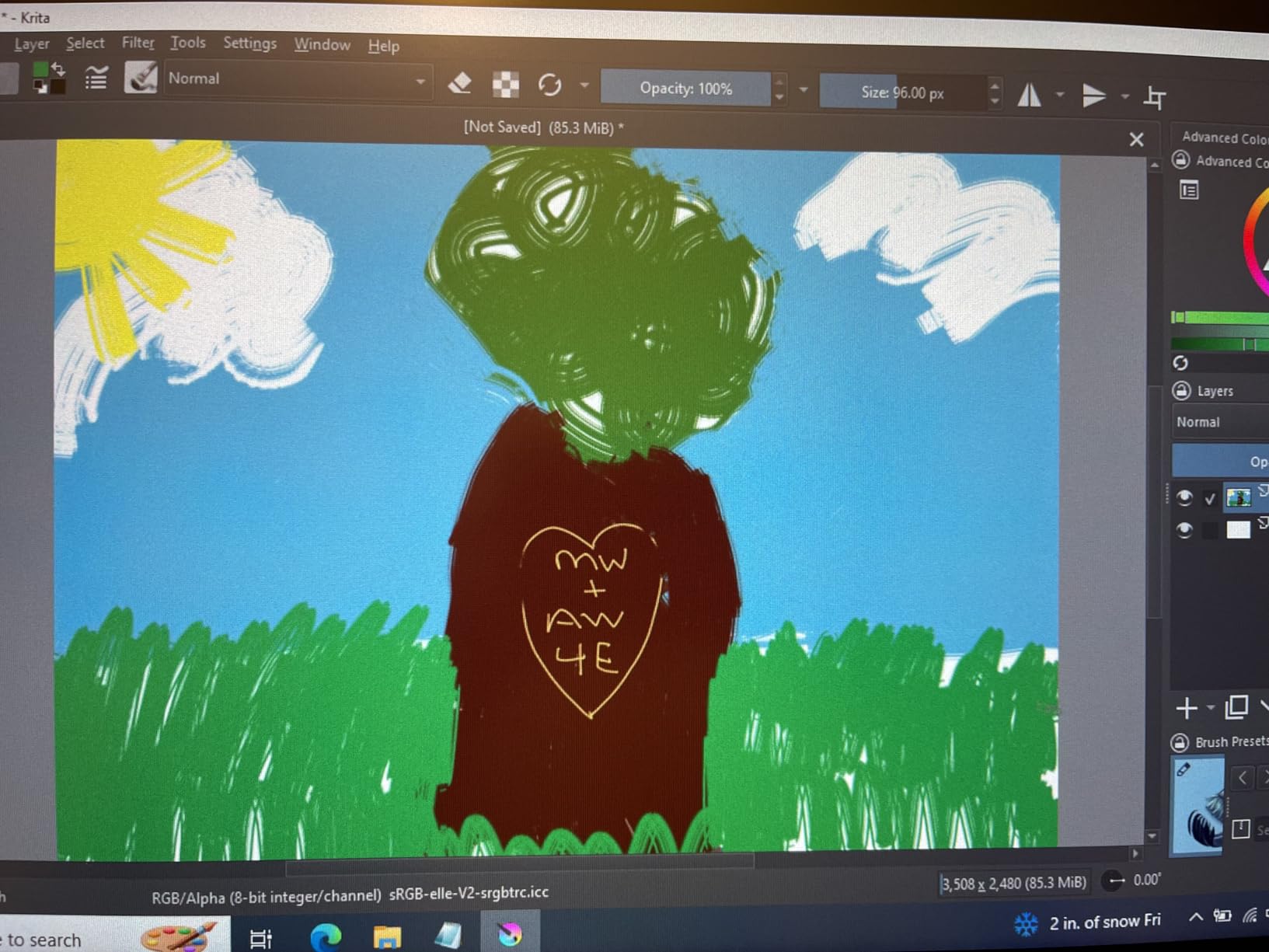
The PA2 battery-free stylus provides 8192 pressure levels and tracks with minimal lag. I tested it across Photoshop, Clip Studio Paint, and Krita, and the performance was consistent throughout. The drawing surface has a slight texture that provides tactile feedback similar to drawing on paper.
The weight is the main trade-off, as this tablet comes in at 3,300 grams. The connectivity options include DVI, HDMI, and USB, so check that your computer has the right ports. This is a desktop-bound creative tool, not a portable sketching companion.
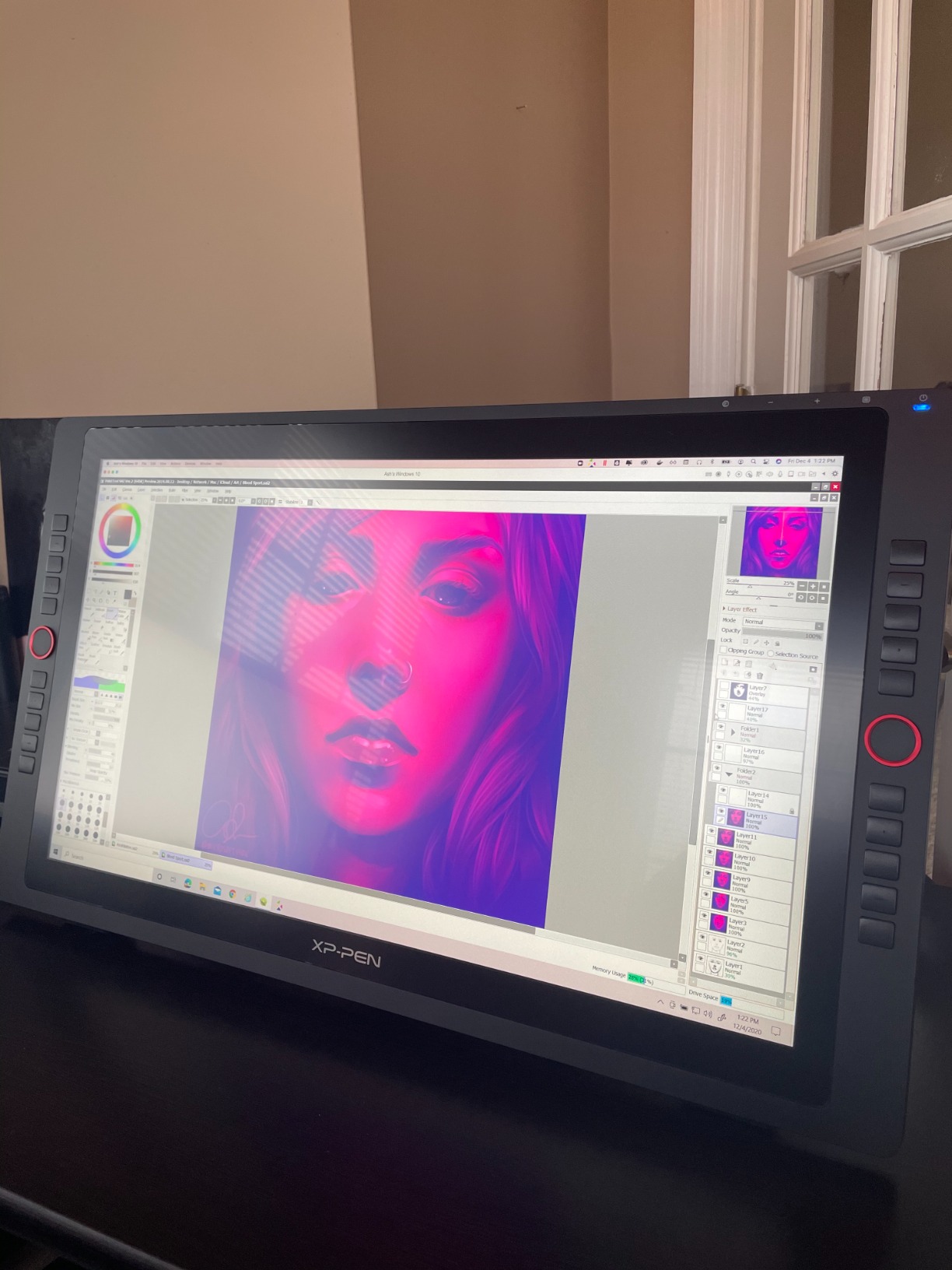
Large Canvas Benefits for Comic and Storyboard Artists
The 15.6-inch display lets you see your entire composition at once without scrolling, which is invaluable for comic pages, storyboards, and wide-format illustrations. Working at full scale reduces eye strain and lets you judge proportions and composition more accurately. For artists who work large, this screen size is a meaningful productivity boost.
Adjustable Brightness for Different Environments
The adjustable brightness control lets you match the display output to your ambient lighting, reducing eye strain during extended sessions. Bright settings work well in daylight offices, while dimmer settings suit late-night work in dark rooms. This flexibility makes the Artist 15.6 Pro adaptable to virtually any workspace.
10. Wacom Intuos Pro Medium – The Premium Professional Tablet With Pro Pen 3
Wacom Intuos Pro Medium, Bluetooth Graphic Drawing Tablet with ProPen 3
8192 pressure levels
8.7x5.8 inch area
Pro Pen 3
10 ExpressKeys
Bluetooth wireless
Pros
- Pro Pen 3 with customizable grip and buttons
- 10 customizable ExpressKeys and 2 mechanical dials
- Wireless Bluetooth connectivity
- 4mm thin magnesium construction
- Multi-computer switching capability
Cons
- Premium pricing for a non-display tablet
- Lower review count as a newer product
- No integrated display screen
The Wacom Intuos Pro Medium is the tablet working professionals trust for daily creative work. Wacom’s reputation is not just marketing hype, and after testing this tablet alongside competitors, I understand why studios keep coming back. The build quality, pen performance, and driver reliability set a standard that other brands are still chasing.
The Pro Pen 3 is the star of the show. It offers 8192 pressure levels with tilt support and lag-free tracking, but what sets it apart is the customizable grip. You can adjust the pen weight, balance, and button configuration to match your hand perfectly.
After years of using generic styli, the Pro Pen 3 felt like an extension of my hand rather than a plastic tool. The 8.7 by 5.8 inch active area uses a 16:9 aspect ratio that matches modern monitors, so your drawing maps proportionally to your screen. Ten customizable ExpressKeys and two mechanical dials give you professional-level control without reaching for a keyboard.
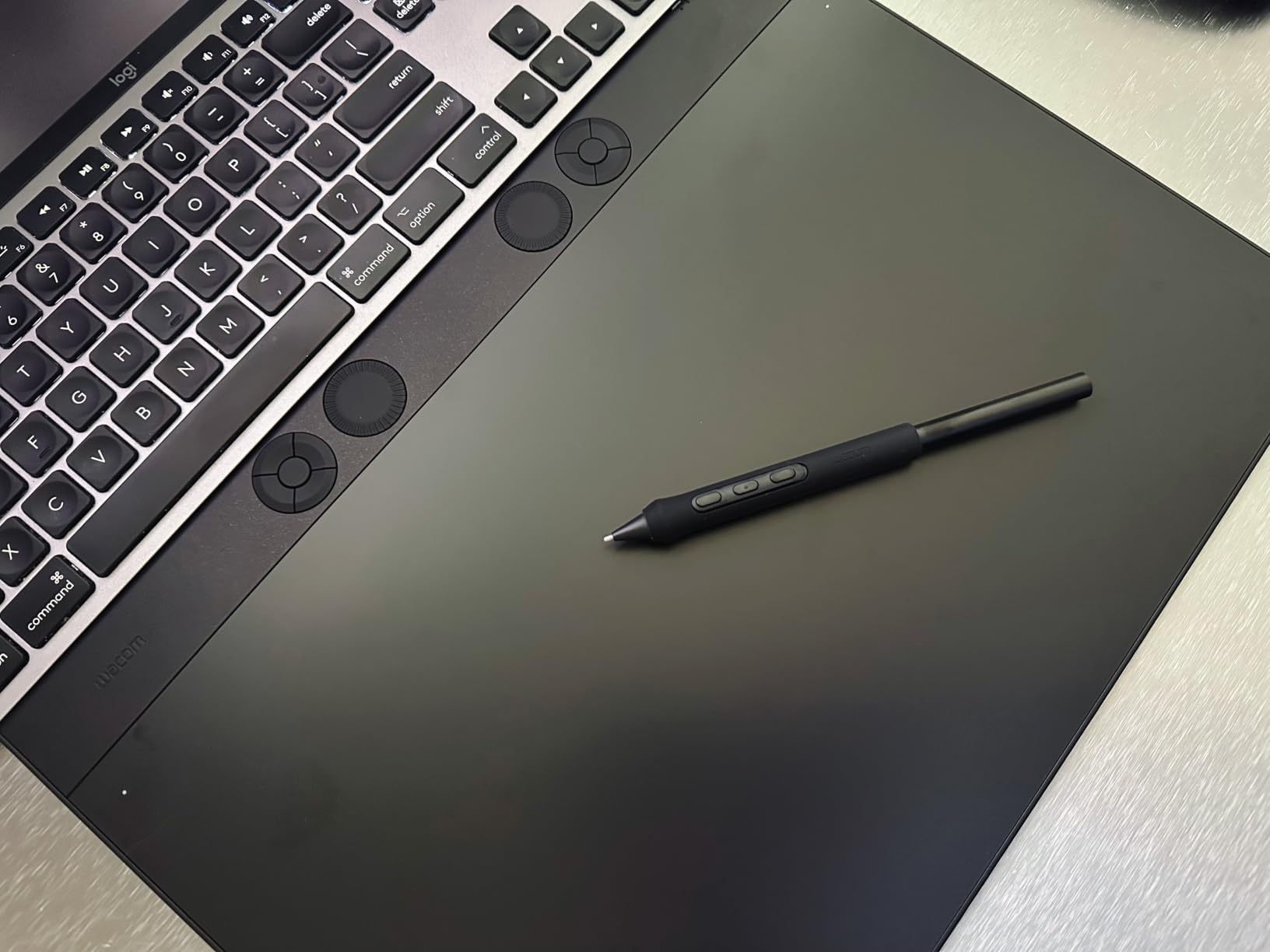
Bluetooth connectivity means you can work wirelessly, and the multi-computer switching feature lets you jump between two paired computers with a button press. I tested switching between my desktop and laptop, and it worked seamlessly. The 5080 LPI resolution provides the highest line resolution of any tablet in this roundup.
The main drawback is the price. This is a premium investment for a non-display tablet, and the review count is still relatively low since it is a newer product. The answer to whether it is worth it lies in the overall experience and reliability that Wacom delivers.
Pro Pen 3 Customization Options
The Pro Pen 3 allows you to customize the pen weight, grip thickness, and side switch configuration to suit your personal drawing style. This level of personalization is rare among stylus pens and makes a meaningful difference in comfort during marathon drawing sessions. Professional artists who spend hours daily with a pen in hand will appreciate this attention to ergonomics.
Wireless Workflow and Multi-Computer Switching
The Bluetooth connectivity frees you from cable tangles, and the multi-computer switching lets you pair two computers and toggle between them instantly. This is ideal for professionals who work across a desktop and a laptop. The wireless range is reliable within typical desk distances, and the tablet charges via USB-C.
Buying Guide: How to Choose the Best Graphics Tablet for Your Work?
Choosing among the best graphics tablets comes down to understanding your own needs and matching them to the right specs. The confusion most buyers feel comes from not knowing which numbers actually matter and which are marketing fluff. After testing all 10 tablets in this guide, I can break down the decisions that will shape your experience.
Screen vs Non-Screen: Which Should You Buy
This is the single biggest decision you will make, and it comes up constantly on Reddit’s drawing tablet communities. Non-screen tablets, like the Wacom Intuos or XPPen Deco series, require you to draw on a pad while watching your computer monitor. Pen displays, like the GAOMON PD1161 or XPPen Artist series, let you draw directly on the screen.
Non-screen tablets are cheaper, lighter, and more portable. They also tend to have better driver stability because the technology is simpler. The trade-off is the hand-eye coordination learning curve, which can frustrate beginners who are used to traditional drawing.
Pen displays feel more natural because you draw where you look. They eliminate the disconnect entirely, which is why many beginners prefer them. The downsides are higher cost, more weight, and the need for both power and video connections to your computer.
My recommendation: start with a non-screen tablet if budget is a concern and you are willing to adapt. Go straight to a pen display if you know the hand-eye disconnect will kill your motivation. Neither choice is wrong, but matching it to your personality matters more than any spec sheet.
Pressure Sensitivity and Pen Tilt Explained
Pressure sensitivity determines how much your line thickness and opacity change based on how hard you press the pen. Most tablets offer 4096 or 8192 levels, while newer models push to 16384. Higher numbers mean finer control at the lightest touch range, but the difference is most noticeable to experienced artists who have developed a sensitive hand.
For beginners, anything at 4096 levels or above is perfectly adequate. I could not reliably distinguish between 8192 and 16384 levels during casual sketching. The spec matters more for professional illustrators doing nuanced shading and fine line variation.
Pen tilt support lets the tablet detect the angle at which you hold the pen. This enables techniques like side-shading, where you angle the pen to create broad, textured strokes. If you come from traditional art and rely on pencil techniques, tilt support is worth prioritizing.
Look for tablets with at least 60 degrees of tilt recognition. Anything less limits the range of angled strokes you can produce. The difference becomes especially noticeable when doing textured shading and calligraphy-style linework.
Active Area Size and Drawing Comfort
The active drawing area determines how much physical space you have for strokes. Small tablets with 6 by 4 inch areas are portable but require frequent zooming for detailed work. Medium tablets around 10 by 6 inches hit a sweet spot between workspace and portability.
Larger is not always better. A tablet that is too big for your desk or too heavy to move becomes a burden. I recommend measuring your available desk space before buying and choosing a size that fits comfortably alongside your keyboard and monitor.
For pen displays, screen size directly affects both workspace and portability. An 11.6-inch display is compact and travel-friendly, while a 15.6-inch display provides maximum canvas space but stays planted on your desk. Think about where you actually work before deciding.
Software Compatibility and Driver Stability
Driver issues are the number one complaint in drawing tablet forums. A tablet with perfect hardware becomes useless if the driver software crashes, drops pressure sensitivity, or conflicts with your operating system. Wacom has the most stable drivers in my experience, followed by XP-Pen and Huion in that order.
Always check compatibility with your specific creative software before buying. Most tablets work with Photoshop, Clip Studio Paint, and Krita, but compatibility with niche programs can vary. Linux users should pay special attention since driver support on Linux is inconsistent across brands.
One final tip from my testing: always download the latest driver from the manufacturer’s website rather than relying on the included CD or auto-installer. Outdated drivers cause a surprising number of pressure and tracking problems that disappear with a fresh install.
Frequently Asked Questions
What is the best drawing tablet for beginners?
The Wacom Intuos Small is the best drawing tablet for beginners because it offers reliable plug-and-play performance, included software and training, and a trusted brand reputation. For those who prefer drawing directly on a screen, the GAOMON PD1161 provides an affordable pen display entry point with an intuitive on-screen drawing experience.
Which brand of drawing tablet is recommended?
Wacom is the most trusted brand among professional artists, with over 40 years of experience and the most stable drivers. XP-Pen and Huion are excellent alternatives that offer comparable specs at lower prices, making them popular choices for beginners and intermediate artists seeking value.
What graphic tablet should I get as a beginner?
As a beginner, start with an affordable non-display tablet like the HUION Inspiroy H640P or Wacom Intuos Small. These give you 4096 to 8192 pressure levels, battery-free styli, and broad software compatibility without a large investment. If you struggle with hand-eye coordination, consider an entry-level pen display like the GAOMON PD1161 instead.
What is the best tablet for drawing with pen?
The Wacom Intuos Pro Medium with its Pro Pen 3 is the best overall pen tablet for serious artists, offering customizable grip, tilt support, and wireless connectivity. For a pen display where you draw directly on screen, the XPPen Artist 12 Pro delivers parallax-free full-laminated drawing at an accessible price.
Drawing tablet with screen vs without screen – which is better?
A drawing tablet without a screen is cheaper, lighter, more portable, and generally has more stable drivers, but requires learning hand-eye coordination. A drawing tablet with a screen lets you draw directly on the display, which feels more natural and intuitive, especially for beginners. Choose without screen for budget and portability, or with screen for a more natural drawing experience.
Final Verdict: Picking the Best Graphics Tablet in 2026
After testing all 10 models, my top recommendations are clear. The Wacom Intuos Pro Medium stands as the best overall choice for professionals who need reliable performance and the customizable Pro Pen 3. The XPPen Deco 01 V3 delivers the best value with 16384 pressure levels and tilt support at a fraction of premium pricing.
For budget-conscious beginners, the HUION Inspiroy H640P and Wacom Intuos Small both provide excellent entry points. If you want to draw directly on screen without breaking the bank, the XPPen Artist 12 Pro with its full-laminated display is hard to beat among the best graphics tablets available this year.
The right tablet depends on your workflow, budget, and whether you prefer screen or non-screen drawing. Pick the one that matches how you actually create, and you will not go wrong. Check the latest prices using the links above to find the best current deal.