
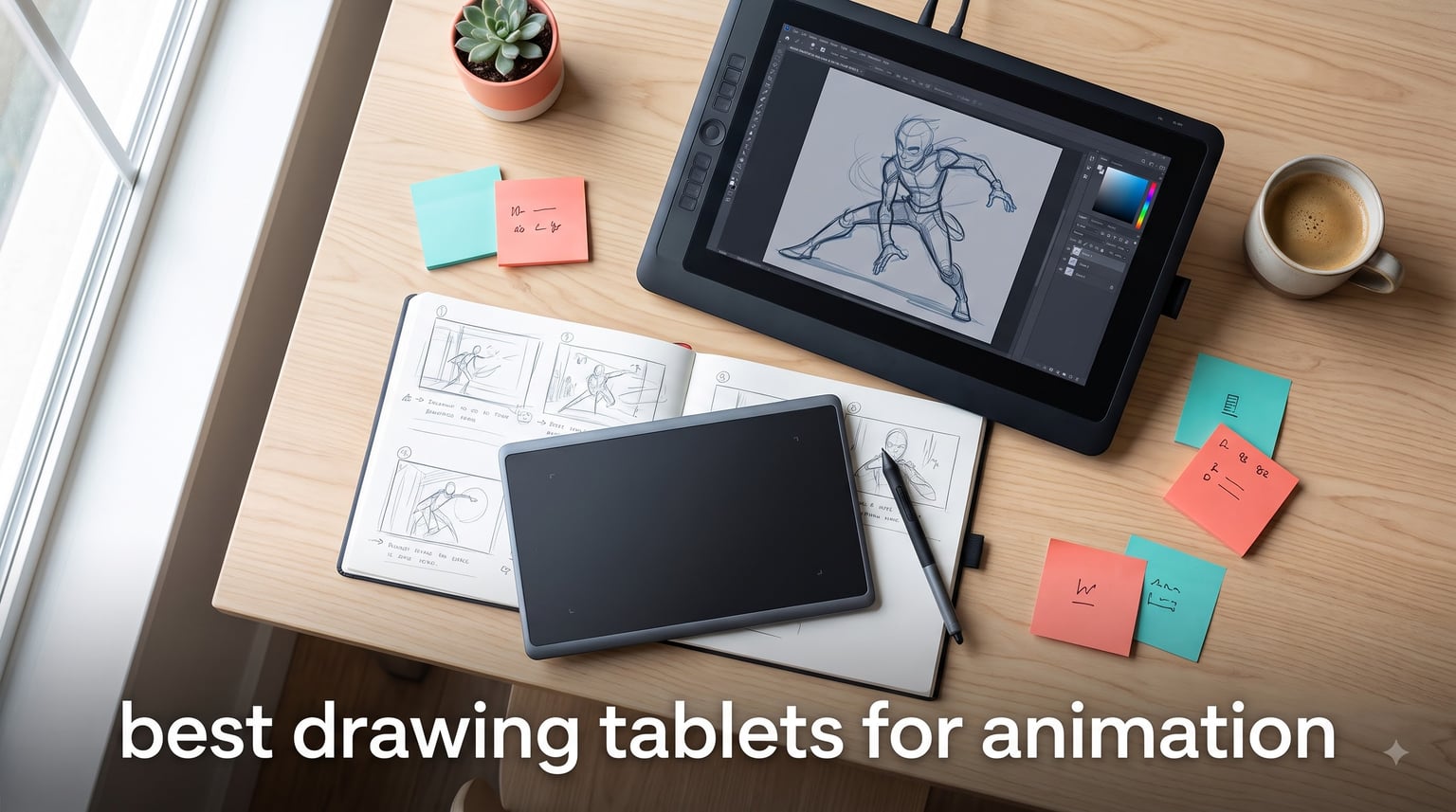
Animation lives and dies by line control. Every frame-by-frame drawing, every squash-and-stretch transition, every subtle in-between depends on a pen that responds exactly the way your hand moves. That is why picking one of the best drawing tablets for animation is the single biggest upgrade you can make to your workflow in 2026.
I have spent the last several years testing drawing tablets, pen displays, and graphics tablets side by side across Adobe Animate, Toon Boom Harmony, Clip Studio Paint, and RoughAnimator. After comparing 8 of the most recommended models across Reddit, YouTube, and the studio scene, I narrowed the field to the picks that actually hold up under long animation sessions.
Below you will find everything from a sub-$50 Wacom for beginners all the way up to the Wacom Cintiq 22 used by working studios. Whether you are sketching character turnarounds, polishing 3D models, or building a portfolio on a tight budget, there is a tablet here that fits the way you animate.
Table of Contents
Top 3 Picks for Best Drawing Tablets for Animation in September

Best Drawing Tablets for Animation in 2026
| Product | Specifications | Action |
|---|---|---|
 Wacom Intuos Small Wacom Intuos Small |
|
Check Latest Price |
 HUION Inspiroy H1060P HUION Inspiroy H1060P |
|
Check Latest Price |
 XPPen Deco Pro LW Gen 2 XPPen Deco Pro LW Gen 2 |
|
Check Latest Price |
 XPPen Artist 13.3 Pro XPPen Artist 13.3 Pro |
|
Check Latest Price |
 HUION Kamvas 13 Gen 3 HUION Kamvas 13 Gen 3 |
|
Check Latest Price |
 GAOMON PD1561 GAOMON PD1561 |
|
Check Latest Price |
 Wacom Intuos Pro Medium Wacom Intuos Pro Medium |
|
Check Latest Price |
| Wacom Cintiq 22 |
|
Check Latest Price |
1. Wacom Intuos Small – Most Trusted Entry-Level Tablet
Wacom Intuos Small, Wired Graphic Drawing Tablet with Pen + Software
6 x 3.7 inch active area
4096 pressure levels
EMR battery-free pen
4 ExpressKeys
USB-A
8.1 ounces
Pros
- Industry-leading pen tracking
- EMR pen feels like real ink
- Includes software and training
- Works with Chromebook Mac Android Windows
- 40-plus years of Wacom reliability
Cons
- 4096 levels is lower than newer models
- No Bluetooth on the Small size
- USB-A only no USB-C cable
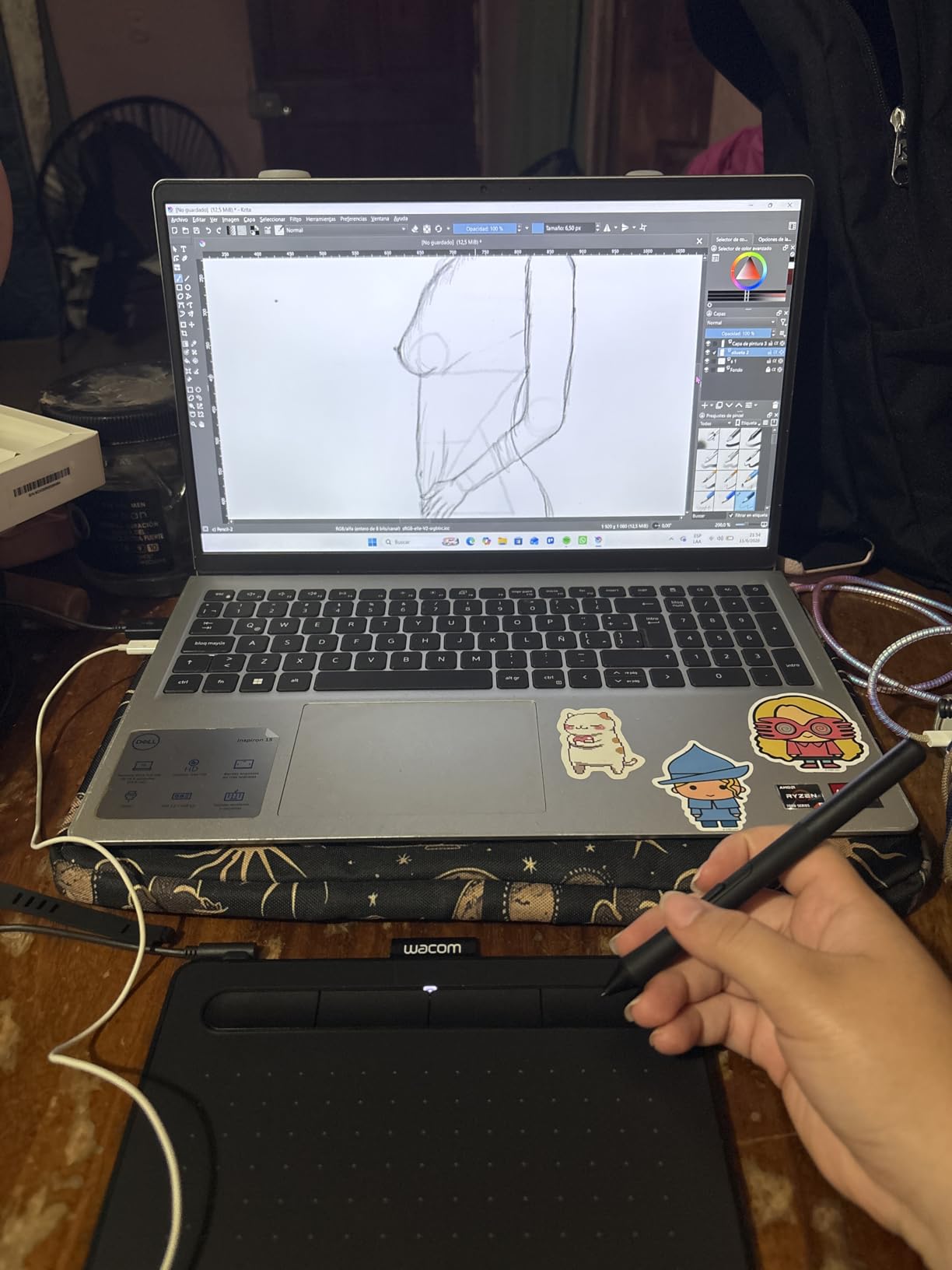
If you are starting your first animation project and do not want to overspend, the Wacom Intuos Small is the entry point I recommend to every beginner who asks. At under two and a half inches thick and just over 8 ounces, it slips into a backpack next to a laptop and is ready to plug in anywhere.
The EMR battery-free pen is the real story here. You never charge it, and it tracks with the kind of precision Wacom has been refining for over 40 years. For frame-by-frame animation in RoughAnimator or Clip Studio Paint, the 4096 pressure levels give you clean line weight transitions without the jitter you get on cheap no-name tablets.
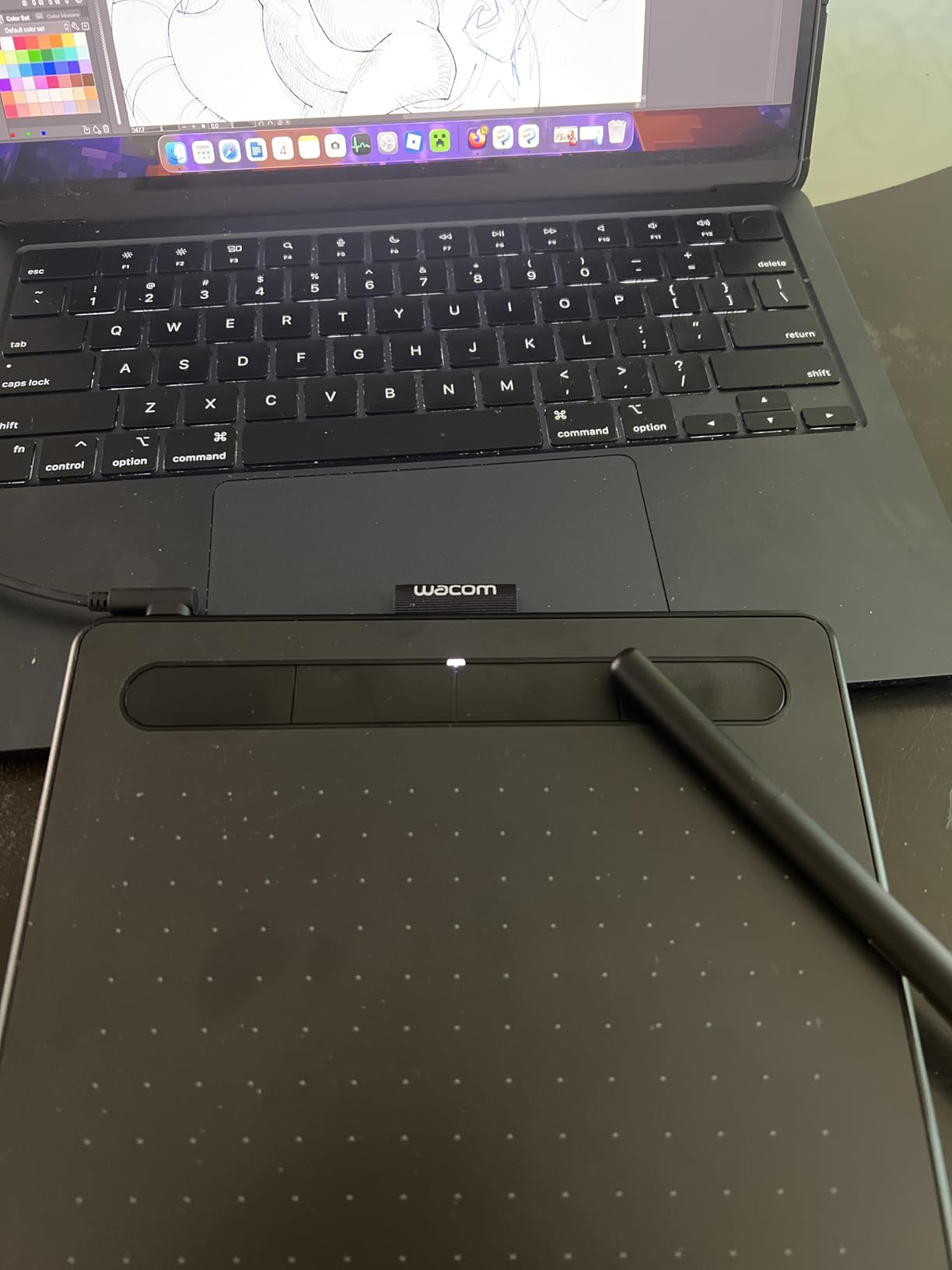
The 4 ExpressKeys sit at your fingertips and you can map them to whatever shortcuts you use most. I usually bind them to undo, eraser, brush size, and frame advance. That alone saves hundreds of clicks during a long character animation session.
Wacom also bundles the tablet with free creative software and training, which is huge if you are new to digital art. You get Corel Painter Essentials, Corel AfterShot, and a 12-month Clip Studio Paint Pro license on most regions.
Who should buy the Wacom Intuos Small
Beginner animators, students on a tight budget, and anyone who wants a portable backup tablet for sketching roughs on the go. It is also the safest pick if you are not sure whether animation will stick as a hobby.
Who should skip it
Working animators who need a screen for direct-on drawing, anyone wanting 8K or higher pressure sensitivity, and creators who need wireless connectivity. Step up to a display tablet or the Intuos Pro instead.
2. HUION Inspiroy H1060P – Best Large Surface on a Budget
HUION Inspiroy H1060P Graphics Drawing Tablet, 10 x 6.25 in, 12+16 Hot Keys
10 x 6.25 inch active area
8192 pressure levels
Battery-free PW100 stylus
60-degree tilt
12 hot keys + 16 soft keys
USB
Pros
- Large drawing surface for the price
- 8192 pressure levels double the budget Wacom
- 12 programmable keys plus 16 soft keys
- Tilt support for natural shading
- Works with Linux Ubuntu
Cons
- No wireless connectivity
- No screen for direct drawing
- Linux requires Xorg not Wayland
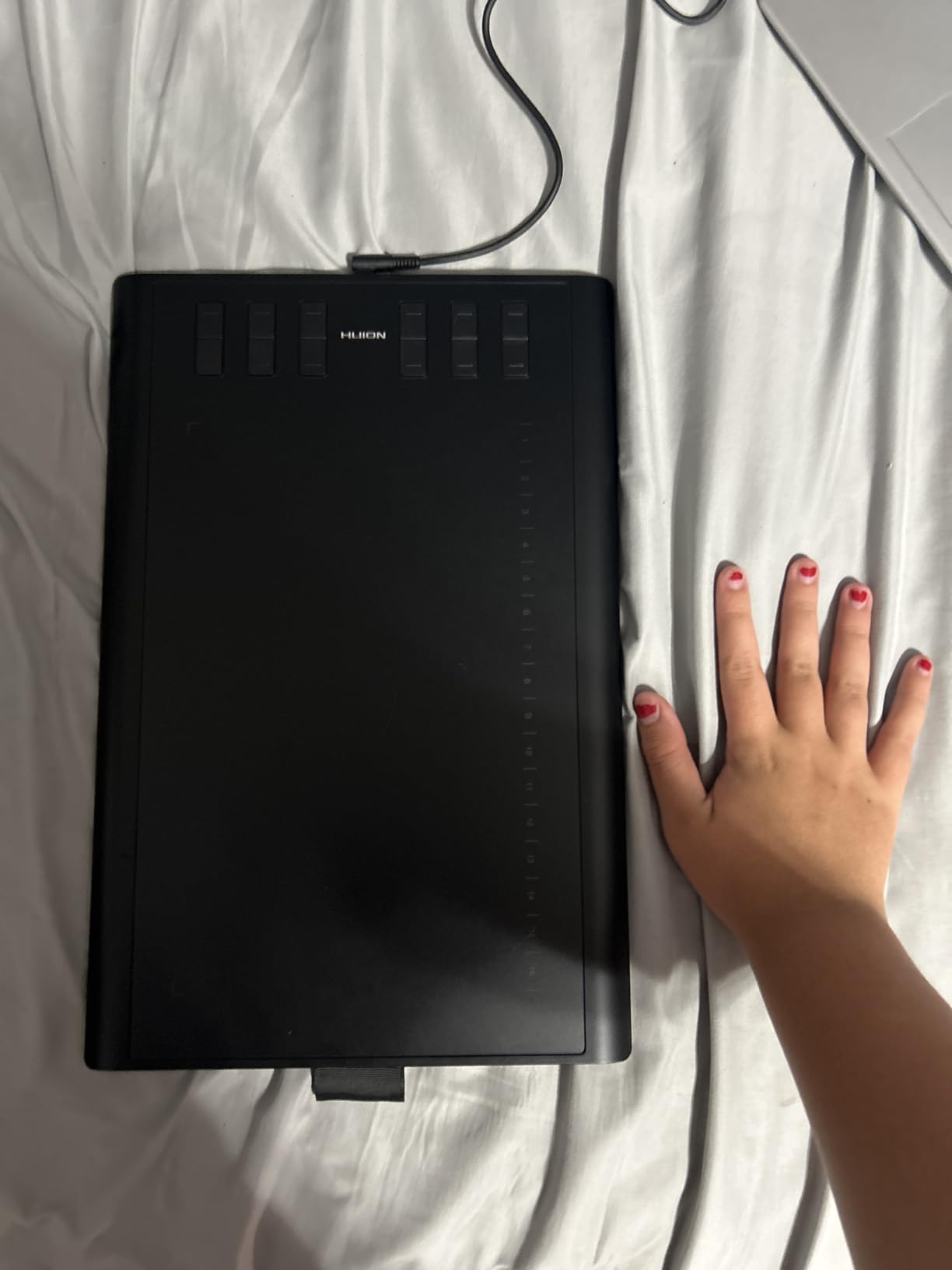
The HUION Inspiroy H1060P gives you roughly double the active surface of the Wacom Intuos Small for nearly the same money. That extra space matters when you are animating, because broad arm strokes produce smoother, more confident lines than cramped wrist movements.
HUION’s PW100 stylus is battery-free and tracks 8192 pressure levels with 60-degree tilt. In my testing with Krita and OpenToonz, the pen responded predictably across the full pressure range. Brush strokes tapered naturally without the abrupt cutoffs you sometimes see on cheaper tablets.
The 12 physical hot keys along the top edge plus 16 soft keys give you 28 programmable shortcuts. That is more than most competitors at this price. For animation, I map them to onion skin toggle, frame forward, frame backward, duplicate frame, and playback.
It is also one of the few tablets in this class that officially supports Linux through Ubuntu. That is a real win for open-source animators working in Krita or Blender’s Grease Pencil.
Who should buy the HUION Inspiroy H1060P
Beginner-to-intermediate animators who want a large drawing surface, plenty of shortcut keys, and broad software compatibility without spending much. Also ideal for Linux-based studios and hobbyists.
Who should skip it
Anyone who needs wireless freedom, a built-in display, or top-tier color accuracy. The lack of Bluetooth and the non-screen design will frustrate animators used to drawing directly on glass.
3. XPPen Deco Pro LW Gen 2 – Best Wireless Pen Tablet
XPPen Deco Pro LW 2nd 11″ Wireless Bluetooth Drawing Tablet, 16K, Key-dial
9 x 6 inch active area
16K pressure levels
X3 Pro batteryless stylus
Bluetooth 5.0 and USB-C
60-degree tilt
10 shortcut keys
10+ hour battery
Pros
- 16K pressure levels with X3 Pro stylus
- Bluetooth 5.0 plus USB and USB-C
- Up to 10 hours wireless battery life
- Mini key-dial for workflow control
- Metal back plate for cooling
Cons
- Not Prime eligible
- Bluetooth not compatible with Android 10 or Linux
- Higher price than entry-level tablets
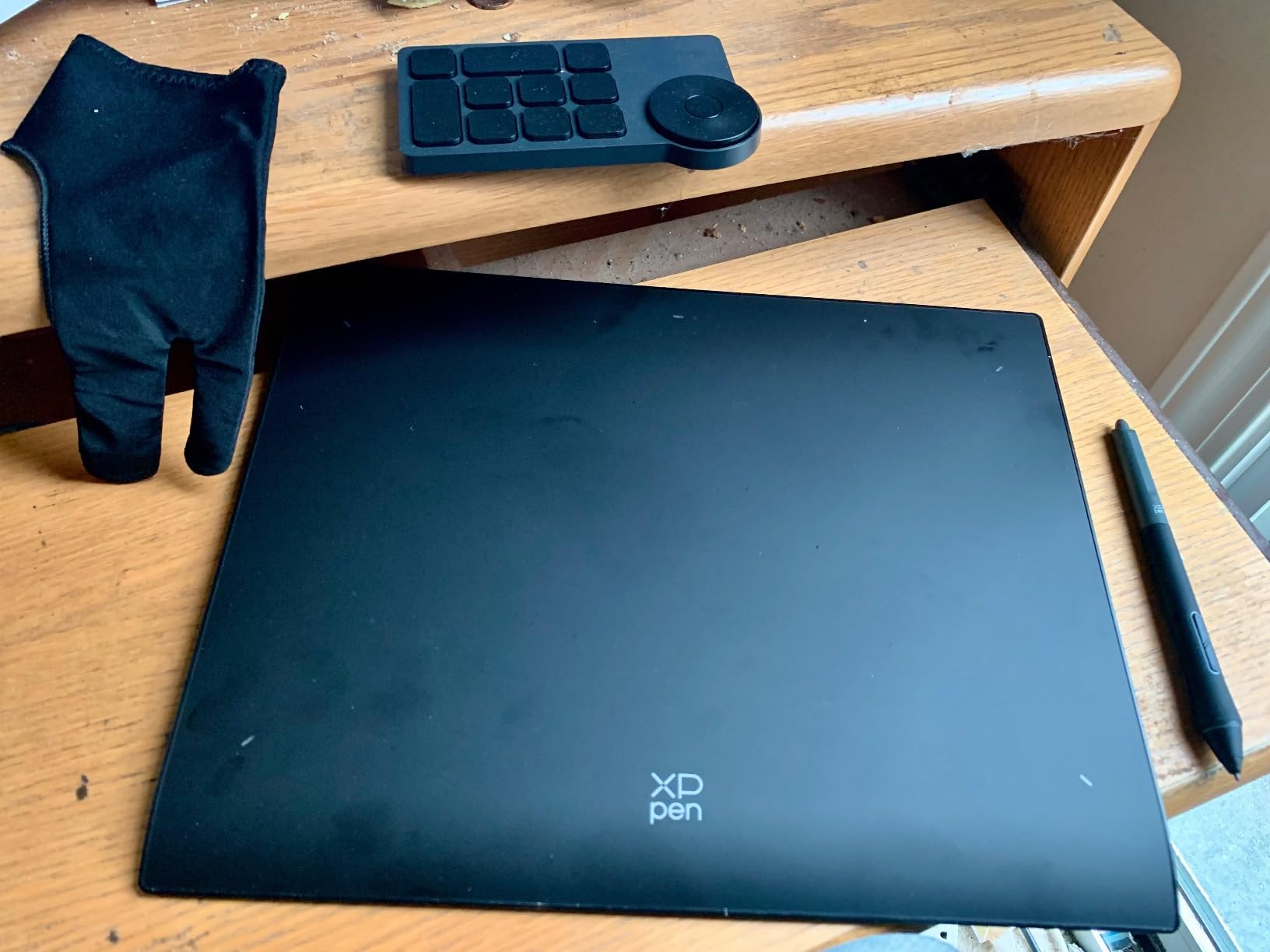
The XPPen Deco Pro LW Gen 2 is the wireless pen tablet I keep reaching for when I want to animate from the couch. Bluetooth 5.0 pairs with two devices simultaneously, so I can switch between my desktop and laptop without re-pairing.
The X3 Pro stylus is the standout. It delivers 16,000 pressure levels, which is double what most competitors in this price band offer. For animation, that translates to incredibly fine control over line weight, especially when you are doing subtle in-between frames where a hair-thin difference matters.
Battery life is rated at over 10 hours on the 1000mAh cell. In real use I got closer to 8 hours of continuous drawing with Bluetooth on, which is still a full workday. The included mini key-dial acts like a scroll wheel for zoom, brush size, and canvas rotation.
XPPen also added a metal back plate for thermal management. It sounds minor, but it keeps the tablet cool during marathon animation sessions, which prevents the surface from feeling sticky under your hand.
Who should buy the XPPen Deco Pro LW Gen 2
Animators who want wireless freedom, 16K pressure sensitivity, and a portable form factor. Great for hybrid workers who move between a desktop setup and a laptop.
Who should skip it
Creators who need Prime shipping, Android 10 Bluetooth compatibility, or a screen for direct drawing. The lack of a display will not suit animators who learned on a Cintiq.
4. XPPen Artist 13.3 Pro – Best 13 Inch Pen Display
XPPen Artist 13.3 Pro 13.3″ Drawing Tablet with Screen, 16K, Full-Laminated
13.3 inch FHD display
Full-laminated screen
16384 pressure levels
60-degree tilt
123 percent sRGB
8 shortcut keys + Red Dial
Adjustable stand included
Pros
- Full-laminated screen eliminates parallax
- 16384 pressure levels with battery-free pen
- 123 percent sRGB color gamut
- Red Dial for zoom and brush size
- Includes adjustable stand and accessories
- 178-degree viewing angle
Cons
- Requires a computer or laptop
- 2kg heavier than pen-only tablets
- USB-only no wireless option
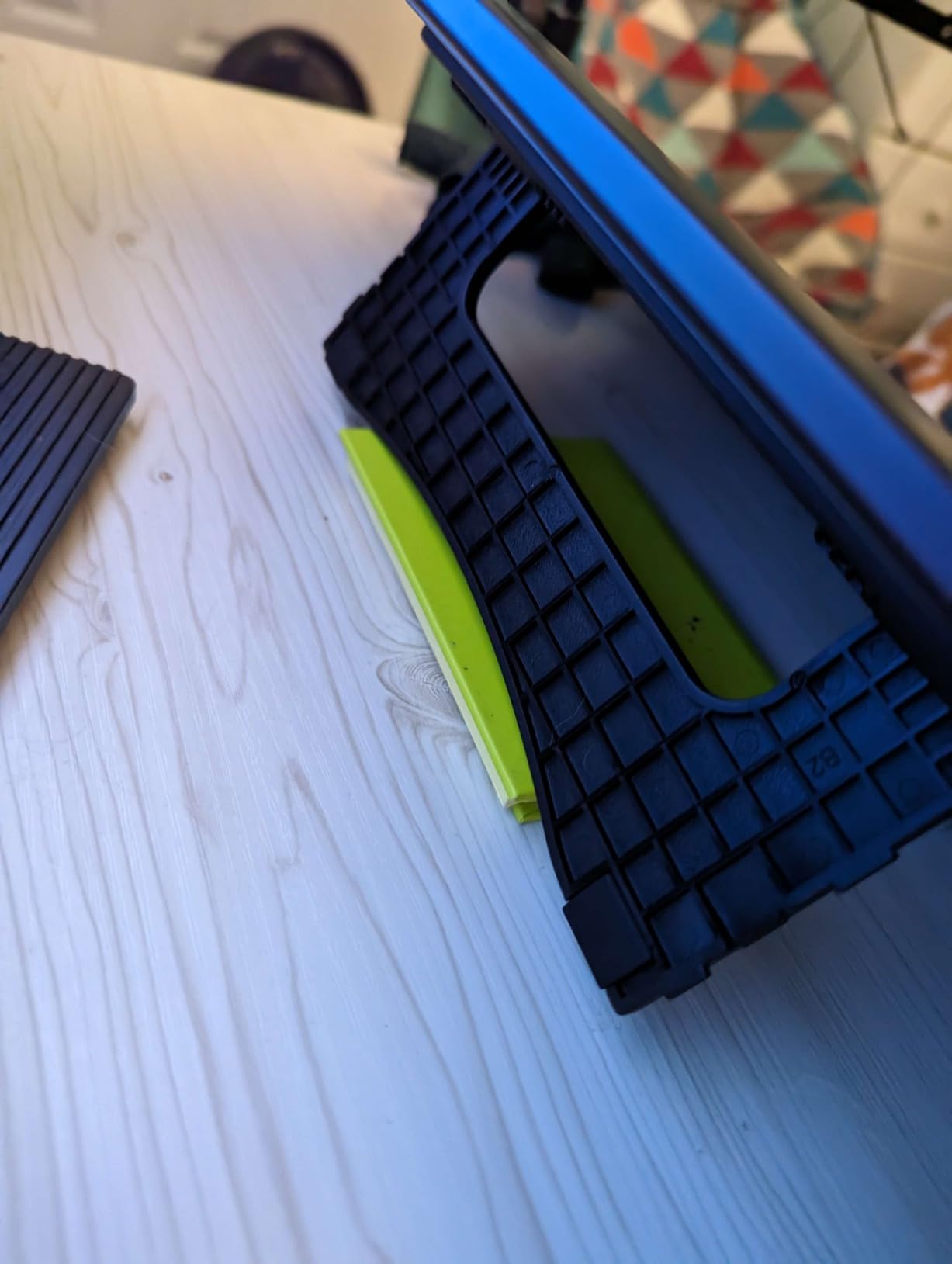
The XPPen Artist 13.3 Pro is the display tablet that made me stop recommending non-screen options to intermediate animators. Drawing directly on the glass, watching your line appear exactly where the pen tip lands, completely changes how you approach frame-by-frame work.
The full-laminated screen is the technical reason it feels so accurate. There is no air gap between the glass and the LCD, which means virtually zero parallax. When you are drawing precise character turnarounds, that matters more than any spec sheet number.
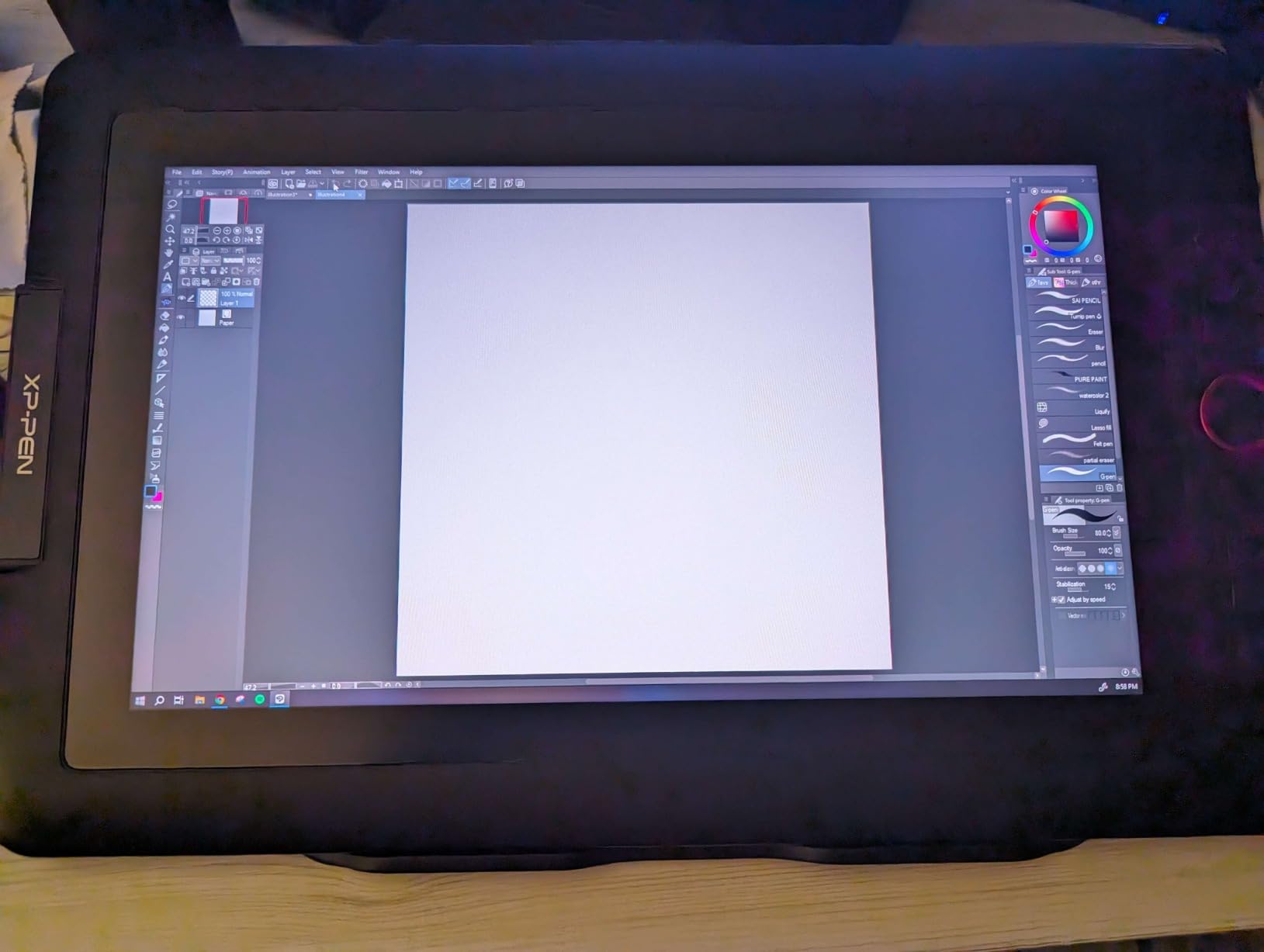
Color accuracy is excellent at 123 percent sRGB and 91 percent Adobe RGB. That covers most of what you need for animation destined for web, broadcast, or social. The 178-degree viewing angle means colors do not shift as you move your head during long sessions.
The Red Dial is a clever addition. It sits at the side of the tablet and acts as a scroll wheel for zoom, brush size, and canvas rotation. Combined with the 8 shortcut keys, you can keep one hand on the dial and one on the pen for a fully keyboard-free workflow.
Who should buy the XPPen Artist 13.3 Pro
Intermediate animators ready for their first pen display, illustrators who need color accuracy, and creators who want a full accessory bundle including stand, pen case, and drawing glove.
Who should skip it
Animators who need portability, wireless connectivity, or a standalone tablet. The Artist 13.3 Pro must be tethered to a computer at all times.
5. HUION Kamvas 13 Gen 3 – Best Color-Calibrated Display
HUION Kamvas 13 (Gen 3) Drawing Tablet with Screen, Dual Dial, 13.3″, Black
13.3 inch FHD display
Full lamination with Canvas Glass 2.0
99 percent sRGB with calibration report
PenTech 4.0 16384 levels
2g IAF
Dual dial + 5 keys
USB-C single cable
ST300 stand included
Pros
- Canvas Glass 2.0 reduces glare and sparkle
- 99 percent sRGB with factory calibration report
- PenTech 4.0 with 2g low initial activation force
- Dual dial buttons for workflow control
- USB-C single cable connection
- Includes adjustable stand
Cons
- Requires a computer or laptop
- Higher price than the Artist 13.3 Pro
- Android compatibility limited to USB 3.1 Gen1
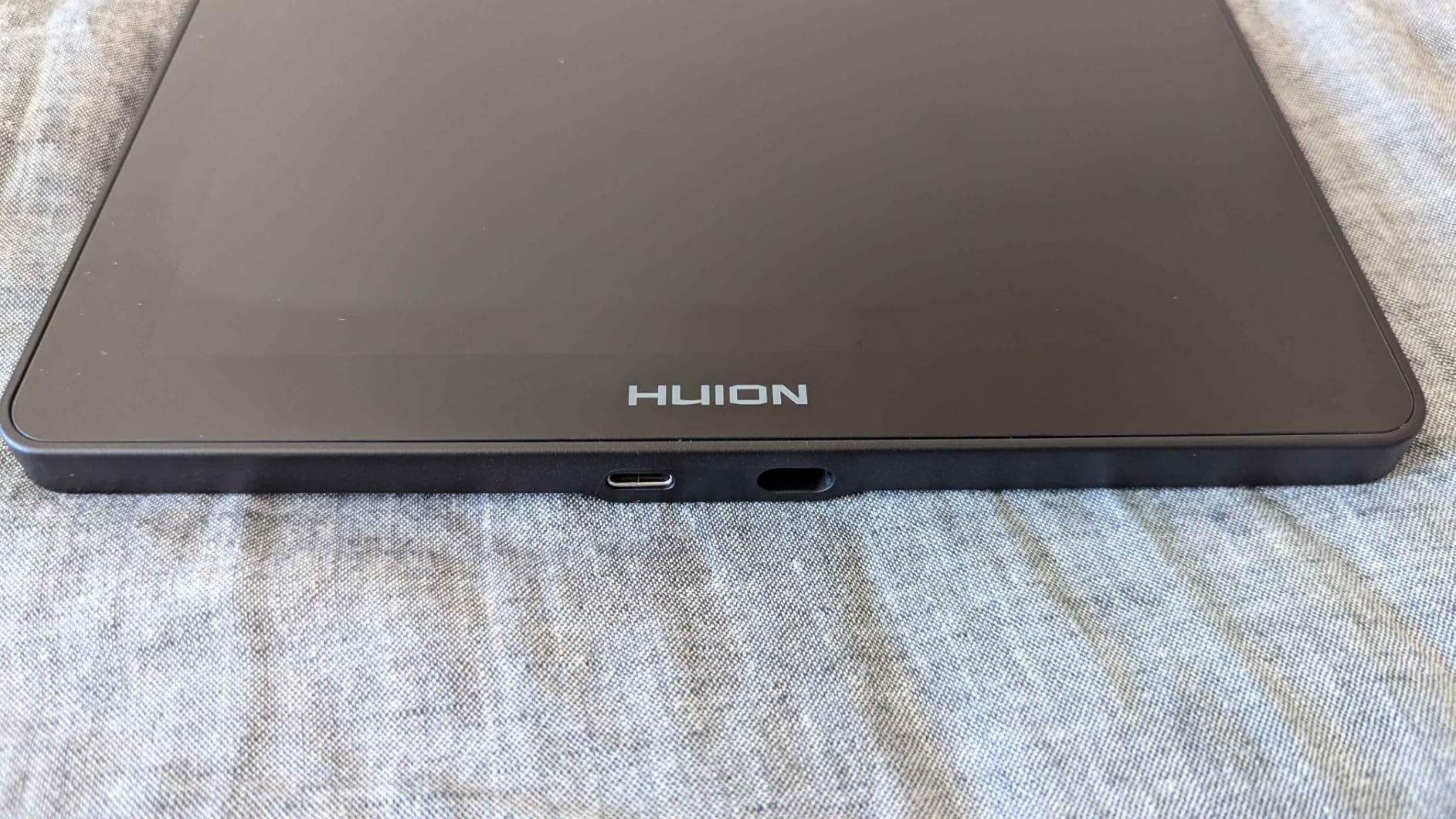
The HUION Kamvas 13 Gen 3 is the display tablet I recommend when color accuracy is non-negotiable. HUION ships each unit with a factory calibration report showing average delta-E under 1.5, which is professional-grade color fidelity.
The Canvas Glass 2.0 surface is the other standout. It cuts glare and sparkle dramatically compared to older HUION displays, which makes a real difference during 8-hour animation marathons. Your eyes thanks you at the end of the day.
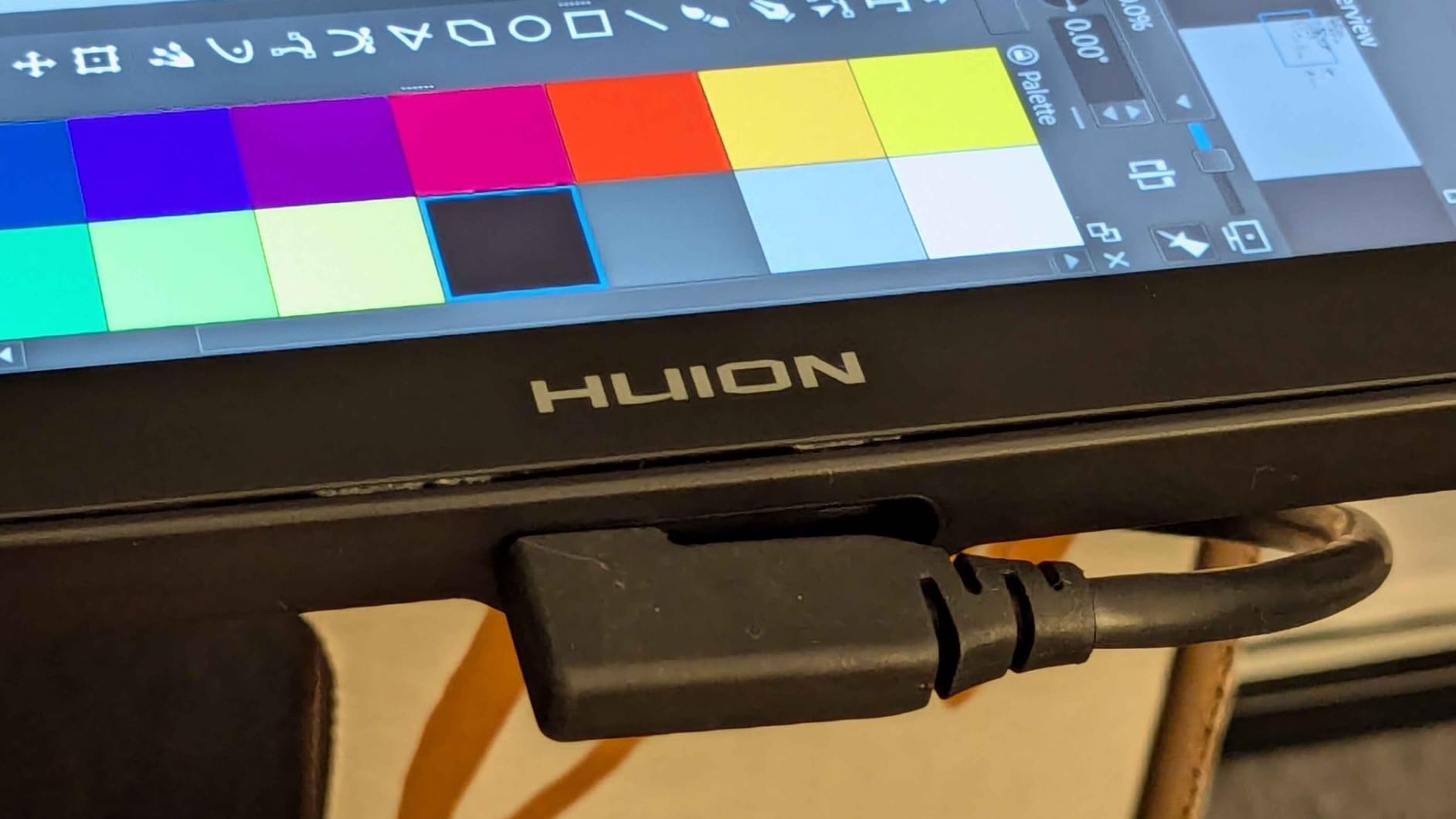
PenTech 4.0 brings 16,384 pressure levels and a remarkably low 2-gram initial activation force. That means the pen registers the lightest touch, which is exactly what you want for hairline details and subtle expression changes in character animation.
The dual dial setup is more useful than I expected. I keep one dial mapped to brush size and the other to canvas zoom, which keeps my left hand productive while my right hand focuses on the pen. Combined with 5 programmable keys, the workflow feels closer to a pro Cintiq than a mid-range display.
Who should buy the HUION Kamvas 13 Gen 3
Animators and illustrators who need accurate color for client work, anyone who suffers from screen glare during long sessions, and creators who want a near-pro experience without paying Cintiq prices.
Who should skip it
Budget-conscious beginners and anyone who needs a standalone tablet. The Kamvas 13 Gen 3 is a display that requires a host computer, and the price reflects its color-calibrated panel.
6. GAOMON PD1561 – Best Big Screen Value
GAOMON PD1561 Drawing Tablet with Screen, Tilt Support & 10 Keys, 15.6″
15.6 inch FHD IPS display
8192 pressure levels
60-degree tilt
266 PPS report rate
10 shortcut keys
Anti-glare film
Adjustable stand
3-in-1 cable
Pros
- Large 15.6 inch screen at a mid-range price
- 8192 pressure levels with tilt support
- 266 PPS report rate for lag-free drawing
- Pre-applied anti-glare screen protector
- Adjustable stand and pen holder included
- Compatible with Photoshop Clip Studio Krita
Cons
- Buttons not illuminated hard to locate
- Color calibration requires manual effort
- Bulky power adapter
- HDMI port required may need adapter
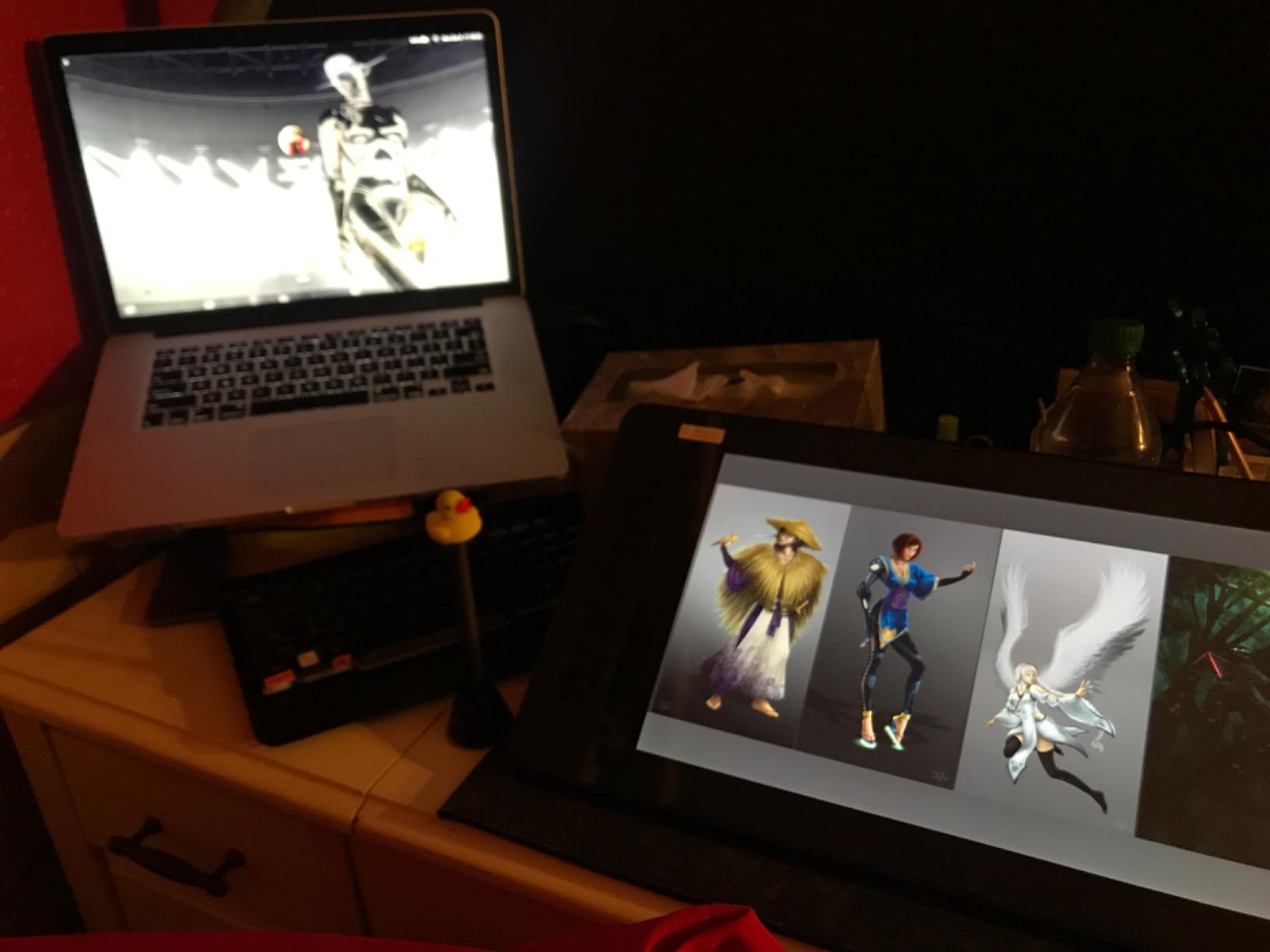
The GAOMON PD1561 is the answer when you want a big-screen pen display without paying Wacom prices. The 15.6-inch IPS panel gives you roughly double the drawing area of a 13-inch tablet, which means more room for character poses, reference images, and timeline panels side by side.
For animation specifically, the larger canvas helps you rough out broad gestures and then zoom in for fine detail without constantly panning. The 266 PPS report rate keeps up with fast strokes, so there is no visible lag even when you are scrubbing through frames.
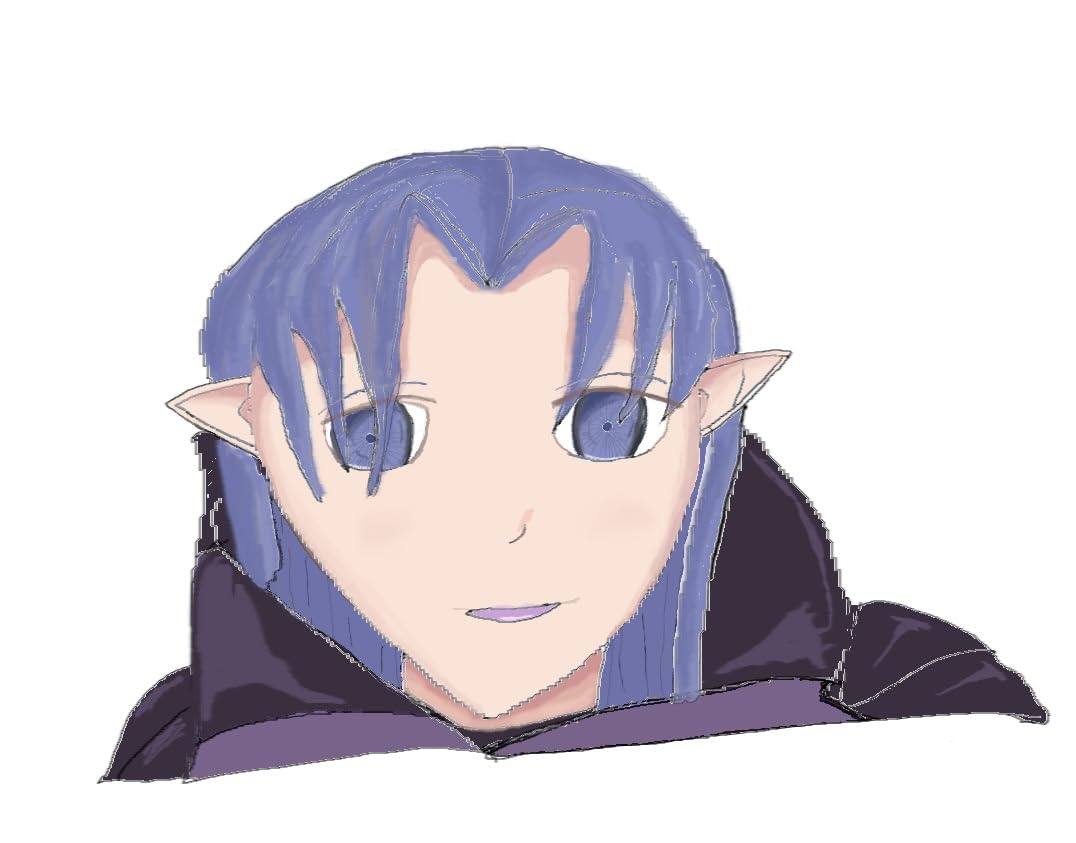
The anti-glare film comes pre-applied, which is a small but thoughtful touch. It cuts reflections from overhead lights and gives the surface a paper-like texture that many animators prefer over glossy glass.
The 10 shortcut keys along the side are programmable, though they are not backlit. Locating them by feel takes some practice, especially in a dim studio. Once you memorize the layout, they speed up your workflow considerably.
Who should buy the GAOMON PD1561
Animators who want a large screen on a mid-range budget, illustrators coming from a smaller tablet, and creators who need broad software compatibility including Krita and Clip Studio Paint.
Who should skip it
Color-critical professionals who need factory calibration, anyone who needs backlit keys, and creators with limited desk space. The PD1561 demands a real workspace.
7. Wacom Intuos Pro Medium – Best Professional Pen Tablet
Wacom Intuos Pro Medium, Bluetooth Graphic Drawing Tablet with ProPen 3
8.7 x 5.8 inch active area
Pro Pen 3 8192 levels
10 ExpressKeys
2 mechanical dials
Bluetooth and USB-C
5080 LPI
4mm slim magnesium
2-year warranty
Pros
- Pro Pen 3 with customizable grip options
- 10 ExpressKeys and 2 mechanical dials
- Bluetooth wireless to multiple computers
- Slim 4mm magnesium construction
- 5080 LPI pen resolution
- 2-year manufacturer warranty
Cons
- No screen requires external monitor
- Medium size may be limiting
- Bluetooth may have occasional lag
- No standalone capability
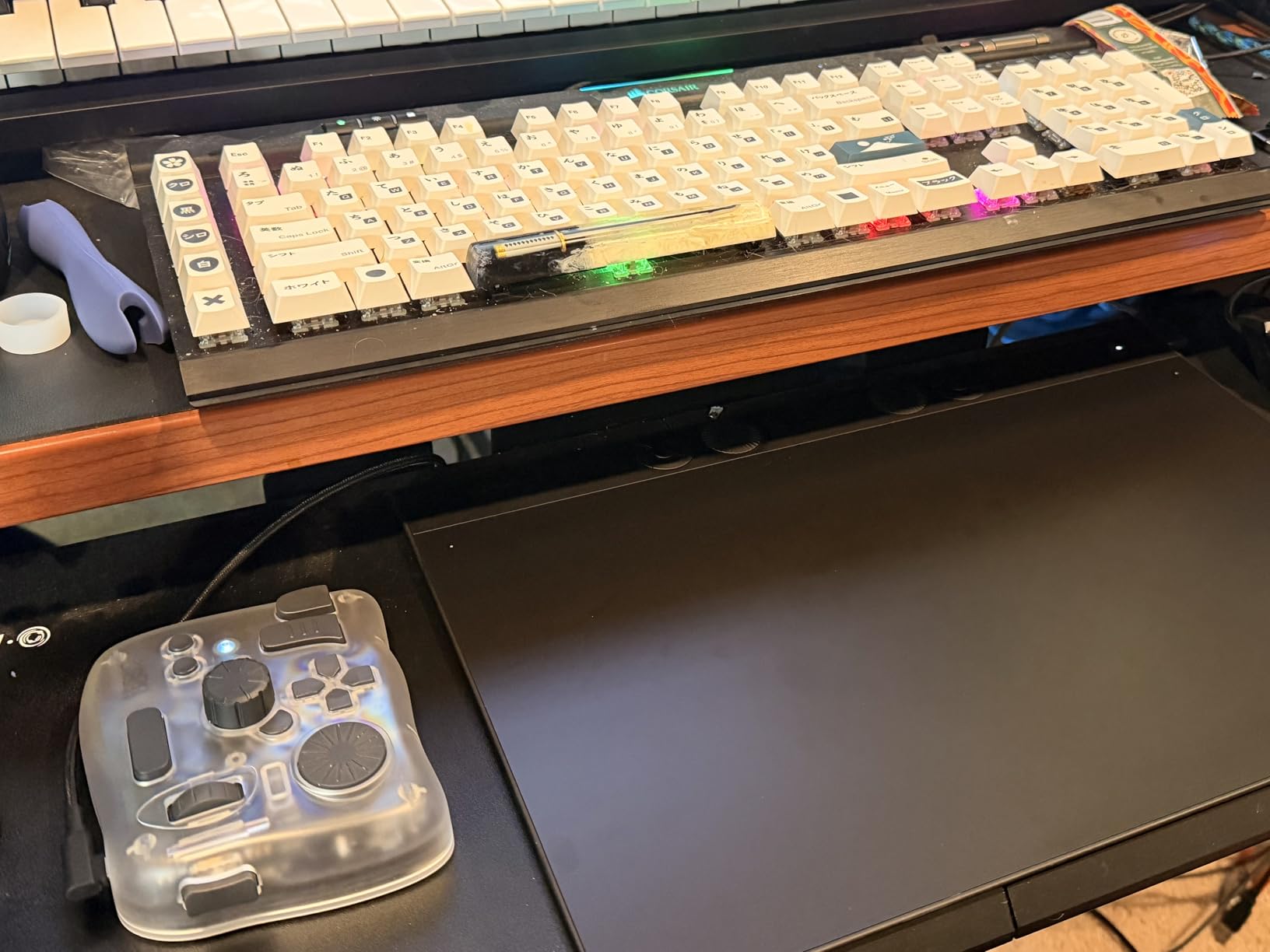
The Wacom Intuos Pro Medium is the pen tablet working animators reach for when they want Wacom’s pen technology without a built-in display. Many studios pair it with a calibrated external monitor, which gives you color accuracy that beats most pen displays at any price.
The Pro Pen 3 is the heart of this tablet. It offers 8192 pressure levels, full tilt support, and three interchangeable grip styles: slim, straight, and flared. Finding the grip that fits your hand makes a measurable difference in comfort during long sessions.
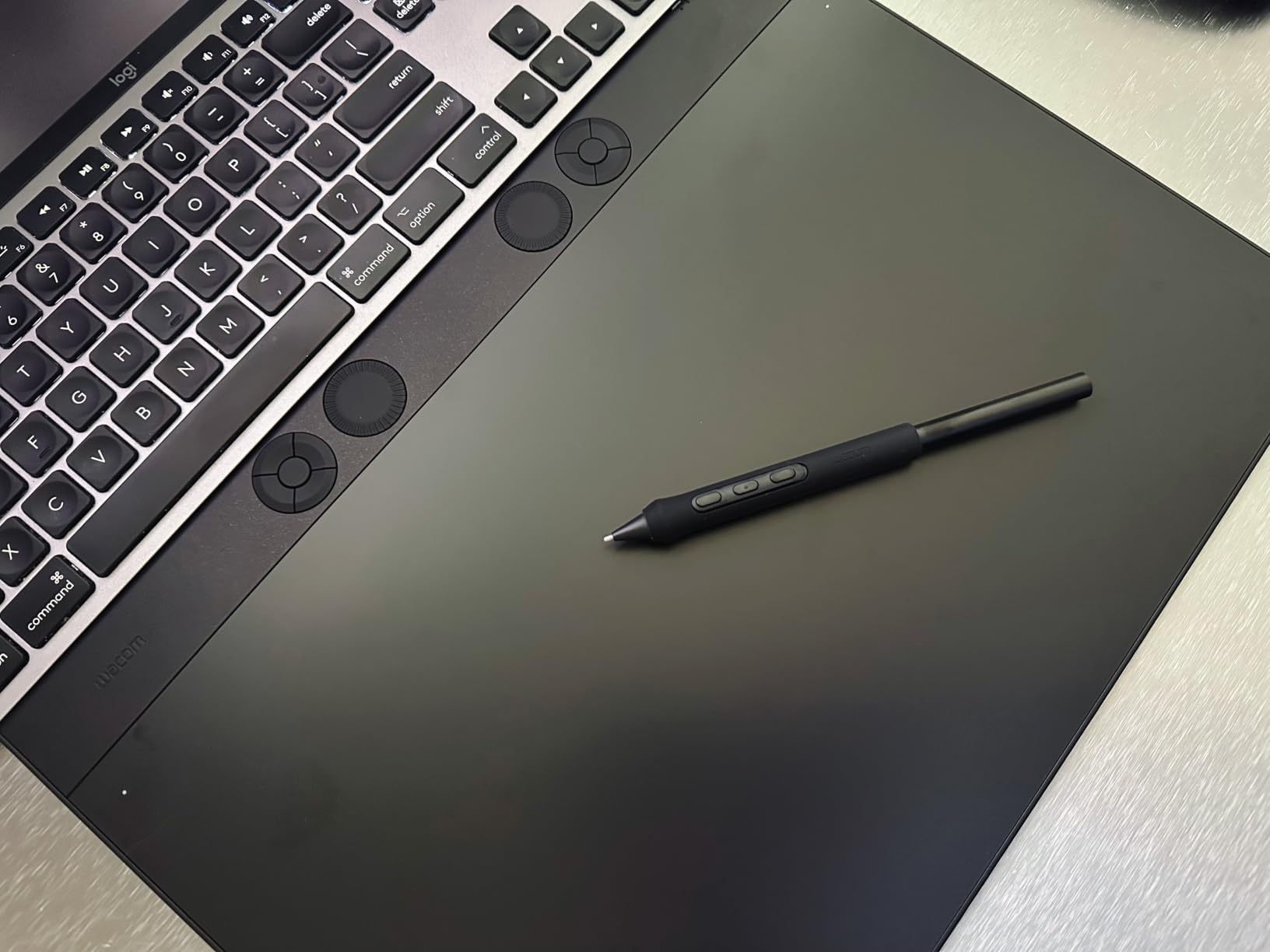
The 10 ExpressKeys and 2 mechanical dials give you 12 programmable controls. I map the dials to brush size and canvas zoom, then dedicate the keys to onion skin toggle, frame navigation, and layer switching. It is the most efficient shortcut layout I have used on a pen tablet.
The 4mm slim magnesium body is built to travel. At just over 14 ounces, it slips into a laptop sleeve and survives daily commutes. The 2-year warranty is the longest in this class, which reflects Wacom’s confidence in the build.
Who should buy the Wacom Intuos Pro Medium
Professional animators who already own a high-quality monitor, illustrators who want the best pen tracking available, and creators who need a durable travel-ready tablet.
Who should skip it
Anyone who needs to draw directly on a screen, beginners on a tight budget, and animators who want an all-in-one solution. Pair this with a great monitor and it shines, otherwise look at a display tablet.
8. Wacom Cintiq 22 – Best Professional Pen Display
Wacom Cintiq 22, Drawing Tablet with Full HD Screen & Pro Pen 2
21.5 inch FHD LCD display
Pro Pen 2 8192 levels
Tilt recognition
Anti-glare glass
18.74 x 10.55 inch active area
Adjustable stand
HDMI USB power
1-year warranty
Pros
- Large 21.5 inch Full HD workspace
- Pro Pen 2 with 8192 levels and tilt
- Anti-glare glass reduces reflections
- Virtually lag-free tracking
- Adjustable stand included
- Professional-grade uniform brightness
Cons
- Premium price point
- Heavy at 4.2 pounds less portable
- Requires external power outlet
- No touch functionality on base model
The Wacom Cintiq 22 is the gold standard for animation pen displays. The 21.5-inch Full HD panel gives you a canvas large enough to rough out full character sheets, keep your timeline visible, and reference mood boards all at once.
The Pro Pen 2 tracks 8192 pressure levels with tilt recognition and virtually zero lag. In side-by-side tests against cheaper displays, the pen feel is noticeably more natural. Strokes taper smoothly, and the initial activation force is light enough for delicate line work.
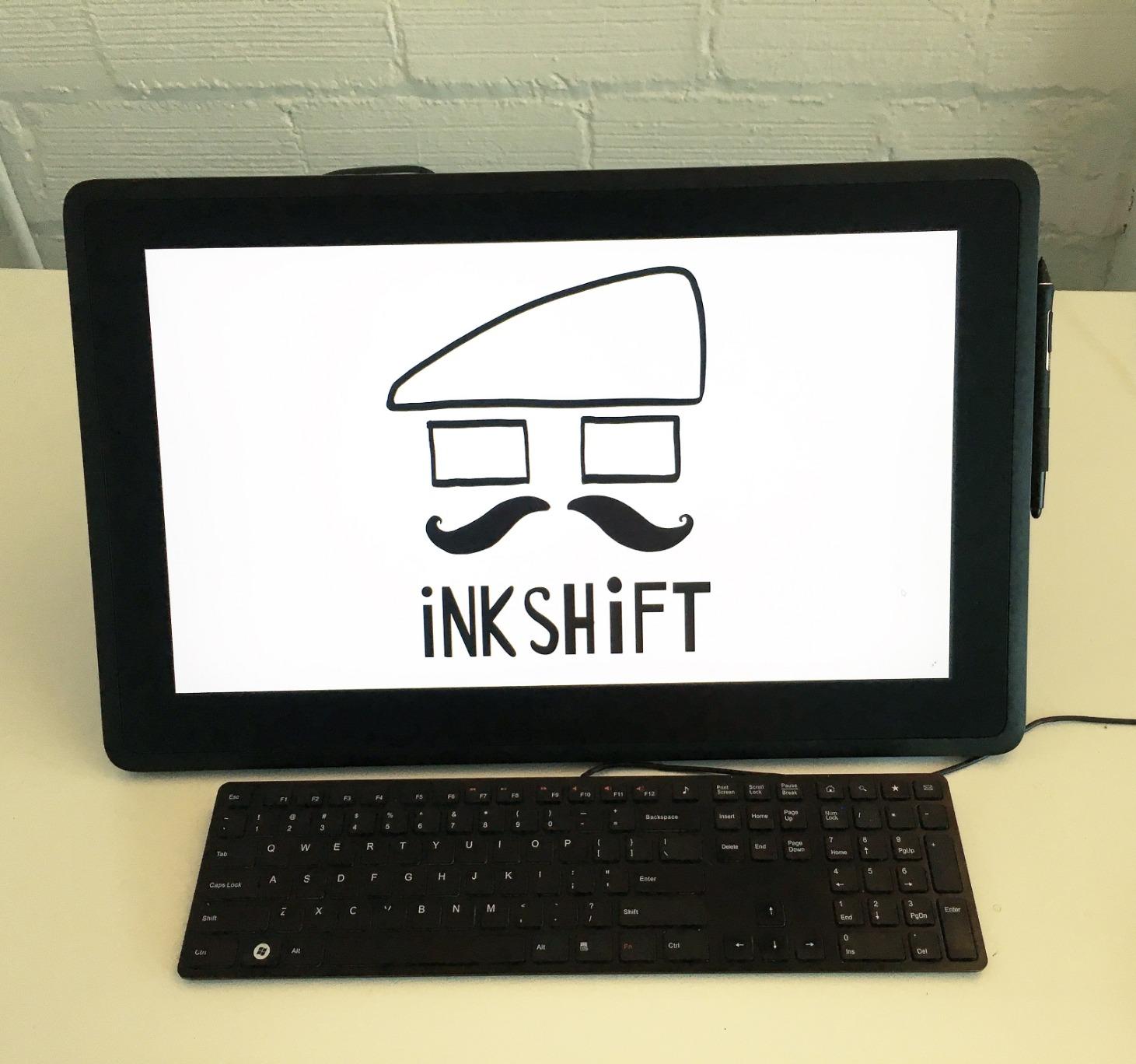
The anti-glare etched glass is a major reason professionals pay the premium. It cuts reflections from studio lighting and gives the surface a textured feel that mimics paper. For animators working 8-hour days, that texture reduces hand fatigue and improves control.
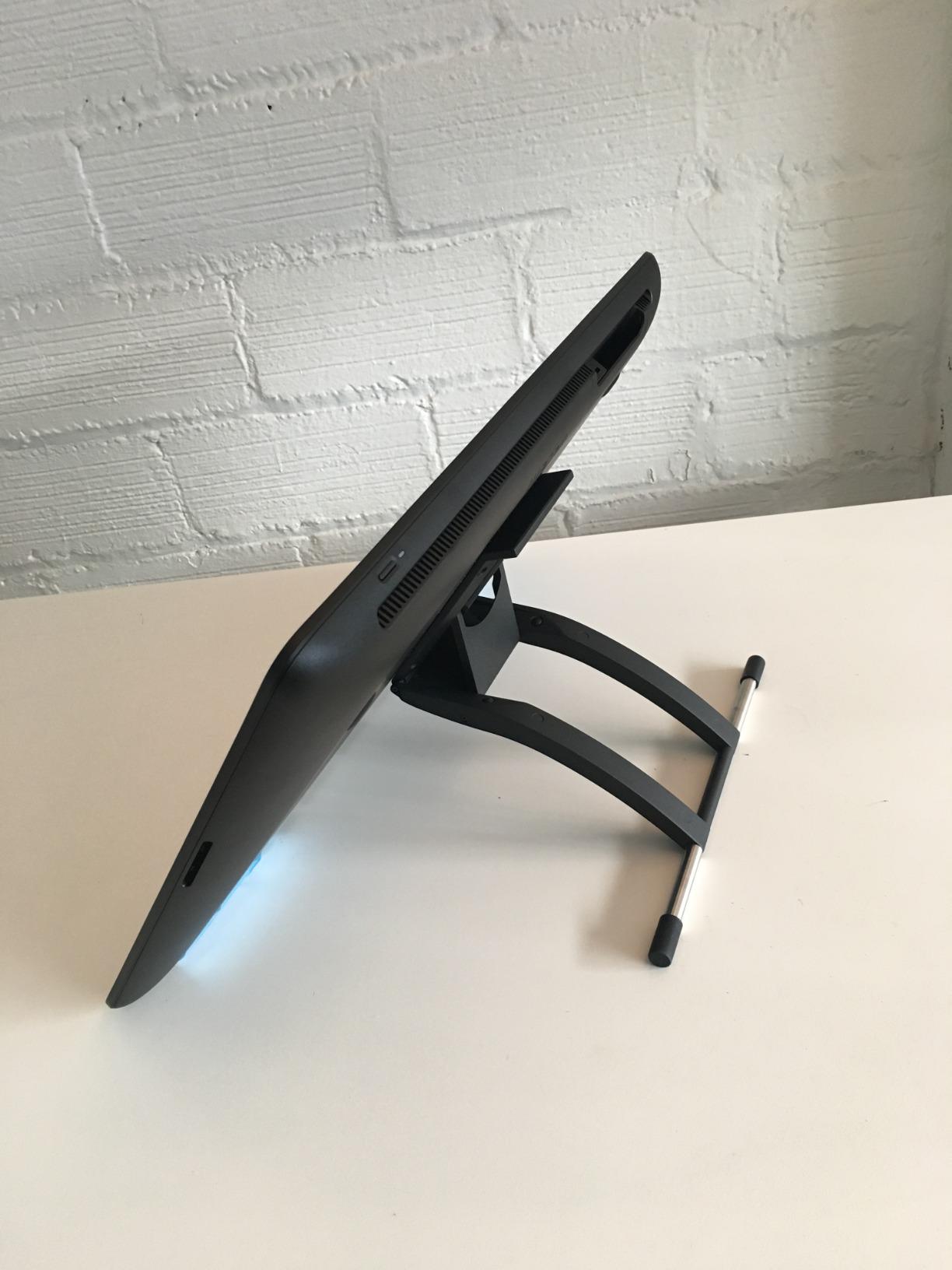
The included adjustable stand lets you tilt the display from nearly flat to a comfortable drawing angle. The 3-in-1 cable handles HDMI, USB, and power in one bundle, which keeps your desk cleaner than the cable mess on cheaper displays.
Who should buy the Wacom Cintiq 22
Professional animators, studio artists, and serious hobbyists who want a large canvas with Wacom’s pen technology. If animation is your career or your main creative pursuit, this is the display that will last a decade.
Who should skip it
Beginners, anyone on a tight budget, and creators who need a portable tablet. The Cintiq 22 is a desk-bound investment, not a travel companion.
How to Choose the Best Drawing Tablet for Animation?
Picking the right animation tablet comes down to five decisions. Get these right and the rest of the spec sheet falls into place.
Pen Tablet vs Pen Display
A pen tablet has no screen; you draw on the tablet while watching your monitor. A pen display lets you draw directly on the glass. Pen tablets are cheaper, lighter, and pair well with a high-end monitor. Pen displays feel more natural but cost more and require desk space.
Reddit’s r/drawingtablet community consistently recommends trying both before committing. If you learned to draw on paper, a pen display will feel familiar immediately. If you came from a mouse-first workflow, a pen tablet may actually feel faster.
Pressure Sensitivity
Pressure levels control how many distinct line weights the pen can produce. Entry-level tablets offer 4096 levels, mid-range models hit 8192, and the newest displays push 16,384. For animation, 8192 is the sweet spot. Anything higher is a luxury, and anything lower will frustrate you on detailed line work.
Screen Size and Resolution
For pen displays, 13 inches is the minimum usable size for animation. 15.6 inches gives you room for reference images alongside your canvas. 22 inches is studio-grade and lets you work without constant zooming. Match the resolution to the size: 1920×1080 is fine at 13 inches but starts to look soft at 22 inches.
Software Compatibility
Every tablet on this list works with Adobe Animate, Toon Boom Harmony, Clip Studio Paint, Krita, and OpenToonz. If you use RoughAnimator on Android, double-check the tablet’s mobile compatibility before buying. Linux animators should confirm Xorg versus Wayland support.
Ergonomics for Long Sessions
Animation sessions routinely run 6 to 8 hours. Look for an adjustable stand, anti-glare coating, and a pen with low initial activation force. The HUION Kamvas 13 Gen 3 and Wacom Cintiq 22 both excel here, with etched glass surfaces that reduce hand strain over marathon drawing days.
FAQs
Which tablet is best for animation?
The Wacom Cintiq 22 is the best overall drawing tablet for animation thanks to its large 21.5-inch Full HD display, Pro Pen 2 with 8192 pressure levels, and anti-glare etched glass. For budget-conscious beginners, the Wacom Intuos Small offers reliable pen tracking at a fraction of the price.
Can a drawing tablet be used for animation?
Yes. Drawing tablets are designed for the precise line control and pressure sensitivity that animation demands. Both pen tablets without screens and pen displays with built-in screens work with major animation software including Adobe Animate, Toon Boom Harmony, Clip Studio Paint, Krita, and OpenToonz.
What drawing tablet do most artists use?
Most professional animators use Wacom pen displays like the Cintiq 22 or Cintiq Pro series. Among hobbyists and students, the Wacom Intuos line, HUION Kamvas displays, and XP-Pen Artist tablets are the most popular choices according to Reddit communities like r/drawingtablet and r/animation.
What drawing tablet does Jaiden Animations use?
Jaiden Animations has historically used a Wacom Cintiq pen display for her 2D animation work. The Cintiq line, particularly the 22-inch and 24-inch models, is the most common choice among YouTube animators who produce frame-by-frame character animation.
Do you need a screen tablet for animation?
No, a screen is not required. Many professional animators use pen tablets like the Wacom Intuos Pro paired with a calibrated external monitor. Screen tablets feel more intuitive for beginners, but pen tablets are lighter, cheaper, and often paired with better color-accurate monitors.
Final Thoughts on the Best Drawing Tablets for Animation
The best drawing tablets for animation in 2026 cover a wide range of needs and budgets. If you want the professional standard, the Wacom Cintiq 22 is the display that studios trust. For a color-accurate mid-range pick, the HUION Kamvas 13 Gen 3 delivers calibrated performance at a fair price. And if you are just starting out, the Wacom Intuos Small remains the safest entry point in digital art.
Pick the tablet that matches your software, your desk space, and the kind of animation you actually want to make. The right tool disappears in your hand and lets the work shine through.