
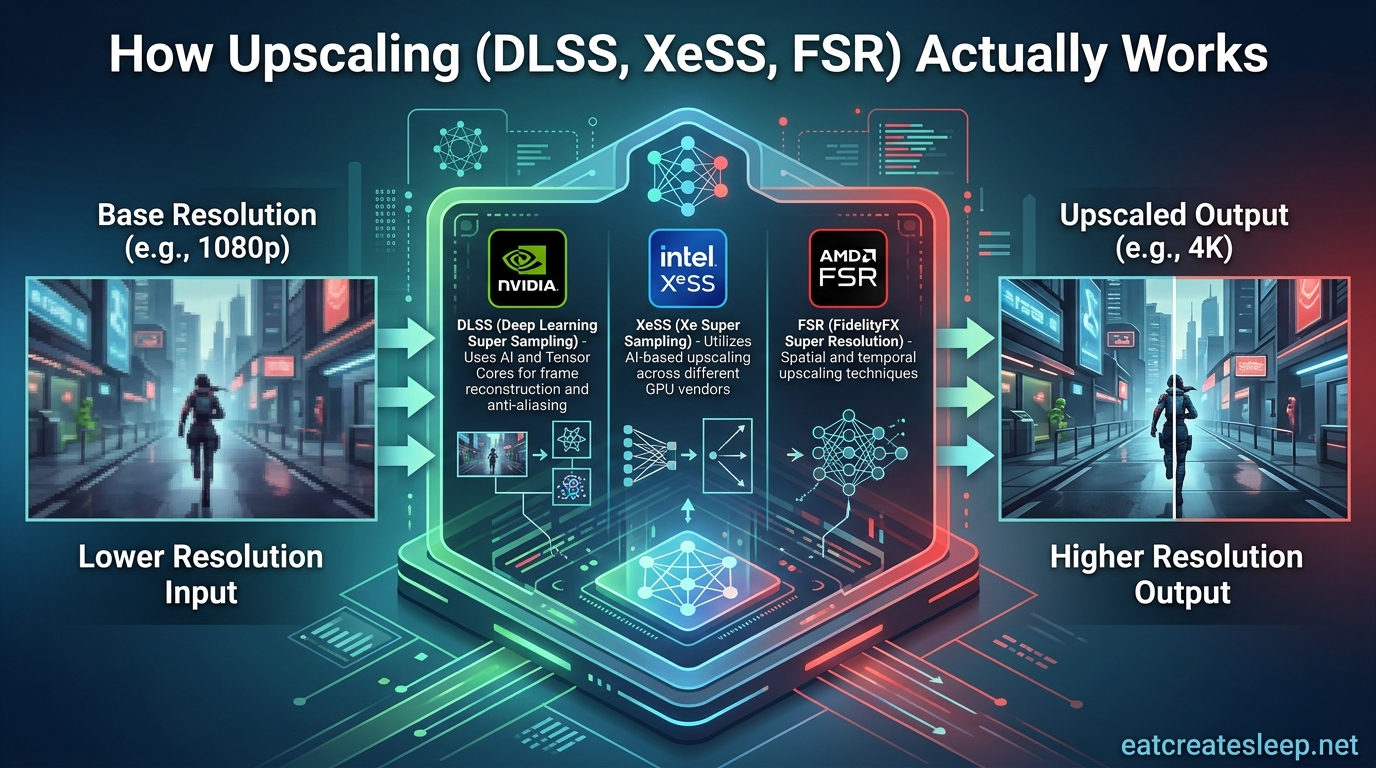
Modern PC games in 2026 punish graphics cards harder than ever, especially at 1440p and 4K with ray tracing, high-resolution textures, and sprawling open worlds. If you have tried pushing everything to Ultra only to watch frame rates collapse into the 30s, you already understand why so many gamers now rely on upscaling. Understanding how upscaling works helps you choose the right setting instead of blindly trusting defaults.
Upscaling is the umbrella term for technologies like NVIDIA DLSS, Intel XeSS, AMD FSR, and Unreal Engine TSR. They all do the same thing at a high level: render the game at a lower internal resolution, then rebuild the image back up to your monitor’s native resolution. The clever part is how each one reconstructs those missing pixels, and that is where AI, motion vectors, and temporal data enter the picture.
By the end of this guide, you will know exactly how DLSS, XeSS, and FSR differ under the hood, which one works on your hardware, and when it actually makes sense to switch each mode on. I have spent months comparing these technologies across an RTX card, an Arc GPU, and an older Radeon, and the real-world differences surprised me in ways the marketing slides never mention.
Table of Contents
How Upscaling Actually Works: The Core Mechanism
Upscaling works by rendering fewer pixels than your display actually shows, then using temporal reconstruction or spatial processing to fill in the gaps and sharpen the result. The game never truly renders every pixel you see on screen. Instead, it samples maybe half of them, then uses clever math and data from previous frames to guess what the rest should look like.
To understand how upscaling works, you first need to separate two terms: native resolution and internal resolution. Native resolution is what your monitor physically displays, like 3840 by 2160 for a 4K screen. Internal resolution is what the GPU actually renders before upscaling kicks in. In DLSS Performance mode at 4K, the internal resolution can be as low as 1080p, meaning the GPU only draws a quarter of the pixels before the upscaler rebuilds the rest.
There are two main families of upscaling. Spatial upscalers, like the original AMD FSR 1, look only at the current frame and use edge detection and sharpening to enlarge the image. They run on any GPU but struggle with fine detail and shimmering. Temporal upscalers, which includes DLSS 2 and newer, XeSS, and FSR 2 and beyond, use motion vectors and data from previous frames to reconstruct detail. This temporal history is what produces results that look almost indistinguishable from native in many games.
Motion vectors are the secret ingredient. For every pixel, the game engine tracks where that pixel moved from in the previous frame. The upscaler uses this motion data plus a history buffer of past frames to figure out what each new pixel should look like. When the math works, you get clean edges, stable textures, and detail that appears out of nowhere. When it fails, you get artifacts like ghosting trailing behind moving objects or shimmering along fences and hair.
AI upscaling adds a trained neural network on top of this temporal data. NVIDIA trains DLSS on supercomputers using perfect reference images, then ships that trained model with the driver. The tensor cores inside RTX GPUs run inference on every frame, which is why DLSS is locked to RTX hardware. Intel does something similar with XMX cores on Arc GPUs, while also offering a fallback DP4a mode that runs on competing cards with reduced quality.
NVIDIA DLSS Deep Dive
NVIDIA DLSS, or Deep Learning Super Sampling, is the original AI upscaler and still the benchmark others are measured against. The first version launched in 2018 alongside the RTX 20 series and used per-game training, which meant each supported title needed its own neural network downloaded through the driver. Image quality was inconsistent, and adoption was limited.
DLSS 2 arrived in 2020 and rewrote the entire pipeline into a single generalized neural network that worked across every supported game. It introduced temporal accumulation, meaning it sampled multiple frames over time before producing the final output. This is the version most people picture when they say DLSS, and it brought four quality presets: Quality, Balanced, Performance, and Ultra Performance, each corresponding to a different internal resolution ratio.
DLSS 3 launched with the RTX 40 series in 2022 and added two new features: Frame Generation and NVIDIA Reflex integration. Frame Generation is technically separate from upscaling. It uses the optical flow accelerator inside Ada GPUs to predict and synthesize entirely new frames between rendered ones, doubling perceived smoothness. Importantly, Frame Generation requires an RTX 40 or newer card because it depends on that dedicated hardware block.
DLSS 3.5 introduced Ray Reconstruction in 2023. Instead of cleaning up the final image, it replaced the hand-tuned denoiser that ray-traced scenes rely on with a trained AI model. The result was noticeably cleaner reflections, shadows, and global illumination in supported games like Cyberpunk 2077 and Alan Wake 2. DLSS 4, announced for the RTX 50 series, adds Multi Frame Generation, which can synthesize up to three frames for every one rendered frame, pushing supported titles toward triple-digit frame rates.
Hardware requirements matter a lot with DLSS. Standard DLSS Super Resolution works on every RTX card from the 20 series forward. DLSS Frame Generation is locked to RTX 40 series and newer. DLSS 4 Multi Frame Generation currently requires an RTX 50 series card. If you are running an older GTX card like a 1060 or 1070, you cannot use any version of DLSS at all because those cards lack tensor cores entirely. That is exactly the gap XeSS and FSR fill.
In my own testing on an RTX 4070, DLSS Quality at 1440p is almost indistinguishable from native in most modern titles. Ghosting has become rare in well-implemented games, and the AI reconstruction handles thin geometry like power lines and fences better than FSR. The tradeoff is that DLSS only exists inside NVIDIA’s walled garden, and that lock-in is a real pain point for gamers who upgrade across brands.
Intel XeSS Deep Dive
Intel XeSS, short for Xe Super Sampling, is the newest of the three major upscalers and arguably the most underrated. It launched in 2022 alongside the Intel Arc Alchemist GPUs and took a noticeably different approach to compatibility than DLSS. Where NVIDIA locks DLSS to RTX hardware, Intel built XeSS to run on a wide range of GPUs while still using AI reconstruction.
XeSS works by rendering the game at a lower internal resolution and using an AI-assisted algorithm to upscale each frame. The key technical detail is that XeSS ships in two distinct paths. On Intel Arc GPUs with dedicated XMX cores, XeSS runs on those matrix math units for maximum quality and speed. On NVIDIA RTX, AMD Radeon, and older Intel graphics, XeSS falls back to a DP4a instruction path that uses standard shader hardware to approximate the same math.
The DP4a path is the source of most confusion around XeSS. It still produces good results, often better than FSR, but it is not quite as clean as XMX mode and it costs more performance overhead. Reddit users on r/IntelArc consistently report that XeSS in DP4a mode on GTX 10-series cards can double frame rates in games like Dead Space Remake and Jedi Survivor while looking noticeably better than FSR. That real-world experience matches what I see in side-by-side screenshots.
XeSS has continued to evolve. Version 1.1 improved network stability and reduced ghosting in motion-heavy scenes. XeSS 1.2 and 1.3 refined the upscaling factors so that Performance mode at 4K now upscales from a higher internal resolution, reducing shimmer. XeSS 2, introduced with the Battlemage generation, added XeSS Frame Generation and Xe Low Latency features, finally bringing Intel to feature parity with DLSS 3 and FSR 3 on the latest Arc hardware.
Hardware requirements for XeSS are the friendliest of the three. XMX mode runs on Intel Arc A-Series and Battlemage GPUs. DP4a mode runs on NVIDIA RTX 20 series and newer, AMD RDNA 2 and newer, and even some integrated graphics. This cross-vendor support is why forum users frequently call XeSS the best fallback option when a game does not support DLSS or FSR.
The honest weakness of XeSS is game support. Far fewer titles ship with a XeSS option than with DLSS or FSR, although the gap is closing. When a game does support it, XeSS is often my pick on Arc hardware because it looks so close to DLSS in XMX mode that the difference is hard to spot in motion.
AMD FSR Deep Dive
AMD FidelityFX Super Resolution, or FSR, takes the opposite philosophy from DLSS. It is open source, runs on virtually every GPU from the last decade, and integrates directly into game engines rather than living entirely in the driver. That openness made FSR the default upscaler in dozens of titles and the go-to fallback for anyone without an RTX card.
FSR 1 launched in 2021 as a pure spatial upscaler. It used an edge-preserving sharpening pass on a lower-resolution image, with no temporal data at all. The upside was universal compatibility, including console support. The downside was visible shimmering on thin geometry, foliage, and hair. FSR 1 is still the best option on some handhelds and integrated graphics because it costs almost nothing to run, but it is not in the same league as the temporal methods for image quality.
FSR 2 arrived in 2022 and became a true temporal upscaler, requiring motion vectors and a history buffer just like DLSS. Image quality jumped significantly. FSR 2 still runs on basically any modern GPU, including RTX cards, Radeon cards, Intel Arc, and even Steam Deck APU. That compatibility is why many cross-platform games ship with FSR 2 as the default upscaler.
FSR 3 in 2023 added Frame Generation using AMD’s Optical Flow technology and introduced Fluid Motion Frames. Like DLSS 3 Frame Generation, FSR 3 Frame Gen is a separate feature from upscaling and can technically be combined with any upscaler in supported games. FSR 3.1 decoupled frame generation from the upscaler entirely, which means developers can pair FSR 3 Frame Gen with DLSS or XeSS if they choose. That flexibility matters and is something NVIDIA still restricts.
FSR 4 launched alongside RDNA 4 in 2026 and finally added an AI-enhanced model. Where FSR 1 through 3.1 used hand-tuned algorithms, FSR 4 uses a machine learning model running on RDNA 4 hardware to reconstruct images, bringing it conceptually closer to DLSS and XeSS. Early comparisons from Digital Foundry show FSR 4 closing the gap with DLSS in image stability, although it is locked to RDNA 4 cards for the AI path.
The advantage of FSR across all versions is universal support. The disadvantage is that the older spatial and hand-tuned versions trail DLSS and XeSS in clean detail reconstruction. If you have a choice between FSR 2 and XeSS on a non-Intel GPU, many users on r/pcmasterrace report XeSS edges ahead. If you have RDNA 4, FSR 4 is finally competitive with DLSS.
Image Quality Comparison: DLSS vs XeSS vs FSR
Image quality is where the marketing battles are fought, but real-world results depend heavily on the game, the resolution, and the GPU running the upscaler. There is no single winner across every scenario. In my testing and in aggregated forum feedback, the picture looks like this at common settings.
At 4K with Quality mode, DLSS still produces the cleanest output in most games. Thin geometry stays stable, textures retain detail, and ghosting is rare in well-implemented titles. XeSS in XMX mode on Arc hardware comes very close, often indistinguishable in motion. FSR 2 trails slightly in motion stability, with more shimmer on foliage and fine chain-link fences. FSR 4 on RDNA 4 closes that gap dramatically but is still maturing.
At 1440p the differences shrink but become more visible because the internal resolution is lower. DLSS Quality at 1440p upscales from 960p, and the AI reconstruction holds up well. XeSS Quality at 1440p looks almost as good in XMX mode. FSR 2 Quality at 1440p starts to show visible shimmering in motion, particularly in fast-paced scenes. This is exactly where Reddit users report that DLSS can be a mixed bag on non-RTX hardware, because DP4a XeSS and FSR 2 become the only realistic options.
At 1080p, upscaling becomes a tougher sell. Quality mode upscales from only 720p, and even DLSS struggles to reconstruct fine text and distant detail cleanly. Most serious reviewers recommend native rendering or TAA at 1080p unless you desperately need the frame rate. Performance and Balanced modes at 1080p produce visible artifacts in almost every upscaler.
Common artifacts to watch for include ghosting, which appears as a faint trail behind moving objects when the temporal history does not match the new frame; shimmering, which looks like crawling pixels along edges and is most common with spatial methods; and blurriness, which happens when the upscaler cannot reconstruct enough detail. DLSS handles ghosting best. XeSS handles shimmering well in XMX mode. FSR 2 is most prone to shimmering but improves every revision.
Real user experiences gathered from r/pcmasterrace and r/IntelArc back this up. Many users report XeSS looks closer to DLSS than to FSR when comparing on the same hardware. Others find FSR or XeSS give better results than DLSS in specific games, particularly when DLSS has not been updated for that title. The lesson is that no single upscaler wins every game, and it pays to test all options your hardware supports.
Frame Generation and Input Lag
Frame Generation is the feature people confuse most often with upscaling, so it deserves a clear explanation. Upscaling reconstructs the image you actually see on screen. Frame Generation inserts entirely synthetic frames between real rendered frames to double or triple the perceived smoothness, but the underlying simulation still only updates at the real frame rate.
That distinction is why Frame Generation adds input latency even though it boosts frame rate. Your mouse or controller inputs are still processed at the real frame rate, then displayed one or two frames later. NVIDIA Reflex, AMD Anti-Lag, and Intel Xe Low Latency all exist to compensate by reducing the render queue, but they cannot fully eliminate the added latency from synthesized frames.
For single-player games like Cyberpunk 2077 or Alan Wake 2, that extra latency is usually a worthwhile tradeoff for the smoothness gained. For competitive shooters like Valorant or Counter-Strike 2, the added latency can cost you duels, and most pros leave Frame Generation off entirely. The general rule I follow is to enable Frame Generation for cinematic experiences above 60 FPS and to disable it for anything where reaction time matters.
Another important caveat is that Frame Generation needs a decent baseline frame rate to look good. NVIDIA recommends at least 40 to 60 FPS before enabling DLSS Frame Generation, because interpolating between frames that are too far apart produces ugly artifacts and worse perceived smoothness. If your game runs at 25 FPS, Frame Generation will not magically fix it.
GPU Compatibility Guide
Figuring out which upscaler works on your hardware is the most common source of confusion. Here is the practical breakdown based on what each vendor supports in 2026.
For NVIDIA RTX 50 series cards, you get DLSS 4 with Multi Frame Generation, DLSS 3.5 Ray Reconstruction, and standard DLSS Super Resolution. You can also run XeSS in DP4a mode and any version of FSR. RTX 40 series supports DLSS 4 Super Resolution but not Multi Frame Generation, plus full DLSS 3 Frame Generation. RTX 30 and 20 series support DLSS 2 Super Resolution and DLSS 3.5 Ray Reconstruction but not Frame Generation of any kind.
For AMD, RDNA 4 cards support FSR 4 with the new AI model along with all older FSR versions and FSR 3 Frame Generation. RDNA 2 and 3 cards support FSR 1 through 3.1 plus Frame Generation but not FSR 4. Older Radeon cards including Vega and Polaris support FSR 1 and 2 only. All modern Radeon cards can also run XeSS in DP4a mode.
For Intel Arc, Alchemist and Battlemage GPUs support XeSS in full XMX mode with the highest image quality. Battlemage adds XeSS 2 with Frame Generation and Xe Low Latency. Intel GPUs also support all versions of FSR. The XMX path is what makes XeSS shine, so if you are on Arc, always prefer XeSS over FSR when both are available.
For older GTX 10-series and Radeon RX 500-series cards, you cannot use DLSS at all. Your realistic options are FSR 1 and 2, XeSS in DP4a mode, and the game’s built-in TAA. This is exactly the scenario Reddit users describe when they call XeSS underrated, because it often doubles frame rates on cards that were never supposed to run modern games at all.
For integrated graphics and handhelds including Steam Deck and ROG Ally, FSR 1 remains popular because it costs almost no performance. FSR 2 is available but can be heavier. XeSS in DP4a mode works on the Steam Deck’s APU and produces better image quality than FSR 1 in supported games. If you play on a handheld, always test which upscaler gives the best balance of image quality and battery life.
When to Use Upscaling (and When to Turn It Off)
The decision of when to use upscaling comes down to three factors: your resolution, your target frame rate, and whether you are playing competitive or single-player games. There is no universal right answer, but there are clear guidelines that work for most players.
At 4K, upscaling is almost always worth enabling. The internal resolution in Quality mode is high enough that the upscaler has plenty of data to work with, and the performance gains are substantial. I recommend DLSS Quality on RTX, XeSS Quality on Arc, and FSR 2 Quality or better on everything else. If you want maximum frame rate for ray tracing, Balanced or Performance modes are reasonable at 4K.
At 1440p, Quality mode is still the safe pick for most games. Balanced mode starts to reveal shimmering and ghosting, especially on FSR. Performance mode should be reserved for ray tracing-heavy games where raw frame rate matters more than pristine image quality. If you have an RTX card, DLSS Quality at 1440p is usually the sweet spot.
At 1080p, think carefully before enabling upscaling. Quality mode upscales from only 720p, which leaves very little data for any upscaler to work with. Text becomes soft, distant detail disappears, and shimmering gets worse. If you absolutely need the frame rate, enable it. If you are already hitting 60 FPS at native, leave upscaling off.
For competitive games like Valorant, Apex Legends, and Counter-Strike 2, upscaling is generally a bad idea even if the game supports it. The artifacts and added latency can mask enemies, and these games are already optimized to run at high frame rates on modest hardware. Turn upscaling off and lower other settings if you need more frames.
For single-player cinematic games, upscaling is almost always the right call, especially with ray tracing enabled. Cyberpunk 2077, Alan Wake 2, and Black Myth Wukong all but require DLSS or XeSS to run at playable frame rates with path tracing on. In these games, Quality mode gives you the visual fidelity close to native with a 30 to 50 percent performance boost.
Frame Generation deserves its own decision rule. Turn it on for single-player games running above 40 FPS where you want extra smoothness and the added latency will not bother you. Leave it off for competitive multiplayer, fast-paced action games where input timing is critical, and any game already running below 40 FPS where interpolation artifacts will be severe.
Handheld Gaming Optimization
Handheld gaming devices like the Steam Deck, ROG Ally, and Lenovo Legion Go have become a huge audience for upscaling, and they present a unique challenge. The screens are small, usually 7 to 8 inches at 800p or 1080p, which actually works in favor of upscalers because artifacts are harder to see.
On the Steam Deck specifically, FSR 1 is the most popular choice because it runs on the custom AMD APU with almost no performance cost. Set FSR 1 to Medium or High sharpness and you can often push modern games from 30 to 45 FPS. FSR 2 is available in newer titles but costs more performance, so test it carefully per game.
The ROG Ally and Legion Go with their faster APUs can handle FSR 2 and even XeSS in DP4a mode in supported games. XeSS typically looks cleaner than FSR 1 at the same internal resolution, so if a game offers XeSS, it is worth trying first. Battery life is also a consideration, because running an upscaler at lower internal resolution can reduce GPU power draw and extend playtime.
A common mistake on handhelds is cranking sharpening too high. Aggressive sharpening makes FSR 1 look crunchy and exaggerates artifacts. I usually start at the default sharpening and nudge it down slightly rather than up. The goal on a 7-inch screen is clean, stable motion, not razor-sharp edges that shimmer when you move.
How Upscaling (DLSS, XeSS) Actually Works: Quick Reference
Here is the short version of everything covered above for anyone who skipped to the end. Upscaling renders a game at a lower internal resolution, then uses temporal data, motion vectors, and in some cases a trained neural network to reconstruct the full image at your native resolution. DLSS, XeSS, and FSR all do this, with different hardware requirements and image quality tradeoffs.
Use DLSS on RTX cards because it still leads in image quality and stability. Use XeSS on Intel Arc for the XMX-accelerated path, or in DP4a mode on any other modern GPU when DLSS is not available. Use FSR on everything else, with FSR 4 being the first AI-enhanced option that genuinely rivals DLSS. Enable Frame Generation for single-player games above 40 FPS and leave it off for competitive play.
Frequently Asked Questions
How does XeSS upscaling work?
XeSS (Xe Super Sampling) works by rendering the game at a lower internal resolution and using an AI-assisted algorithm running on Intel XMX cores (or a DP4a fallback on other GPUs) to reconstruct the full image using motion vectors and temporal data from previous frames.
Is XeSS as good as DLSS?
In XMX mode on Intel Arc GPUs, XeSS produces image quality very close to DLSS and many users cannot tell the difference in motion. In DP4a mode on NVIDIA or AMD hardware, XeSS is slightly less stable than DLSS but usually still beats FSR 2 in clean detail and ghosting.
How does DLSS upscale work?
DLSS uses a neural network trained by NVIDIA on supercomputers, running on dedicated tensor cores inside RTX GPUs. It takes a low-resolution frame plus motion vectors and a history of previous frames, then reconstructs the full native-resolution image with AI inference performed on every frame.
Is it better to have upscaling on or off?
Upscaling is worth enabling at 4K and 1440p when you need higher frame rates, especially with ray tracing enabled. At 1080p, native rendering usually looks cleaner. For competitive multiplayer games, leave upscaling off because artifacts and added latency can hurt performance. For single-player cinematic games, enable it in Quality mode for a 30 to 50 percent performance boost with minimal visual loss.
Conclusion
Understanding how upscaling works transforms how you tune graphics settings in 2026. Instead of guessing whether DLSS, XeSS, or FSR is right for your setup, you can now make an informed call based on your GPU, your resolution, and the kind of game you are playing. The core idea is always the same: render fewer pixels, then reconstruct the rest using temporal data, motion vectors, and in some cases AI inference.
DLSS remains the image quality leader on RTX hardware, but it is locked to NVIDIA’s ecosystem. XeSS is the best cross-vendor alternative, with XMX mode on Arc rivaling DLSS and DP4a mode giving older GPUs a real second life. FSR is the universal fallback that has improved dramatically with FSR 4’s AI model on RDNA 4. Frame Generation is a separate tool that smooths motion at the cost of input latency, so use it for single-player experiences and avoid it in competitive play.
If you remember nothing else, remember this: enable upscaling at 4K and 1440p when you need more frame rate, leave it off at 1080p unless you are desperate, and always test every option your hardware supports in each game. The best upscaler is the one that looks right to your eyes on your display, and nobody else can make that call for you.