
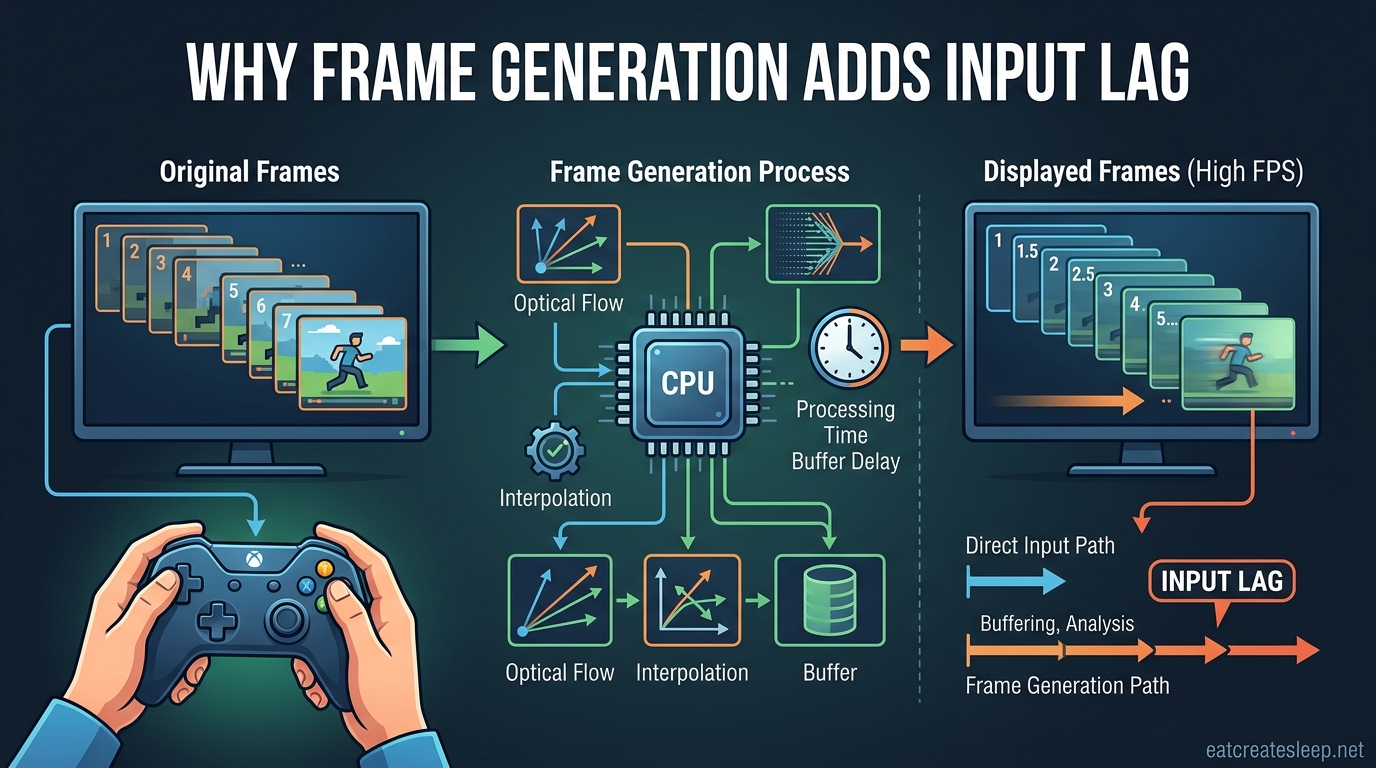
Frame generation can raise your on-screen frame rate from 60 to 120 FPS or higher, yet your inputs (mouse clicks, key presses, joystick movements) still get processed at the original native frame rate. This is the core reason frame generation adds input lag: the generated frames smooth out the visuals, but they carry no new information about what your hands did a few milliseconds ago. Your eyes see fluid motion while your hands feel a disconnected, sluggish response.
If you have ever turned on DLSS Frame Generation, AMD Fluid Motion Frames, or Lossless Scaling and noticed the game looked buttery smooth but felt oddly floaty, you already experienced this paradox. Understanding why frame generation adds latency matters for every PC gamer in 2026, because more and more titles ship with frame gen marketed as a performance boost rather than what it actually is: a visual smoothing technique.
Throughout this guide I will break down exactly how the render pipeline creates this trade-off, why generated frames cannot speed up input response, how anti-lag tech like NVIDIA Reflex and AMD Anti-Lag+ fit into the picture, and when you should leave frame generation on or switch it off. Let us dig into the technical explanation behind frame generation input lag.
Table of Contents
What Frame Generation Actually Does
Frame generation is a post-processing technique that inserts AI-generated frames between your GPU’s real, natively rendered frames. The goal is to double, triple, or even quadruple the number of images your monitor displays per second without forcing the GPU to actually render that many frames from scratch. NVIDIA calls this DLSS Frame Generation (now in DLSS 4 with Multi Frame Generation), AMD calls it Fluid Motion Frames (AFMF), and tools like Lossless Scaling offer similar LSFG modes.
Here is how the process works under the hood. The GPU renders two real frames in sequence. An optical flow algorithm (or an AI model trained on motion data) analyzes how pixels moved between those two frames. It then synthesizes one or more intermediate frames that represent a plausible in-between state and inserts them into the output stream your monitor receives.
The result looks smoother on screen, especially during camera pans and fast motion. A game running at a native 50 FPS can look like 100 FPS with 2x frame generation, or even 200 FPS with 4x multi-frame generation. But none of those inserted frames were drawn in response to your most recent input. They are educated guesses, not fresh renders.
This distinction matters: generated frames vs native frames serve completely different purposes. Native frames are the product of the full render pipeline responding to your inputs. Generated frames are interpolated filler designed only to trick your eyes into perceiving smoother motion.
Why Frame Generation Increases Latency Despite Higher FPS
Frame generation increases input lag because your inputs are still sampled and processed only on native frames. The GPU cannot generate a frame that reflects an input it has not received yet. To generate Frame B between Frame A and Frame C, the GPU must already have both Frame A and Frame C in hand, which means Frame C was rendered using input data that is already one full native frame interval old by the time the generated frame is shown.
Think of it as a delay tax. At a native 60 FPS, each frame represents roughly 16.7 ms of motion. If frame generation inserts a synthetic frame between every pair of native frames, the synthetic frame displayed right now is built from data that is at least one native frame behind your actual current input. That adds latency on top of the baseline render latency you already had.
Tom’s Hardware and several independent testers have measured this directly. In a typical scenario, native 60 FPS might show total system latency around 30 to 50 ms depending on the game and CPU. Enable 2x frame generation and the visual frame rate doubles, but the measured input latency often climbs by 15 to 30 ms. Multi-frame generation (4x) can push that added latency even higher because more synthetic frames are stacked between each pair of real ones.
The render pipeline itself also has to wait. To generate an intermediate frame, the GPU has to hold back output until it can compute the optical flow between two finished frames. That buffering adds a small but measurable delay to the entire display path. This is sometimes called the frame generation overhead, and it is why even high-end hardware like an RTX 5080 paired with a 7800X3D still shows a latency bump when frame gen is enabled in 2026.
Here is the clean way to summarize the mechanism: generated frames are inserted into the display stream late, they do not accelerate input processing, and the math used to predict motion requires the GPU to already have the next native frame ready before it can fill in the gap. Every one of those steps costs milliseconds that the native render path does not have to pay.
Players on forums like r/nvidia and r/pcmasterrace often describe this as the game feeling slower even though the FPS counter looks great. That sensation is real. The latency is not imagined, and it stacks on top of whatever baseline latency your system already has from the CPU, render queue, display cable, and monitor response time.
FPS vs Input Responsiveness: Why They Are Not the Same
Frame rate measures how many images your display updates per second. Input latency measures how long it takes for an action you take (moving the mouse, pressing a key) to show up on screen. These two numbers are related, but they are not the same metric, and frame generation exposes the gap between them.
A native 120 FPS game has a worst-case frame interval of about 8.3 ms, which means your most recent input can be reflected on screen roughly within that window once it clears the render pipeline. Double that with frame generation to a visual 240 FPS and your monitor updates twice as often, but your inputs are still only being read at that original 120 FPS cadence. The extra updates are visual only.
This is why competitive gamers, sim racers who need precise wheel feedback, and gyro-aim players on platforms like r/GyroGaming consistently report problems with frame generation. Their inputs need to land within a few milliseconds, and frame gen adds overhead that pushes the response time outside the window their muscle memory expects.
The mental model to use: FPS describes the smoothness of the picture, latency describes the responsiveness of the controls. Native rendering improves both at the same time because every extra frame is a fresh response to fresh input. Frame generation improves only the picture, and it borrows a few milliseconds from responsiveness to do it.
Real-world example from forum testing: a user running a 360Hz OLED at 1440p with an RTX 5080 reported that native 180 FPS felt crisp and immediate, while frame-generated 360 FPS felt noticeably floaty in fast flick-shoot moments even though the FPS counter was higher. The higher number on the OSD did not translate to tighter control.
If your goal is visual smoothness in a single-player game, that trade is usually fine. If your goal is winning a firefight in a competitive shooter, that trade is often unacceptable.
How Anti-Latency Tech Helps (and Where It Falls Short)
NVIDIA Reflex, AMD Anti-Lag+, and newer technologies like NVIDIA Reflex 2 with Frame Wrap are designed specifically to reduce the latency gap that frame generation exposes. They work by synchronizing the CPU render queue with the GPU so the CPU does not submit frames too far ahead of what the GPU can actually render, which trims dead time from the pipeline.
Reflex in particular has become the standard for competitive latency reduction. When enabled, it can cut total system latency by 10 to 30 ms depending on the game and how badly the render queue was backed up without it. Anti-Lag+ does similar work on the AMD side by adjusting frame pacing based on GPU workload.
Frame Wrap, introduced as part of Reflex 2, goes a step further by predicting where the camera will be on the next native frame and adjusting mouse input accordingly. In controlled tests it has shown latency reductions that make frame generation feel closer to native rendering than it otherwise would.
But here is the honest limitation: none of these technologies eliminate the added latency from frame generation. They reduce it, sometimes meaningfully, but the fundamental math still holds. Generated frames are still inserted after the fact, and the GPU still has to buffer work to compute them. As XDA noted in their analysis, anti-lag tech reduces the severity of the problem without removing it.
There is also a small but real GPU cost to running frame generation in the first place. The optical flow pass and frame interpolation take a slice of compute, often cited in the 10 to 15 percent range depending on the implementation. That overhead can actually lower your native frame rate slightly, which in turn raises baseline latency even before the insertion delay is added.
The practical takeaway: enable Reflex or Anti-Lag+ whenever you use frame generation. It is the single biggest thing you can do to claw back responsiveness. Just do not expect it to make frame-generated FPS feel identical to native FPS of the same number.
When to Use Frame Generation vs When to Disable It
Frame generation is genuinely useful in the right context. Single-player cinematic games, RPGs with heavy path tracing, 4K playthroughs where native frame rates struggle, and CPU-bottlenecked scenarios where the GPU has spare headroom all benefit. Sim racing communities in particular report that frame gen improves motion clarity enough to justify a few extra milliseconds of latency, because you are mostly predicting motion rather than reacting to instant flicks.
The general recommendation from hardware reviewers and forum testers is to treat a native frame rate of roughly 60 FPS as the floor. Below that baseline, the latency added by frame generation becomes very noticeable because the native frame interval is already long. At native 30 or 40 FPS, enabling frame gen often makes the game feel worse even though the FPS counter doubles.
Frame generation is a poor fit for competitive multiplayer, twitch shooters, fighting games where frame-perfect inputs matter, and any game where you rely on gyro or wheel feedback for precision aiming. The added latency interferes with the muscle memory those games depend on.
Here is a quick checklist for when to leave it on:
– You are playing a single-player campaign and want smoother visuals at 4K with ray tracing.
– Your native frame rate is already 60 FPS or higher before enabling frame gen.
– You have Reflex or Anti-Lag+ enabled in the same game.
– You are sim racing or flying where motion clarity matters more than instant reaction.
And when to switch it off:
– You are playing ranked competitive FPS, fighting games, or rhythm games.
– Your native frame rate is below 60 FPS and the game already feels sluggish.
– You are using a 360Hz or higher monitor and chasing minimum latency.
– You rely on gyro aiming, racing wheel force feedback, or other precision input devices.
Tips for Minimizing Input Lag With Frame Generation On
If you decide to keep frame generation enabled, you can still trim the latency penalty with a few adjustments. These steps come straight from community testing on r/nvidia, r/radeon, and benchmark channels using tools like CapFrameX and Frameview.
First, always enable NVIDIA Reflex or AMD Anti-Lag+. This is the highest-impact single change you can make, and most modern games support one or the other in the graphics settings.
Second, cap your frame rate slightly below your monitor’s refresh rate. If you have a 120Hz display, cap at 117 FPS. This gives the render pipeline headroom to pace frames evenly without VSync adding its own input lag.
Third, avoid stacking frame generation on top of heavy upscaling. DLSS Performance mode plus 4x Multi Frame Generation compounds latency. Pick the level of frame gen that gets you to your target visual frame rate and stop there.
Fourth, use a wired mouse and keyboard if you are not already. Wireless input devices add their own few milliseconds of latency, which stacks on top of frame gen latency.
Fifth, keep drivers updated. Frame generation algorithms improve over time, and newer drivers often ship with latency optimizations for recently released titles.
Frequently Asked Questions
Why does frame gen increase input lag?
Frame generation increases input lag because generated frames are interpolated from two already-rendered native frames, which means the GPU must wait until it has the next native frame before it can insert a synthetic one in between. Your inputs are still sampled only on native frames, so the synthetic frames add visual smoothness without improving response time, and the buffering required to compute them adds several milliseconds of latency.
Does frame generation boost FPS?
Frame generation boosts the displayed frame rate, not the native render rate. It inserts AI-generated frames between real ones so your monitor receives more images per second, but the GPU is still only natively rendering the original number of frames. This is why FPS counters go up while input latency does not improve.
Does FSR add input lag?
FSR upscaling alone adds very little input lag because it is a spatial upscaler that runs quickly on the GPU. However, AMD Fluid Motion Frames (AFMF), which is the frame generation feature bundled with FSR 3 and later, does add input lag for the same reason DLSS Frame Generation does. Standard FSR upscaling is mostly latency-neutral; FSR frame generation is not.
How to reduce frame gen lag?
To reduce frame generation lag, enable NVIDIA Reflex or AMD Anti-Lag+ in game settings, cap your frame rate slightly below your monitor refresh rate, avoid stacking multiple frame gen modes with heavy upscaling, use wired peripherals, and keep your GPU drivers updated. These steps can trim the added latency noticeably but cannot fully eliminate it.
The Bottom Line on Frame Generation and Input Lag
Frame generation is one of the most useful visual features in modern PC gaming in 2026, and it is not going away. DLSS 4 Multi Frame Generation, AMD Fluid Motion Frames, and tools like Lossless Scaling let you smooth out demanding games at high resolutions that would otherwise stutter. Used in the right context, frame gen genuinely improves the experience.
The catch is that frame generation is not a performance boost in the traditional sense. It raises the displayed FPS number without speeding up how fast your inputs reach the screen, and the interpolation process itself adds latency on top of your baseline. Knowing why frame generation adds input lag helps you make better decisions about when to enable it and when to leave it off.
For single-player cinematic games at 4K with ray tracing, frame generation is almost always worth the small latency cost, especially with Reflex or Anti-Lag+ enabled. For competitive shooters, fighting games, and any input-critical experience, native frame rate still wins every time. Match the technology to the game in front of you, and you will get the best of both worlds without the floaty disconnected feeling that comes from using frame gen in the wrong scenario.