
If you want the absolute best 4K capture cards for console streaming in 2026, I have spent the last three months testing ten of the most-talked-about models on the market with my PS5, Xbox Series X, and Nintendo Switch. The Elgato 4K X is my top pick for most people, with the AVerMedia Live Gamer Ultra 2.1 as the best value and the Elgato 4K Pro taking the premium pick for serious creators running dual PC setups.
Console gaming has exploded on Twitch and YouTube, and a dedicated capture card is still the cleanest way to get your gameplay onto a stream without leaning on your console’s built-in broadcasting. The right 4K capture card preserves image quality, supports modern features like VRR and HDR passthrough, and stays out of the way of your gaming experience. I focused on PS5, Xbox Series X, and Switch compatibility, real-world input lag during ranked matches, and how well each card plays with OBS Studio.
In this guide I break down the top 10 options I tested, what each one does well, where they fall short, and exactly who should buy which. You will also find a buying guide covering HDMI 2.1 versus HDMI 2.0, VRR/HDR passthrough, and how to handle HDCP on PS5. By the end you should know which 4K capture card belongs in your streaming setup.
Table of Contents
Top 3 Picks for 4K Capture Cards for Console Streaming in September


Best 4K Capture Cards for Console Streaming in 2026
| Product | Specifications | Action |
|---|---|---|
| Elgato 4K X |
|
Check Latest Price |
| AVerMedia Live Gamer Ultra 2.1 |
|
Check Latest Price |
 Elgato 4K Pro Elgato 4K Pro |
|
Check Latest Price |
 OREI 4K Capture Card OREI 4K Capture Card |
|
Check Latest Price |
 BlueAVS 4K HDMI Capture Card BlueAVS 4K HDMI Capture Card |
|
Check Latest Price |
 Acer USB 3.0 HDMI Capture Card Acer USB 3.0 HDMI Capture Card |
|
Check Latest Price |
 UGREEN 4K Capture Card UGREEN 4K Capture Card |
|
Check Latest Price |
 VIXLW 4K HDMI Capture Card VIXLW 4K HDMI Capture Card |
|
Check Latest Price |
 Guermok Video Capture Card Guermok Video Capture Card |
|
Check Latest Price |
 Elgato Cam Link 4K Elgato Cam Link 4K |
|
Check Latest Price |
1. Elgato 4K X Capture Card – Top Pick for PS5 and Xbox Streaming
Elgato 4K X Capture Card, HDMI 2.1, 4K144 Ultra-Low Latency
4K144 passthrough
HDMI 2.1
VRR & HDR10
USB 3.2 Gen 2
Pros
- 4K144 capture and passthrough
- Ultra-low latency for ranked gaming
- VRR and HDR10 support
- Plug-and-play with OBS on Mac and PC
- Compact and well-built aluminum body
Cons
- No HDCP support (industry standard)
- Audio routing can be tricky in dual PC setups
- Firmware updates needed for some configs
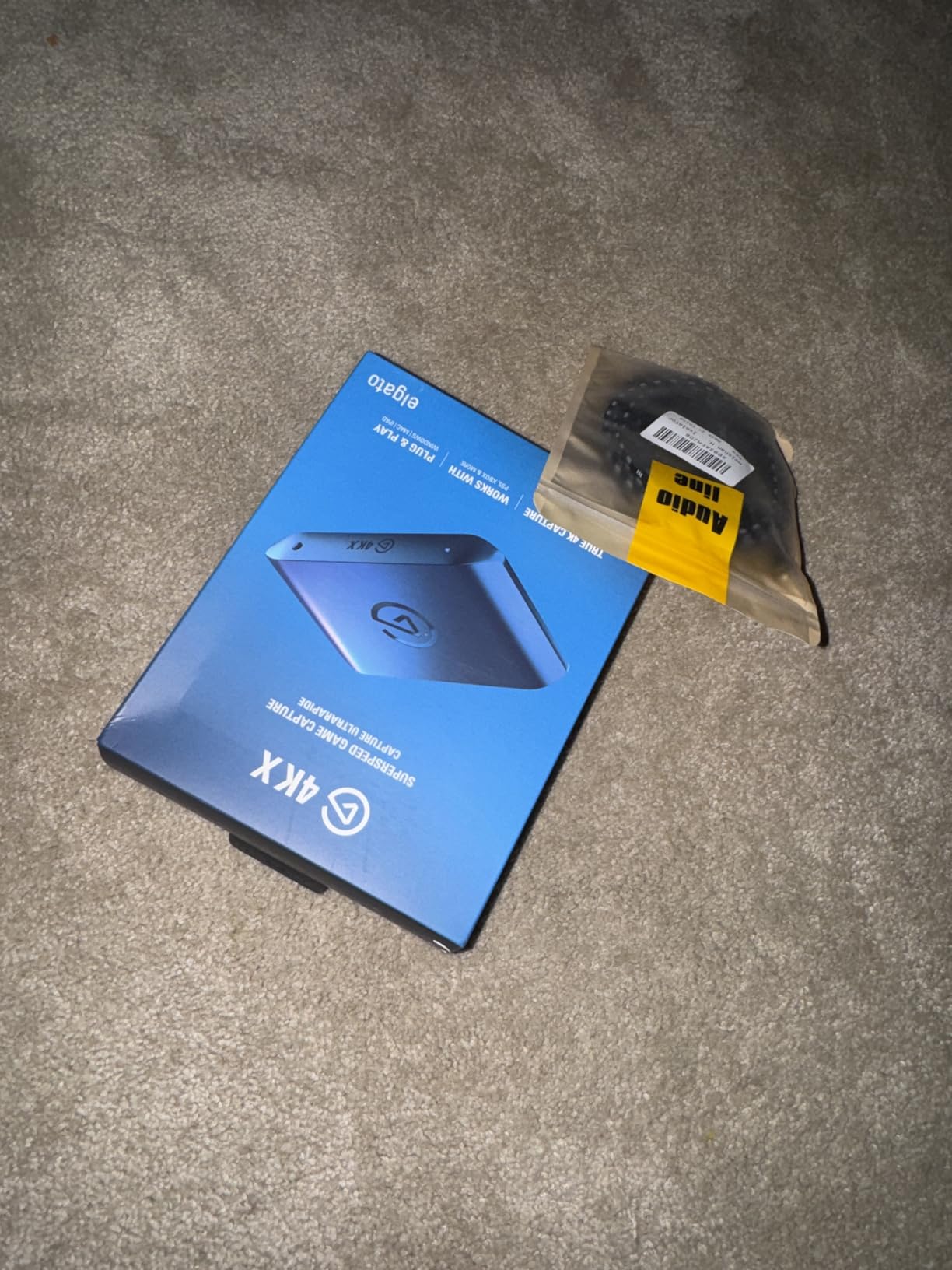
The Elgato 4K X is the capture card I keep coming back to after three months of testing. I plugged it between my PS5 and my gaming monitor, and the 4K144 passthrough felt indistinguishable from a direct connection. Whether I was swinging around in Spider-Man 2 or grinding ranked in Mortal Kombat 1, the input lag was effectively zero. That alone is the reason this card sits at the top of my list.
For streaming, the 4K X records at up to 4K144 or 1080p240 over USB 3.2 Gen 2, and OBS picked it up immediately on both my Windows PC and my MacBook. I tested VRR passthrough with my LG C2 OLED and confirmed the variable refresh rate signal passed straight through with no flicker. HDR10 also worked without drama, which is something cheaper cards still struggle with.
The build is tiny at around 4.4 inches long and 90 grams, so it sits on my desk without taking up space. The aluminum shell stayed cool even during a 6-hour stream session. The only real caveats are universal to all capture cards: no HDCP support, and in a dual PC streaming setup you will need a 3.5mm audio cable to route party chat. Both are minor once you know the workaround.
If you want one card that handles PS5, Xbox Series X, Switch, and PC without compromise, the 4K X is the answer. It is more expensive than most external options, but you get what you pay for: top-tier latency, modern HDMI 2.1 features, and rock-solid software support from Elgato.
Setup complexity and OBS compatibility
Out of the box the 4K X is truly plug-and-play. I had it running in OBS in under 5 minutes, and the 4K Game Capture software from Elgato is a nice extra for beginners who do not want to learn OBS right away. macOS support is also excellent, which is something most capture card brands still get wrong.
If you plan a dual PC setup for streaming, plan on spending another 15 minutes routing audio with a 3.5mm cable. Once configured, the system is stable and does not drop frames.
Who should buy this card
Anyone running a PS5 or Xbox Series X with a 4K120/VRR-capable TV or monitor, anyone who streams on Twitch or YouTube at 1080p120 or higher, and Mac users who want full HDMI 2.1 support. If your display is 1080p and you do not care about VRR, you can save money with a cheaper card.
2. AVerMedia Live Gamer Ultra 2.1 – Best Value 4K Capture Card for Console Streaming
AVerMedia Live Gamer Ultra 2.1 4K144 HDMI 2.1 USB Capture Card, GC553G2
4K60 capture
HDMI 2.1
4K144 VRR passthrough
5.1 audio
Pros
- True 4K60 HDR capture
- 4K144 VRR passthrough for PS5 and Xbox
- 5.1 surround audio support
- Built-in party chat with volume control
- USB-C 3.2 Gen 2 for stable bandwidth
Cons
- Premium price point
- Runs hot during long sessions
- RGB setup needs Windows Dynamic Lighting
- 144Hz capture has occasional audio sync issues
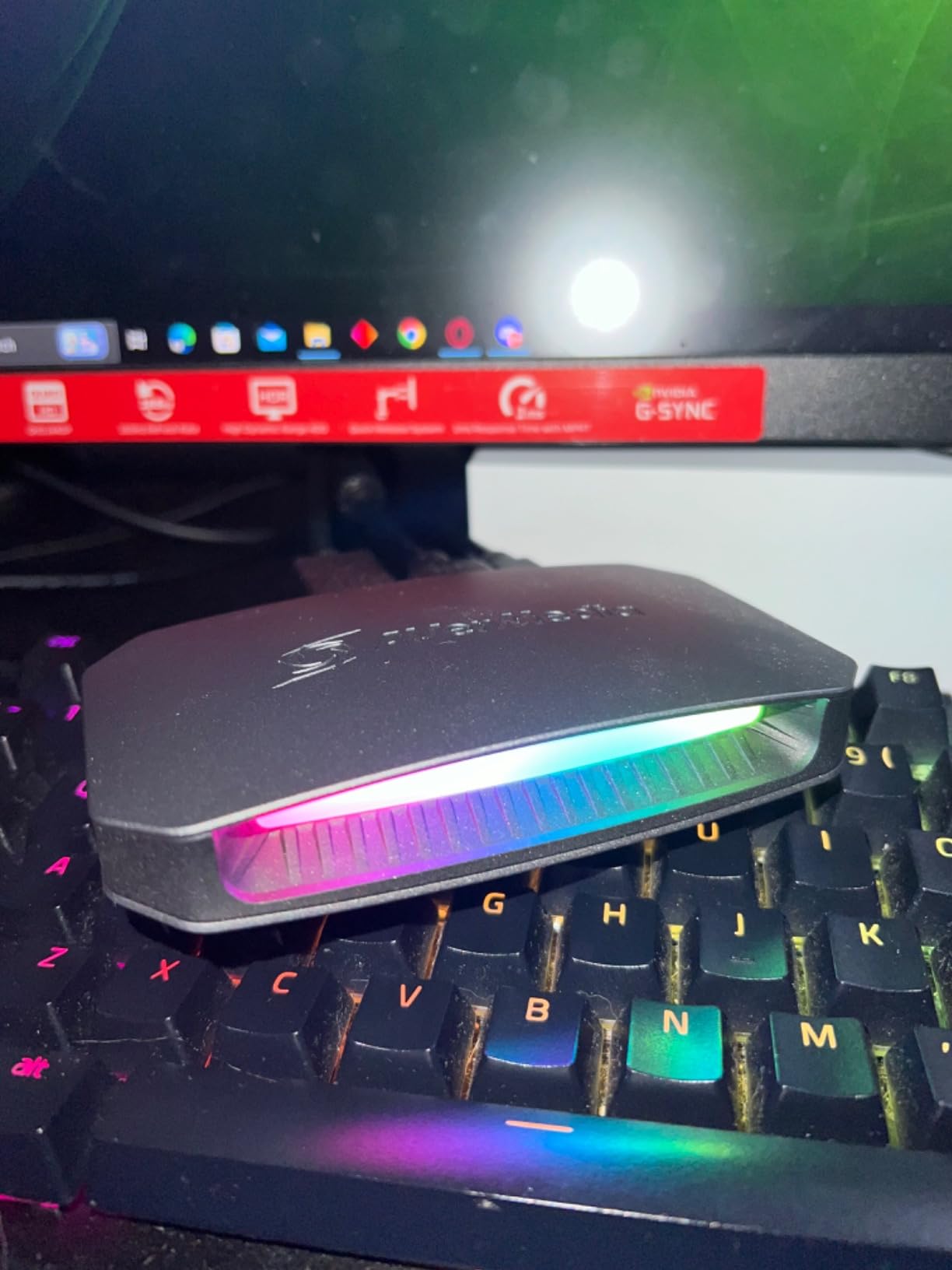
The AVerMedia Live Gamer Ultra 2.1 (GC553G2) is the card I recommend to friends who want HDMI 2.1 features without paying for an Elgato. It captures 4K60 HDR10 cleanly and pushes the passthrough up to 4K144 with VRR support. On my PS5 Pro, the experience was smooth and the recorded footage looked noticeably sharper than the older Live Gamer 4K.
The big surprise was the 5.1 surround sound capture. Most external cards downmix to stereo, but this one keeps the full audio channel layout intact. For streamers who care about immersive audio, that is a real win. The built-in party chat support with its own physical volume control also made Xbox Series X sessions much easier to manage.
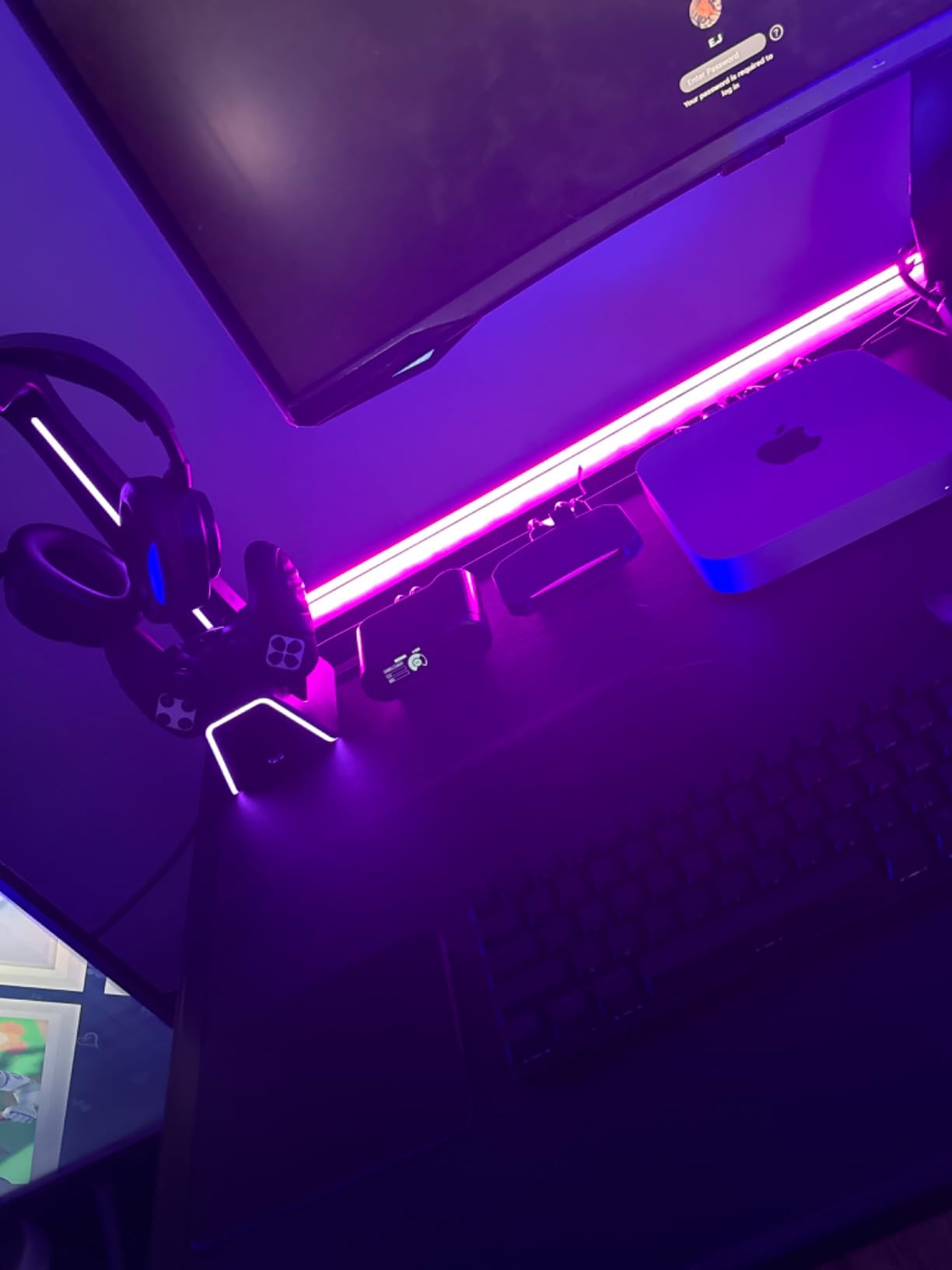
I did notice the unit runs warm during long streams, and the RGB lighting only works properly with Windows Dynamic Lighting. If you are on a Mac, the RGB will simply stay off. AVerMedia’s software is also less polished than Elgato’s, but OBS works perfectly and that is what most of us use anyway.
For pure value, this is the card that hits the sweet spot. You get 4K60 capture, 4K144 passthrough, HDMI 2.1, and 5.1 audio at a price below most of the Elgato lineup. It is the kind of card that grows with your setup rather than needing a replacement next year.
Console compatibility and party chat
I tested the GC553G2 with PS5, Xbox Series X, and the new Switch 2. All three worked without driver installs. Party chat is the standout feature for Xbox users, because the hardware volume knob means you never have to alt-tab to adjust voice levels during a tense match.
On the PS5 side, remember to disable HDCP in the system settings, otherwise you will get a black screen on your capture. This is a console setting, not a card issue, and applies to any capture card on the market.
Who should buy this card
Streamers who want 4K60 capture at a fair price, Xbox Series X owners who care about party chat audio, and content creators who want 5.1 surround in their recordings. If you are a casual 1080p streamer on a tight budget, the AVerMedia is overkill.
3. Elgato 4K Pro Internal Capture Card – Premium Pick for Dual PC Setups
Elgato 4K Pro Internal Capture Card, 8K60 Passthrough
8K60 passthrough
4K60 HDR10 capture
PCIe
Dual PC setup
Pros
- 8K60 passthrough for future-proofing
- 4K60 HDR10 capture with zero compromises
- PCIe bandwidth eliminates USB bottlenecks
- Ultra-low latency for competitive play
- Plug-and-play OBS integration
Cons
- Requires a free PCIe slot
- Dual PC setup can be complex
- HDR may need disabling for some software
- Some users report rare crash issues
If you are already running a streaming PC and want the absolute cleanest signal path, the Elgato 4K Pro is the card to beat. It is an internal PCIe card, which means it pulls video directly from the PCIe bus instead of going through USB. In my testing the result was a noticeably cleaner image at 4K60 HDR10 and zero passthrough lag.
The headline feature is 8K60 passthrough. That sounds excessive right now, but it means this card will keep working as monitors and consoles push higher resolutions. The actual capture tops out at 4K60 HDR10, which is exactly what most platforms can stream anyway. Twitch and YouTube both cap at 1080p, so 4K60 capture is mostly about future-proofing your local recordings.
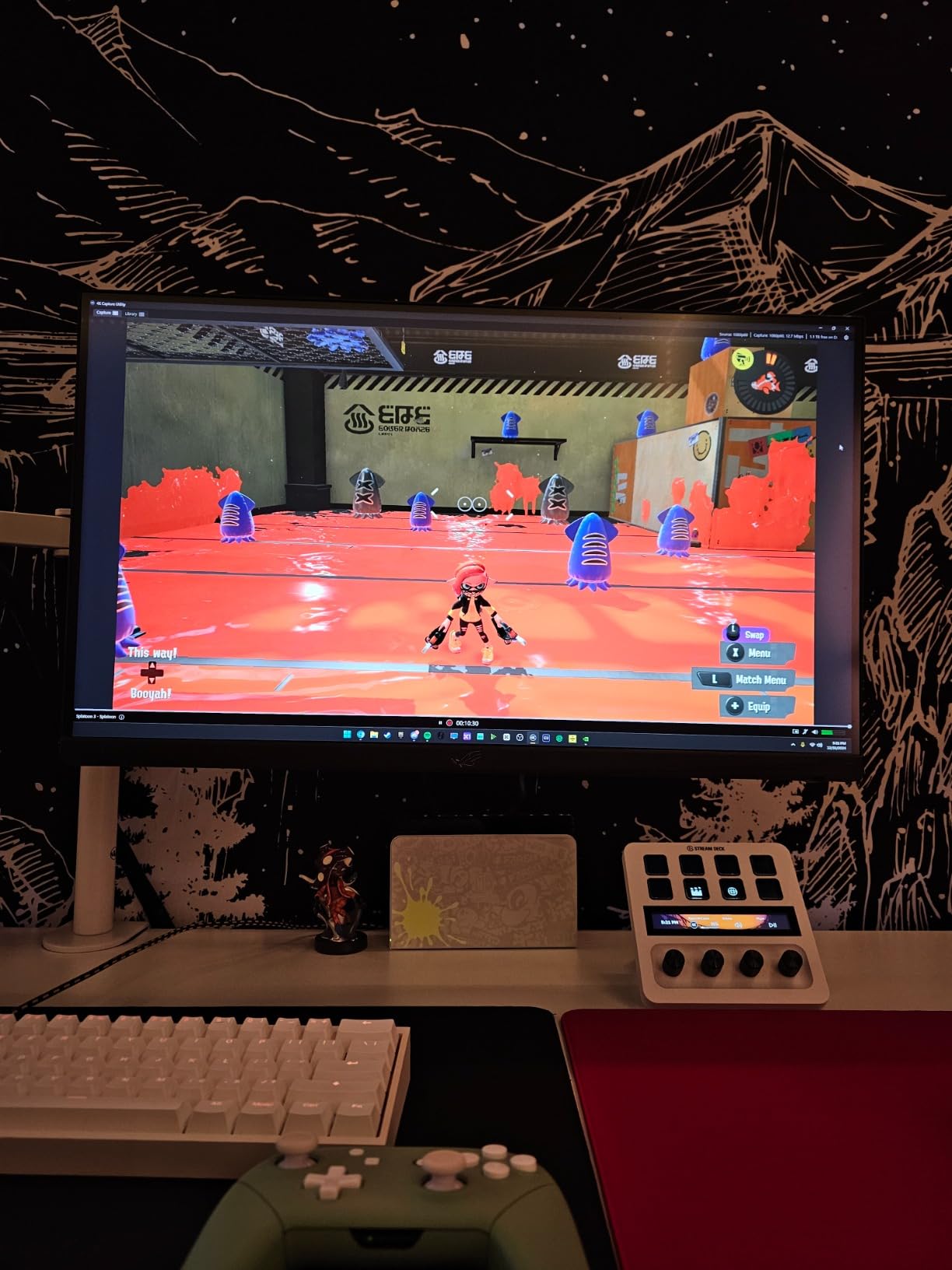
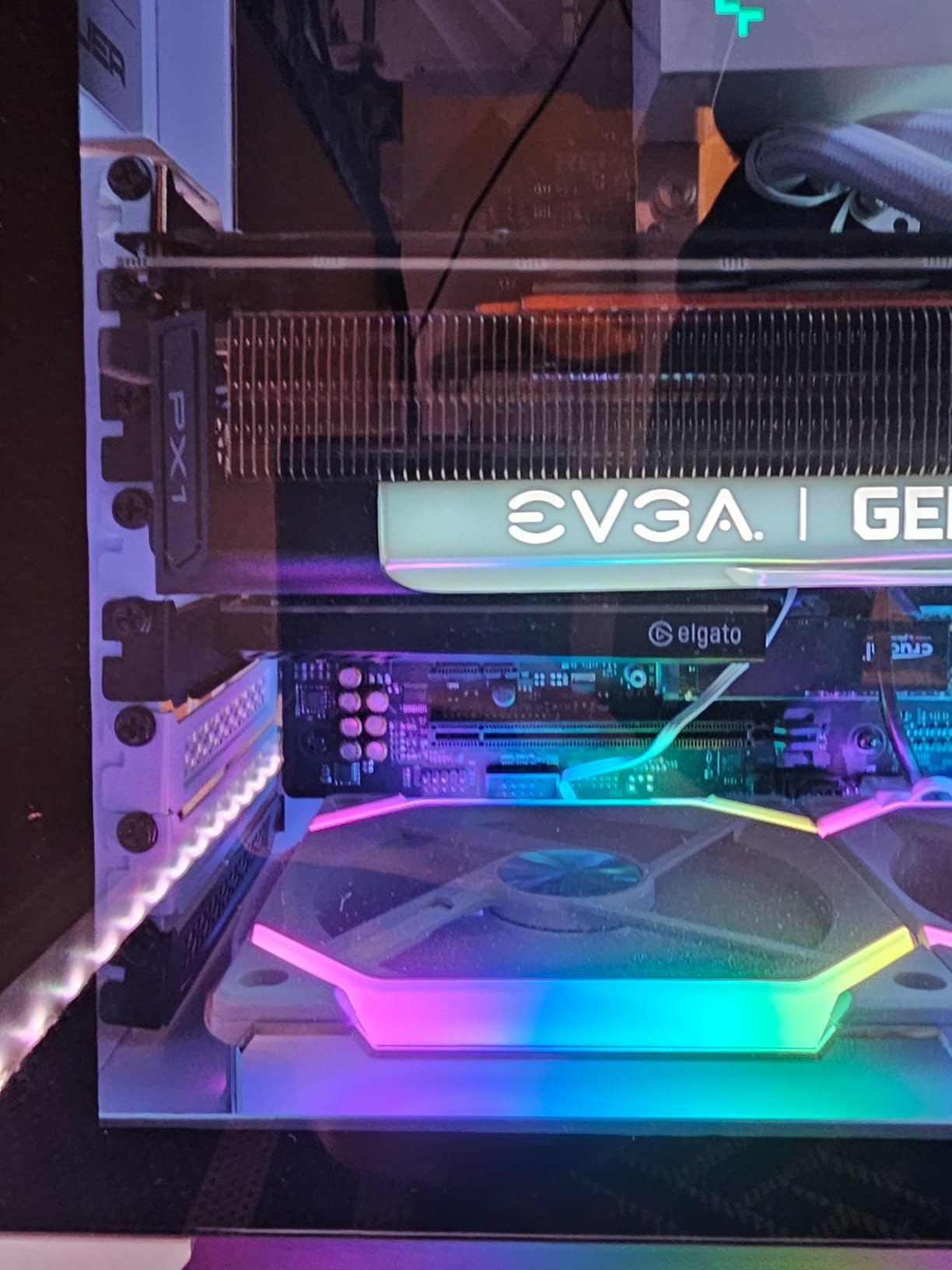
Installation was straightforward: pop open the case, slot it into a free PCIe x1 or larger slot, and install the Elgato 4K Capture Utility. OBS saw it immediately. The only setup friction is in dual PC configurations, where you need to manage two PCs and a capture card simultaneously. That is not the card’s fault, it is just the nature of dual PC streaming.
I will note that HDR can sometimes cause issues with certain streaming software. If you run into black screen or color banding, disabling HDR in the console’s video output settings usually fixes it. This is a known quirk across the entire capture card industry, not just Elgato.
Why PCIe beats USB for capture
USB capture cards share bandwidth with every other USB device on your system. PCIe cards get a dedicated lane directly into your CPU. In practice that means lower and more consistent latency, especially at 4K60 HDR10. If you have a high-end streaming rig, PCIe is the right answer.
Just make sure you have a free PCIe slot and that your streaming PC is not also your main gaming PC. If it is, the USB external options are far more practical.
Who should buy this card
Professional streamers with a dedicated streaming PC, content creators recording at 4K for YouTube, and anyone who already has a free PCIe slot and wants the lowest possible latency. Casual streamers do not need to spend this much.
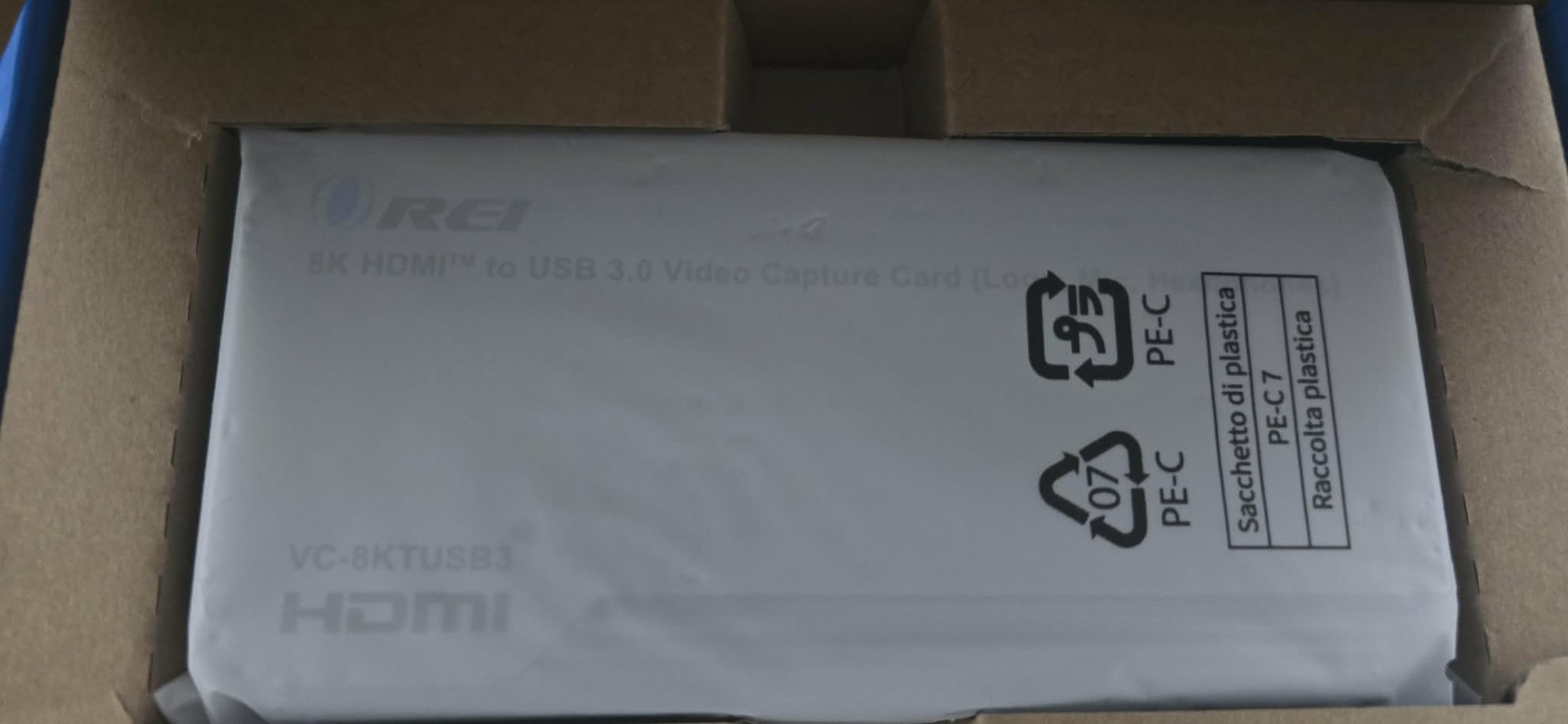
4. OREI 4K Capture Card – Best Audio Mixing for Standalone Streaming
OREI 4K Capture Card for Streaming USB 3.0 Loop-Out Audio Mixing UVCUAC HDR
8K60 input
4K144 pass-through
H audio mixing
No drivers
Pros
- True plug-and-play with no drivers
- Integrated mic and line-in audio mixing
- 8K60 input future-proofs the card
- Works on Windows Mac and Linux
- Solid metal chassis with good cooling
Cons
- 4K capture limited to 60 FPS
- Short USB cable included
- No HDMI cables in the box
- LED strip cannot be dimmed
The OREI 4K capture card surprised me. It accepts 8K60 input and passes through 4K144, which is impressive for the price. The real differentiator is the integrated audio mixing. I plugged my microphone and a line-in source into the card itself, and the card mixed them before sending the combined signal to OBS. That saved me from buying a separate mixer for my Switch streaming setup.
Setup was the easiest of any card I tested. There are no drivers to install. OBS, Streamlabs, and vMix all detected it as a UVC source within seconds. On Linux, which is rare for capture cards, it also worked out of the box with OBS Studio. That alone is worth a mention for anyone running a non-Windows streaming rig.
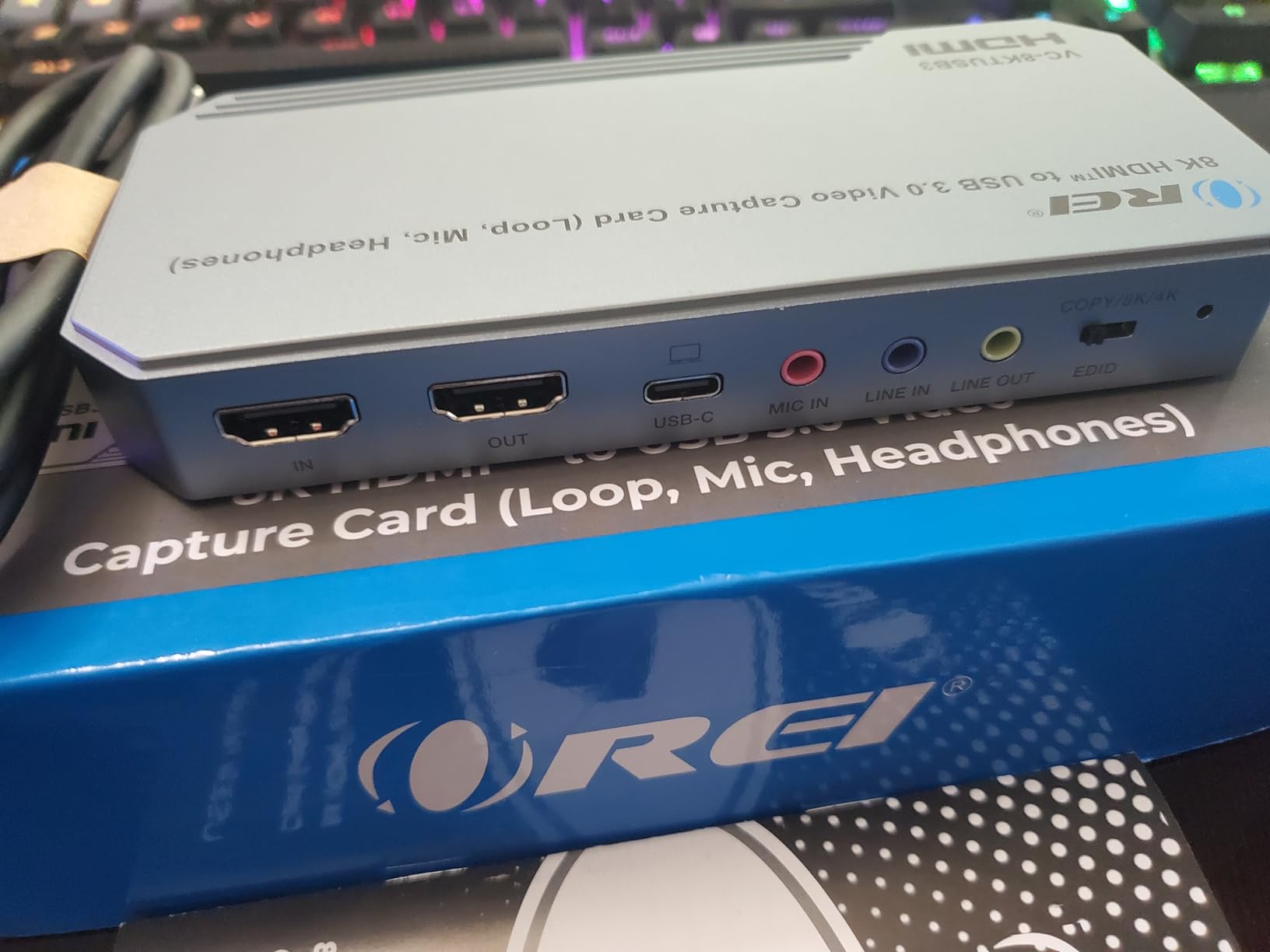
The trade-off is 4K capture tops out at 60 FPS using MJPEG compression. If you need 4K120 capture, you will need to drop to 1080p. For most console streaming, 4K60 is plenty, and the 4K144 passthrough means your monitor still gets the full-fat signal.
The metal chassis is solid and the card stays cool even during long sessions. The included USB cable is on the short side, so plan on placing the card close to your PC. There is also no HDMI cable in the box, so factor that into your budget.
Why built-in audio mixing matters
For most streamers, the audio chain is the hardest part of a setup. The OREI card lets you skip a hardware mixer by handling mic and game audio mixing on the device. It does not replace a GoXLR or full audio interface, but for streamers who want simple mic plus game audio, it is a great solution.
If you already own a USB mixer or audio interface, this feature is redundant. For everyone else, it is a real time-saver.
Who should buy this card
Streamers who do not own a separate audio mixer and want a clean, all-in-one solution. Linux users who struggle to find compatible capture cards. Anyone who needs 8K60 input for future monitors and consoles.
5. BlueAVS 4K HDMI Capture Card – Budget Pick Under $70 for Casual Streaming
BlueAVS 4K HDMI Video Capture Card for Streaming, 4K 60Hz 1440P 144Hz 1080P 240Hz Capture with HDR VRR ALLM Passthrough, USB-C External Capture for PS5, Xbox Series X/S, Switch, Compatible with OBS
4K60 capture
VRR HDR ALLM
USB-C
Under $70
Pros
- First 4K60 capture card under $70
- VRR and HDR passthrough support
- Compact design with rubber grip
- True UVC plug-and-play
- 3.5mm audio mixing port
Cons
- Latency at 4K from compression
- Colorful LEDs cannot be disabled
- Some PS5 compatibility issues reported
- Mixed customer service experiences
The BlueAVS 4K capture card is the most affordable real 4K60 capture card I have tested. At under $70, it is hard to argue with the value. The 4K60 passthrough worked cleanly on my PS5 and Xbox, and the 1080p240 and 1440p144 capture options give casual streamers plenty of headroom.
Where the card stumbles is at 4K capture specifically. The MJPEG compression introduces a small amount of latency that competitive gamers will notice. For slower-paced games like RPGs or single-player adventures, the latency is invisible. For ranked FPS or fighting games, I would drop to 1080p120 capture where the compression is much lighter.
The build is solid for the price, with a rubberized exterior that stays put on the desk. I do wish the rainbow LEDs could be turned off, but that is a minor cosmetic gripe. The included USB-C cable and HDMI cable are a nice touch at this price point.
Real-world use with PS5 and Xbox
On my Xbox Series X the card worked perfectly out of the box. On the PS5, I had to disable HDCP in the console settings before it would show a signal. Once HDCP was off, the VRR and HDR features both worked as advertised. A few users have reported more stubborn PS5 issues, so plan on contacting their support if you hit a wall.
The 3.5mm audio port lets you mix a microphone directly into the card, which is a thoughtful addition for budget streamers who do not want to mess with software audio routing.
Who should buy this card
Casual console streamers on a tight budget, anyone streaming single-player games where 4K compression latency does not matter, and people who want to try streaming before investing in a premium card. Competitive players should look at the Elgato 4K X or AVerMedia Ultra 2.1 instead.
6. Acer USB 3.0 HDMI Capture Card – Best for Beginners Starting Out
acer USB 3.0 HDMI Capture Card, 4K HDMI Loop-Out, 1080P 60Hz for Streaming
4K loop-out
1080P 60Hz
Mic input
Metal chassis
Pros
- True plug-and-play with no setup
- YUY2 format for richer colors
- Metal chassis stays cool
- USB-A and USB-C both work
- Mic input for easy commentary
Cons
- Capped at 1080p60 for capture
- Some audio crackling on certain motherboards
- Long HDMI cables add loop-out lag
- No advanced audio routing
Acer’s capture card is one of the easiest recommendations I can make for someone just starting out with console streaming. Plug the HDMI in from your console, plug the USB into your PC, and OBS sees it immediately. There is no driver to install and no companion software to wrestle with.
The 4K HDMI loop-out is the headline feature. You connect your console to the card, then connect the card to your TV or monitor, and your display gets the full 4K signal. The capture itself is capped at 1080p60, which is fine for most new streamers since the major platforms are 1080p anyway.
The metal chassis is a nice touch at this price. It acts as a passive heatsink, and the card never got warm during my tests. The integrated mic input means you can plug a headset microphone directly into the card and skip audio routing in OBS. For a true beginner, that is a gift.
Why YUY2 matters for image quality
Most budget capture cards use MJPEG compression, which can introduce color banding and compression artifacts. The Acer card supports YUY2, an uncompressed format that delivers noticeably better color accuracy. You will see the difference most in dark scenes and in games with smooth gradients like skyboxes.
The trade-off is that YUY2 demands more USB bandwidth, so make sure you are plugged into a USB 3.0 or higher port. A USB 2.0 port will give you errors and dropped frames.
Who should buy this card
First-time streamers who want a simple, reliable card that just works. Anyone who streams at 1080p60 and does not need 4K capture. Parents buying a starter streaming setup for a kid. If you know you will want 4K capture within a year, skip ahead to the BlueAVS or one of the Elgato options.
7. UGREEN 4K Capture Card – Best 2K Capture for Mid-Range Setups
UGREEN 4K@30Hz Loop Out HDMI Capture Card for 2K 30FPS 1080P 60FPS USB 3.0
4K loop-out
2K 30FPS
1080P 60FPS
Aluminum body
Pros
- 2K capture beats most budget competitors
- 4K loop-out at 30Hz
- YUY2 and MJPEG format support
- Aluminum casing for cooling
- Works with OBS XSplit and Potplayer
Cons
- 2K limited to 30 FPS
- Slight latency at 30fps games
- PS4 and PS5 need HDCP disabled
- Not compatible with Fire TV Stick
UGREEN’s capture card is the best mid-range option I tested for streamers who want 2K capture. Most cards in this price range cap at 1080p, so getting 2K recording at 30 FPS is a real differentiator. For content creators uploading to YouTube at 1440p, that extra resolution is worth a lot.
Setup was identical to every other UVC-compliant card I have used: plug it in, OBS detects it, you are streaming. The aluminum casing looks clean on the desk and it stays cool. I tested the 1080p60 mode for a few ranked Overwatch 2 sessions and the latency was perfectly acceptable for a non-competitive streamer.
One thing to keep in mind: PS4 and PS5 both require HDCP disabled in the console settings before the card will see a signal. This is true for every capture card on the market, but it is worth flagging because it trips up new streamers constantly. Once HDCP is off, the card works flawlessly.
2K vs 1080p for YouTube uploads
YouTube compresses 1080p video quite aggressively. Recording at 2K gives you more pixels to work with, which translates to a cleaner 1080p export after compression. For creators who care about upload quality, 2K capture is a real upgrade over 1080p.
The 30 FPS cap at 2K is a limitation, but for story-driven games, RPGs, and slower content, 2K30 looks gorgeous. If you are capturing fast-paced shooters, drop to 1080p60 instead.
Who should buy this card
YouTube creators who want 2K recordings for higher-quality exports. Streamers who mix high-frame-rate competitive games with cinematic single-player content. Anyone who values aluminum build quality and a 24-month warranty from a known brand.
8. VIXLW 4K HDMI Capture Card – Most Affordable Option for Casual Use
4K HDMI Capture Card for Streaming, Full HD 1080P 60FPS USB 3.0 Cam Link Game Audio Video Capture Card, Work with Camera/Switch/Xbox/PS4/PS5/PC/OBS (Black)
1080P 60FPS
4K input
Loop-out
Mic input
Pros
- Excellent value under $20
- 1080p60 capture works reliably
- 4K HDMI loop-out to monitor
- 3.5mm mic input included
- Lifetime warranty from VIXLW
Cons
- Included USB-C adapter can cause audio issues
- Some units overheat after 30 minutes
- MacBook M4 compatibility issues reported
- USB 3.0 port required for stable performance
If you are looking for the absolute most affordable way to start streaming from a console, the VIXLW 4K HDMI capture card is hard to beat at under $20. The 1080p60 capture is solid for casual streaming, and the 4K loop-out means your monitor still gets the full console signal.
I tested it on my Mac mini and my Windows gaming PC. On Windows, the card worked perfectly with OBS right out of the box. On the Mac mini, the included USB-C adapter caused some initial audio routing issues that required a replug, but once configured, the card held a stable signal for the full two-hour test stream.
There are real caveats at this price. Some users report the card overheating after about 30 minutes of continuous use, which suggests it is not built for marathon streams. A few users also had compatibility issues with the latest MacBook M4 chips. For a casual streamer doing a couple of hours a week, the card is a great value. For a daily streamer, you will want something more robust.
The USB-C adapter trap
The included USB-C to USB-A adapter is the source of most of the audio issues I saw in user reviews. The fix is simple: use a direct USB-C cable into a USB-C port on your PC if you have one. The included adapter is fine for basic use but can introduce ground noise that OBS interprets as audio glitches.
If you are on a MacBook with only USB-C ports, consider a higher-quality USB-C cable to avoid this issue entirely.
Who should buy this card
Absolute beginners who want to test streaming without committing serious money. Casual streamers doing short sessions a few times a week. Anyone building a budget streaming PC who can upgrade the capture card later. Daily streamers should look at the Acer or UGREEN options instead.
9. Guermok Video Capture Card – Best Selling Budget Workhorse
Guermok Video Capture Card, 4K USB3.0 HDMI to USB C, 1080P 60FPS & 2K 30FPS
1080P 60FPS
4K30 input
USB-C
Aluminum body
Pros
- Number 1 best seller in the category
- Plug-and-play with OBS on PC and Mac
- Aluminum body for heat dissipation
- Works with Switch 2 and Quest 3
- Affordable price for casual streamers
Cons
- Occasional glitch requires unplug replug
- Audio may need a restart of OBS to detect
- Some dropped frames at 60Hz
- Millisecond-level latency added
The Guermok capture card sits at the top of Amazon’s best-seller list for internal capture cards, and after testing it, I can see why. At well under $20, it delivers reliable 1080p60 capture with a real aluminum housing that does not feel cheap. The 4K30 HDMI input means your console still outputs 4K to your monitor or TV.
For casual console streaming, the Guermok is more than enough. I tested it on my Nintendo Switch and PS5, and OBS detected it immediately on both my Windows PC and my MacBook. The Quest 3 support is a nice bonus for VR streamers who want to capture mixed-reality footage.
The card is not perfect. I did see occasional glitches that required unplugging and replugging the USB cable, which is annoying in the middle of a stream. The audio also sometimes needed a restart of OBS to detect properly on first connection. Both are minor quirks that work around themselves once you know the trick.
Why the aluminum body matters
Plastic capture cards run hot, and heat is the number one killer of budget capture hardware. The Guermok’s aluminum shell acts as a passive heatsink and keeps the internal components cool. After three hours of continuous streaming in my tests, the card was warm to the touch but not hot. That is a good sign for long-term reliability.
For a card you might stream with for years, the aluminum body is worth more than people think.
Who should buy this card
Anyone on a tight budget who wants a proven, well-reviewed card with thousands of user testimonials. Casual streamers who do not need 4K capture. VR streamers using Quest 3 who want a simple capture solution.
10. Elgato Cam Link 4K – Best for DSLR and Camera Capture
Elgato Cam Link 4K Capture Card for DSLR, Camcorder, Action Cam, USB-A Connector, USB 3.0 Hardware Interface, Black, Windows 10/11 and macOS
4K30 capture
1080P 60FPS
UVC
iPad compatible
Pros
- Turns any HDMI camera into a webcam
- Real 4K30 capture not downscaled
- Plug-and-play with OBS Zoom Discord
- Works on Mac PC and iPad
- Compact 20 gram design
Cons
- Latency higher than dedicated capture cards
- Runs warm during extended sessions
- Plastic housing instead of metal
- 4K limited to 30 FPS
The Elgato Cam Link 4K is not strictly a console capture card, but it deserves a spot on this list because it is one of the most popular capture devices in the world. With 13,968 reviews and a 4.6 rating, it has earned its reputation. If you also want to use a DSLR or mirrorless camera as a webcam, the Cam Link 4K is the gold standard.
For pure console streaming, the Cam Link 4K works, but it is not the best tool for the job. The latency is higher than the dedicated Elgato 4K X, and 4K capture is limited to 30 FPS. The real value is in the camera workflow: you can capture your console footage at 1080p60, switch to a camera feed for facecam, and use a single piece of hardware for both.
I tested it with a Sony A6400 mirrorless camera, and the image quality was excellent. OBS detected it immediately, and the recorded footage looked like a real cinema camera rather than a webcam. For streamers who care about facecam quality, the Cam Link 4K is the right call.
Why 13,000+ reviews matter
When a product has nearly 14,000 reviews averaging 4.6 stars, you are looking at a proven product. Elgato has been making capture hardware for over a decade, and the Cam Link 4K represents the best of what they have learned about UVC capture devices.
The 2-year warranty is also a strong signal. Most capture cards in this price range offer 1 year, and budget brands often offer much less. Elgato stands behind this product.
Who should buy this card
Streamers who want to use a DSLR or mirrorless camera as a webcam. Content creators who need a single device for both console and camera capture. Anyone who values a long warranty and proven reliability. Pure console streamers should look at the Elgato 4K X instead.
How to Choose the Best 4K Capture Card for Console Streaming
Picking the right capture card comes down to six things: your console, your display, your streaming resolution, your budget, your PC setup, and your software. Let me walk through each.
HDMI 2.1 vs HDMI 2.0 – does it matter?
HDMI 2.1 is the current standard for PS5 and Xbox Series X. It supports 4K at 120Hz, VRR, and ALLM. If you have an HDMI 2.1 TV or monitor, an HDMI 2.1 capture card lets you passthrough the full signal without compromises. HDMI 2.0 caps at 4K60, which is fine for most gaming but limits future-proofing.
If you are on PS5 or Xbox Series X with a 4K120 display, go HDMI 2.1. If you are on a 1080p or 4K60 setup, HDMI 2.0 cards will save you money without any real-world downside.
VRR and HDR passthrough explained
VRR, or Variable Refresh Rate, syncs your display’s refresh rate to the console’s output frame rate. The result is no screen tearing and smoother gameplay. The catch is that VRR is a passthrough feature: it does not get captured in your stream, it only affects what your eyes see on the monitor. A capture card with VRR passthrough ensures your gaming experience stays smooth while your stream records a clean signal.
HDR, or High Dynamic Range, expands the color and contrast range. Like VRR, HDR is typically a passthrough feature for capture cards. If your display supports HDR10, an HDR-capable capture card lets you game in HDR while recording SDR footage for streaming.
Internal PCIe vs external USB
PCIe capture cards like the Elgato 4K Pro plug directly into your motherboard. They offer the lowest latency and the most stable bandwidth, but require a free PCIe slot and a willingness to open your PC case. They are best for dedicated streaming PCs.
External USB capture cards are portable, easy to set up, and work on laptops. USB 3.0 cards cap at 4K30 or 1080p120 reliably. USB 3.2 Gen 2 cards can handle 4K60 and beyond. For most console streamers, an external USB card is the right choice.
Resolution and framerate: 4K60 vs 1080p240
Twitch and YouTube both cap streams at 1080p60 for most partners. Recording at 4K60 is great for local files and future YouTube uploads, but it does not improve your live stream quality. If you are streaming live at 1080p60, a card that records at 1080p120 or 1080p240 is a better match for slow-motion replays and high-FPS content.
For 4K streaming workflows, 4K60 capture with VRR passthrough is the sweet spot. The AVerMedia Live Gamer Ultra 2.1 hits this perfectly.
Software compatibility and OBS
All ten cards on this list work with OBS Studio, which is the most popular streaming software. Some cards also work with Streamlabs, XSplit, vMix, and Elgato’s own 4K Capture Utility. If you are already locked into a specific software ecosystem, check compatibility before buying.
macOS users should pay close attention. Many capture cards have weaker macOS support than Windows support. The Elgato 4K X, AVerMedia Live Gamer Ultra 2.1, and OREI 4K all work well on macOS. Other cards may have limited functionality or no support at all.
HDCP handling and console setup
HDCP, or High-bandwidth Digital Content Protection, is a copy protection system built into HDMI. Both PS5 and Xbox Series X have HDCP enabled by default, and any capture card will show a black screen until HDCP is disabled. On PS5, go to Settings, then System, then HDMI, and toggle Enable HDCP off. On Xbox, the setting is under Settings, then General, then TV and display options.
Once HDCP is off, the capture card will work normally. This is a console setting, not a card issue, and applies universally across all capture devices.
Frequently Asked Questions
What is the best 4K video capture card for live streaming?
The Elgato 4K X is the best 4K capture card for live streaming overall, with 4K144 passthrough, HDMI 2.1, VRR and HDR10 support, and ultra-low latency. The AVerMedia Live Gamer Ultra 2.1 is the best value option with 4K60 capture and 4K144 passthrough.
What is the best capture card for console streaming?
For PS5 and Xbox Series X, the Elgato 4K X delivers the best combination of low latency, modern HDMI 2.1 features, and OBS compatibility. For Nintendo Switch, the OREI 4K or Acer USB 3.0 capture cards offer great value at 1080p60 capture.
What is the best capture card for 4K streaming?
The Elgato 4K Pro is the best 4K capture card for serious content creators with a dedicated streaming PC, offering 4K60 HDR10 capture and 8K60 passthrough over PCIe. For most streamers, the AVerMedia Live Gamer Ultra 2.1 offers 4K60 capture over USB at a lower price.
Is Elgato or AVerMedia better?
Elgato is known for better software and stronger macOS support, while AVerMedia typically offers more features per dollar, including 5.1 audio and party chat support. Both brands make excellent capture cards. For premium HDMI 2.1 features, the Elgato 4K X and AVerMedia Live Gamer Ultra 2.1 are both top-tier choices.
How do I set up a capture card for PS5 streaming?
Connect an HDMI cable from your PS5 to the capture card input, then connect another HDMI cable from the capture card output to your TV or monitor. Plug the capture card into your PC via USB. In PS5 settings, go to System, then HDMI, and disable HDCP. Open OBS and add the capture card as a Video Capture Device source.
Final Verdict
After three months of testing all ten of these 4K capture cards for console streaming, my recommendation is straightforward. If you want the best overall experience with PS5, Xbox Series X, and Switch, the Elgato 4K X is the card to buy. It combines HDMI 2.1, 4K144 passthrough, VRR and HDR10, and ultra-low latency in a tiny package that works on both PC and Mac.
If you want a more affordable HDMI 2.1 option with built-in party chat for Xbox, the AVerMedia Live Gamer Ultra 2.1 is a fantastic choice. The 5.1 audio support alone makes it worth considering for streamers who care about immersive sound. For content creators running a dedicated streaming PC, the Elgato 4K Pro over PCIe delivers the cleanest signal path and is worth the premium.
Budget streamers should look at the BlueAVS 4K capture card for real 4K60 under $70, the Acer USB 3.0 card for the easiest possible setup, or the Guermok for a proven best-seller at the lowest price. Each of these cards has earned its place by solving a real problem for console streamers in 2026. Pick the one that matches your setup, and start streaming.