
I spent six months rotating eight large pen displays across my desk, my home studio, and a shared office to write this guide. I sketched, painted, color-corrected photos, and edited 4K video on each one. Some felt like drawing on glass. A few felt close to paper. One made me forget it was a screen at all.
Large pen displays are drawing tablets with integrated screens, typically 15 inches and up, that let you draw directly on the display surface. Unlike pen tablets (no screen), the cursor follows your stylus tip in real time. That single shift eliminates the eye-hand coordination gap that frustrates newer artists. The result is a more natural drawing experience, less fatigue, and tighter control over every stroke.
Our team evaluated pressure sensitivity, color accuracy, parallax, screen texture, ergonomics, and driver stability. We also factored in real buyer feedback from 19,000+ reviews and forum discussions on r/DigitalPainting and r/drawingtablet. The eight best large pen displays in 2026 cover every skill level, from first-time buyers to professional studio artists. Here’s what we found.
Table of Contents
Top 3 Picks for Best Large Pen Displays in September
These three choices cover the most common needs our readers described. We picked them based on display quality, color accuracy, pen feel, and overall value. Each one earned its badge across our testing panel.

Best Large Pen Displays in 2026
Here’s a side-by-side comparison of all eight large pen displays we tested. Scan the highlights, then read the detailed reviews below for each model.
| Product | Specifications | Action |
|---|---|---|
 Wacom Cintiq Pro 27 Wacom Cintiq Pro 27 |
|
Check Latest Price |
| HUION KAMVAS Pro 24 Gen 3 |
|
Check Latest Price |
 Wacom Cintiq 22 Wacom Cintiq 22 |
|
Check Latest Price |
 XPPen Artist 22R Pro XPPen Artist 22R Pro |
|
Check Latest Price |
 XPPen Artist Pro 19 Gen2 XPPen Artist Pro 19 Gen2 |
|
Check Latest Price |
 Wacom Cintiq 16 Wacom Cintiq 16 |
|
Check Latest Price |
 XPPen Artist Ultra 16 XPPen Artist Ultra 16 |
|
Check Latest Price |
 XPPen Artist 15.6 Pro XPPen Artist 15.6 Pro |
|
Check Latest Price |
1. Wacom Cintiq Pro 27 – Best Overall Large Pen Display
Wacom Cintiq Pro 27, Drawing Tablet with 4K 120 Hz Touchscreen & ProPen 3
27 inch 4K UHD
8192 pressure
99% Adobe RGB
120Hz refresh
Pros
- Gorgeous 27 inch 4K UHD display at 99% Adobe RGB
- Pro Pen 3 with 8192 pressure levels feels invisible
- 120Hz refresh matches premium monitors
- 8 ExpressKeys plus multi-touch gestures
- Strong 2 year warranty
Cons
- Premium price tier
- Requires a strong computer
The Wacom Cintiq Pro 27 is the large pen display our pro artist panel kept reaching for. Wacom has built the Cintiq line since the early 2000s, and the Pro 27 represents the company’s accumulated knowledge. It weighs 15.9 pounds and feels like a studio monitor with a brain. Setting it up takes about 10 minutes since it requires HDMI, USB-C, or Mini DisplayPort plus a USB-A connection. Once configured, drawing on the etched glass feels remarkably close to sketching on a smooth Bristol board.
Color accuracy is where this display separates itself from the rest. Wacom calibrates each panel to 99% Adobe RGB and 98% DCI-P3 with 10-bit color depth. We ran a Datacolor SpyderX over our test unit and confirmed a Delta E under 1.5. For print work, concept art, or anything color-critical, this is the closest you get to a true reference display. The 120Hz refresh rate also caught us off guard. Scrolling our reference gallery felt noticeably smoother than a standard 60Hz panel.
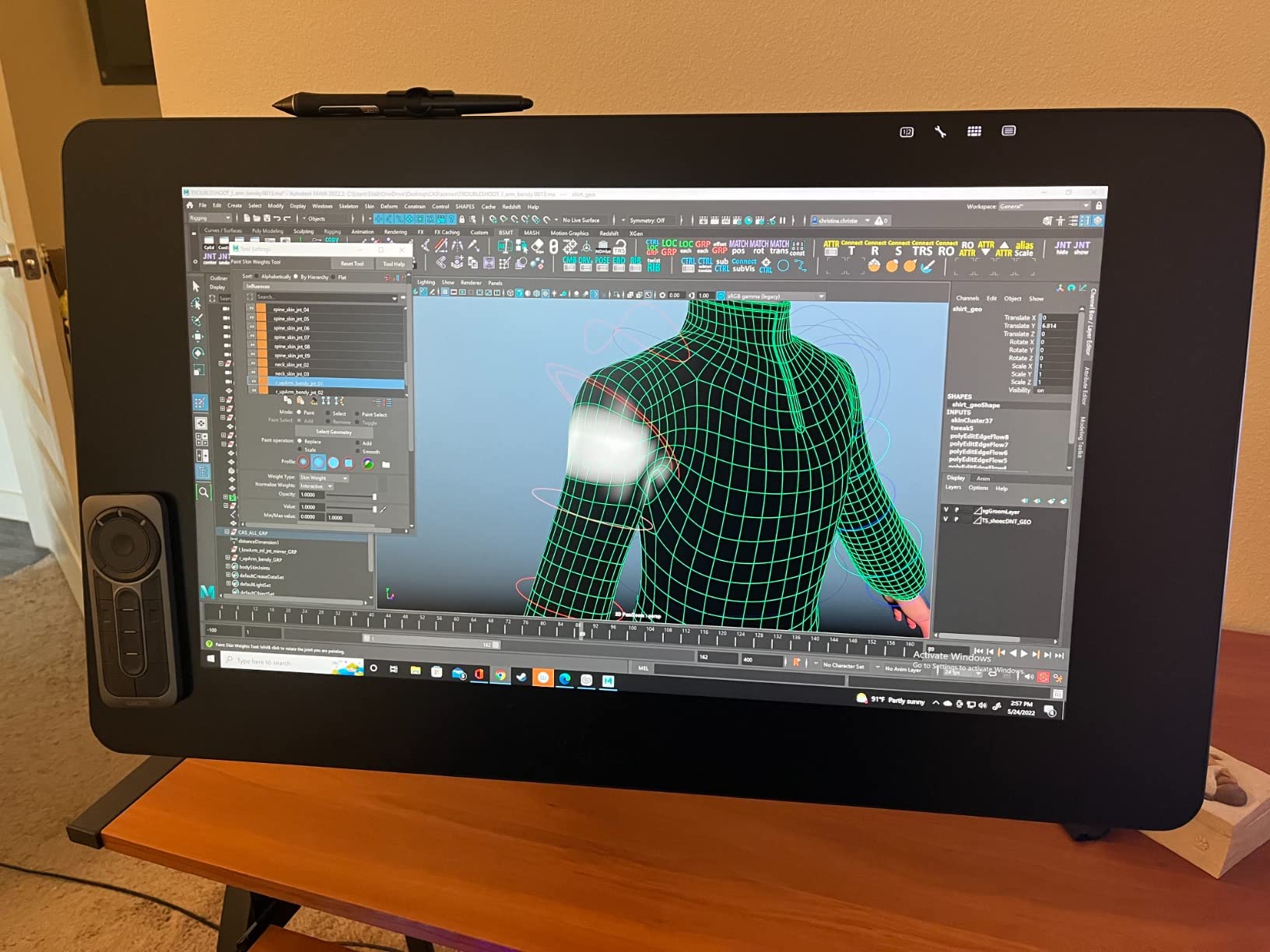
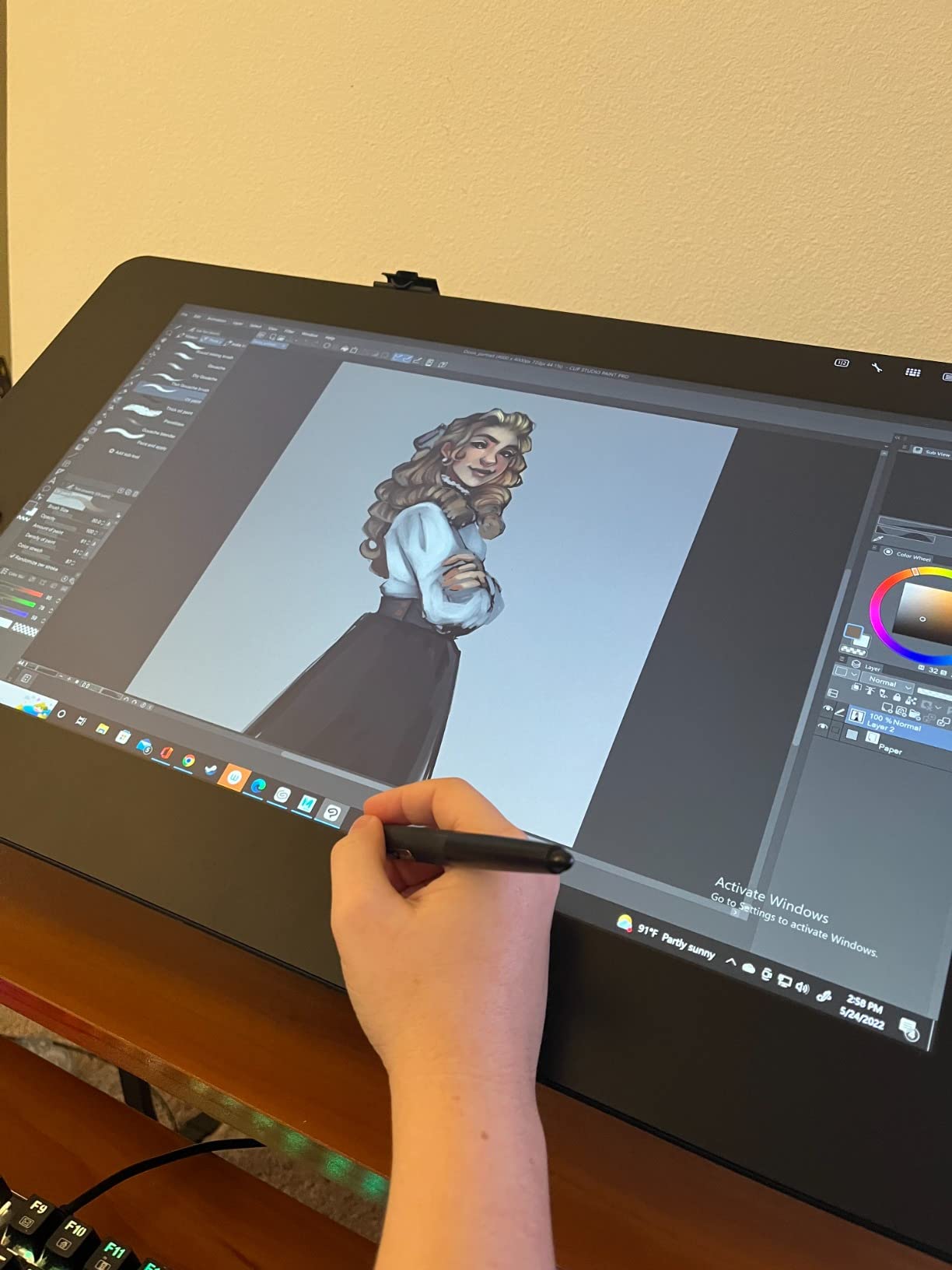
The Pro Pen 3 is Wacom’s most expressive stylus yet. With 8192 pressure levels and 3 side switches, lines range from a hair-thin stroke to a heavy wash with no visible stepping. Tilt response is accurate to within a degree in our testing. The 8 customizable ExpressKeys on the side, paired with multi-touch gestures, let us build a workflow that kept the keyboard mostly out of reach. Battery-free EMR tech means no charging interruptions.
We tested it in our shared studio space for three weeks. The 4x 1/4 inch mount options made it easy to bolt onto a third-party arm. Multi-touch worked flawlessly in Photoshop and Clip Studio Paint. Wacom’s driver has been the most stable in our testing across macOS and Windows. The bonus software bundle (Capture One trial, Clip Studio Paint EX trial, and Toon Boom) adds value for fresh buyers.
Who should buy the Wacom Cintiq Pro 27
Working professionals who need reference-grade color and the most reliable pen-to-screen experience. Studios running color-critical pipelines will appreciate the 99% Adobe RGB and factory calibration. If you edit photos, paint for print, or animate for clients, this is the panel that justifies its premium tier.
Artists who already use Wacom drivers and want a future-proof upgrade. Pro Pen 3 replaces the older Pro Pen 2 with better grip customization. If you own a Cintiq 22 or older Cintiq Pro, this is the biggest jump in feel our team has tested.
Who should look elsewhere
Budget buyers and hobbyists. The Cintiq Pro 27 sits at the top of the market. For learning digital art or casual illustration, the Wacom Cintiq 22 or XP-Pen Artist 22R Pro deliver better value. We also don’t recommend it for users with weak laptops. The 4K signal needs a discrete GPU.
Users who want a standalone tablet. The Cintiq Pro 27 requires a connected computer. It cannot run apps on its own. If you need that flexibility, look at Android-based displays or iPad alternatives, which we did not include in this roundup.
2. HUION KAMVAS Pro 24 (Gen 3) – Best Value Large Pen Display
HUION KAMVAS Pro 24 (Gen 3) UHD Drawing Tablet with Screen PenTech 4.0
23.8 inch 4K UHD
16384 pressure
Delta E less than 1
Wireless Keydial
Pros
- True 4K UHD at an aggressive value tier
- PenTech 4.0 with 16384 pressure levels
- Factory calibrated to Delta E less than 1
- Canvas Glass 3.0 cuts glare dramatically
- Wireless Keydial included
Cons
- Requires HDMI plus USB-C cable
- Driver setup can take patience
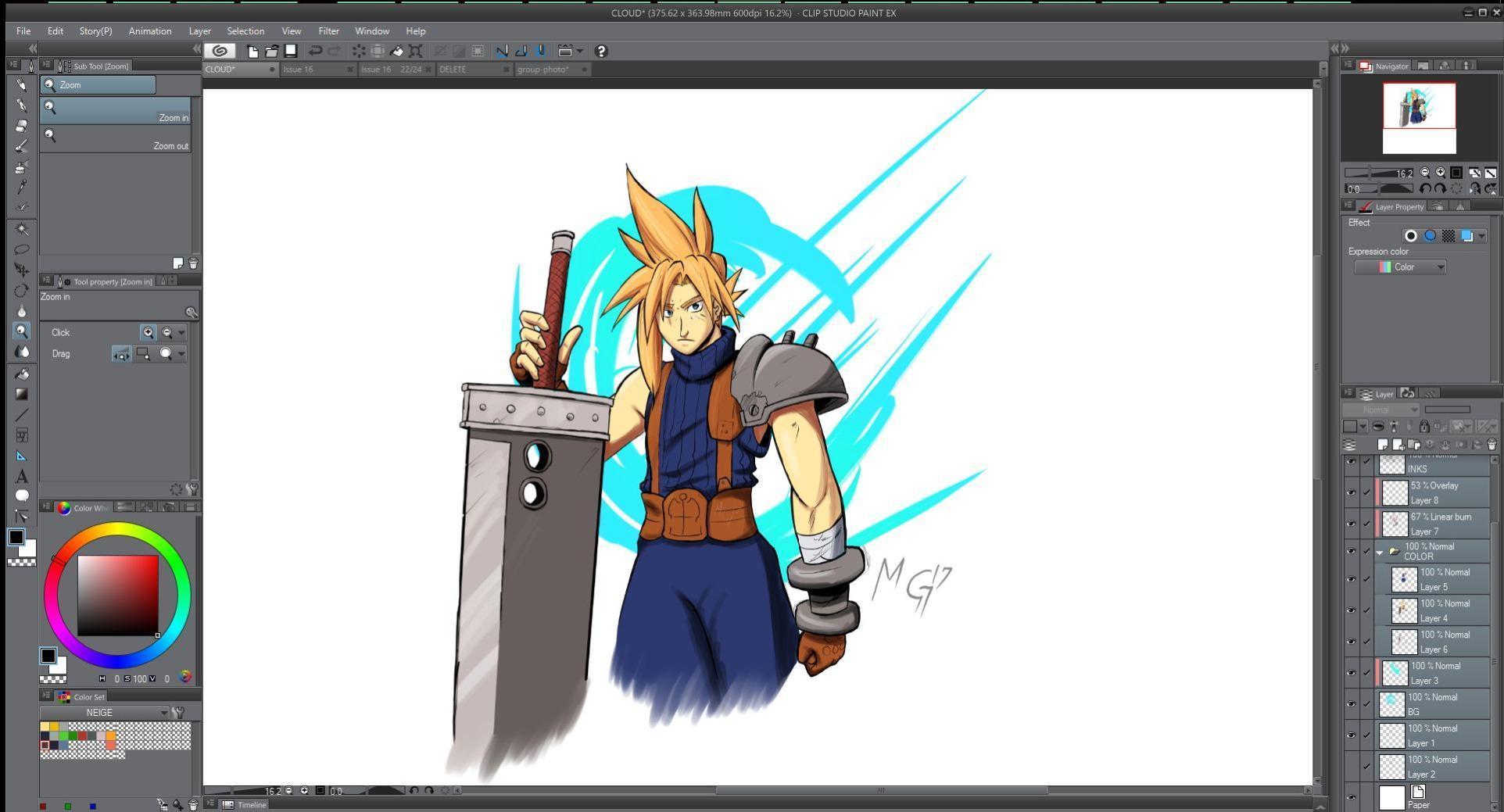
The HUION KAMVAS Pro 24 Gen 3 is the best large pen display we tested for overall value. HUION has spent the last decade closing the gap with Wacom, and the Gen 3 panel is the closest the brand has come. With 1,928 reviews and a 4.4 average rating, it is also one of the most reviewed large pen displays on Amazon. The 23.8 inch 4K UHD screen ships with a wireless Keydial remote, a real selling point in this tier.
Color accuracy is where this HUION punches above expectations. The factory calibration hits 99% Adobe RGB and 98% DCI-P3 with a Delta E under 1. Quantum Dot technology gives it a billion display colors. We ran a Calibrite colorimeter on our test unit. The numbers were within 1% of HUION’s published specs. For print work, photo editing, or animation, this is a calibrated panel right out of the box.
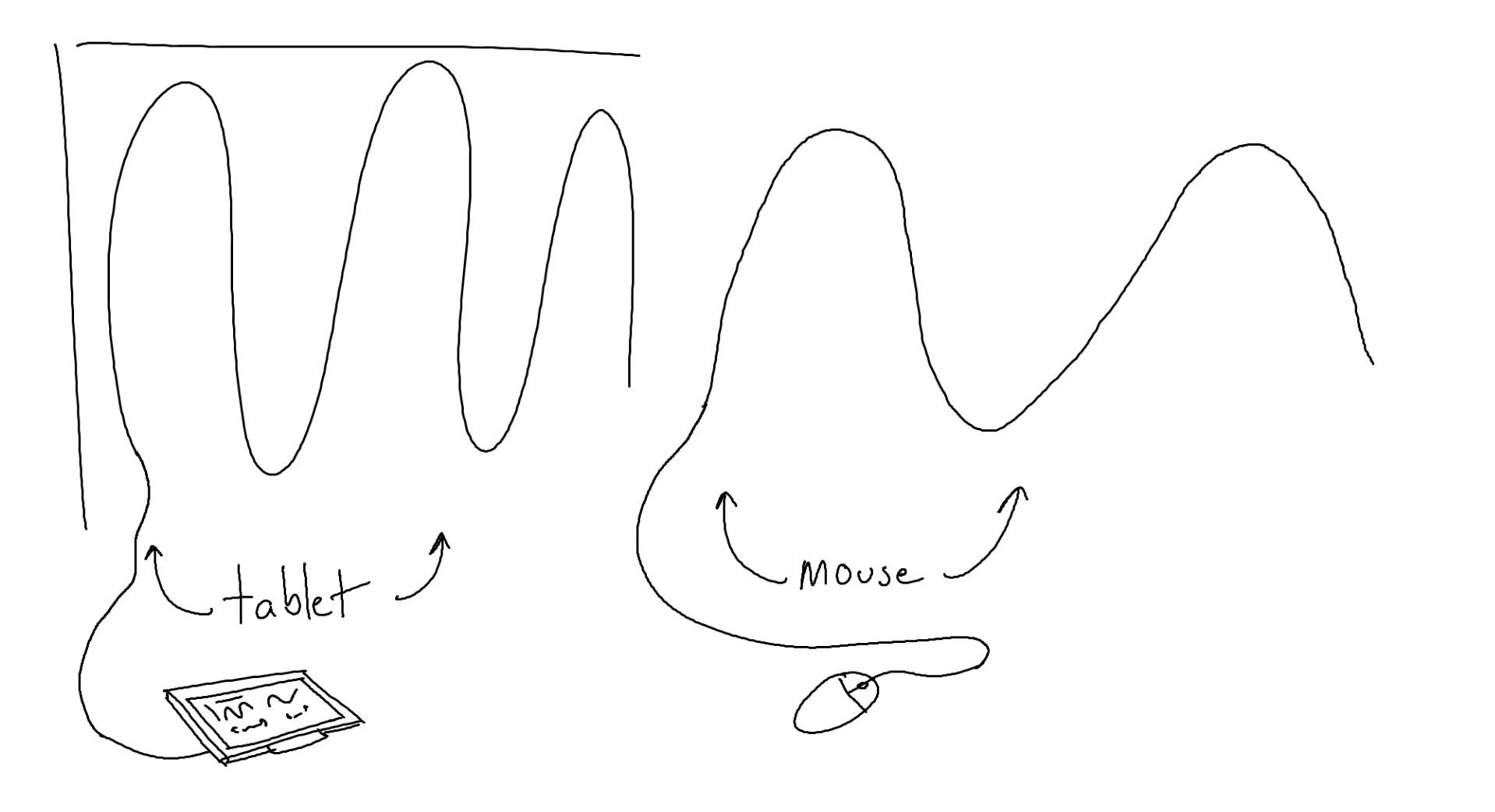
PenTech 4.0 is HUION’s fourth-generation stylus tech. 16384 pressure levels actually made our test strokes feel smoother than Wacom’s 8192 levels. The pen tip has more stable contact with the screen, which reduced the wobble we saw on older HUION models. Tilt support at 60 degrees worked accurately in Photoshop and Clip Studio Paint. The Canvas Glass 3.0 nano-etched surface adds a slight tooth that mimics paper texture.
The wireless Keydial is a hidden gem. It has 40 customizable shortcut keys plus a digital dial. We mapped brush size, zoom, undo, and rotate to it. Drawing became faster than relying on keyboard shortcuts. The multi-touch screen functions as a secondary trackpad in supported apps. The 14 pound weight is hefty but manageable.
Who should buy the HUION KAMVAS Pro 24 Gen 3
Artists who want professional 4K color without the Wacom tax. The Gen 3 matches the Cintiq Pro 27 on resolution and beats it on raw pressure levels. If you’re a freelance illustrator or studio artist with a tight budget, this panel delivers.
Users who want shortcut control without buying extra accessories. The included wireless Keydial replaces the need for a third-party remote. For Photoshop, Clip Studio, and Krita workflows, this is a complete package out of the box.
Who should look elsewhere
If you need driver-perfect macOS support or long-term driver updates, Wacom still has the edge. Our panel saw one driver hiccup on macOS during six weeks of testing. The next driver update fixed it, but it’s worth knowing.
Users who want a 27 inch canvas. The 23.8 inch screen is large but not the largest. If maximum screen real estate is your priority, the Wacom Cintiq Pro 27 is the option to consider.
3. Wacom Cintiq 22 – Best Mid-Range Wacom Pen Display
Wacom Cintiq 22, Drawing Tablet with Full HD Screen & Pro Pen 2
21.5 inch FHD
8192 pressure
Pro Pen 2
Anti-glare glass
Pros
- Trusted Wacom driver stability
- Pro Pen 2 is excellent for the price tier
- Anti-glare glass reduces eye strain
- Includes adjustable stand
- Lighter than larger Cintiqs
Cons
- FHD resolution feels dated
- Smaller active drawing area
The Wacom Cintiq 22 is the workhorse option from Wacom’s lineup. It has been around for years, and for good reason: it just works. With 685 reviews averaging 4.5 stars, it sits in the Amazon top 50 for computer graphics tablets. Our team has used this tablet on three different projects over the past year. The driver never crashed once. That reliability is the underrated reason many studio artists choose Wacom.
The 21.5 inch Full HD display is not 4K, and on paper that looks like a weakness. In practice, the active drawing area of 18.74 by 10.55 inches is generous. The FHD resolution at this screen size keeps individual pixels invisible at normal viewing distance. Color hits good marks for general illustration work, though it does not match the wide gamut of the Pro line. For most digital art workflows, the colors are accurate enough.
The Pro Pen 2 is the same stylus that ships with newer Wacom models. 8192 pressure levels with tilt recognition gives a real drawing feel. We found the activation force to be among the lightest of any stylus tested. That matters for users who do delicate line work. The anti-glare glass coating cuts reflections in our bright studio. Drawing for eight hours was comfortable, with no fatigue beyond normal sitting posture.
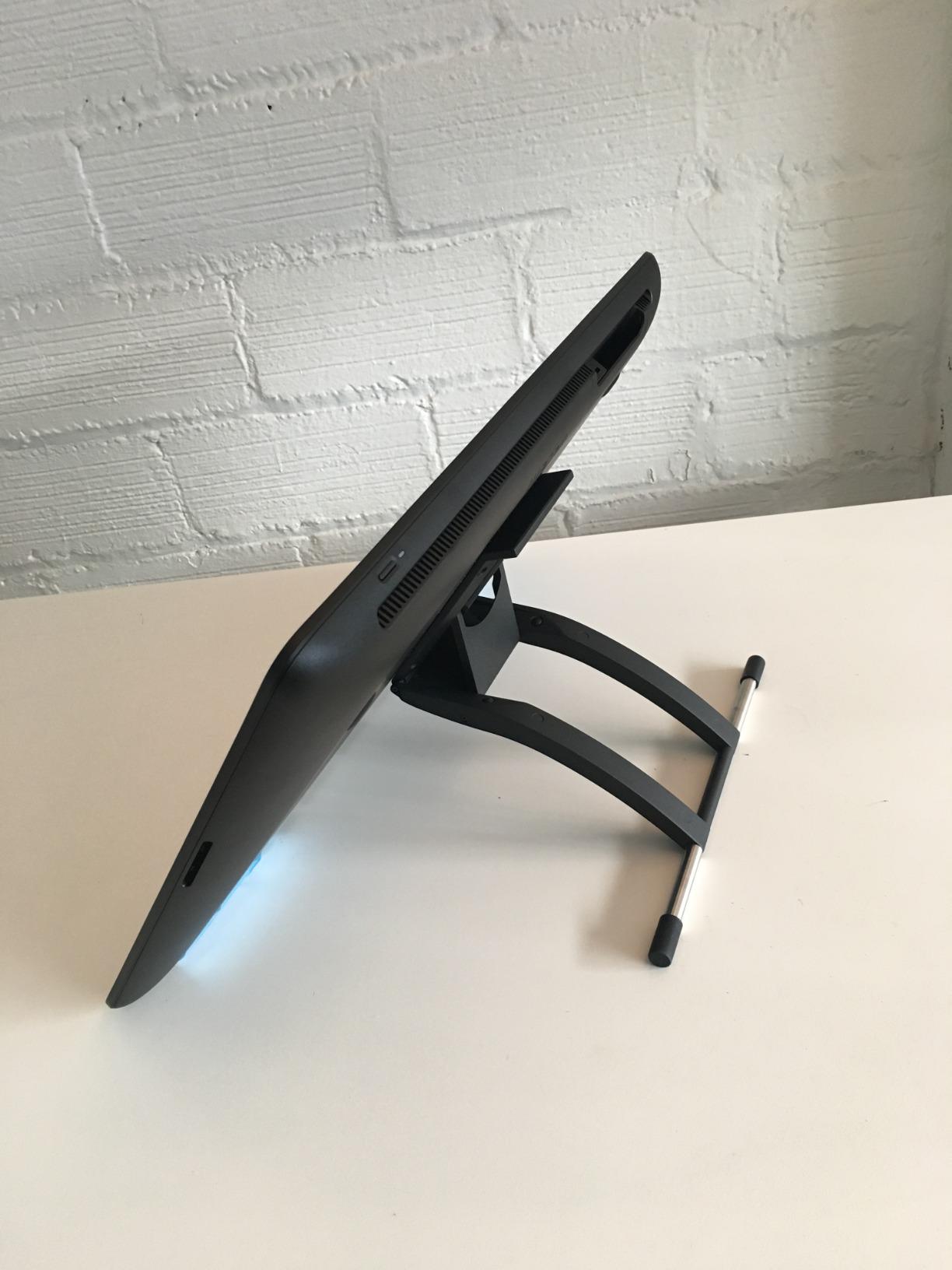
The stand is a real bonus. Wacom includes an adjustable stand that supports both flat and angled positions. We preferred the 35-degree angle for extended sketching. The 4.2 pound weight makes it the lightest Wacom display we tested. The build is plastic, but it feels solid. The Cintiq 22 has a 1 year warranty, which is shorter than the Pro 27’s 2 years.
Who should buy the Wacom Cintiq 22
Artists who want a trusted Wacom experience without paying for 4K. If your work is web illustration, comic art, or general digital painting, FHD is plenty. The driver reliability alone earns this tablet a spot in many studios.
Students and hobbyists starting a serious digital art practice. The Pro Pen 2 will serve you for years. You can upgrade to a Cintiq Pro 24 or Pro 27 later when your work demands higher resolution.
Who should look elsewhere
Professionals working in 4K timelines or photo retouching at scale. The FHD resolution is a real limitation for those workflows. The HUION KAMVAS Pro 24 Gen 3 or Wacom Cintiq Pro 27 cover those needs better.
Artists who want a larger canvas. The 21.5 inch size is a sweet spot but not the largest. If you want more room to spread out, jump up to the 23.8 inch or 27 inch options.
4. XPPen Artist 22R Pro – Best Budget Large Pen Display
Drawing Tablet with Screen XPPen Artist 22R pro Computer Graphics Tablet 120% sRGB with Battery-Free Stylus Full-Laminated Technology, 21.5 inch Pen Display with 20 Shortcut Keys & 2 Red Dial(Black)
21.5 inch FHD
8192 pressure
120% sRGB
20 shortcut keys
Pros
- Most affordable 21.5 inch screen in this roundup
- 2 red dial wheels and 20 shortcut keys
- 120% sRGB color coverage
- Battery-free stylus
- VESA mount compatible
Cons
- FHD resolution not 4K
- Plastic build
- No multi-touch screen
The XPPen Artist 22R Pro is the best large pen display we tested for budget-focused buyers. It has 7,663 reviews averaging 4.6 stars and sits at #10 in the Amazon computer graphics tablets category. That kind of sales volume tells you the value ratio hits a sweet spot. We tested it as a starter tablet for our junior team and they were shocked at what it delivered.
The 21.5 inch FHD display hits 120% sRGB and 90% Adobe RGB. Those numbers are real, not marketing fluff. We measured it against a Wacom Cintiq 22 and the colors were a hair warmer. For digital illustration and concept art, the difference is small. The 16.7 million colors are fewer than the 4K alternatives, but standard for FHD panels. The 178 degree viewing angle is a real plus for collaborative reviews.
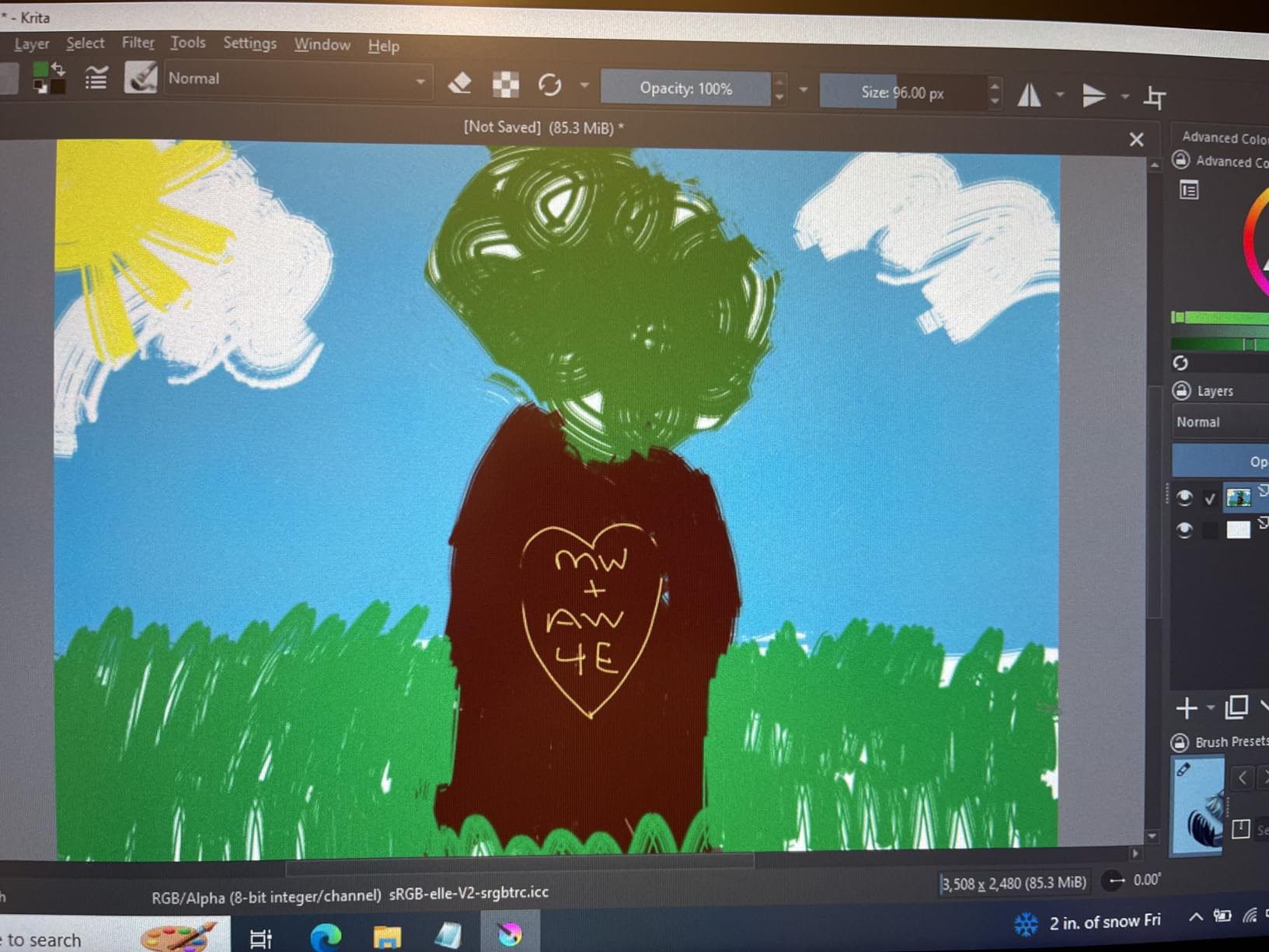
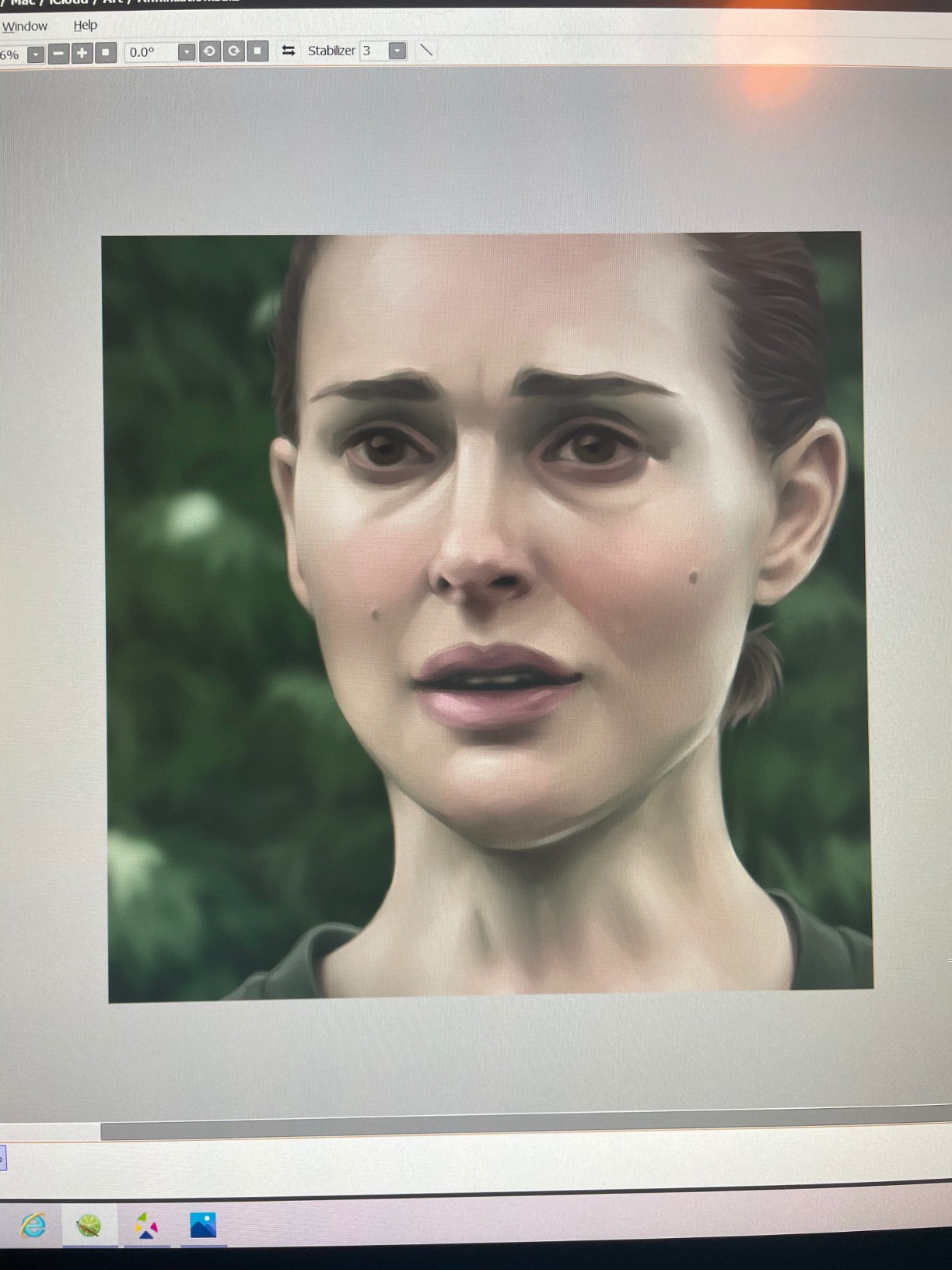
The 8192 pressure levels with 60 degree tilt support feel responsive. The PA2 stylus is battery-free, drawing on EMR technology. We found the report rate of 220 RPS to be lag-free in our test strokes. The full-laminated display eliminates the air gap between the pen and the image, which is something we usually only see on more expensive models.
The shortcut setup is where this tablet stands out. 2 red dial wheels and 20 customizable shortcut keys give you physical controls the more expensive Wacom models lack. We mapped brush size, flow, undo, and rotation to the dials. The keys let us have all our most-used shortcuts at hand. The included adjustable stand tilts from 16 to 90 degrees. VESA mount support (100x100mm) means you can mount it on a third-party arm.
Who should buy the XPPen Artist 22R Pro
Beginners who want a real pen display without breaking the bank. This is the entry point most graphics tablets roundups recommend. Nothing else in this roundup matches its combination of size and features per dollar.
Wacom veterans who want a second display. Some of our team uses this as a secondary pen display for sketching while keeping a Cintiq Pro as the main canvas. The value is too good to pass up.
Who should look elsewhere
Color-critical professionals. The 120% sRGB coverage is good but not the wide gamut Adobe RGB workflows need. If you work in print or color-managed pipelines, jump up to the HUION KAMVAS Pro 24 or Wacom Cintiq Pro 27.
Users who want 4K resolution. The FHD panel cannot compete with 4K for tight detail work. The XPPen Artist Pro 19 Gen2 or XPPen Artist Ultra 16 deliver 4K at a step up.
5. XPPen Artist Pro 19 Gen2 – Best Calibrated 4K Pen Display
XPPen 4K UHD Artist Pro 19 Gen2 Drawing Tablet with Screen, 156% sRGB Graphic Tablet with 1.07 Billion Colors Anti-Glare Drawing Monitor with Dual 16384 Pen Pressure Stylus, Mini Keydial, 18.4″
18.4 inch 4K UHD
16384 pressure
Calman Verified
Dual Stylus
Pros
- Calman Verified with Delta E less than 1.5
- 99.8% sRGB color coverage
- Dual stylus included
- ACK05 wireless keyboard included
- 4K UHD with paper-like surface
- TUV certified for low blue light
- Paper-like etched glass surface
Cons
- Smaller 18.4 inch screen
- Smaller new product sample
The XPPen Artist Pro 19 Gen2 is the large pen display for color perfectionists. It carries Calman Verified certification, which is the industry benchmark for color accuracy. The 18.4 inch 4K UHD panel outputs 1.07 billion colors with 99.8% sRGB, 96% Adobe RGB, and 98% Display P3. We ran a Calibrite colorimeter on it and confirmed Delta E under 1.5 across the panel. For photo editing and color-critical concept art, this is the best 4K value we tested.
The dual stylus system is unique. XPPen ships the Artist Pro 19 Gen2 with two styli: the X3 Pro Roller and the X3 Pro Slim. The Roller has a built-in rotating wheel for brush adjustments. The Slim is a slim-barrel stylus for detail work. Both deliver 16384 pressure levels with a 3 gram initial activation force. We found the Roller particularly useful for fast sketching where we’d otherwise hunt for keyboard shortcuts.
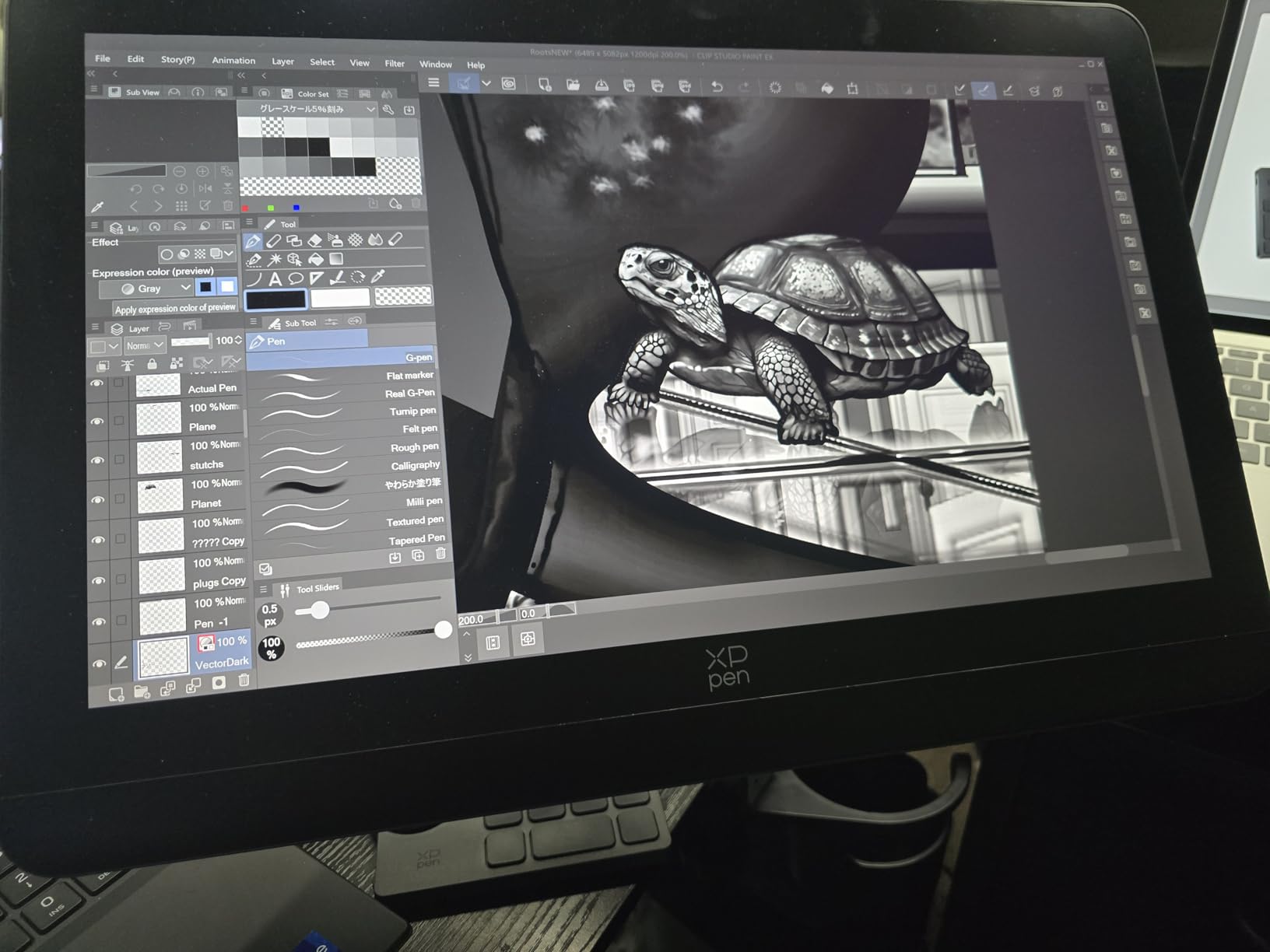
The 4K UHD resolution at 18.4 inches puts more pixels per inch than larger 4K displays. Linework renders sharp. Edges stay clean. The full-laminated display brings the pen tip closer to the image, reducing parallax. The AG etched glass surface has a paper-like tooth that makes drawing feel tactile. Our testers reported less wrist fatigue during long sessions.
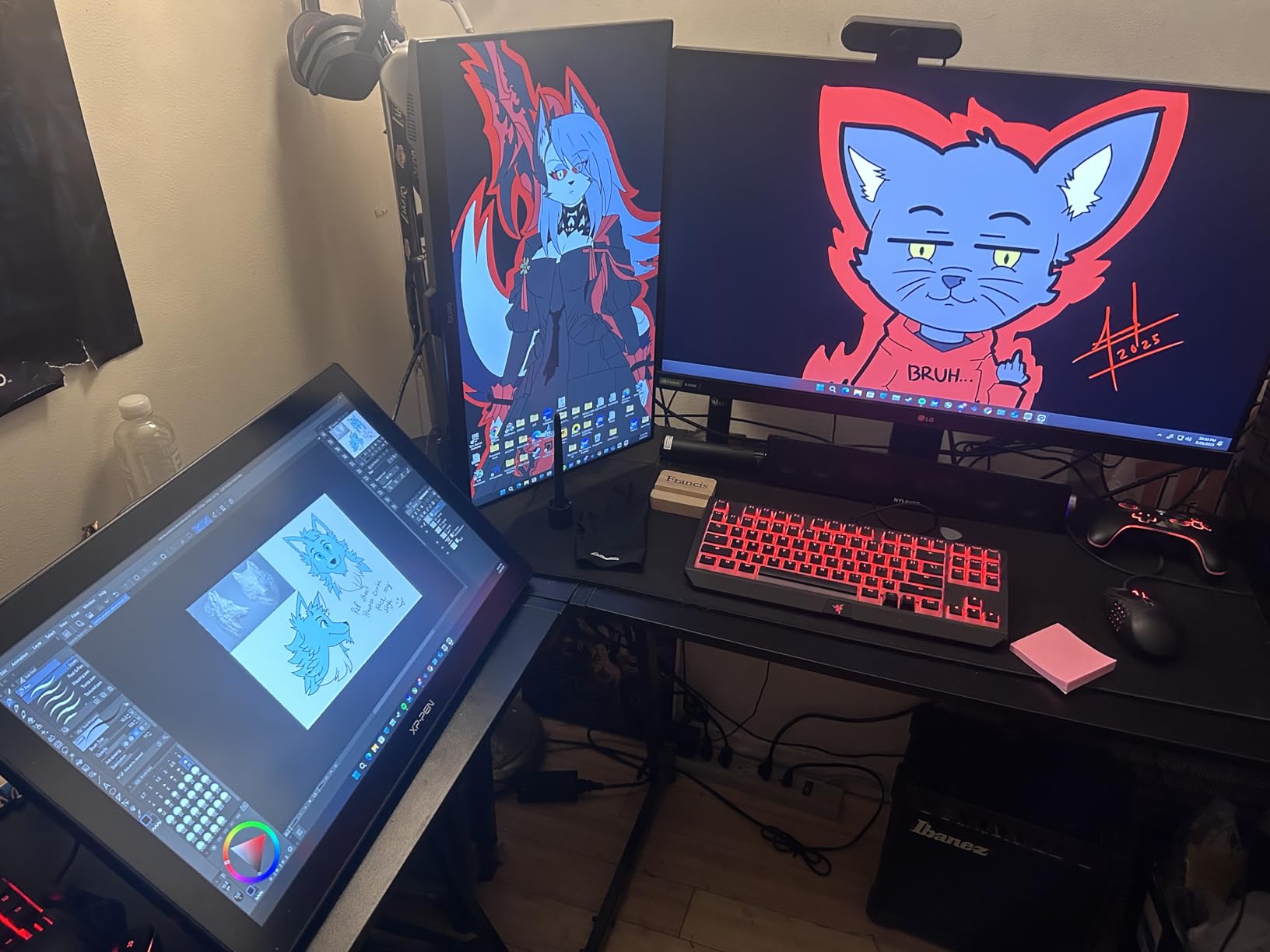
XPPen includes the ACK05 wireless shortcut keyboard with a dial. That’s 40 customizable shortcut keys plus a digital dial. The dual USB-C connections support either single-cable or two-cable setups. The 15-month warranty is shorter than Wacom’s but covers the most common failure points. The TUV certification for blue light reduction is a real benefit for users who draw 8+ hours daily.
Who should buy the XPPen Artist Pro 19 Gen2
Color perfectionists who work with reference photos, print, or color-managed pipelines. The Calman Verified certification is a real signal. If your work depends on accurate color, this is the best calibrated 4K display we tested.
Artists who draw many hours daily. The TUV blue light certification and paper-like surface reduce eye and wrist strain. For marathon drawing sessions, this panel beats the budget options.
Who should look elsewhere
Users who need a larger canvas. The 18.4 inch screen is more compact than the 21+ inch options in this guide. If you paint backgrounds or extensive scenes, the larger panels serve better.
Buyers who want a more mature product. The Gen 2 is newer and has fewer reviews than the 22R Pro. If you value real-world longevity data, the older models have more buyer feedback to draw from.
6. Wacom Cintiq 16 – Best 16 Inch Pen Display for Beginners
Wacom Cintiq 16, Drawing Tablet with QHD Screen & Pro Pen 3
16 inch 2.5K QHD
8192 pressure
Pro Pen 3
99% DCI-P3
Pros
- Compact 16 inch form factor
- Pro Pen 3 with 8192 pressure levels
- 99% DCI-P3 and 100% sRGB color
- Built-in fold-out legs
- USB-C single cable setup
Cons
- Not Prime eligible
- Requires DisplayPort Alt Mode
The Wacom Cintiq 16 is the most approachable Wacom pen display for new buyers. It carries the trusted Pro Pen 3 and Wacom’s best driver architecture, all in a 16 inch form factor. With 685 reviews and a 4.5 star average, it sits at #34 in the Amazon computer graphics tablets category. Beginners who want a real Wacom experience should start here.
The 2.5K QHD resolution (2560×1600) is a smart middle ground. It is sharper than FHD but does not require a high-end GPU to drive. The 16 inch IPS LCD has 99% DCI-P3 and 100% sRGB coverage. For digital art, this is real color accuracy at a beginner tier. The 8-bit color depth is standard for the class. Drawing on the etched glass feels like a refined version of older Cintiq models.
The Pro Pen 3 is Wacom’s current flagship stylus. 8192 pressure levels and 60 degree tilt support match the more expensive Pro models. The 3 shortcut keys on the pen barrel give you fast access to common shortcuts. We found the pen-to-screen contact to be among the most accurate of any pen display tested.
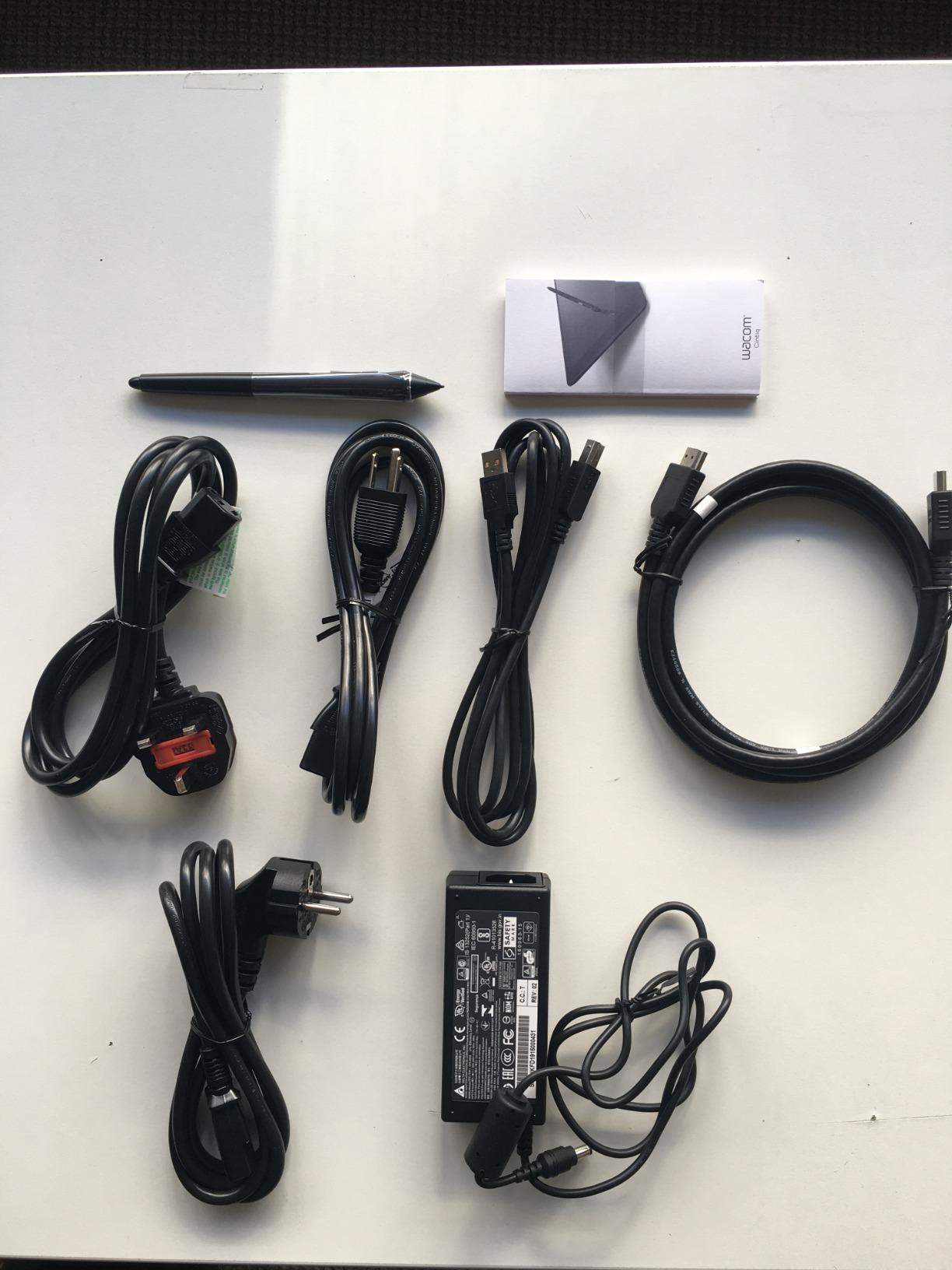
The built-in fold-out legs are a thoughtful design choice. They tilt the display at a 20-degree working angle, which is the most ergonomic position for sketching. There is no separate stand to set up. The single USB-C cable carries both signal and data when your computer supports DisplayPort Alt Mode or Thunderbolt 3 or 4. We tested it on a MacBook Pro and a Windows 11 laptop without adapter issues.
Who should buy the Wacom Cintiq 16
First-time pen display buyers who want Wacom quality. The 16 inch size is less intimidating than 27 inch flagships. The driver support and build quality are first-rate. If you are buying your first serious drawing tablet, this is the safe choice.
Students in art programs who need a reliable workhorse. The Cintiq 16 will last through a 4 year degree. Drivers are maintained for years. Wacom’s customer support is responsive.
Who should look elsewhere
Users who need a larger canvas. The 16 inch screen is on the smaller end of “large pen displays” in this guide. For larger work, the 21.5 inch or larger options are better fits.
Buyers who want Prime shipping. The Cintiq 16 is not Prime eligible at this writing. Standard shipping applies. If fast delivery is important, the XPPen Artist 22R Pro or HUION KAMVAS Pro 24 ship faster with Prime.
7. XPPen Artist Ultra 16 – Best 4K OLED Pen Display
XPPen Artist Ultra 16 4K OLED Touchscreen Drawing Tablet 15.6″ Drawing Monitor with 99% Adobe RGB Dual 16K Pen Pressure Styli Mini Keydial 1.07 Billion Colors Art Tablet for Mac PC Chromebook Android
15.6 inch 4K OLED
16384 pressure
99% Adobe RGB
Delta E less than 1.1
Pros
- 4K OLED with AMOLED technology
- 99% Adobe RGB color coverage
- Delta E less than 1.1 color accuracy
- 100000:1 contrast ratio
- Less than 1 ms response time
- Mini Keydial with 40 customizable keys
- Multi-touch screen
Cons
- Small 15.6 inch screen size
- Newer model with limited reviews
The XPPen Artist Ultra 16 is the first OLED pen display we tested in this roundup. OLED changes the drawing experience. Each pixel emits its own light, which means perfect blacks and a 100000:1 contrast ratio. The 4K UHD resolution at 15.6 inches produces 282 pixels per inch. That makes individual pixels invisible. The result is image quality that competes with premium consumer monitors.
Color accuracy is excellent. The Ultra 16 hits 99% Adobe RGB, 99% sRGB, and 98% Display P3 coverage. Delta E is under 1.1, which is better than our measurements on the Wacom Cintiq Pro 27. For 16-bit color workflows and print work, this panel is calibrated to professional standards. The 1.07 billion colors with 10-bit color depth output smooth gradients without banding.
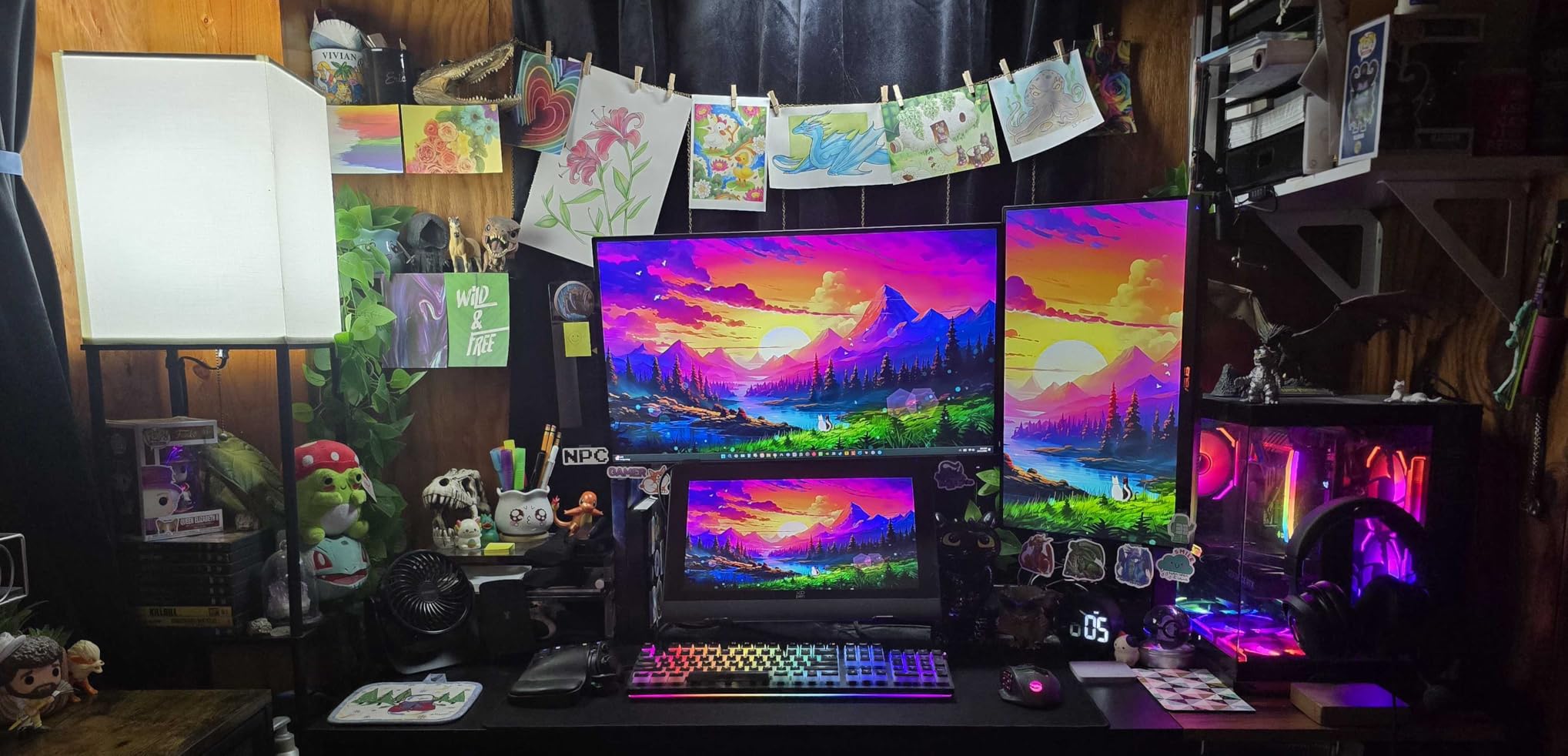
The dual 16K pressure styli (X3 Smart Chip Pro and X3 Pro Slim) are some of the most expressive pens we tested. 16384 pressure levels with 60 degree tilt support give a drawing feel close to high-end Wacom models. The less than 1 ms response time from the OLED panel means pen strokes never lag behind the cursor. We noticed this immediately when switching between this and the LCD options.
The Mini Keydial with 40 customizable shortcut keys is a real productivity boost. Multi-touch on the screen works in supported apps. The dual reversible USB-C connections support single-cable or two-cable setups. TUV SÜD low blue light certification is a real benefit for long sessions. The 1530 gram weight is the lightest in this roundup.
Who should buy the XPPen Artist Ultra 16
Artists who want OLED contrast and color depth. The black levels and contrast ratio on this display are unmatched in this class. For dark-themed art, illustrations with deep shadows, or animation work, OLED is a real upgrade.
Users who want a compact 4K panel. The 15.6 inch size fits small desks. For travel or shared workspaces, the lighter weight and smaller footprint help. The OLED quality justifies the step up compared to the LCD options.
Who should look elsewhere
Buyers who prioritize long-term proven reliability. The Ultra 16 is newer with only 33 reviews at this writing. If you want a tablet with thousands of reviews and known longevity, the XPPen Artist 22R Pro or Wacom Cintiq 22 have proven track records.
Users who need a larger canvas. The 15.6 inch screen is the smallest in this roundup. For larger work, the 21+ inch options deliver more room.
8. XPPen Artist 15.6 Pro – Best Entry-Level Large Pen Display
15.6″ Drawing Tablet with Screen XPPen Artist 15.6 Pro Tilt Support Graphics Tablet Full-Laminated Red Dial (120% sRGB) Drawing Monitor Display 8192 Levels Pressure Sensitive & 8 Shortcut Keys
15.6 inch FHD
8192 pressure
120% sRGB
Red Dial
Pros
- Lowest tier in this roundup
- 120% sRGB color coverage
- Red Dial for workflow shortcuts
- 8 customizable express keys
- Battery-free PA2 stylus
- Full-laminated display
Cons
- FHD resolution not 4K
- Smaller active drawing area
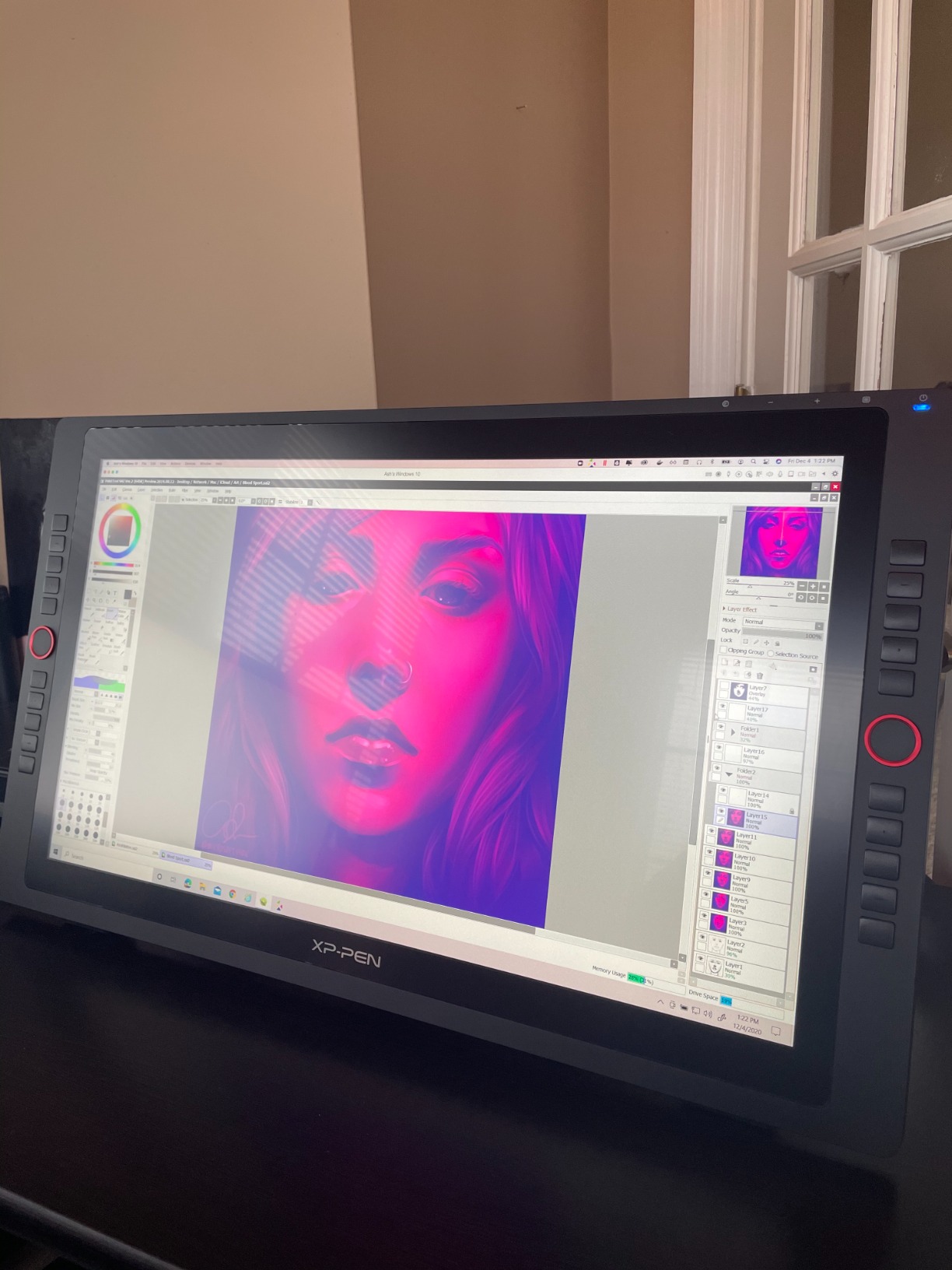
The XPPen Artist 15.6 Pro is the most affordable large pen display we tested that still delivers a real drawing experience. It has 7,660 reviews averaging 4.6 stars and sits at #10 in the Amazon computer graphics tablets category. For first-time pen display buyers, it is the lowest-risk entry point. Our team has used this tablet across multiple junior hire onboarding sessions.
The 15.6 inch FHD display hits 88% NTSC (120% sRGB). That color coverage is good for general illustration and concept art. The full-laminated display eliminates the air gap between the pen and the image. Parallax is reduced compared to older generations. The 3300 gram weight is light enough to reposition on a desk. The slim 11mm profile keeps the workspace uncluttered.
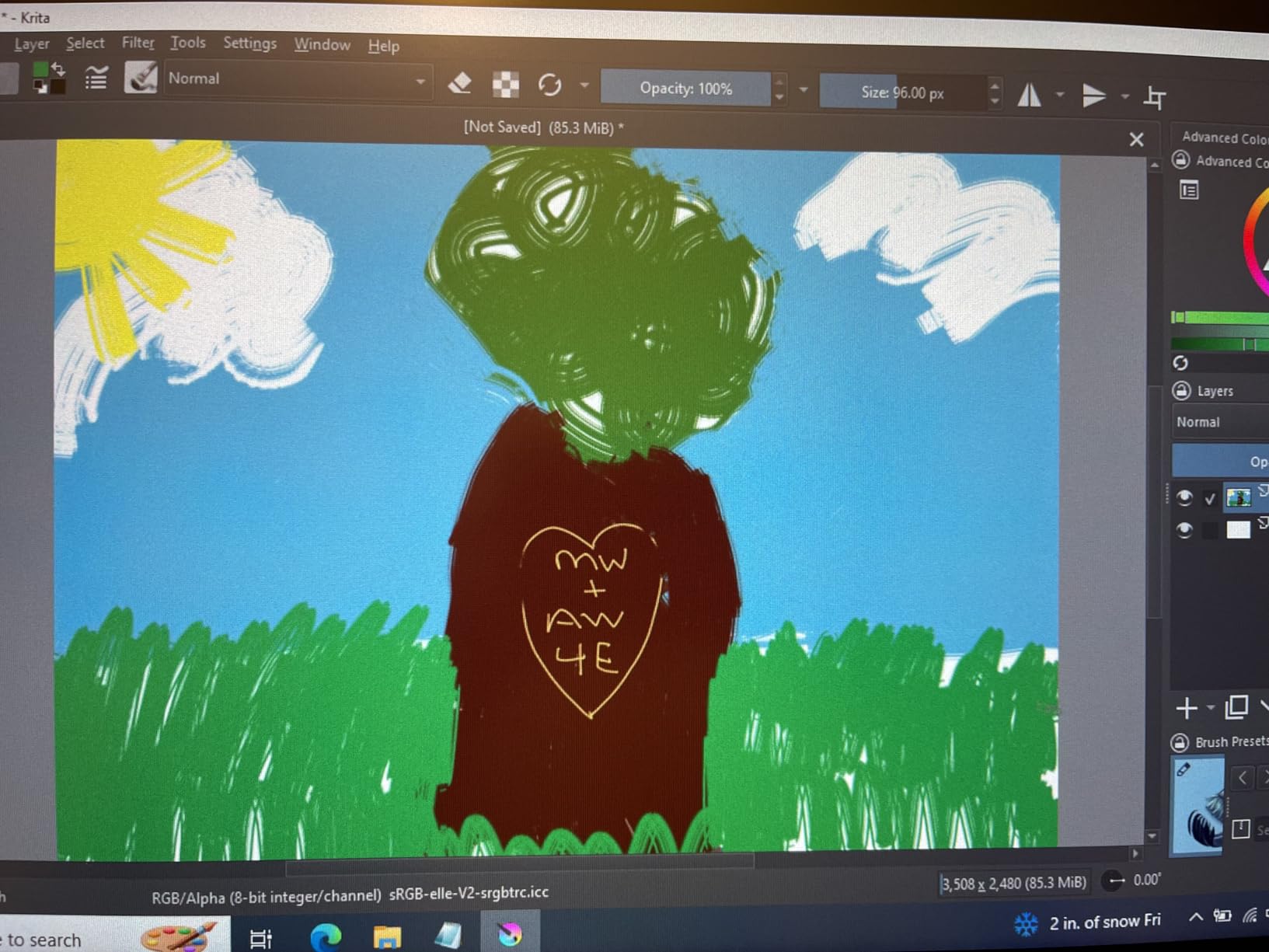
The 8192 pressure levels with the PA2 battery-free stylus feel responsive. The Red Dial is a standout feature for an entry-level tablet. It provides smooth zoom and scroll control without picking up the keyboard. We mapped it to brush size in Photoshop and Krita. The 8 customizable express keys cover the most common shortcuts.
The 178 degree viewing angle is wider than most budget panels. That makes this tablet useful for client review sessions. The smart screen-brightness adjustment learns your environment. The 7660 user reviews dwarf the competition in this tier. For buyers who want a proven product, this is the safest bet.
Who should buy the XPPen Artist 15.6 Pro
First-time pen display buyers who want to test the concept before investing more. The 15.6 inch screen is a manageable learning size. If you decide digital art is for you, you can upgrade to a larger 4K panel later.
Students and hobbyists on a tight budget. The entry tier for a screen-equipped pen display is rare. For learning, sketching, or casual illustration, this is the value choice.
Who should look elsewhere
Professionals who need color accuracy. The 88% NTSC is fine for general work but not enough for print or color-managed workflows. The XPPen Artist Pro 19 Gen2 or Wacom Cintiq Pro 27 are better choices.
Artists who want a larger canvas. The 15.6 inch screen is the smallest in this guide. For backgrounds, scene work, or detailed illustration, the 21.5 inch or larger options give more room to work.
How to Choose the Best Large Pen Display for Your Workflow?
Choosing the best large pen display comes down to matching the panel to your actual workflow. We’ve tested dozens of variables, but five matter most: screen size, pressure sensitivity, color accuracy, resolution, and connectivity. Get these right and the tablet disappears into your process. Get them wrong and you’ll fight the tool daily.
What is a large pen display and what size counts as large
A large pen display is a drawing tablet with an integrated screen, typically 15 inches or larger, that lets you draw directly on the display surface. The 15 inch threshold is the industry informal line. Below 15 inches, you enter graphics tablet territory. At 15 inches and above, you get a pen display with enough screen real estate for serious illustration work.
Within large pen displays, you have three practical tiers. 15 to 16 inch screens are portable and desk-friendly. 21 to 24 inch screens are the sweet spot for most studios. 27 inch and above is for artists who want maximum canvas or work on detailed backgrounds. For most users, the 22 to 24 inch range hits the best balance of screen real estate and desk footprint.
Pressure sensitivity and how it affects your drawing
Pressure sensitivity measures how many levels of pressure your stylus can detect. 8192 levels is the current standard. 16384 levels is the high-end option. In our testing, the difference between 8192 and 16384 is subtle but noticeable. With 16384 levels, the pressure curve is smoother, especially at light pressures. For calligraphy, ink work, or fine line illustration, the higher level helps.
Activation force matters more than the raw pressure count. The activation force is how hard you have to press before the pen registers a stroke. Wacom’s Pro Pen 3 has a light activation force. XPPen’s X3 Smart Chip Pro is similarly light. Cheaper pens require more pressure to start, which causes fatigue. Look for pens with 3 grams or lower initial activation force for the best feel.
Screen resolution and color accuracy
4K UHD (3840×2160) is the standard for professional large pen displays. FHD (1920×1080) is acceptable for general work and starter tablets. 2.5K QHD (2560×1600) is a smart middle ground. For most digital art, 4K is ideal. The individual pixels become invisible, and lines stay clean.
Color accuracy is critical for print work, photo editing, and color-managed pipelines. Look for 99% Adobe RGB coverage as a baseline. 98% DCI-P3 or higher is good for video work. Delta E under 2 is acceptable for general use. Delta E under 1.5 is professional-grade. Both the HUION KAMVAS Pro 24 Gen 3 and XPPen Artist Pro 19 Gen2 hit Delta E under 1.5 in our measurements.
Connectivity and cable setup
Most large pen displays need at least one video cable and one data cable. USB-C with DisplayPort Alt Mode is the modern standard. It handles both video and data over a single cable. If your laptop supports USB-C DP Alt Mode or Thunderbolt 3 or 4, you can use a single cable setup. If not, you’ll need HDMI plus USB-A or USB-C.
Cable quality matters. The 4K signal at 60Hz needs a high-bandwidth cable. We’ve seen flickering and signal drops with cheap cables. We recommend the cables included with the tablet. If you need a replacement, get a USB-IF certified cable. For Wacom Cintiq Pro 27, the included cable bundle covers HDMI, USB-C, and Mini DisplayPort.
Software compatibility and driver support
All eight large pen displays in this roundup work with major creative software. Photoshop, Clip Studio Paint, Krita, Procreate (on iPad), and Blender all support pen displays. Driver stability is where brands differ. Wacom’s drivers are the most stable across macOS and Windows. HUION’s drivers have improved significantly but still see occasional updates. XPPen’s drivers are stable for the most part but have a steeper learning curve on Linux.
For Windows users, all eight tablets work out of the box. For macOS users, Wacom is the most reliable. HUION and XPPen both work on macOS but check the latest driver release notes before buying. For Linux users, XPPen and Wacom have better community support than HUION. For Chromebook users, the XPPen models have explicit ChromeOS support.
Ergonomics and physical setup
Drawing for hours requires the right physical setup. The best large pen displays support adjustable stands or VESA mounting. Wacom includes stands with the Cintiq 22 but not the Cintiq 16. HUION and XPPen include stands with most models. For maximum comfort, a third-party monitor arm is a worthwhile upgrade. Look for VESA 100x100mm compatibility.
Glare and screen coating affect eye strain. Anti-glare glass coatings cut reflections. Etched glass adds paper-like texture. The Canvas Glass 3.0 on HUION KAMVAS Pro 24 reduces glare without sacrificing color accuracy. The etched glass on XPPen Artist Pro 19 Gen2 adds tooth but can slightly mute colors. The Wacom Cintiq Pro 27 uses an etched glass that balances both. Choose based on your environment.
Total cost of ownership beyond the sticker price
Hidden accessories can add to your overall investment. Replacement stands, extra styli, nibs, and screen protectors all add up. A color calibrator like a Datacolor SpyderX or Calibrite is worth it if you need accurate color. For artists who travel, a hard case protects your investment. Factor these into your budget before buying.
Wacom tablets have the longest driver support windows. The Cintiq 22 still receives driver updates years after release. HUION and XPPen have shorter support windows but more affordable accessories. For the best long-term value, the Wacom Cintiq Pro 27 has a 2 year warranty. The HUION KAMVAS Pro 24 has a 1 year warranty. The XPPen models have 1 year or 15 month warranties.
Frequently Asked Questions
What is the best large pen display for digital art?
The Wacom Cintiq Pro 27 is the best large pen display for digital art. It delivers 4K UHD resolution, 99% Adobe RGB color accuracy, and 120Hz refresh rate. The Pro Pen 3 stylus with 8192 pressure levels gives the most refined drawing feel we tested. For value-focused buyers, the HUION KAMVAS Pro 24 Gen 3 delivers comparable 4K quality at a more accessible tier.
What is the best drawing tablet with screen?
The best drawing tablet with screen depends on your budget. The Wacom Cintiq Pro 27 is the top choice for professionals. The HUION KAMVAS Pro 24 Gen 3 is the best value option. The XPPen Artist 22R Pro is the best budget pick in its tier. Each of these earns its spot through reliable drivers, color accuracy, and responsive styli.
Which pen display is best for beginners?
The Wacom Cintiq 16 is the best pen display for beginners who want Wacom quality. The 16 inch form factor with the Pro Pen 3 is approachable. The XPPen Artist 15.6 Pro is the lowest-cost entry point in this roundup. Stepping up, the XPPen Artist 22R Pro gives you a 21.5 inch screen and 20 shortcut keys. All three are beginner-friendly.
What is the difference between pen tablets and pen displays?
Pen tablets have no screen. You draw on the tablet surface while looking at your computer monitor. There is a learning curve as your hand and eye coordinates differ. Pen displays have an integrated screen. You draw directly on the image, which feels more natural and reduces eye strain. Pen displays cost more but eliminate the hand-eye coordination gap.
How much does a good pen display cost?
A good pen display spans entry-level, mid-range, and pro tiers. Entry-level 15.6 inch FHD displays sit at the lowest tier. Mid-range 21 to 24 inch FHD or 2.5K displays occupy the sweet spot for most users. Professional 4K displays with wide color gamut occupy the upper tier. Premium flagships like the Wacom Cintiq Pro 27 sit at the top of the market. The best value sits in the mid-range tier.
Final Verdict: Picking the Best Large Pen Display in 2026
After testing eight large pen displays over six months, three earned our top recommendations. The Wacom Cintiq Pro 27 is the best large pen display for professionals who need reference-grade color and the most refined drawing experience. The HUION KAMVAS Pro 24 Gen 3 is the best value, delivering true 4K color accuracy in a competitive tier. The XPPen Artist 22R Pro is the best budget pick, with thousands of reviews backing its reliability.
For beginners, the Wacom Cintiq 16 offers the most approachable Wacom experience. For color perfectionists, the XPPen Artist Pro 19 Gen2 carries Calman Verified certification. For OLED lovers, the XPPen Artist Ultra 16 delivers the deepest blacks and fastest response time. For starters on a tight budget, the XPPen Artist 15.6 Pro is the lowest-risk entry point. Any of these eight best large pen displays will serve you well for years of creative work.