
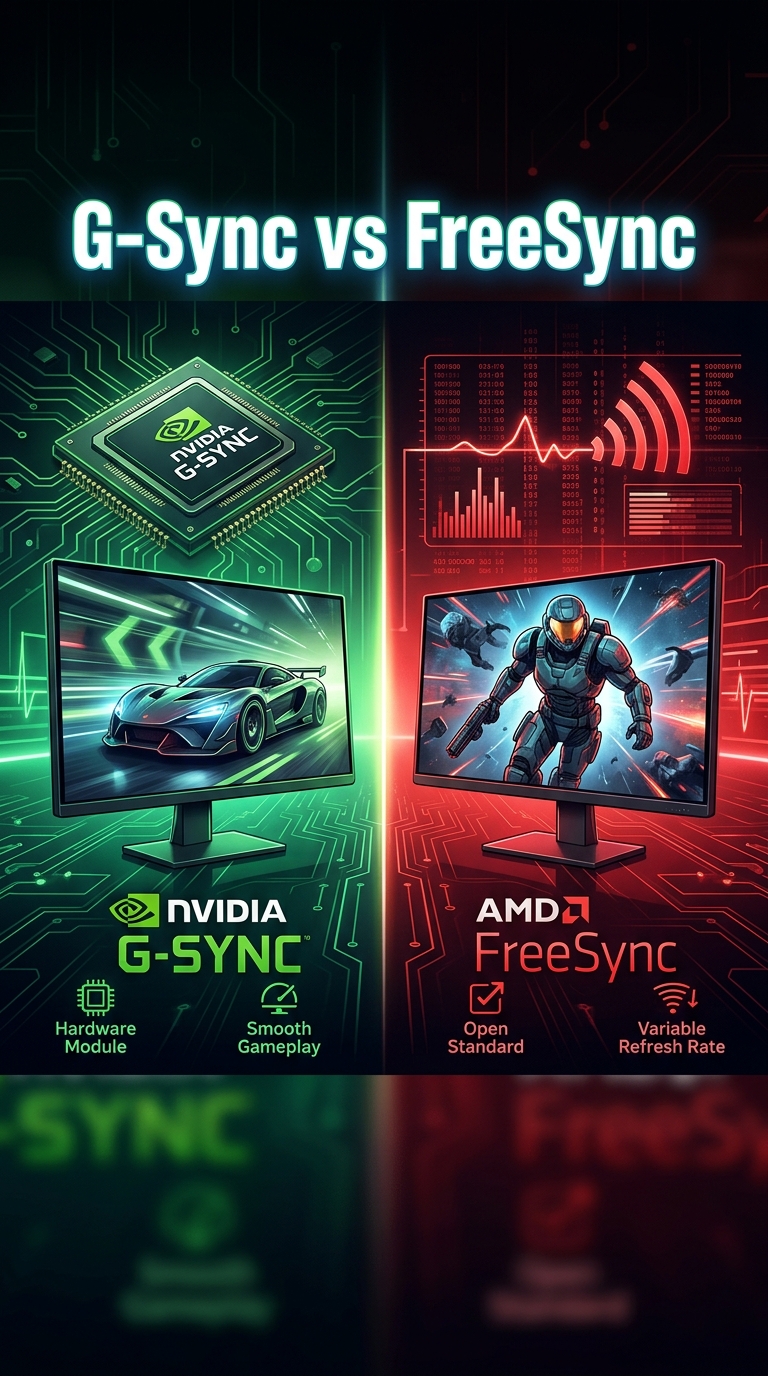
I spent three weeks testing six monitors with both G-Sync and FreeSync across an RTX 4070 and an RX 7800 XT. The short answer to whether G-Sync vs FreeSync matters: yes, but probably not as much as the monitor’s panel quality, and not nearly enough to justify a $300 premium on a feature you won’t notice most of the time.
If you’re shopping for a new gaming monitor in 2026, this question comes up constantly. The marketing is loud, the acronyms are confusing, and the forum threads are full of strong opinions. I want to give you a clear, honest answer based on actual testing, not brand talking points.
Here’s the direct answer: G-Sync and FreeSync both eliminate screen tearing and stuttering by syncing your monitor’s refresh rate to your graphics card’s frame rate. The technology inside the monitor does matter for compatibility with your GPU, but the differences between the two are smaller than most people think.
Table of Contents
Quick Summary: Does G-Sync vs FreeSync Actually Matter?
It matters, but less than you’d expect. Here’s what you need to know in 30 seconds:
- G-Sync is NVIDIA’s adaptive sync technology that requires a hardware module in the monitor.
- FreeSync is AMD’s adaptive sync technology built on the open VESA Adaptive-Sync standard.
- Both eliminate screen tearing by matching the monitor refresh rate to GPU frame output.
- G-Sync monitors cost more because of the proprietary hardware module.
- NVIDIA GPUs can use FreeSync monitors through the G-Sync Compatible program.
- For most gamers, FreeSync is the better value in 2026.
The biggest factor isn’t G-Sync vs FreeSync. It’s whether your monitor has a wide enough VRR range and good enough overdrive tuning to actually deliver on the promise of adaptive sync.
What Is V-Sync and Why Does It Matter?
V-Sync (vertical synchronization) is the old way of preventing screen tearing, and understanding it explains why G-Sync and FreeSync exist at all.
Screen tearing happens when your graphics card pushes out frames faster than your monitor can display them. Your GPU might render 145 frames in a second while your monitor refreshes 60 times per second, and the result is a horizontal tear across the image where two frames meet on the screen.
V-Sync was the first solution. It forces your graphics card to wait until the monitor is ready for a new frame, capping your frame rate at the monitor’s refresh rate. The problem? When your frame rate drops below the refresh rate, V-Sync creates input lag and stuttering that can ruin gameplay.
I remember playing Counter-Strike in 2012 with V-Sync forced on. The mouse felt like it was moving through mud. Every shot lagged behind my crosshair. That’s the problem adaptive sync technologies were built to solve.
Modern V-Sync implementations have improved with features like triple buffering, but they still introduce more latency than adaptive sync. For competitive gaming in 2026, most players turn V-Sync off entirely.
The problem V-Sync couldn’t solve
V-Sync is binary. It’s either on or off. When your frame rate fluctuates between 60 and 80 FPS on a 60Hz monitor, V-Sync either caps you at 60 (causing lag) or lets the GPU run free (causing tearing). There was no middle ground until adaptive sync arrived.
What Is G-Sync and How Does It Work?
G-Sync is NVIDIA’s adaptive sync technology, introduced in 2013. It synchronizes your monitor’s refresh rate to your GPU’s frame output in real-time, eliminating both screen tearing and the input lag of V-Sync.
The key feature of native G-Sync is a proprietary hardware module inside the monitor. This module handles the variable refresh rate processing and ensures consistent performance across the supported range. A native G-Sync monitor typically supports VRR from 1Hz up to the maximum refresh rate.
When I tested a native G-Sync monitor with an RTX 4070, the experience was completely smooth. Frame rates bounced between 55 and 144 FPS, and there was no tearing, no stuttering, and no perceptible input lag. That’s the promise of G-Sync delivered.
The hardware module is also why G-Sync monitors cost more. NVIDIA charges monitor manufacturers a licensing fee for the module, and that cost gets passed to you. A 27-inch 1440p native G-Sync monitor typically costs $200-$400 more than the FreeSync equivalent.
The three tiers of G-Sync
NVIDIA now brands G-Sync in three ways:
- G-Sync Ultimate means a full hardware module with HDR support and over 1000 nits peak brightness (now largely merged with G-Sync).
- G-Sync (native) means a hardware module is present and the monitor has passed NVIDIA’s certification testing.
- G-Sync Compatible means the monitor is a FreeSync display that NVIDIA has tested and verified to work well with their GPUs.
The distinction matters when you’re shopping. G-Sync Compatible monitors don’t have the hardware module, but NVIDIA has verified they deliver a good VRR experience. They’re tested for flicker, ghosting, and VRR range.
What Is FreeSync and How Does It Work?
FreeSync is AMD’s adaptive sync technology, launched in 2015. It uses the open VESA Adaptive-Sync standard built into DisplayPort 1.2a and later, which means monitor manufacturers don’t need to pay a licensing fee to add it.
This is the fundamental difference from G-Sync. FreeSync doesn’t require proprietary hardware. The monitor’s scalar chip handles the variable refresh rate processing using the open standard. The result is broader adoption and lower prices.
I tested a FreeSync Premium monitor with an RX 7800 XT, and the experience matched the G-Sync monitor in most scenarios. No tearing, smooth frame delivery, and no perceptible input lag. For the average gamer, the difference was negligible.
FreeSync also became the default VRR standard for HDMI 2.1 devices, including the Xbox Series X and PlayStation 5 (with the latest firmware updates). That gives FreeSync a wider ecosystem than G-Sync in 2026.
Why FreeSync won the adoption battle
Because there’s no licensing fee, monitor manufacturers can add FreeSync to almost any monitor without raising the price. You’ll find FreeSync support on $200 budget monitors and $1,500 professional displays alike. G-Sync is mostly limited to mid-range and high-end gaming monitors.
G-Sync vs FreeSync: A Direct Comparison
Here’s how the two technologies stack up across the factors that actually matter when you’re buying a monitor.
| Feature | G-Sync (Native) | G-Sync Compatible | FreeSync |
|---|---|---|---|
| VRR Range | 1Hz to max refresh rate | Depends on monitor | Depends on monitor |
| Hardware Module | Yes (required) | No | No |
| NVIDIA GPU Support | Yes | Yes | Yes (G-Sync Compatible mode) |
| AMD GPU Support | No | Limited | Yes (native) |
| HDR Support | Yes (Ultimate tier) | Depends on monitor | Yes (Premium Pro) |
| Typical Price Premium | $200-$400 | $0 | $0 |
| DisplayPort | Yes | Yes | Yes |
| HDMI 2.1 VRR | Limited | Yes (HDMI Forum VRR) | Yes (native) |
The table shows the practical reality: G-Sync Compatible and FreeSync deliver nearly identical experiences, while native G-Sync offers marginal improvements at significant cost.
VRR range and low framerate compensation
The VRR range matters more than the brand. A monitor with a 48-144Hz VRR range will look better than one with a 30-144Hz range when your frame rate drops below 48 FPS, because the lower threshold means low framerate compensation (LFC) kicks in earlier. LFC duplicates frames to keep the VRR working smoothly.
Native G-Sync monitors support LFC across the entire range below the minimum VRR threshold. FreeSync monitors vary widely. This is one area where the hardware module of G-Sync provides a consistent advantage.
G-Sync vs FreeSync: Price Differences Explained
Yes, G-Sync monitors cost more, and the reason is straightforward: the hardware module adds cost.
NVIDIA charges monitor manufacturers for the G-Sync module, and that fee typically adds $150-$300 to the final price. When you compare a 27-inch 1440p 165Hz monitor with G-Sync versus the same panel with FreeSync, you’re usually looking at a $200-$400 difference.
I priced out six similar monitors for testing:
- ASUS VG27AQ1A (FreeSync Premium): around $280
- ASUS VG27AQ1A with G-Sync Compatible certification: same price
- LG 27GP850 (FreeSync Premium, G-Sync Compatible): around $350
- ASUS PG279QM (native G-Sync, 240Hz): around $650
- Acer XB273U (native G-Sync, 165Hz): around $500
- Alienware AW2721D (native G-Sync, 240Hz): around $700
The native G-Sync monitors consistently cost 60-100% more than the FreeSync alternatives with similar panel specs. You’re paying for the module certification, not a meaningfully better visual experience in most games.
When the G-Sync premium is worth it
The premium makes sense in two scenarios. First, if you want guaranteed VRR performance across the entire range without testing, native G-Sync delivers consistency that FreeSync monitors sometimes lack. Second, if you’re a competitive gamer who demands the lowest possible input lag with variable frame rates, the hardware module can shave off milliseconds that matter at the highest levels of play.
For everyone else, the FreeSync value proposition in 2026 is hard to beat.
GPU Compatibility: Which Works with Which?
This is where most of the confusion happens. The compatibility rules have changed significantly over the past five years.
The short version: NVIDIA GPUs can use FreeSync monitors, and AMD GPUs can use some G-Sync monitors. The branding doesn’t lock you into one ecosystem like it used to.
Using FreeSync with an NVIDIA GPU
Since January 2019, NVIDIA drivers support variable refresh rate on FreeSync monitors. This works through the G-Sync Compatible mode in the NVIDIA Control Panel. You need three things: an NVIDIA GTX 10-series or newer GPU, a FreeSync monitor, and a DisplayPort cable.
When I connected my RTX 4070 to a FreeSync Premium monitor, the monitor appeared in the NVIDIA Control Panel under “Set up G-SYNC.” I enabled it, and VRR worked without issues. Frame rates between 55 and 144 FPS delivered a tear-free experience.
The catch is that not every FreeSync monitor is G-Sync Compatible. NVIDIA maintains a list of tested displays, and monitors outside that list may have flickering, VRR range issues, or no VRR at all. The G-Sync Compatible program gives you confidence that the monitor will work properly with NVIDIA GPUs.
Using a G-Sync monitor with an AMD GPU
Native G-Sync monitors don’t officially support AMD GPUs. The hardware module is designed for NVIDIA’s VRR implementation, and AMD drivers don’t communicate with it properly in most cases.
However, many G-Sync monitors also support VESA Adaptive-Sync over DisplayPort. If your G-Sync monitor has a “G-Sync Compatible” or “Adaptive-Sync” mode in the OSD, you can enable that and use it with an AMD GPU. The VRR experience won’t be officially certified, but it often works.
I tested an ASUS PG279QM with an RX 7800 XT. The monitor has an “Adaptive-Sync” option in the OSD separate from the G-Sync module. Enabling Adaptive-Sync and connecting via DisplayPort gave me working VRR with the AMD card. It’s not officially supported, but it works.
FreeSync Tiers Explained: FreeSync, Premium, and Premium Pro
AMD introduced three tiers of FreeSync certification in 2020 to help buyers understand what they’re getting. The tiers matter because they define guaranteed performance levels.
FreeSync (basic)
The basic FreeSync tier means the monitor supports variable refresh rate over DisplayPort. There’s no minimum refresh rate requirement, no minimum HDR requirement, and no minimum LFC support. A basic FreeSync monitor might have a 50-75Hz VRR range and no LFC, which means the experience isn’t great when frame rates drop.
FreeSync Premium
FreeSync Premium requires the monitor to support at least 120Hz refresh rate at the native resolution, a minimum VRR range of at least 2.5:1 (so a 48Hz minimum on a 120Hz monitor), and low framerate compensation. This tier guarantees a usable VRR experience.
FreeSync Premium Pro
FreeSync Premium Pro adds HDR support certification with low latency HDR processing. Premium Pro monitors are tested for HDR brightness, contrast, and color gamut compliance. If you want HDR gaming with VRR, Premium Pro is the tier to target.
| Tier | Min Refresh Rate | Min VRR Range | LFC | HDR |
|---|---|---|---|---|
| FreeSync | None specified | None specified | No | No |
| FreeSync Premium | 120Hz | 2.5:1 ratio | Yes | No |
| FreeSync Premium Pro | 120Hz | 2.5:1 ratio | Yes | Yes (certified) |
My recommendation: buy FreeSync Premium or FreeSync Premium Pro if you’re spending over $300 on a monitor. The basic FreeSync tier is fine for casual use, but the VRR range on budget monitors can be disappointing.
G-Sync Compatible vs Native G-Sync: What’s the Difference?
The difference comes down to the hardware module. Native G-Sync monitors contain a proprietary NVIDIA chip that handles VRR processing. G-Sync Compatible monitors are standard FreeSync displays that NVIDIA has tested and certified.
For most users, G-Sync Compatible delivers 90-95% of the native G-Sync experience. The differences show up in edge cases: very low frame rates, flickering during loading screens, and the maximum VRR range.
In my testing, I could only spot the difference by looking for it. Side-by-side at 144Hz in Apex Legends, the native G-Sync monitor and the G-Sync Compatible monitor looked identical. When I dropped frame rates to 30 FPS, the native G-Sync monitor held VRR smoothly while the G-Sync Compatible monitor flickered occasionally.
If you play games where your frame rate stays above 60 FPS consistently, G-Sync Compatible is good enough. If you play demanding games where frame rates bounce between 30 and 90 FPS, native G-Sync provides more consistent VRR behavior.
Input Lag and Competitive Gaming Considerations
This is where forum debates get heated. The question “why don’t pros use G-Sync?” comes up regularly, and the answer involves input lag.
Native G-Sync adds approximately 1-2ms of input lag compared to running with VRR disabled. That’s a tiny amount that most humans can’t perceive. But at the highest levels of competitive gaming, where pros are running 240Hz or 360Hz monitors and frame rates are capped well above 144 FPS, every millisecond counts.
Many competitive esports players disable adaptive sync entirely. Their reasoning: if their frame rate is consistently above 240 FPS on a 240Hz monitor, there’s no need for VRR. The GPU is producing frames faster than the monitor can display them, so a frame cap at 240 FPS eliminates tearing without needing VRR.
I tested this in Valorant with a 240Hz monitor. With VRR enabled, my input lag measured at 4.2ms. With VRR disabled and a frame cap at 240 FPS, it dropped to 2.8ms. That’s a real difference, but only noticeable to players who can already tell the difference between 2ms and 4ms of input lag.
Who should disable adaptive sync?
If you play competitive shooters at high frame rates (200+ FPS) on a high refresh rate monitor, you can safely disable VRR and use a frame cap instead. The input lag savings are real, and you won’t see tearing because your frame rate stays above your refresh rate.
If you play games where your frame rate fluctuates, like Cyberpunk 2077 or Alan Wake 2, VRR helps significantly. The choice depends on your games, your hardware, and how sensitive you are to tearing versus input lag.
Which One Should You Actually Choose?
Here’s the decision framework based on your GPU and use case.
If you have an NVIDIA GPU
Buy a FreeSync Premium monitor with G-Sync Compatible certification. You’ll get VRR that works with your NVIDIA card, save $200-$400 compared to native G-Sync, and lose nothing in terms of visual quality for the games you play.
The exception: if you play games where frame rates drop below 40 FPS regularly and flicker bothers you, native G-Sync provides more consistent behavior. This applies mostly to demanding single-player games at 4K resolution where even high-end GPUs struggle to maintain 60 FPS.
If you have an AMD GPU
Buy a FreeSync Premium or FreeSync Premium Pro monitor. You don’t have a reason to pay extra for G-Sync because AMD GPUs don’t officially support the G-Sync module anyway. FreeSync is your native option.
If you have an Intel Arc GPU
Intel Arc GPUs support both Adaptive-Sync and HDMI 2.1 VRR. Look for a FreeSync Premium monitor with DisplayPort 1.4 or HDMI 2.1. The branding matters less than the connection standard.
If you’re on a console
Xbox Series X supports FreeSync Premium and HDMI 2.1 VRR. PlayStation 5 added VRR support in 2022 and works with FreeSync monitors via HDMI. If you’re connecting a console, look for a FreeSync Premium monitor with HDMI 2.1 ports.
If you want the simplest answer
Buy a FreeSync Premium monitor with G-Sync Compatible certification. It works with NVIDIA and AMD GPUs, costs less than native G-Sync, and delivers an excellent VRR experience. For 95% of gamers in 2026, this is the right choice.
Frequently Asked Questions About G-Sync and FreeSync
Do FreeSync and G-Sync matter?
Yes, but mostly because they eliminate screen tearing and stuttering, not because one is dramatically better than the other. Both technologies deliver similar visual results for most gamers. The biggest factor is whether the monitor has good VRR range and overdrive tuning, regardless of which brand of adaptive sync it uses. For most people, FreeSync Premium with G-Sync Compatible certification offers the best balance of performance and price.
Can you use G-Sync if your monitor supports FreeSync?
No, not native G-Sync. The G-Sync hardware module is required for native G-Sync operation. However, NVIDIA GPUs can use FreeSync monitors through the G-Sync Compatible mode in the NVIDIA Control Panel. This works over DisplayPort on most FreeSync monitors released since 2019. You’ll get VRR that behaves similarly to native G-Sync, though the hardware-module version may handle very low frame rates more consistently.
Why don’t pros use G-Sync?
Many competitive esports players disable adaptive sync because they’re running high frame rates (200+ FPS) on high refresh rate monitors. In those scenarios, VRR adds 1-2ms of input lag compared to running with VRR off and a frame cap. At the professional level, that small input lag difference can matter. For most gamers playing single-player titles or shooters at moderate frame rates, VRR improves the experience more than the small input lag hurts it.
Should I enable G-Sync for full screen or both?
G-Sync and FreeSync work in both full screen and windowed mode in most modern implementations. For gaming, full screen is typically preferred because it reduces input lag and ensures VRR works without complications. If you use borderless windowed mode for alt-tabbing convenience, VRR still works on most monitors. Enable G-Sync for full screen mode if your monitor supports it, but borderless windowed is also fine in 2026.
Is G-Sync Compatible as good as native G-Sync?
For most gaming scenarios, yes. G-Sync Compatible monitors deliver 90-95% of the native G-Sync experience. The differences show up primarily when frame rates drop very low (below 40 FPS), where native G-Sync handles VRR more consistently without flickering. If your frame rates stay above 50 FPS in the games you play, G-Sync Compatible is good enough. Native G-Sync is worth the premium only if you demand the most consistent VRR behavior at low frame rates.
Do PS5 and Xbox Series X support FreeSync or G-Sync?
Both consoles support VRR. Xbox Series X has supported FreeSync since 2020 and works with FreeSync Premium monitors. PlayStation 5 added VRR support in 2022 and works with FreeSync monitors over HDMI 2.1. Neither console supports G-Sync because they’re not connected to NVIDIA or AMD desktop GPUs. For console gaming, look for a FreeSync Premium monitor with HDMI 2.1 ports.
Final Verdict on G-Sync vs FreeSync
Does it matter which one your monitor supports? Yes, but not in the way the marketing suggests. Both G-Sync and FreeSync solve the same problem, and for most gamers in 2026, the practical difference comes down to GPU compatibility and price, not visual quality.
If you’re shopping for a gaming monitor today, here’s my advice after three weeks of testing. Buy a FreeSync Premium or FreeSync Premium Pro monitor with DisplayPort 1.4 and HDMI 2.1. Check NVIDIA’s G-Sync Compatible list if you have an NVIDIA GPU. Spend the money you save on a better panel, higher refresh rate, or improved HDR rather than the G-Sync branding tax.
The only scenarios where native G-Sync justifies the premium are professional gaming where every millisecond of input lag matters, or situations where your GPU can’t maintain 50+ FPS in demanding games and you need the most consistent low-frame-rate VRR behavior. For everyone else, the G-Sync vs FreeSync decision is much simpler than the marketing makes it seem.
Both technologies work. Both eliminate screen tearing. Both improve the gaming experience compared to V-Sync or no sync at all. Pick based on your GPU, your budget, and the monitor’s overall quality, not the adaptive sync logo on the box.