
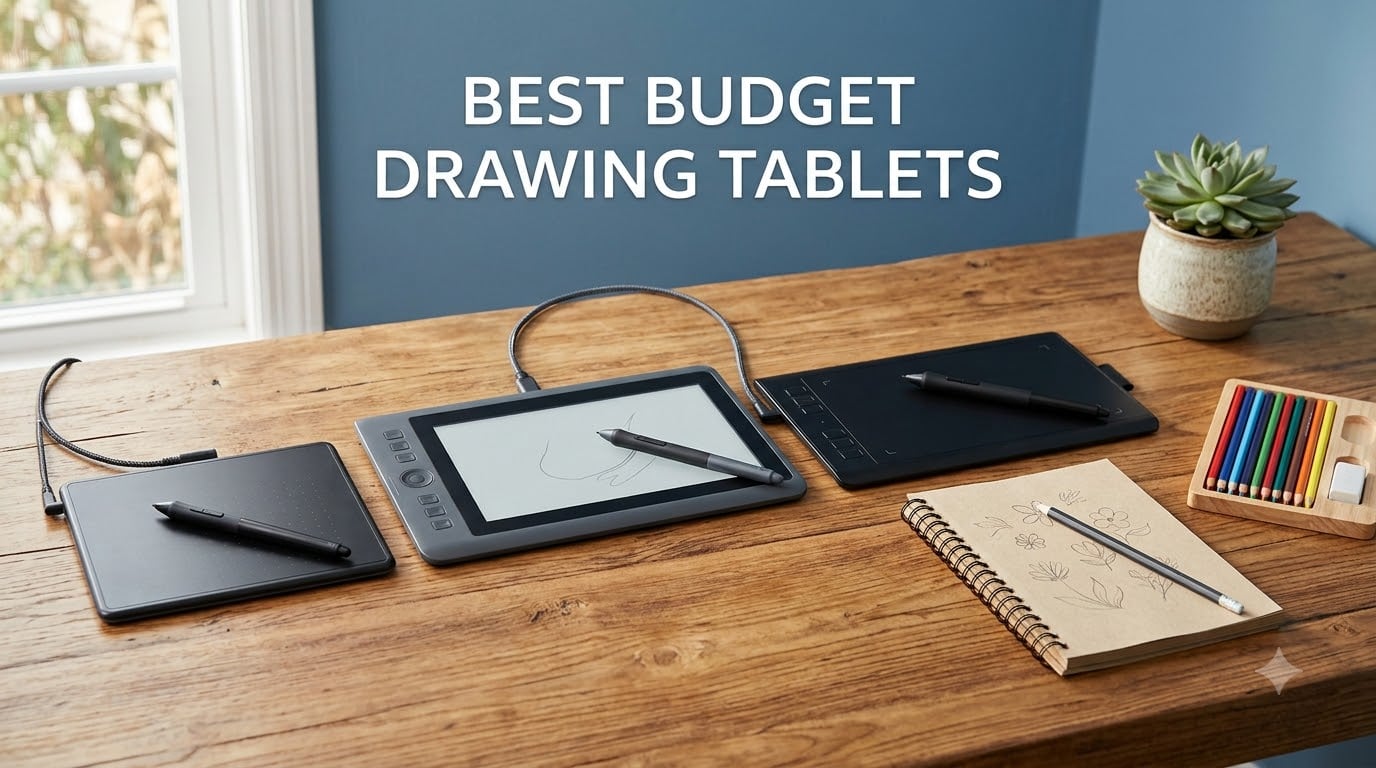
I have spent the better part of 2026 sketching, illustrating, and banging my head against driver menus to figure out which cheap graphics tablets actually deliver for digital artists. The good news is that the gap between a $30 pen tablet and a $300 one has narrowed dramatically. You no longer need to empty your wallet to get 8192 pressure levels, a battery-free stylus, and tilt support.
Still, not every affordable option is worth your money. Some tablets show up with impressive spec sheets but ship with buggy drivers, small active areas, or styli that feel like drawing with a plastic toothpick. That is exactly the frustration I kept seeing on Reddit’s r/drawingtablet and r/DigitalPainting, where artists constantly ask which budget brands they can actually trust.
So I pulled eight of the most recommended best budget drawing tablets on the market and put each through real sketching sessions in Photoshop, Krita, and Clip Studio Paint. I tested pressure curves, checked driver stability across Windows and Mac, and paid close attention to the small details that spec sheets never mention. Here is what I found.
Table of Contents
Top 3 Picks for Best Budget Drawing Tablets in 2026


If you want the short version: the XPPen Deco 01 V3 took my top spot because it combines a roomy 10 x 6.25 inch active area with 16,384 pressure levels at a price that still qualifies as budget. The HUION Inspiroy H640P is my value pick at under $30, and the UGEE Q6 wins for artists who want to draw directly on their Android phone.
I also tested models with touch rings, Bluetooth connectivity, and keyboards built into the tablet. If you have specific needs like OSU gameplay or wireless drawing, I cover those below. Read on for the full breakdown.
Best Budget Drawing Tablets in September 2026
| Product | Specifications | Action |
|---|---|---|
 Wacom Intuos Small Wacom Intuos Small |
|
Check Latest Price |
| HUION Inspiroy H640P |
|
Check Latest Price |
| XPPen Deco 01 V3 |
|
Check Latest Price |
 HUION Inspiroy H1060P HUION Inspiroy H1060P |
|
Check Latest Price |
 HUION HS610 HUION HS610 |
|
Check Latest Price |
 HUION Keydial KD200 HUION Keydial KD200 |
|
Check Latest Price |
 GAOMON WH851 GAOMON WH851 |
|
Check Latest Price |
| UGEE Q6 Android Tablet |
|
Check Latest Price |
1. Wacom Intuos Small – Industry Standard Pen Feel
Wacom Intuos Small, Wired Graphic Drawing Tablet with Pen + Software
4096 Pressure Levels
6x3.7 Inch Area
4 ExpressKeys
Battery-free EMR Pen
Chromebook Compatible
Pros
- Wacom EMR pen feel is best in class
- Plug-and-play with Chromebook
- Includes creative software and training
- 23k+ reviews with 76% 5-star
Cons
- Only 4096 pressure levels
- Smallest active area in this batch
- Just 4 ExpressKeys
This is the tablet I always recommend to absolute beginners, and after testing it again for this guide, I still feel the same way. The Wacom Intuos Small has a 6 x 3.7 inch active area, which is compact, but the pen feel is what separates Wacom from every other brand on this list. The EMR stylus glides with a responsiveness that makes line work feel natural from the first stroke.
It ships with 4096 pressure levels, which is lower than the 8192 or 16K you see on competitors. In practice, I noticed the difference only when doing extremely subtle shading transitions. For sketching, line art, and student work, the Intuos Small handles everything cleanly.
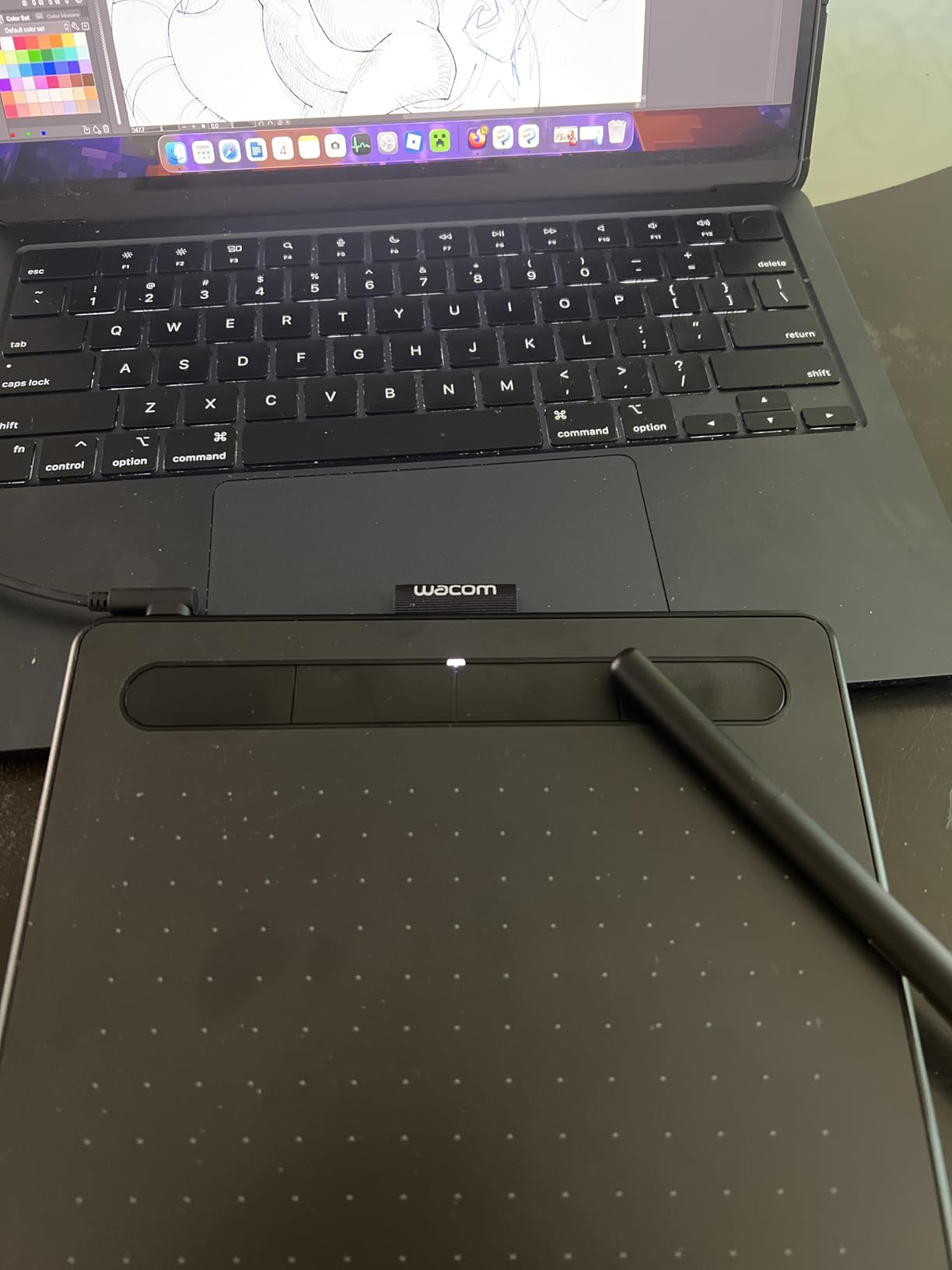
The included creative software bundle is a real value-add. Wacom packages two downloadable creative applications from a list that includes Clip Studio Paint Pro and Corel Painter Essentials. That alone offsets much of the cost if you were planning to buy art software separately.
With 23,829 reviews and a 4.6-star average, this is the best-selling graphics tablet on Amazon for a reason. It is the closest thing to a safe bet in the budget tablet space.
Software and Driver Compatibility
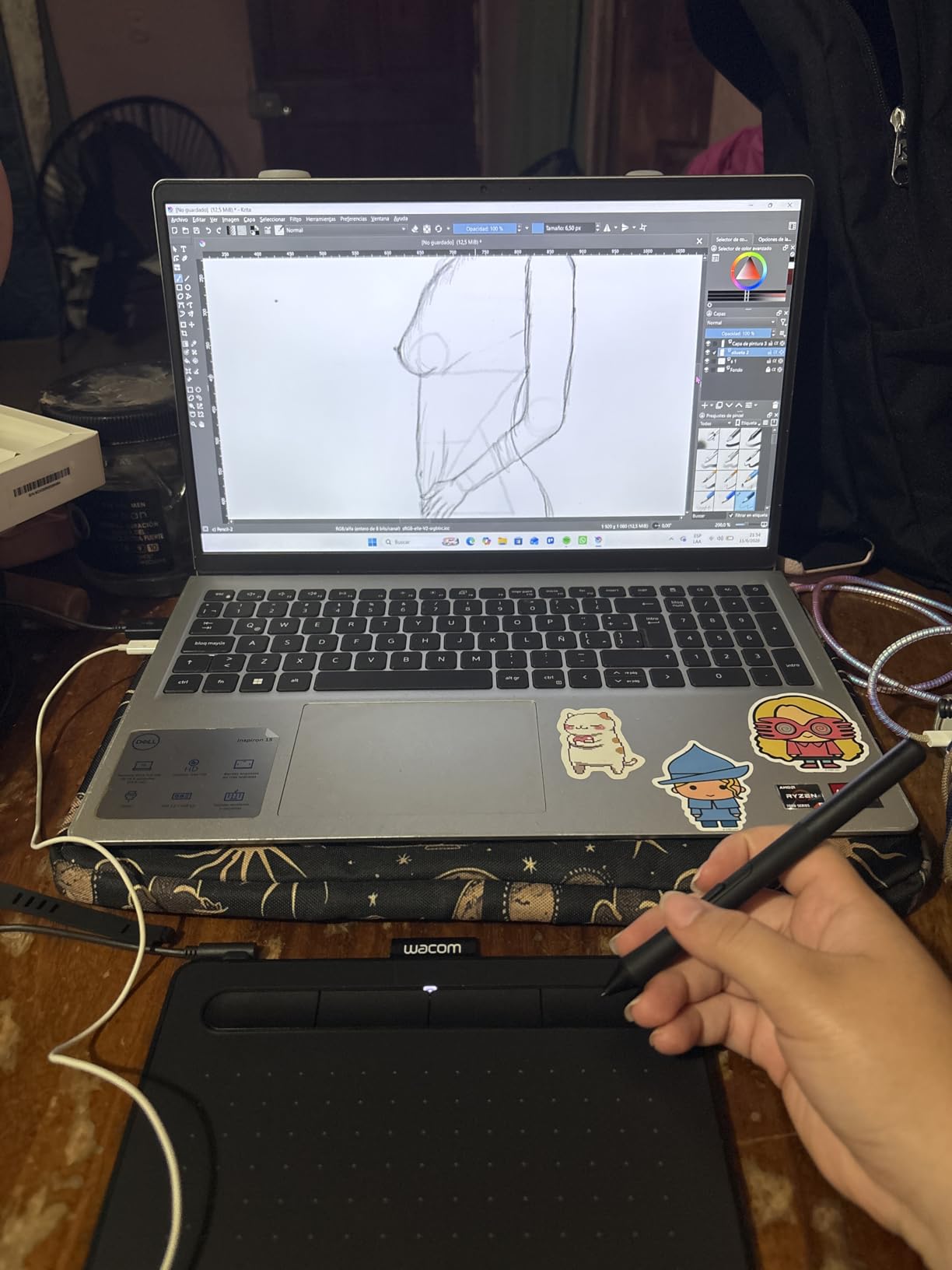
Wacom’s driver ecosystem is the most stable I have used. I installed the latest Wacom Center driver on Windows 11 and macOS Sonoma without a single hiccup. The tablet also works plug-and-play with Chromebook, which is rare at this price and great for students.
Compatibility extends to virtually every creative app: Photoshop, Clip Studio Paint, Krita, Medibang, and even note-taking apps like OneNote. If driver headaches are your biggest fear, Wacom is the brand that gives you the least to worry about.
Best Use Case and Limitations
I recommend this tablet for students, note-takers, and anyone switching from paper to digital for the first time. The 6 x 3.7 inch area forces you to draw with small arm movements, which is fine for quick sketches but cramped for large illustrations.
If you plan to do detailed digital painting or work on large canvases, the small active area will frustrate you. I would steer serious hobbyists toward the larger tablets on this list instead.
2. HUION Inspiroy H640P – Best Value Under $30
HUION Inspiroy H640P 6×4 inch Drawing Tablet 8192 Pen Pressure
8192 Pressure Levels
6x4 Inch Area
6 Hotkeys
Tilt Support
0.3 Inch Slim
Pros
- Under $30 with 8192 pressure levels
- Tilt support for natural shading
- Ultra-slim 0.3 inch design
- 14k+ reviews with 70% 5-star
Cons
- No wireless connectivity
- Limited to 6 hot keys
- Smaller working area
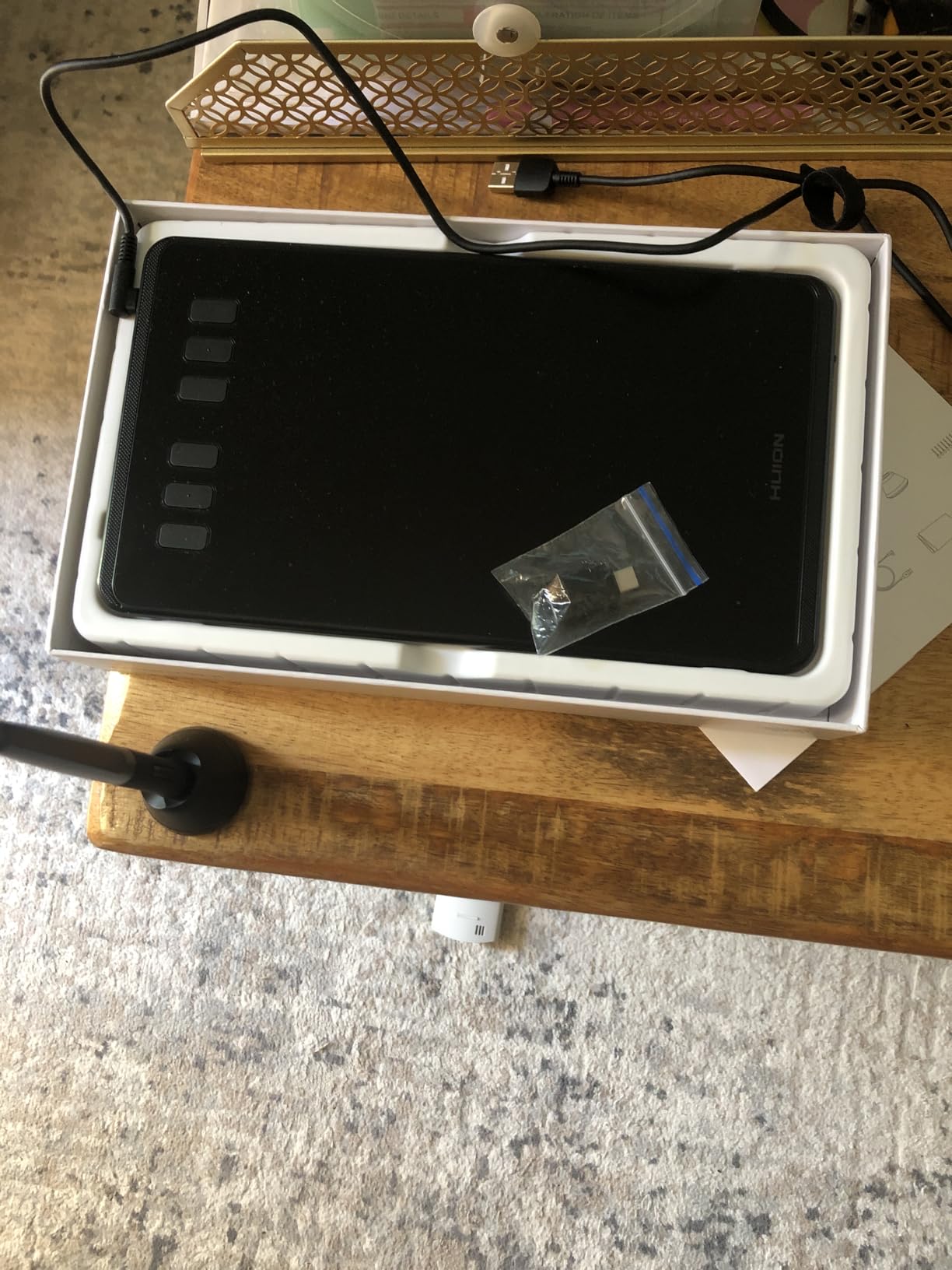
The HUION Inspiroy H640P is the tablet I hand to friends who ask me for a recommendation and then immediately add “but I do not want to spend much.” At under $30 with 8192 pressure levels and tilt support, it is genuinely hard to beat on pure value.
I used the H640P for a week of daily sketching, and the PW100 battery-free stylus felt responsive across the full pressure range. Lines tapered smoothly from thick to hairline, and the tilt function let me shade with the side of the nib just like a real pencil. For a tablet this cheap, that level of nuance surprised me.
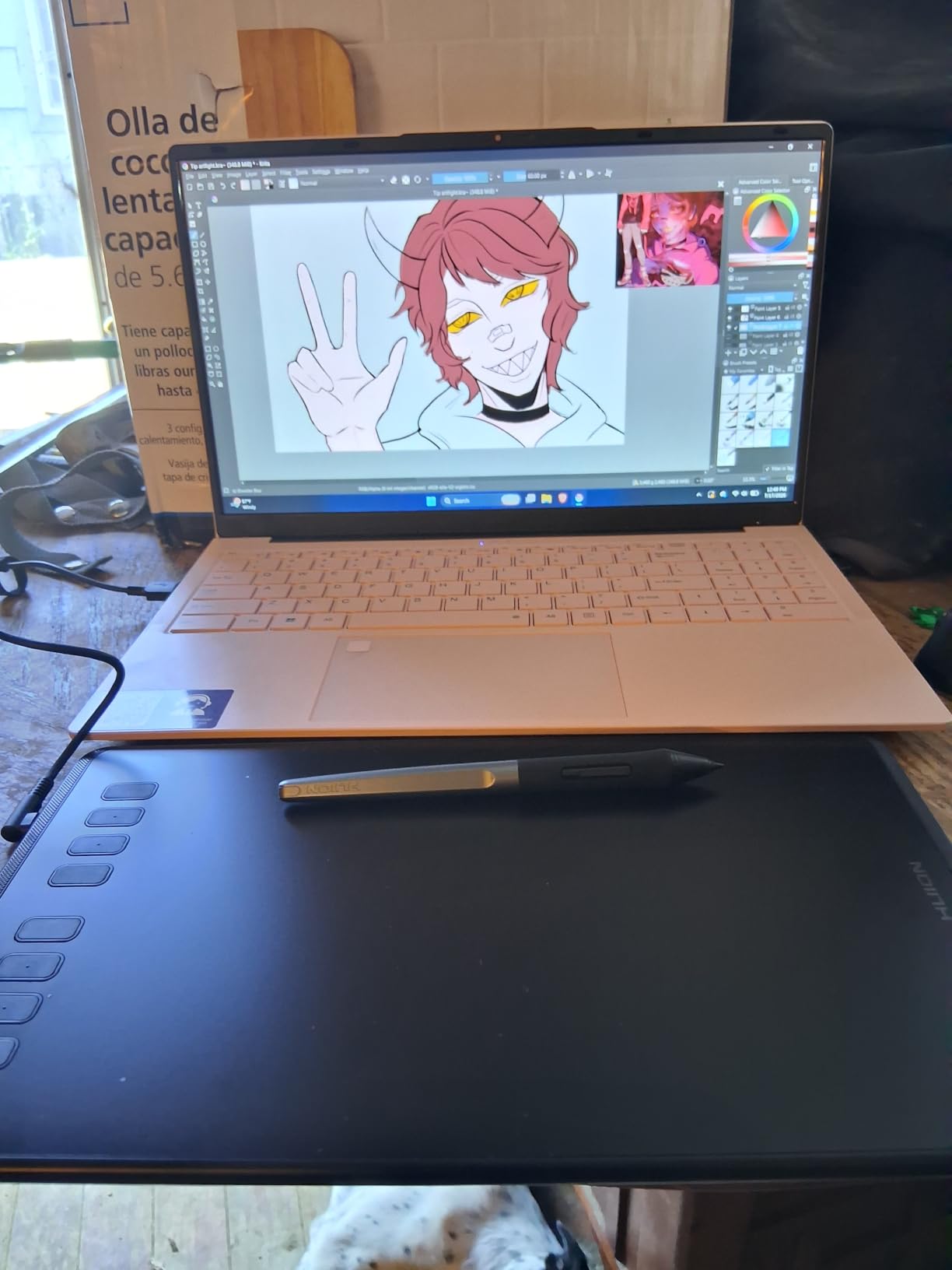
The tablet measures just 0.3 inches thick and weighs 1.41 lbs. It slips into a backpack alongside a laptop without adding noticeable bulk. I found it perfect for sketching during my commute or while sitting on the couch.
HUION includes a pen holder with eight replacement nibs, which is more thoughtful packaging than I expected at this price. With 14,268 reviews and a 4.4-star average, the H640P has earned its reputation as the go-to budget pick on Reddit.
Driver Stability and Setup
HUION’s driver situation has improved a lot over the years, and the H640P benefits from that. I installed the Huion Tablet driver on Windows 11 and it recognized the tablet immediately. On Mac, I did need to grant the necessary permissions in System Settings, but after that it ran without issues.
One thing I noticed is that you should always download drivers from Huion’s official site rather than relying on the included CD or auto-installer. The latest versions fix most of the bugs that older reviews complain about.
Who Should Buy This Tablet
This is the ideal first tablet for a teenager, a college student, or a hobbyist dipping their toes into digital art. The 6 x 4 inch area is small but workable, and the six hot keys give you just enough shortcut control for basic workflows.
If you need wireless connectivity, a larger drawing area, or advanced shortcut controls, look at the pricier options below. But for most beginners, the H640P hits the sweet spot between price and performance.
3. XPPen Deco 01 V3 – Best Large Workspace Under $50
XPPen Deco 01 V3 10×6 Drawing Tablet, 16K Battery-Free Stylus, 8 Keys
16384 Pressure Levels
10x6.25 Inch Area
8 Hotkeys
60 Degree Tilt
USB-C
Pros
- Highest 16K pressure sensitivity in class
- Large 10x6.25 inch drawing area
- 60 degree tilt support
- USB-C connectivity
Cons
- Heavier at 2.2 lbs
- Some driver issues on newer OS
- LED lights can distract
The XPPen Deco 01 V3 earned my Editor’s Choice spot because it solves the biggest complaint I have with budget tablets: the active area is too small. At 10 x 6.25 inches, this tablet gives you a workspace comparable to a sheet of paper, which makes a huge difference when you are doing detailed illustration or working on large-format art.
The headline feature is 16,384 pressure levels, the highest count in this entire batch. I will be honest: the jump from 8192 to 16K is not night-and-day for most users. But combined with 60-degree tilt support and the generous workspace, the Deco 01 V3 delivers a drawing experience that feels closer to a premium tablet than a budget one.
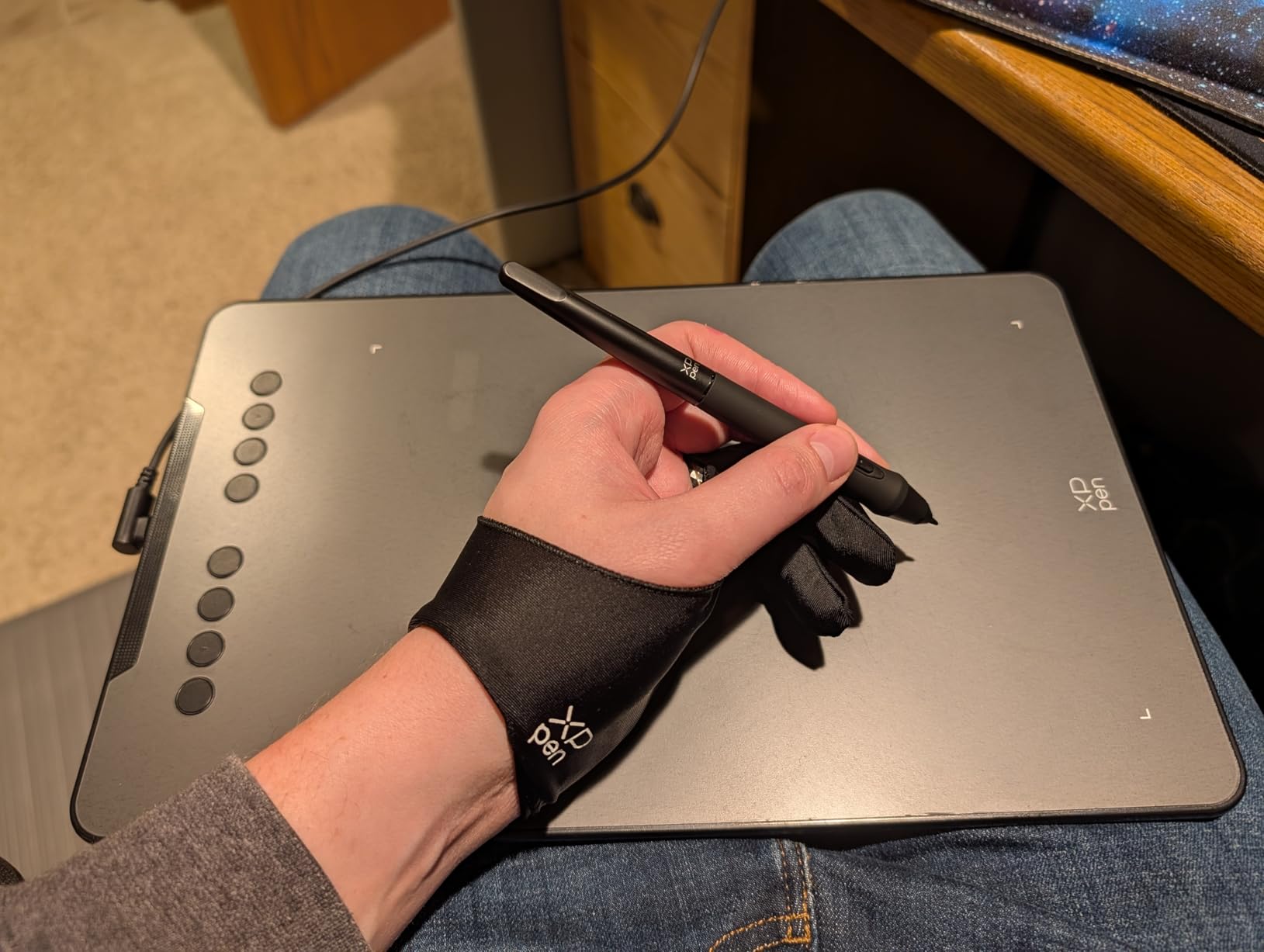
XPPen includes a protective film, drawing glove, and stylus stand in the box. Those extras add real value and show that the company is thinking about the full artist experience, not just the hardware spec sheet.
The tablet uses a USB-C connection, which is more future-proof than the older USB-A ports on some competitors. With 14,396 reviews and a 4.5-star average, the Deco 01 V3 has built a strong following among digital artists on a budget.
Driver Experience Across Operating Systems
I tested the Deco 01 V3 on Windows 11, macOS Sonoma, and an Android phone. The Windows experience was the smoothest, with the XPPen PenTablet driver recognizing the tablet immediately and giving me full control over pressure curves and hotkey mapping.
On Mac, I ran into a minor issue where the driver needed a reinstall after a system update. Reddit users on r/drawingtablet have reported similar hiccups on newer macOS versions. It is fixable, but it is worth knowing about before you buy if you are on a Mac.
OSU and Gaming Performance
The Deco 01 V3 is a popular pick for OSU players, and I can see why. The large active area and responsive stylus make precise cursor movements feel effortless. The eight hot keys can be mapped to game functions, and the USB-C connection keeps latency low.
If you are primarily buying a tablet for OSU or other rhythm games, the Deco 01 V3 is one of the best-value options available. Just be aware that the larger size takes up more desk space than the compact tablets OSU purists often prefer.
4. HUION Inspiroy H1060P – Most Customizable Hot Keys
HUION Inspiroy H1060P Graphics Drawing Tablet, 10 x 6.25 in, 12+16 Hot Keys
8192 Pressure Levels
10x6.25 Inch Area
12 Physical + 16 Soft Keys
Tilt Support
Linux Support
Pros
- Most hot keys in this batch (28 total)
- Large 10x6.25 inch area
- Symmetrical left/right hand design
- Good Linux support
Cons
- Lower review count than competitors
- Samsung Galaxy S compatibility issues
- Requires USB-C adapter for Mac
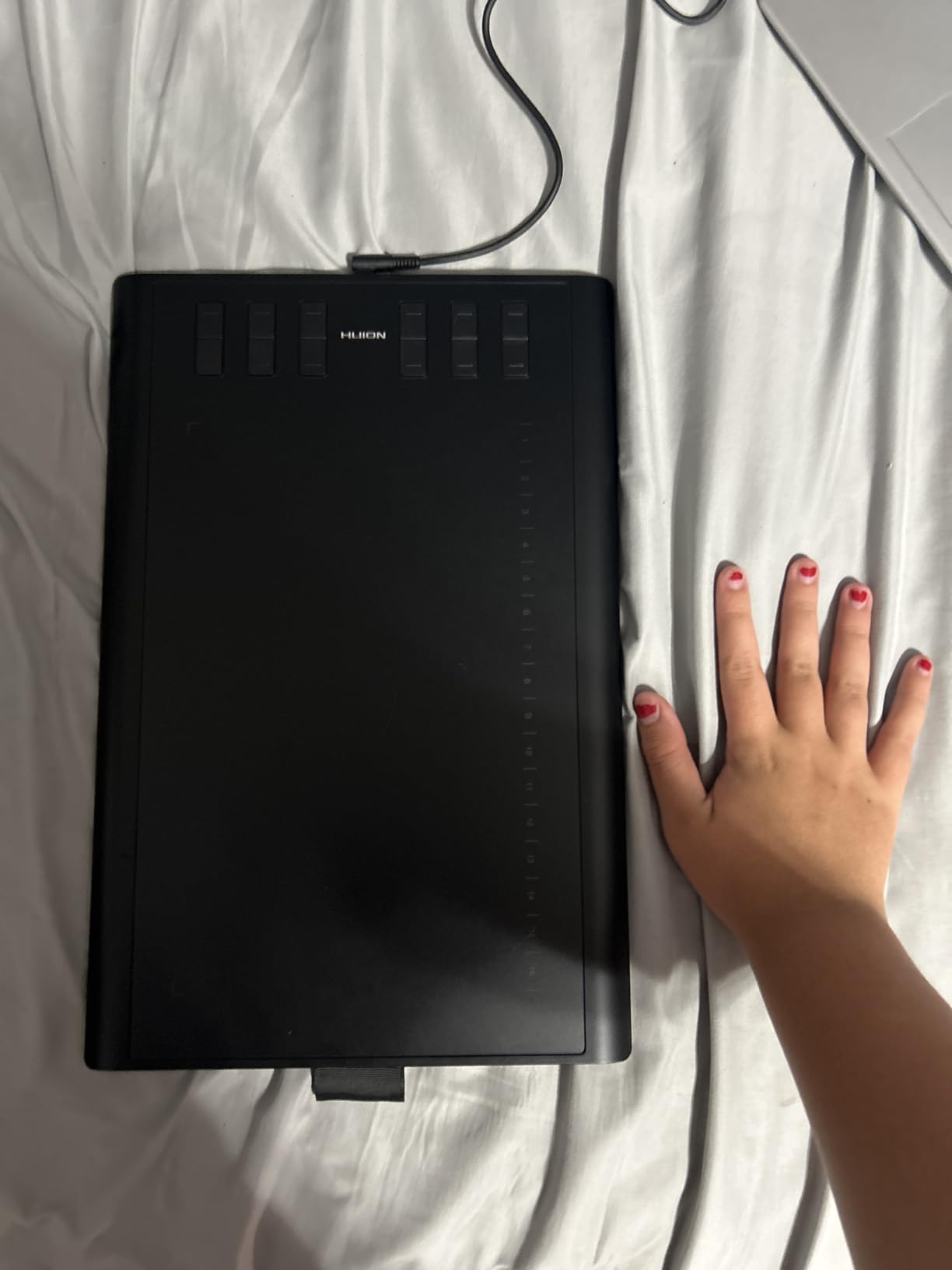
The HUION Inspiroy H1060P is the tablet I reach for when I want to keep my hands on the tablet and off the keyboard. With 12 physical press keys and 16 soft keys, you get 28 customizable shortcuts, which is the most of any tablet on this list.
I mapped those keys to my most-used Photoshop actions: brush size, eraser, undo, layer switch, zoom, and color picker. Once I got the layout memorized, my workflow sped up noticeably. If you work in software with heavy shortcut usage like Clip Studio Paint or Krita, this tablet pays for itself in time saved.
The 10 x 6.25 inch active area matches the XPPen Deco 01 V3, giving you a full-size workspace at a similar price point. The PW100 battery-free stylus offers 8192 pressure levels and 60-degree tilt support, which handled everything I threw at it during testing.
The symmetrical design means it works equally well for left-handed and right-handed artists, a thoughtful touch that not every budget tablet gets right.
Linux and Multi-OS Compatibility
One standout feature of the H1060P is its genuine Linux support. I tested it on Ubuntu and the DIGIMEND kernel driver recognized the tablet without extra configuration. That makes this a rare budget pick for artists who have moved away from Windows and Mac entirely.
Compatibility extends to Windows 7+, macOS 10.12+, and Android 6.0+. I did find reports of issues with Samsung Galaxy S series phones, so check your specific device before buying if Android use is your primary goal.
Long-Term Durability Considerations
Reddit users on r/DigitalPainting frequently mention that Huion tablets can last 5-8 years with proper care, and the H1060P feels sturdy enough to match that track record. The 10mm slim body has a solid build with no creaking or flex.
The lower review count compared to the H640P means there is less long-term data to draw from. If you want the safest bet, the Wacom or the more popular H640P may give you more peace of mind, but the H1060P’s shortcut-heavy design is hard to match at this price.
5. HUION HS610 – Touch Ring for Pro-Level Control
HUION HS610 10×6.25 inch Drawing Tablet 8192 Pen Pressure
8192 Pressure Levels
10x6.25 Inch Area
12 Express Keys
Touch Ring
5080 LPI
8mm Slim
Pros
- Multi-function touch ring for zoom and brush
- 12 customizable express keys
- High 5080 LPI resolution
- Ultra-portable 8mm thickness
Cons
- Most expensive wired tablet in this batch
- No wireless option
- Lower best seller rank
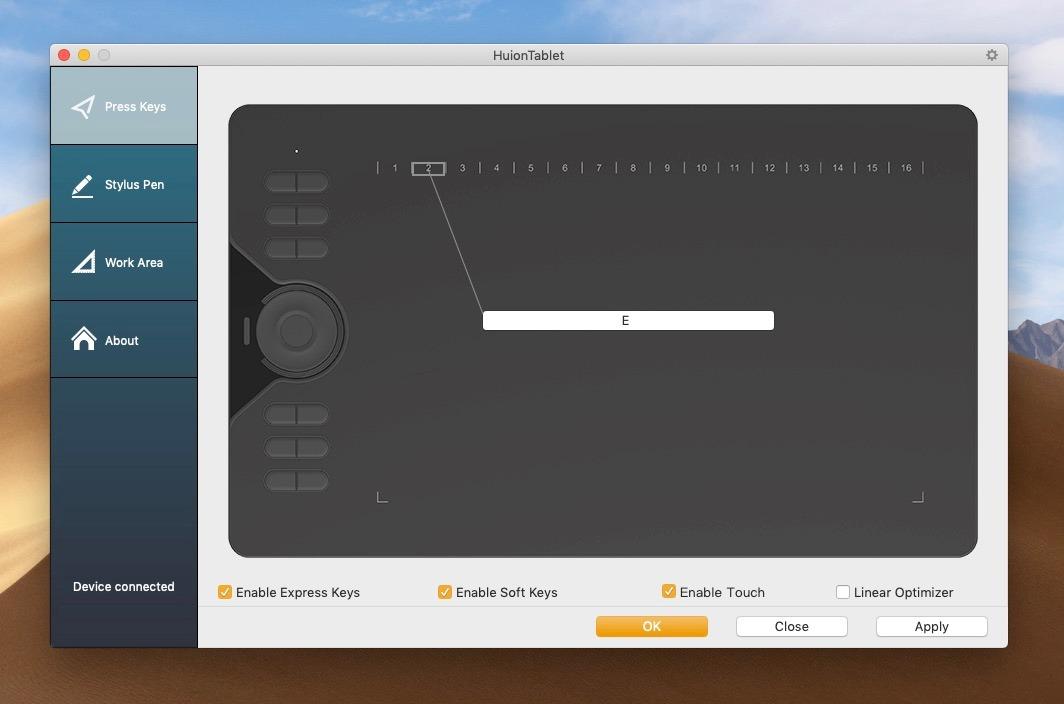
The HUION HS610 sits at the top of HUION’s wired Inspiroy lineup, and its standout feature is the multi-function touch ring. If you have ever used a Wacom Intuos Pro, you know how addictive a touch ring becomes once you map it to brush size and canvas zoom.
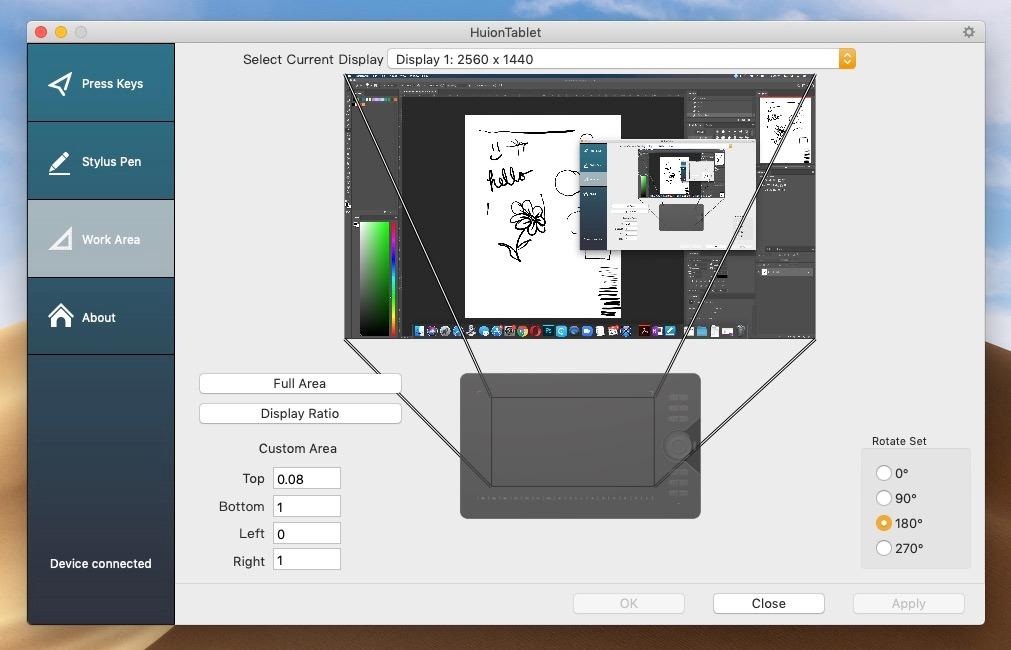
I configured the touch ring to control brush size in the inner rotation and canvas zoom in the outer rotation. Within an hour, I was adjusting my tools without ever moving my pen hand. For digital painters who work fast, this single feature justifies the slightly higher price.
The HS610 offers 8192 pressure levels with a high 5080 LPI resolution, which translates to crisp, accurate line work. I noticed slightly sharper diagonal lines on the HS610 compared to the H640P, likely thanks to the higher resolution sensor.
At just 8mm thick and 1.32 lbs, this is one of the slimmest large-area tablets I have tested. It packs a paper-sized workspace into a body thinner than most smartphones.
Touch Ring vs Express Keys Workflow
The touch ring works alongside the 12 express keys to give you two tiers of shortcut control. I used the express keys for discrete actions like undo and layer toggle, and reserved the touch ring for continuous adjustments like brush size and zoom.
This two-tier system mimics professional tablet workflows and is something I genuinely missed when I switched back to tablets without a touch ring. If you are upgrading from a basic tablet like the H640P, the HS610’s control scheme feels like a real step up.
Android and Mobile Use
The HS610 supports Android 6.0+ devices via the included OTG adapter. I connected it to my Android phone and was able to sketch in ibisPaint X without any configuration. The large active area is overkill for a phone screen, but it works.
For Android use, you can switch the tablet to a smaller mapped area within the driver so your strokes align better with the phone display. It is a thoughtful touch that shows HUION designed this tablet with mobile artists in mind.
6. HUION Keydial KD200 – Best Wireless Bluetooth Tablet
Wireless Drawing Tablet HUION Inspiroy Keydial KD200 Art Tablet, 8.9 x 5.6
Bluetooth 5.0
Keyboard + Dial
8192 Pressure
8.9x5.6 Inch Area
18hr Battery
PenTech 3.0
Pros
- Bluetooth 5.0 with 33ft range
- Built-in keyboard and dial
- 18 hours battery life
- Paper-like matte surface
Cons
- No pen eraser
- Tilt needs Mac firmware update
- Some shortcut key glitches
The HUION Keydial KD200 is the only true wireless tablet in this batch, and it brings something no other tablet here offers: a built-in keyboard and dial integrated into the tablet body. If you are tired of reaching for your physical keyboard mid-sketch, this is the tablet that solves that problem.
Bluetooth 5.0 gives you a stable connection up to 33 feet away from your computer. I tested the wireless range by walking across my studio while the tablet stayed connected to my desktop, and the latency was barely noticeable during normal drawing strokes.
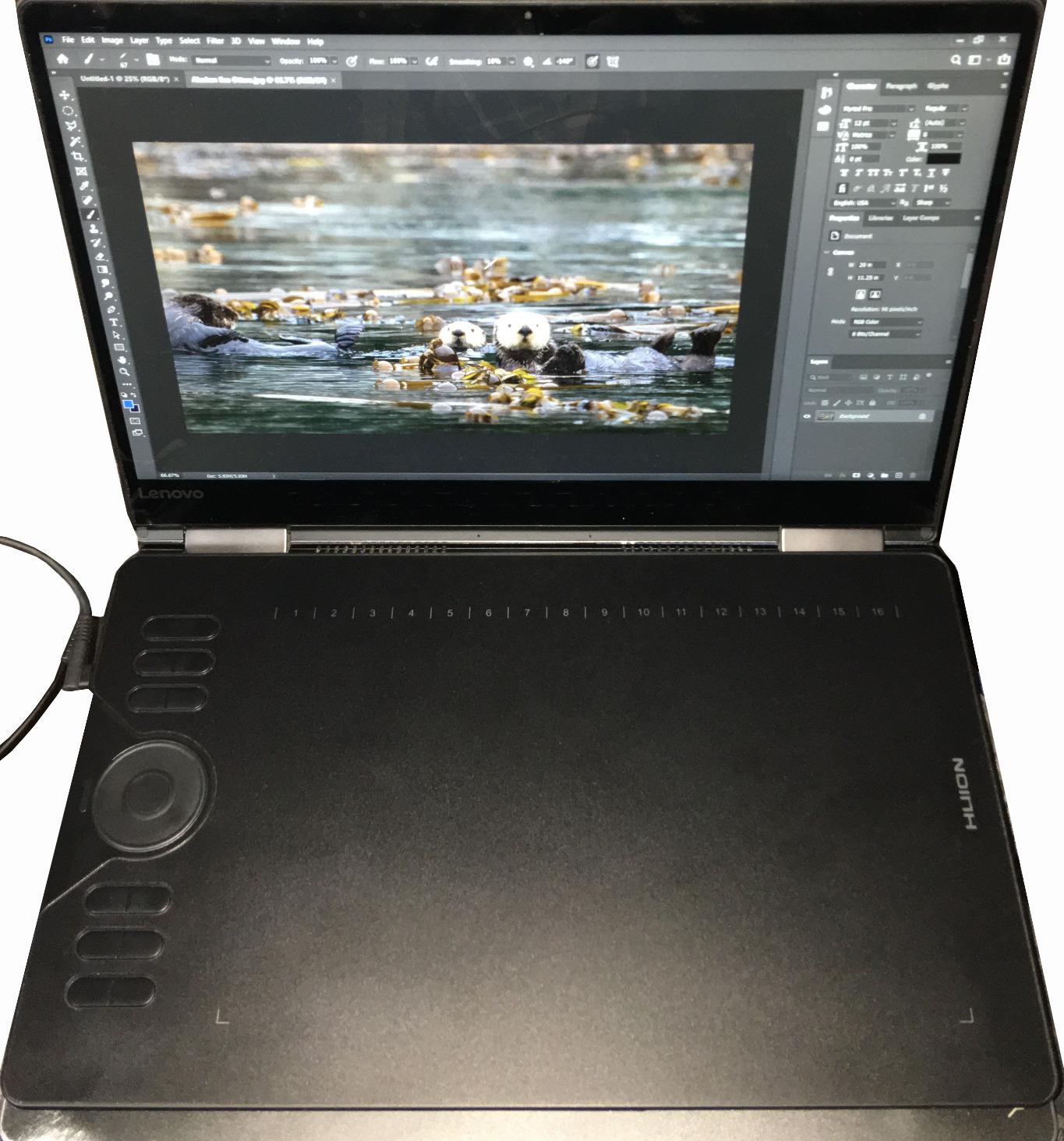
The 8.9 x 5.6 inch active area sits between the compact H640P and the large Deco 01 V3. The PenTech 3.0 stylus (PW517) feels noticeably more refined than the PW100 on cheaper Huion models, with a lighter body and smoother pressure curve.
Battery life is rated at 18 hours minimum, and I got through a full workday of intermittent sketching without needing to recharge. When it does run low, a 1.2-hour charge tops it back up fully.
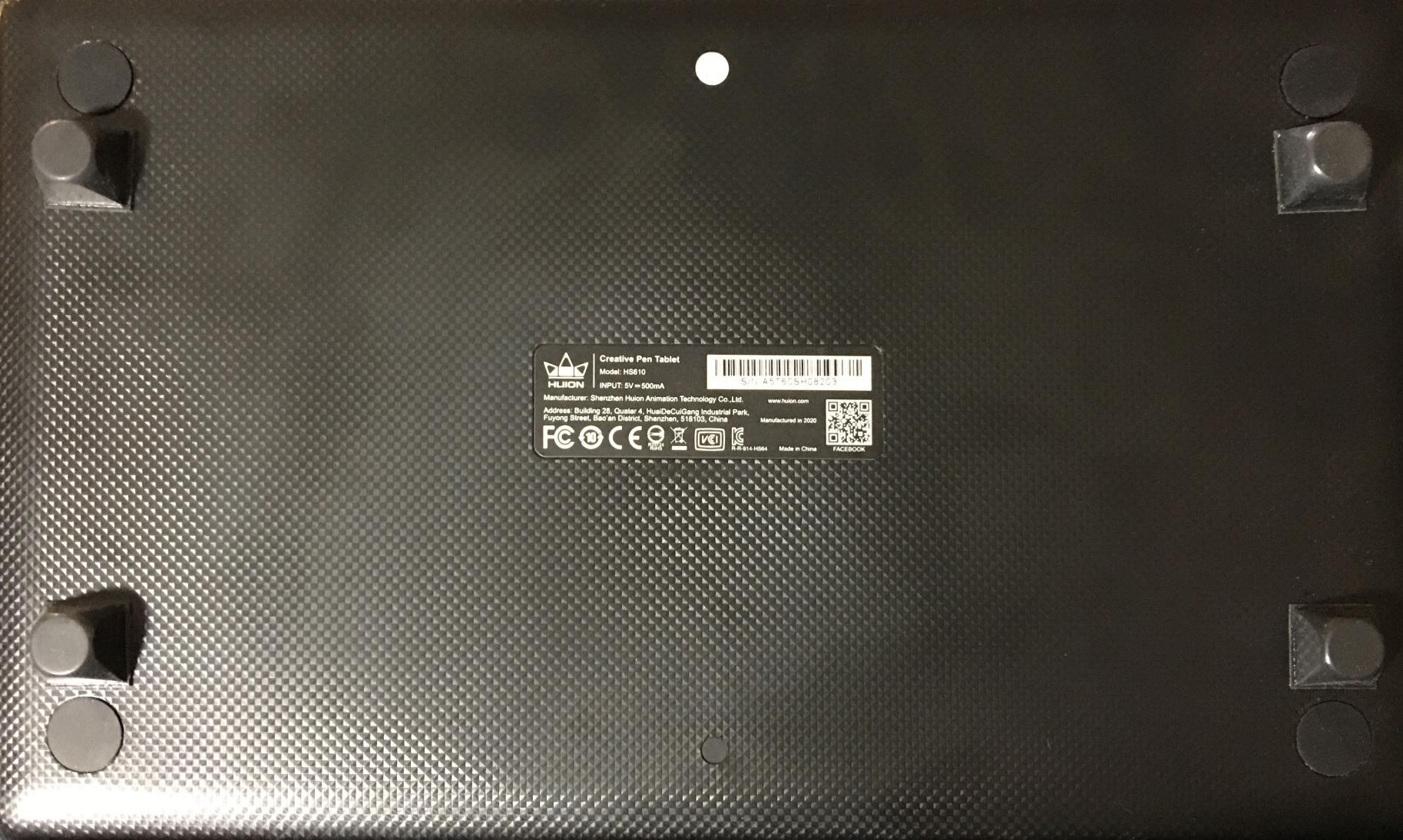
Keyboard and Dial Integration
The KD200 includes 23 standard keyboard keys alongside five customizable PressKeys and a dial. The dial defaults to zoom and brush size control, and the keyboard lets you type shortcuts without lifting your pen hand from the tablet.
I found the keyboard most useful for entering layer names and switching tools via keyboard shortcuts. The learning curve is real, but once I got used to the layout, my workflow became noticeably more efficient. A few reviewers mention occasional glitches with the shortcut keys, which I experienced once during a two-week test period.
Mac Compatibility and Firmware Notes
On Mac, the tilt function requires a firmware update through the Huion driver. I ran the update on first setup and tilt worked perfectly afterward. On Windows, everything worked out of the box with no firmware step needed.
If you are on Mac, do not skip the firmware update or you will think the tilt function is broken. This is the most common complaint in the reviews, and it is entirely fixable with a two-minute driver update.
7. GAOMON WH851 – 16K Pressure With Bluetooth
GAOMON WH851 Bluetooth Graphics Drawing Tablet, 8×5, Dial, 16384 Pressure
16384 Pressure Levels
Bluetooth 5.0
Dial + 8 Keys
8x5 Inch Area
USB-C
18hr Battery
Pros
- Highest 16K pressure sensitivity
- Bluetooth 5.0 and USB-C
- Intuitive dial with radial menu
- Lightweight 397g build
Cons
- Learning curve for customization
- Nib wear from surface texture
- No pen eraser
- Occasional Bluetooth latency
The GAOMON WH851 pairs 16,384 pressure levels with Bluetooth 5.0 connectivity, making it one of the few budget tablets that offers both top-tier pressure sensitivity and wireless freedom. I was curious whether Gaomon could match Huion’s wireless reliability, and for the most part, it does.
The 8 x 5 inch active area is a comfortable middle ground between compact and large tablets. I found it large enough for illustration work but small enough to carry in a laptop bag. At 397 grams, it is one of the lightest tablets with Bluetooth on the market.
The AP519 battery-free stylus delivers the full 16K pressure range, and I could feel the extra granularity when doing subtle shading and fine line work. The dial on the tablet body supports both a driver mode and a radial menu mode, which I mapped to my most-used Photoshop tools.
Battery life is rated at 18 hours, matching the Huion KD200. I got through three full sketching sessions before needing to recharge, which lines up with the claimed runtime.
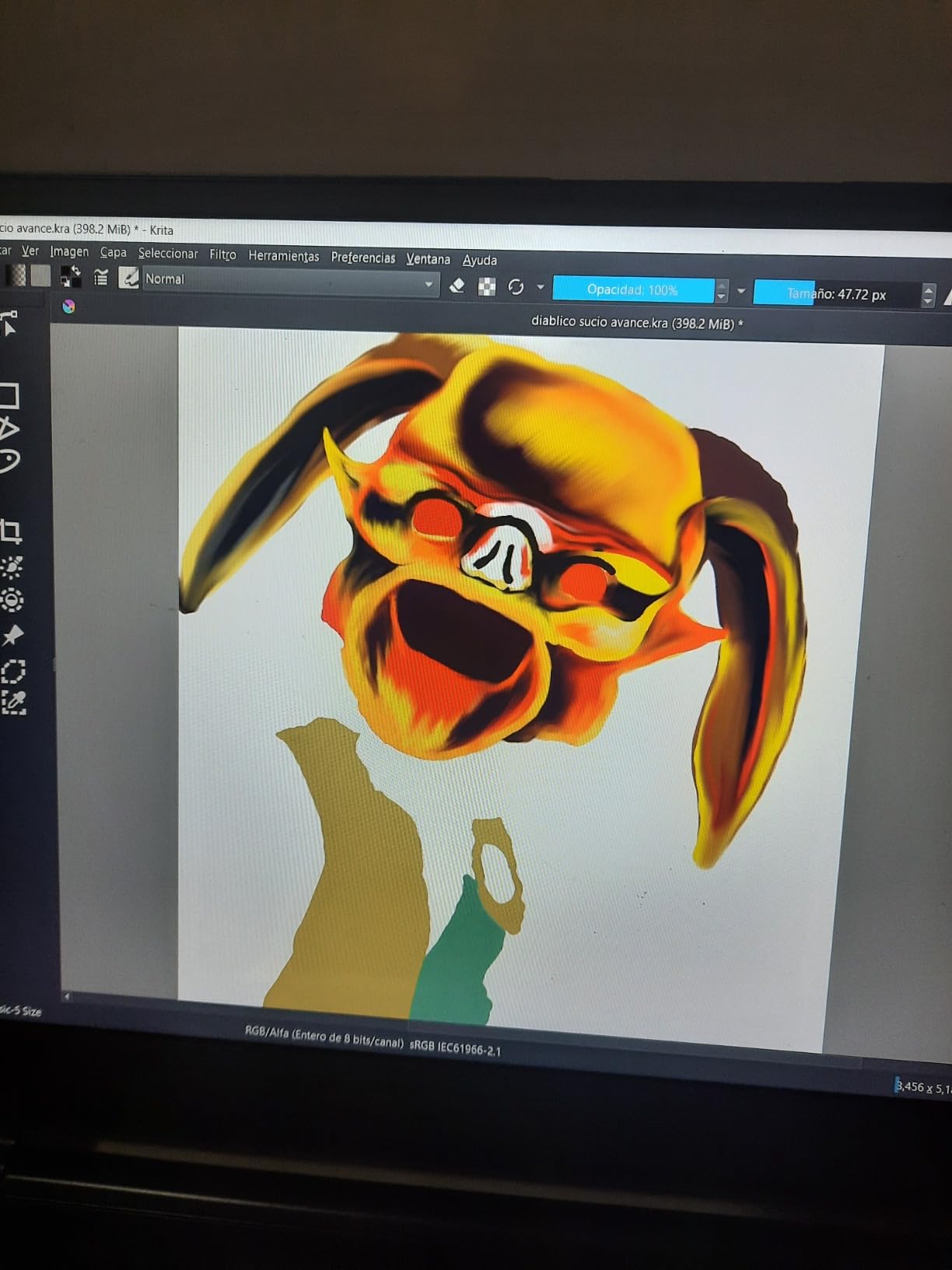
Dial Customization and Radial Menu
The dial on the WH851 is more versatile than I expected. In driver mode, it controls zoom and brush size like a standard scroll wheel. In radial menu mode, it brings up a circular menu of up to eight custom functions that you select by rotating the dial.
I set up my radial menu with color picker, eraser, undo, redo, new layer, merge down, flip canvas, and save. Having all those functions one dial-turn away seriously sped up my painting sessions. The learning curve is worth pushing through.
Bluetooth Latency and Connection Stability
Bluetooth performance was solid overall, with the connection staying stable through multiple hours of drawing. I did notice a slight latency on very fast, short strokes compared to the wired USB-C connection. For most art styles this is not noticeable, but precision-focused artists may prefer to keep the cable plugged in.
A few users report occasional connection drops, which I experienced once during my test period. Reconnecting was instant. If you need absolute reliability for professional deadlines, the wired XPPen Deco 01 V3 may be the safer choice.
8. UGEE Q6 – Best Budget Tablet for Android Phones
UGEE Q6 Drawing Tablet for Android Phone, Graphic Tablet with 6Hot Keys, 6.5”x4” Portable Writing Tablet Adjustable Drawing Mode, Drawing Pad with 16K Levels Battery-Free Stylus for Mac/Windows/Chrome
16384 Pressure Levels
6.5x4 Inch Area
4 Drawing Modes
6 Hotkeys
60 Degree Tilt
249g
Pros
- Designed for Android phone drawing
- 16K pressure sensitivity
- Ultra-light 249g portable build
- 4 adjustable drawing modes
Cons
- Small 6.5x4 inch active area
- USB only no wireless
- Short built-in cable
- Occasional lag reported
The UGEE Q6 is built specifically for artists who want to draw on their Android phone, and it is the only tablet on this list that truly optimizes for that use case. With four adjustable drawing modes, you can map the active area to match different phone screen aspect ratios.
I connected the Q6 to my Android phone via the built-in Type-C cable and was sketching in ibisPaint X within minutes. The plug-and-play setup requires no driver installation on mobile, which is exactly the frictionless experience phone artists are looking for.
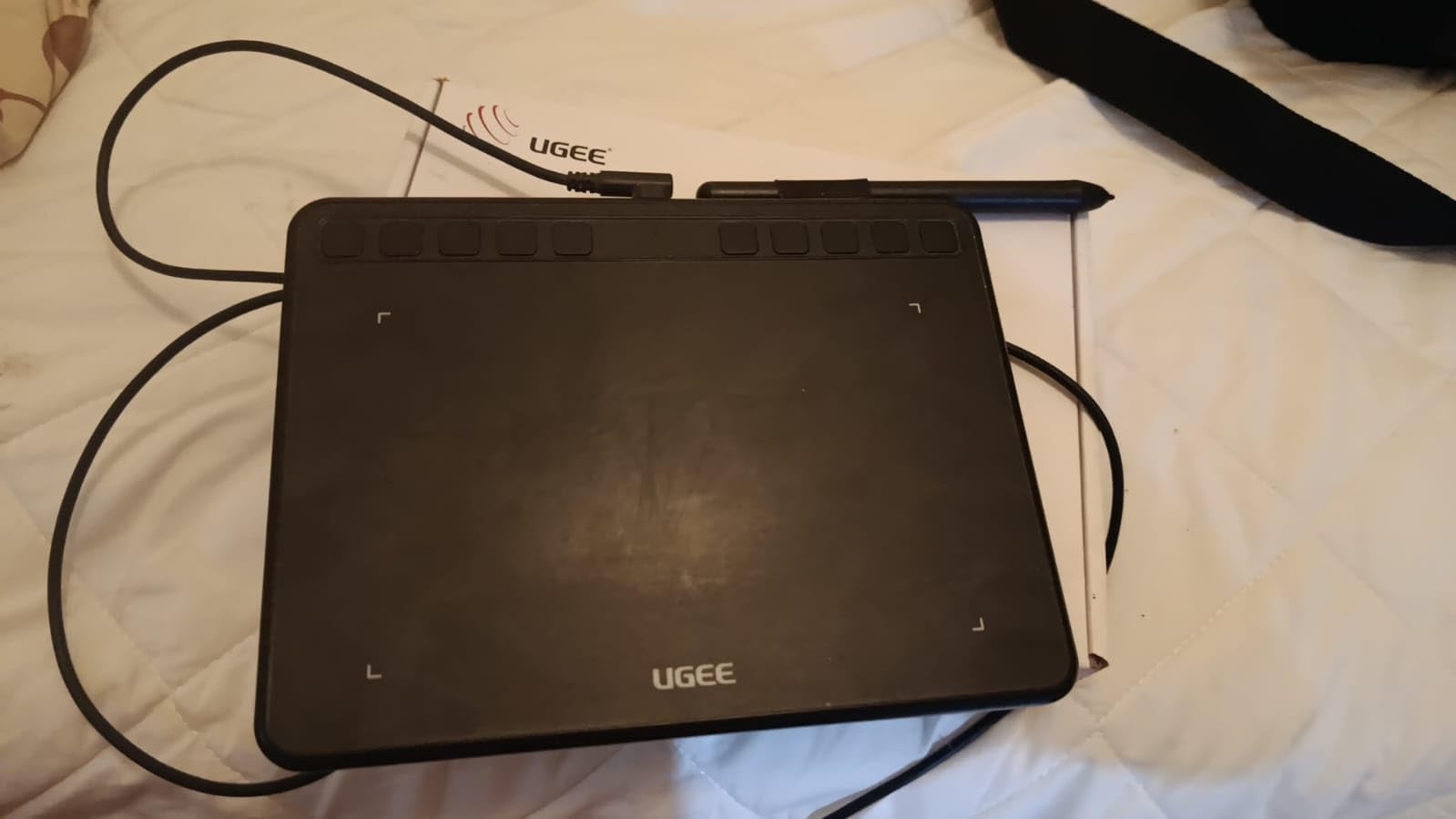
Despite weighing just 249 grams, the Q6 packs 16,384 pressure levels and 60-degree tilt support. The battery-free stylus felt responsive across the full pressure range, and the six noise-reduced hot keys let me switch tools without touching my phone screen.
The built-in Type-C cable is detachable, which is a nice touch for travel. The tablet is roughly the size of an A5 notebook, making it the most portable option on this list.
Android Device Compatibility Checklist
The Q6 works with Android devices running 6.0 and above, but not every phone is fully compatible. I tested it with a Samsung Galaxy and a Google Pixel, both of which worked perfectly. Some users report issues with certain Android devices, so check the UGEE compatibility list before buying if you have an older or less common phone.
The tablet also works with Windows, Mac, Linux, and Chrome OS, so you are not locked into Android-only use. I found it just as capable as a desktop sketching tablet, though the small active area limits it to smaller-scale work.
Portability and On-the-Go Drawing
At 249 grams and A5 notebook size, the Q6 is the most portable tablet I tested. I slipped it into my jacket pocket alongside my phone and sketched during a lunch break without anyone noticing I was carrying a drawing tablet.
The four drawing modes let you adjust the active area mapping for different screen sizes and orientations. This flexibility is what makes the Q6 uniquely suited to mobile artists who switch between phone and desktop setups throughout the day.
Buying Guide: How to Choose a Budget Drawing Tablet?
After testing eight tablets across multiple weeks of real drawing sessions, I can tell you that the spec sheet only tells half the story. Here are the factors that actually matter when you are choosing an affordable drawing tablet in 2026.
Pressure Sensitivity: How Much Do You Really Need?
Pressure sensitivity is the number one spec that gets thrown around in marketing, and it is also the most misunderstood. The tablets on this list range from 4096 levels on the Wacom Intuos Small to 16,384 levels on the XPPen, Gaomon, and UGEE models.
Here is the honest truth from my testing: 4096 levels is enough for most beginners and casual artists. The jump to 8192 is noticeable for shading and line weight variation. The jump from 8192 to 16K is real but subtle, and most users will not feel the difference unless they are doing extremely detailed work.
If you are a beginner, do not let the 16K marketing numbers pressure you into spending more. A tablet with 8192 levels and a good pressure curve will serve you perfectly well. Prioritize active area size and driver stability over raw pressure numbers.
Active Area Size: Bigger Is Usually Better
Active area is the part of the tablet where the pen is tracked, and it has a bigger impact on your drawing experience than pressure levels. The tablets I tested range from 6 x 3.7 inches on the Wacom Intuos Small to 10 x 6.25 inches on the XPPen Deco 01 V3 and Huion H1060P.
I found that anything under 6 x 4 inches feels cramped for illustration work. You end up drawing with small wrist movements, which can lead to jerky lines and hand fatigue. The 10 x 6.25 inch tablets felt like drawing on real paper and allowed me to use my whole arm for smoother strokes.
If you have the desk space and budget allows, go for a tablet with at least a 10-inch diagonal active area. Your artwork will thank you.
Graphics Pad vs Display Tablet: What Is the Difference?
This is one of the most common questions I see on Reddit, and the answer matters for your budget. A graphics pad (like all eight tablets on this list) has no screen. You draw on the tablet surface while looking up at your computer monitor. It takes a day or two to get used to the hand-eye coordination, but most artists adapt quickly.
A display tablet has a built-in screen that you draw directly on, like an iPad or a Wacom Cintiq. These feel more natural because you are looking at the point where your pen touches the surface. However, even the cheapest display tablets start around $150 to $200, which is well above the budget range we are covering here.
My advice: start with a graphics pad. They are cheaper, more portable, and the skills you learn transfer directly to display tablets if you upgrade later. Every professional artist I know started on a non-screen tablet.
Driver Stability: The Hidden Dealbreaker
Driver issues are the number one pain point I see mentioned across Reddit’s drawing tablet communities. A tablet can have perfect specs on paper but still be miserable to use if the driver software is buggy or conflicts with your operating system.
From my testing, Wacom has the most stable drivers, followed by Huion and XPPen, which have improved significantly in recent years. Gaomon and UGEE are newer brands with decent drivers but less of a track record on the latest OS updates.
My tip: always download the latest driver directly from the manufacturer’s website rather than relying on included CDs or auto-installers. And if you hit issues, check the manufacturer’s support forum before returning the tablet. Most driver problems have known fixes.
Connectivity: Wired vs Wireless
Most budget tablets connect via USB, which is reliable and has zero latency. If you value a clean desk setup or want to draw from across the room, look at the Bluetooth-enabled options like the Huion Keydial KD200 and Gaomon WH851.
Wireless adds about $30 to $50 to the price, and there is a small latency trade-off. For most artists, wired is the better value. But if you present your work, teach art classes, or simply hate cable clutter, the wireless options on this list are solid.
USB-C connectivity is becoming the standard, and I prefer it over older USB-A ports. The XPPen Deco 01 V3 and Gaomon WH851 both offer USB-C, which means you can connect them to modern laptops without an adapter.
Software Compatibility Checklist
Before buying, check that the tablet works with your preferred creative software. All eight tablets on this list support the major apps: Adobe Photoshop, Clip Studio Paint, Krita, Medibang Paint, and SAI. I tested each tablet in at least three of these programs without issues.
If you use less common software or older versions, check the manufacturer’s compatibility list. Linux users should look at the Huion H1060P, which has the best open-source driver support of any tablet I tested.
FAQs
What is the best budget drawing tablet for under $50?
The XPPen Deco 01 V3 is my top pick under $50. It offers a large 10 x 6.25 inch active area, 16,384 pressure levels, 60-degree tilt support, and 8 customizable hot keys. The Huion Inspiroy H640P is the best value pick if you want to spend even less at under $30.
What is the best cheap drawing tablet with a screen?
True display tablets with built-in screens start around $150 to $200, which is above the budget range covered here. Among graphics pads, the Huion Keydial KD200 and Gaomon WH851 offer the most premium features under $100, including Bluetooth connectivity and built-in dials, though they do not have screens.
Which drawing tablet has the best pressure sensitivity for beginners?
Beginners do not need the highest pressure levels. The Wacom Intuos Small with 4096 levels and the Huion Inspiroy H640P with 8192 levels are both excellent starting points. The jump from 8192 to 16K levels is subtle and most beginners will not notice the difference.
Are cheap drawing tablets good enough for digital art?
Yes. Modern budget tablets from Huion, XP-Pen, Gaomon, and UGEE offer 8192 to 16K pressure levels, battery-free styli, and tilt support at prices under $50. Many professional artists started on budget tablets, and the skills you learn transfer directly to more expensive equipment.
What is the difference between a graphics pad and a display tablet?
A graphics pad has no screen. You draw on the tablet surface while looking at your computer monitor, which requires hand-eye coordination adjustment. A display tablet has a built-in screen you draw directly on, which feels more natural but costs significantly more. All eight tablets in this guide are graphics pads, which are the best value for budget buyers.
Final Verdict on the Best Budget Drawing Tablets
After weeks of testing, the XPPen Deco 01 V3 remains my top overall pick for the best budget drawing tablets in 2026. Its combination of a large 10 x 6.25 inch workspace, 16K pressure levels, and tilt support at a budget price is hard to beat. The HUION Inspiroy H640P is unbeatable for value, and the UGEE Q6 is the clear winner for Android phone artists.
Whatever your budget or use case, the tablets on this list prove that you do not need to spend hundreds of dollars to start creating digital art. Pick the one that matches your workflow, download the latest drivers from the manufacturer’s site, and start drawing.