
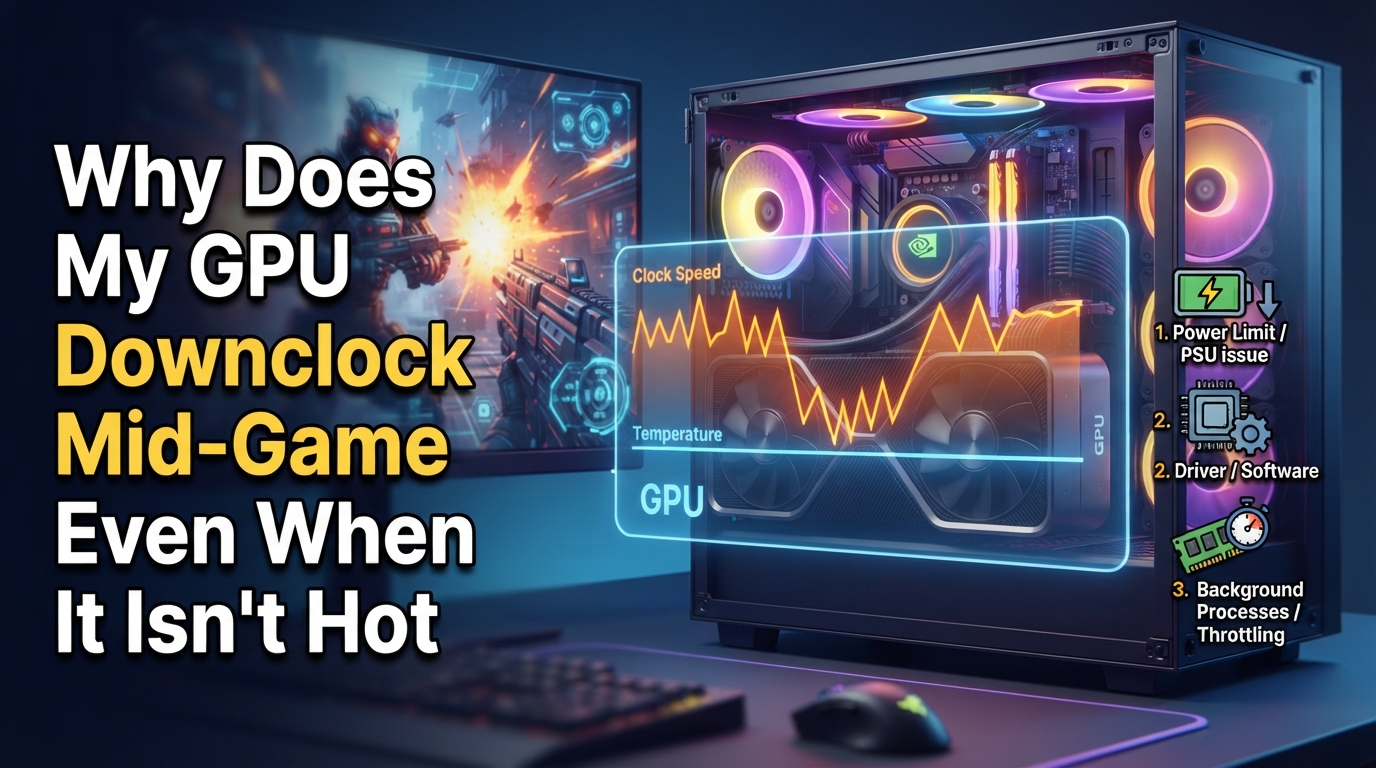
If you have ever watched your core clock tumble from 2000 MHz down to 1500 MHz mid-match while your temps sit comfortably at 65 degrees Celsius, you are not imagining things. GPU downclocking is one of the most confusing things a PC gamer can witness, because we have all been trained to associate clock drops with heat. I have spent years tweaking cards with MSI Afterburner, Nvidia Inspector, and HWMonitor, and the truth is that thermal throttling is only one of many reasons your GPU downclocks mid-game.
This guide breaks down exactly why does my GPU downclock mid-game even when it isn’t hot, covering the non-thermal causes most forum threads gloss over. You will learn how GPU Boost works, what power limit throttling really does, how CPU bottlenecks trigger usage drops, and the step-by-step fixes I use to keep my clock speeds stable. By the end, you will know whether your downclocking is normal dynamic behavior or a sign of something worth fixing.
Table of Contents
The Quick Answer: GPU Downclocking Is Not Always About Heat
Your GPU downclocks mid-game even when cool because modern graphics cards use dynamic frequency scaling (called GPU Boost on Nvidia and similar technology on AMD) that adjusts clock speed in real time based on power draw, voltage limits, workload, and thermal headroom, not just temperature. When your GPU downclocks at 65 degrees Celsius, the cause is almost always power limit throttling, a CPU bottleneck, an aggressive power management profile, or a game-specific driver behavior, not heat damage.
In short, GPU downclocking without high temperatures is normal in many cases, and only becomes a problem when it causes visible FPS drops or stuttering that ruins your gameplay.
Understanding GPU Boost and Dynamic Frequency Scaling
To make sense of GPU downclocking, you need to understand how modern graphics cards actually run. They do not sit at one fixed clock speed the way older hardware did. Instead, your GPU constantly samples its sensors hundreds of times per second and picks the highest stable clock it can sustain within its power, voltage, and thermal limits. Nvidia calls this GPU Boost, and it is the reason your card might hit 2100 MHz in one moment and drop to 1850 MHz in the next.
This dynamic frequency scaling is what allows a card to extract extra performance when conditions are favorable. The trade-off is that the same mechanism causes the downclocks you see in MSI Afterburner. The GPU is not malfunctioning when it lowers its clock, it is doing exactly what it was designed to do.
Performance level states (labeled P0 through P12 on Nvidia cards in Nvidia Inspector) define these clock tiers. A drop from P0 to P2 is normal under light load, but a sudden drop from P0 to P5 mid-match is what upsets gamers. Knowing the difference between normal tier shifts and problematic drops is the core of diagnosing GPU downclocking.
Power Limit Throttling: The Most Common Non-Thermal Cause
Power limit throttling is the number one reason a GPU downclocks while temperatures stay low. Every graphics card has a power target, measured in watts, that it is not allowed to exceed for sustained periods. When your GPU Boost algorithm pushes the clock high enough that the card starts drawing more power than its limit allows, the driver instantly reduces the clock to bring power back under the cap.
I have seen this firsthand with factory overclocked cards. A PNY 980Ti that one Tom’s Hardware user documented was dropping from 1164 MHz to 595 MHz under load while drawing only 45 percent of its power limit during the downclock. That kind of behavior points to the power management logic overreacting, not actual heat. You can usually spot power limit throttling in MSI Afterburner or GPU-Z by watching the Power Limit indicator, the Perfcap reason often reads PWR when power is the limiter.
If you want to confirm power limit throttling is your culprit, look for a clock drop that happens the instant your power draw hits the card’s rated limit. The fix is usually raising the power limit slider in MSI Afterburner (if your card allows it) or undervolting to hit the same clocks at lower wattage.
CPU Bottleneck and GPU Usage Drops
The next most common cause has nothing to do with your GPU at all. When your CPU cannot prepare frames fast enough to keep the GPU fed, the GPU simply does not need to run at full speed, so it downclocks. This is the classic CPU bottleneck, and it is one of the most common answers on r/buildapc and the Steam community forums for unexplained GPU downclocking.
A CPU bottleneck shows up clearly in monitoring tools. Your GPU usage drops below 90 percent, the clock slides down with it, but temperatures and power draw both stay low. You will typically see this in CPU-heavy games like Escape from Tarkov, MMOs with lots of players on screen, or any scenario where the frame rate is capped by single-core CPU performance rather than GPU rendering.
Is GPU 90 percent usage bad? No, 90 percent is normal and healthy. But if your usage is bouncing between 60 and 95 percent with corresponding clock drops, you are almost certainly CPU bottlenecked, and no amount of GPU tuning will fix it. The fix in that case is lowering CPU-intensive settings (shadows, draw distance, physics), upgrading the CPU, or raising the in-game resolution to shift more load onto the GPU.
Nvidia Adaptive Power Mode and Driver Behavior
This is the section I wish more guides covered, because Nvidia’s power management modes silently cause a huge number of downclock complaints. Inside the Nvidia Control Panel, under Manage 3D Settings, there is a Power Management Mode option with three main settings: Optimal Power, Adaptive, and Prefer Maximum Performance. Optimal Power and Adaptive both allow the driver to aggressively lower clocks whenever the GPU detects even a brief moment of lower demand.
In many games, especially ones with loading screens, menus, or uneven frame pacing, the driver interprets these moments as low-demand and drops the GPU to a lower performance level. When the heavy scene returns, there is a brief delay while the clock ramps back up, which you experience as a stutter or FPS drop. This is the same reason some users see GPU downclocking after switching games or alt-tabbing back in.
The community fix that consistently works is setting Power Management Mode to Prefer Maximum Performance for the affected game’s profile. This forces the card to stay at high performance levels instead of cycling down. AMD users have an equivalent setting in Radeon Software under Performance Tuning, where you can disable the up/down clock behavior. Game-specific driver profiles also play a role here, which is why the same card runs perfectly in some games and downclocks in others.
Game-Specific Profiles and Performance Level Drops
One of the most frustrating things about GPU downclocking is that the same card will run a stress test like 3DMark perfectly and then throttle the moment you launch a specific game. I have seen this reported dozens of times on r/overclocking and Tom’s Hardware. The cause is usually a combination of the game’s frame pacing, the driver profile for that title, and how the game loads VRAM.
Memory load is a real factor. When a game streams in large textures or assets, the memory controller can become the bottleneck, and the GPU will reduce its core clock to match. This shows up as VRAM throttling in monitoring tools, even when the GPU core itself is cool. Some users on r/AMDHelp have traced their downclocking to specific games with known memory management issues, where the fix was locking the memory clock or capping the frame rate to prevent the spikes that triggered the downclock.
If your GPU runs fine in benchmarks but downclocks in one game, the problem is almost certainly in the game’s profile or memory behavior, not your hardware. The fix is usually a clean driver install, a different driver version, or capping the frame rate to stabilize the workload.
Normal Dynamic Boost vs Problematic Throttling
One of the biggest gaps I noticed across competitor content was a clear way to tell normal GPU downclocking from a real problem. Here is how I break it down for my own builds.
Normal dynamic boost behavior looks like small clock fluctuations of 30 to 100 MHz while gaming, GPU usage between 95 and 100 percent in GPU-bound titles, temperatures well under the thermal throttle point, and consistent frame pacing with no stuttering. These fluctuations are GPU Boost doing its job.
Problematic GPU downclocking looks like sudden clock drops of 300 MHz or more, GPU usage crashing to 50 to 70 percent for no obvious reason, FPS drops from 90 to 50 that need a game restart to clear, or the card locking itself to a low performance level and refusing to clock back up. These are the symptoms that point to power limit throttling, a CPU bottleneck, a driver power mode issue, or in rare cases a faulty power supply.
If you fall into the second category, the troubleshooting guide below walks through the fixes I use in order, from the easiest to the most involved.
How to Stop GPU Downclocking While Gaming: Step-by-Step Fixes
This is the same order of operations I run through whenever a friend messages me about mysterious clock drops. Each step takes a few minutes, and most GPU downclocking issues get resolved by step three.
Step 1: Confirm the cause in MSI Afterburner. Open Afterburner with the on-screen display enabled and watch Core Clock, GPU Usage, Power, Temperature, and the Perfcap reason while you play. If Power is hitting 100 percent and the clock drops, you have power limit throttling. If GPU Usage drops below 90 percent with the clock, you have a CPU bottleneck. If neither applies, move on.
Step 2: Set Power Management Mode to Prefer Maximum Performance. Open the Nvidia Control Panel, go to Manage 3D Settings, Program Settings, select your game, and set Power Management Mode to Prefer Maximum Performance. This single change fixes a surprising number of mid-game downclocking complaints, especially in games with menus or loading screens.
Step 3: Raise the power limit or undervolt. In MSI Afterburner, slide the Power Limit to its maximum (usually 110 to 120 percent). If your card still throttles, undervolt it using the Curve Editor, lowering voltage at a target clock so the card hits the same frequency at lower wattage. This typically eliminates power limit throttling entirely.
Step 4: Do a clean driver install. Use DDU (Display Driver Uninstaller) in safe mode, then install the latest Nvidia or AMD driver. A corrupted driver profile is a frequent cause of game-specific downclocking, and a clean install clears it in minutes.
Step 5: Lock the performance level (advanced). If you still see drops, you can lock the GPU to its highest performance level using Nvidia Inspector or by setting a minimum clock in the AMD Radeon Software tuning panel. This forces the card to ignore dynamic downclocking entirely, though it uses more power at idle. Tom’s Hardware users have used this to fix stubborn 980Ti and similar cards that refuse to stay at P0.
Step 6: Check your power supply. If none of the above helps and the downclocks coincide with system instability, a failing or undersized PSU may not be delivering clean power under load. This is rare, but it is the cause when a card behaves erratically across every game and benchmark.
Recommended Monitoring Tools
You cannot diagnose GPU downclocking without good monitoring software. These are the tools I keep installed on every gaming PC I build.
MSI Afterburner is the gold standard. It overlays Core Clock, Memory Clock, GPU Usage, Power, Temperature, and Frame Time on top of any game, and its RivaTuner Statistics Server integration gives you the smoothest on-screen display available. Use it to watch the Perfcap reason in real time.
HWMonitor from CPUID is my backup for tracking power draw, voltages, and temperatures across the whole system, including the PSU rails if your unit reports them. It is invaluable when you suspect a power supply issue.
GPU-Z from TechPowerUp shows detailed sensor data including the Perfcap reason (PWR, VREL, VOP, TMP), which directly tells you whether your GPU downclocking is power-limited, voltage-limited, or temperature-limited. This is the fastest way to confirm whether heat is or is not the cause.
Nvidia Inspector exposes the full performance level state table (P0 through P12) and lets advanced users lock the card to a specific state. It is older software, but it remains the best tool for diagnosing performance level drops on Nvidia cards.
FAQs
Why does my GPU clock drop?
Your GPU clock drops because of dynamic frequency scaling, which lowers the clock in response to power limits, voltage limits, workload changes, or thermal headroom. The most common non-thermal causes are power limit throttling, CPU bottlenecks, and aggressive Nvidia power management modes like Optimal Power or Adaptive.
Is GPU 90% usage bad?
No, 90 percent GPU usage is healthy and normal in a GPU-bound game. It becomes a concern only if usage is bouncing between 60 and 95 percent with matching clock drops, which usually indicates a CPU bottleneck rather than a GPU problem.
How do I prevent GPU downclocking?
Set Power Management Mode to Prefer Maximum Performance in the Nvidia Control Panel, raise the power limit in MSI Afterburner, undervolt the card, do a clean driver install with DDU, and if needed lock the GPU to its highest performance level using Nvidia Inspector or AMD Radeon Software.
Why does my GPU usage drop when playing games?
GPU usage drops during gameplay when the CPU cannot feed frames to the GPU fast enough, which is a CPU bottleneck. It can also drop because of a game-specific driver profile, memory controller load, or a power management mode that aggressively lowers clocks during lighter moments in the game.
Can a bad power supply cause GPU downclocking?
Yes. A failing or undersized power supply can cause erratic GPU downclocking across every game and benchmark, especially under sustained load. If your GPU downclocks even after driver fixes and power limit adjustments, test with a known-good PSU.
Wrapping Up: Most GPU Downclocking Is Normal and Fixable
Once you understand that GPU downclocking is driven by power, workload, and driver logic, not just temperature, the mystery fades. Run MSI Afterburner, check the Perfcap reason, switch to Prefer Maximum Performance, raise your power limit, and you will resolve the vast majority of mid-game clock drops. Knowing why does my GPU downclock mid-game even when it isn’t hot turns a frustrating stutter into a five-minute fix.