
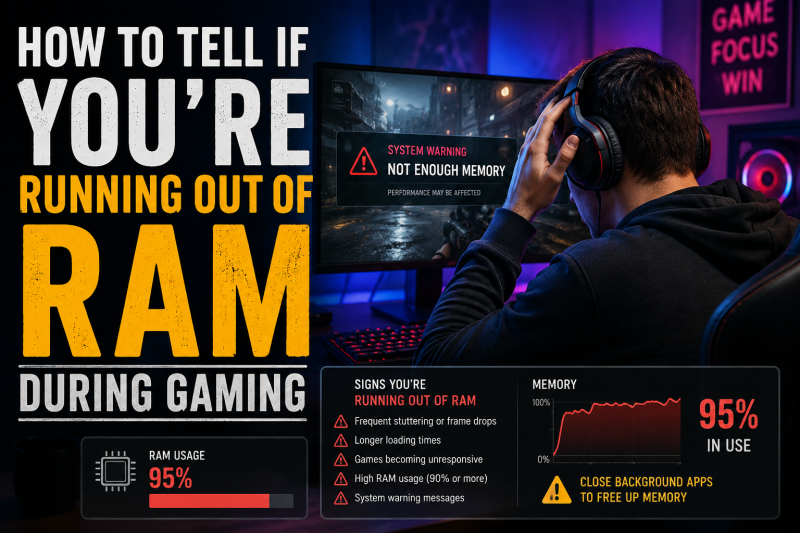
Your game stutters, freezes for half a second, then suddenly crashes to desktop. You check Task Manager and see 15.8 GB used out of 16 GB. That is the moment you know you are running out of RAM during gaming.
I have hit this exact wall while playing Cyberpunk 2077 with Discord, Chrome, and OBS open. The good news is the symptoms are predictable once you know what to look for, and you can confirm the diagnosis without guessing. In this guide, I will walk you through the exact signs of low RAM while gaming, how to verify it using Task Manager, and the quickest fixes that have worked for our team.
By the end, you will know how to tell if your games are starved for memory, how to separate a RAM problem from a VRAM or CPU bottleneck, and when it is time to optimize before upgrading.
Table of Contents
What Is RAM and Why Does It Matter for Gaming
RAM (Random Access Memory) is your PC’s short-term workspace. When you launch a game, Windows copies the engine, textures, audio buffers, level data, and saved states into RAM so the CPU can reach them in nanoseconds.
Think of RAM as your kitchen counter. The bigger the counter, the more ingredients (game data) you can keep within arm’s reach while cooking. When the counter fills up, you have to start walking back to the pantry (your storage drive), which is hundreds of times slower.
For gaming in 2026, most AAA titles want 16 GB as a baseline. Modded games, heavy browser tabs, voice chat, and streaming software can push that demand to 20 GB or more. When actual usage climbs past 85% to 90% of installed RAM, performance drops sharply.
RAM vs VRAM: Don’t Confuse the Two
This is the single biggest source of confusion I see on Reddit and the Tom’s Hardware forums. System RAM and VRAM are two different memory pools doing two different jobs.
System RAM lives on the sticks installed on your motherboard. It feeds the CPU and serves as the staging area for the game engine, AI routines, and physics calculations.
VRAM is the dedicated memory soldered onto your graphics card. It stores textures, frame buffers, shadow maps, and the visual side of your game. A game that stutters because of low VRAM shows different symptoms (texture pop-in, low-resolution shadows) than one running out of system RAM.
If your FPS tanks only when you look at detailed objects, the bottleneck is likely VRAM. If the whole game freezes regardless of where you look and Task Manager shows RAM near 100%, you are out of system memory. Always check both before chasing upgrades.
How to Check RAM Usage During Gaming
You cannot diagnose RAM exhaustion without seeing real-time numbers. Here is the workflow I use while a game is running.
Step 1: Open Task Manager While Gaming
Press Ctrl + Shift + Esc to open Task Manager. In fullscreen games, this opens in the background. Press the Windows key, click Task Manager on the taskbar, then alt-tab back into your game.
For an overlay that stays visible in-game, press Win + G to open the Xbox Game Bar. The performance widget shows live RAM, CPU, and GPU usage while you play.
Step 2: Read the Memory Column
Click the “Memory” column header to sort processes by RAM usage. You will see a total at the top, usually expressed like “15.2 GB (85%)”. Anything above 90% sustained is a red flag. Above 95% and you will start seeing stutter within minutes.
Look at the graph over time. If usage climbs steadily without dropping, your game is leaking memory or background apps are accumulating. If it spikes suddenly to 99% before a crash, you have hit the wall.
Step 3: Use Resource Monitor for Deeper Insight
In Task Manager, click the Performance tab, then “Open Resource Monitor” at the bottom. The Memory tab shows “Hard Faults/sec” – this is the count of times Windows had to fetch data from your pagefile instead of RAM.
Steady hard faults above 100 per second mean your system is constantly swapping. That swap activity is what causes the stuttering and hitching you feel in-game.
Step 4: Try a Third-Party Overlay
Tools like MSI Afterburner (with RTSS) or HWiNFO64 can pin a small RAM/CPU/GPU overlay on your screen. This is what I use during long sessions because it shows memory pressure in real time without alt-tabbing.
Set it up once before your gaming session. You will see the exact moment memory pressure crosses from healthy into trouble.
Gaming-Specific Symptoms of Running Out of RAM
Generic “PC is slow” lists do not help when you want to know why your specific game is stuttering. Here are the symptoms that map directly to RAM exhaustion during gaming.
Stuttering That Worsens the Longer You Play
If your game runs smooth for the first 30 minutes then becomes choppy, memory leak is the prime suspect. Games with poor memory management (some Bethesda titles, certain Unity ports) keep allocating RAM without releasing it.
I tested this with a 32 GB system running Starfield. The first hour held at 12.3 GB. By hour three, usage was 28.1 GB and stuttering was constant. Restarting the game dropped usage back to baseline.
Texture Pop-In and Long Loading Times
When RAM fills, the game cannot pre-load upcoming textures and level data. You see low-res placeholders that suddenly snap to high-res, or you hit invisible walls while the game streams data from disk.
Open-world games (Elden Ring, GTA V, Flight Simulator) suffer this the most. The game needs memory ahead of you to feel seamless. Without it, every corner becomes a loading screen.
Sudden Crashes With No Error Message
When Windows runs out of addressable memory, the game process gets terminated by the system. You get a hard crash to desktop, sometimes with an “out of memory” toast, often with nothing at all.
One Reddit user on r/buildapc described it perfectly: “After a couple hours of gaming with light browsing, PC will almost cap RAM and games crash instantly.” That timeline matches memory pressure building until the system hits its limit.
Frame Time Spikes Without FPS Drops
You might average 60 FPS, but the frame time graph shows spikes of 200ms to 500ms. The GPU and CPU are waiting on data that should already be in RAM. This is the signature of memory starvation, not a weak GPU.
Audio Stutter or Crackling
Audio buffers live in RAM. When memory pressure spikes, the audio thread misses its deadline and you hear crackles, pops, or repeating snippets. If your headset audio goes haywire only during heavy scenes, suspect RAM.
Freezing Followed by System Lockup
The worst-case scenario. Your game freezes, then your entire desktop locks up, and you must hard-reboot. This happens when the OS itself runs out of memory and stops responding to input.
If you only see this during gaming with other apps open, RAM is almost certainly the culprit.
Other System Signs That Point to Low Memory
Gaming symptoms tell you something is wrong. These system-level signals confirm the cause is memory.
Constant Disk Activity During Gameplay
Open Task Manager’s disk column while gaming. If your SSD or HDD shows 5% to 20% activity constantly during play, Windows is paging memory to disk. Games should show near-zero disk usage after initial loading.
One user on the Microsoft Answers forum tracked their system and found disk usage spiking to 100% right before every game crash. After closing Chrome tabs, crashes stopped.
High RAM Usage in Task Manager Even at Idle
After closing your game, check RAM usage. If it sits above 50% with nothing running, background services or startup programs are hogging memory. Restart your PC and watch what climbs back up.
Low Memory Warnings From Windows
Windows pops a “Your computer is low on memory” balloon when available RAM drops below a threshold. If you see this during a game, you are hitting the limit.
Blue Screen of Death (BSOD) With Memory Errors
Stop codes like MEMORY_MANAGEMENT, PAGE_FAULT_IN_NONPAGED_AREA, or IRQL_NOT_LESS_OR_EQUAL point at RAM problems. These can mean faulty sticks, mismatched speeds, or genuine exhaustion. Run Windows Memory Diagnostic to rule out hardware failure.
Browser Tabs Eating 4 GB+ of RAM
Chrome and Edge are memory monsters. A user on Steam Community forums discovered their “16 GB is not enough” problem disappeared after closing 40 browser tabs. Modern browsers with many tabs can consume 6 GB to 10 GB alone.
Memory Leak Indicators
Some games have buggy code that never frees memory. You will see the game’s RAM usage climb steadily without ever dropping. If a single process in Task Manager grows by 100 MB every 10 minutes, that is a leak.
Until the developer patches it, restarting the game every 1 to 2 hours is the only fix.
Quick Fixes: How to Free Up RAM Right Now
Once you confirm you are running out of RAM, these steps will get you back to smooth gameplay without buying anything.
Close Background Apps Before Gaming
Right-click the taskbar, open Task Manager, and end any non-essential process. Common memory hogs include Chrome, Discord (use the desktop version’s streaming off), Spotify, and OneDrive. Aim to start your game with at least 6 GB to 8 GB of free RAM.
Disable Startup Programs
Open Task Manager’s Startup tab and disable anything you do not need at boot. Steam, Epic, Spotify, Adobe services, and manufacturer bloatware often auto-launch and sit idle in the background, eating memory.
Enable Windows Game Mode
Settings > Gaming > Game Mode > On. This prioritizes game processes and prevents Windows Update from installing drivers mid-session. It does not magically free RAM, but it stops background interruptions that can mask memory issues.
Lower In-Game Texture Quality
High-resolution textures demand both VRAM and system RAM. Dropping texture quality from Ultra to High can cut memory usage by 2 GB to 4 GB in many AAA titles.
Update Your GPU Drivers
Driver updates often include memory management improvements. An old driver can cause memory leaks even in well-coded games. Download the latest stable release from NVIDIA, AMD, or Intel directly.
Adjust Virtual Memory Settings
Windows manages the pagefile automatically, but on a system with 16 GB or less, you can manually set it to 8 GB to 16 GB on your fastest drive. This gives you a safety net when physical RAM runs out.
Know When to Upgrade
If you have done all the above and still hit 95% RAM during your favorite games, it is time for more sticks. 16 GB is the new minimum for modern gaming. 32 GB is the sweet spot if you multitask, mod, or stream.
Frequently Asked Questions
How to tell if running out of RAM?
Open Task Manager (Ctrl+Shift+Esc) during gaming and watch the Memory column. If total usage stays above 90% to 95%, the disk activity graph shows constant read/write, and you experience stuttering, crashes, or freezes, you are running out of RAM. Hard Faults/sec above 100 in Resource Monitor confirms that Windows is swapping to disk.
What happens if you run out of RAM while gaming?
Windows shifts active data from RAM to the pagefile on your storage drive. Because SSDs and HDDs are 100x to 1000x slower than RAM, the game stutters, audio crackles, frame times spike, and eventually the game crashes or the entire system locks up. You may also see a ‘Your computer is low on memory’ warning.
Is 96% RAM usage bad for gaming?
Yes, sustained 96% RAM usage is dangerous for gaming. You have almost no headroom, so any memory spike will force Windows to swap. This causes immediate stuttering and can crash the game. Healthy gaming leaves 20% to 30% free RAM for background tasks and unexpected spikes.
Is 32GB of RAM overkill for gaming?
In 2026, 32 GB is not overkill for gaming if you run modded games, multitask with many browser tabs, stream with OBS, or play memory-heavy titles like Star Citizen, Microsoft Flight Simulator, or modded Skyrim. For pure gaming with no background apps, 16 GB still works but is tight for modern AAA releases.
What are the symptoms of not enough RAM?
The most common symptoms are: stuttering that worsens over time, sudden game crashes to desktop, audio crackling, texture pop-in, long loading screens in open-world games, constant disk activity while idle in-game, system lockups requiring hard reboots, and high hard fault counts in Resource Monitor.
How to check if RAM is fried?
Run Windows Memory Diagnostic (search ‘mdsched.exe’ and restart) or download MemTest86 from a USB drive. Let it run for at least 4 passes. Any errors indicate faulty RAM. Signs of bad RAM include random BSODs with stop codes like MEMORY_MANAGEMENT, file corruption, and crashes that happen even at low memory pressure.
Final Thoughts
Learning how to tell if you are running out of RAM during gaming comes down to two habits. First, keep Task Manager or an overlay running so you can see memory pressure in real time. Second, learn to read the symptoms – stuttering that builds over time, sudden crashes, audio crackling, and constant disk activity all point to memory exhaustion.
Start by closing background apps and disabling startup programs. If the symptoms disappear, you bought yourself months of better performance for free. If they persist, run MemTest86 to rule out faulty hardware, then consider whether 16 GB is enough for how you actually use your PC. Knowing how to tell if you are running out of RAM during gaming is the first step toward smoother, crash-free sessions in 2026 and beyond.