
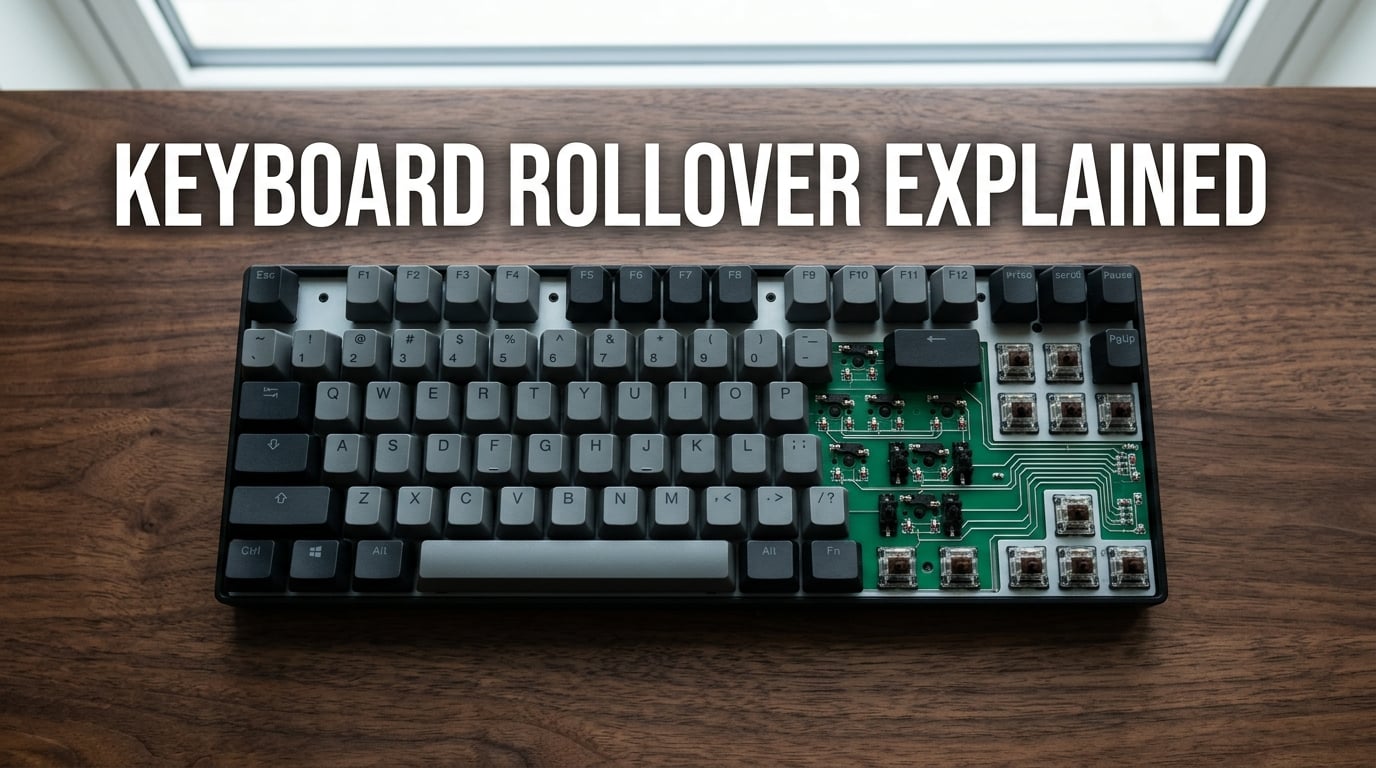
Your keyboard stops working when you press several keys at once because of a hardware limitation called keyboard rollover. Rollover is the maximum number of keys your keyboard can detect at the same time. Most budget keyboards only support 2-key rollover (2KRO), which means a third key press gets ignored or “ghosts” into another key.
I ran into this exact problem last year while playing a fighting game. I kept failing my quarter-circle-forward inputs and assumed it was my timing. Turns out my old membrane keyboard was dropping key presses the entire time. Once I understood what rollover meant, the issue made total sense.
In this guide, I’ll walk you through exactly why this happens, what the difference is between 2KRO, 6KRO, and NKRO keyboards, and what you can do about it without becoming an electrical engineer.
Table of Contents
What is keyboard rollover and why does it matter?
Keyboard rollover is the number of keys a keyboard can register at the same time. If your keyboard has 2-key rollover (2KRO), it can detect up to 2 keys held down simultaneously. A third key simply does not register, even if you press it firmly.
This matters because most modern computing involves pressing more than 2 keys at once. Every time you use Ctrl+C, you are pressing 2 keys. The moment you add Shift+Ctrl+C, you are at 3 keys. Any of those could fail on a low-rollover keyboard.
Gamers feel this limitation the hardest. A common fighting game input is “down-forward + punch” while moving, which can easily be 3 to 4 simultaneous keys. If your keyboard drops one of them, your character does the wrong move or nothing at all.
The simple rule: more rollover means your keyboard can handle more simultaneous inputs without dropping any.
How keyboard matrix wiring creates the limit
Keyboards are built on a grid of wires called a keyboard matrix. Each key sits at the intersection of a row wire and a column wire. When you press a key, it connects its row to its column, and the controller detects which pair was connected.
This design is cheap and reliable, but it has a known weakness called ghosting. When you press 3 keys that happen to share row or column connections, the controller cannot tell which keys are actually pressed. It may register a “ghost” key that you did not press, or block one of your real keys from registering.
For example, if keys A, S, and D all sit on the same row but different columns, pressing all three creates an ambiguous signal. The keyboard controller sees power flowing through multiple paths and cannot determine the unique combination.
Manufacturers solve this with diodes. A diode on each key allows current to flow in only one direction, so the controller can identify exactly which keys are pressed. Adding a diode per key costs money, so budget keyboards skip it and accept the limitation.
This is why gaming keyboards cost more. The extra diodes for full anti-ghosting add up across 100+ keys.
Key rollover types: 2KRO, 6KRO, and NKRO explained
There are three main rollover standards you will see on keyboard spec sheets:
2KRO (2-Key Rollover): The keyboard can detect up to 2 keys at once. Common in cheap membrane keyboards and laptop keyboards. Modifier keys (Ctrl, Shift, Alt) usually count toward the limit.
6KRO (6-Key Rollover): The keyboard can detect up to 6 keys at once, plus any number of modifiers. This is the USB HID standard limit. Most mid-range mechanical keyboards advertise 6KRO.
NKRO (N-Key Rollover): The keyboard can detect every key being pressed at once, up to the total number of keys on the board. NKRO is what competitive gamers and typists want. It is only available over PS/2 natively, or over USB with specific firmware support.
Here is a quick comparison of when each type matters:
- 2KRO: Fine for basic typing and simple shortcuts. Fails on any triple-key combo.
- 6KRO: Good for most users, including many games. Drops inputs past 6 keys.
- NKRO: Required for competitive gaming, complex macros, and any setup that presses many keys at once.
Most users do not need true NKRO. If you are only occasionally frustrated by a triple-key combo, a 6KRO mechanical keyboard will likely solve your problem.
Anti-ghosting vs ghosting: what they mean
Ghosting is the bug. Anti-ghosting is the fix. When a keyboard cannot tell which keys are pressed, it may register a “ghost” key that you did not actually press. This often shows up as an extra character appearing in your text or a wrong action in a game.
Anti-ghosting is the technology that prevents this. Keyboards with anti-ghosting use diodes to ensure each key press produces a unique electrical signal, so the controller never gets confused.
You will often see “anti-ghosting” advertised on gaming keyboards. Some are “partial anti-ghosting,” meaning only certain key clusters are protected (usually WASD for gaming). True full anti-ghosting covers every key combination.
If a keyboard only mentions anti-ghosting without specifying which keys, assume it is partial. Real NKRO is the gold standard for complete anti-ghosting.
Why modifier keys (Ctrl, Alt, Shift) often work differently
Have you ever noticed that Ctrl+Alt+Delete almost always works, even on cheap keyboards? That is by design. Most keyboards give modifier keys (Ctrl, Alt, Shift, Win) special treatment in the firmware so they always register.
This is why a 6KRO keyboard often advertises “6KRO + 6 modifiers” or similar. The 6 regular keys can be pressed, plus any combination of modifiers on top of that.
The practical effect: your Ctrl+S, Ctrl+Shift+S, and Alt+Tab shortcuts almost always work, even on cheap keyboards. The problem only appears when you start pressing 3 or more non-modifier keys together, like W+A+Space for diagonal jump in a platformer.
USB vs PS/2 connection differences
The connection type affects your rollover limit. Old PS/2 connectors support true NKRO natively. The PS/2 protocol was designed to report the state of every key on the keyboard in a single data packet, with no theoretical limit on simultaneous presses.
USB HID, the modern standard, has a stricter limit. The USB HID boot protocol allows only 6 non-modifier keys plus modifiers in each report. To get true NKRO over USB, the keyboard must use a custom report protocol that some motherboards and operating systems do not support well.
In practice, this means:
- PS/2: True NKRO, but PS/2 ports are rare on modern computers.
- USB: Capped at 6KRO by default, or NKRO via custom firmware on gaming boards.
If you have a desktop with a PS/2 port (often purple) and an NKRO keyboard that supports both, PS/2 gives you the best rollover. For most users, USB 6KRO is plenty.
How to test your keyboard’s rollover at home
You do not need special software to test your keyboard. Open a blank text file in Notepad (or any text editor) and try these steps:
- Hold down 3 keys that are far apart physically, like Q, P, and M.
- Check if all 3 characters appear. If only 1 or 2 show up, your keyboard has limited rollover.
- Repeat with 4, 5, and 6 keys to find your actual limit.
- Try the WASD cluster plus Space to test a common gaming combination.
For a more thorough test, websites like keyboardtester.co or msfware.com/keyboard-tester show you exactly which keys register and which are dropped. I tested my old laptop keyboard this way and confirmed it was 2KRO, which explained years of gaming frustration.
Make a note of which key combinations fail on your keyboard. This helps you know what to avoid and whether the issue is hardware or software.
Troubleshooting steps before replacing your keyboard
Before you spend money on a new keyboard, run through this quick checklist:
- Restart your computer. Software glitches can sometimes cause key drops. A fresh boot often fixes transient issues.
- Try a different USB port. Front-panel USB ports sometimes have power issues. Use a rear port directly on the motherboard.
- Test on another computer. Plug your keyboard into a different PC. If the problem follows the keyboard, it is hardware. If it stays with the computer, look at drivers.
- Update or reinstall keyboard drivers. In Windows, open Device Manager, find your keyboard, right-click, and select “Update driver.” A corrupted driver can cause dropped inputs.
- Clean the keyboard. Dust and debris under the keys can cause physical issues. Turn the keyboard upside down and gently shake out loose particles. Compressed air works even better.
- Test with a wired connection. If you use a wireless keyboard, switch to wired or charge the battery fully. Low battery can cause missed key presses that look like rollover issues.
If none of these fix the issue, your keyboard likely has a hardware rollover limit. The only true fix is a new keyboard with higher rollover support.
FAQs
Why is my keyboard not working after pressing some keys?
Your keyboard has a hardware rollover limit. Most budget keyboards can only register 2 to 6 keys at once. Once you exceed that limit, additional key presses are ignored or cause ghost inputs on other keys. This is a physical limitation of the keyboard matrix wiring, not a software bug.
Why can’t I press multiple keys at once on my keyboard?
You likely have a 2KRO or low-rollover keyboard. The internal matrix wiring cannot distinguish certain key combinations. The fix is to use a keyboard with higher rollover support, ideally 6KRO or NKRO. Most mechanical gaming keyboards in the $40+ range offer 6KRO with full anti-ghosting.
How do I reset an unresponsive keyboard?
Unplug the keyboard, wait 30 seconds, and plug it back in. For wireless keyboards, turn it off, remove the battery if possible, wait 30 seconds, then reconnect. If that does not work, try a different USB port, test on another computer, and update your keyboard drivers through Device Manager. A full driver reinstall often fixes persistent unresponsiveness.
How do I unfreeze my keyboard keys?
Start with a restart, then test the keyboard in another computer to isolate the cause. Clean under the keys with compressed air to remove debris. Check Device Manager for driver errors and update or reinstall the keyboard driver. If the keyboard still freezes on specific multi-key combos, the issue is hardware rollover, not a software freeze.
Final thoughts
Now you know why your keyboard stops working when you press several keys at once. It comes down to a hardware rollover limit built into the keyboard matrix. Cheap keyboards use 2KRO, mid-range boards use 6KRO, and true gaming keyboards offer NKRO with full anti-ghosting.
Your next step is simple. Run the rollover test in a text editor, find your actual limit, and decide if it is enough for what you do. If you only type and use basic shortcuts, your current keyboard is probably fine. If you game or use complex key combos, a 6KRO or NKRO mechanical keyboard will fix the problem for good.
I hope this cleared up the mystery. Once you understand the rollover concept, the strange key drops that haunted you finally make sense.