
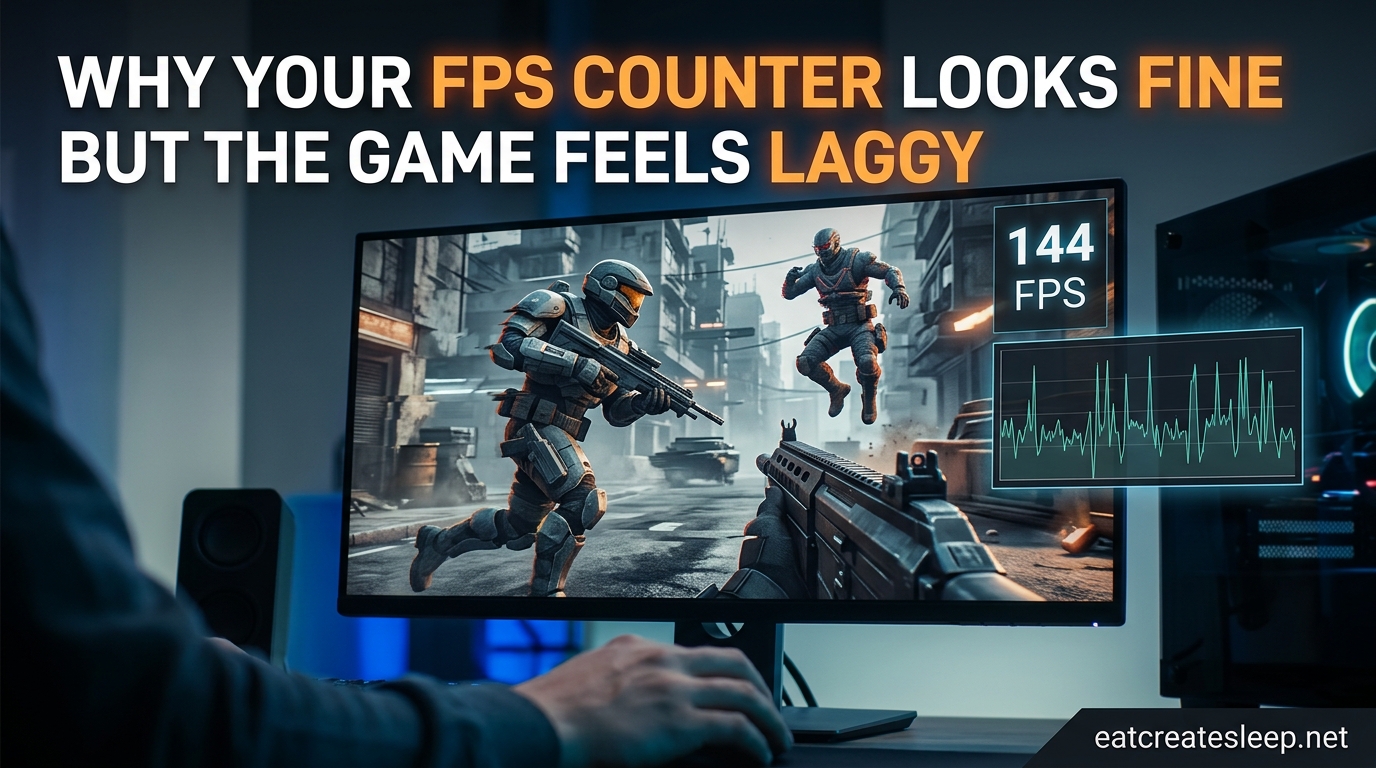
You fire up your favorite game, glance at the FPS counter, and see a solid 120 frames per second. Everything should feel buttery smooth. Instead, the camera movements feel sluggish, the mouse drags, and the whole experience has a strange stutter to it. If this sounds familiar, you are not alone — this exact complaint shows up constantly on r/overclocking, r/buildapc, and Tom’s Hardware forums.
The disconnect between your FPS counter and actual gameplay feel is one of the most confusing issues in PC gaming. Your FPS counter looks fine but the game feels laggy for several real, measurable reasons that have nothing to do with raw frame count. In this guide, I’ll break down exactly why this happens and what you can do about it.
We’ll cover frame time, monitor refresh rate mismatches, VSync and adaptive sync, input lag, shader compilation stutter, fullscreen versus borderless mode, and network-side issues. By the end, you’ll understand why your FPS counter looks fine but the game feels laggy — and exactly how to fix it without spending money on new hardware.
Table of Contents
Why Your FPS Counter Looks Fine But the Game Feels Laggy: The Core Problem
The short answer is that your FPS counter reports an average, not the full picture. It counts how many frames your GPU delivered in the last second, but it says nothing about how evenly those frames were spaced, how quickly they reached your screen, or how much delay sat between your mouse click and the on-screen response.
Think of it like a highway. Average speed might be 60 mph, but if half the cars crawled at 20 mph and the other half zoomed at 100 mph, traffic still feels chaotic. Frames work the same way. Consistent delivery matters more than the total count.
This is why two players with identical hardware can have completely different experiences. One has tight, consistent frame pacing. The other has wild swings between fast and slow frames. Same FPS counter, totally different feel. Forum posts on r/buildapc frequently feature players comparing near-identical builds, with one player reporting a noticeably smoother experience even though both machines report the same frame rate.
Understanding this single concept — that FPS is an average that hides consistency problems — is the foundation for everything else in this guide. Once you accept that the number on your overlay is not the whole story, the fixes start to make sense.
Frame Time vs FPS: The Metric That Actually Matters
Frame time measures how long each individual frame takes to render, expressed in milliseconds. FPS is just the inverse — 100 FPS means an average of 10 milliseconds per frame. The problem is that an average hides spikes.
Imagine a second of gameplay where 99 frames each take 8 milliseconds, and one frame takes 100 milliseconds because a background process stole CPU time. Your FPS counter still reports 100 FPS for that second. But that one slow frame produced a visible stutter that your eyes absolutely noticed.
This is called a frame time spike, and it is the most common cause of microstuttering. Forum users on r/overclocking consistently report games feeling choppy at 80 to 100 FPS — almost always traceable to periodic frame time spikes rather than the average frame rate.
Good frame pacing looks like a flat line on a frame time graph. Bad frame pacing looks like a jagged mountain range. Both can average 100 FPS. Only one feels smooth. The human eye is remarkably sensitive to inconsistencies in motion — far more sensitive than most players realize.
You can measure this with MSI Afterburner paired with RivaTuner Statistics Server, or with NVIDIA FrameView. Both are free and will overlay a frame time graph directly on your game. Watching that graph while you play is the single fastest way to understand why a game feels off.
A typical healthy frame time at 100 FPS sits between 9 and 11 milliseconds with almost no deviation. If you see regular spikes to 30, 50, or 100 milliseconds, you have found your stutter. From there it becomes a process of elimination — disable overlays, update drivers, close background apps, and watch which change flattens the graph.
Monitor Refresh Rate Mismatch
Your monitor can only display as many unique frames as its refresh rate allows. A 60Hz monitor shows 60 frames per second. A 144Hz monitor shows 144. If your game runs at 200 FPS on a 60Hz monitor, the extra frames don’t make things smoother — they create a mess.
When your GPU pushes frames faster than your monitor can display them, the monitor ends up showing parts of two different frames at the same time. This is called screen tearing, and it looks like a horizontal slice where the image misaligns. Tearing is one of the biggest reasons players feel like something is “off” despite a high FPS counter.
The same mismatch also explains why 60 FPS can feel choppy on a 144Hz monitor. Your monitor wants 144 frames every second, but the game only delivers 60. The monitor stretches some frames to fill the gap, creating uneven motion that your eyes register as stutter.
This is the source of countless “144Hz feels same as 60Hz” forum threads. In most cases, the player’s monitor was never actually running at 144Hz — Windows defaulted it to 60Hz. Always check your refresh rate in Windows Display Settings and in your monitor’s onboard menu to confirm you are actually getting what you paid for.
The fix for refresh rate mismatch is either capping your frame rate to match your refresh rate, or using adaptive sync (covered next) to let the monitor adjust on the fly.
VSync, G-Sync, and FreeSync Explained
VSync, or vertical synchronization, is the oldest solution to screen tearing. It caps your frame rate to your monitor’s refresh rate and waits for the monitor to finish drawing each frame before sending a new one. This eliminates tearing, but it introduces a tradeoff.
The problem with traditional VSync is input lag. Because the GPU has to wait for the monitor, your mouse movements get delayed. Competitive players often turn VSync off for this reason, accepting tearing in exchange for responsiveness.
VSync can also cause a phenomenon called double buffering, where if the GPU misses a refresh window, it has to wait an entire extra cycle. This halves your effective frame rate instantly, which is why some games seem to jump between 60 and 30 FPS when VSync is on.
G-Sync (NVIDIA) and FreeSync (AMD) are the modern fixes. Instead of forcing your GPU to wait for the monitor, these adaptive sync technologies make the monitor wait for the GPU. The refresh rate dynamically matches your frame rate, eliminating both tearing and most of the input lag.
Forum threads on Linus Tech Tips and Tom’s Hardware repeatedly point to one fix above all others: enabling adaptive sync in both the monitor’s onboard menu and the graphics control panel. Many users discover they bought a G-Sync compatible monitor and never actually turned it on. Enabling it in Windows is not enough — it must be active in the NVIDIA Control Panel or AMD Adrenalin as well.
If you have a compatible monitor and GPU, adaptive sync is usually the single biggest improvement you can make for game smoothness. Just remember it only works within a certain refresh rate range — typically 48Hz to the monitor’s maximum — and you should cap your frame rate a few FPS below that maximum to stay inside the range. For a 144Hz monitor, a cap of 141 FPS is the commonly recommended sweet spot.
Input Lag: When Your Mouse Feels Sluggish
Input lag is the delay between you doing something — moving the mouse, pressing a key — and that action showing up on screen. It is completely separate from FPS, but it contributes heavily to that “laggy” feeling.
Input lag comes from several sources stacked together. Your mouse polls at a certain rate. The game engine processes the input. The GPU renders the frame. The monitor displays it. Each step adds a few milliseconds, and they add up. A typical unoptimized setup can easily stack 40 to 80 milliseconds of total input lag, which is very noticeable in fast-paced games.
Common culprits include VSync (as mentioned above), buffering settings in game menus, background applications stealing CPU cycles, and even certain USB polling rates on older motherboards. Discord overlays, browser tabs, and RGB software are notorious background offenders that quietly consume resources.
Reducing input lag is mostly about removing things rather than adding them. Turn off unnecessary overlays. Close background apps. Use fullscreen exclusive mode instead of borderless windowed. Lower pre-rendered frames in your GPU control panel if the option exists. Each adjustment shaves off a few milliseconds, and the cumulative effect can transform how a game feels.
Competitive players obsess over input lag because in fast shooters, even 10 milliseconds can mean the difference between landing a shot and missing. But the same principles apply to single-player games — lower input lag simply feels better, even if you cannot articulate why.
Frame Pacing and Shader Compilation Stutter
Frame pacing is the consistency of frame delivery. A well-paced game delivers frames like a metronome. A poorly-paced game delivers them in bursts and pauses. Many modern games, especially those built on DirectX 12 or Vulkan, suffer from frame pacing issues that the developer has to fix through patches.
One specific and often-overlooked cause is shader compilation stutter. DirectX 12 and Vulkan hand shader compilation directly to the game engine rather than the driver. The first time the game encounters a new effect, it has to compile the shader on the spot, which can freeze rendering for tens or hundreds of milliseconds.
This is why many games stutter badly during the first playthrough but smooth out on subsequent runs — the compiled shaders get cached. Some games (especially emulators like Yuzu and RPCS3) let you pre-compile shaders before gameplay starts, which is worth doing if the option exists. Newer titles like Elden Ring and Hogwarts Legacy shipped with notorious shader stutter that was only fully addressed in later patches.
If a game stutters consistently in the same spot every time, suspect shader compilation or asset streaming. If it stutters randomly, suspect background processes, thermal throttling, or driver issues. The pattern of the stutter is your biggest diagnostic clue.
Fullscreen vs Borderless Windowed Mode
This one surprises a lot of people. Borderless windowed mode routes the game through the Windows desktop window manager, which adds a layer of compositing that can introduce latency and microstutter. Fullscreen exclusive mode gives the game direct access to the display, bypassing that layer.
The difference is most noticeable in competitive shooters where input responsiveness matters. If your game supports fullscreen exclusive, use it. If the game only offers borderless, there isn’t much you can do besides minimize other desktop activity.
Network Lag in Online Games
For online games, network lag can mimic the same choppy, unresponsive feeling even when your local FPS is perfect. High ping, packet loss, and unstable connections all produce rubber-banding and delayed inputs that feel exactly like a frame rate problem.
If only online games feel laggy and single-player games run smoothly, the issue is almost certainly network-side. Use a wired ethernet connection instead of Wi-Fi, close bandwidth-heavy background apps, and check for packet loss using a tool like WinMTR.
Quick Fixes: 7 Steps to Smoother Gameplay
If you want to address the most common causes of “high FPS but feels laggy” in order, work through this list. Each step tackles a different layer of the problem.
1. Enable G-Sync or FreeSync in both your monitor’s menu and your GPU control panel. This single step fixes the majority of tearing and stutter complaints.
2. Cap your frame rate a few FPS below your monitor’s maximum refresh rate. This keeps adaptive sync active and prevents the GPU from spiking.
3. Switch to fullscreen exclusive mode if the game offers it. This bypasses the Windows compositor and reduces input lag.
4. Close background applications — especially browser tabs, Discord overlays, RGB software, and launchers you aren’t actively using.
5. Install MSI Afterburner with RivaTuner Statistics Server and enable the frame time graph overlay. Watch for spikes when the game feels off.
6. Update your GPU driver and check for game-specific patches. Shader compilation stutter is often fixed by developers post-launch.
7. Check temperatures. Thermal throttling causes sudden frame drops that look like stutter. Clean your fans and reapply thermal paste if needed.
Work through these in order and stop when the game feels right. Most players find their fix somewhere in the first three steps.
FAQs
Why is my game lagging with good FPS?
Your game can lag with good FPS because the FPS counter only reports an average. Frame time spikes, monitor refresh rate mismatches, screen tearing, input lag, and shader compilation stutter can all make gameplay feel choppy even when the frame counter reads high.
Why is my FPS high but feels low?
Your FPS can feel lower than it reads when there is a mismatch between your frame rate and your monitor’s refresh rate, when adaptive sync is disabled, or when background processes cause periodic frame time spikes that the average FPS number hides.
How do I fix frame pacing issues?
Enable G-Sync or FreeSync, cap your frame rate a few FPS below your monitor’s maximum refresh rate, use fullscreen exclusive mode, close background apps, and use MSI Afterburner’s frame time graph to identify spikes caused by specific settings or background processes.
Is 200 FPS overkill?
For most players, yes. Beyond your monitor’s refresh rate, extra frames provide diminishing returns and can cause screen tearing without adaptive sync. Competitive players on 240Hz monitors may benefit from very high frame rates because each frame reduces input lag slightly, but for everyone else, matching frame rate to refresh rate feels smoother than pushing higher.
Wrapping Up
Once you understand that FPS is just an average and that frame time, refresh rate matching, adaptive sync, and input lag all play their own roles, the mystery of why your FPS counter looks fine but the game feels laggy disappears. The fix is almost never “buy faster hardware” — it is “match your frame rate to your monitor, enable adaptive sync, and remove the background noise stealing your frames.”
Start with enabling G-Sync or FreeSync and capping your frame rate. That alone resolves the majority of complaints I’ve seen across gaming forums. From there, use a frame time overlay to hunt down any remaining spikes, and you’ll have gameplay that finally feels as smooth as your FPS counter promises.