
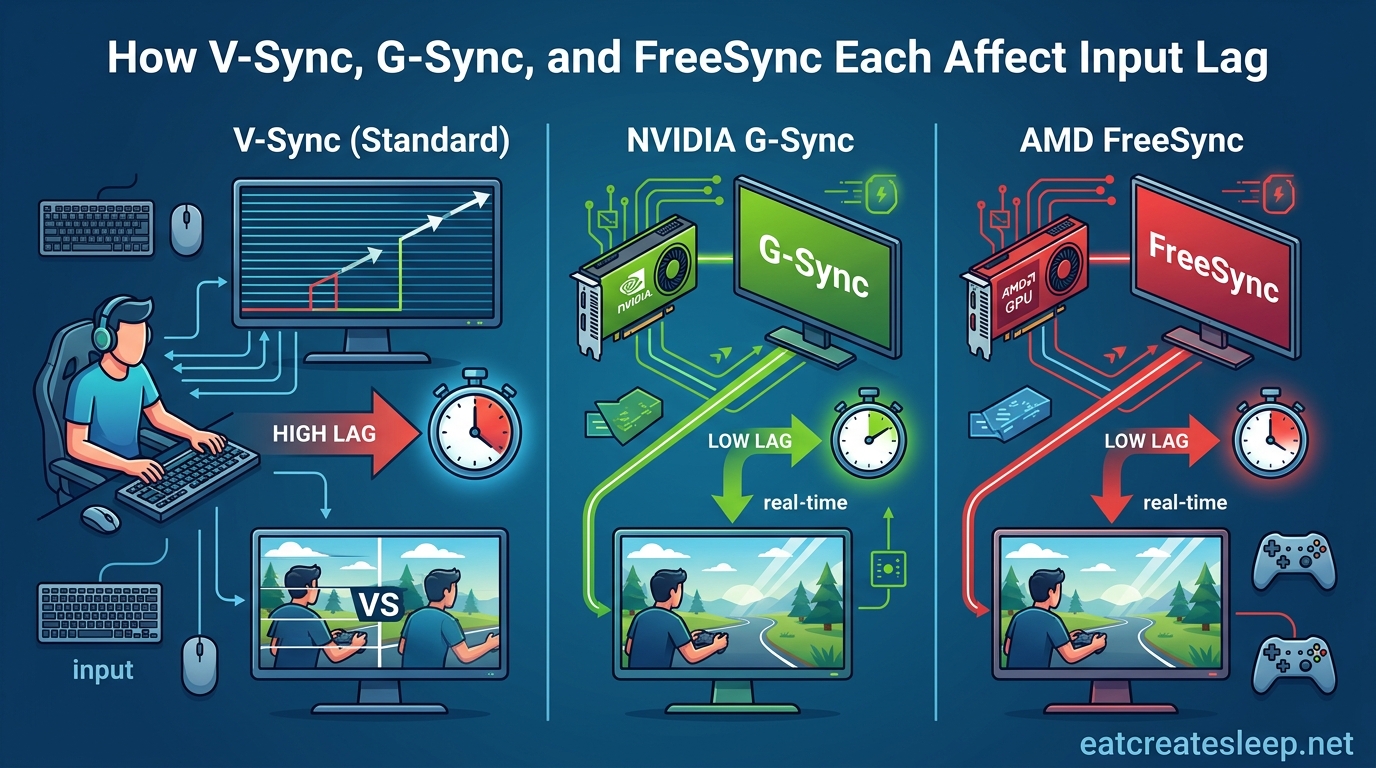
Screen tearing, stuttering, and input lag are the three enemies every PC gamer fights at some point. The technologies designed to fix them, V-Sync, G-Sync, and FreeSync, each take a different approach. And each one trades off input lag differently, which is why competitive players obsess over which setting to leave on or off.
Understanding how V-Sync, G-Sync, and FreeSync each affect input lag can be the difference between landing a headshot and missing it entirely. In this guide, I will break down exactly how each technology works, why V-Sync adds a noticeable latency penalty while FreeSync and G-Sync keep it minimal, and which settings you should use for competitive play versus casual single-player games.
By the end, you will know precisely which sync technology belongs in your setup, how much latency each one actually costs you in milliseconds, and the optimal frame rate cap that keeps tearing away without ruining your response time.
Table of Contents
What Is Screen Tearing and Why Sync Technologies Exist
Screen tearing happens when your graphics card pushes out a new frame partway through your monitor’s refresh cycle. The monitor displays part of the old frame and part of the new frame at the same time, creating a visible horizontal split or “tear” line across the screen.
This mismatch occurs because a monitor refreshes at a fixed interval, measured in Hz, while your GPU renders frames at a variable rate, measured in FPS. When the two fall out of sync, tearing appears. The faster your frame rate fluctuates, the worse the tearing gets.
Sync technologies were invented to solve this mismatch. V-Sync, G-Sync, and FreeSync all aim to eliminate tearing, but they take very different paths. V-Sync forces the GPU to wait for the monitor. FreeSync and G-Sync instead make the monitor wait for the GPU. That single design difference is why V-Sync hurts input lag and the adaptive sync technologies do not.
How V-Sync Affects Input Lag
V-Sync, short for vertical synchronization, is the oldest solution to screen tearing. It forces your graphics card to hold completed frames in a buffer until the monitor reaches its vertical blanking interval, the brief pause between each refresh cycle. Only then does the frame get sent to the display.
This waiting period is exactly where V-Sync input lag comes from. At 60Hz, a single refresh cycle takes about 16.67 milliseconds. Because V-Sync holds frames until the next VBI, it typically adds roughly one full frame of latency, sometimes more if the frame is ready just after a VBI passes. That means V-Sync on a 60Hz monitor adds around 16ms of input lag, and the penalty scales with refresh rate.
On a 144Hz monitor, that one-frame penalty drops to about 7ms. On a 240Hz display, it falls to roughly 4ms. So V-Sync input lag is real, but it shrinks as your refresh rate climbs. This is why competitive players on high-refresh monitors sometimes tolerate V-Sync more than players on 60Hz screens.
There is a second problem with V-Sync. If your frame rate drops even slightly below your refresh rate, V-Sync forces the GPU to wait for the next-next VBI, halving your effective frame rate. So on a 60Hz monitor, dipping from 60 FPS to 59 FPS drops you all the way to 30 FPS. This creates a sudden stuttering effect that feels much worse than a small frame rate dip should.
Triple buffering can reduce this stutter, but it adds another frame of latency on top. The result is smoother visuals with even more input lag, which is why triple buffering is common in single-player games but rare in competitive titles.
For competitive gamers, V-Sync is almost always the wrong choice. That extra frame of latency is the difference between a 16ms reaction window and a 33ms window at 60Hz, which is enormous in fast-paced shooters like CS2 or Valorant.
How FreeSync Affects Input Lag
FreeSync is AMD’s variable refresh rate technology, built on the VESA Adaptive Sync standard. Instead of forcing the GPU to wait for the monitor, FreeSync lets the monitor dynamically adjust its refresh rate to match whatever frame rate the GPU is currently outputting.
If your GPU is pushing 97 FPS, your FreeSync monitor refreshes at 97Hz. If the frame rate drops to 73 FPS, the monitor drops to 73Hz. Because the monitor is always waiting for the next frame rather than the other way around, there is no buffer delay and no forced waiting period. This is why FreeSync input lag stays extremely low compared to V-Sync.
In practice, FreeSync adds only a small latency overhead, typically in the range of 1 to 3 milliseconds depending on the monitor and the specific frame rate. Forum testers on r/Amd and Blurbusters consistently report that FreeSync adds at most around 10ms of latency in worst-case scenarios, versus V-Sync which always adds a full frame.
FreeSync also eliminates the stuttering problem V-Sync has. Because the monitor tracks the frame rate in real time, there is no cliff where dropping a single frame cuts your refresh in half. Frame rate dips feel smooth instead of jarring.
One feature worth knowing about is Low Framerate Compensation, or LFC. FreeSync monitors have a minimum refresh rate they support, often around 40Hz or 48Hz. If your frame rate drops below that floor, LFC kicks in by displaying each frame multiple times to simulate a higher refresh rate. This keeps the experience smooth even when your GPU struggles.
FreeSync works over both DisplayPort 1.2a and HDMI, which makes it widely compatible. It also works with Nvidia GPUs branded as G-Sync Compatible, though compatibility varies by monitor.
How G-Sync Affects Input Lag
G-Sync is Nvidia’s proprietary variable refresh rate technology. Conceptually, it does the same thing as FreeSync, it adjusts the monitor’s refresh rate to match the GPU’s frame output, eliminating tearing without the buffer delay that causes V-Sync input lag.
The main difference is how G-Sync is implemented. Original G-Sync required a dedicated hardware module built into the monitor, which added cost but offered tighter frame delivery and lower latency than early FreeSync implementations. G-Sync Ultimate added HDR support and backlight strobing for blur reduction.
Nvidia later introduced G-Sync Compatible, a software-based certification for FreeSync monitors that meet Nvidia’s quality standards. This opened up G-Sync-like performance to a much wider range of displays, and in practice, a good G-Sync Compatible monitor performs nearly identically to a native G-Sync panel in terms of input lag.
In latency terms, G-Sync performs essentially the same as FreeSync. Both add only a few milliseconds of overhead compared to running with no sync technology at all. Blurbusters testing has shown that G-Sync is the lowest-latency tear-free method available. The difference between G-Sync and FreeSync on modern hardware is negligible for most players.
One nuance worth mentioning. G-Sync and FreeSync both stop working once your frame rate exceeds your monitor’s maximum refresh rate. At that point, you are back to either tearing or V-Sync. This is why frame rate capping matters, which I will cover next.
V-Sync vs FreeSync vs G-Sync: Input Lag Compared
This is the core question most gamers are actually asking. How much input lag does each technology add, and which one should you pick if latency is your top priority?
Running with no sync technology at all gives you the lowest possible input lag, but you get screen tearing. That is the baseline everything else is measured against.
V-Sync eliminates tearing but adds approximately one full frame of latency. At 60Hz, that is about 16.7ms. At 144Hz, it is about 6.9ms. At 240Hz, it is about 4.2ms. The penalty is always there whenever V-Sync is actively buffering frames.
FreeSync and G-Sync both eliminate tearing with only minimal latency overhead, generally 1 to 3ms on top of the baseline. They achieve this by never buffering frames, instead adjusting the monitor to match the GPU. This is why competitive gamers on adaptive sync monitors enjoy tear-free visuals without the lag penalty V-Sync imposes.
Here is a rough comparison of input lag additions at common refresh rates, measured against a no-sync baseline. Actual numbers vary by monitor and GPU configuration.
- No sync (60Hz): Baseline, with screen tearing
- V-Sync (60Hz): Baseline plus roughly 16.7ms
- FreeSync or G-Sync (60Hz): Baseline plus roughly 1 to 3ms
- No sync (144Hz): Baseline, with screen tearing
- V-Sync (144Hz): Baseline plus roughly 6.9ms
- FreeSync or G-Sync (144Hz): Baseline plus roughly 1 to 3ms
- No sync (240Hz): Baseline, with screen tearing
- V-Sync (240Hz): Baseline plus roughly 4.2ms
- FreeSync or G-Sync (240Hz): Baseline plus roughly 1 to 3ms
The takeaway is simple. FreeSync and G-Sync are roughly equal on input lag, and both beat V-Sync by a wide margin at lower refresh rates. At 240Hz, the V-Sync penalty shrinks enough that the difference matters less, but adaptive sync is still the better choice for tear-free competitive play.
Should You Use V-Sync With FreeSync or G-Sync?
This is one of the most debated questions on gaming forums, and the answer surprises a lot of people. Yes, you can and often should leave V-Sync on alongside G-Sync or FreeSync, but only in the right configuration.
Here is the key insight. When you have G-Sync or FreeSync enabled, V-Sync only activates when your frame rate exceeds your monitor’s maximum refresh rate. Below that ceiling, the adaptive sync technology handles frame delivery and V-Sync stays dormant. So in normal gameplay, V-Sync adds zero latency.
The problem is what happens when your FPS hits or exceeds your refresh rate. If you are on a 144Hz monitor and pushing 145 FPS, adaptive sync stops working because there is no headroom to adjust the refresh rate. At that moment, you either get tearing or you need V-Sync to step in.
The recommended setup, validated by Blurbusters and widely adopted by competitive players, is this. Enable G-Sync or FreeSync in your graphics driver. Enable V-Sync in the Nvidia Control Panel or AMD Adrenalin, not in-game. Then cap your frame rate roughly 3 FPS below your monitor’s maximum refresh rate. So on a 144Hz monitor, cap at 141 FPS.
This keeps you inside the adaptive sync window at all times. V-Sync never actually triggers because your frame rate never hits the refresh ceiling. You get tear-free visuals with minimal input lag, which is exactly what you want.
The reason to enable V-Sync in the driver rather than in-game is that some game engines implement V-Sync poorly, adding extra latency or causing conflicts with the driver-level adaptive sync. Driver-level V-Sync is also lower latency than most in-game implementations.
Best Settings for Competitive Gaming
Competitive gaming changes the math. When you are playing CS2, Valorant, Apex Legends, or Rocket League at a high level, every millisecond matters and visual smoothness takes a backseat to raw response time.
For most competitive players on 144Hz or 240Hz monitors, the optimal setup is G-Sync or FreeSync enabled with a frame rate cap 3 FPS below the refresh rate and V-Sync enabled in the driver. This gives you tear-free visuals with only 1 to 3ms of latency overhead, which is negligible even in top-tier play.
Some ultra-competitive players prefer to disable all sync technologies entirely and accept screen tearing. This gives the absolute lowest input lag possible. The tradeoff is visual, tearing can be distracting and can obscure targets in fast camera movements.
For casual gaming, single-player campaigns, and story-driven experiences, adaptive sync is almost always the right call. The tiny latency penalty is invisible outside of competitive play, and the tear-free visuals are well worth it.
Console gamers have fewer options. PS5 and Xbox Series X support FreeSync over HDMI on compatible monitors, which helps with tearing in games that exceed 60 FPS. For 60Hz-locked console games, sync settings matter less because the frame rate is already capped.
One last tip for high-refresh competitive setups. If you have a 240Hz monitor but your game runs at 140 FPS, G-Sync or FreeSync is still your best option. The monitor adjusts to 140Hz, you get tear-free visuals, and the latency stays low. There is no benefit to disabling adaptive sync at lower frame rates on a high-refresh monitor.
FAQs
Does V-Sync increase input lag?
Yes. V-Sync adds approximately one full frame of input lag because it holds completed frames in a buffer until the monitor reaches its next vertical blanking interval. At 60Hz this is about 16.7ms, at 144Hz about 6.9ms, and at 240Hz about 4.2ms.
Does FreeSync reduce input delay?
FreeSync does not reduce input lag below a no-sync baseline, but it keeps input lag extremely low compared to V-Sync. FreeSync typically adds only 1 to 3ms of latency overhead because it adjusts the monitor refresh rate to match the GPU instead of buffering frames.
Is G-Sync better than FreeSync for input lag?
No. On modern hardware, G-Sync and FreeSync perform nearly identically on input lag. Both add roughly 1 to 3ms of latency overhead. Original G-Sync with a hardware module offered slightly tighter frame delivery than early FreeSync, but current G-Sync Compatible and FreeSync Premium displays are essentially equal.
Should I use V-Sync with FreeSync enabled?
Yes, but only V-Sync enabled in your graphics driver, not in-game. With FreeSync or G-Sync on, V-Sync only activates when your frame rate exceeds your monitor refresh rate. Cap your FPS about 3 frames below your refresh rate and V-Sync will never actually trigger, giving you tear-free visuals with minimal latency.
Should V-Sync be on or off for competitive gaming?
For competitive gaming, in-game V-Sync should almost always be off. The recommended setup is G-Sync or FreeSync enabled, V-Sync enabled in the graphics driver, and a frame rate cap set 3 FPS below your monitor refresh rate. This avoids the latency penalty of active V-Sync while keeping the display tear-free.
How much input lag does V-Sync add?
V-Sync adds approximately one frame of latency. At 60Hz this is about 16.7ms, at 144Hz about 6.9ms, and at 240Hz about 4.2ms. With triple buffering enabled, V-Sync can add closer to two frames of latency depending on the implementation.
Does adaptive sync cause input lag?
Adaptive sync technologies like FreeSync and G-Sync add only minimal input lag, typically 1 to 3ms over a no-sync baseline. This is dramatically less than V-Sync and is considered negligible for competitive play. Adaptive sync is the lowest-latency tear-free method available.
What is the best sync technology for competitive gaming?
G-Sync or FreeSync with a frame rate cap set 3 FPS below your monitor refresh rate is the best setup for competitive gaming. This delivers tear-free visuals with only 1 to 3ms of latency overhead. Some professional players disable all sync for absolute minimum latency, but adaptive sync is the preferred choice for most competitive gamers.
Conclusion: Which Sync Technology Wins on Input Lag?
When it comes to how V-Sync, G-Sync, and FreeSync each affect input lag, the ranking is clear. Adaptive sync technologies, FreeSync and G-Sync, are the winners by a wide margin. They add only 1 to 3ms of latency overhead while keeping your display tear-free.
V-Sync sits firmly in last place. Its one-full-frame latency penalty is a serious problem at 60Hz and only becomes tolerable at 240Hz. For competitive gaming, V-Sync should almost never be the active sync method.
The best practical setup for most gamers in 2026 is straightforward. Enable G-Sync or FreeSync, turn on V-Sync in your graphics driver, cap your frame rate 3 FPS below your monitor refresh rate, and leave in-game V-Sync off. This gives you the smoothest visuals with the lowest possible input lag your hardware can deliver.