
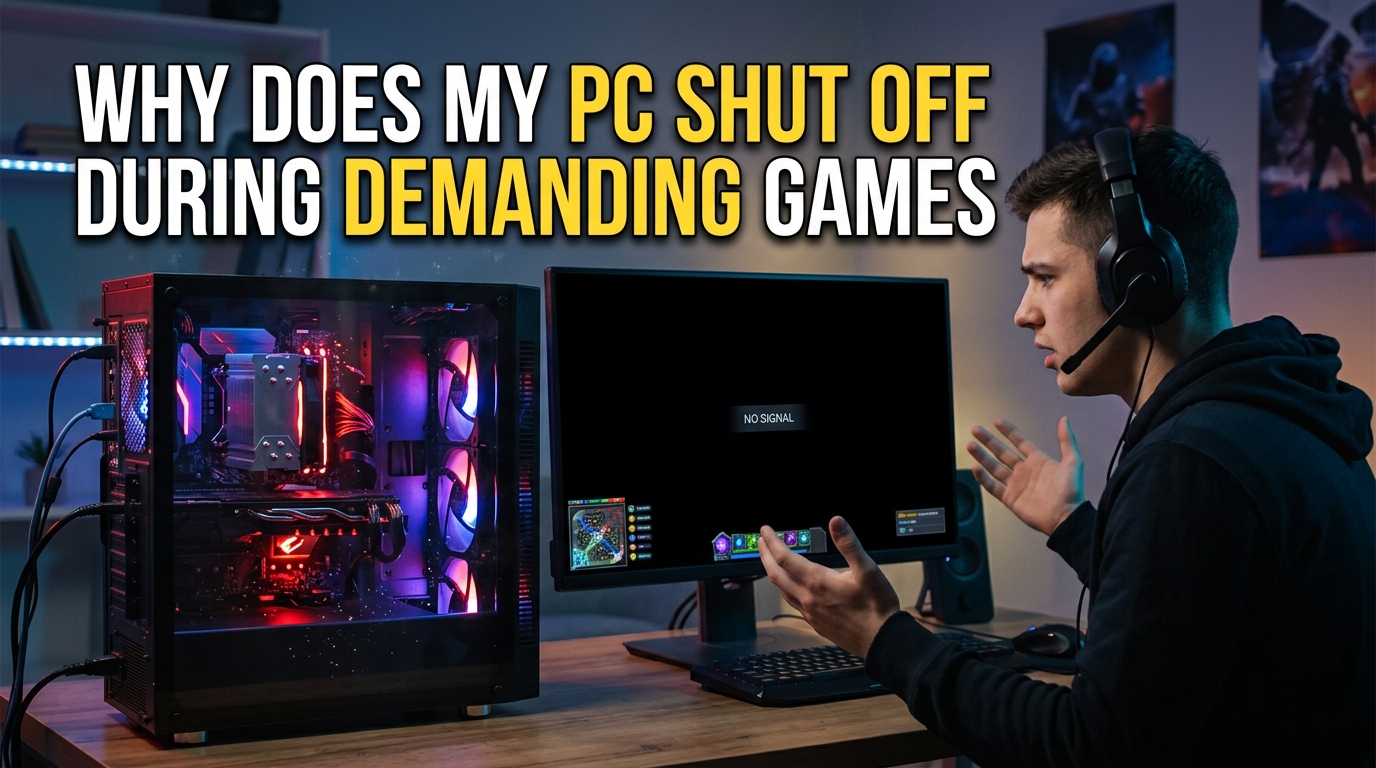
You are mid-boss-fight, your framerate is buttery, and then, silence. The screen goes black, the fans spin down, and your PC refuses to respond until you flip the power switch off and back on. If your PC shuts off while gaming but runs fine the rest of the time, you are dealing with one of the most frustrating issues a builder can face.
The good news is that the answer almost always comes down to two suspects: your power supply (PSU) or heat. The bad news is that telling them apart takes a bit of work, because the symptoms overlap and the troubleshooting path is not always obvious. I have built, repaired, and stress-tested enough gaming rigs to know that random shutdowns during demanding titles are incredibly common, and most builders replace the wrong part first.
In this guide I am going to walk you through exactly why your PC shuts off during demanding games, how to tell whether you are dealing with a power delivery problem or a thermal one, and the step-by-step fixes for each. By the end, you will have a clear diagnostic checklist so you stop guessing and start solving.
This applies whether you are running a budget rig on a 550W unit or a high-end build pulling 700W+ from the wall. The same protection circuits and thermal limits apply across the board, and the diagnostic steps work for any system.
Table of Contents
Two Main Culprits: Power vs Heat
When a gaming PC abruptly turns off under load, two systems are usually to blame: the power supply cannot deliver enough clean power, or a component has crossed a thermal safety threshold. Both trigger an automatic shutdown that protects your hardware from permanent damage.
The shutdown is not a bug. It is your system saving itself. Modern CPUs, GPUs, and PSUs are loaded with protection circuits that cut power the instant they detect a dangerous condition. The trick is figuring out which circuit tripped.
Here is the quick split:
- Power-related shutdowns happen when the PSU cannot supply the current demanded, when voltage sags below safe levels, or when total power draw exceeds what the unit is rated to deliver. The shutdown is usually instant, with no blue screen, no error, and no warning.
- Heat-related shutdowns happen when the CPU or GPU hits its thermal limit (often around 105C to 115C for CPUs, lower for GPUs). You typically see rising temperatures, fan ramp-up, possible stuttering, then a sudden shutdown.
The reason these get confused is that demanding games push both systems harder at the same time. More load means more power draw and more heat, so it is easy to assume the wrong cause.
Why Your PC Shuts Off While Gaming: Power Supply Issues
Your power supply is the single most overlooked component in any build, and it is also the most common cause of random shutdowns during demanding games. A PSU can be “enough” on paper and still fail under real gaming load.
Here is why this happens:
Insufficient wattage headroom. PSU makers quote peak wattage, but PSUs are most efficient and stable between 50% and 80% load. If your system pulls 550W peak and your PSU is rated 600W, you are running right at the edge. Transient spikes from modern GPUs (especially the RTX 40-series and similar high-end cards) can briefly hit 1.5 to 2 times their rated power draw, tripping protection circuits even when average wattage looks fine.
Aging or degraded capacitors. PSUs do not last forever. After 4 to 6 years of hard use, internal capacitors degrade and the unit can no longer deliver its rated power cleanly. A PSU that handled your rig fine in 2021 may shut down the same rig in 2026 because the capacitors can no longer handle transient spikes.
Low-quality or mislabeled units. Cheaper PSUs often advertise a peak wattage that the unit can only sustain for a few seconds. Under sustained gaming load, the real continuous wattage may be 20% to 30% lower than the sticker claims. Group-regulated units in particular struggle with the unbalanced loads modern GPUs create.
Loose or daisy-chained cables. Using a single PCIe cable with a daisy-chain connector to power a high-draw GPU can cause voltage drop and trigger shutdowns. Always use separate cables for high-end graphics cards.
If your system ran benchmarks fine but shuts down only in actual games, transient GPU power spikes are a prime suspect. Games hit the GPU with rapid, unpredictable load changes that synthetic benchmarks rarely reproduce.
PSU Protection Mechanisms Explained
Modern PSUs include multiple protection circuits that instantly cut power when they detect a fault. Knowing which one is tripping helps you pinpoint the problem.
Over Current Protection (OCP): Triggers when current on a single rail (especially the 12V rail feeding your GPU) exceeds the safe limit. This is the most common culprit when a high-end GPU spikes under gaming load, especially on multi-rail PSUs where the GPU is sharing a rail with another component.
Over Power Protection (OPP): Triggers when the total power draw across all rails exceeds the PSU’s rated capacity. If your system pulls 650W from a 650W PSU during a heavy gaming moment, OPP kicks in to prevent meltdown.
Under Voltage Protection (UVP): Triggers when voltage on a rail sags below a safe threshold, often caused by aging capacitors, a too-small PSU, or poor-quality power from the wall. You will see this on units that “should” be sufficient on paper but cannot hold voltage under load.
Over Temperature Protection (OTP): Triggers when the PSU itself overheats, independent of your CPU or GPU. If your PSU is sitting in a hot, unventilated compartment, it can shut down even when your components are running cool.
The Triple Fault mechanism: When a system shuts down instantly without a blue screen, without a warning, and without a chance for the OS to log an error, it is typically a hardware-level triple fault. This is the motherboard detecting a critical condition and pulling the plug before the OS can react. Forum threads on Tom’s Hardware and overclocking subreddits repeatedly point to this as a hallmark of PSU-triggered shutdowns.
If your PSU supports a single-rail to multi-rail switch (some high-end units do, including certain Seasonic, EVGA, and Corsair models), and you are hitting OCP on a multi-rail configuration, switching to single-rail mode has solved this exact issue for many builders on r/buildapc.
Why Your PC Shuts Off While Gaming: Overheating Issues
The other major cause is thermal. When your CPU or GPU crosses its thermal shutdown threshold, the system cuts power instantly to prevent permanent silicon damage. This is Thermal Protection in action.
Before a full shutdown, you will usually see thermal throttling. The CPU or GPU drops its clock speed to reduce heat output, which manifests as stuttering, frame drops, or sudden sluggishness. If throttling cannot bring temps down fast enough, the shutdown follows.
Common heat-related causes:
Dried or degraded thermal paste. After 2 to 4 years, the thermal paste between your CPU cooler and the CPU can dry out and lose effectiveness. Temps slowly creep up until shutdowns start during sustained loads.
Clogged coolers and radiators. Dust buildup in CPU cooler fins, GPU heatsinks, and radiator channels chokes airflow. A cooler that worked fine a year ago may now be sitting on a thick layer of dust that turns it into an insulator.
Poor case airflow. If your case has restricted intake paths, fans mounted in conflicting directions, or a glass front panel with no mesh, the hot air your components produce has nowhere to go. Internal ambient temperature rises, and every component runs hotter as a result.
Fan failure. A dead CPU fan, a GPU fan that has stopped spinning, or a case fan that has seized will cause temperatures to spike within seconds of applying load.
Failed pump on an AIO liquid cooler. If your AIO pump stops working, the liquid stops circulating and CPU temperatures can shoot past 100C within a minute of launching a game.
Heat-related shutdowns are usually preceded by warning signs: louder fans, hotter case exhaust, performance drops, or fans running at 100% before the shutdown. Power-related shutdowns usually happen without any of those warnings.
Safe Temperature Ranges for Gaming
Knowing the safe ranges helps you quickly rule heat in or out. Here are the thresholds I use when diagnosing shutdowns:
CPU temperatures while gaming:
- 60-80C: Normal for most modern CPUs under gaming load.
- 80-90C: On the warm side, but safe for most chips. Some high-end CPUs run here by design.
- 90-95C: Hot. Many CPUs start thermal throttling here. Not dangerous, but you are leaving performance on the table.
- 95-100C: Warning zone. Sustained temps here will trigger aggressive throttling.
- Above 100C (often 105-115C depending on the chip): Thermal shutdown. The system cuts power to protect the silicon.
GPU temperatures while gaming:
- 65-80C: Normal range for most gaming GPUs.
- 80-85C: Warm but safe. Most modern GPUs have a maximum rated temp around 83-90C.
- Above 85-90C: The GPU will throttle and eventually shut down. Check your fans and airflow.
So, is 90C hot for a CPU while gaming? Yes, it is on the high side. It will not kill your chip in the short term, but sustained 90C+ gaming will reduce the lifespan of your CPU and likely triggers throttling that hurts your frame rates.
To check your temps in real time, I use HWiNFO64 for the most accurate per-core and per-component readings. MSI Afterburner with the on-screen overlay is great for watching GPU temps while you game.
How to Diagnose Whether It’s Power or Heat
This is the part most guides skip. Here is the diagnostic flow I use to figure out whether a shutdown is power-related or heat-related before spending money on replacement parts.
Step 1: Watch your temperatures before the shutdown. Run HWiNFO64 or Core Temp in the background, then launch the game that causes the shutdown. Keep an eye on CPU and GPU temps. If temps climb steadily toward 95C+ right before the shutdown, you are dealing with heat. If temps are sitting at 75C and the system still dies, look at power.
Step 2: Check Windows Event Viewer. After a shutdown, restart and open Event Viewer (search “Event Viewer” in the Start menu). Navigate to Windows Logs then System. Look for Event ID 41 (Kernel-Power), which means the system rebooted without cleanly shutting down. Look for Events 6008 (unexpected shutdown) right before the crash. If there is no blue screen error logged and the previous shutdown was logged as unexpected, you are looking at a hardware-level shutdown, not a Windows-level one.
Step 3: Test with a synthetic benchmark. Run Furmark for the GPU, Cinebench for the CPU, or OCCT for the entire system. If your PC survives a 30-minute OCCT stress test but shuts down within minutes of launching a real game, transient GPU power spikes are a likely cause, not heat. Stress tests apply a steady load that PSUs handle well; games apply a spiky, unpredictable load that exposes weak power delivery.
Step 4: Check the timing and pattern. Power-related shutdowns tend to happen at random moments during gameplay, often during scene transitions, explosions, or fast travel when the GPU spikes. Heat-related shutdowns tend to happen after a fixed amount of time, because it takes a while for the thermal mass of your cooler to saturate.
Step 5: Smell and listen. A failing PSU often has a faint burning smell or a high-pitched coil whine under load. A dry thermal paste issue usually comes with fans ramping to 100% before the shutdown. These clues can save you hours of guessing.
Power Supply Troubleshooting Steps
If you suspect your PSU is the problem, work through these steps in order:
- Calculate your actual power draw. Use a PSU calculator like OuterVision or PCPartPicker. Add 20 to 30% headroom for transient spikes. If your calculated draw is within 100W of your PSU rating, that is your answer.
- Check your PCIe power cables. For high-end GPUs, use two separate cables from the PSU, not a single cable with a daisy-chain connector. This single fix solves a surprising number of shutdown issues.
- Switch to single-rail mode if your PSU supports it. Many high-end PSUs have a switch or BIOS setting. Multi-rail mode is safer on paper but more prone to OCP trips during GPU spikes.
- Plug directly into the wall. Skip power strips and UPS units while testing. A failing UPS or overloaded strip can cause voltage drops that look like PSU issues.
- Test with a known-good PSU if possible. Borrow a unit from another build or pick up a quality replacement. If shutdowns stop, your old PSU is the culprit.
- Check the PSU age and warranty. A PSU older than 5 years under heavy gaming load is a candidate for replacement regardless of symptoms. Capacitor aging is real.
When shopping for a replacement, look for units with an 80 PLUS Gold or Platinum rating, well-reviewed OCP/OPP implementation, and at least 20% headroom over your calculated peak draw. Brands like Seasonic, Corsair (RM series and above), EVGA (G series and above), and be quiet! have a strong track record for handling transient spikes.
Overheating Troubleshooting Steps
If temperatures are the issue, here is the fix path:
- Clean your coolers and case. Compressed air through your CPU cooler fins, GPU heatsink, radiator, and case fans. This alone can drop temps by 5 to 15C.
- Repaste your CPU. Remove the cooler, clean off the old paste with isopropyl alcohol, and apply fresh thermal paste. A pea-sized dot in the center is the easiest reliable method.
- Verify all fans are spinning. Boot the PC with the side panel off and visually confirm the CPU fan, GPU fans, and case fans are all turning under load.
- Improve case airflow. Aim for at least two intake fans in the front and one exhaust in the rear. For high-end GPUs, bottom and side intake fans help significantly. Make sure airflow direction is consistent.
- Check fan curves in BIOS. Default fan curves are often too conservative. Set a more aggressive curve so fans ramp up earlier, before temps get out of control.
- Verify your AIO pump is working. If you have an all-in-one liquid cooler, feel the tubes after a few minutes of gaming. Both should be warm. If only one is warm or neither is, your pump may be dead.
- Consider undervolting. A small GPU undervolt in MSI Afterburner or a CPU undervolt in BIOS can drop temps by 5 to 10C with little to no performance loss.
If temps still spike after all of this, your cooler may simply be undersized for your CPU. A 360mm AIO or a high-end air cooler (Noctua NH-D15, be quiet! Dark Rock Pro 5) may be necessary for high-TDP chips.
Other Causes to Consider
If both power and heat check out, a few other issues can cause the same symptoms:
Outdated BIOS. Motherboard BIOS updates often improve CPU stability, memory training, and power delivery behavior. Check your motherboard manufacturer’s page for the latest version.
Bad RAM. Faulty memory can cause hard crashes that look like shutdowns. Run memtest86+ overnight to rule this out. RAM issues usually cause blue screens, but not always.
Game-specific config corruption. One thread on Tom’s Hardware documented a user whose PC shut down only in a single game because a corrupted config file was causing the GPU to read impossible resolution values, triggering crashes. Resetting the game config fixed it.
Driver conflicts. Especially after a GPU upgrade, old driver remnants can cause instability. Use DDU (Display Driver Uninstaller) in safe mode, then install a clean driver from AMD or NVIDIA.
Faulty wall power. In rare cases, brown-outs or unstable voltage from the wall can cause shutdowns. A good UPS or line conditioner can confirm or rule this out.
Frequently Asked Questions
Why is my PC shutting off while playing games?
Your PC is most likely shutting down because the power supply cannot deliver enough clean power during peak gaming load, or because a component (usually the CPU or GPU) has hit its thermal shutdown threshold. Both trigger an automatic safety shutdown to protect your hardware.
Is 90C hot for a CPU while gaming?
Yes, 90C is on the hot side for a gaming CPU. Most modern CPUs run between 60C and 80C under gaming load. Sustained 90C temperatures will trigger thermal throttling and reduce your CPU’s lifespan, even if they do not cause an immediate shutdown.
Does overheating cause a PC to shut down?
Yes. When a CPU or GPU hits its thermal shutdown limit (typically around 100C to 115C for CPUs and 85C to 90C for GPUs), the system instantly cuts power to prevent permanent silicon damage. This is called thermal protection.
How do I tell if my PSU is causing crashes?
Run HWiNFO64 to monitor your 12V rail voltage during gaming. If voltage sags below 11.4V before crashes, your PSU is the likely cause. Also check Windows Event Viewer for Event ID 41 (Kernel-Power) without a preceding blue screen error, which points to a hardware-level PSU shutdown.
Why does my PC shut down during games but not benchmarks?
Games apply rapid, unpredictable power spikes that stress the PSU differently than the steady load of a synthetic benchmark. Modern GPUs can briefly draw 1.5 to 2 times their rated power during in-game scene transitions or explosions, tripping Over Current Protection even when benchmarks run fine.
How do I fix my PC randomly shutting off?
First, monitor temperatures with HWiNFO64 to rule out overheating. If temps are normal, check your PSU wattage headroom, switch to separate PCIe cables for your GPU, update your BIOS, run memtest86+ to test RAM, and consider replacing an aging PSU that is more than 5 years old.
Conclusion
When your PC shuts off while gaming, the cause is almost always power or heat. Power-related shutdowns happen instantly without warning when the PSU hits Over Current, Over Power, or Under Voltage protection. Heat-related shutdowns come after visible temperature spikes, fan ramping, and often performance drops.
The fastest way to narrow it down is to monitor temperatures before the shutdown, check Windows Event Viewer for Event ID 41, and run a synthetic benchmark like OCCT to see if your system survives a steady load. If benchmarks pass but games fail, suspect transient GPU power spikes and look at your PSU headroom, cables, and rail configuration.
Work through the diagnostic steps in this guide before replacing parts. Most builders who reach out to me solved their random shutdowns with a simple fix: separate PCIe cables, a BIOS update, repasting their CPU, or replacing a 6-year-old PSU. Knowing why your PC shuts off during demanding games puts you in control of the fix.