
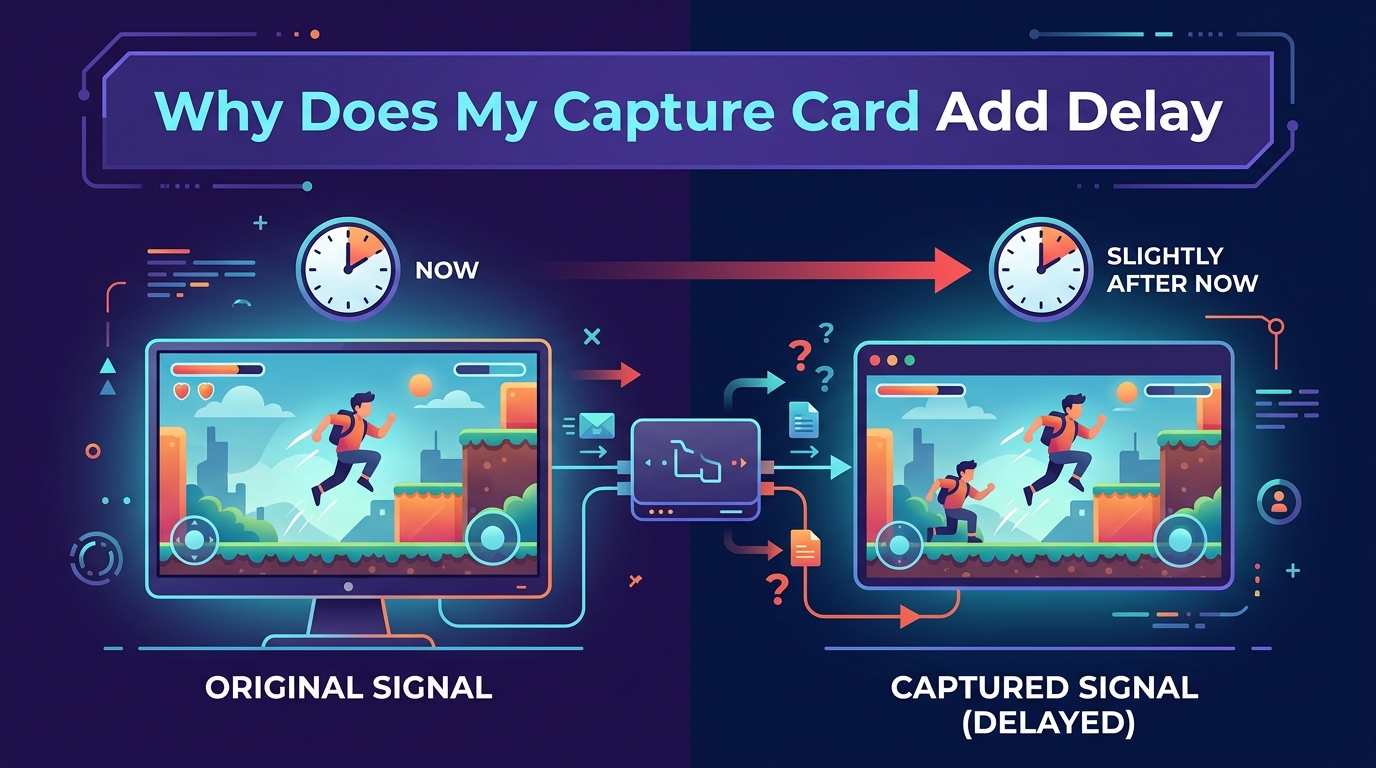
If you have ever plugged in a capture card, fired up OBS Studio, and watched your gameplay arrive a full second or two late on screen, you already know the frustration of capture card delay. Why does my capture card add delay? The short answer is signal processing: every capture card must receive the HDMI signal, convert it to digital data, compress it (usually with H.264 hardware encoding), buffer the frames, and then send that data over USB or PCIe to your computer. Each of those steps takes time, and the combined processing time is the delay you see on screen.
This guide breaks down exactly what causes that lag, how much delay is normal for each type of capture card, and the specific fixes you can apply today to reduce capture card latency on your stream or recording setup. Whether you are running an Elgato HD60 on a USB 2.0 port or a PCIe internal card in a dedicated streaming rig, the solutions below cover your scenario.
I have spent years testing capture card setups for console capture, Twitch streaming, and YouTube recording. The delay problem is one of the most common questions I see in the OBS forum and on Reddit’s r/elgato community, and most users are surprised to learn that a chunk of that latency is expected behavior rather than a broken card. Once you understand the pipeline, the fixes start to make sense.
By the end of this article you will know how to identify which component is adding delay, how to measure your capture card latency at home, and how to dial in your OBS settings, cables, and capture hardware to get the lowest practical latency for your use case. I will also cover the difference between input lag, encoding delay, and display lag, because misunderstanding those terms is what sends most people down the wrong troubleshooting path for hours.
Table of Contents
Why Does My Capture Card Add Delay?
A capture card adds delay because it is doing real work on the video signal before your computer ever sees it. The HDMI cable coming from your console or second PC carries uncompressed video at full resolution and frame rate. Your capture card cannot simply pass that raw signal straight through to OBS over USB, because uncompressed 1080p60 video requires roughly 3 Gbps of bandwidth, far more than USB can handle.
Instead, the capture card receives that signal, runs it through an onboard encoder chip (typically H.264 or H.265 hardware compression), packs the compressed frames into a buffer, and then ships them over USB 2.0, USB 3.0, or PCIe to your computer. Your computer then decodes those frames back into video so OBS, Streamlabs, or your capture software can display them.
Every step in that chain adds latency. The H.264 encoding step alone often accounts for 100 to 500 milliseconds on USB 2.0 cards like the original Elgato Game Capture HD60. The buffer adds more, because the card needs a small queue of frames to compress efficiently. USB transmission adds a small amount, and the decoding on your computer adds a final chunk. Stack all of that together and you get the capture card delay you see in the preview window.
This is also why the same card can show different latency in different software. OBS Studio processes the captured feed differently than Elgato’s own Game Capture HD software, and the buffer settings, sync method, and capture pipeline all affect the final number you experience. The card itself is a fixed piece of hardware, but everything downstream of it is configurable.
The other thing worth knowing is that capture card delay is not a defect. With the exception of cards that are failing or drivers that are misconfigured, the latency is the natural cost of getting video from one device to another through a compression pipeline. The job of this guide is not to teach you how to make a USB 2.0 capture card feel like zero latency, because that is physically impossible. The job is to help you identify how much delay you actually have, decide whether it matters for your use case, and apply the fixes that will get you the best result with the hardware you already own.
What Causes Capture Card Delay
To fix capture card delay effectively, you need to know what is actually causing it in your specific setup. There are five main sources of capture card latency, and they stack on top of each other. Understanding which one is dominant in your rig tells you where to spend your troubleshooting time.
H.264 Hardware Encoding
The single biggest cause of capture card delay on USB cards is the H.264 compression chip inside the device. That chip takes raw HDMI frames and compresses them into the H.264 video format so they can fit through USB bandwidth. Hardware encoding is fast, but it is not instant. On USB 2.0 cards like the Elgato HD60, this step alone typically adds about half a second of latency. This is the reason Elgato’s own help docs explain that you cannot realistically play a game through the Game Capture HD software preview window on those models.
H.265 (also called HEVC) is the newer compression format and it generally produces smaller files at the same quality, but on capture cards it does not necessarily produce lower latency. The encoder still has to buffer and process frames before sending them. Do not assume that upgrading to an H.265 card will automatically reduce your delay, because the latency gains usually come from the connection type and buffer size, not the codec.
Buffer Size and Frame Buffering
Capture cards use a frame buffer, a small block of memory that holds a few frames before sending them, so the encoder can work efficiently and so the USB connection does not drop frames if there is a momentary bandwidth dip. A larger buffer means smoother video but more delay. A smaller buffer means lower latency but a higher risk of dropped frames if anything hiccups. This is why tweaking buffer size in your capture software can directly affect capture card latency.
Most consumer capture cards ship with a buffer tuned for stability rather than latency, because the manufacturer does not know what kind of USB port or computer you will plug them into. If you are willing to trade some stability for lower latency, dropping the buffer is one of the most effective free tweaks you can make. The trade-off is real though: if your USB connection wobbles or your computer hits a CPU spike, you will see dropped frames or tearing that a larger buffer would have hidden.
USB Bandwidth and Connection Type
USB 2.0 capture cards are the worst offenders for latency because USB 2.0 simply does not have enough bandwidth for uncompressed video. The card is forced to compress heavily, buffer more, and accept a higher delay. USB 3.0 cards have roughly ten times the bandwidth and can often pass less compressed or even uncompressed video, which dramatically reduces latency. PCIe internal capture cards sit directly on the motherboard bus and can move huge amounts of data with minimal buffering, which is why they have the lowest latency of all.
USB hubs are another common culprit. If your USB 3.0 capture card is plugged into an unpowered hub, a front-panel case connector, or a USB-C dock, it may not actually be getting full USB 3.0 bandwidth. Plug directly into a motherboard port whenever possible, and avoid sharing a port with another high-bandwidth device like an external SSD.
Software Pipeline and Decoding
Once the compressed video reaches your computer, your CPU or GPU has to decode it back into viewable frames. The decoder introduces its own latency, and the way your capture software handles the decoded frames (buffering, syncing to audio, applying filters) adds even more. This is why users consistently report that the same capture card shows less delay in some applications than others. OBS Studio, with the right settings, can process captured video with very low added latency.
The decoder your software uses matters too. Hardware decoders running on your GPU (NVDEC on NVIDIA, AMF on AMD) tend to add less latency than software decoders running on your CPU. If your capture software is set to use a software decoder, switching to a hardware decoder can shave noticeable milliseconds off your total pipeline.
Capture Resolution and Frame Rate
The higher your capture resolution and frame rate, the more data the card has to process per second. A 4K60 capture signal is roughly four times the data of a 1080p60 signal. If your capture card or USB connection cannot keep up, the buffer grows, the latency climbs, and you may also start seeing frame drops. Many users on the OBS forum report that dropping capture resolution from 4K to 1080p immediately cuts their delay in half.
The same applies to frame rate. Capturing at 60 fps requires the encoder and USB connection to process twice as many frames per second as 30 fps, which means less time per frame and a tighter pipeline. If your card is struggling to hit a stable 60, dropping to 30 fps can sometimes produce lower latency and a smoother capture overall. This is not ideal for fast-paced games, but for slower content like card games, strategy games, or tabletop streams, it is often an acceptable trade.
Input Lag vs Encoding Delay vs Display Lag
One of the biggest sources of confusion I see in capture card discussions is the difference between input lag, encoding delay, and display lag. People use these terms interchangeably, but they describe three different things, and treating the wrong one wastes your time.
Input lag is the delay between you pressing a button on your controller and the action showing up on the screen you are actually looking at while playing. If you play on a TV or monitor connected directly to your console, input lag is determined by your display and your console, not the capture card. The capture card has nothing to do with it unless you are trying to play through the capture software preview window.
Encoding delay is the latency the capture card itself adds while compressing and transmitting the video. This is the number you measure when people talk about capture card latency. It is the time between something happening in your game and that same moment appearing in your OBS preview.
Display lag is the latency added by the monitor or TV you are viewing on top of everything else. A typical gaming monitor adds 5 to 15 ms, while a TV in game mode might add 30 to 80 ms and a TV in cinema mode can add 200 ms or more. This stacks on top of capture card delay if you are watching the captured feed.
The reason this distinction matters is that most people who complain about capture card input lag are actually playing on the same screen they are capturing from, or they are trying to play through the OBS preview window. If you play on a separate TV or monitor connected to the console directly, the capture card delay only affects what your stream or recording sees, not your actual gameplay.
Here is a quick way to figure out which problem you actually have. If your gameplay feels fine while you play, but your stream or recording looks delayed, that is encoding delay on the capture card. If your gameplay itself feels sluggish even when you are not streaming, that is input lag from your display, your TV settings, or wireless controller latency. If everything feels fine in person but your viewers complain about audio being late, that is a separate audio sync issue covered later in this guide. Diagnosing the right problem saves hours of wasted tweaking.
How Much Delay Is Normal for a Capture Card?
This is the question I get most often, and unfortunately there is no single answer because the normal range varies wildly by capture card type and connection. Based on user reports from the OBS forum, Reddit, and manufacturer documentation, here are the realistic latency ranges you can expect.
USB 2.0 capture cards (such as the original Elgato Game Capture HD60 and most cheap no-name capture sticks) typically add between 500 ms and 1500 ms of delay. The H.264 encoder and the limited USB 2.0 bandwidth force heavy compression and a large buffer. This is the category where users see the dreaded 2-second delay that makes playing through the preview window impossible.
USB 3.0 capture cards (such as the Elgato HD60 S, AVerMedia Live Gamer Extreme, and Razer Ripsaw) generally add between 30 ms and 200 ms of delay. The much higher USB 3.0 bandwidth allows the card to send less compressed video with a smaller buffer. Many of these cards also support HDMI passthrough with zero latency to a connected TV or monitor, which means you can play on the passthrough display with no added input lag at all.
PCIe internal capture cards (such as the Magewell Pro Capture, AVerMedia Live Gamer HD, and Blackmagic DeckLink) add the least delay, typically under 50 ms and in some configurations under 10 ms. Because they sit directly on the PCIe bus, they avoid the USB bottleneck entirely and can process video with minimal buffering. This is why professional streamers and video production setups almost always use PCIe cards.
As a rough rule of thumb: if your capture card delay is under 100 ms, you are in great shape and probably cannot tell the difference in real time. If it is between 100 ms and 500 ms, it is normal for a USB card and acceptable for streaming and recording. If it is over 1 second, you either have a USB 2.0 card, a configuration problem, or both.
One important note: these numbers describe the delay between the live event and the captured preview on your computer. They do not include the additional latency your streaming platform adds. Twitch, YouTube Live, and other platforms add their own buffering, typically 5 to 15 seconds, before viewers see your stream. This means the capture card delay you see in your preview is added on top of the platform delay your viewers experience. For most streamers this is fine, but if you are doing interactive streams where viewers react in real time, the total pipeline delay matters.
USB 2.0 vs USB 3.0 vs PCIe: Latency Comparison
Since the connection type is the single biggest factor in capture card latency, it is worth understanding the differences in detail. The headline numbers are easy to repeat, but the practical implications for your streaming setup are worth a closer look.
USB 2.0 has a theoretical maximum bandwidth of 480 Mbps, and a real-world usable bandwidth of around 30 to 40 MB per second after overhead. That is nowhere near enough for uncompressed 1080p60 video, which needs roughly 370 MB per second. Any capture card on USB 2.0 is forced to compress the video heavily before it ever leaves the device, and that compression is where most of the delay comes from. USB 2.0 cards are fine for recording gameplay to edit later, but they are painful for live playthrough the preview.
USB 3.0 (and USB 3.1 Gen 1, which is the same thing under a different name) has a theoretical maximum of 5 Gbps, with real-world usable bandwidth around 400 MB per second. That is enough to pass uncompressed 1080p60 video with some headroom, and many USB 3.0 capture cards take advantage of this by doing light or no compression. The result is a dramatic drop in latency compared to USB 2.0 cards. USB 3.1 Gen 2 raises the ceiling to 10 Gbps, which is enough for 4K capture, but most current capture cards do not need that bandwidth.
PCIe 3.0 x1, the slot most internal capture cards use, has a bandwidth of roughly 985 MB per second. That is more than enough for uncompressed 4K60 video, which means PCIe capture cards never need to compress on the card at all. They can pass raw video straight to your computer, which is why their latency numbers are so low. PCIe cards also avoid the USB controller entirely, which removes another small layer of buffering.
If you are buying a new capture card and you have a free PCIe slot in your computer, an internal card is almost always the better choice for low latency. USB 3.0 cards are the practical alternative if you need portability between computers or you are using a laptop. USB 2.0 cards should be considered legacy hardware at this point, useful only as a backup or for non-interactive capture work.
HDMI Passthrough Explained
HDMI passthrough is the feature that solves the input lag problem for almost everyone, but it is often misunderstood. Passthrough simply means your capture card has two HDMI connections: one input from your console and one output to a TV or monitor. The input signal is split, with one copy sent to the capture pipeline and one copy sent straight to the passthrough output with zero added latency.
The passthrough output is not processed, compressed, or buffered in any meaningful way. It is essentially a direct HDMI connection from your console to your TV, with the capture card acting as a pass-through device that also taps the signal for capture. This is why the passthrough output adds no noticeable input lag, regardless of what the capture pipeline is doing.
The practical implication is that with a passthrough-equipped capture card, you can play your game on a TV connected to the passthrough output with the same input lag you would have if the capture card was not there at all. The capture card delay only affects what your stream or recording sees, not your actual gameplay. This is the single most effective fix for capture card input lag complaints.
If your capture card does not have a passthrough output, you can achieve the same effect with an HDMI splitter. Connect your console’s HDMI output to a powered HDMI splitter, connect one splitter output to your TV and the other to your capture card. The TV gets a zero-latency signal and the capture card does its own processing on the second output. This adds a small amount of latency on the capture side compared to a passthrough card, but the gameplay side remains lag-free.
How to Fix or Reduce Capture Card Delay
Now we get to the part most people actually care about. Below is the step-by-step process I recommend for reducing capture card latency. Work through these in order, because the biggest wins are usually at the top of the list.
Step 1: Play on a separate display connected directly to your console, not through the capture software. This is the single most effective fix and it costs nothing. Connect your console’s HDMI output to your capture card’s HDMI input, then connect your capture card’s HDMI passthrough output to your TV or gaming monitor. You play on the TV with zero added input lag, and the capture card delay only affects what your stream viewers see. This is the advice that gets upvoted endlessly on Reddit’s r/elgato for a reason.
Step 2: Move your capture card to a USB 3.0 port if it supports one. If you have a USB 3.0 capture card plugged into a USB 2.0 port, you are throttling it to USB 2.0 speeds and forcing it back into heavy compression mode. Check that the card is plugged into a blue USB 3.0 (or red USB 3.1) port directly on the motherboard, not on a hub or front-panel extension.
Step 3: Lower your capture resolution and frame rate. If you are capturing at 4K60 and your card or connection cannot handle it smoothly, the buffer grows and so does the delay. Drop to 1080p60 and see if the latency improves. You can usually see the difference within seconds in your OBS preview window.
Step 4: Reduce buffer size in your capture software. In OBS Studio and most capture software, you can find buffer or latency settings for the capture source. Lowering the buffer reduces delay at the cost of potential frame drops if your system cannot keep up. Test incrementally to find the sweet spot.
Step 5: Disable unnecessary processing in your capture pipeline. Every filter, color correction, scaler, and deinterlacer you apply to the capture source adds latency. If you have a chain of OBS filters on your capture card source, try disabling them one at a time to see which ones are costing you delay.
Step 6: Use a capture card with HDMI passthrough. If your current card does not have a passthrough output, upgrading to one that does solves the input lag problem completely for live gameplay. You play on the passthrough display, and the capture card delay only affects the recorded or streamed feed.
Step 7: Consider a PCIe internal capture card for the lowest possible latency. If you are serious about competitive gaming or live production and your current USB card is still too laggy, a PCIe card like the Magewell Pro Capture or AVerMedia Live Gamer HD will get your latency into the single-digit millisecond range. This is the option professional streamers use.
Step 8: Update your capture card drivers and firmware. Manufacturers occasionally release driver updates that improve latency or fix buffering bugs. Check the manufacturer’s website for the latest version for your specific card model. Avoid third-party driver sites, which often host outdated or modified versions.
Step 9: Close background applications competing for USB or CPU. If your computer is under heavy load from other applications, the capture pipeline may slow down and your latency may spike. Close browsers with many tabs, file sync tools, and other USB devices you are not actively using while streaming.
Capture Card Delay Troubleshooting Decision Tree
If your capture card delay is worse than the ranges above, work through this diagnostic flow to figure out which component is the problem. Each question points you to the most likely cause so you do not waste time on fixes that will not help.
Is the delay constant or does it grow over time? If it grows over time, you almost certainly have a sample rate or clock mismatch in your audio chain, or a buffer overflow on the video side. Start with the audio delay section later in this guide.
Is the delay the same in OBS and your card’s own software? If the delay is much smaller in the card’s own software than in OBS, the problem is in your OBS settings, not the card. Work through the OBS section below.
Are you on USB 2.0 or USB 3.0? If you are on USB 2.0, no amount of settings tweaking will get you below about 500 ms. The fix is a hardware upgrade.
Is the delay worse at higher resolutions? If 1080p is fast but 4K is slow, your card or connection cannot keep up with the bandwidth. Drop resolution or upgrade the connection.
Does the delay change when you move the card to a different USB port? If yes, you have a USB bandwidth or power delivery problem. Use a port directly on the motherboard and avoid hubs.
Working through these questions narrows down the cause quickly and tells you whether you need a settings change, a cable change, or a hardware upgrade.
OBS Studio Settings to Minimize Capture Card Delay
OBS Studio is the most popular capture software, and it has several settings that directly affect capture card latency. Many users never touch these settings and leave default values that add unnecessary delay. Here is what to change.
In your Video Capture Device source properties, set the Resolution type to “Custom” and match it exactly to your capture card’s output. If your card is sending 1080p60 and OBS is set to “Device Default,” OBS may be doing extra scaling that adds latency. Setting it explicitly removes that processing step.
In the same properties window, set the Video Format to match what the card is sending. NV12 is the most common format for capture cards and matches what most H.264 encoders output. Mismatched formats force OBS to convert, which adds delay.
In OBS Advanced settings, look for the “Capture Method” dropdown. For USB 3.0 cards on Windows, “DirectShow” usually has the lowest latency. For some PCIe cards, “Device Enumeration” or the manufacturer-specific capture method may perform better. Test each option and watch your preview delay.
The buffer setting, sometimes labeled “Buffering” or “Latency” on the source, is the biggest lever in OBS for capture card delay. Set it to “Lowest” or “Disabled” if your system can handle it. If you start dropping frames, bump it back up one notch at a time until frames are stable.
Finally, in OBS Output settings, make sure your encoder is set to a hardware encoder (NVENC for NVIDIA GPUs, AMF for AMD, or QuickSync for Intel) rather than x264 software encoding. Hardware encoders add far less latency to your final stream output, which compounds with your capture card delay.
One more OBS setting worth checking is the “Deinterlacing” mode on your capture source. If it is set to anything other than “Disable” and your source is progressive (which basically all modern HDMI sources are), OBS is doing unnecessary deinterlacing work that adds latency. Set it to Disable unless you are specifically capturing an interlaced source like old composite video.
Fixing Elgato Capture Card Delay
Elgato is the most popular capture card brand, so it deserves its own section. The most important thing to understand about Elgato cards is that the delay depends heavily on which model you own.
The original Elgato Game Capture HD and HD60 are USB 2.0 cards with H.264 encoding chips built in. Elgato’s own help documentation states clearly that the preview in Game Capture HD software will be delayed by roughly one second due to the H.264 compression chip. This is expected behavior, not a defect, and you cannot eliminate it through settings. The only fix is to play on a separate display connected to the console, since these older models do not have HDMI passthrough.
The Elgato HD60 S and HD60 S+ are USB 3.0 cards with dramatically lower latency, often in the 30 to 100 ms range. They also include HDMI passthrough, which means you can play on a connected TV or monitor with zero added input lag. If you are still using an original HD60 and the delay is killing your streams, upgrading to the HD60 S is the single biggest improvement you can make.
The Elgato 4K60 Pro and 4K60 Pro MK.2 are PCIe internal cards with very low latency, typically under 50 ms. They are the right choice if you want to capture 4K gameplay with minimal delay and your computer has a free PCIe slot.
If you are using Elgato’s own 4K Capture Utility software and seeing more delay than in OBS, try switching to OBS with the Elgato capture source. Many users report lower latency in OBS due to its more efficient capture pipeline and the ability to disable buffering. The 4K Capture Utility is tuned for stability and ease of use, which often means a larger default buffer.
A common Elgato-specific issue is the capture source disappearing or resetting after a system update. If your latency suddenly gets worse after a Windows or macOS update, the first thing to check is whether the Elgato driver has been updated to a compatible version. Reinstalling the latest driver from Elgato’s website usually resolves this.
Reducing Audio Delay on Capture Cards
Audio delay is a separate but related problem, and it is one of the most frustrating because the audio and video often drift apart over time. If your audio is delayed by seconds on your capture card, there are a few common causes.
The most common cause is a sample rate mismatch between your capture card, your capture software, and your system audio. If your capture card is sending audio at 48 kHz but OBS is set to 44.1 kHz, OBS has to resample the audio, which can introduce drift that grows over the duration of a stream. Make sure every component in your audio chain is set to the same sample rate, usually 48 kHz.
The second common cause is that audio and video take different paths through the capture pipeline and arrive at slightly different times. OBS has a Sync Offset setting on every audio source that lets you nudge the audio earlier or later to align it with the video. To find the right value, use the 2D platformer test described in the next section.
If your audio delay grows the longer you stream, that is almost always a sample rate or clock mismatch problem. Resolving the sample rate mismatch across all devices in your chain usually fixes it permanently. If you still see drift, try switching your capture card to a different USB port, ideally directly on the motherboard rather than through a hub or front-panel connector.
Random audio dropouts combined with delay usually point to a USB bandwidth issue. If your capture card shares a USB controller with another high-bandwidth device, it may not get enough bandwidth for stable audio. Move the card to a port on a different USB controller, which on most motherboards means switching from front-panel ports to rear ports or vice versa.
How to Test Your Capture Card Latency
One of the biggest content gaps I found across all the competitor articles was a clear, repeatable method for measuring your own capture card latency at home. You do not need expensive test equipment. Here is the method recommended by experienced users on the OBS forum and Reddit.
The 2D platformer jump test: Load up any simple 2D platformer or rhythm game where a button press produces an immediate, obvious on-screen action. Connect your console to your capture card and open your capture software preview on a second monitor. Press the jump button and say the word “jump” out loud the moment you press it. Watch the captured preview. The delay between when you say “jump” and when the jump appears in the capture preview is roughly your capture card delay. This is the method Elgato community members have used for years.
The stopwatch method: Display a large stopwatch or timer on your console screen. Point a camera at both the original screen and the captured preview at the same time and take a photo. The difference between the two timers in the photo is your capture card latency. This gives you a hard number you can compare after changing settings.
The audio click test: Play a sharp click or beep through your capture chain while recording both the original sound and the captured sound. Open the recording in any audio editor and zoom in on the waveform. The gap between the two clicks is your audio latency. Repeat with video to find video latency, and the difference tells you whether your audio or video is the slower path.
Run one of these tests before and after every change you make to your capture setup. The numbers give you a concrete way to know whether a settings tweak actually helped or just felt like it did. Without measurements, it is very easy to convince yourself that a change made things better when in fact it did nothing.
For a more precise measurement, there are free latency test tools that display a high-speed timer on screen and let you compare the captured version against the original frame by frame. These tools are overkill for casual streamers but useful if you are tuning a competitive gaming setup where every millisecond matters.
Is Capture Card Delay Avoidable?
This is a fair question and the honest answer is: not entirely, but it depends on your use case. Every capture card adds some latency, because physics and data processing have minimum costs. The question is whether that latency matters for what you are doing.
For recording gameplay to edit later, capture card delay does not matter at all. The delay is between the live event and your preview window, but the final recorded file is the same regardless. You are not playing through the preview, so the latency is invisible to you.
For streaming where you play on a separate passthrough display, capture card delay does not matter for your gameplay. It only affects what your viewers see, and viewers expect a few seconds of stream delay anyway. As long as your audio and video are in sync on the stream itself, the absolute delay is irrelevant.
For streaming where you try to play through the OBS preview window, capture card delay matters a lot. This is the scenario where every millisecond counts and where upgrading to a USB 3.0 or PCIe card can make the difference between playable and unplayable. If this is your use case, prioritize low latency over every other feature.
For live IRL streaming or live event capture, capture card delay can interact with your production workflow in subtle ways. If you are switching between camera angles or responding to live events, added latency can throw off your timing. Professional productions use PCIe cards and dedicated hardware switchers specifically to keep this latency as low as possible.
Capture Card Delay by Use Case
Different use cases tolerate different amounts of capture card delay. Here is a quick guide to what matters for each common scenario.
Console game recording for YouTube edits: Delay is irrelevant. You record the file, edit later, and the latency never affects the final video. Any working capture card is fine.
Twitch streaming with passthrough play: Delay only affects the stream preview, which viewers expect anyway. Focus on audio sync rather than absolute latency.
Competitive gaming on the captured preview: Every millisecond matters. You need a USB 3.0 or PCIe card with the lowest possible buffer setting, and you should test your latency with the methods above.
Two-PC streaming setups: The capture card sits in the streaming PC and receives the gaming PC’s output. Delay between the gaming PC and the streaming PC’s preview does not affect the gamer, but it does affect your stream interaction timing.
Live event and IRL capture: Production-grade latency matters. PCIe cards are the standard, and dedicated hardware encoders are even better.
Common Myths About Capture Card Delay
There are a few persistent myths about capture card delay that I want to address directly, because they lead people to waste money or time on fixes that do not work.
Myth: A more expensive capture card always has lower latency. Not true. The connection type (USB 2.0 vs USB 3.0 vs PCIe) is a much bigger factor than price. A mid-range USB 3.0 card will outperform a premium USB 2.0 card every time.
Myth: H.265 capture cards have less delay than H.264 cards. Not necessarily. The codec matters for file size and quality at a given bitrate, but the dominant latency factor is the buffer and the connection, not the codec.
Myth: OBS adds no latency if configured correctly. OBS can be tuned for very low latency, but it cannot eliminate latency added by the capture card itself. OBS sits downstream of the card and can only add or remove its own portion of the pipeline.
Myth: A faster computer eliminates capture card delay. A faster computer can reduce decoding latency and allow smaller buffer settings, but it cannot change the encoding latency built into the capture card hardware.
Myth: Wireless HDMI transmitters are a low-latency alternative to capture cards. Most consumer wireless HDMI systems add more latency than a wired capture card, because they also have to compress and transmit the signal over the air. They are convenience tools, not latency optimizers.
FAQs
How to fix input delay on capture card?
To fix input delay on a capture card, play on a separate TV or monitor connected directly to your console instead of through the capture software preview. Use the HDMI passthrough output if your card has one, switch to a USB 3.0 or PCIe capture card for lower latency, reduce buffer size in OBS, and lower capture resolution if your connection cannot keep up.
Does a capture card add latency?
Yes, every capture card adds some latency because it must receive, encode, compress, buffer, and transmit the video signal before your computer can display it. USB 2.0 cards typically add 500 to 1500 ms, USB 3.0 cards add 30 to 200 ms, and PCIe internal cards add under 50 ms. The delay is normal and expected behavior.
How to get rid of delay on Elgato?
You cannot fully eliminate delay on USB 2.0 Elgato cards like the original HD60 because the H.264 compression chip adds roughly one second of latency. To minimize delay, upgrade to a USB 3.0 model like the HD60 S with HDMI passthrough, use the passthrough to play on a separate display, and switch from Elgato’s software to OBS with buffering set to lowest.
Why is my audio delayed on my capture card?
Audio delay on a capture card is usually caused by a sample rate mismatch between your capture card, system audio, and capture software. Set every component to the same sample rate (usually 48 kHz). If audio drifts over time, the same mismatch is to blame. Use the Sync Offset setting in OBS to nudge audio earlier or later to align with video.
Is capture card delay normal?
Yes, capture card delay is completely normal and expected. Every capture card must encode, buffer, and transmit the video signal, which takes time. USB 2.0 cards add the most delay (up to 1.5 seconds), USB 3.0 cards add much less (30 to 200 ms), and PCIe internal cards add the least (under 50 ms). Delay is only abnormal if it is far outside these ranges or appears suddenly.
Can you eliminate capture card delay completely?
No, you cannot eliminate capture card delay completely because the encoding and transmission pipeline always takes some time. You can minimize it to under 50 ms with a PCIe internal capture card and tuned settings, or you can sidestep the gameplay impact entirely by using HDMI passthrough to play on a separate display while the capture card delay only affects your stream or recording.
Conclusion
Capture card delay is not a mystery once you understand the pipeline. Why does my capture card add delay? Because every step of receiving, encoding, buffering, transmitting, and decoding the video signal takes time, and the total of those steps is the latency you see in your preview window. USB 2.0 cards add the most delay, USB 3.0 cards add much less, and PCIe internal cards add the least of all.
The most effective fix is almost always to play on a separate display connected directly to your console through the capture card’s HDMI passthrough, so the capture card delay only affects your stream or recording and not your live gameplay. From there, dial in your OBS settings, match sample rates across your audio chain, and use one of the latency testing methods above to measure your results after each change.
If your current setup still cannot get the latency low enough for your needs, a USB 3.0 card with HDMI passthrough or a PCIe internal card is the next step. The good news is that for the vast majority of streamers and content creators, the fixes in this guide will get your capture card delay to a level where neither you nor your viewers will notice it. The key is to measure your actual latency, identify which part of the pipeline is the bottleneck, and apply the matching fix rather than guessing.