
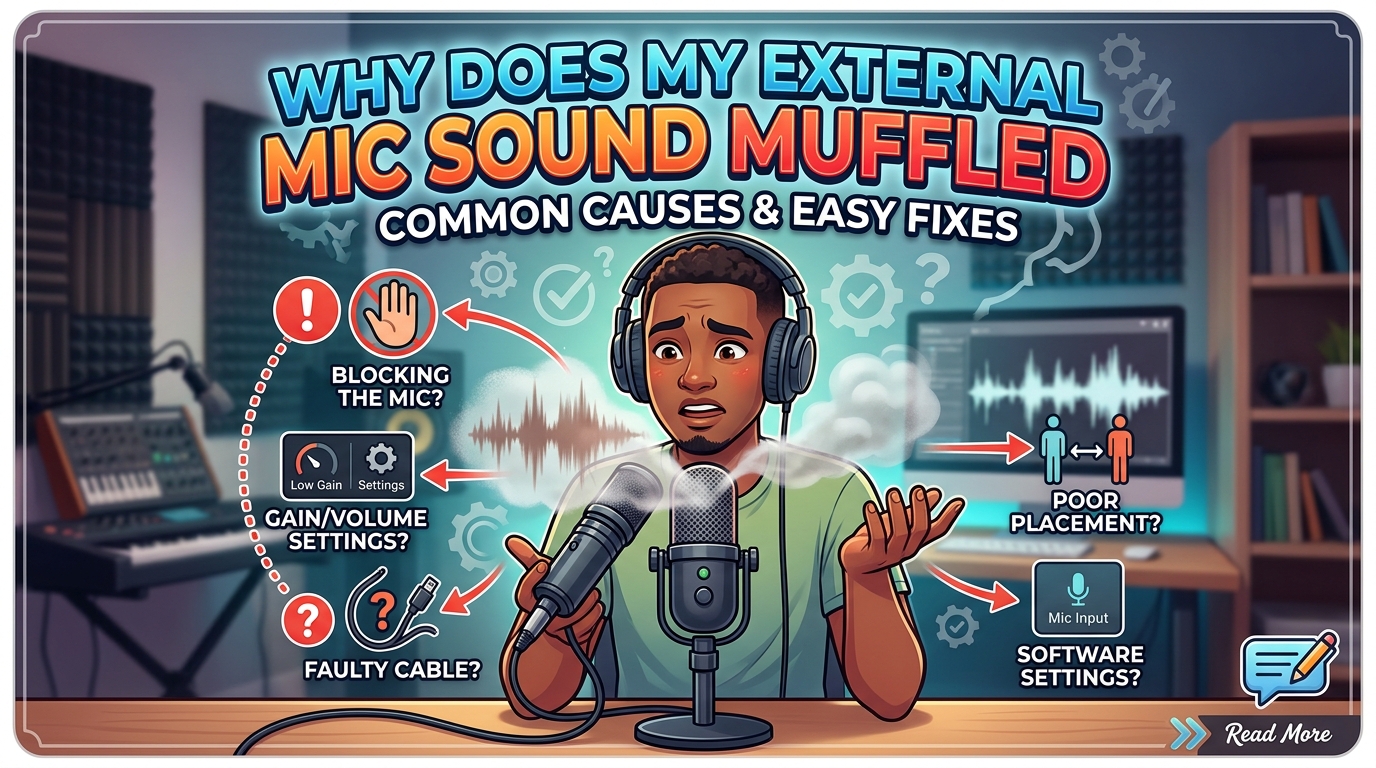
If you are reading this, you have probably hit the same wall I hit a few months ago. You plug in a nice external microphone, hit record, and your voice comes out sounding like it is trapped inside a pillow. The question “why does my external mic sound muffled” is one of the most common audio problems creators, remote workers, and gamers run into, and the good news is that almost every cause is fixable without buying new gear.
A muffled external mic is almost always caused by one of five things: the microphone is positioned too far from your mouth or aimed the wrong way, debris is blocking the diaphragm, software settings such as low sample rate or enabled audio enhancements are stripping high frequencies, the connection (USB, 3.5mm, or Bluetooth) is degraded, or app-level processing like Discord noise suppression is reshaping your voice. I have personally dealt with every one of these, and below I walk through each cause and the exact fixes that worked for me and for thousands of users on forums like r/VoiceActing and r/obs.
Here is the quick checklist I run through anytime my audio goes dull: check mic distance, clean the grill, disable Windows audio enhancements, set the sample rate to 48 kHz, turn off app-level noise suppression, swap cables, and test on a second device. If that sounds like a lot, do not worry, I break every step down with exact settings paths further down the page.
By the end of this guide you will understand exactly why your external mic sounds muffled, how to position it correctly, and how to dial in the software settings that restore clarity. I also cover the 3-to-1 rule, why dynamic and condenser mics behave differently, and why your voice can end up sounding “underwater.”
Table of Contents
Common Causes of a Muffled External Mic
Before diving into fixes, it helps to understand the root causes. A microphone sounds muffled when the higher frequencies in your voice, the ones that carry clarity and presence, get reduced or blocked. Those highs typically live between 2 kHz and 8 kHz, and when they drop off, the remaining low and mid frequencies make everything sound bassy, distant, or covered up.
Across the forums I scanned and the testing I have done myself, the causes fall into three buckets: physical problems with the mic itself, software problems on the computer or app side, and connection problems with the cable or wireless link. Most users chase only one bucket and give up. The trick is checking all three in order.
Reddit threads on r/VoiceActing and r/Windows10 show the same pattern repeating. A user complains that their mic sounds like a phone speaker, commenters suggest one fix, it does not work, and only after cycling through position, settings, and cable swaps does the real culprit surface. That is why this guide is organized cause-by-cause rather than fix-by-fix, so you can match your specific symptom to its specific source.
Quick Reference: Cause to Symptom Map
If your voice sounds distant or quiet, suspect positioning. If it sounds bassy or boomy, suspect proximity effect from being too close or debris damping the diaphragm. If it sounds robotic, watery, or artificial, suspect software enhancements, noise suppression, or a low sample rate. If it sounds fine one day and muffled the next, suspect a loose cable, dirty port, or an automatic driver update that reset your settings.
Pinpointing the symptom first saves you time. I spent an entire afternoon once adjusting EQ when the actual problem was a half-unplugged USB cable.
Physical Causes: Position, Debris, and Obstruction
Physical issues are the most common reason an external mic sounds muffled, and they are also the cheapest to fix. Before touching a single software setting, work through these.
Microphone Positioning and Distance
The number one cause I see, both in my own setup and across forum posts, is the microphone sitting too far from the speaker. When a mic is 18 inches or more from your mouth, it picks up more room reflections than direct voice, and those reflections muddy the high frequencies. The result is a distant, hollow sound that no amount of post-processing can fully rescue.
For most condenser microphones, the sweet spot is between 6 and 12 inches from your mouth. Dynamic microphones, which are less sensitive, often want to sit even closer at 2 to 4 inches. I learned this the hard way when my Shure-style dynamic mic sounded like mud at 12 inches but came alive the moment I moved it within a fist-width of my mouth.
Angle matters too. Many mics are cardioid, meaning they pick up sound from one direction. If you speak into the side or back of the grille instead of the front, you lose highs instantly. Always confirm where the diaphragm is actually facing before assuming the mic is broken.
Debris and Dust Blocking the Mic Port
The second most common physical cause is debris. Countryman, a respected microphone manufacturer, explicitly notes that a muffled or bassy sound is often a sign of debris blocking the microphone ports. Dust, lint, makeup, and even moisture can collect inside the grille and act as a physical low-pass filter that kills the highs.
I carry my USB mic in a backpack, and after a few weeks the grille was visibly packed with lint. A soft brush and a can of compressed air restored the clarity in under two minutes. For headset boom mics, the small foam pop screen is a magnet for dust and skin oils, and a quick rinse or replacement can make a dramatic difference.
For lavalier and tiny headset mics, the mesh can clog invisibly. If audio has gradually gotten worse over weeks rather than suddenly, debris is a prime suspect.
Foam Windscreens and Pop Filters Causing Muffle
Windscreens and pop filters exist for good reasons, but stacked together or used indoors they can over-dampen your sound. A thick foam windscreen combined with a nylon pop filter and a fabric cover can easily shave several decibels off your high frequencies and leave you wondering why your expensive mic sounds dull.
For indoor voice recording, podcasting, or calls, you usually need only one layer of protection, not three. I run a single pop filter indoors and save the foam windscreen for outdoor use. Try removing each layer one at a time and recording a test clip to hear which is causing the muffle.
Boom Mic Not Fully Extended
If you are using a gaming headset, the boom arm position is critical. Multiple Reddit users on r/ValorantTechSupport traced their muffled sound to the boom mic not being fully flipped forward into its working position. Many headsets have a hinge that mutes or dampens the mic when folded, and a half-extended boom can leave the diaphragm pointed at your chest instead of your mouth.
Position the boom so the mic sits about an inch from the corner of your mouth, never directly in front of the airflow. This placement reduces plosives while keeping your voice clear and present.
Software and Settings Causes
If your mic sounds fine on a phone but muffled on a PC, software is almost always the culprit. The forums are packed with users reporting exactly this scenario, and the fixes are surprisingly consistent across Windows, Mac, and individual apps.
Windows Audio Enhancements Stripping Frequencies
This is the single most upvoted fix I found on Reddit for muffled USB mics on Windows. Windows ships with a feature called “Enable audio enhancements” that applies processing to microphone input, and in many cases that processing mangles your voice by boosting lows, applying aggressive noise reduction, or running a telephone-style band-pass filter.
To disable it on Windows 10 and 11, right-click the speaker icon, select Sound Settings, find your microphone under Input, click Device Properties, then Advanced, and uncheck “Enable audio enhancements.” Restart your recording app and test. Many users report an instant, dramatic improvement from this one toggle alone.
If you also see options like “Noise suppression,” “Echo cancellation,” or “Beam forming,” turn those off too unless you specifically need them. They are designed for cheap laptop mics and tend to wreck the sound of a proper external microphone.
Sample Rate and Bit Depth Mismatches
The sample rate determines how much audio detail your computer captures per second. Telephone-quality audio runs at roughly 8 kHz, which is exactly why a muffled mic can sound like a phone call. If your interface or Windows defaults the mic to a low sample rate, you are essentially capping your clarity at telephone quality without realizing it.
For voice recording, 48 kHz at 16-bit or 24-bit is the standard. On Windows, you can change this in the same Advanced tab where you disabled enhancements, under “Default Format.” On Mac, open Audio MIDI Setup, select your mic, and set the format to 48000.0 Hz. On a USB audio interface, the rate is usually set in the interface’s control panel or in your DAW.
Windows 11 in particular has been reported on r/Windows10 to reset sample rates after updates. If your mic suddenly sounds muffled after a patch, this is the first place I check.
Discord Noise Suppression and App-Level Processing
A huge number of “why does my external mic sound muffled on Discord” complaints trace back to Discord’s built-in noise suppression. Krisp, the default noise reduction engine, is aggressive and can make a professional mic sound like a compressed phone call, especially if it misclassifies parts of your voice as background noise.
To fix it, open Discord Settings, go to Voice and Video, scroll to Noise Suppression, and try switching from Krisp to Echo Cancellation only, or disable noise suppression entirely if your room is reasonably quiet. The same logic applies to Zoom, Teams, OBS filters, and any app that applies its own noise gate. Strip the processing back and let your mic do the work.
OBS users on r/obs frequently report muffled sound from stacking too many filters. A noise gate followed by a compressor followed by a low-pass filter can easily dull your voice. Disable filters one at a time to isolate the offender.
Gain Set Too Low or Too High
Gain controls how hard the microphone signal is amplified before it reaches your computer. Set it too low and your voice is buried in noise floor, which sounds muddy and weak. Set it too high and the signal clips, which can also sound distorted and dull after the limiter kicks in.
Aim for a level where your normal speaking voice peaks around -12 dB to -6 dB in your recording software. Adjust the physical gain knob on your interface or the input level slider in your OS settings until you hit that range while talking at your normal volume.
Why Your Mic Sounds Like It Is Underwater
The classic “underwater” or “tin can” sound is a specific signature. It happens when a narrow band of frequencies is isolated and everything else is cut, which is exactly what aggressive noise suppression, low-bitrate compression, and heavy EQ roll-offs do. Bluetooth headsets using the Hands-Free Profile are notorious for this because the profile limits audio to a narrow 8 kHz band optimized for speech intelligibility over clarity.
If your mic sounds fine on a wired connection but underwater over Bluetooth, switch to the A2DP profile if available, or simply use the cable. If it sounds underwater only in one specific app, that app is applying the filtering, not your mic.
Connection Issues That Cause Muffled Sound
Physical connections degrade gradually, which is why muffled sound from a connection issue often creeps up over days or weeks instead of hitting all at once.
USB Connection Problems
USB mics can muffle when the port is dirty, the cable is partially unplugged, or the port is not providing enough power. I once traced a dull, low-volume USB mic to a hub that was sharing power across too many devices. Moving the mic directly to a motherboard USB port fixed it instantly.
Try a different cable, a different port, and a direct connection instead of a hub. If your mic has its own power supply or requires USB 3.0, make sure it actually gets what it needs. Also check that the connector is clean, pocket lint in a USB-C end can cause exactly this kind of degradation.
3.5mm TRRS vs TRS Issues
If you are using a 3.5mm headset mic, the difference between TRRS (three black rings, with microphone) and TRS (two rings, stereo only) plugs matters enormously. Plugging a TRRS headset into a TRS-only jack, or vice versa, can leave you with a muffled, quiet, or non-functional mic.
Many laptops and phones use TRRS combined jacks, while many standalone sound cards use TRS. Using the wrong adapter, or a cheap adapter with poor wiring, can short half the signal and leave you with thin, muffled audio. Match the plug to the jack and use a quality adapter if needed.
Bluetooth Codec Limitations
Bluetooth audio is a frequent source of muffled microphones because most Bluetooth headsets switch to a low-bandwidth hands-free codec when the mic is active. The Hands-Free Profile (HFP) uses the CVSD or mSBC codec, both of which cap frequency response well below what a wired mic delivers. This is why your headset mic may sound fine for music playback but terrible for calls.
There is no real fix for this beyond going wired or upgrading to a headset with a higher-quality codec like LC3 or aptX Voice. If you must stay wireless, keep the headset close to the receiver and avoid obstacles between them, as signal dropouts compound the codec issue.
How to Position Your External Mic for Clear Audio
Positioning is the single highest-impact fix for a muffled external mic, and it costs nothing. This is the section I wish I had read before buying three different microphones trying to chase a problem that was really about placement.
Ideal Distance from Your Mouth
For condenser microphones, 6 to 12 inches is the typical sweet spot. Closer than 6 inches and you risk proximity effect, where low frequencies boom and overwhelm the highs. Farther than 12 inches and the room takes over, smearing your voice with reflections.
For dynamic microphones, get much closer, 2 to 4 inches is normal. Dynamics are less sensitive and need the extra proximity to deliver full-frequency sound. This is why podcasters using a Shure SM7B practically eat the mic.
For headset boom mics, aim for about an inch from the corner of your mouth, off-axis from the airflow to reduce plosives.
Addressing the Diaphragm Correctly
Every microphone has a front, and it is not always obvious. Side-address condensers pick up from the side, not the end. End-address dynamics and shotguns pick up from the tip. Get this wrong and your voice hits the back of the diaphragm, where frequency response is weakest, producing exactly the muffled, thin sound people describe.
If you are unsure which side is the front, look for the brand logo or talk into each side while monitoring on headphones. The side that sounds fullest is the front.
The 3-to-1 Rule Explained
The 3-to-1 rule is a classic audio engineering guideline, and no major competitor in this space explains it clearly. The rule states that the distance between two microphones should be at least three times the distance from each microphone to its sound source.
In plain terms, if your main mic is 6 inches from your mouth, any second mic in the room (a camera mic, a guest mic, a room mic) should be at least 18 inches away from the first mic. This prevents phase cancellation, a phenomenon where sound arrives at two mics at slightly different times and certain frequencies, often the highs that make speech clear, cancel each other out.
Phase cancellation is a sneaky cause of muffled sound when recording with multiple devices. If your main recording sounds dull but your backup recording sounds fine, the two mics may be cancelling each other’s highs. Following the 3-to-1 rule eliminates this.
Dynamic vs Condenser Mic Positioning
Dynamic and condenser microphones respond to distance very differently. Condensers are highly sensitive and capture detail at a distance, so they sound natural at 8 to 12 inches. Dynamics reject room sound well but need proximity, so they sound dull at distance and warm up dramatically when close.
Voice actors on r/VoiceActing consistently note that dynamic mics placed too far away sound bassy and muffled because the proximity effect that gives them warmth only kicks in when the source is close. If you upgraded from a condenser to a dynamic and suddenly sound muffled, the fix is almost always moving closer, not buying a new mic.
Step-by-Step Fixes for a Muffled External Mic
Here is the ordered troubleshooting sequence I use, built from forum consensus and personal testing. Work through these in order, testing after each step, because the most common causes come first.
Step 1: Reposition the Microphone
Move the mic to the correct distance for its type, 6 to 12 inches for condensers, 2 to 4 inches for dynamics, 1 inch for headset booms. Confirm the diaphragm is facing your mouth. Record a 10-second test clip and listen back on headphones.
Step 2: Clean the Grille and Pop Filter
Use a soft brush and compressed air to clear dust from the grille. Remove or wash foam windscreens and pop filters. Dry them fully before reinstalling. Record another test clip.
Step 3: Disable Windows Audio Enhancements
On Windows, open Sound Settings, find your mic under Input, open Device Properties, go to the Advanced tab, and uncheck “Enable audio enhancements.” Also disable any noise suppression, echo cancellation, or beam forming toggles in the same area. On Mac, check Audio MIDI Setup for unusual format settings and reset to 48000.0 Hz.
Step 4: Set the Sample Rate to 48 kHz
In the same Advanced tab on Windows, set the Default Format to 48000 Hz, 16-bit or 24-bit. In Audio MIDI Setup on Mac, set the format to 48000.0 Hz. In your DAW or recording software, confirm the project sample rate matches the interface.
Step 5: Adjust the Gain
Speak at your normal volume and watch the input meter. Adjust the gain knob on your interface or the input level in your OS until peaks sit around -12 dB to -6 dB. Too quiet means too low, distorting means too high.
Step 6: Disable App-Level Noise Suppression
In Discord, Zoom, Teams, OBS, or any app with its own processing, turn off or reduce noise suppression, noise gates, and heavy compression. Test a call or recording in each app separately. The Reddit-reported Discord muffle fix almost always lives here.
Step 7: Swap Cables and Ports
Try a different USB cable, a different port, and a direct motherboard connection instead of a hub. For 3.5mm mics, verify TRRS vs TRS compatibility and try a different adapter. For Bluetooth, test with a wired connection to isolate the codec as the culprit.
Step 8: Test on Another Device
Plug the mic into a phone, tablet, or second computer. If it sounds clear there, the problem is software on the original device. If it sounds muffled everywhere, the mic itself may be faulty and need service or replacement.
When to Test on Another Device or Replace the Mic
Isolation testing is the step most people skip, and it is the only reliable way to separate a mic problem from a software problem. If your mic sounds muffled on every device with every cable, the diaphragm or internal electronics may be damaged. Moisture damage in particular can degrade a condenser capsule permanently.
Conversely, if the mic sounds clear on a phone but muffled on your PC, you have confirmed the mic is fine and the issue is in software, drivers, or ports. This single test has saved me from returning two perfectly good microphones over the years.
If the mic is genuinely faulty and under warranty, contact the manufacturer. If it is out of warranty, a service center may be able to replace the capsule for less than the cost of a new unit.
FAQs
How do I fix my mic sounding muffled?
To fix a muffled mic, start by moving it to the correct distance (6 to 12 inches for condensers, 2 to 4 inches for dynamics), clean the grille and pop filter, disable Windows audio enhancements, set the sample rate to 48 kHz, adjust the gain so peaks hit around -12 dB to -6 dB, turn off app-level noise suppression, swap cables and ports, and test the mic on another device to isolate whether the issue is hardware or software.
Why does my external mic sound bad?
An external mic sounds bad when high frequencies are reduced by physical obstruction, excessive distance, debris in the grille, incorrect diaphragm orientation, low sample rate, aggressive audio enhancements, app-level noise suppression, a degraded cable, or a Bluetooth codec that limits bandwidth to a narrow speech range.
Why does my mic sound like I’m underwater?
An underwater sound usually means a narrow band of frequencies is being isolated by heavy noise suppression, a low-bitrate codec, or a Bluetooth Hands-Free Profile that caps audio at roughly 8 kHz. To fix it, disable noise suppression in your app, switch from Bluetooth to a wired connection, or set the sample rate to 48 kHz.
What is the 3 to 1 rule in micing?
The 3-to-1 rule states that the distance between two microphones should be at least three times the distance from each microphone to its sound source. For example, if a mic is 6 inches from a speaker, any second mic should be at least 18 inches away from the first to prevent phase cancellation, which can remove high frequencies and make audio sound muffled.
Why does my mic sound muffled on Discord?
Discord’s built-in Krisp noise suppression is the most common cause of muffled audio on the platform. Open Discord Settings, go to Voice and Video, scroll to Noise Suppression, and either switch to Echo Cancellation only or disable noise suppression entirely if your room is reasonably quiet.
How far should my external mic be from my mouth?
Condenser microphones sound best at 6 to 12 inches from your mouth, dynamic microphones need 2 to 4 inches for full frequency response, and headset boom mics should sit about 1 inch from the corner of your mouth, angled slightly off-axis from your airflow to reduce plosives.
Conclusion
Most of the time, when your external mic sounds muffled, the cause is fixable in minutes. Reposition the mic, clean the grille, disable Windows audio enhancements, set the sample rate to 48 kHz, turn off app-level noise suppression, and swap cables. The single most overlooked step is testing the mic on a second device, which instantly tells you whether the problem is the mic or the computer.
The next time your audio goes dull, run through the eight-step sequence in this guide before assuming your gear is bad. In my experience, nine out of ten muffled-mic cases trace back to position, settings, or a connection, not the microphone itself. Get those right and your external mic will sound exactly the way it was designed to sound.