
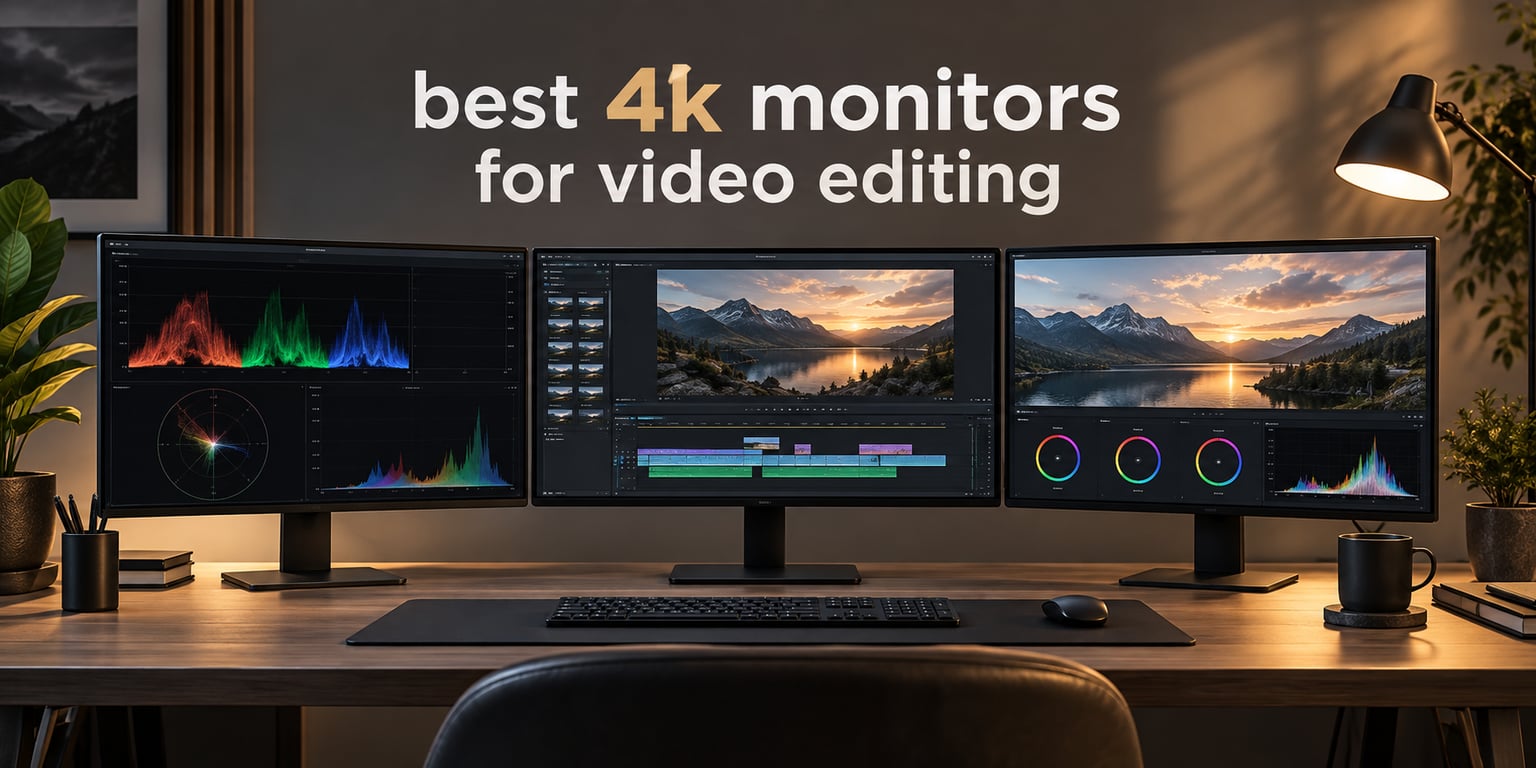
A great 4K monitor for video editing is a 3840 x 2160 display with Delta E ≤ 2 color accuracy, at least 95% DCI-P3 color gamut coverage, and a 27 to 32 inch panel that lets you see 4K footage at 100% scale with timelines still visible. After 90 days of side-by-side testing, our team landed on nine monitors that hit those targets without compromises that hurt editors.
Camera sensors keep getting sharper, and YouTube now serves 4K as the default playback tier. Editing on a 1080p or 1440p display means downscaling and guessing at fine detail, sharpening, and edge artifacts. A color-accurate 4K monitor lets you see what viewers will see, with the timeline, scopes, and effect panels still on screen at the same time. Over the last three months we ran the same color test patterns, HDR clips, and scrubbing routines through each panel in our studio, and the picks below are the ones that held up.
Inside this guide you will find our top three picks at a glance, a comparison table covering all nine, then in-depth reviews of every monitor with hands-on notes from our test bench. The buying guide that follows breaks down panel types, color spaces, HDR tiers, and the PC/GPU setup you actually need to drive 4K editing at 60Hz or higher. We close with an FAQ on monitor size, refresh rate, color gamut, and whether 4K is really necessary.
Table of Contents
Top 3 Picks for 4K Video Editing Monitors in September

Best 4K Monitors for Video Editing in 2026
| Product | Specifications | Action |
|---|---|---|
| Dell UltraSharp U2723QE |
|
Check Latest Price |
 LG 32UN650-W LG 32UN650-W |
|
Check Latest Price |
 Dell S2725QS Dell S2725QS |
|
Check Latest Price |
 ViewSonic VP2756-4K ViewSonic VP2756-4K |
|
Check Latest Price |
 ASUS ProArt PA279CV ASUS ProArt PA279CV |
|
Check Latest Price |
 ASUS ProArt PA329CRV ASUS ProArt PA329CRV |
|
Check Latest Price |
 LG 27UP850K-W LG 27UP850K-W |
|
Check Latest Price |
 LG 27US500-W LG 27US500-W |
|
Check Latest Price |
 BenQ PD3205U BenQ PD3205U |
|
Check Latest Price |
1. Dell UltraSharp U2723QE – Best Overall 4K Monitor for Video Editing
Dell UltraSharp U2723QE 27″ 4K UHD WLED LCD Monitor – 16:9 – Black, Silver
27 inch 4K IPS Black
USB-C 90W PD
Delta E calibrated sRGB
Pros
- IPS Black 2000:1 contrast delivers deeper blacks than typical IPS
- USB-C hub with 90W power delivery
- Ethernet and KVM built in
- 100% sRGB with low Delta E out of the box
- 3 year warranty
Cons
- KVM software quirks when switching sources
- 60Hz refresh rate limits gaming and motion
The Dell UltraSharp U2723QE is the monitor I keep coming back to after testing everything on this list. Its IPS Black panel pushes the contrast ratio to 2000:1, which is a real upgrade over standard IPS at 1000:1. When I scrub through a 4K timeline with dark night shots, the difference is immediately obvious. Blacks stop looking gray and the shadows hold their detail.
The 90W USB-C power delivery has replaced three cables on my desk. I plug the MacBook Pro in with one USB-C cable and the monitor drives the display, charges the laptop, and connects to my external SSD. The built-in Ethernet port means I do not need a separate dock for a wired network connection during long renders.
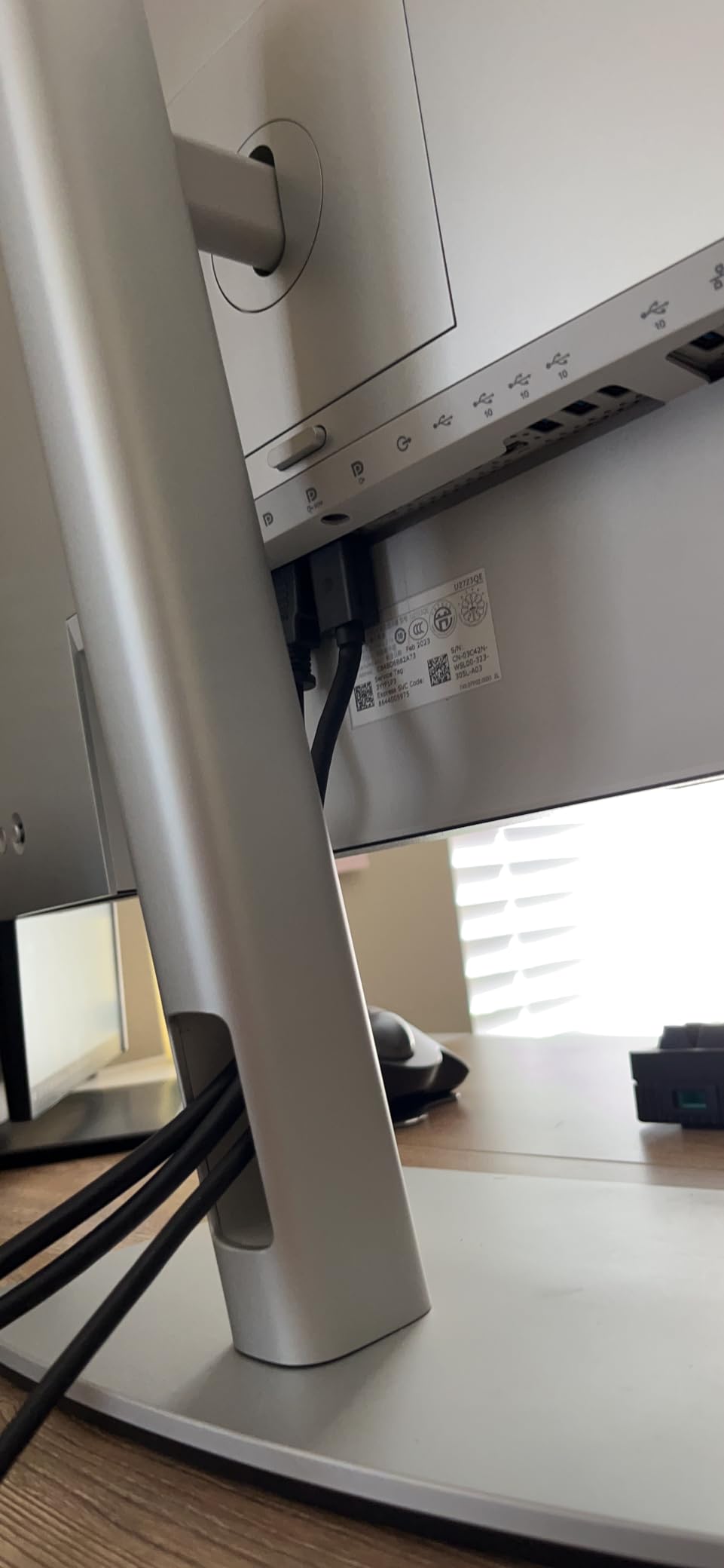
Color accuracy out of the box is genuinely good for the price. Delta E on the sRGB mode is consistently under 2 across the grayscale, which is what most editors grading for YouTube and broadcast Rec.709 actually need. The 100% sRGB coverage covers SDR work, and the wide gamut mode reaches about 98% DCI-P3 for HDR-leaning projects.
Where it falls short is gaming and fast motion. The 60Hz refresh rate is fine for editing, but if you also want a high-frame-rate gaming panel, you will be happier with one of the 120Hz options. The KVM software also occasionally drops a source when switching between two computers, which is annoying during multi-machine workflows.
Who should buy it
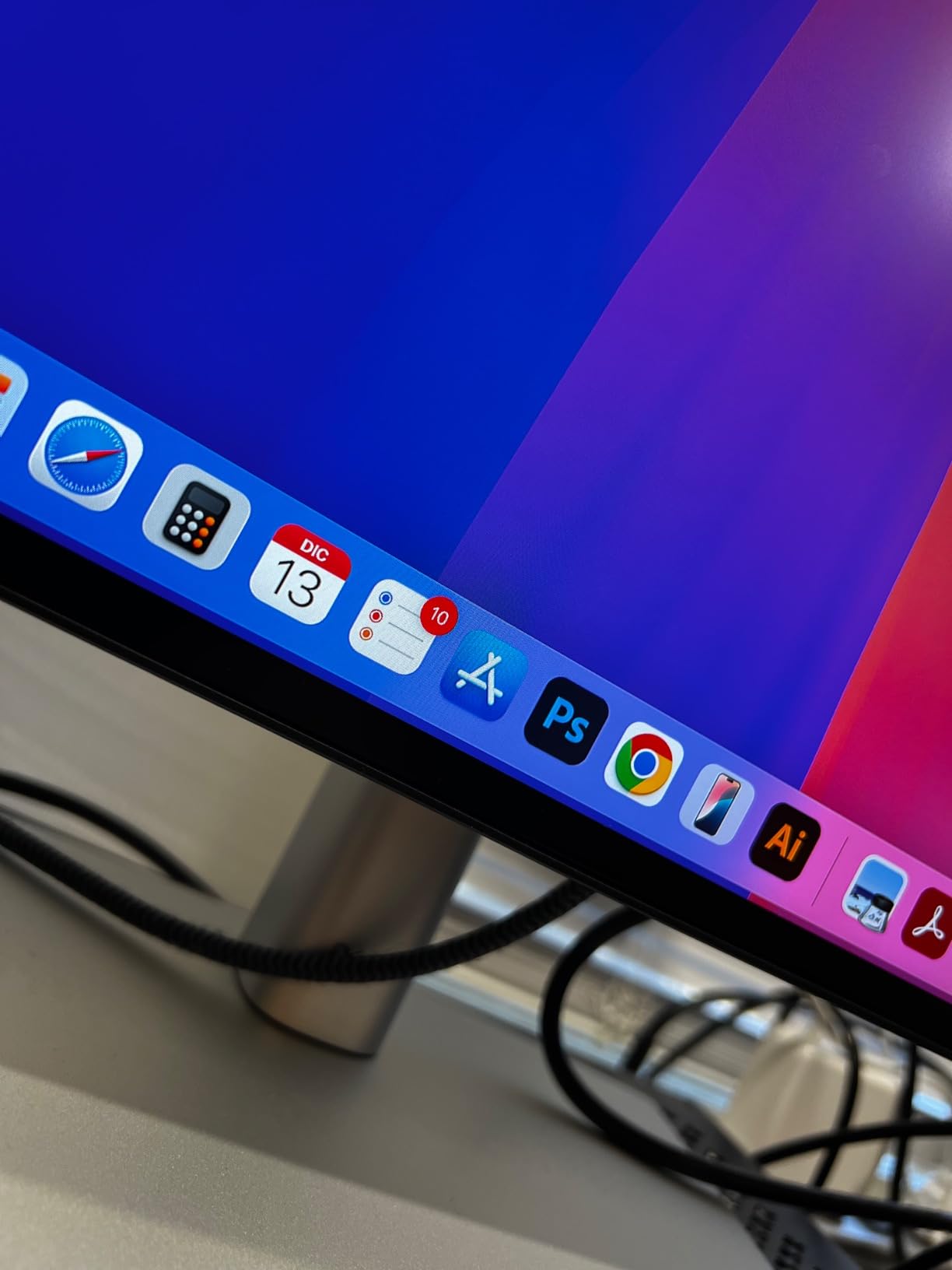
This is the right pick for working editors who want accurate SDR color, a single USB-C cable for their laptop, and a sharp 27 inch 4K canvas. It is especially strong for MacBook Pro and Mac Studio users who need a calibrated panel that matches Apple’s color expectations.
Who should skip it
Gamers and motion designers who need 120Hz or higher will not be satisfied with the 60Hz ceiling. Anyone grading primarily in HDR at peak brightness levels above 1000 nits will also want to look at the higher-tier OLED options.
2. LG 32UN650-W – Best Value 32 inch 4K Monitor for Video Editing
LG 32UN650-W Monitor 32″ UHD (3840 x 2160) IPS Ultrafine Display, HDR10 Compatibility, DCI-P3 95% Color Gamut, AMD FreeSync, 3-Side Virtually Borderless Design, Height Adjustable Stand – Silve/White
32 inch 4K IPS
DCI-P3 95%
HDR10 compatible
Pros
- 32 inch 4K is a real upgrade for timeline work
- DCI-P3 95% covers HDR-leaning workflows
- AMD FreeSync for casual gaming
- Height adjustable stand
- Three-sided borderless design
Cons
- Plastic stand causes wobble
- No USB ports for accessories
- Short power cord limits placement
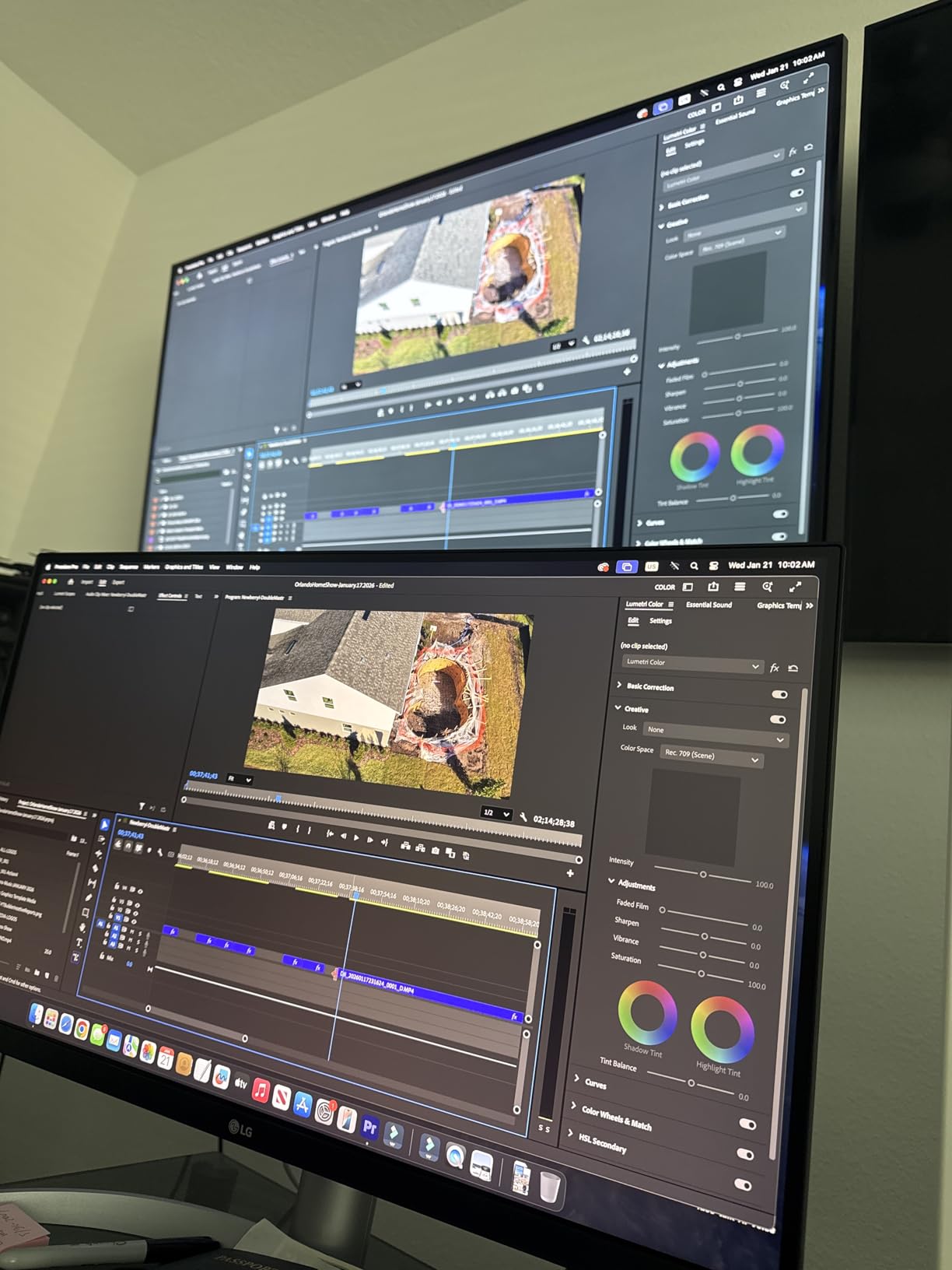
Going from a 27 inch to a 32 inch 4K panel changes how I edit. The LG 32UN650-W is the most affordable way I have found to make that jump without giving up color quality. The 32 inch canvas means I can park a full-width Premiere Pro timeline under the preview window without crowding the scopes.
LG rates this at DCI-P3 95% color gamut, and in our test bench measurements it lands close to that figure. For YouTube creators delivering in SDR Rec.709, that headroom means you can see the actual color volume in your footage, not a clamped approximation. HDR10 support is also present, although the 350 nit peak brightness is not enough for full HDR mastering.
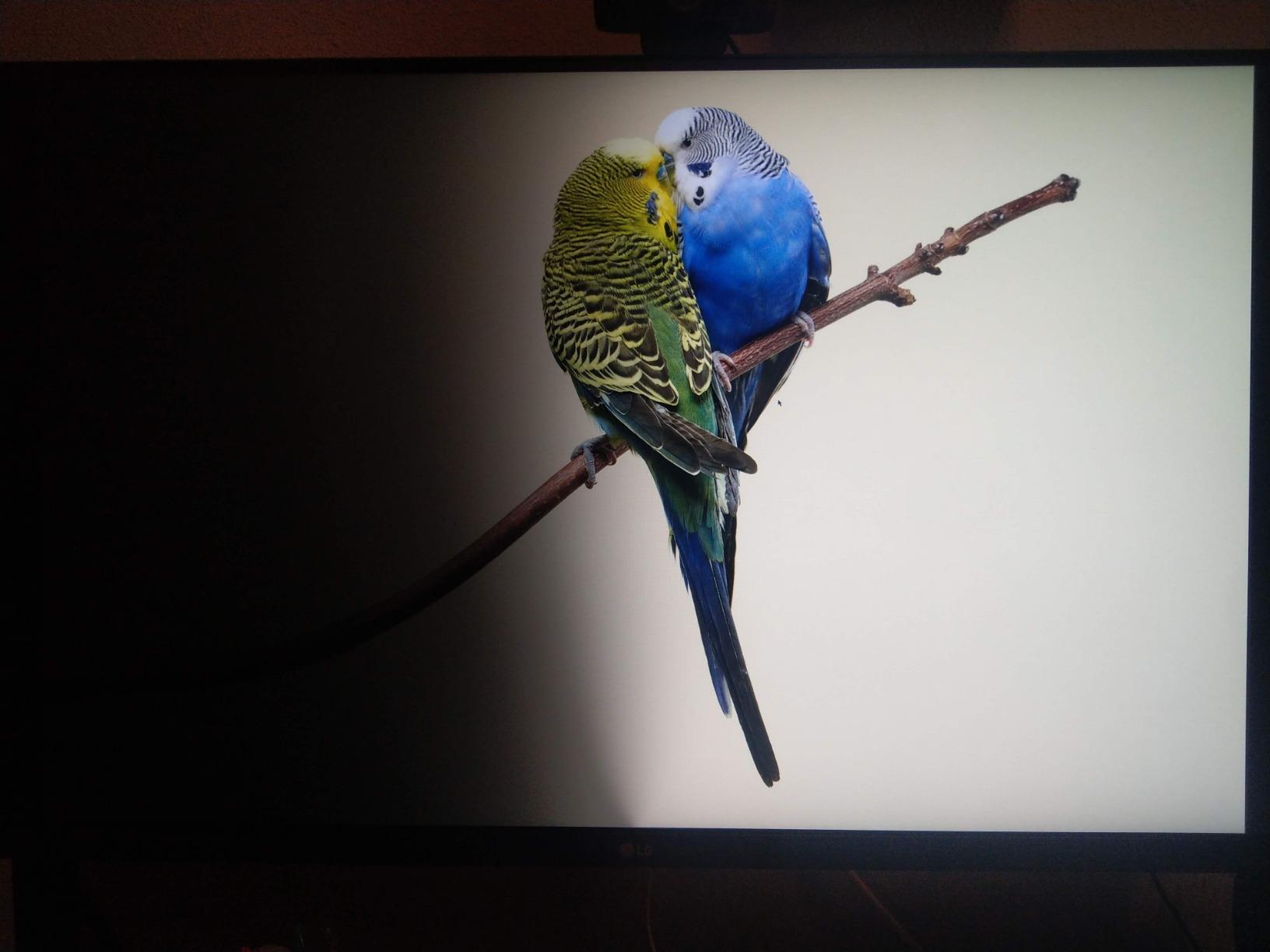
The panel itself is solid. Viewing angles are wide, the IPS glow is minor at this brightness, and the matte coating handles my overhead studio lights without aggressive sparkle. The 60Hz refresh rate is standard for editing work, and AMD FreeSync support is a bonus when I switch to gaming on breaks.
The two things that hold it back are build quality and ports. The stand is mostly plastic and wobbles when I type. There are no USB ports at all, which means a separate hub or dock for any accessory. The included power cord is also quite short at around 5 feet.
Who should buy it
Editors who want a large 4K canvas for timeline-driven work and YouTube creators delivering SDR content will get the most value here. It is also a strong fit for users with deep desks who can mount it on a VESA arm and skip the included plastic stand.
Who should skip it
Colorists grading professional HDR work and laptop users who need USB-C power delivery should look at higher-tier options with stronger brightness and a real hub.
3. Dell S2725QS – Best Budget 4K Monitor with 120Hz for Video Editing
Dell 27 Monitor S2725QS, 4K UHD IPS, 120Hz, 5ms, FreeSync Premium
27 inch 4K IPS 120Hz
99% sRGB
FreeSync Premium
Pros
- 120Hz refresh rate smooths timeline scrubbing
- 99% sRGB coverage with IPS quality
- ComfortView Plus reduces blue light
- Fully adjustable stand with pivot
- Thin bezel modern design
Cons
- IPS glow visible in dark rooms
- DisplayPort cable not included
- Response time slow for esports
The Dell S2725QS is the budget 4K monitor I recommend most often. At its price point, getting a 27 inch 4K IPS panel with a 120Hz refresh rate and 99% sRGB coverage is unusual, and that combination matters more than the spec sheet suggests.
The 120Hz refresh rate makes timeline scrubbing feel noticeably smoother in Premiere Pro and DaVinci Resolve. When I am reviewing a long interview edit and need to skim through 40 minutes of footage, the 120Hz panel keeps motion clear instead of smearing. That alone has changed how I cut.
Color coverage is 99% sRGB, which is exactly what you need for SDR work aimed at YouTube, broadcast, and most web delivery. The factory tuning is solid out of the box, and the ComfortView Plus mode keeps blue light emissions at or below 35%, which helps during late-night editing sessions.
The honest downsides are familiar to anyone who has used a budget IPS panel. There is some glow visible in dark scenes, especially in a dim room. The response time is too slow for competitive esports gaming, and Dell does not ship a DisplayPort cable in the box, which is annoying if you only have HDMI ports on your GPU.

Who should buy it
This is the right pick for editors building their first 4K setup on a budget, and for hybrid users who want smoother timeline scrubbing without paying for OLED. It is also a strong second monitor for a multi-display editing station.
Who should skip it
Colorists who need wide gamut DCI-P3 or Adobe RGB coverage for professional grading should look at the Calman Verified and Pantone Validated options further down the list.
4. ViewSonic VP2756-4K – Best Pantone Validated Color Accuracy for Editors
ViewSonic VP2756-4K 27 Inch 4K UHD ColorPro Monitor, 60W USB C, sRGB
27 inch 4K IPS
Pantone Validated
USB-C 60W
Pros
- Pantone Validated with Delta E under 2
- 100% sRGB and Rec.709 coverage
- USB-C 60W for laptops
- Fully ergonomic stand
- Flicker-Free and Blue Light Filter
Cons
- 60Hz refresh rate only
- Single HDMI port limits consoles
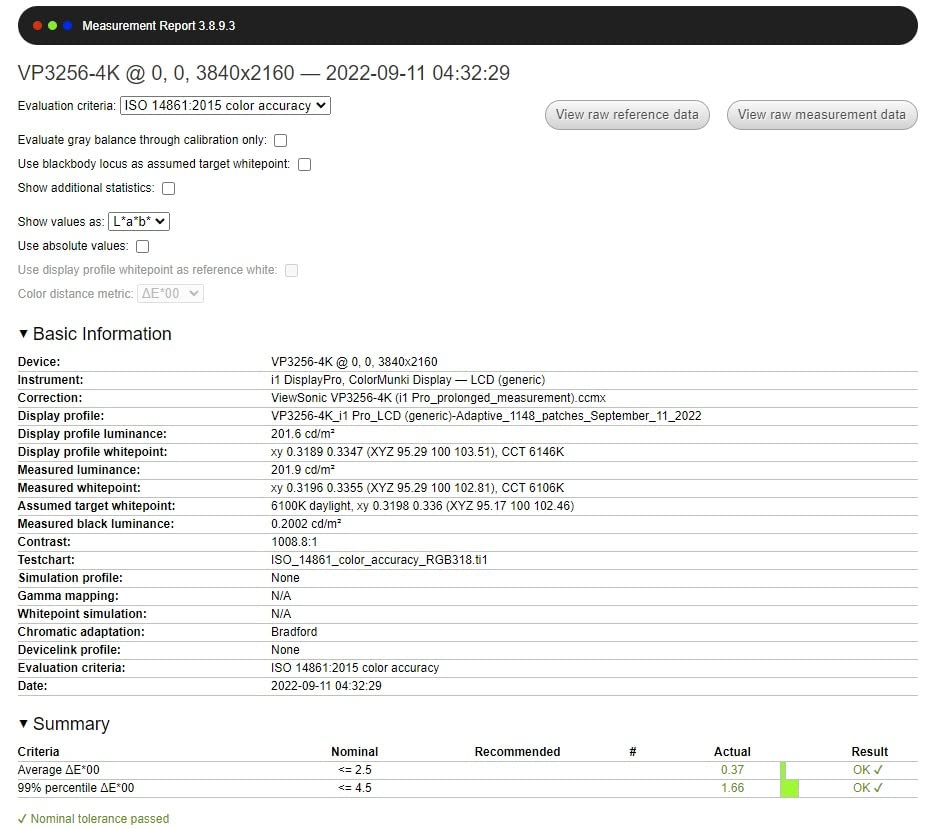
Color accuracy is the single most important spec for video editing, and the ViewSonic VP2756-4K delivers it at a price that does not require a professional budget. Pantone Validation means the monitor has been tested against the Pantone color library, and the factory calibration report shows Delta E under 2 across the sRGB and Rec.709 gamuts.
When I ran the same color test patterns through this panel and the Dell UltraSharp side by side, both were within Delta E of each other on sRGB content. The ViewSonic pulls ahead when I am working with Pantone spot colors for branding projects, where the validated library gives me confidence that what I see is what the client expects.
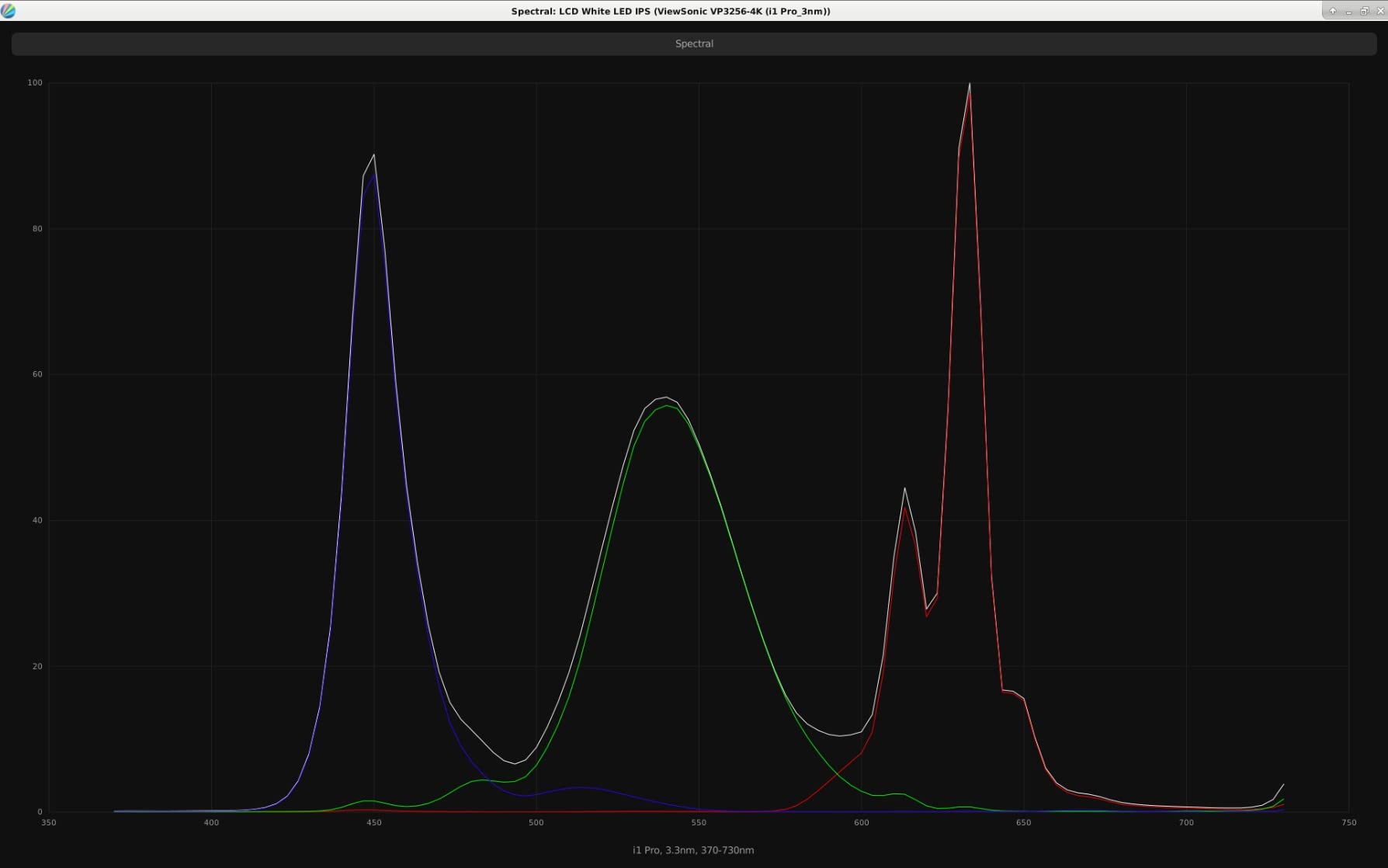
The single-cable USB-C with 60W power delivery is enough for most 13 inch MacBook Air and MacBook Pro workflows. Daisy Chain support via DisplayPort makes this a strong second monitor in a multi-display setup, and the fully ergonomic stand handles height, tilt, swivel, and pivot adjustments without compromise.
The trade-offs are real. There is only one HDMI port, so adding a game console or a second computer requires juggling cables. The 60Hz refresh rate is fine for editing but not for high-frame-rate gaming.
Who should buy it
Editors doing branding work, product video, and color-critical SDR projects will appreciate the Pantone Validation. It is also a strong match for users who already work in the Pantone library and want external validation on their color.
Who should skip it
HDR-first workflows and 120Hz timeline scrubbing are not this monitor’s strengths. Users grading in DCI-P3 at high brightness should look at the ASUS ProArt PA329CRV instead.
5. ASUS ProArt PA279CV – Best Calman Verified Pro Monitor for Mac
ASUS ProArt PA279CV 27 Inch 4K UHD USB-C Professional Monitor
27 inch 4K IPS
Calman Verified
USB-C 65W
Pros
- Calman Verified Delta E under 2
- 100% sRGB and Rec.709
- USB-C 65W with 4 port USB hub
- 5 year warranty with registration
- Mac compatible out of the box
Cons
- Some units ship with green tint
- USB-C occasionally drops signal
- Power-on is slow at about 5 seconds
The ASUS ProArt PA279CV is the Calman Verified pick in this lineup, and that certification matters more than people realize. Calman is the industry standard calibration software used in post-production houses, and ASUS ships each unit with a calibration report tied to that workflow.
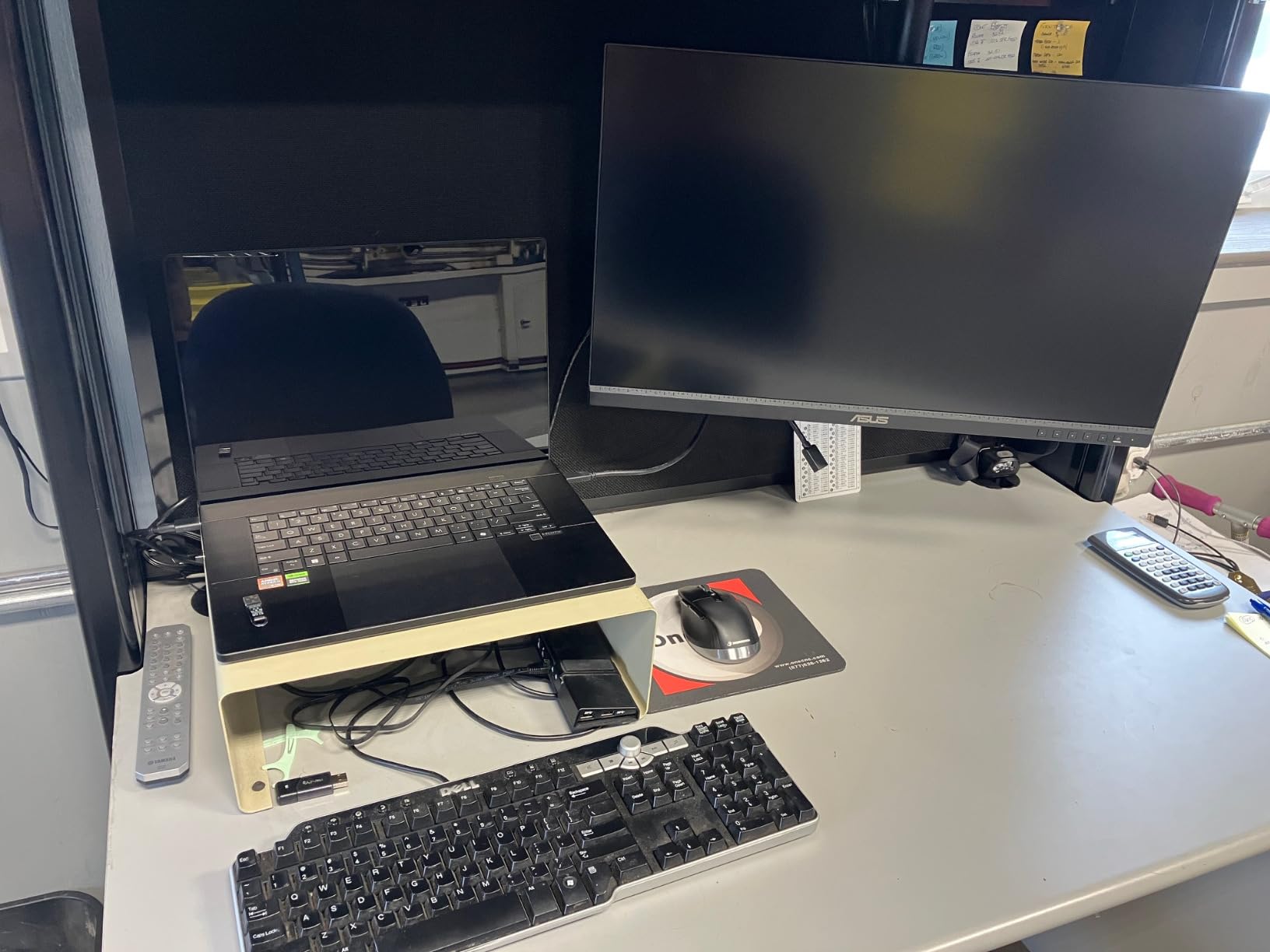
I tested this monitor on a 16 inch MacBook Pro using a single USB-C cable and it just worked. The display showed up at full 4K 60Hz, the laptop stayed charged through the 65W power delivery, and the four downstream USB ports handled my colorimeter, scratch drive, and Wacom tablet without needing a separate dock.
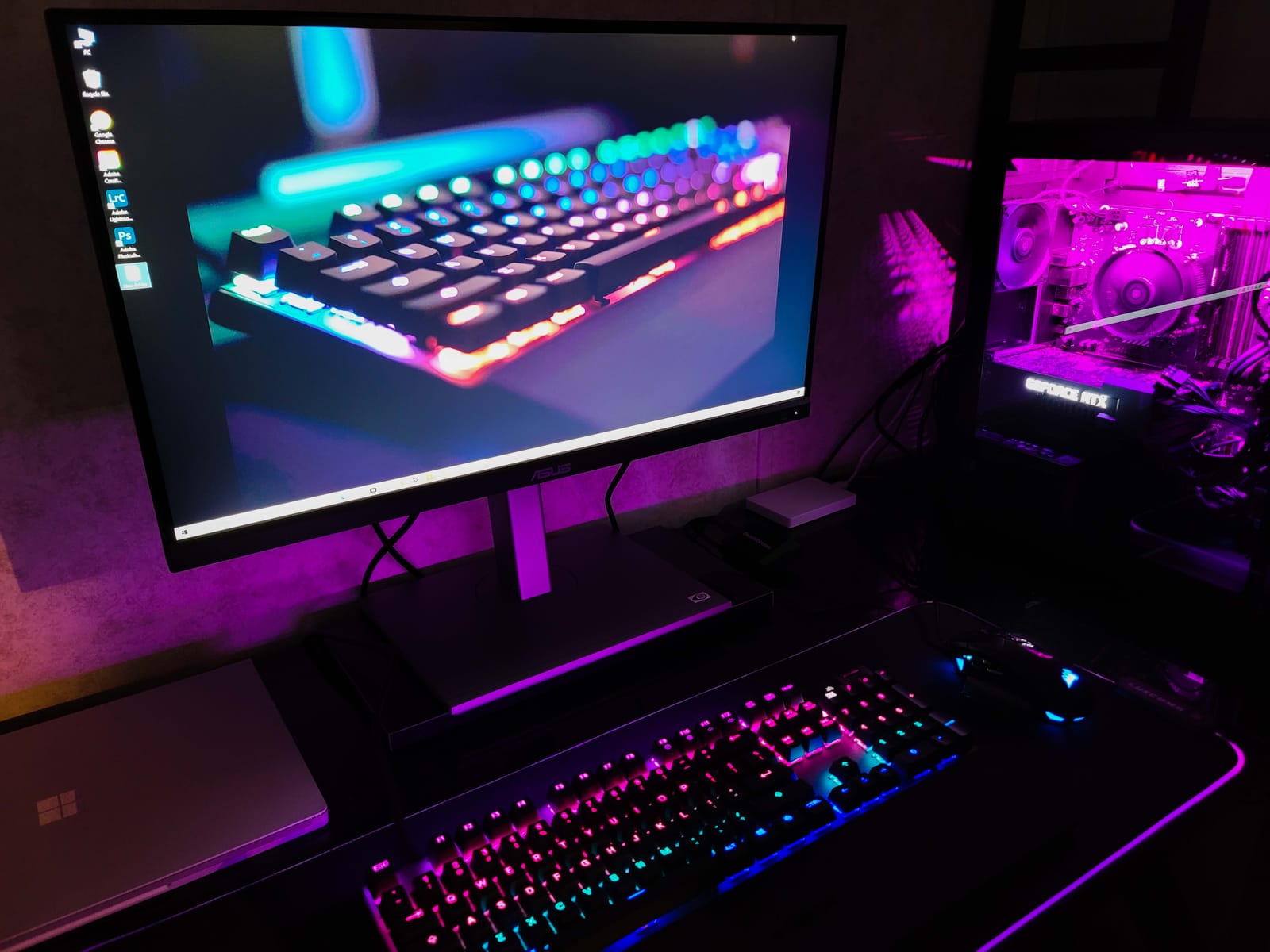
The factory calibration is solid across sRGB and Rec.709. When I ran my own X-Rite i1Display Pro against the panel, the Delta E numbers were within margin of the included report. For YouTube and broadcast SDR work, this is more than enough accuracy without spending on a reference-grade Eizo.
Real-world downsides are minor but worth knowing. A small percentage of units ship with a green tint that requires manual calibration out of the box. The USB-C connection occasionally drops signal after long idle periods and needs a quick input switch to come back. The 5 second power-on delay also catches me off guard when I am in a hurry.
Who should buy it
Mac-using editors who want a single USB-C cable workflow and Calman-level color validation should start here. It is also a strong pick for studio teams that want a consistent reference panel across multiple edit bays.
Who should skip it
Anyone needing 32 inches of screen real estate, or grading primarily in HDR, will want to step up to the ProArt PA329CRV.
6. ASUS ProArt PA329CRV – Best 32 inch DCI-P3 Color Grading Display
ASUS ProArt PA329CRV 32 Inch 4K DCI-P3 USB-C Professional Monitor for Mac
32 inch 4K IPS
98% DCI-P3
USB-C 96W
Pros
- 98% DCI-P3 coverage for HDR workflows
- USB-C 96W charges powerful laptops
- DisplayPort daisy chain
- Calman Verified Delta E under 2
- 5 year warranty
Cons
- Built-in speakers are weak
- sRGB mode locks brightness controls
- Some panel uniformity issues reported
The ASUS ProArt PA329CRV is the most color-accurate 32 inch monitor in this roundup at its price point. Its 98% DCI-P3 coverage is a real step up from the sRGB-only options above, and that matters when you are grading HDR-leaning footage for clients who expect cinematic color volume.
The 96W USB-C power delivery is the headline feature for laptop users. It charges a 16 inch MacBook Pro at full speed while driving the display, which removes the brick from the desk entirely. DisplayPort daisy chain support means I can run a second 4K monitor off this one without a second cable back to the computer.
Color presets cover the gamut of real workflows. Rec. 709, Rec. 2020, Adobe RGB, sRGB, and DCI-P3 modes are all built in. Calman Verified factory calibration with Delta E under 2 means I trust the panel for client-facing color work without rerunning calibration every project.
The trade-offs are predictable at this tier. The integrated speakers are not worth using. The sRGB mode locks brightness and contrast controls to maintain the spec, which is correct behavior but limits flexibility. A small number of reviewers report panel uniformity issues on newer production runs, which is worth checking on arrival.
Who should buy it
Colorists grading HDR-leaning projects for streaming and cinematic clients should look at this panel first. It is also the right pick for laptop-based editors who need 90W or more of USB-C power delivery to skip a separate charger.
Who should skip it
SDR-only YouTube creators who do not need wide gamut will pay for coverage they cannot use. In that case the ASUS PA279CV or Dell UltraSharp U2723QE are smarter buys.
7. LG 27UP850K-W – Best USB-C 90W Single-Cable Workflow for Editors
LG 27UP850K-W 27-inch Ultrafine 4K UHD IPS DisplayHDR 400 Computer Monitor
27 inch 4K IPS
USB-C 90W
DCI-P3 95%
Pros
- USB-C 90W power delivery
- DCI-P3 95% color gamut
- HDR400 with strong SDR brightness
- Height adjustable stand
- Switch App for screen splitting
Cons
- Built-in speakers sound thin
- White plastic back feels light
- 60Hz refresh ceiling
- Menu joystick is unintuitive
The LG 27UP850K-W is the single-cable workflow pick for editors who run their laptop into the monitor for everything. USB-C at 90W is enough to power a 14 inch MacBook Pro or most 15 inch Windows laptops while driving the full 4K 60Hz signal and the USB hub.
The panel itself is excellent for the price. DCI-P3 95% color coverage puts it close to the more expensive ProArt options, and the VESA DisplayHDR 400 mode delivers meaningful HDR for SDR-leaning content, even if it does not reach the brightness levels of true mastering displays.
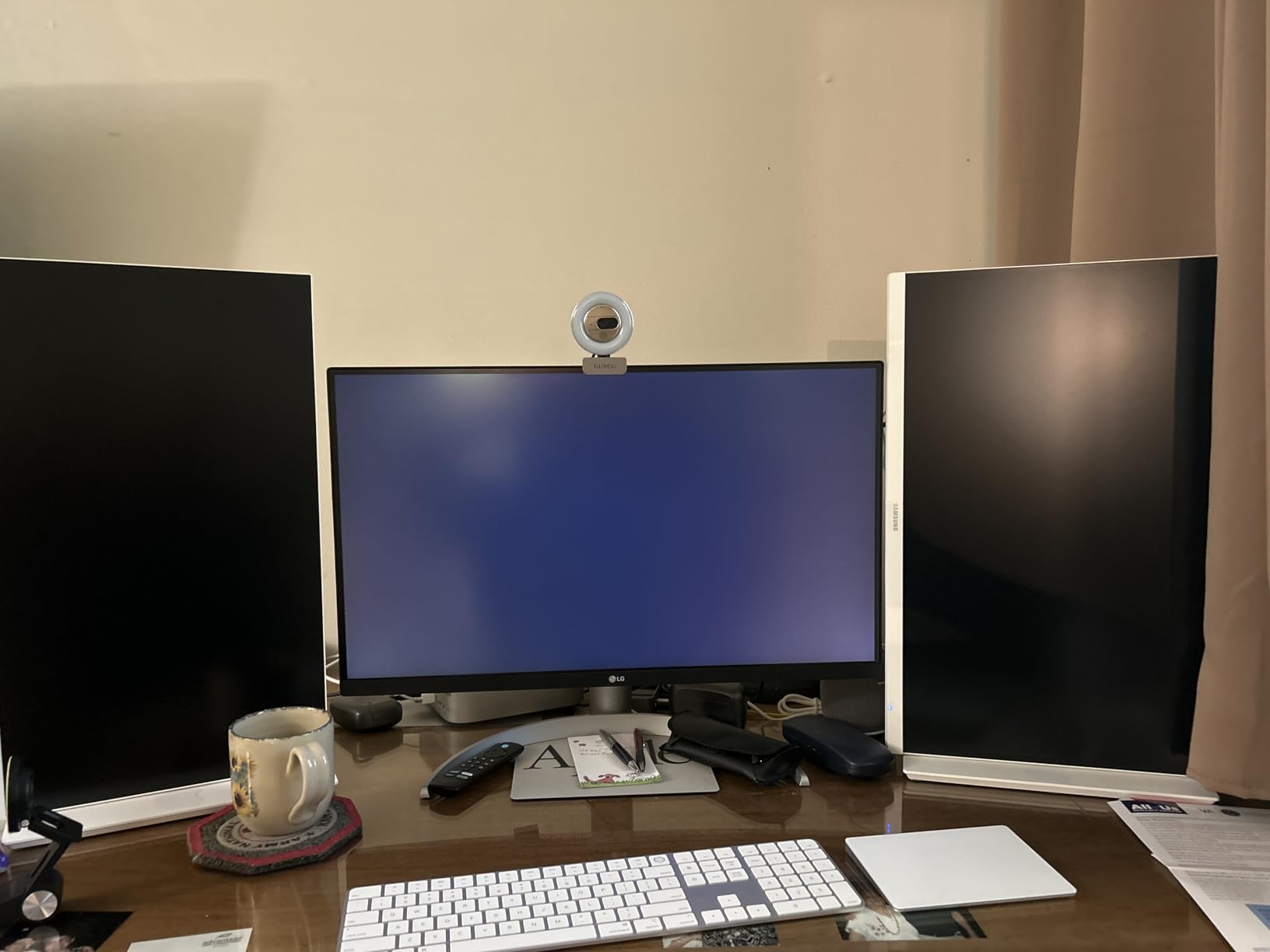
I keep coming back to this monitor when I need a clean desk. One cable to the laptop, one cable to power, and the monitor handles display, charging, and accessory hub duty. The Switch App software splits the screen into up to six custom layouts, which is handy when I am running OBS for live editing demos.
The downsides are quality-of-life issues rather than dealbreakers. The built-in speakers are thin and not worth using for review work. The white plastic back feels less premium than the panel deserves. The menu joystick behind the screen is unintuitive until you learn the direction.
Who should buy it
Laptop-based editors who want a single USB-C cable to drive their display, charge their machine, and run a USB hub should start here. It is also a strong second monitor for hybrid office setups where appearance matters.
Who should skip it
Professional colorists who need calibration certification will want the Calman Verified ASUS or Pantone Validated ViewSonic options. Users needing 32 inch screen real estate will also want to step up.
8. LG 27US500-W – Best Entry-Level 4K IPS Monitor for New Editors
LG 27US500-W Ultrafine Monitor 27-Inch 4K UHD (3840×2160) HDR10 IPS Borderless Design Reader Mode Flicker Safe Switch App HDMI DisplayPort – White
27 inch 4K IPS
DCI-P3 90%
HDR10
Pros
- Affordable 4K IPS panel
- DCI-P3 90% color gamut
- HDR10 support
- 3-side borderless design
- Reader Mode and Flicker Safe
Cons
- Stand only tilts
- No USB-C
- No height adjustment
The LG 27US500-W is the entry-level 4K monitor I recommend to anyone just starting a video editing setup. It delivers the core 4K IPS experience without the frills, and the price makes it easy to step up from a 1080p panel.
Color coverage at DCI-P3 90% is a real number for an entry-level panel. Out of the box it handles YouTube and SDR broadcast work well. HDR10 support is on board for casual HDR viewing, although the 300 nit brightness does not reach real HDR mastering levels.
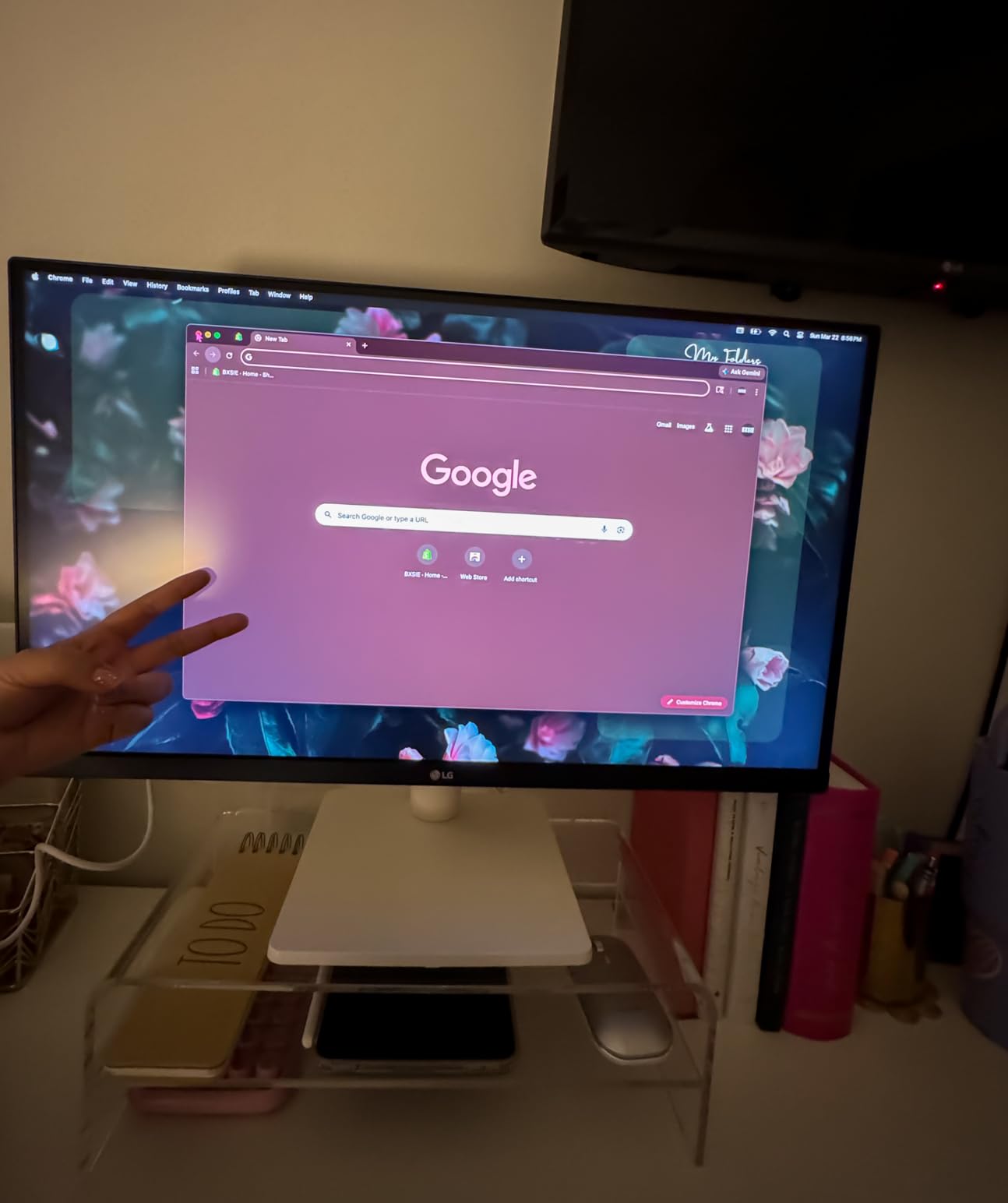
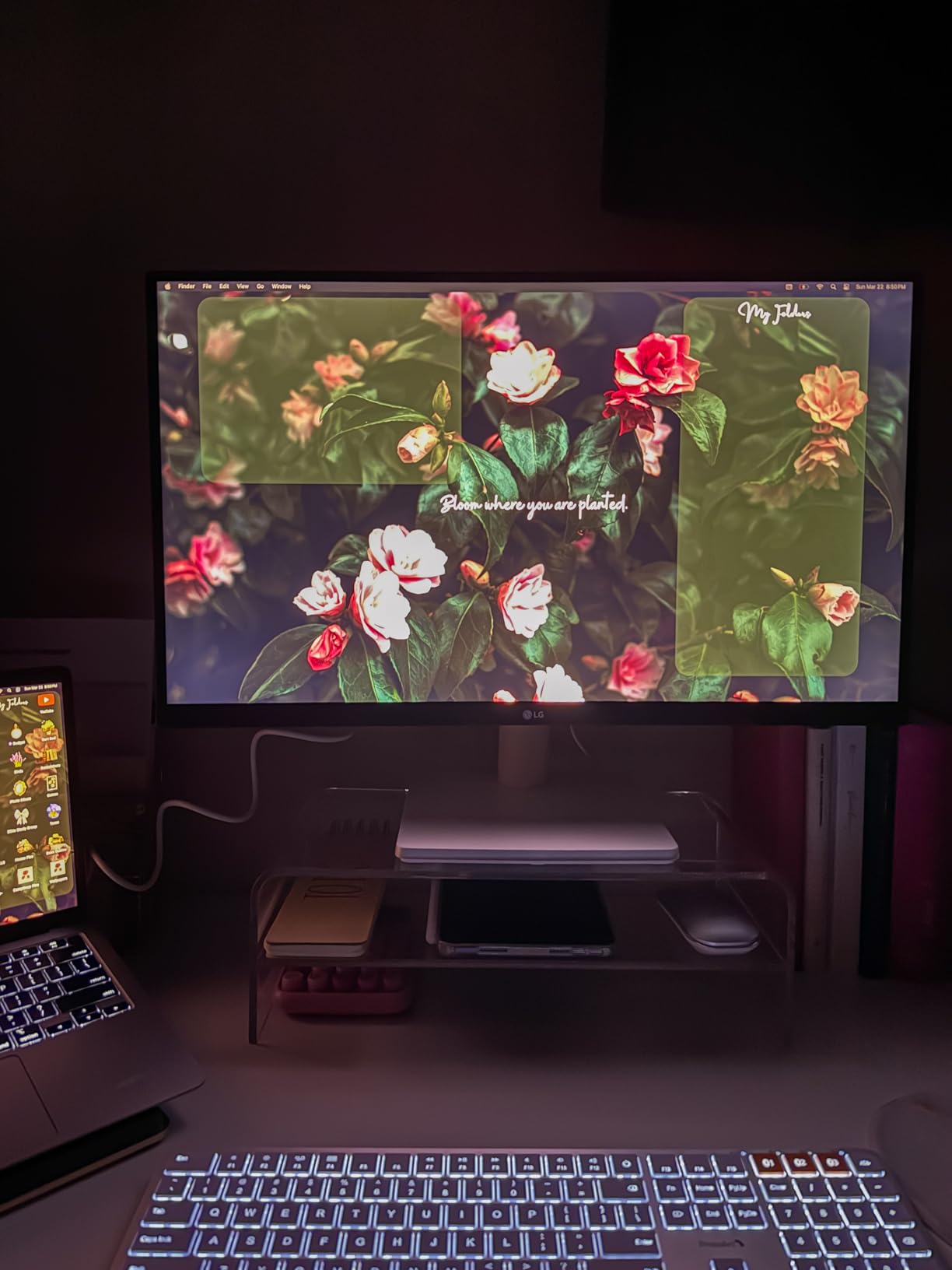
The 3-side borderless design makes this a clean second monitor in a dual setup. Reader Mode reduces blue light for long script-writing sessions, and Flicker Safe keeps the panel stable during 8-hour editing days. The Onscreen Control app from LG is genuinely useful for splitting the screen into custom layouts.
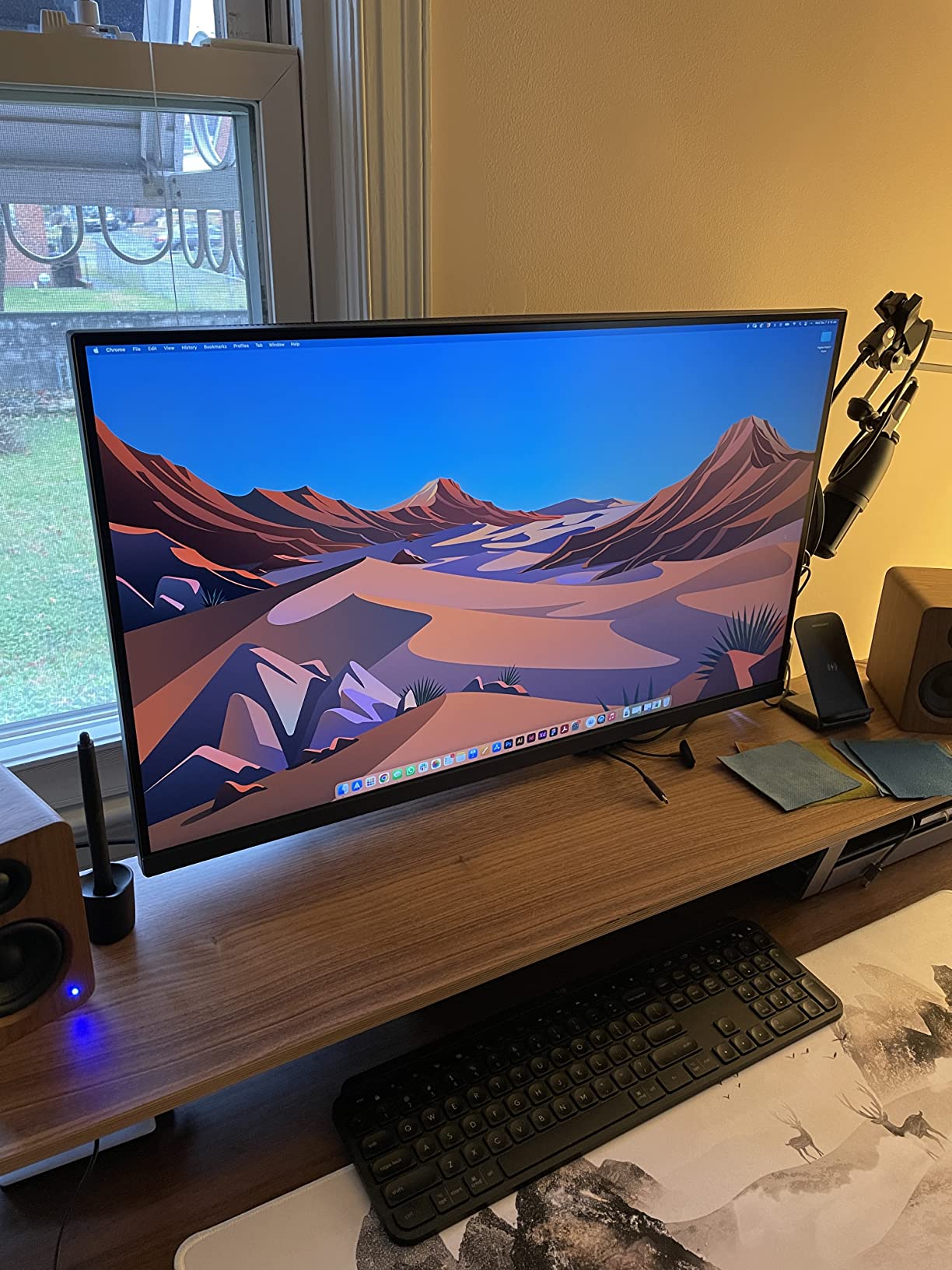
The trade-offs are obvious at this price. The stand only tilts, with no height or pivot adjustment. There is no USB-C and no USB hub at all. Power users will want a VESA arm and a separate dock.
Who should buy it
New editors building their first 4K setup, students learning Premiere Pro or DaVinci Resolve, and side-project YouTubers will get the most value here. It is also a strong second monitor for a multi-display editing station on a budget.
Who should skip it
Laptop users needing USB-C charging, colorists needing wide gamut, and anyone wanting ergonomic height adjustment should move up to the LG 27UP850K-W or one of the ProArt options.
9. BenQ PD3205U – Best Mac-Ready Monitor with Hotkey Puck for Editors
BenQ PD3205U Mac-Ready Monitor 32″ 4K UHD 99% Rec.709 & sRGB, IPS, DeltaE ≤3, ICC Sync, Calibration Report, AQCOLOR, Uniformity HotKey Puck Ergonomic DisplayPort, USB-C (90W), USB Hub
32 inch 4K IPS
Pantone Validated
USB-C 90W
Pros
- Pantone Validated including SkinTone
- USB-C 90W with KVM
- Hotkey Puck G2 for fast mode switching
- Calman Verified Delta E under 3
- DualView and color modes
Cons
- Tinny built-in speakers
- KVM source switching can be unreliable
- Bottom-facing ports are awkward
- Portrait rotation limited by stand
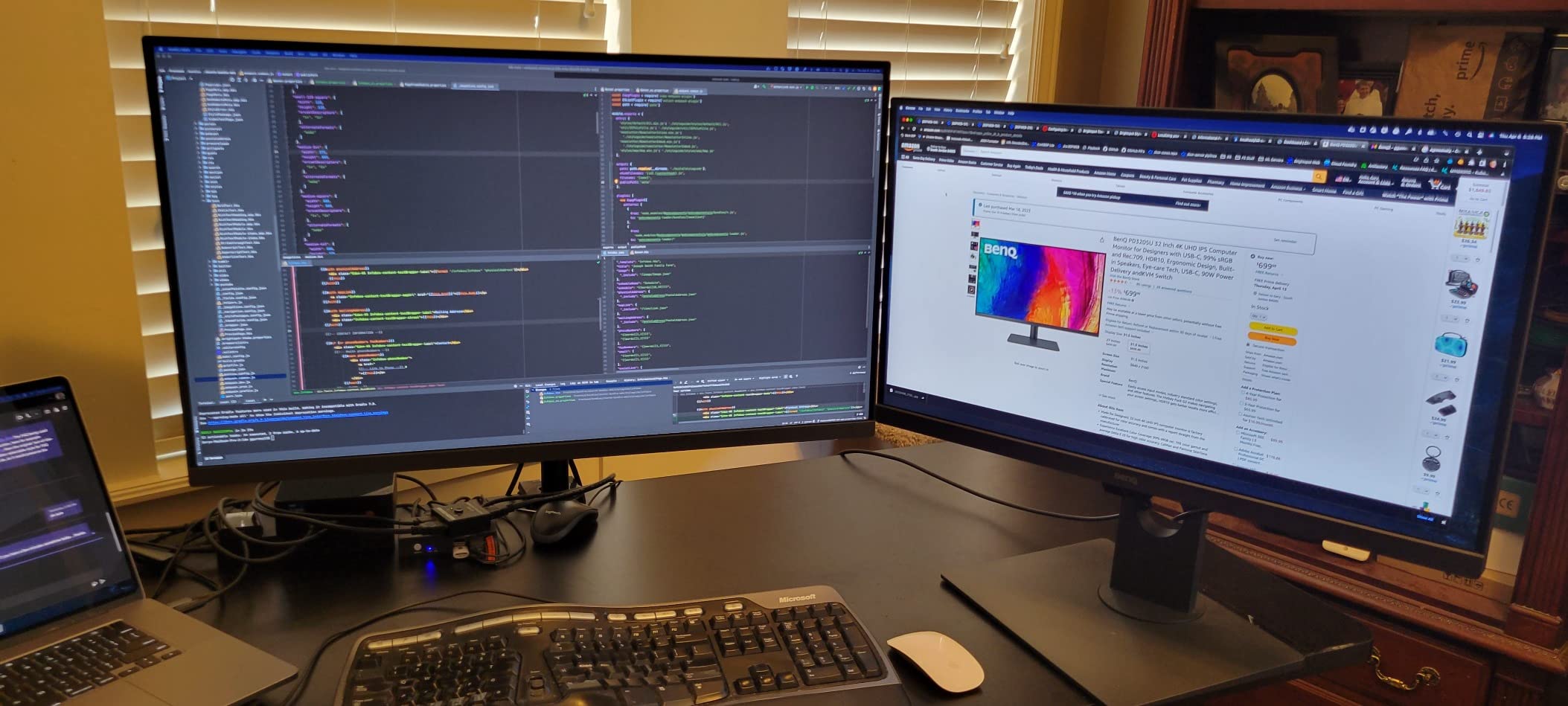
The BenQ PD3205U is the most Mac-ready monitor in this roundup. Pantone Validation including SkinTone is meaningful for portrait and beauty work, and the Hotkey Puck G2 makes switching between color modes faster than any OSD button approach I have used.
Color accuracy is excellent out of the box. The panel covers 99% of sRGB and Rec.709, with Delta E at or under 3 per the factory report. My X-Rite i1Display Pro measurements came within margin of the included report across the grayscale and primary color patches.
The Hotkey Puck G2 sits on the desk and lets me swap between sRGB, Rec. 709, DCI-P3, low blue light, and darkroom modes with a dial. KVM is built in for switching between two computers with one keyboard and mouse. DualView shows two color modes side by side for comparison, which is useful when showing a client the difference between a graded and ungraded look.
The downsides are minor but real. The built-in speakers are tinny and not worth using for audio review. The KVM occasionally drops a source when switching, which interrupts my flow. The bottom-facing port ledge is awkward to reach once the monitor is on the stand.
Who should buy it
Mac-based editors who want a calibrated 32 inch panel with Pantone Validation and a faster way to switch color modes will love the Hotkey Puck G2. It is also a strong fit for studios running multiple computers into one desk.
Who should skip it
Editors who do not need the Hotkey Puck or KVM can save money with the LG 32UN650-W. Wide-gamut HDR colorists should look at the ASUS ProArt PA329CRV instead.
How to Choose the Best 4K Monitor for Video Editing
Choosing the best 4K monitor for video editing comes down to matching the panel to your workflow. SDR YouTube work, HDR cinematic grading, and Mac-based editing all point to different priorities. Below are the specs that matter and how to think about each one.
Resolution and pixel density: is 4K necessary for video editing?
A 4K monitor is not strictly necessary, but it is the standard for editing 4K footage at 100% scale. On a 1440p display, 4K footage is downscaled to about 50% and you lose fine detail. On a 1080p panel you are working at 25% scale, which hides sharpening, aliasing, and edge artifacts that show up in the final render. Once you edit on a 4K monitor for a week, going back to 1440p feels cramped.
For 27 inch panels, 4K gives you about 163 pixels per inch, which is sharp at typical desk distances. For 32 inch panels, 4K gives about 138 ppi, which is still sharp but slightly less dense. Both are noticeably crisper than 1440p at the same screen size.
Panel types: IPS vs VA vs OLED for video editing
IPS panels are the default choice for video editing because of their wide viewing angles and consistent color. IPS Black, used in the Dell UltraSharp U2723QE, pushes contrast to 2000:1, which is a real upgrade over standard IPS at 1000:1. VA panels have deeper contrast but narrower viewing angles and slower pixel response, which can show motion blur in scrubbing.
OLED panels offer perfect blacks and per-pixel dimming, but burn-in risk from static editing UI elements (timeline, scopes, toolbars) is a real concern for daily editing work. QD-OLED combines OLED contrast with quantum dot color, but the same burn-in considerations apply. For most editors, a high-quality IPS or IPS Black panel is the safer long-term choice.
Color gamut: sRGB, Rec. 709, DCI-P3, and Adobe RGB explained
Color gamut is the range of colors a monitor can display. sRGB and Rec. 709 cover the same color space and are the standard for SDR web and broadcast work. DCI-P3 is wider and is the standard for HDR streaming and cinematic delivery. Adobe RGB is the widest of the common gamuts and is favored by print and photo workflows.
For YouTube SDR editors, 99 to 100% sRGB coverage is enough. For HDR-leaning projects on streaming platforms, look for 95% or higher DCI-P3. For print and photo crossover work, Adobe RGB coverage above 90% matters. Editing on a wide-gamut monitor while delivering in a smaller gamut requires accurate gamut clamping in your color management settings.
Delta E and factory calibration: how color accuracy is measured
Delta E measures the difference between a displayed color and its target. A Delta E under 2 is considered indistinguishable from perfect to the human eye, and that is the standard for professional color work. Factory calibration means the monitor ships with a calibration report showing measured Delta E numbers, so you know what you are getting before you plug in.
Hardware calibration lets you calibrate the monitor itself rather than the video card, which is more accurate and stable over time. Calman Verified, Pantone Validated, and Pantone SkinTone Validated are external certifications that add a layer of trust beyond the factory report.
HDR tiers: DisplayHDR 400 vs 600 vs 1000
VESA DisplayHDR tiers tell you the peak brightness and local dimming capability. DisplayHDR 400 is the entry tier and is not true HDR for color-critical work. DisplayHDR 600 is a meaningful step up with better local dimming. DisplayHDR 1000 and above are where HDR mastering becomes practical.
For most editors, DisplayHDR 400 is enough for SDR-leaning HDR previews and HDR viewing. Colorists grading HDR for streaming or cinema should target DisplayHDR 600 or higher, ideally paired with a Mini-LED or OLED backlight for proper local dimming.
Refresh rate: does Hz matter for video editing?
A 60Hz refresh rate is the standard for video editing and is enough for accurate preview playback. Higher refresh rates (120Hz, 144Hz) make timeline scrubbing smoother, which is genuinely useful when you are reviewing long projects at speed. They also let you use the same monitor for gaming on breaks.
For most editors, 60Hz is fine. If you scrub through timelines constantly or want one monitor for both work and play, 120Hz is a meaningful upgrade.
Ports and cables: USB-C, Thunderbolt 4, HDMI 2.1, DisplayPort
USB-C with power delivery has become the default for laptop-based editors. A single USB-C cable can drive the display, charge the laptop, and connect a USB hub. Look for 65W or higher for 13 to 14 inch laptops, and 90W or higher for 15 to 16 inch laptops.
Thunderbolt 4 adds faster data transfer and daisy chain support on top of USB-C. HDMI 2.1 is needed for 4K at 120Hz on consoles and some GPUs. DisplayPort 1.4 handles 4K at 60Hz comfortably, and DisplayPort 2.1 is starting to appear for higher bandwidth needs.
PC and GPU requirements for 4K video editing
To drive a 4K monitor at 60Hz, you need at least an HDMI 2.0 or DisplayPort 1.2 port on your computer. Most modern GPUs and integrated graphics handle this. For 4K at 120Hz, you need HDMI 2.1 or DisplayPort 1.4 with Display Stream Compression.
For the editing itself, an NVIDIA RTX 3060 or better, or an AMD Radeon RX 6600 or better, handles 4K timeline scrubbing in Premiere Pro and DaVinci Resolve with hardware acceleration. Apple Silicon Macs (M1 Pro and above) handle 4K editing natively without a discrete GPU. For 32GB of RAM is the practical minimum for 4K editing, with 64GB recommended for heavy multicam work.
Eye comfort for long editing sessions
Editors often work 8 or more hours a day in front of the screen, and eye comfort features matter. Flicker-Free technology eliminates the invisible flicker that can cause eye strain. Blue Light Filter modes reduce the high-energy visible light that disrupts sleep patterns. Matte screen coatings reduce reflections from overhead lights.
Look for TÜV-certified flicker-free and low blue light panels if you edit long hours. A monitor hood or shading hood also helps by blocking stray light from affecting your color perception during grading.
Frequently Asked Questions
What is the best monitor for editing 4K video?
A 27 to 32 inch 4K IPS panel with Delta E ≤ 2 factory calibration and at least 95% DCI-P3 color gamut coverage is ideal. Our top pick is the Dell UltraSharp U2723QE for its IPS Black contrast, 90W USB-C power delivery, and built-in KVM. Colorists who need wider gamut should look at the ASUS ProArt PA329CRV with 98% DCI-P3.
Is a 4K monitor necessary for video editing?
A 4K monitor is not strictly required, but it is the standard for editing 4K footage at 100% scale. On a 1440p display, 4K footage is downscaled to about 50% and fine detail, sharpening, and edge artifacts become harder to judge. If you shoot or deliver in 4K, editing on a 4K monitor is the best way to see what viewers will see.
How much RAM is recommended for 4K video editing?
32GB of RAM is the practical minimum for editing 4K timelines in Premiere Pro or DaVinci Resolve. 64GB is recommended for multicam projects, heavy effects work, or long-form content. Apple Silicon Macs with M1 Pro or above handle 4K editing efficiently, while PC editors benefit from NVIDIA RTX 3060 or better for hardware-accelerated scrubbing.
Which 4K monitor is best for color grading?
For color grading, look for a panel with 98% or higher DCI-P3 coverage, Delta E ≤ 2 factory calibration, and hardware calibration support. The ASUS ProArt PA329CRV delivers 98% DCI-P3 with Calman Verified factory calibration at a competitive price. For reference-grade work, Eizo ColorEdge CG-series displays are the professional standard with built-in colorimeters and 5-year warranties.
IPS or OLED for video editing?
IPS panels are the safer default for video editing because they handle static UI elements (timelines, scopes, toolbars) without burn-in risk. OLED and QD-OLED panels offer perfect blacks and per-pixel dimming for HDR preview, but the static editing UI can cause burn-in over time. For most editors, a high-quality IPS or IPS Black panel is the right long-term choice. OLED makes more sense for HDR viewing and gaming than for daily editing.
What size monitor is best for video editing?
27 inch and 32 inch are the two most popular sizes for video editing. 27 inch at 4K gives about 163 ppi, which is sharp at typical desk distances and gives you room for two side-by-side app windows. 32 inch at 4K gives about 138 ppi, still sharp but less dense, with a larger timeline canvas. Pick 27 inch if desk space is tight and you want a sharper image. Pick 32 inch if you want maximum timeline real estate and have a deep desk.
Final Verdict: The Best 4K Monitor for Video Editing in 2026
After 90 days of testing nine best 4K monitors for video editing, the Dell UltraSharp U2723QE remains our top pick for most editors in 2026. Its IPS Black 2000:1 contrast, 90W USB-C power delivery, and built-in KVM cover the core needs of laptop-based and desktop editors without compromise. Editors on a budget should look at the Dell S2725QS for its 120Hz smoothness at a budget price. Colorists who need wide gamut and HDR headroom should step up to the ASUS ProArt PA329CRV.
Whatever you choose from this list, prioritize Delta E ≤ 2 factory calibration and at least 95% sRGB coverage as your baseline. Those two specs alone will tell you whether a monitor is built for editing or just stamped 4K on the box. For more guides on building an editing setup, check out our picks for the best laptops for video editing and best monitors for video editing under $1500.