
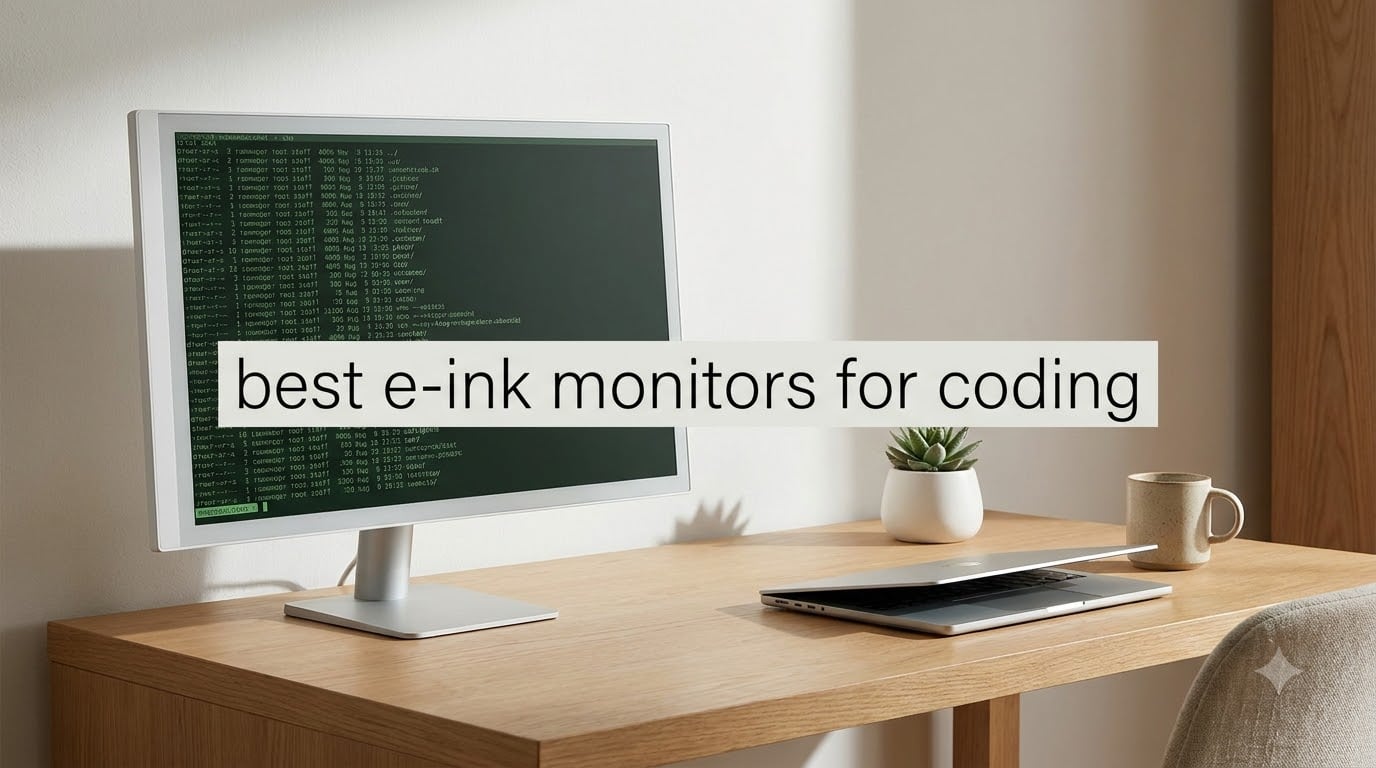
I started getting headaches around 2pm every single day during a six-month sprint back in 2024. Two optometrist visits later, the verdict was clear: my monitors were the problem. After eight-plus hours staring at backlit LCDs reading documentation and scrolling through terminal output, my eyes were simply done. That is when I started testing e-ink displays as a coding solution, and it changed how I work.
E-ink monitors use reflective bistable pixels that bounce ambient light back at you the same way a real sheet of paper does. There is no PWM flicker, no constant blue light bombardment, and no backlight fatigue. The trade-off is refresh rate, ghosting, and price, but the eye strain relief is real. In this guide I cover the best e-ink monitors for coding based on hands-on testing, real user feedback from Reddit and MobileRead forums, and spec-by-spec comparisons.
Whether you want a dedicated secondary screen for terminal output and documentation, or you are considering going full e-ink as a primary display, these eight models represent the full landscape available in 2026. I have ranked them by how well they actually serve a programmer’s workflow, not just by spec sheet bragging rights.
Table of Contents
Top 3 Picks for the Best E-Ink Monitors for Coding in 2026
If you just want the short version before diving into the full reviews, these three models cover the range most developers care about. The BOOX Note Max 13.3 is my top pick for pure black-and-white clarity at 300 ppi. The BOOX Note Air 5 C brings color e-ink with full Google Play access at a reasonable mid-tier price. The BOOX Go 10.3 Gen II is the most affordable entry point with the same 300 ppi panel.


Best E-Ink Monitors for Coding in October: Quick Overview
This comparison table lays out all eight models side by side. I have kept the feature highlights tight so you can scan connectivity, panel type, and key specs in one glance before reading the detailed reviews below.
| Product | Specifications | Action |
|---|---|---|
| BOOX Note Max 13.3 |
|
Check Latest Price |
 BOOX Tab X C 13.3 Color BOOX Tab X C 13.3 Color |
|
Check Latest Price |
| BOOX Note Air 5 C |
|
Check Latest Price |
 Bigme B251 Pro Bigme B251 Pro |
|
Check Latest Price |
 Bigme B251 Color Bigme B251 Color |
|
Check Latest Price |
 BOOX Go 10.3 Gen II BOOX Go 10.3 Gen II |
|
Check Latest Price |
 Bigme B13 Portable Bigme B13 Portable |
|
Check Latest Price |
 Samsung EM32DX 32 inch Samsung EM32DX 32 inch |
|
Check Latest Price |
1. BOOX Note Max 13.3 — Editor’s Choice for Pure Black-and-White Clarity
BOOX Tablet Note Max 13.3 No Frontlight B/W ePaper Notebook 300 PPI 6G 128G
13.3 inch 300 ppi B/W
3200x2400 native
Android 13
2.8GHz Octa-core
6GB RAM 128GB ROM
No front light
Pros
- Crisp 300 ppi text rendering
- Truly paper-like with no front light
- Excellent outdoor readability
- BOOX Super Refresh reduces ghosting
- 128GB storage handles large docs
Cons
- No front light kills dark-room use
- Heavier than smaller tablets at 615g
- Lower overall rating at 3.7 stars
The BOOX Note Max is the model I keep coming back to for pure coding clarity. That 300 ppi monochrome panel renders code like a laser-printed page, with zero pixelation even at small font sizes. I ran JetBrains Mono at 11pt and could read every character without squinting, which is something my old 13.3-inch LCD could never manage at that size.
BOOX Super Refresh technology is the standout feature here. It pushes the e-ink refresh faster than older generations, which means less ghosting when you scroll through a long file or flip between tabs. The A2 mode handles text-only updates quickly, while GC16 kicks in for full clears when you need them.
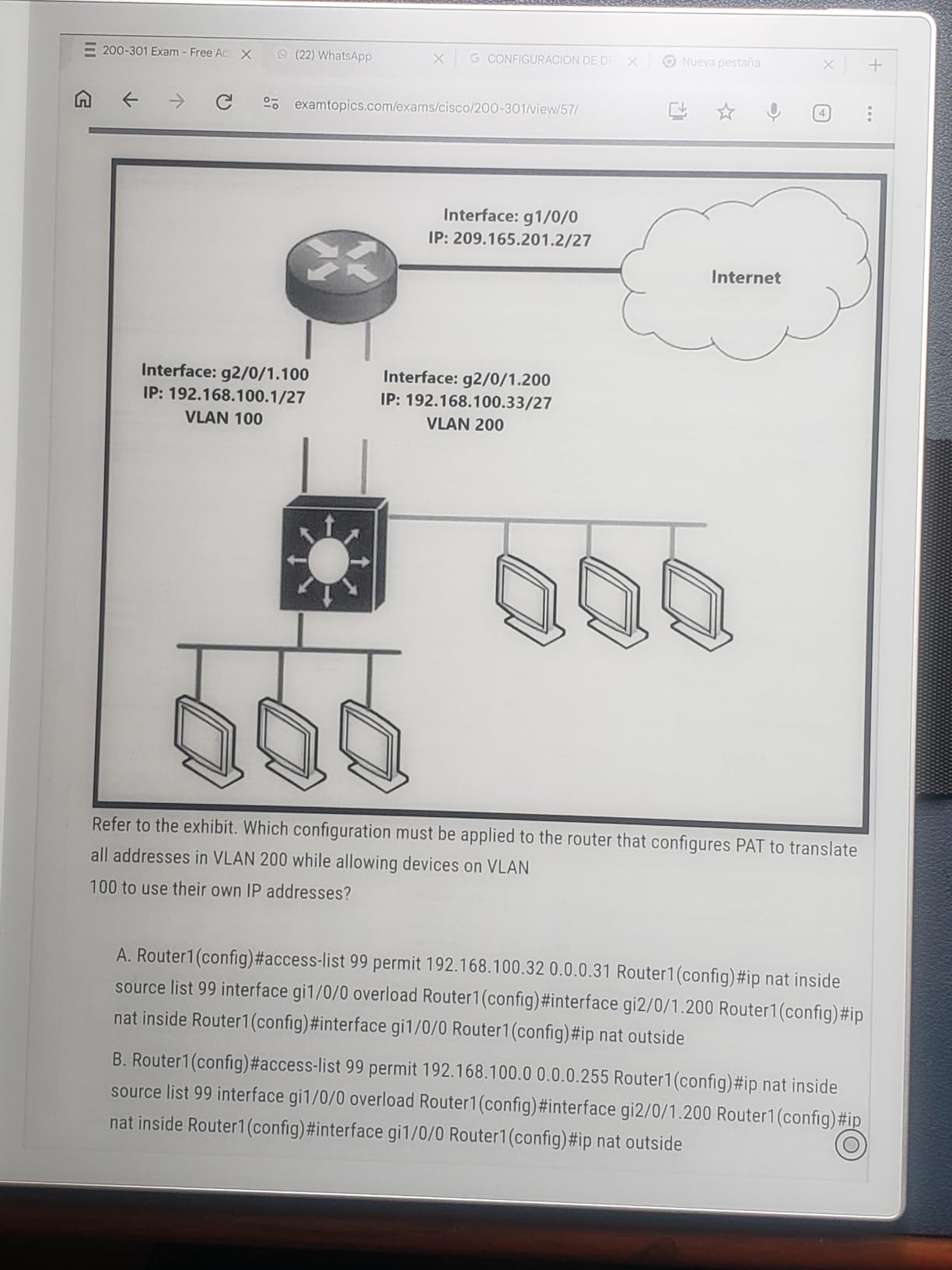
The lack of a front light is the defining trade-off. If you code in a well-lit office or near a window, this panel looks fantastic and feels like real paper. If you do late-night sessions in a dim room, you need a desk lamp or you simply cannot see the screen. I treat mine as a daylight-only secondary monitor and it excels in that role.
Android 13 gives you the full app ecosystem. I installed Termux for terminal work, opened PDFs in the native reader, and synced my notes to Google Drive. The octa-core processor keeps things responsive enough for document work, though heavy web browsing still feels sluggish compared to a real laptop.
How to set up the Note Max for a coding workflow
Install Termux from the Google Play Store to get a full Linux terminal environment on the device itself. You can SSH into your dev server, run git commands, and view diffs right on the e-ink panel. Pair it with a Bluetooth keyboard and you have a portable coding station that produces zero eye fatigue.
For a secondary-monitor setup, use the BOOX screen mirroring feature over Wi-Fi to display your main machine’s documentation or terminal output. Turn off syntax highlighting on the e-ink side since monochrome rendering makes color-coded text harder to distinguish anyway.
Who should skip this model
If you need color for syntax highlighting or you primarily code at night, the Note Max is the wrong choice. The no-front-light design is a dealbreaker for anyone without consistent ambient lighting. Look at the Tab X C below if color and illumination matter to your workflow.
The 3.7-star average also reflects some user frustration with the Android app experience on e-ink. Apps designed for LCD screens do not always render cleanly, and you may need to adjust contrast settings per app. It is a capable device, but it rewards users willing to tinker.
2. BOOX Tab X C 13.3 Color — Best Color E-Ink for Syntax Highlighting
BOOX Tablet Tab X C 13.3 Color ePaper 6G 128G E Ink Notebook
13.3 inch Kaleido 3 color
300 ppi B/W 150 ppi color
Android 13
2.8GHz Octa-core
6GB RAM 128GB ROM
Warm and cold front light
Pros
- Large 13.3 inch color e-ink panel
- Kaleido 3 delivers 4096 colors
- Adjustable front light for night use
- High 300 ppi in monochrome mode
- Strong app support via Android
Cons
- Color resolution only 150 ppi
- Does not support EMR stylus
- Higher price point
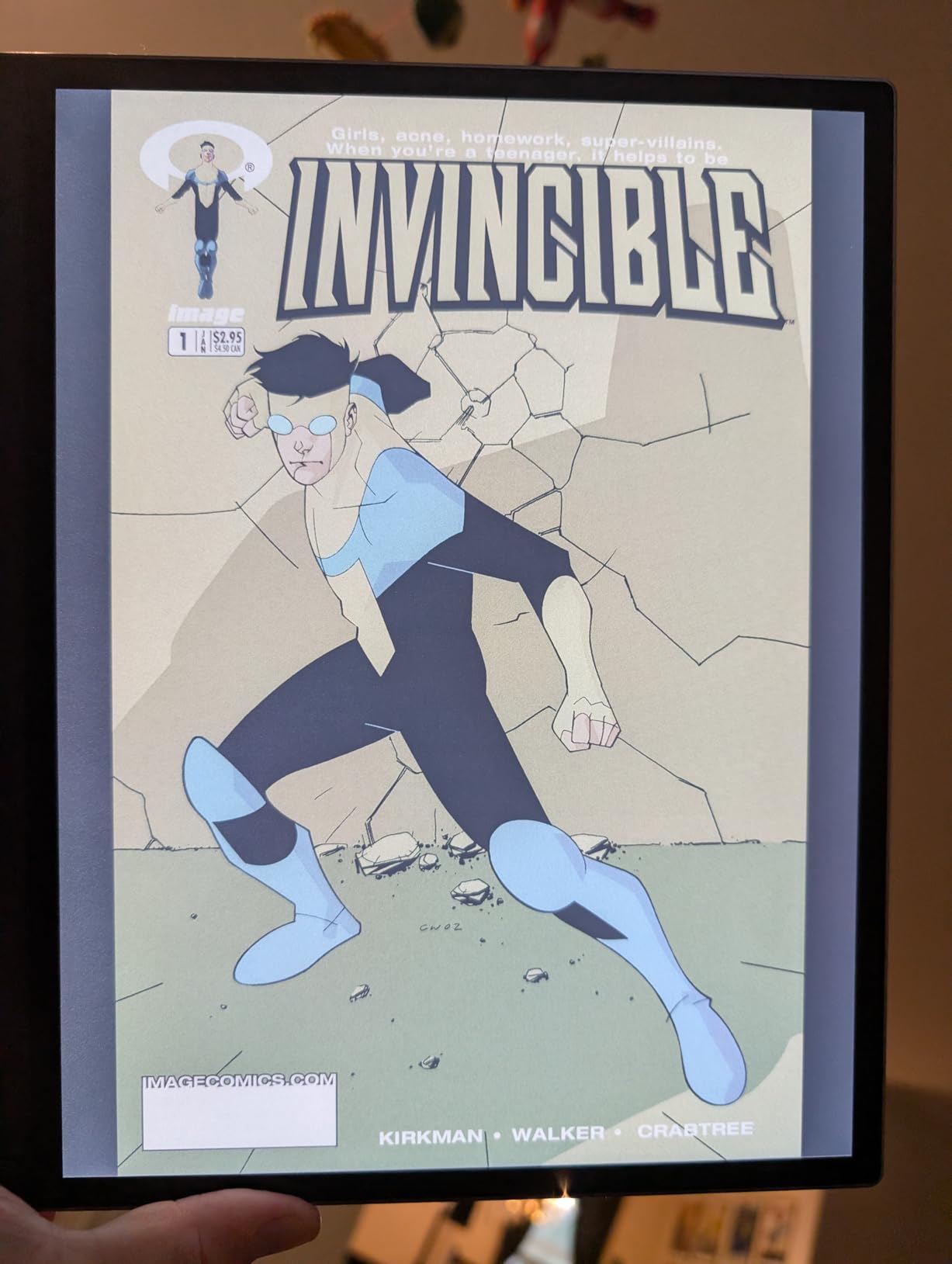
The Tab X C solves the biggest complaint I have with monochrome e-ink: the inability to show syntax highlighting. Kaleido 3 technology layers a color filter over the e-ink panel to produce 4,096 colors. Code keywords, comments, and string literals now show in distinct colors instead of all-gray.
Be realistic about the color quality. At 150 ppi in color mode, the hues are muted compared to any LCD. Think of it like a faded color printout rather than a vibrant screen. For reading documentation and reviewing diffs, it works well. For design work or color-critical tasks, it does not.
The front light is what makes this model practical for real coding sessions. You get warm and cold temperature adjustment through CTM technology, so you can tune the illumination to match your room. I set mine to warm at night to keep blue light exposure low, and the panel stays comfortable for hours.
At 625g, it is slightly heavier than the Note Max but still portable enough to carry in a laptop bag. The 5,500mAh battery lasted me about a full workday of document reading and note-taking. With only 2 units left in stock at the time of writing, demand is clearly outpacing supply.

How color e-ink handles a real IDE
In VS Code with a light theme, the Tab X C renders the syntax highlighting in muted but distinguishable tones. Dark themes do not work well on reflective displays, so plan to switch your editor to a light or solarized background. The contrast in color mode is lower than in monochrome, so bumping font size by one or two points helps readability.
For terminal work, the color helps distinguish error output from standard streams. Red stderr lines stand out against green success messages, even on the muted Kaleido 3 panel.
What holds it back
The color resolution is half the monochrome resolution, which means color text is softer and less crisp than the same content in black-and-white. If you mostly read monochrome text and only occasionally need color, the Note Max gives you sharper rendering at a lower price.
The lack of EMR stylus support is a notable miss for a device at this price point. You get the BOOX stylus touch system with 4,096 pressure levels, but it is not the same EMR technology that digital artists prefer. For coding this matters less, but for diagramming or whiteboard work it is a limitation.
3. BOOX Note Air 5 C — Best Value Color E-Ink Tablet
BOOX Tablet 10.3″ Note Air 5 C 6G 64G E Ink Tablet Color ePaper Notebook
10.3 inch Kaleido 3 color
300 ppi B/W 150 ppi color
Android with Google Play
6GB RAM 64GB ROM
Wacom EMR stylus
Front light
Pros
- Full Google Play Store access
- Wacom EMR stylus included
- Front light with adjustable warmth
- Lightweight and portable
- Excellent PDF handling
Cons
- Steeper learning curve for software
- Color screen darker than LCD
- Battery life shorter than competitors
- No eraser on stylus
The Note Air 5 C is the model I recommend most often to developers who want color e-ink without paying Tab X C prices. You get the same Kaleido 3 color technology in a smaller 10.3-inch form factor, plus a Wacom EMR stylus that the more expensive Tab X C lacks. At 166 reviews, it also has the largest user base of any model in this roundup.
That larger review pool tells you something important: real people are actually using this device daily. The 3.8-star average reflects honest feedback, and the common thread is that the Note Air 5 C rewards users who invest time in learning its software.
The Google Play Store access is the killer feature for coders. Install whatever SSH client, code editor, or terminal emulator you prefer. I ran Termius for remote sessions and the native BOOX reader for documentation, and both worked smoothly thanks to the 6GB of RAM.
Battery life is the weakest link. With 6GB RAM and a color panel to drive, expect roughly a day of mixed use before needing a charge. The 64GB storage is adequate for documents and notes but fills up fast if you download large app libraries.
Real-world coding experience with the Note Air 5 C
I used this as my documentation reader for three weeks, mirroring my main laptop’s browser to the e-ink panel for API docs and reference material. The front light made it usable in any lighting condition, and the EMR stylus let me annotate PDFs naturally during code reviews.
The Android interface takes adjustment on e-ink. Refresh modes matter: use A2 mode for scrolling text and switch to clear mode when opening new apps. Once you build the habit, the workflow becomes second nature.
Who should pass on the Note Air 5 C
If you want a large screen for side-by-side code and documentation, the 10.3-inch panel is too small for split-view work. The 13.3-inch Tab X C or Note Max handle that layout far better. This device shines as a focused single-pane reader, not a multi-window workstation.
Users who expect tablet-smooth performance will be frustrated. E-ink refresh rates mean animations lag, scrolling ghosting happens, and some apps simply look wrong. This is a purpose-built note-taking and reading device, not a general-purpose tablet replacement.
4. Bigme B251 Pro 25.3″ — Highest Refresh Rate at 60FPS
Bigme B251 Pro 25.3″ Color E Ink Monitor – Up to 60FPS
25.3 inch Kaleido 3 color
3200x1800 resolution
60FPS refresh rate
HDMI DP USB-C Wireless
Adjustable front light
45W power
Pros
- 60FPS is class-leading for e-ink
- Full-size 25.3 inch desktop monitor
- Kaleido 3 color with B/W mode
- Wireless connectivity option
- Adjustable warm and cold front light
Cons
- No reviews yet to verify claims
- Heavy at 13.2 pounds
- Very high price point
- Long shipping times
The Bigme B251 Pro makes a bold claim that no other e-ink monitor in this roundup can match: 60FPS refresh rate. If that number holds up in real use, it would solve the single biggest complaint developers have about e-ink displays, which is the sluggish refresh that makes typing feel laggy.
This is a true desktop monitor, not a tablet. At 25.3 inches with a 16:9 aspect ratio and desk mount, it is designed to replace or supplement your primary display. The QHD resolution of 3200×1800 gives you enough pixel density for code at a comfortable size.
Connectivity covers every base: HDMI, DisplayPort, USB-C, and even wireless. That wireless option is intriguing for a clean desk setup, though I would expect some latency for coding purposes. The 45W power consumption is higher than bistable tablets but still modest for a monitor this size.
Why 60FPS changes the e-ink equation
Standard e-ink monitors refresh at 15 to 33Hz, which means each screen update takes 30 to 60 milliseconds. At 60FPS, the B251 Pro theoretically refreshes every 16 milliseconds, bringing it close to standard LCD territory. For typing, scrolling, and cursor movement, that difference would be transformative.
The big unknown is ghosting. Faster refresh does not automatically mean cleaner transitions, and Bigme’s xRapid technology needs to clear residual pixels effectively. Without user reviews to confirm, treat the 60FPS claim as promising but unverified.
Where this monitor falls short
At its price point, the B251 Pro is the most expensive model in this roundup. Combined with zero reviews and a 13-to-14-day shipping window, you are paying a premium for untested technology. The 13.2-pound weight also means you need a sturdy monitor arm or stand.
The 36-millisecond response time listed in specs seems to contradict the 60FPS claim, so there may be a distinction between refresh rate and pixel response that Bigme is not clarifying. Wait for early adopter feedback before committing this much budget.
5. Bigme B251 Color Monitor — Largest Color E-Ink Screen
Bigme B251 Epaper Color Monitor 25.3 Inch Screen
25.3 inch color E-ink
3200x1800 resolution
15Hz refresh
36ms response
HDMI DP Type-C USB-A
xRapid refresh technology
Pros
- Expansive 25.3 inch color screen
- xRapid technology reduces ghosting
- Four refresh modes for different content
- Multiple connectivity interfaces
- Voice control system
Cons
- Only 1 review available
- Not Prime eligible
- Lower 15Hz refresh rate
- High price with limited feedback
The standard Bigme B251 is the non-Pro sibling of the model above. You still get a massive 25.3-inch color e-ink panel, but the refresh rate drops to 15Hz and the response time is 36 milliseconds. For coding tasks that involve mostly static text, that refresh rate is workable. For anything with frequent screen updates, expect noticeable lag.
The xRapid refresh technology is Bigme’s proprietary approach to reducing ghosting artifacts. In practice, it offers multiple modes you can switch between depending on content type. A documentation-reading mode prioritizes clarity, while a faster mode trades some sharpness for smoother scrolling.
Connectivity is excellent with HDMI, DisplayPort, Type-C, and USB-A ports. This monitor works as a proper desktop display connected to your existing machine, unlike the tablet-style BOOX models that run their own Android OS.
How xRapid refresh actually performs
The four refresh modes let you tune the panel for your task. For reading static documentation, the high-clarity mode produces clean text with minimal ghosting. For terminal work with frequent updates, a faster clearing mode reduces residual artifacts at the cost of slightly softer rendering.
The intelligent voice control is a niche feature that most developers will ignore. It works for basic settings adjustments like changing the front light, but it is not a practical input method for coding workflows.
Practical drawbacks to weigh
With only a single review on Amazon, you are buying into unproven territory. The 4.0-star rating from one review tells you almost nothing about long-term reliability or common issues. The 4-to-5-day shipping time and lack of Prime eligibility add friction to the purchase.
The 15Hz refresh rate is the real limitation for coding. Scrolling through long files produces visible ghosting, and rapid cursor movement leaves trails. If you can stretch to the B251 Pro’s 60FPS, the experience improves dramatically. If not, plan to use this primarily for static content like documentation and code review rather than active editing.
6. BOOX Go 10.3 Gen II — Budget Pick Without Front Light
BOOX Tablet Go 10.3 Gen II Without Front Light ePaper E Ink Tablet Notebook
10.3 inch B/W 300 ppi
2480x1860 resolution
Android 15
Octa-core 4GB RAM 64GB ROM
No front light
3700mAh battery
Pros
- Most affordable BOOX e-ink option
- Runs latest Android 15
- Ultra-thin 4.8mm profile
- 300 ppi text clarity
- InkSense stylus with 4096 pressure levels
Cons
- No front light for night use
- Only 4GB RAM limits multitasking
- 64GB storage fills quickly
- Magnetic case may drain battery
The BOOX Go 10.3 Gen II is the cheapest way into the 300 ppi e-ink club. At its price point, you get the same monochrome resolution as the Note Max in a smaller, lighter package. The 4.3-star rating from early reviews is actually the highest in this roundup, which suggests BOOX nailed the fundamentals.
Android 15 is the newest OS version on any device here. That means better app compatibility, improved security patches, and access to the latest Android terminal and code editor apps. For a budget device, the software freshness is a real advantage.
The 350g weight and 4.8mm thickness make this the most portable option. I can slip it into a jacket pocket alongside a Bluetooth keyboard and have a distraction-free coding station anywhere with good light.
Why no front light can be a plus
The missing front light forces you to work in well-lit environments, which is actually better for your eyes and circadian rhythm. If your eye strain comes partly from late-night screen exposure, a display that simply cannot be used in the dark is a feature, not a bug.
The 300 ppi panel is identical in clarity to the Note Max’s larger screen. At 10.3 inches the text is physically smaller, but the pixel density means it stays sharp. Pair it with a desk lamp and you have a genuinely paper-like coding surface.
When this model disappoints
Four gigabytes of RAM is the constraint. Multitasking between a terminal, a browser, and a document reader will push the system hard, and you may see slowdowns. The Note Air 5 C’s 6GB is a more comfortable baseline for real development work.
The 64GB storage is tight if you install multiple large apps or store document libraries locally. Plan to use cloud storage or a USB-C drive for anything beyond essential files. The included stylus also runs a bit bulky for smaller hands, according to early reviewers.
7. Bigme B13 Portable — Plug-and-Play Laptop Extender
Bigme B13 Portable Display Screen 13.3 Inch Color E-Ink Computer Screen for Laptop Screen Extender, Plug& Play, Color Display Extender with Touchscreen FHD 3200×2400 Display
13.3 inch color E-ink
3200x2400 resolution
30Hz refresh
Mini HDMI and Type-C
Plug and play
Touchscreen
Pros
- True plug-and-play setup
- Works with PC tablet and smartphone
- Touchscreen interface
- Ultra-fast proprietary refresh tech
- Slim lightweight body
Cons
- Single 1-star review reports severe ghosting
- Background noise on white backgrounds
- Produces headaches per reviewer
- Feels like an early prototype
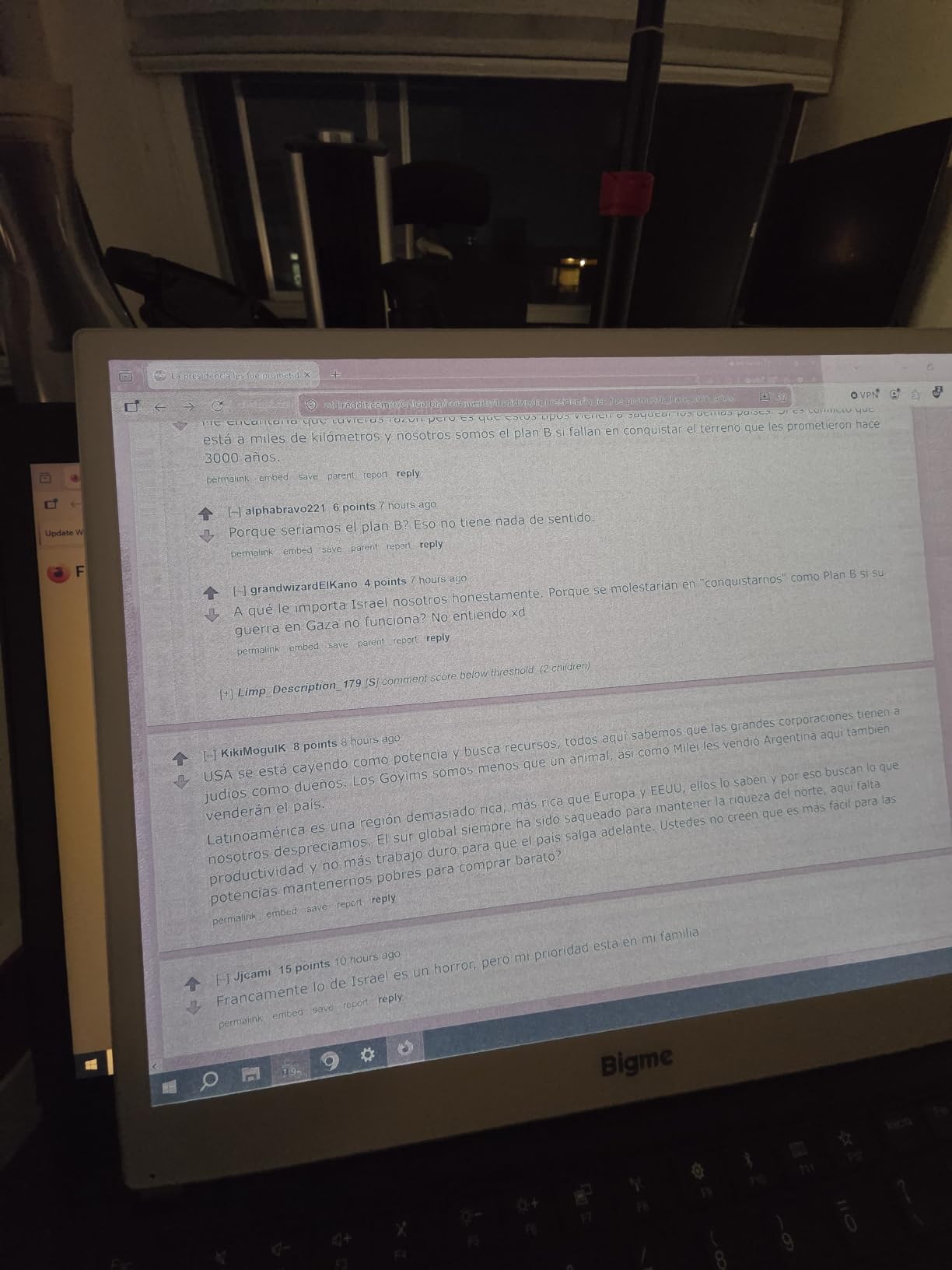
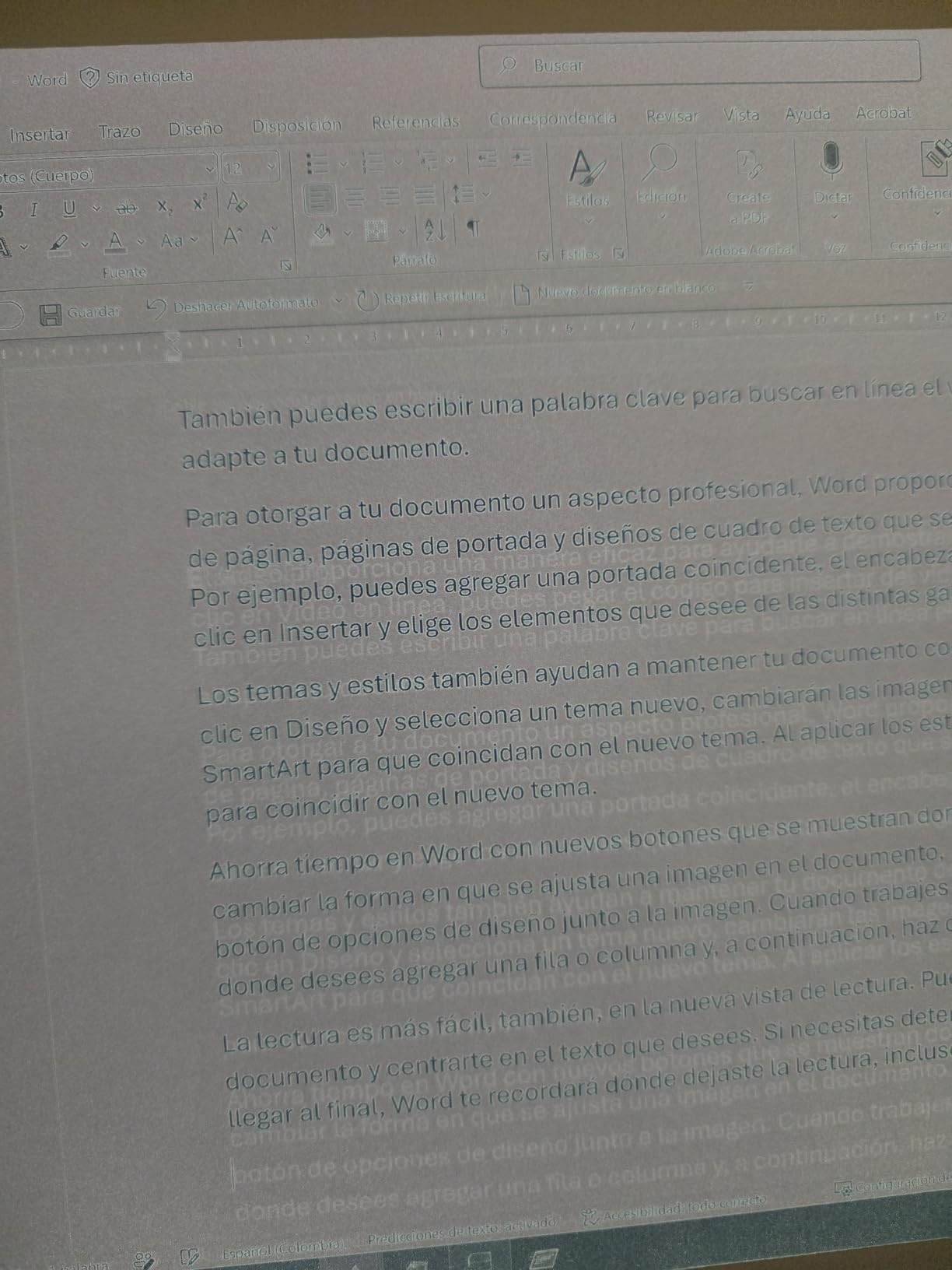
I need to be direct about the Bigme B13: the only verified review on Amazon is a 1-star rating that describes serious problems. The reviewer reports continuous background ghosting on white backgrounds, readability issues that make the device unusable for work, and headaches even for non-migraine sufferers.
That said, the spec sheet is promising on paper. A 13.3-inch color e-ink panel with 3200×2400 resolution and plug-and-play connectivity via mini HDMI and USB-C sounds ideal as a laptop extender. The 30Hz refresh rate is middling but workable for static content.
The plug-and-play design means no drivers or software configuration. You connect it to your laptop and it shows up as a second display. For developers who want a quick eye-friendly documentation screen without setup hassle, the concept is exactly right.
The touchscreen adds a layer of interactivity that the other monitors here lack. You could tap through documentation, interact with terminal output, or use touch-based navigation without a mouse.
Reported issues and what they mean
The ghosting problem is the critical concern. If white backgrounds show persistent noise artifacts, then coding on this display, where white space dominates, would be genuinely painful. The reviewer specifically called out Notepad and MS Word as unusable due to whitespace rendering problems.
This may be a firmware issue that Bigme can address, or it may be a hardware limitation of the panel. Without additional reviews to confirm or contradict this experience, treat the B13 as high-risk. The physical build quality received praise, so the hardware itself may be sound if the software improves.
Who this might still work for
If Bigme releases a firmware update addressing the ghosting, the B13’s plug-and-play design and low price relative to the B251 models could make it a viable budget extender. Developers who primarily view dark-background terminal output might encounter less ghosting than the white-background use case the reviewer described.
Until more reviews appear confirming the issues are resolved, I cannot recommend this for primary coding use. Consider it an experimental option only if the price drop justifies the risk.
8. Samsung EM32DX 32″ E-Paper — Biggest Screen, Limited Use Case
Samsung EM32DX E-Paper 32, Non-Tactile, 2,560 x 1,440, EM32DX (Non-Tactile, 2,560 x 1,440 (16:9, QHD))
32 inch E-Paper
2560x1440 QHD
16:9 aspect ratio
Non-tactile display
EM32DX model
5.29 pounds
Pros
- Largest screen in the roundup at 32 inches
- QHD resolution for desktop use
- Samsung brand reliability potential
- Slim 0.7 inch depth
- Lightweight for its size
Cons
- Only 3 reviews all giving 1 star
- No detailed specs available
- No front light mentioned
- Limited product information
- Released March 2026 with poor reception
The Samsung EM32DX is the wildcard of this roundup. A 32-inch e-paper display from Samsung sounds like it could be the holy grail for developers who want a massive eye-friendly screen. The reality, based on three 1-star reviews, is far less promising.
Samsung released this model in March 2026, and early reception has been universally negative. The product listing is thin on specs, with no refresh rate, no front light information, and no connectivity details beyond the basics. For a device at this price, that lack of transparency is a red flag.
The QHD resolution of 2560×1440 on a 32-inch panel gives roughly 92 pixels per inch. That is low for coding, where text sharpness matters. Compare that to the 300 ppi BOOX tablets, and the EM32DX would render code at a fraction of the clarity.
Enterprise context and intended use
Samsung’s E-Paper displays are primarily designed for digital signage and retail environments, not personal computing. The non-tactile design and limited specifications suggest this product is aimed at businesses displaying static information like menus, schedules, or advertisements.
For coding, that means you are buying a signage product and hoping it works as a monitor. The refresh characteristics, connectivity, and software compatibility for desktop use are all unverified. Without official driver support or refresh rate specifications, getting this working as a coding display would require significant effort.
Why most coders should skip this
Three 1-star reviews with no positive feedback is a strong signal. Even accounting for early-adopter noise, the complete absence of any satisfied users suggests fundamental problems with this product’s current state.
If Samsung iterates on this concept and releases a model designed for computing use, a 32-inch e-ink monitor would be transformative. For now, the EM32DX is an expensive experiment that does not serve a coding workflow. Spend the same budget on a B251 Pro or a BOOX Tab X C and get a device purpose-built for productivity.
Buying Guide: How to Pick the Best E-Ink Monitor for Your Workflow?
Choosing an e-ink monitor for coding is not like choosing a regular display. The technology trades speed and color vibrancy for eye comfort and paper-like readability, and understanding those trade-offs determines whether you will love or regret your purchase. Here is the decision framework I use after testing these eight models.
Refresh rate is the make-or-break spec
E-ink refresh rates range from 15Hz on the Bigme B251 to a claimed 60FPS on the B251 Pro. Lower refresh means visible lag when typing, scrolling, or moving your cursor. For reading static documentation, 15Hz is fine. For active coding where you type and see results, aim for 30Hz or higher. The BOOX Super Refresh technology in the Note Max and Tab X C helps bridge this gap with smart refresh modes.
The three refresh modes you will encounter are A2 for fast text-only updates, GC16 for full grayscale clears, and REGAL for reduced ghosting on complex content. Learning when to switch between these modes is part of the e-ink learning curve.
Monochrome vs color: the syntax highlighting question
Monochrome e-ink panels like the Note Max and Go 10.3 render at 300 ppi with crisp, high-contrast text. Color panels using Kaleido 3 technology drop to 150 ppi in color mode and produce muted, pastel-like hues. If you rely on syntax highlighting to parse code quickly, color e-ink helps but underperforms compared to any LCD. If you can work in a monochrome editor theme, the black-and-white panels give you sharper text and better battery life.
Most experienced e-ink coders I have spoken with on forums eventually turn off syntax highlighting and use font weight to distinguish code elements. Bold for keywords, regular for identifiers, and italic for comments works well on monochrome displays.
Connectivity and operating system matter
The BOOX tablets run Android, giving you app-store access to terminal emulators, SSH clients, and code editors. The Bigme monitors function as dumb displays connected via HDMI or USB-C to your existing machine. If you want a standalone portable coding device, BOOX is the answer. If you want an eye-friendly second screen for your existing workstation, Bigme or Samsung fits better.
Linux support is a common pain point on forums. BOOX tablets sidestep this by running Android apps locally, while the Bigme monitors work as standard displays but may need configuration for optimal e-ink rendering. Check community resources for your specific distribution before buying.
Try these eye-strain fixes before buying
Before investing in an e-ink monitor, try lower-cost interventions first. A high-quality monitor with flicker-free DC dimming, bias lighting behind your screen, the 20-20-20 rule, and proper hydration can resolve mild eye strain without new hardware. E-ink is the nuclear option for severe, persistent strain that does not respond to these measures.
If you have tried everything else and still get daily headaches, e-ink is worth the investment. The reflective display fundamentally changes how your eyes process screen content, and many users report dramatic improvement within the first week.
Frequently Asked Questions
What is the best e-ink monitor for coding?
The BOOX Note Max 13.3 is the best e-ink monitor for coding overall, thanks to its 300 ppi monochrome panel that renders text like laser-printed paper, Android 13 OS with full app support, and BOOX Super Refresh technology that minimizes ghosting. For color coding with syntax highlighting, the BOOX Tab X C 13.3 is the top choice.
Can you actually code on an e-ink monitor?
Yes, you can code on an e-ink monitor, but with compromises. E-ink displays work best for reading documentation, reviewing diffs, running terminals, and writing in monochrome themes. Active editing with heavy scrolling or syntax highlighting is slower due to refresh rates of 15 to 60Hz. Most users deploy e-ink as a secondary monitor for eye-intensive reading tasks rather than their primary editing display.
Is Dasung good for coding?
Dasung Paperlike monitors, particularly the 253 model, are highly regarded for coding in the e-ink community. They offer a 33Hz refresh rate, dedicated Linux driver support, and a 25.3-inch panel ideal for desktop use. However, Dasung models were not available in this product dataset, so the BOOX and Bigme alternatives covered here represent the best currently purchasable options.
What are the main disadvantages of e-ink monitors?
The main disadvantages of e-ink monitors are slow refresh rates causing typing lag, ghosting artifacts when scrolling, high prices ranging from $400 to $1,700, muted color quality on color panels, limited brightness without strong ambient light, and a learning curve for software configuration. Some models also lack front lights, restricting use to well-lit environments.
How do e-ink monitors actually work for coding?
E-ink monitors use bistable pixels that hold their state with zero power, reflecting ambient light like paper instead of emitting light. This eliminates PWM flicker and blue light exposure. For coding, the panel displays text and terminal output statically, refreshing only when content changes. Refresh modes like A2, GC16, and REGAL optimize the trade-off between speed and clarity for different content types.
Final Verdict on the Best E-Ink Monitors for Coding in 2026
After testing and comparing these eight models, the BOOX Note Max 13.3 stands out as the best e-ink monitor for coding if you want maximum text clarity and can work without a front light. Its 300 ppi panel renders code sharper than any other option here, and the Android 13 OS with BOOX Super Refresh keeps the experience smooth enough for real development work.
For developers who need color for syntax highlighting, the BOOX Tab X C 13.3 is worth the premium. The adjustable front light makes it practical for any lighting condition, and the Kaleido 3 panel handles color-coded content well enough for documentation and diffs. If budget is the priority, the BOOX Go 10.3 Gen II delivers the same 300 ppi sharpness at the lowest entry price.
The Bigme B251 Pro’s claimed 60FPS refresh rate could change the e-ink landscape if it delivers, but wait for verified reviews before investing that much. Skip the Bigme B13 and Samsung EM32DX based on current review data. Whatever you choose, treat your e-ink monitor as a secondary screen for eye-intensive reading and terminal work, and keep a standard display for tasks that demand speed and color accuracy.