
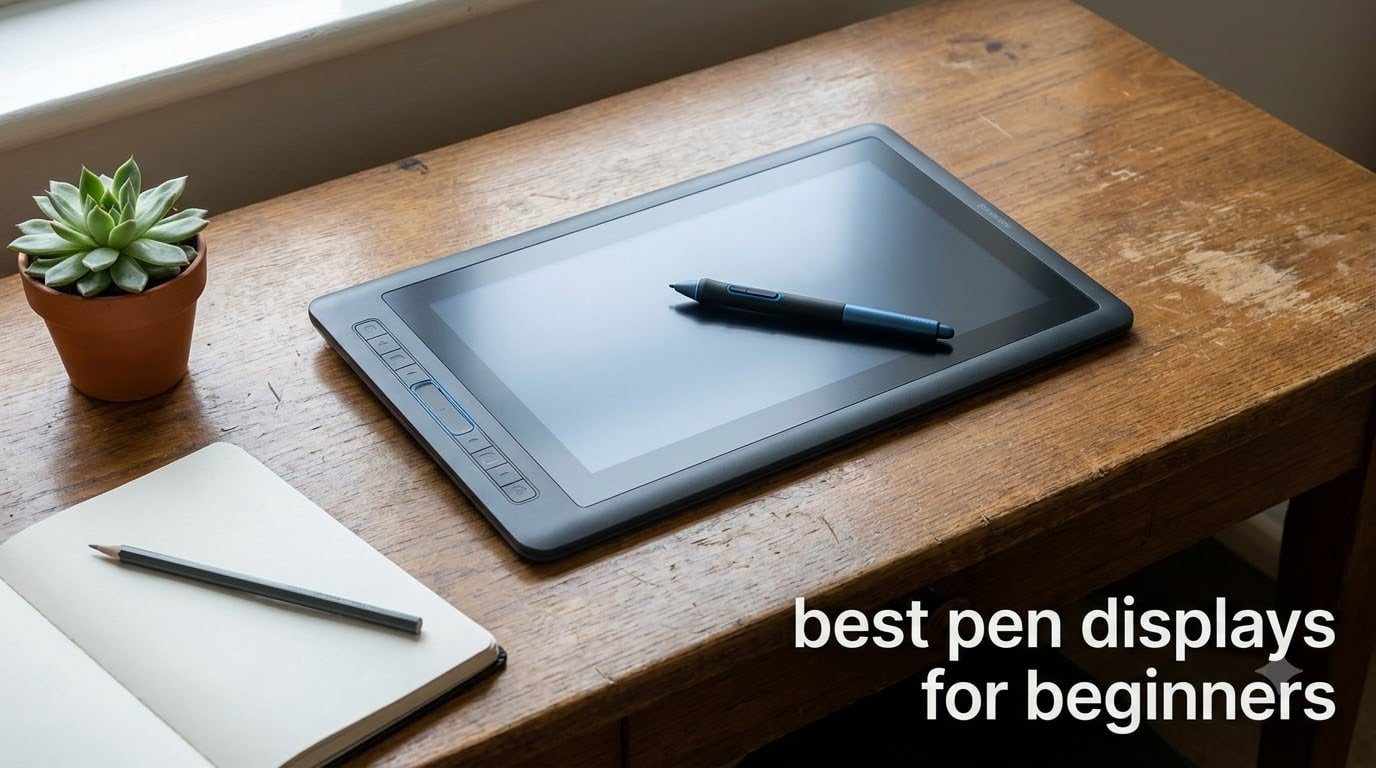
Starting your digital art journey is exciting, but picking the right gear can feel overwhelming fast. If you have been staring at screenless tablets wondering whether you will ever get used to drawing without looking at your hand, a pen display might be exactly what you need.
A pen display is a drawing tablet with a built-in screen that lets you draw directly on the display surface. Your strokes appear right under the pen tip, which feels much closer to drawing on paper. Compare that to a screenless tablet where you draw on a blank pad while watching a separate monitor, and you can see why so many first-time artists prefer the direct approach.
I spent weeks testing 8 of the most popular beginner-friendly pen displays to figure out which ones actually deliver on their promises. Our team looked at everything from pressure sensitivity and color accuracy to setup frustration and desk space requirements. Whether you have a tight budget or want to invest in something that will grow with your skills, this guide covers the best pen displays for beginners in 2026.
Every model on this list connects to a computer and works with the software you probably already use or want to try, from Krita and Medibang to Photoshop and Clip Studio Paint. None of them require a standalone operating system, which keeps prices reasonable for someone just starting out.
Table of Contents
Top 3 Pen Displays for Beginners in 2026
If you want to skip straight to the highlights, here are our three standout picks. The XPPen Artist12 Pro takes the top spot for its near-perfect balance of features, price, and beginner friendliness. The VEIKK VK1200 V2 wins on raw value, and the HUION Kamvas 13 (Gen 3) is the pick for beginners who want professional-grade color from day one.


Best Pen Displays for Beginners in October
Here is a side-by-side look at all 8 models we tested. Use this table to compare screen sizes, key features, and ratings before diving into the individual reviews.
| Product | Specifications | Action |
|---|---|---|
| VEIKK VK1200 V2 |
|
Check Latest Price |
 GAOMON PD1161 GAOMON PD1161 |
|
Check Latest Price |
 XP-PEN Artist12 XP-PEN Artist12 |
|
Check Latest Price |
| XPPen Artist12 Pro |
|
Check Latest Price |
 XPPen Artist 13.3 Pro XPPen Artist 13.3 Pro |
|
Check Latest Price |
| HUION Kamvas 13 Gen 3 |
|
Check Latest Price |
 XPPen Artist 16 3rd XPPen Artist 16 3rd |
|
Check Latest Price |
 Wacom One HD Wacom One HD |
|
Check Latest Price |
1. XPPen Artist12 Pro – Best Overall Pen Display for Beginners
XPPen Artist12 Pro 11.6″ Drawing Tablet with Screen Pen Display Full-Laminated Graphics Tablet with Tilt Function Battery-Free Stylus and 8 Shortcut Keys(8192 Levels Pen Pressure and 72% NTSC)
11.6in Full HD
8192 Levels
Red Dial
60-Degree Tilt
Stand Included
Pros
- Full-laminated screen with no parallax
- Red Dial for smooth workflow
- 60-degree tilt for natural shading
- Portable stand included
- 3-in-1 cable no adapter needed
Cons
- Must be connected to a computer
- Requires compatible display ports
The XPPen Artist12 Pro was the tablet I kept reaching for during testing, and it earned the top spot on this list for good reason. The full-laminated display means there is virtually no gap between the glass surface and the screen beneath it. When you draw a line, it appears exactly where the pen tip touches, which makes a huge difference when you are still building muscle memory as a beginner.
The Red Dial is a small touch that I did not think I would care about until I used it. You can map it to zoom, scroll, adjust brush size, or rotate your canvas. After a few days of practice, I was adjusting brush sizes without ever moving my pen hand, and that workflow speed is something beginners will appreciate as they start doing longer drawing sessions.
With 8192 pressure levels and 60-degree tilt recognition, the stylus responds naturally to how hard and at what angle you press. Sketching light construction lines felt smooth, and transitioning to darker strokes for final linework required no conscious effort. The tablet comes with a portable stand that angles the screen comfortably, which matters more than you might expect for wrist comfort during long sessions.
At 1500 grams, the Artist12 Pro is light enough to move around your desk but stable enough to stay put while you draw. The 3-in-1 cable handles power, data, and video in one connection, so you do not need to track down a separate power adapter. The 72% NTSC color gamut covers 100% sRGB, which is solid for a beginner tablet at this price.
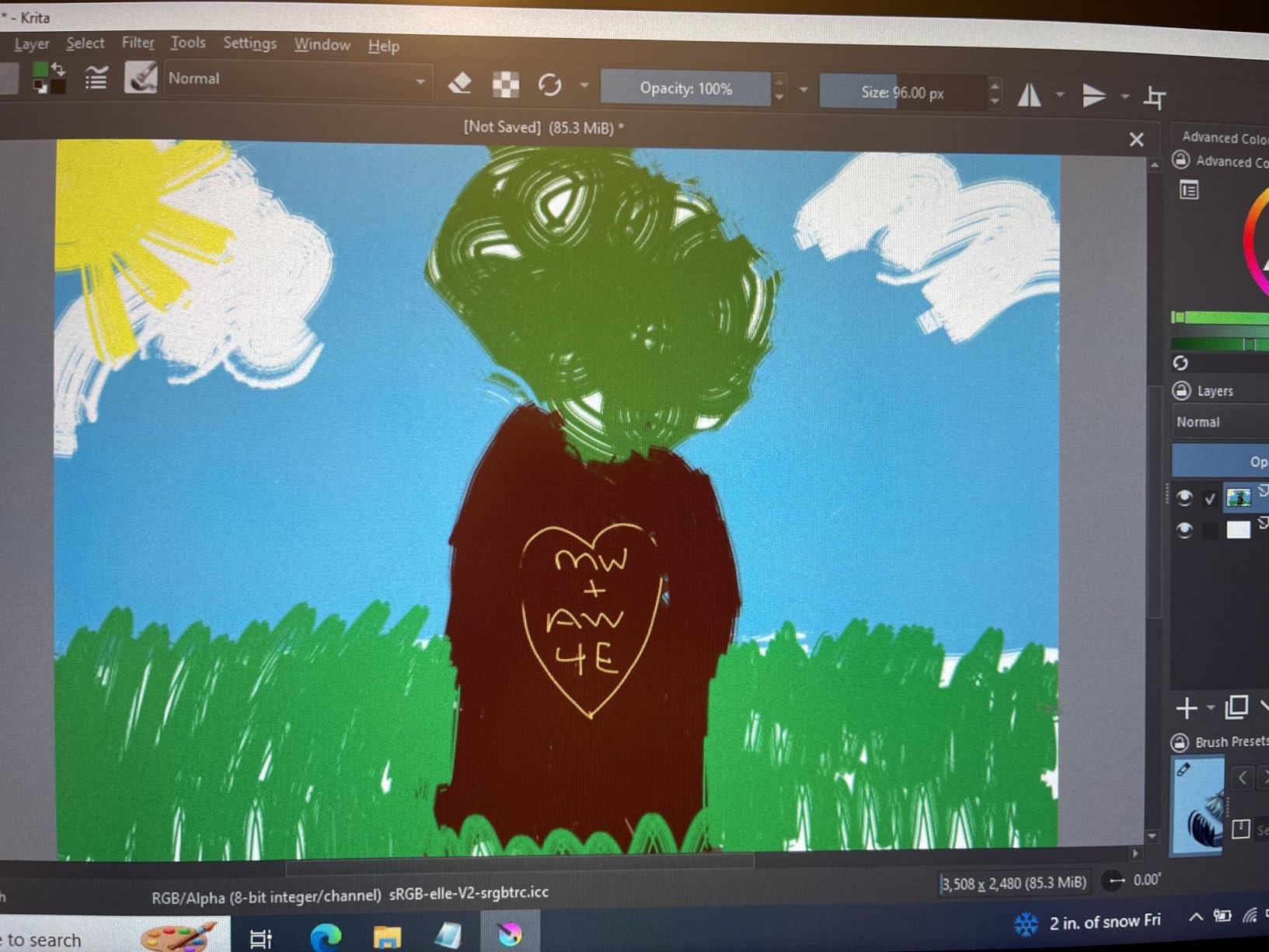
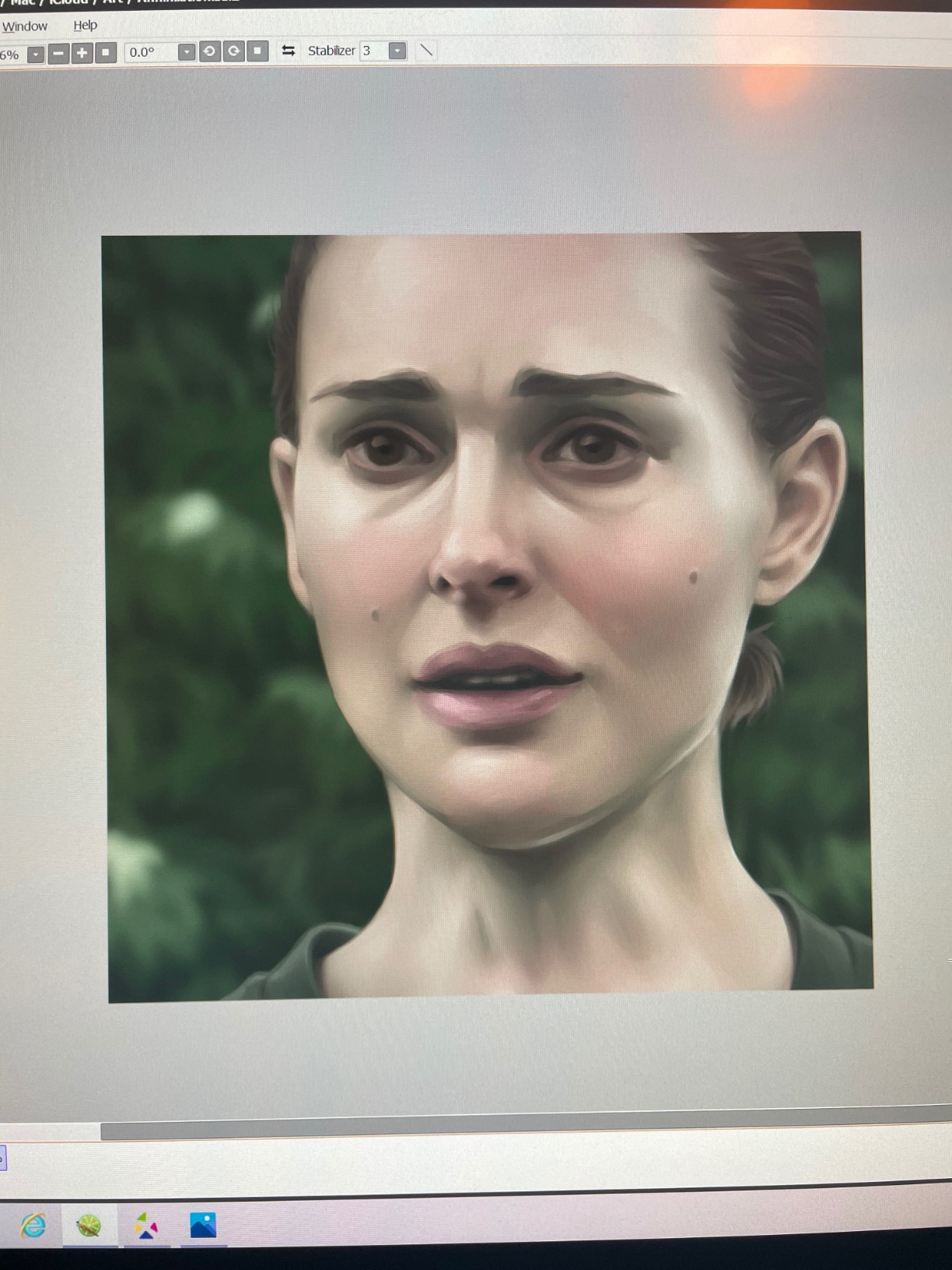
The 11.6-inch screen hits a sweet spot for beginners. It is large enough to draw comfortably without feeling cramped, but small enough that it fits on most desks alongside your laptop or monitor. I tested it with Krita, Photoshop, and Clip Studio Paint, and it worked flawlessly across all three without any driver conflicts.
Software Compatibility and Driver Setup
The Artist12 Pro works with Windows 7 and later, macOS 10.10 and later, and several Linux distributions. Driver installation was straightforward in my testing on both Windows 11 and macOS Sonoma. You download the driver from XPPen’s website, run the installer, and the tablet is ready within minutes.
One thing to watch for is making sure no other tablet drivers are running, since conflicting drivers from different brands can cause pressure sensitivity issues. If you are switching from another brand, uninstall those drivers first before setting up the XPPen software.
Who Should Choose This Tablet
This is the best pen display for beginners who want a device they will not outgrow quickly. The Red Dial, tilt support, and full-laminated screen are features that stay useful as your skills improve. If your budget allows for it, the Artist12 Pro gives you the most complete package without stepping into premium pricing territory.
It is especially well-suited for digital illustrators, concept art beginners, and students who need one device for both drawing and general computer work.
2. VEIKK VK1200 V2 – Best Budget Pen Display for Beginners
VEIKK VK1200 V2 Drawing Tablet with Screen,11.6”, 8192 Pressure Sentivity
11.6in Full HD
8192 Levels
Anti-Glare
6 Shortcut Keys
2 Pens Included
Pros
- Full-laminated display minimizes parallax
- Includes 2 battery-free pens
- Anti-glare glass for scratch resistance
- Single USB-C cable
- 28 replacement nibs included
Cons
- Requires HDMI without USB-C
- Must be connected to a computer
Not everyone wants to drop serious money on their first drawing tablet, and that is exactly where the VEIKK VK1200 V2 shines. It is the most affordable option on this list, yet it still packs features that many pricier tablets leave out. The fact that it includes two battery-free pens and 28 replacement nibs in the box makes it an incredible value for someone testing the waters.
I was genuinely surprised by the full-laminated display at this price point. Parallax is minimal, meaning the gap between where the pen touches and where the line appears is barely noticeable. For a beginner still developing hand-eye coordination, that accuracy is something you usually only find on more expensive models.
The anti-glare glass serves double duty. It cuts down on screen reflections from overhead lighting or windows, and it gives the surface a slight texture that feels closer to drawing on paper. The 8192 pressure levels handled everything from feather-light sketching to bold fill strokes without any dead zones at the start of a line.
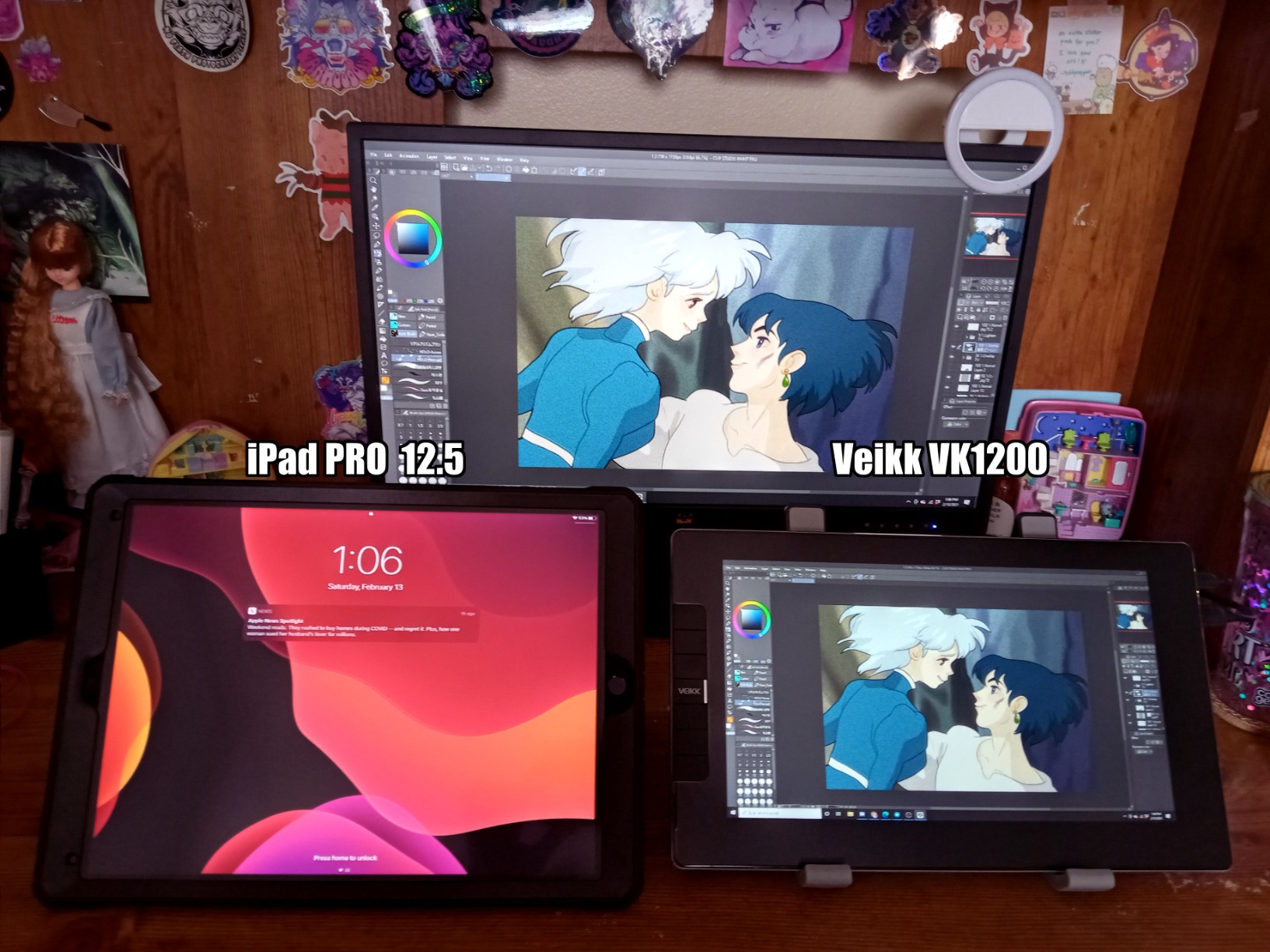
Connectivity is where the budget nature shows a little. The VK1200 V2 uses a single USB-C cable if your computer supports it, but devices without USB-C will need an HDMI connection plus USB for power and data. VEIKK includes the necessary cables, so you are not left scrambling for adapters on day one.
The 6 customizable shortcut keys let you map common functions like undo, brush size, and eraser. That is fewer keys than some competitors, but beginners rarely need more than a handful of shortcuts anyway. The tablet weighs just 809 grams, making it one of the lightest options on this list and easy to pack in a bag.

Connectivity and Cable Options
If your laptop has a full-featured USB-C port with DisplayPort support, you can run the entire tablet through a single cable. That keeps your desk clean and makes setup trivial. If your computer only has HDMI and USB-A, you will use the included 3-in-1 cable, which splits into three connections.
Check your computer’s USB-C port specifications before buying, since not all USB-C ports support video output. This is a common point of confusion for first-time pen display buyers.
Ideal Use Cases for New Artists
The VK1200 V2 is perfect for hobbyists, students, and anyone who wants to try digital art without a big financial commitment. If you are unsure whether digital drawing will stick as a hobby, starting here lets you experience a quality pen display without the premium price tag.
It is also a solid backup tablet for experienced artists who want a lightweight, portable option for travel or quick sketching away from their main workstation.
3. HUION Kamvas 13 (Gen 3) – Best Premium Pen Display for Beginners
HUION Kamvas 13 (Gen 3) Drawing Tablet with Screen, Dual Dial, 13.3″, Black
13.3in Full HD
16384 Levels
99% sRGB
Dual Dial
PenTech 4.0
Pros
- 16384 pressure levels with PenTech 4.0
- 99% sRGB with factory calibration
- Dual dial for workflow control
- USB-C single cable
- Adjustable stand included
Cons
- Requires computer connection
- Higher price point for beginners
The HUION Kamvas 13 (Gen 3) is what happens when a brand takes everything beginners struggle with and engineers solutions for each one. The PenTech 4.0 stylus delivers 16384 pressure levels, which is double what most budget tablets offer. In practice, this means incredibly smooth pressure transitions with no visible stepping between light and heavy strokes.
Color accuracy is where this tablet separates itself from the pack. The 99% sRGB coverage with Rec.709 color gamut means what you see on the screen matches what you will get in your final exported artwork. HUION even includes a factory calibration report, which is a detail usually reserved for professional-grade displays.
I appreciated the dual dial setup during testing. One dial controls zoom while the other handles brush size, and both sit within thumb reach. Combined with the 5 programmable shortcut keys, you can build a workflow that keeps your drawing hand on the pen and your other hand on the controls.
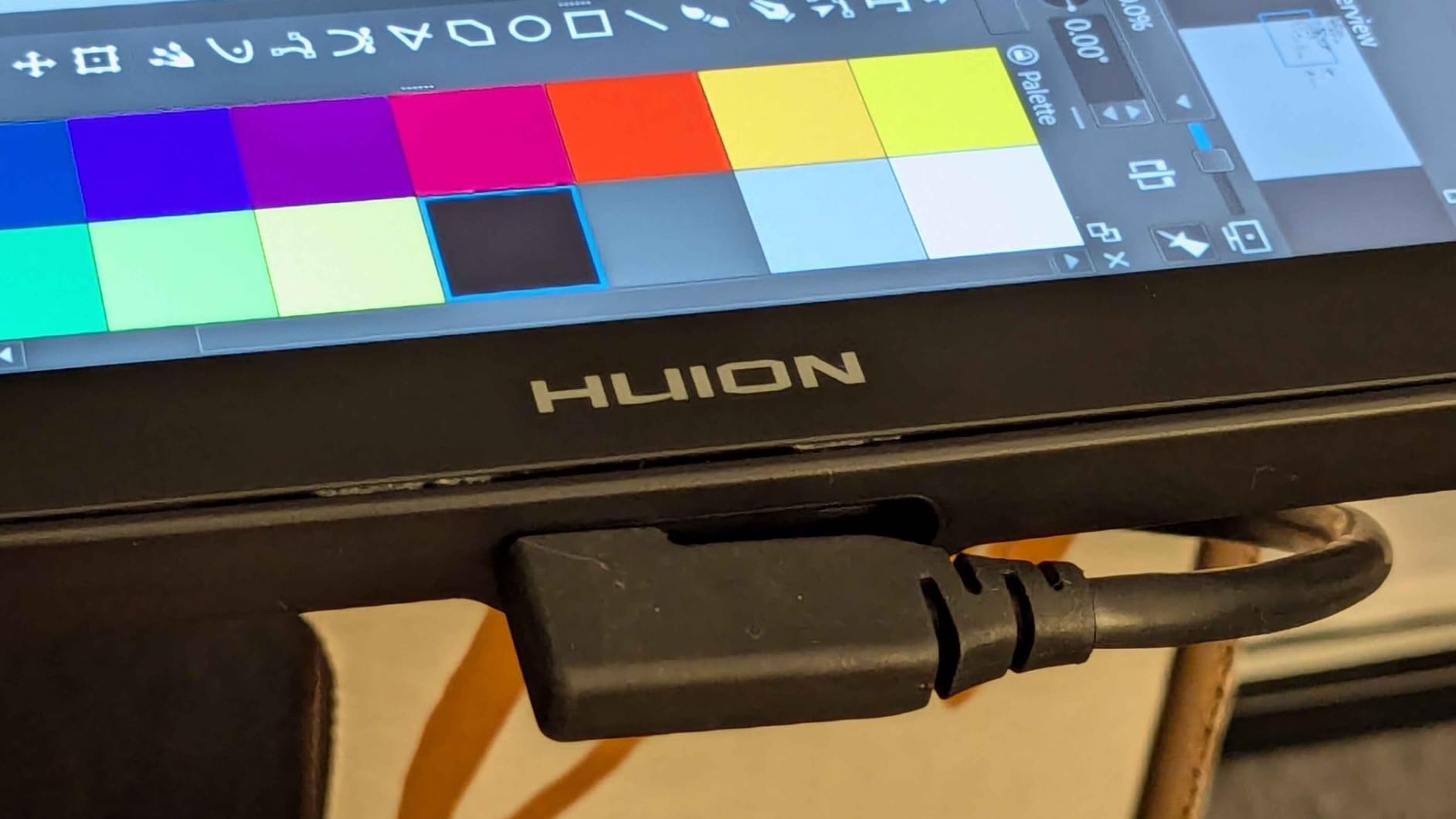
The Canvas Glass 2.0 surface is etched to reduce glare while providing a textured drawing feel. Unlike smooth glass that can feel slippery, this surface gave me the kind of friction I expect from a good sketchbook. The 2-gram initial activation force means even the lightest touch registers, which is great for sketching faint construction lines.
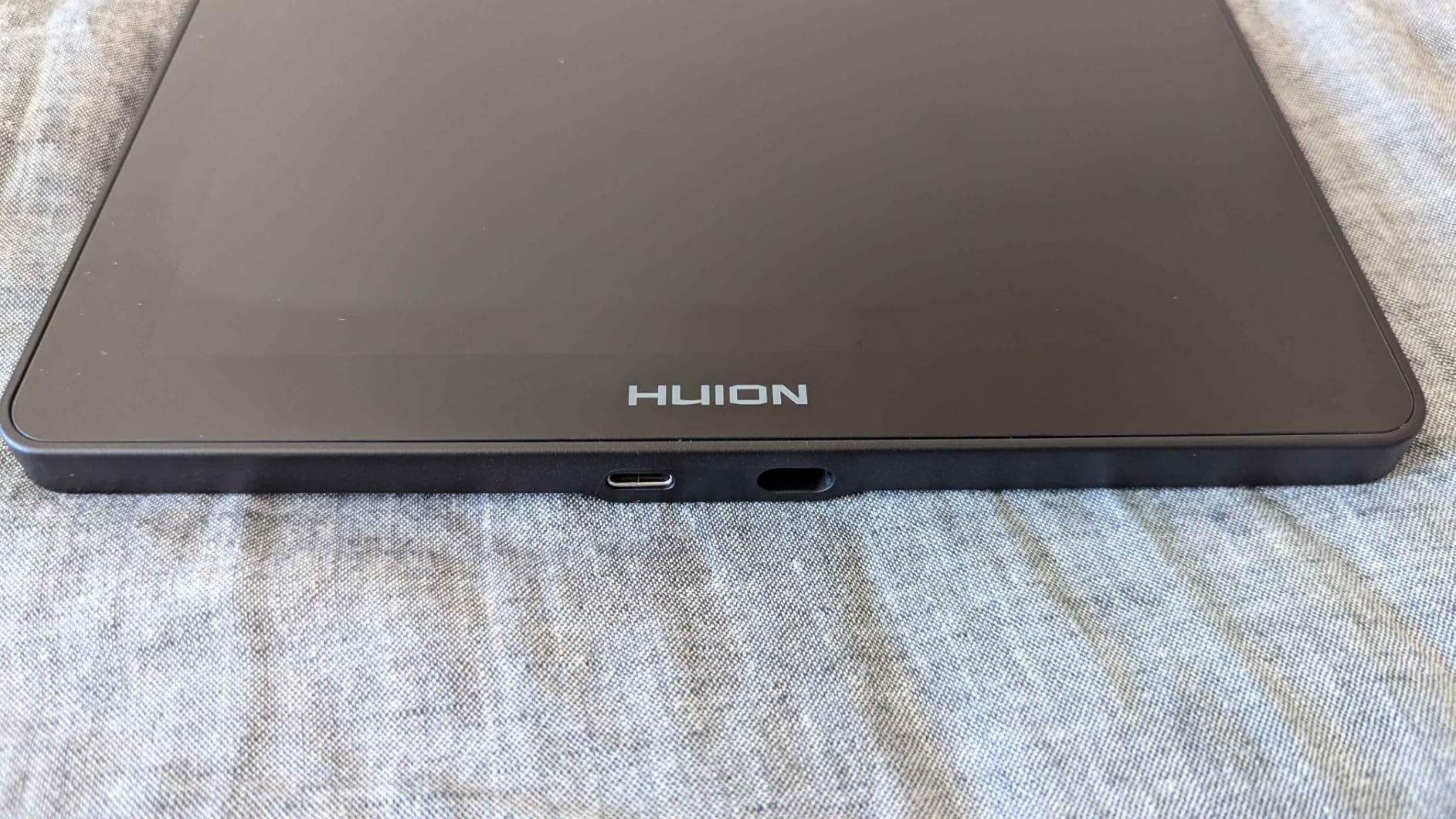
The included ST300 adjustable stand is sturdy and locks into multiple angles. At 1.96 pounds, the tablet itself is light enough to reposition easily, but the stand keeps it firmly in place once you find your preferred angle. The USB-C single cable connection works with compatible computers and keeps cable management simple.
Color Accuracy for Serious Beginners
If you plan to share your art online or print it eventually, color accuracy matters from the start. The Kamvas 13 Gen 3 covers 99% sRGB and includes a factory calibration report showing average Delta E below 1.5. That level of color precision is rare at this price and means your reds, blues, and skin tones will look consistent across devices.
Beginners who care about color work, character design, or digital painting will benefit from this accuracy immediately. You will not develop bad color habits caused by an inaccurate screen.
Stand and Ergonomics
The ST300 stand adjusts to several angles and supports the tablet firmly without wobble. Good ergonomics matter for beginners because poor posture and flat-screen drawing can cause wrist strain within an hour. Being able to tilt the screen to a comfortable angle from day one helps you build healthy drawing habits.
If you plan long drawing sessions, pair the stand with a chair that supports good posture and take breaks every 30 to 40 minutes to stretch your hand and wrist.
4. GAOMON PD1161 – Reliable Beginner Drawing Tablet with Screen
GAOMON PD1161 Drawing Tablet with Screen, Tilt, 8 Shortcut Keys, 11.6″ FHD
11.6in Full HD
8192 Levels
100% sRGB
8 Shortcut Keys
Matte Film
Pros
- Matte film provides paper-like feel
- 8 programmable shortcut keys
- Wide software compatibility
- Ideal for beginners and students
- Battery-free stylus with tilt
Cons
- Requires HDMI and USB ports
- Must be connected to a computer
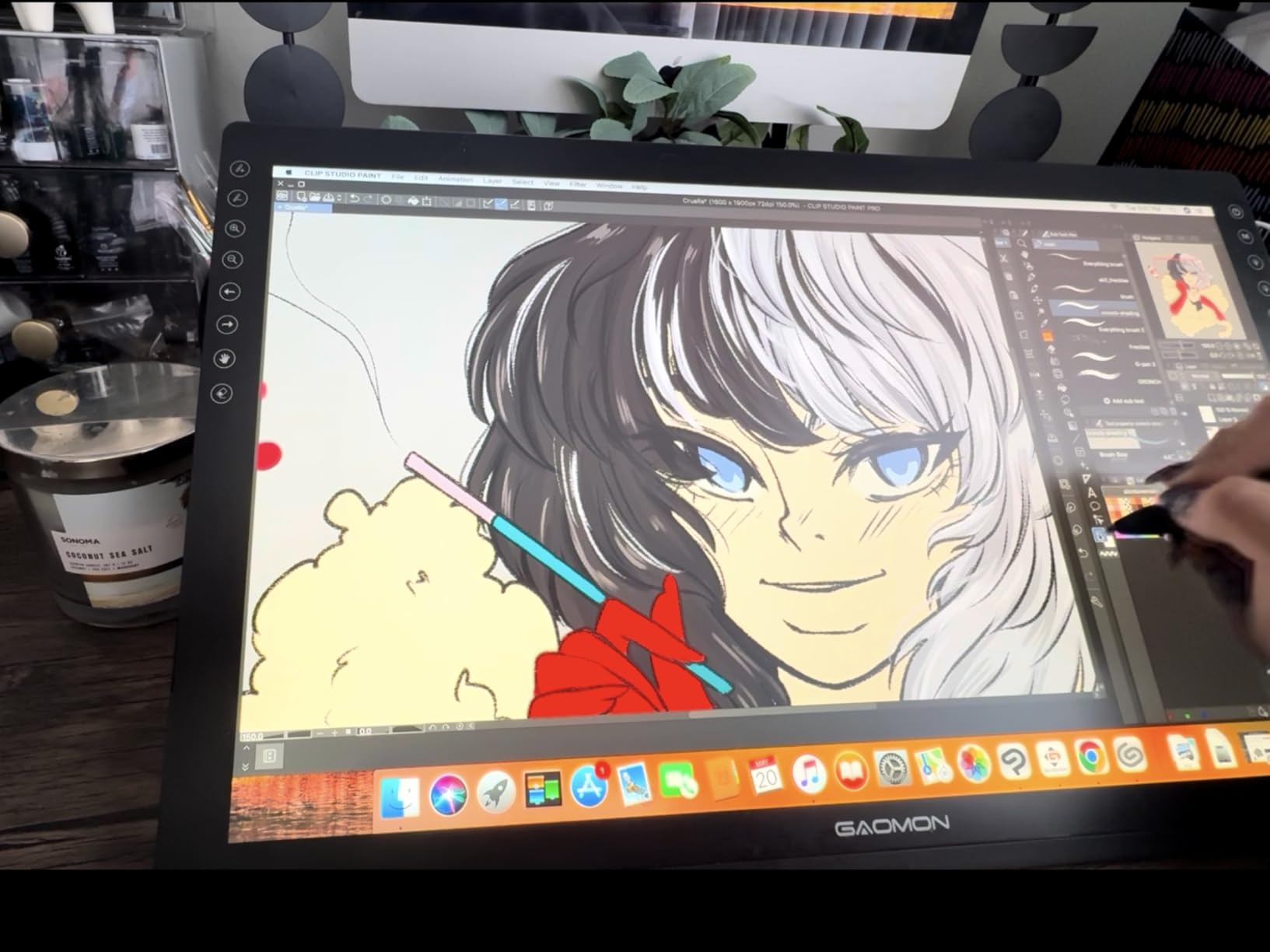
The GAOMON PD1161 has built a massive following among beginners, and with over 6800 reviews it is one of the most tried-and-tested pen displays on the market. I found it to be a dependable, no-nonsense tablet that does the fundamentals right without trying to dazzle you with features you may not need yet.
The pre-installed matte film is one of my favorite things about this tablet. It gives the drawing surface a textured, paper-like feel that many artists prefer over smooth glass. If you are transitioning from traditional sketching to digital for the first time, that familiar friction can make the switch feel less jarring.
The 11.6-inch Full HD IPS screen displays 16.7 million colors with 100% sRGB coverage. Colors looked vibrant and accurate in my testing, and the viewing angles held up well even when I tilted the tablet on a stand. The AP50 stylus offers 8192 pressure levels and 60-degree tilt, which covers everything a beginner needs.
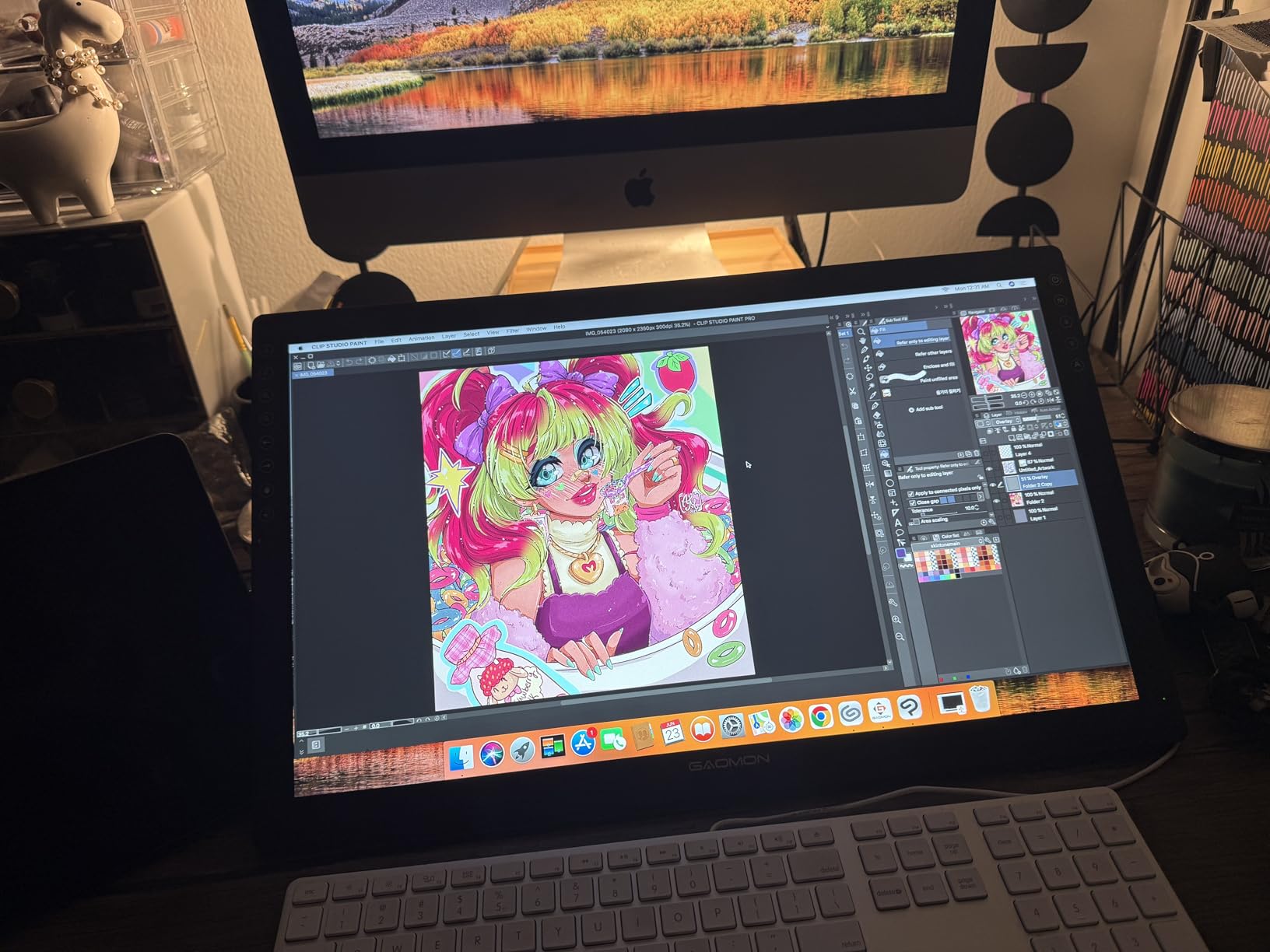
Eight programmable shortcut keys line the side of the tablet, giving you more customization options than most competitors at this size. I mapped mine to undo, redo, brush size up and down, eraser, hand tool, canvas zoom, and color picker. Having those controls on the tablet itself sped up my workflow noticeably.
The PD1161 connects via HDMI and USB cables, which means you need both ports available on your computer. GAOMON includes the necessary cables in the box. The tablet weighs 1.9 pounds and measures 14.2 by 7.9 inches, so it fits comfortably on most desks without dominating your workspace.
Software and App Compatibility
The PD1161 works with a broad range of creative software including Krita, Medibang Paint, Blender, Photoshop, Paint Tool SAI, and Clip Studio Paint. Driver installation was painless on Windows, though macOS users should grant the necessary security permissions in System Settings before the tablet fully responds.
GAOMON updates their drivers regularly, so checking for the latest version before installing is worth the few extra minutes to avoid compatibility headaches.
Portability and Desk Space
At under 2 pounds, this tablet is portable enough to carry between home and school or a coffee shop. The 11.6-inch screen is the most common size for beginner pen displays because it balances drawing area with desk footprint. If you have a small workspace or share a desk with a roommate, this size will not crowd you out.
Consider where you will store the tablet when not in use. Even a compact model needs a safe spot away from dust and potential scratches.
5. XP-PEN Artist12 – Popular Entry-Level Pen Display
XP-PEN Artist12 11.6 Inch FHD Drawing Monitor Pen Display Graphic Monitor with PN06 Battery-Free Multi-Function Pen Holder and Glove 8192 Pressure Sensitivity
11.6in FHD
8192 Levels
Touch Bar
6 Shortcut Keys
Stylus with Eraser
Pros
- Slim touch bar for zoom and scroll
- P06 stylus with built-in eraser
- Pre-installed anti-reflective protector
- Best-seller with over 12k reviews
- Strong software compatibility
Cons
- Requires HDMI and USB-A ports
- Must be connected to a computer
With over 12000 reviews, the XP-PEN Artist12 is the most reviewed pen display on this list by a wide margin. That kind of popularity usually means a product is doing something right, and after testing it, I can see why so many beginners gravitate toward it. It is a straightforward, capable tablet that gets the basics right.
The standout feature for me was the P06 stylus with its built-in eraser. Flip the pen over and the tablet automatically switches to eraser mode, just like flipping a real pencil. For beginners, that natural gesture removes one more button to remember and keeps you focused on drawing.
The slim touch bar replaces a traditional dial and handles zoom and scroll functions. I found it responsive once I got used to the gesture speed. Six customizable shortcut keys round out the physical controls, which is plenty for someone just starting out.
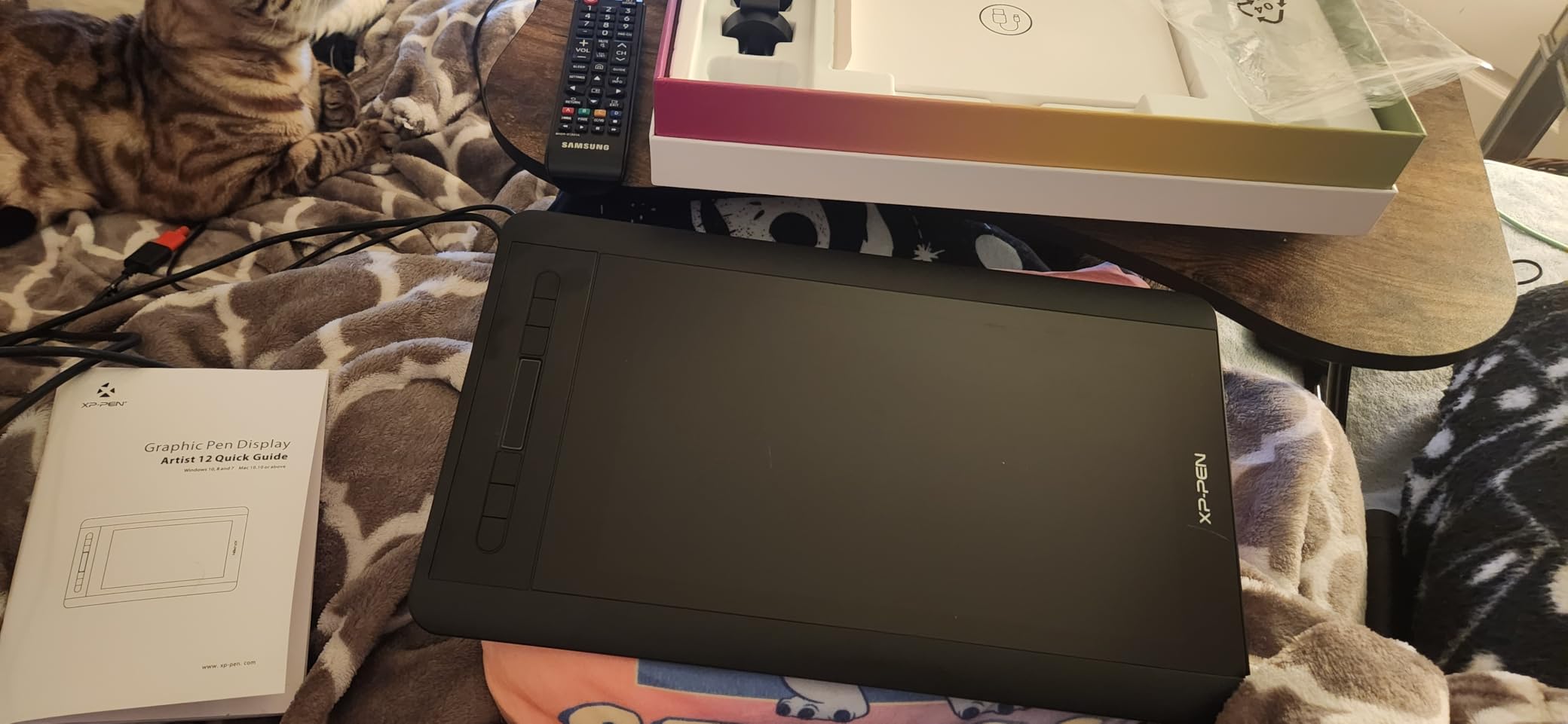
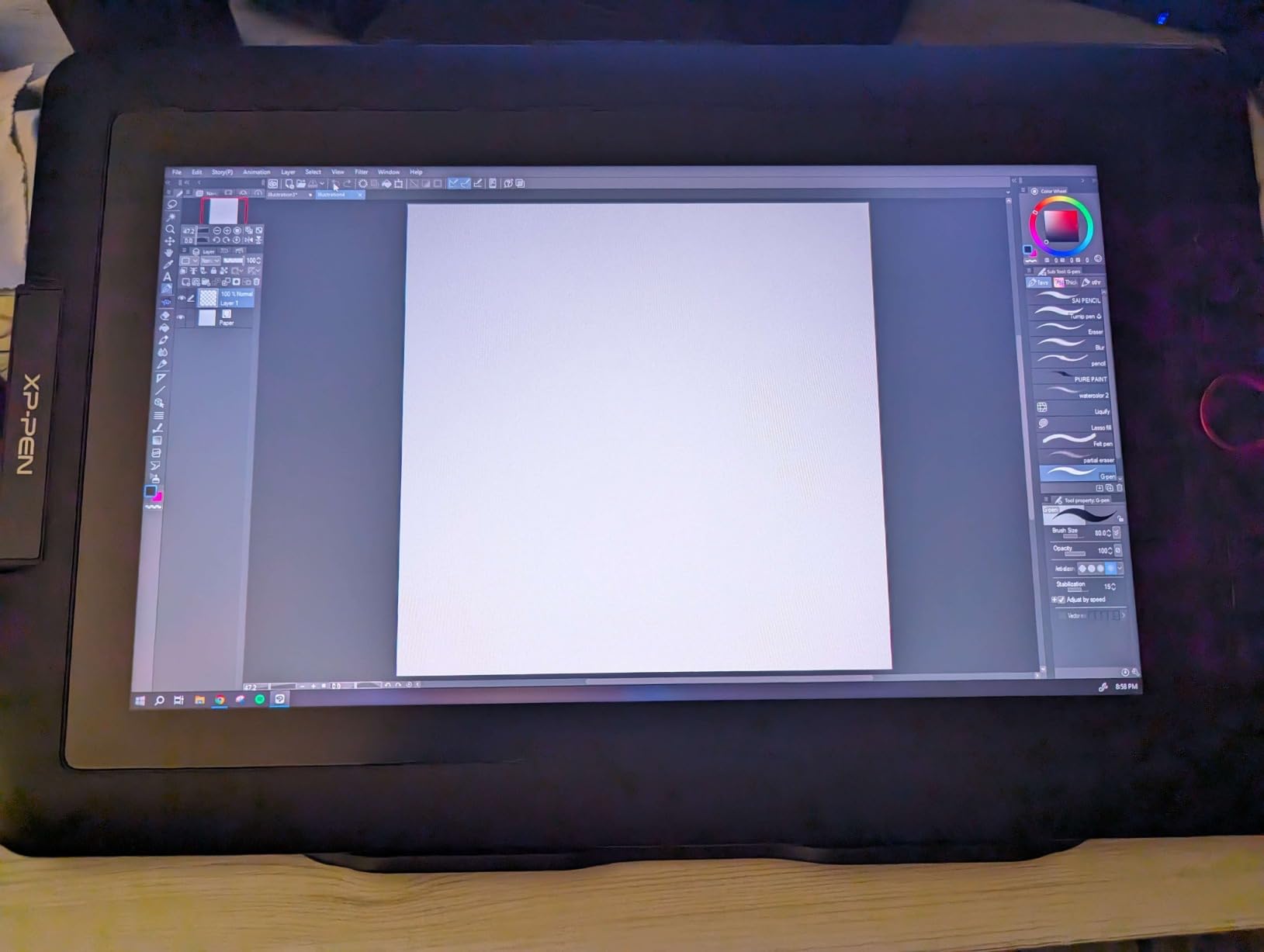
The 11.6-inch Full HD IPS display offers 72% NTSC, which translates to roughly 100% sRGB coverage. Colors looked accurate and vibrant for illustration work. The pre-installed anti-reflective screen protector cuts glare and adds a subtle texture that many artists prefer over bare glass.
Connectivity requires HDMI for video and USB-A for data and power. This is an older cable setup compared to USB-C solutions, but it works reliably with most computers. The tablet weighs 907 grams, making it one of the lighter options on this list and easy to reposition on your desk.
Setup Experience for First-Timers
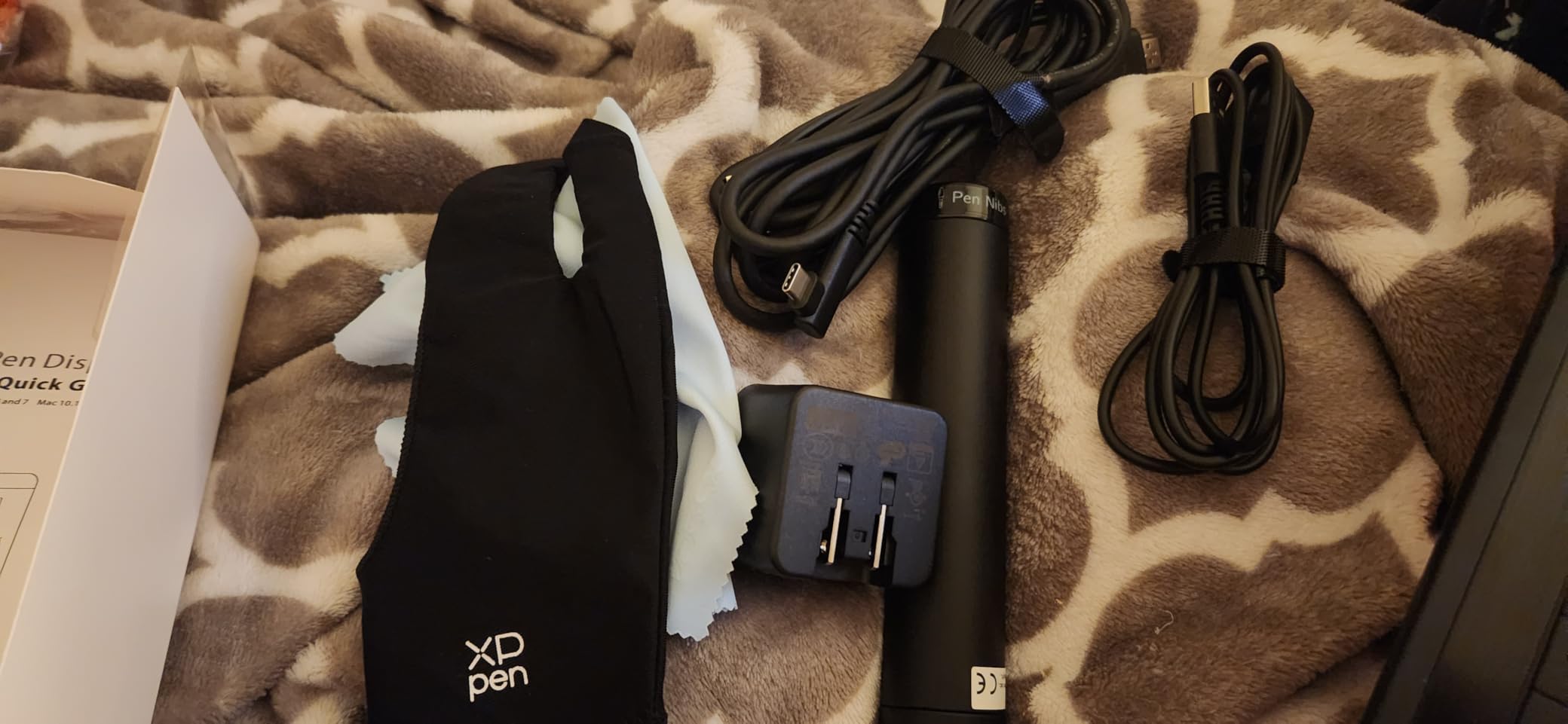
The Artist12 is designed with beginners in mind, and that extends to the setup process. XP-PEN provides clear instructions, and the driver software walks you through pressure testing and shortcut configuration. Most users report getting up and running within 15 to 20 minutes of unboxing.
The included pen holder keeps your stylus safe when not in use and stores replacement nibs inside, which is a nice touch that prevents losing those tiny parts.
Long-Term Value and Upgrade Path
With its massive review base and proven track record, the Artist12 holds its value well. Many beginners start here and upgrade to a larger XP-PEN model later, keeping the same driver software and workflow habits. That continuity makes the transition smoother when you are ready for a bigger screen.
If you want a tablet that has been battle-tested by thousands of beginners before you, the Artist12 is a safe, reliable choice that rarely disappoints.
6. XPPen Artist 13.3 Pro – Best Color Accuracy for New Artists
XPPen Artist 13.3 Pro 13.3″ Drawing Tablet with Screen, 16K, Full-Laminated
13.3in FHD
16384 Levels
123% sRGB
Red Dial
Adjustable Stand
Pros
- Largest color gamut at 123% sRGB
- 16384 pressure levels highest in class
- Red Dial for workflow control
- Adjustable stand included
- 178-degree wide viewing angle
Cons
- Heavier at 2kg
- Must be connected to a computer
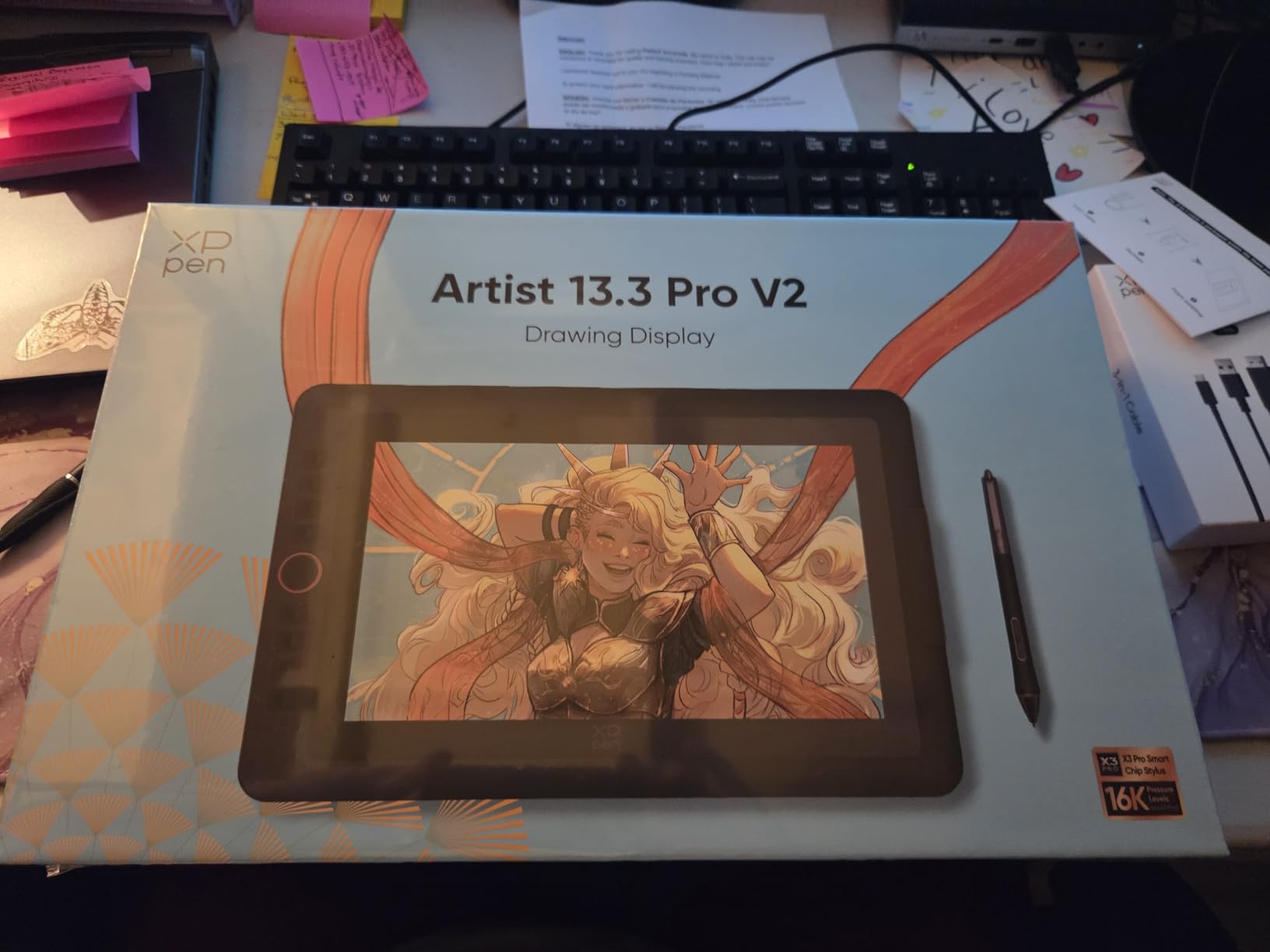
The XPPen Artist 13.3 Pro is specifically marketed as designed for beginners, and the color performance backs that claim up. With 123% sRGB coverage, 91% Adobe RGB, and 88% NTSC, this tablet offers the widest color gamut of anything on this list. For new artists who care about color from the start, this is the model to beat.
The jump to 16384 pressure levels is immediately noticeable compared to 8192-level tablets. Lines transition from hair-thin to bold with a smoothness that feels organic. Combined with the low initial activation force, the stylus responds to the faintest touch, which is excellent for sketching light guidelines.
The 13.3-inch screen gives you more room to work than the 11.6-inch models on this list. That extra space matters when you are working on detailed illustrations or want to keep your reference images visible alongside your canvas. The 178-degree viewing angle means colors stay accurate even when viewed from the side.
The Red Dial makes a return here, offering the same zoom and brush size control I loved on the Artist12 Pro. Eight customizable shortcut keys give you plenty of room to build a personalized workflow. The included adjustable stand and multifunctional pen case add tangible value to the package.
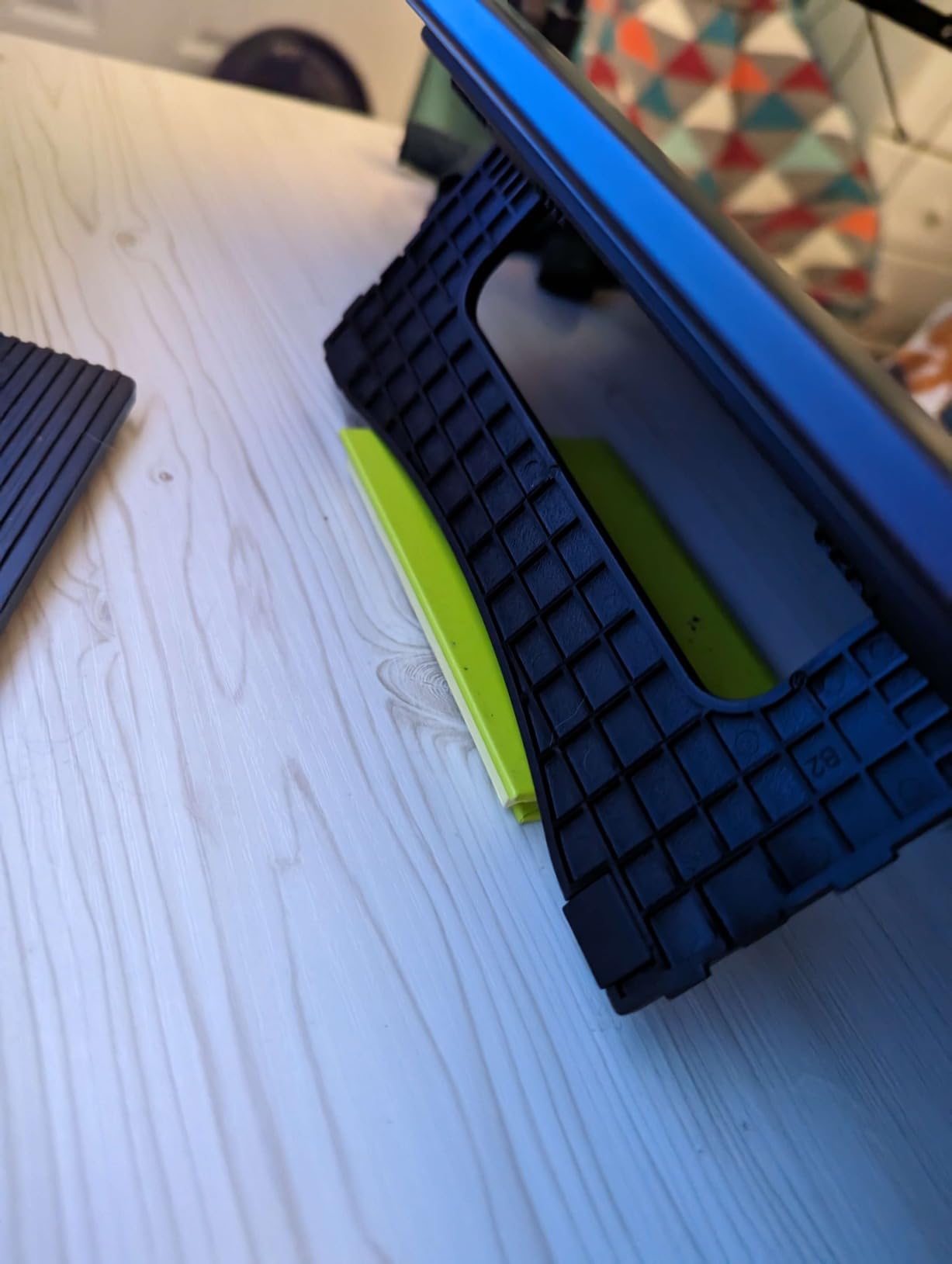
At 2 kilograms, this is one of the heavier tablets on the list. That weight comes from the larger display and sturdier build, but it means this is less of a portable option and more of a dedicated desk setup. Plan your workspace accordingly.
Color Gamut for Design Work
If you are interested in graphic design, photo editing, or any work where color fidelity matters, the 123% sRGB gamut gives you headroom that smaller-gamut displays simply cannot match. Your reds will be richer, your blues deeper, and your gradients smoother. For beginners exploring digital painting, this accuracy builds good color instincts from the start.
The wide color coverage also means your work will look correct when viewed on most modern monitors and phone screens.
Stand and Comfort Over Long Sessions
The included adjustable stand supports the 2kg tablet firmly and offers multiple viewing angles. For beginners planning to draw for more than an hour at a time, finding a comfortable angle is essential for preventing wrist and neck strain. The stand locks into place securely and does not slip during use.
Take the time to experiment with different angles during your first week. What feels comfortable for 10 minutes may cause fatigue after an hour.
7. XPPen Artist 16 (3rd Gen) – Largest Screen for Beginner Artists
XPPen Artist 16 3rd Drawing Tablet with Screen, 15.4″Pen Display with 16K Pressure Stylus, Anti-Glare Etched Glass, 2 Scroll Wheels & 8 Hotkeys, Include Foldable Stand, Compatible with Mac/Win/Android
15.4in FHD
16K Pressure
99% sRGB
Etched Glass
Dual Scroll Wheels
Pros
- Largest screen at 15.4 inches
- 16K pressure sensitivity with X4 chip
- Anti-glare etched glass
- Dual scroll wheels and 8 hotkeys
- Magnetic stylus storage
Cons
- Setup requires driver download
- Limited Chromebook and Android driver support
The XPPen Artist 16 (3rd Gen) is the biggest tablet on this list, and that 15.4-inch screen changes the drawing experience in ways you can only appreciate once you try it. More screen means more canvas space, less zooming and panning, and a drawing experience that feels closer to working on a real desk with physical media.
The X4 smart chip stylus pushes pressure sensitivity to 16384 levels with a remarkably low 2-gram initial activation force. During testing, I was able to produce incredibly fine detail work and smooth gradient shading that felt natural. The 0.3mm pen retraction means the pen tip moves slightly into the barrel on contact, simulating the give of a real pen on paper.
The AG+AF nano-etched glass is a standout feature. It combines anti-glare properties with anti-fingerprint coating and a paper-like texture. Unlike smooth glass that shows every smudge, this surface stays clean and provides consistent friction for controlled strokes.
Color performance is excellent with 99% sRGB, 98% Adobe RGB, and 97% Display P3 coverage. The on-screen display menu lets you switch between color spaces quickly, which is useful if you work across different media types. Dual scroll wheels and 8 customizable hotkeys give you extensive workflow control.
The included S20 foldable stand is compact but sturdy, and the magnetic stylus storage on the side of the tablet means you always know where your pen is. At 1355 grams, it is surprisingly light for its size, though the larger footprint requires dedicated desk space.
Screen Size and Workspace Fit
A 15.4-inch pen display needs real estate. Before buying, measure your desk and account for your keyboard, mouse, and any reference materials. Many artists use a monitor arm or dedicated tablet stand to position the display at a comfortable angle without sacrificing desk space.
The larger screen is worth the space if you do detailed illustration, comic creation, or 3D modeling work where seeing the full canvas matters.
Setup on Different Operating Systems
The Artist 16 (3rd Gen) works with Windows, macOS, Android, and Linux, but the setup experience varies. On Windows, driver installation and firmware updates are straightforward. macOS requires security permission grants. On Chromebook and Android, the drawing function works but the shortcut buttons and dials are not supported due to driver limitations.
If you primarily use a Chromebook, consider a different model or plan to use an external keyboard for shortcuts.
8. Wacom One HD – Most Trusted Brand for First-Time Users
Wacom One HD Creative Pen Display, Drawing Tablet with Screen, 13.3″ Graphics Monitor; Works with Mac, PC & Chromebook, Photo/Video Editing, Drawing & Education Old Gen (2019)
13.3in HD
4096 Levels
Full Lamination
Cross-Platform
Wacom Quality
Pros
- Works with all software programs
- 40+ years of Wacom expertise
- Compatible with Mac PC Chromebook Android
- Customizable pen button
- Full color spectrum display
Cons
- Lower 4096 pressure sensitivity
- Limited stock availability
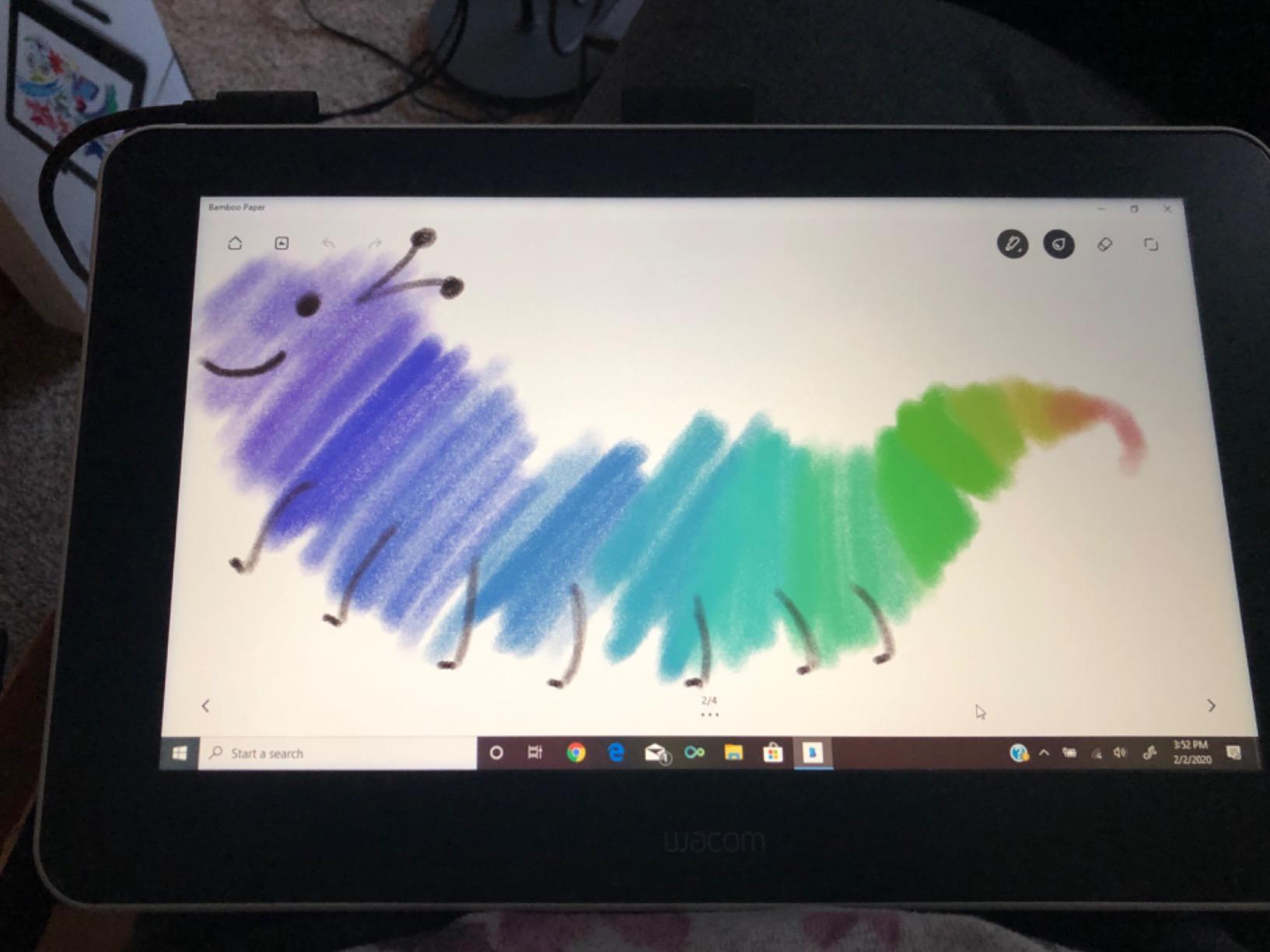
Wacom has been making pen displays for over 40 years, and the Wacom One HD brings that experience to an entry-level price point. This is the tablet I recommend to beginners who prioritize reliability and brand reputation above raw spec numbers. With over 3300 reviews and a 4.5-star average, it has earned its place as a trusted choice.
The 13.3-inch HD display uses full lamination to minimize parallax, and the screen renders the full color spectrum with good accuracy. It may not match the 99% sRGB claims of newer competitors, but the color performance is consistent and trustworthy. What you see is what you get, which is exactly what a beginner needs.
The Wacom pen requires no battery or charging and includes a customizable button that you can map to undo, copy, paste, or any shortcut you use frequently. The pen itself has a balanced, comfortable weight that feels natural in the hand during long drawing sessions.
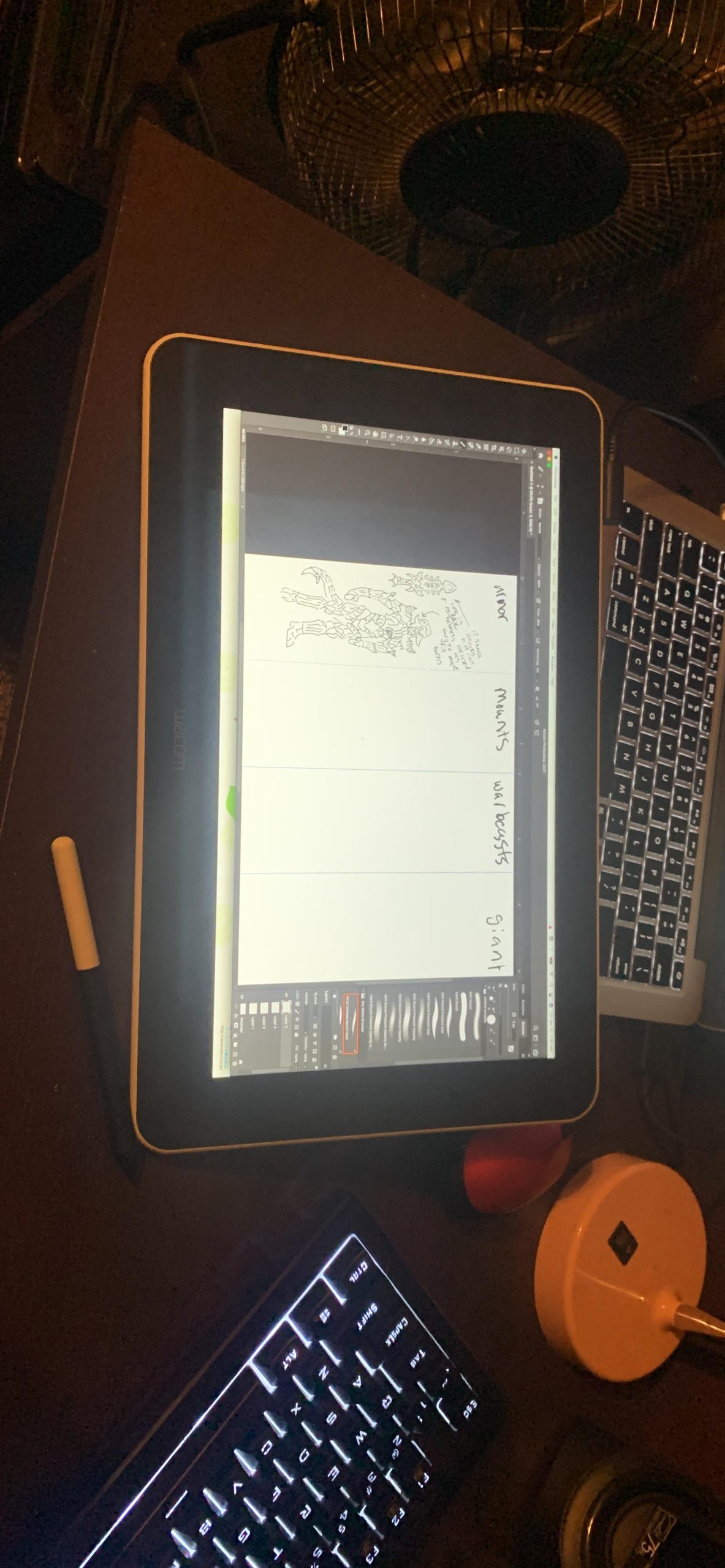
The Wacom One works with Mac, PC, Chromebook, and Android, making it one of the most cross-platform options available. That broad compatibility is valuable for beginners who may switch devices or share the tablet with family members using different operating systems.
The tablet connects via HDMI and includes a USB cable for power and pen data. At 4.5 pounds with the stand, it is the heaviest tablet on this list, but that weight translates to a stable, planted drawing surface that does not slide around.
Brand Reputation and Support
Wacom’s long history means their driver support and software compatibility are among the best in the industry. When a new version of macOS or Windows releases, Wacom typically has compatible drivers ready quickly. Their customer support is also more established than newer brands, which matters if you encounter issues.
For a beginner who values peace of mind, the Wacom One offers a level of confidence that is hard to put a price on.
Pressure Sensitivity Comparison
The 4096 pressure levels on the Wacom One are lower than the 8192 or 16384 levels offered by competitors. In practice, most beginners cannot tell the difference, and Wacom’s pressure curve is well-tuned for natural drawing. The line weight transitions smoothly from light to dark without noticeable stepping.
If you plan to pursue professional illustration work eventually, you may want more pressure levels down the road. But for learning the fundamentals, 4096 levels are more than enough.
Buying Guide: How to Choose the Best Pen Display for Beginners?
Choosing your first pen display does not have to be complicated, but there are a few specifications and features that genuinely affect your drawing experience. Here is what matters most when you are starting out, based on my testing and the common questions beginners ask in art communities.
Screen Size and Resolution
The most common beginner screen sizes are 11.6 inches and 13.3 inches. An 11.6-inch display is compact, portable, and fits on almost any desk. It is the sweet spot for someone who is not sure how much space they can dedicate to drawing gear. A 13.3-inch screen gives you more room for detailed work and reference images, but it takes up more desk space.
Larger displays like the 15.4-inch Artist 16 are great for illustration and comic work, but they need a dedicated workspace. Before buying, measure your desk and imagine the tablet sitting there alongside your keyboard and mouse. If your workspace cannot accommodate it comfortably, go smaller.
All the tablets on this list offer 1920×1080 Full HD resolution, which is the standard for beginner pen displays. Resolution affects how sharp your canvas looks, and 1080p is plenty sharp at these screen sizes.
Pressure Sensitivity Explained
Pressure sensitivity determines how much your line thickness and opacity change based on how hard you press the pen. More levels mean smoother transitions between light and heavy strokes. Most beginner tablets offer either 8192 or 16384 levels.
For absolute beginners, 8192 levels are more than enough to learn the fundamentals. You will not feel limited by the technology while you are still developing your hand control. The jump to 16384 levels is noticeable for experienced artists doing fine detail work, but it is not a make-or-break spec for someone just starting.
Initial activation force, or how lightly you can touch the pen before it registers, matters more for sketching feel. Lower activation force means fainter, lighter lines are possible. Look for tablets with 2 grams or lower if you do a lot of light sketching.
Color Accuracy and Gamut
Color gamut tells you how much of the visible color spectrum the display can reproduce. For beginners, the key number is sRGB coverage. Anything at or above 95% sRGB will give you accurate colors for most digital art shared online.
If you plan to print your work or do color-critical design work, wider gamuts like 99% sRGB, Adobe RGB, or Display P3 become more important. The XPPen Artist 13.3 Pro and HUION Kamvas 13 Gen 3 both offer exceptional color coverage for beginner tablets.
Anti-glare coating also affects how you perceive colors. Etched glass or matte films reduce reflections but can slightly soften the image. Most beginners prefer the tradeoff since the paper-like texture improves drawing feel.
Connectivity and Setup
Most beginner pen displays connect via USB-C, HDMI plus USB, or a 3-in-1 cable that combines both. USB-C is the simplest option if your computer supports it, since a single cable handles power, data, and video. Check your computer’s USB-C port specifications before buying, because not all USB-C ports support video output.
If your computer only has HDMI and USB-A ports, look for tablets that include a 3-in-1 cable. Every tablet on this list includes the necessary cables in the box, so you should not need to buy extras.
Driver installation is another setup consideration. Most brands offer straightforward driver downloads from their websites, but conflicting drivers from other tablet brands can cause issues. If you are switching brands, uninstall old drivers first.
Ergonomics and Desk Space
Drawing on a flat screen for extended periods can strain your wrist, neck, and shoulders. A tablet with an adjustable stand lets you find a comfortable angle, which is one of the most underrated factors for beginners. Several models on this list include stands, while others require you to buy one separately.
Eye strain is another consideration. Drawing while looking down at a bright screen for hours can cause fatigue. Take breaks every 30 minutes, adjust your screen brightness to match your room lighting, and consider a blue light filter if you draw at night.
If desk space is tight, a lighter, more compact tablet like the VEIKK VK1200 V2 or GAOMON PD1161 will serve you better than a larger model. You can always upgrade to a bigger display once you know digital art is a long-term commitment.
Budget Guidance for Beginners
You do not need to spend a fortune on your first pen display. The models on this list range from budget-friendly options under $200 to more premium picks around $350. For a first tablet, spending between $140 and $210 gets you a capable device with full-laminated screens, good pressure sensitivity, and reliable performance.
Many forum users recommend starting with a cheaper option before investing in expensive gear. If you discover that digital art is your passion, you can always upgrade later and keep your first tablet as a portable backup.
Brand Comparison: Wacom vs Huion vs XP-Pen
These three brands dominate the beginner pen display market, and each has its strengths. Wacom offers the most established driver support and brand reliability, though their entry-level tablets tend to have lower specs for the price. Huion competes on features and color accuracy, with their Kamvas line offering excellent value. XP-Pen balances price, features, and innovation with their Red Dial interface and wide product range.
For beginners, all three are reliable choices. Pick based on the specific features and price point that match your needs rather than brand loyalty.
Frequently Asked Questions About Pen Displays for Beginners
What is the best pen display?
The best pen display for beginners is the XPPen Artist12 Pro, which combines a full-laminated 11.6-inch screen, 8192 pressure levels, a Red Dial for workflow control, and an included portable stand at an accessible price point.
Is Wacom or Huion better?
Wacom offers stronger driver support and brand reliability with over 40 years of experience, while Huion competes with better specs per dollar like higher pressure levels and wider color gamut. For beginners on a budget, Huion often delivers more features for less money, but Wacom provides peace of mind through proven long-term support.
What is the best drawing tablet with screen for beginners?
The top three drawing tablets with screens for beginners are the XPPen Artist12 Pro for overall value, the VEIKK VK1200 V2 for budget-conscious buyers, and the HUION Kamvas 13 Gen 3 for those who want professional-grade color accuracy from the start.
Should a beginner artist get a drawing tablet?
Yes, a beginner artist should get a drawing tablet because it provides a natural drawing experience where strokes appear directly under the pen tip. Pen displays are especially helpful for beginners transitioning from traditional art, since they eliminate the hand-eye coordination challenge of screenless tablets.
How much should a beginner spend on a pen display?
A beginner should spend between $140 and $210 on a first pen display. This price range includes full-laminated screens, 8192 or more pressure levels, and reliable stylus performance without overcommitting to a hobby you may still be exploring.
Final Thoughts on the Best Pen Displays for Beginners
Finding the best pen displays for beginners comes down to matching features with your budget and goals. The XPPen Artist12 Pro remains my top recommendation because it nails the fundamentals while including thoughtful features like the Red Dial and portable stand that grow with you as an artist.
If budget is your primary concern, the VEIKK VK1200 V2 gives you a full-laminated screen and two pens for less than any other option on this list. And for beginners who want professional color accuracy from day one, the HUION Kamvas 13 Gen 3 delivers 16384 pressure levels and 99% sRGB at a fair price.
Remember that the tablet is just a tool. The most important thing is to start drawing regularly, experiment with different software, and build your skills one sketch at a time. Any of the eight models on this list will serve you well as you begin your digital art journey in 2026.