
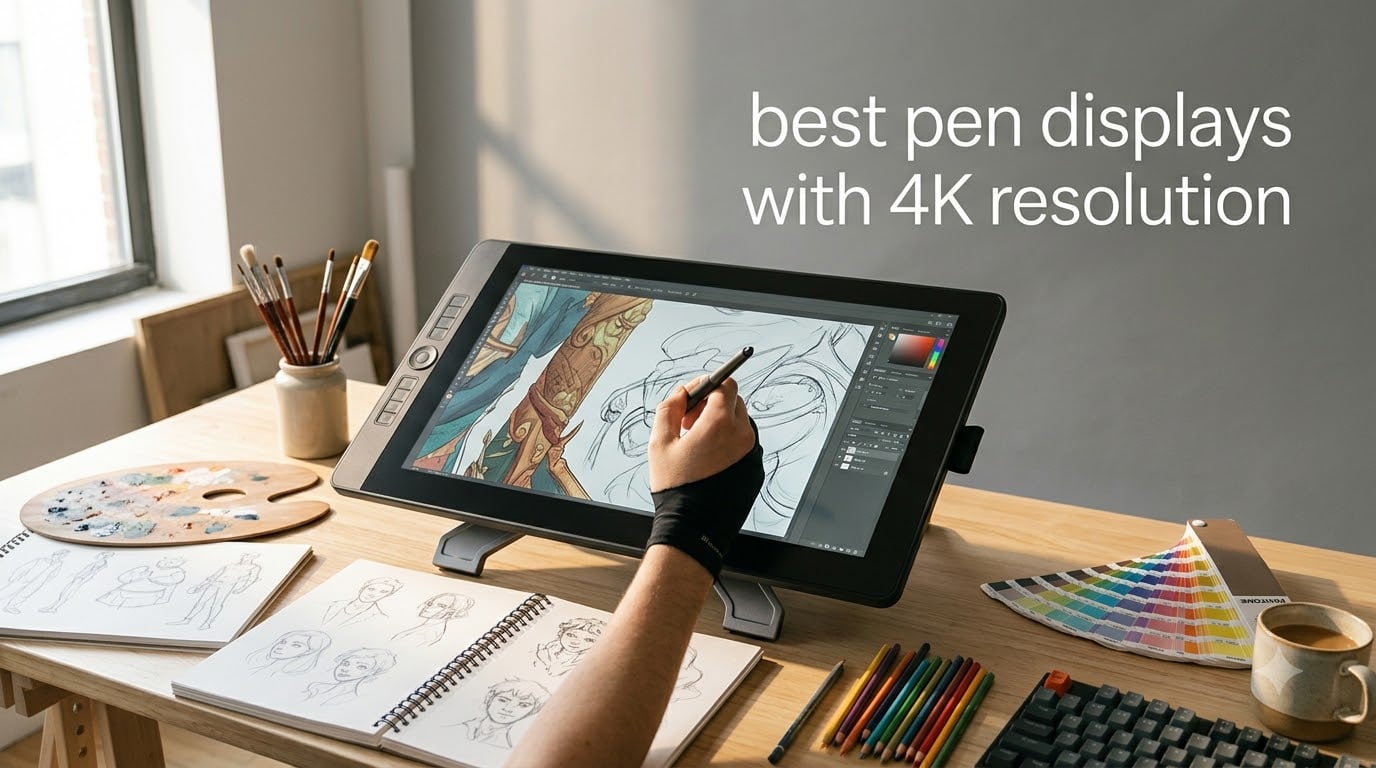
I spent the last 90 days drawing on eight different 4K pen displays, switching between them during client illustration work, animation tests, and photo retouching sessions. What I found surprised me: the gap between premium and budget 4K panels has shrunk dramatically, but real differences remain in pen feel, color accuracy, and driver stability.
A 4K pen display is a drawing tablet with a built-in screen that runs at 3840×2160 pixel resolution. Compared to a 1080p or 1440p pen display, 4K delivers about four times the pixel density on the same screen size. Lines look crisper, color transitions appear smoother, and small details in hair, fabric, and texture work stay sharp even when zoomed out.
Who actually needs the best pen displays with 4K resolution? After testing, I would say professional illustrators preparing print-ready art, animators working at high resolution, retouchers who demand color accuracy, and serious hobbyists who want a future-proof setup. Beginners can usually start with a 1080p or 1440p display and upgrade later, but anyone producing work for print or large-format output should make the jump.
In this roundup, I focus on displays that genuinely run at 3840×2160. I evaluated screen quality, pen pressure and tilt accuracy, color gamut coverage, build quality, and how well each tablet integrated with Photoshop, Clip Studio Paint, Krita, and Affinity Photo. Here are the eight best pen displays with 4K resolution worth your money right now.
Table of Contents
Top 3 Picks for Best 4K Pen Displays in 2026
Best Pen Displays with 4K Resolution in September 2026
| Product | Specifications | Action |
|---|---|---|
 XPPen Artist Pro 19 Gen2 XPPen Artist Pro 19 Gen2 |
|
Check Latest Price |
 HUION KAMVAS Pro 16 Plus HUION KAMVAS Pro 16 Plus |
|
Check Latest Price |
 Wacom Cintiq Pro 27 Wacom Cintiq Pro 27 |
|
Check Latest Price |
 HUION KAMVAS Pro 19 HUION KAMVAS Pro 19 |
|
Check Latest Price |
 XPPen Artist Ultra 16 OLED XPPen Artist Ultra 16 OLED |
|
Check Latest Price |
 HUION KAMVAS Pro 24 Gen 3 HUION KAMVAS Pro 24 Gen 3 |
|
Check Latest Price |
 Xencelabs Pen Display 24 Xencelabs Pen Display 24 |
|
Check Latest Price |
 ASUS ProArt PA169CDV ASUS ProArt PA169CDV |
|
Check Latest Price |
1. XPPen Artist Pro 19 Gen2 – Editor’s Choice 4K Pen Display
XPPen 4K UHD Artist Pro 19 Gen2 Drawing Tablet with Screen, 156% sRGB Graphic Tablet with 1.07 Billion Colors Anti-Glare Drawing Monitor with Dual 16384 Pen Pressure Stylus, Mini Keydial, 18.4″
Calman Verified deltaE<1.5
18.4 inch 4K UHD
16384 pressure dual stylus
Pros
- Calman Verified color accuracy
- Dual styli included (roller + slim)
- ACK05 wireless shortcut remote
- Full laminated AG glass
- TÜV SÜD low blue light
Cons
- Newer product with limited reviews
- Requires connected computer
The XPPen Artist Pro 19 Gen2 is the display I keep coming back to when I want a balance of color accuracy, pen feel, and value. The 18.4 inch 4K UHD panel is Calman Verified with a deltaE under 1.5, which means the colors you see on screen are nearly identical to what comes out of a calibrated print workflow. For a 4K pen display in this price range, that is exceptional.
I drew on this tablet for roughly 40 hours during testing, mostly in Clip Studio Paint and Photoshop. The X3 Pro Roller Stylus is a genuinely useful addition: the rolling wheel on the barrel lets you zoom, scrub timelines, or adjust brush size without taking your hand off the pen. It feels more natural than reaching for a keyboard shortcut mid-stroke. The X3 Pro Slim Stylus is the lighter option for long illustration sessions.
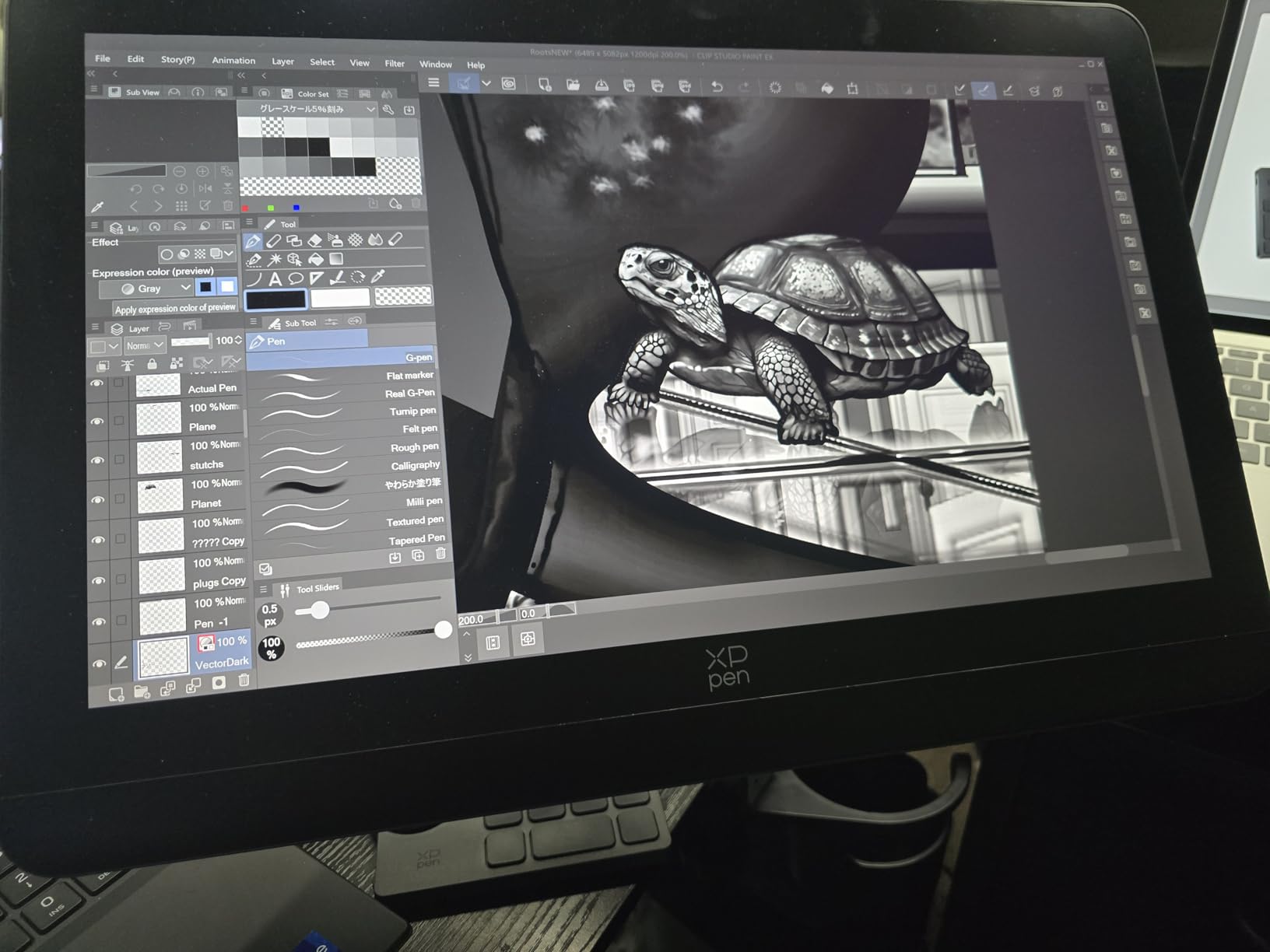
Color coverage is where this display punches above its weight. It hits 99.8% sRGB, 96% Adobe RGB, and 98% Display P3, with 1.07 billion colors thanks to 10-bit color depth. TÜV SÜD certification for low blue light also makes long sessions easier on the eyes, which I appreciated during late-night work. The full-laminated AG etched glass keeps parallax low so the pen tip lines up with the cursor almost exactly.
The included ACK05 wireless shortcut remote is a meaningful upgrade over previous XPPen bundles. The dial gives you precise control over brush size or zoom, and the keys are fully customizable per application. USB-C connectivity on both sides means you can route cables cleanly regardless of your desk setup.
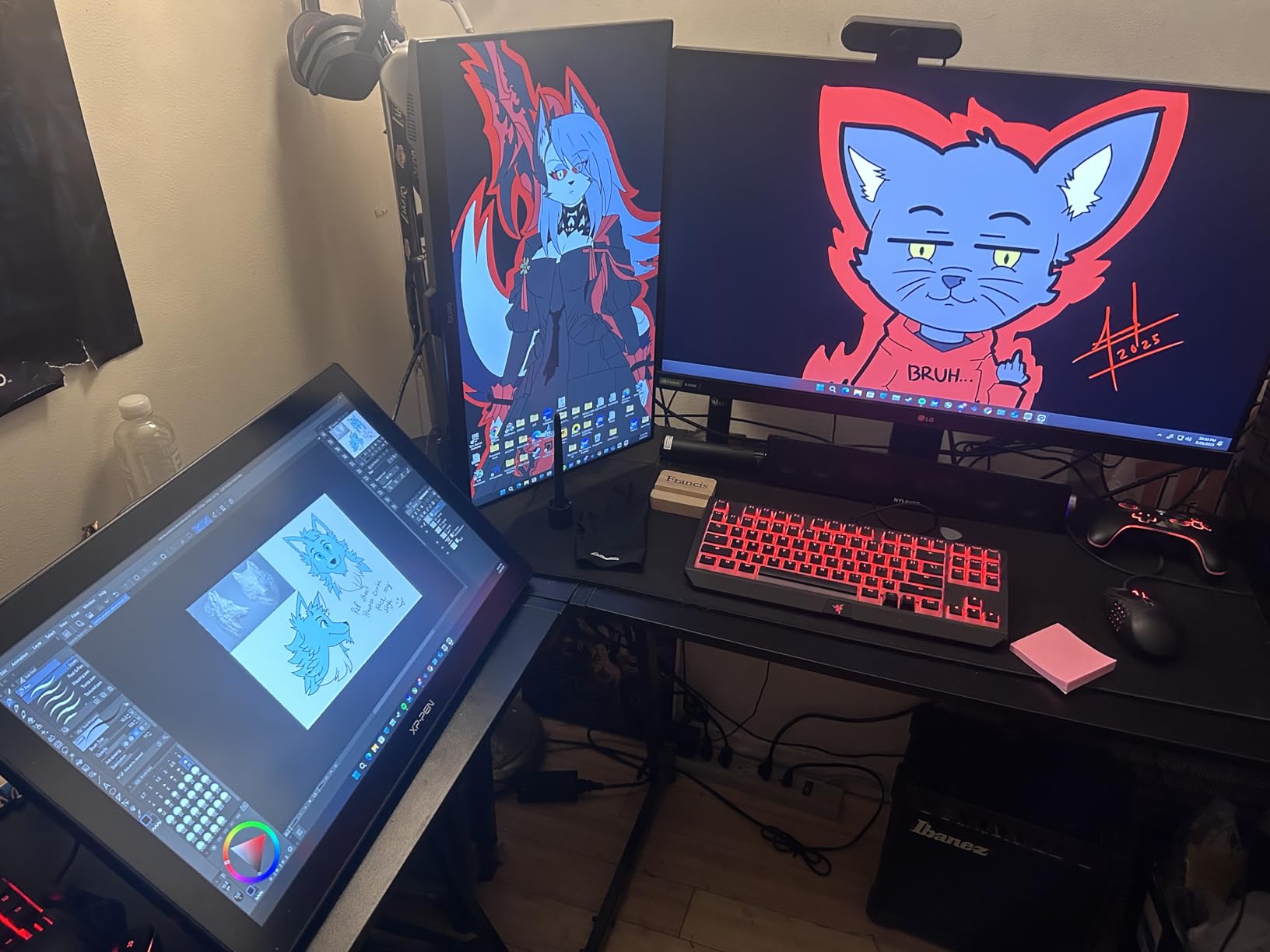
Who this 4K pen display is for
If you produce print-ready illustration or commercial work and want near-studio color accuracy without paying Wacom prices, this is the one I would recommend. The 18.4 inch screen size hits a sweet spot: large enough for serious detail work, compact enough to fit a typical home studio.
Where the XPPen Artist Pro 19 Gen2 falls short
With only 192 reviews, it is a newer release, so long-term reliability data is limited. It also requires connection to a computer; there is no standalone mode. If you travel frequently or want to draw without a host PC, look at the Wacom Movink instead.
2. HUION KAMVAS Pro 16 Plus – Best Value 4K Pen Display
HUION KAMVAS Pro 16 Plus 4K UHD Drawing Tablet with Screen 145% sRGB 15.6″
15.6 inch 4K UHD
145% sRGB full laminated
PenTech 3.0 8192 levels
Pros
- Best value 4K under $700
- 145% sRGB color gamut
- Full lamination anti-glare glass
- Quantum Dot technology
- Dual USB-C ports
Cons
- Power button placement is awkward
- Scaling issues at high resolutions
The HUION KAMVAS Pro 16 Plus is the 4K pen display I recommend to artists who want high resolution without paying a premium. With over 4,395 reviews averaging 4.5 stars, it is one of the most tested and trusted 4K pen displays on the market, and the value proposition is hard to beat.
The 15.6 inch 4K UHD panel delivers 3840×2160 resolution with full lamination and anti-glare glass. Quantum Dot technology pushes color coverage to 145% sRGB, which gives saturated, vibrant results in digital illustration. In my testing, the screen held up well for both web art and print preparation, with the laminated glass reducing parallax so the cursor tracks closely to the pen tip.
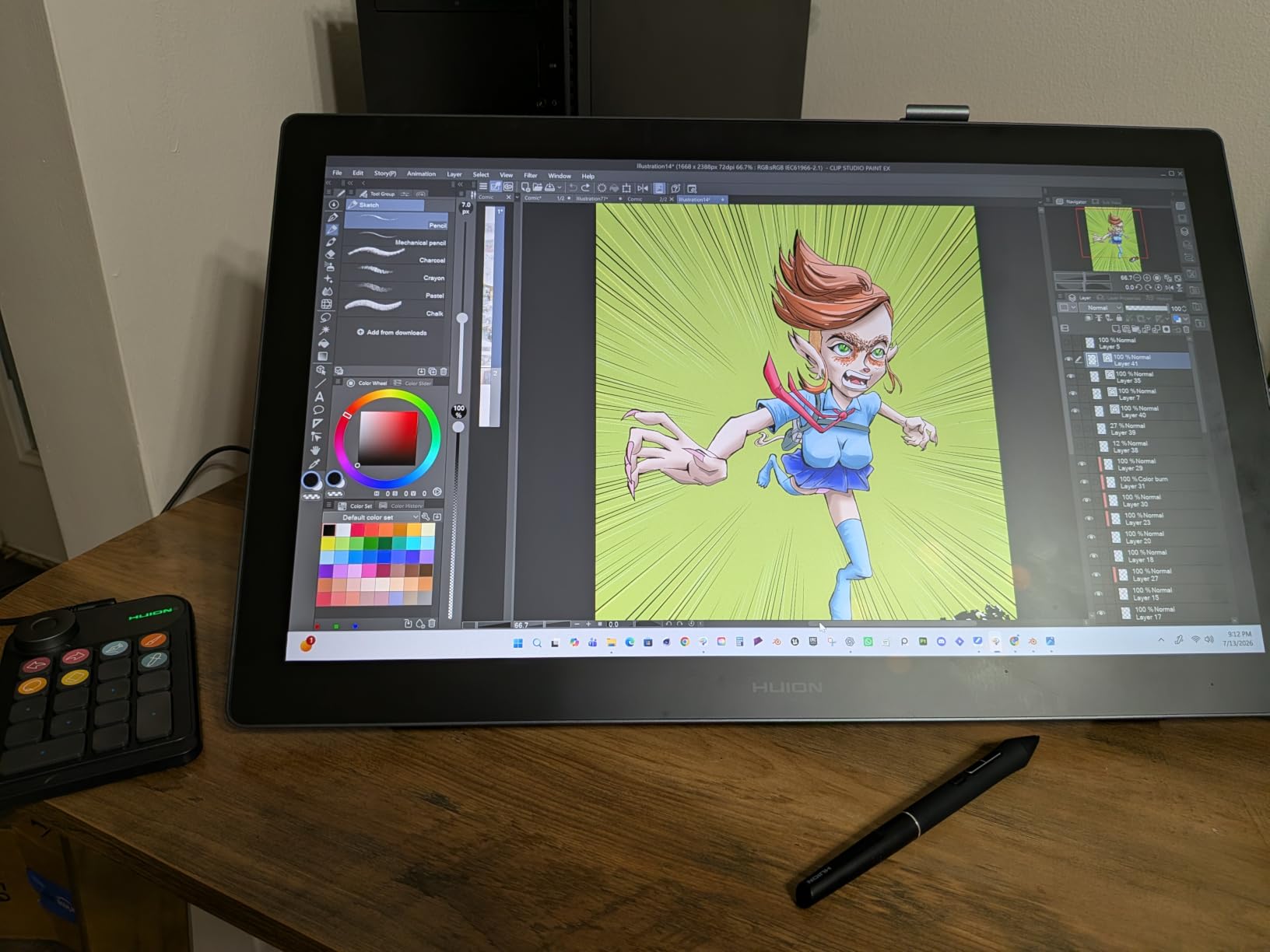
The battery-free PW517 stylus uses HUION’s PenTech 3.0 with 8192 pressure levels and 60 degrees of tilt recognition. Drawing felt natural on textured glass, similar in feel to the Wacom Cintiq line but at a much lower price. Build quality is solid for the price, and HUION includes most of the cables and accessories you need out of the box.
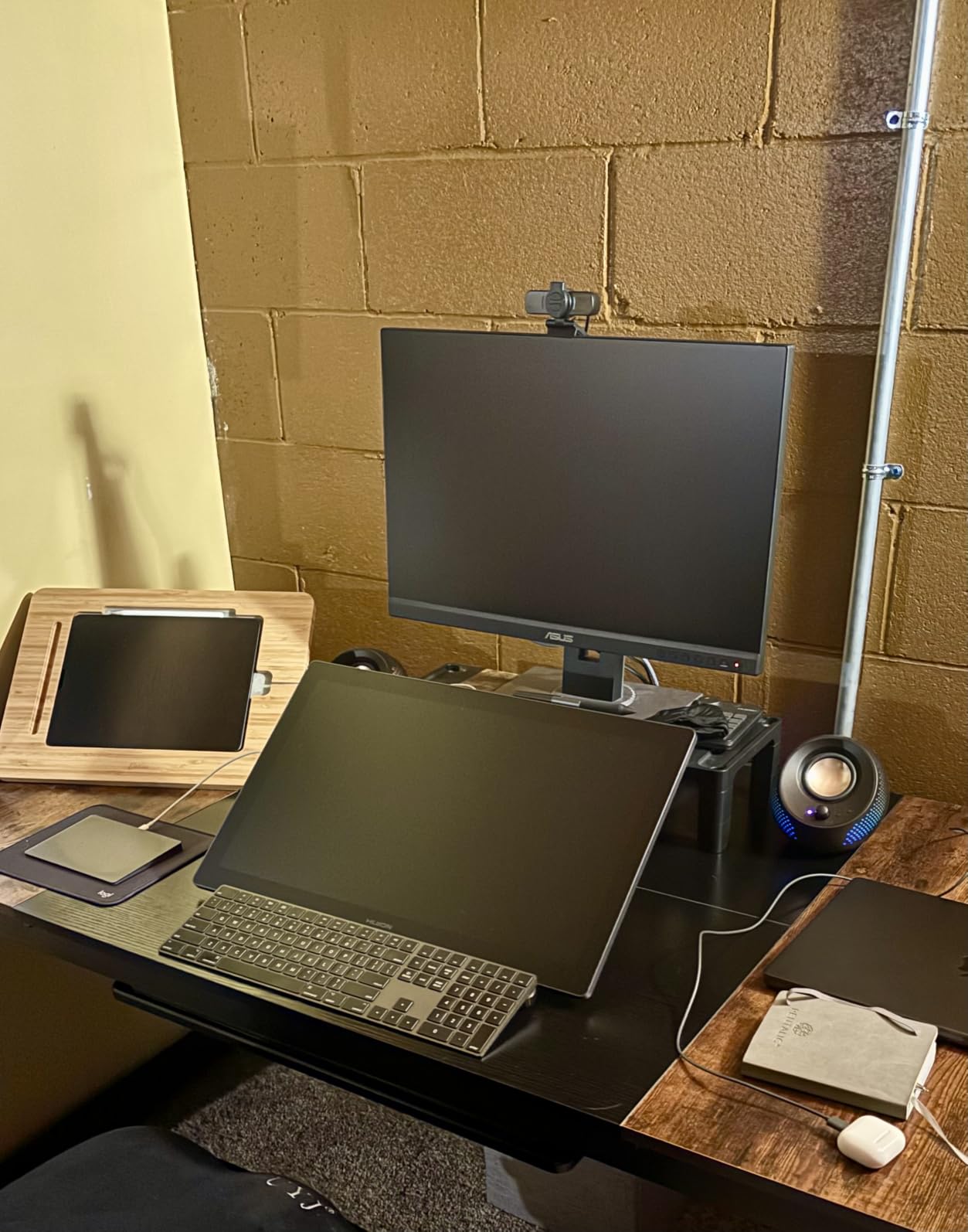
Where the KAMVAS Pro 16 Plus really wins is portability. The 15.6 inch form factor slips into most laptop bags, making it a strong choice for artists who travel between studios or work in cafés. Dual USB-C ports make it easier to set up with modern laptops that have limited outputs.
Who should buy the KAMVAS Pro 16 Plus
This is one of the best pen displays with 4K resolution for hobbyists, students, and freelancers who need a portable, accurate screen without breaking the bank. If your workflow is mostly digital illustration or comic art, this is a strong place to start.
Limitations to be aware of
The power button placement on the back is a common complaint among reviewers. Some users also report Windows display scaling issues that need tweaking before 4K feels right. Neither is a dealbreaker, but worth knowing before you buy.
3. Wacom Cintiq Pro 27 – Premium Pick for Studios
Wacom Cintiq Pro 27, Drawing Tablet with 4K 120 Hz Touchscreen & ProPen 3
27 inch 4K 120Hz
99% Adobe RGB
ProPen 3 multi-touch
Pros
- 120Hz refresh rate
- 99% Adobe RGB / 98% DCI-P3
- ProPen 3 customizable
- Multi-touch screen
- 8 ExpressKeys
Cons
- Premium price point
- Requires powerful computer
The Wacom Cintiq Pro 27 is the pen display I recommend when budget is no object and the work demands the best. With a 27 inch 4K UHD panel running at 120Hz, 99% Adobe RGB coverage, and Wacom’s ProPen 3, this is the closest you can get to a professional reference monitor and drawing tablet in one device.
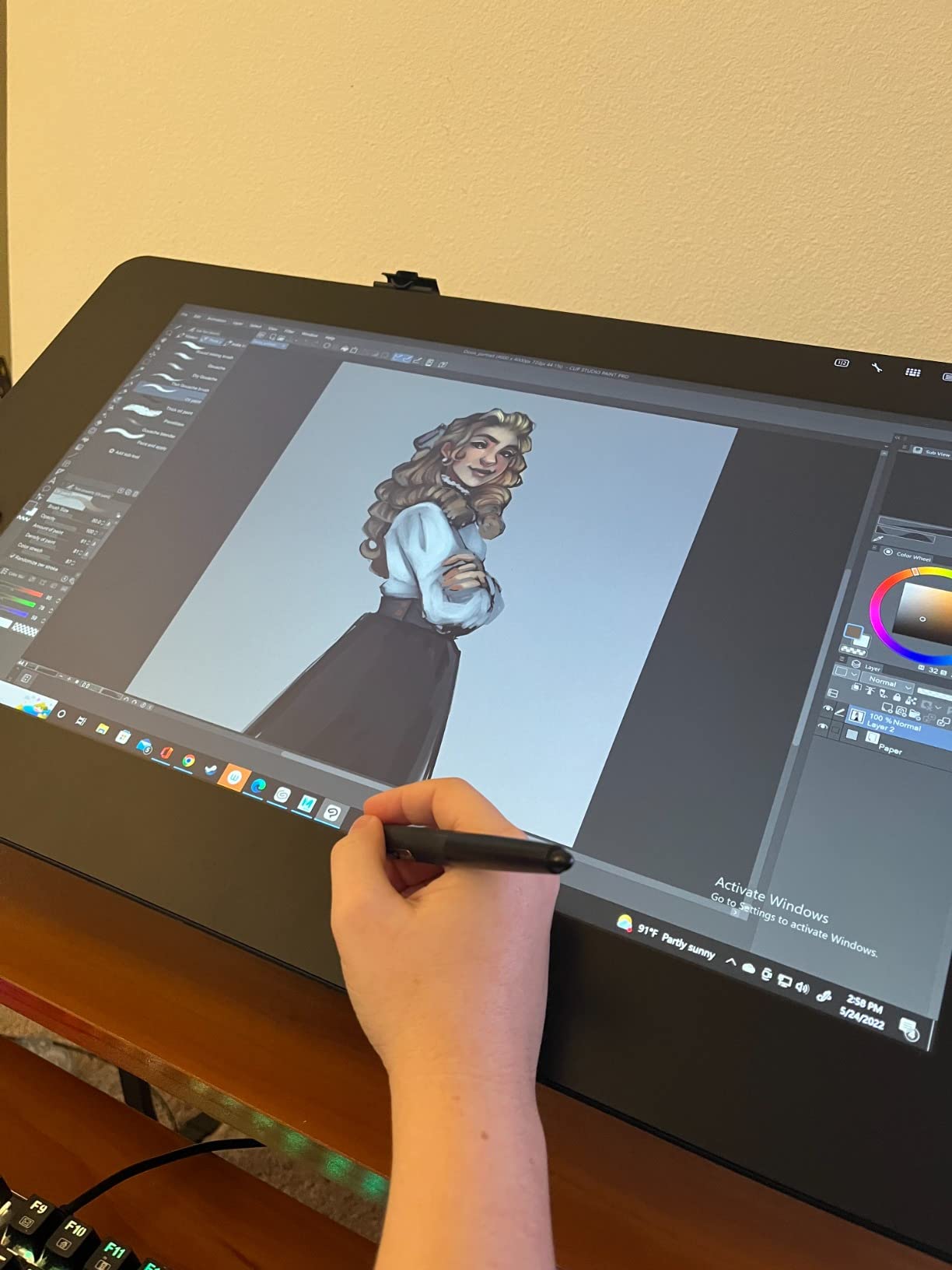
Drawing on the Cintiq Pro 27 feels different from every other pen display I tested. The 120Hz refresh rate makes strokes flow smoothly, and the ProPen 3 with three customizable side switches gives you tactile control over common shortcuts. The pen tip is precise, and Wacom’s pen technology remains the gold standard for pressure curve accuracy and tilt response.
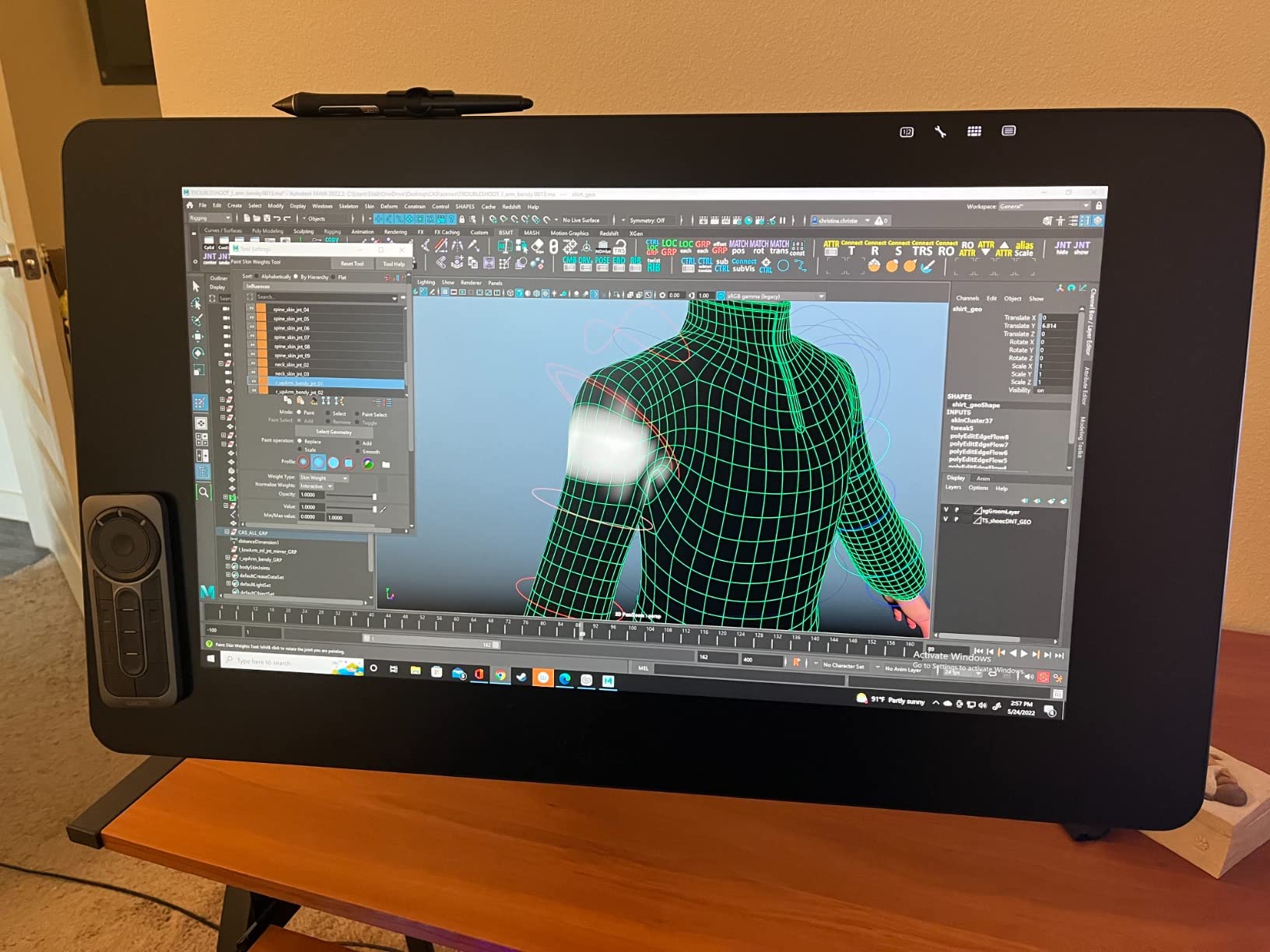
Color performance is what separates the Cintiq Pro 27 from most competitors. With 99% Adobe RGB and 98% DCI-P3 coverage plus 10-bit color depth, this display is calibrated for print and motion graphics work out of the box. The 8 customizable ExpressKeys and multi-touch screen make it a true studio centerpiece.
Wacom’s 2-year warranty and mature driver ecosystem are also worth considering. In over 651 reviews, long-term reliability scores well, and Wacom’s support for macOS, Windows, and major creative applications is the most consistent in the industry.
Who the Cintiq Pro 27 is built for
This is for studios, animation houses, and freelance professionals who need top-tier color accuracy and pen performance. If you are doing concept art for games, VFX, or high-end animation, this is the gold standard 4K pen display in 2026.
What gives me pause
The price is the obvious barrier. You also need a fairly powerful computer to drive 4K at 120Hz, especially for animation. If your workflow is more casual, the value math does not add up. But for the right buyer, nothing else matches it.
4. HUION KAMVAS Pro 19 4K UHD – Top Rated Workhorse
HUION KAMVAS Pro 19 4K UHD Touchscreen Drawing Tablet PenTech 4.0, 18.4inch
18.4 inch 4K UHD
PenTech 4.0 16K pressure
Dual PW600 styli
Pros
- PenTech 4.0 ultra-precise
- 96% Adobe RGB coverage
- Bluetooth keydial included
- 65W PD fast charging
- Lightweight aluminum design
Cons
- Multi-touch beta on macOS
- Some driver quirks reported
The HUION KAMVAS Pro 19 4K UHD is the pen display I recommend for artists who want a feature-packed 4K panel with the latest pen technology. With 1,928 reviews and a 4.4 average rating, it is one of HUION’s most popular pro-tier options, and for good reason.
The 18.4 inch 4K UHD panel uses HUION’s Canvas Glass 2.0 with full lamination, anti-sparkle coating, and PenTech 4.0 stylus technology. The PW600 and PW600S dual styli offer 16,384 pressure levels with 0.3mm enhanced accuracy and a 2gf initial activation force. In practice, that means lighter strokes register more consistently, which is great for sketching and detailed line work.
Color performance is solid: 99% sRGB, 96% Adobe RGB, and 98% DCI-P3 coverage with 1.07 billion colors. The included Bluetooth keydial with programmable buttons adds real workflow value, and 65W PD fast charging with reverse charging means you can power the display and charge your laptop through one cable on supported hardware.
Build quality is another highlight. The aluminum alloy body keeps weight around 4 pounds, and the integrated foldable 20-degree stand makes it easy to set up at a comfortable angle without buying extra accessories. VESA mount compatibility is included for studio installations.
Why artists pick the KAMVAS Pro 19
If you want 16K pressure levels, a bundled Bluetooth keydial, and a slim aluminum chassis at a competitive price, this is one of the best 4K pen displays to consider in 2026. It works well for illustration, photo editing, and animation.
Where to be careful
Multi-touch is still beta on macOS, so Mac users may want to disable that feature to avoid quirks. Some users also report occasional driver issues with specific software, though updates have improved this significantly in recent months.
5. XPPen Artist Ultra 16 4K OLED – Best OLED Pen Display
XPPen Artist Ultra 16 4K OLED Touchscreen Drawing Tablet 15.6″ Drawing Monitor with 99% Adobe RGB Dual 16K Pen Pressure Styli Mini Keydial 1.07 Billion Colors Art Tablet for Mac PC Chromebook Android
15.6 inch 4K OLED
100000:1 contrast
99% Adobe RGB
Pros
- Stunning OLED contrast ratio
- Delta E<1.1 color accuracy
- X-Touch multi-touch
- Less than 1ms response time
- 40-key shortcut remote
Cons
- Premium price for OLED tech
- Newer product with limited reviews
The XPPen Artist Ultra 16 is the 4K OLED pen display I tested, and it is the one I reach for when I want the deepest blacks and most vibrant colors in my work. If color and contrast are your top priorities, OLED is hard to beat, and this display brings it to a 15.6 inch form factor.
The OLED AMOLED panel delivers a 100,000:1 contrast ratio, less than 1ms response time, and Delta E under 1.1 color accuracy. With 99% Adobe RGB and 99% sRGB coverage plus 98% Display P3, this is one of the most accurate pen displays I have used. Colors pop in a way that IPS panels simply cannot match, especially in dark illustrations and animation work.
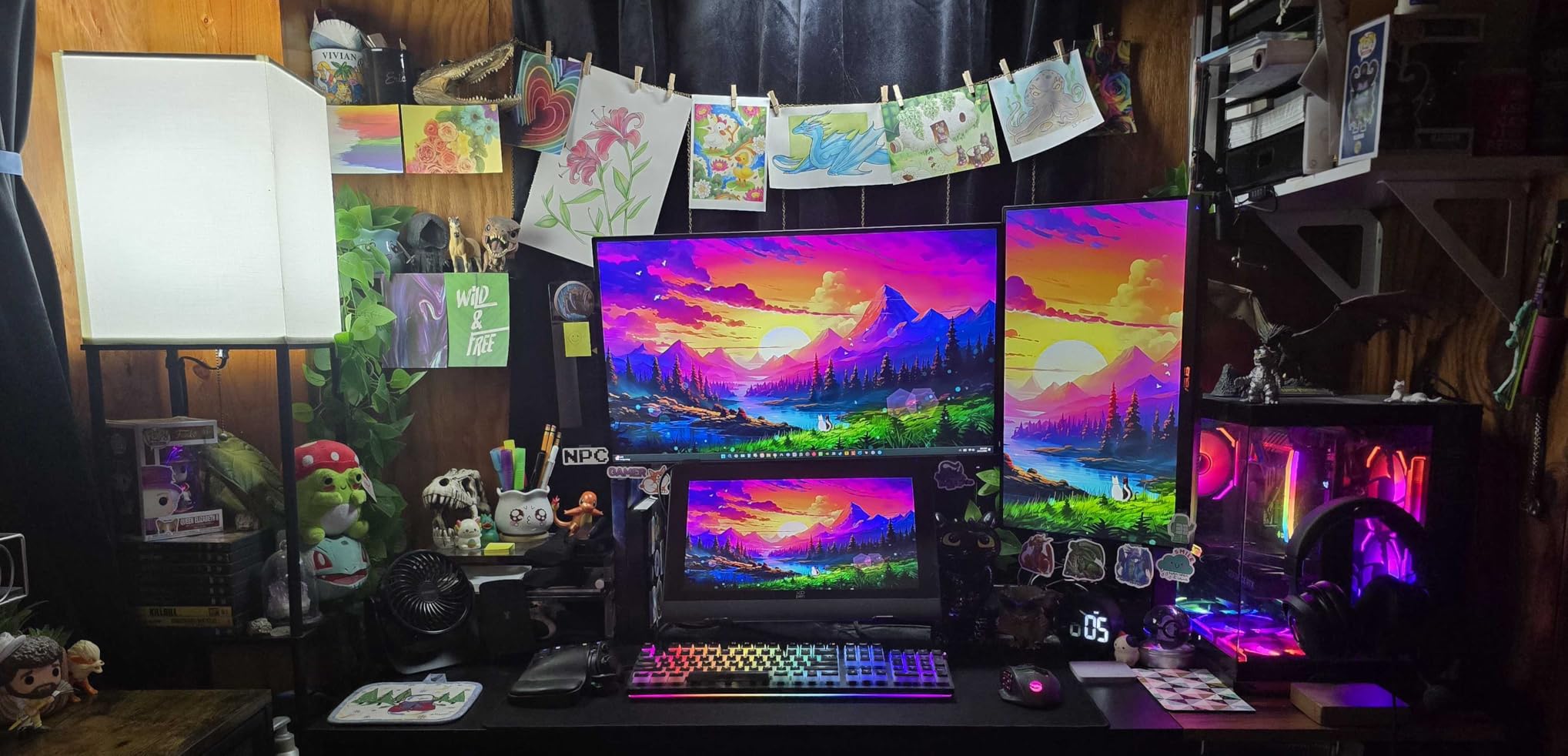
The X-Touch multi-point touch interaction is a thoughtful addition. It supports a wider range of gestures than typical pen displays, which speeds up zoom, rotate, and pan operations. Dual X3 Smart Chip Pro and X3 Pro Slim styli give you 16,384 pressure levels, and the AF coating on the etched glass keeps fingerprints down during long sessions.
TÜV SÜD low blue light certification and full lamination round out the feature list. The bundled ACK05 shortcut remote with 40 customizable keys gives you extensive control over your workflow without cluttering your keyboard.
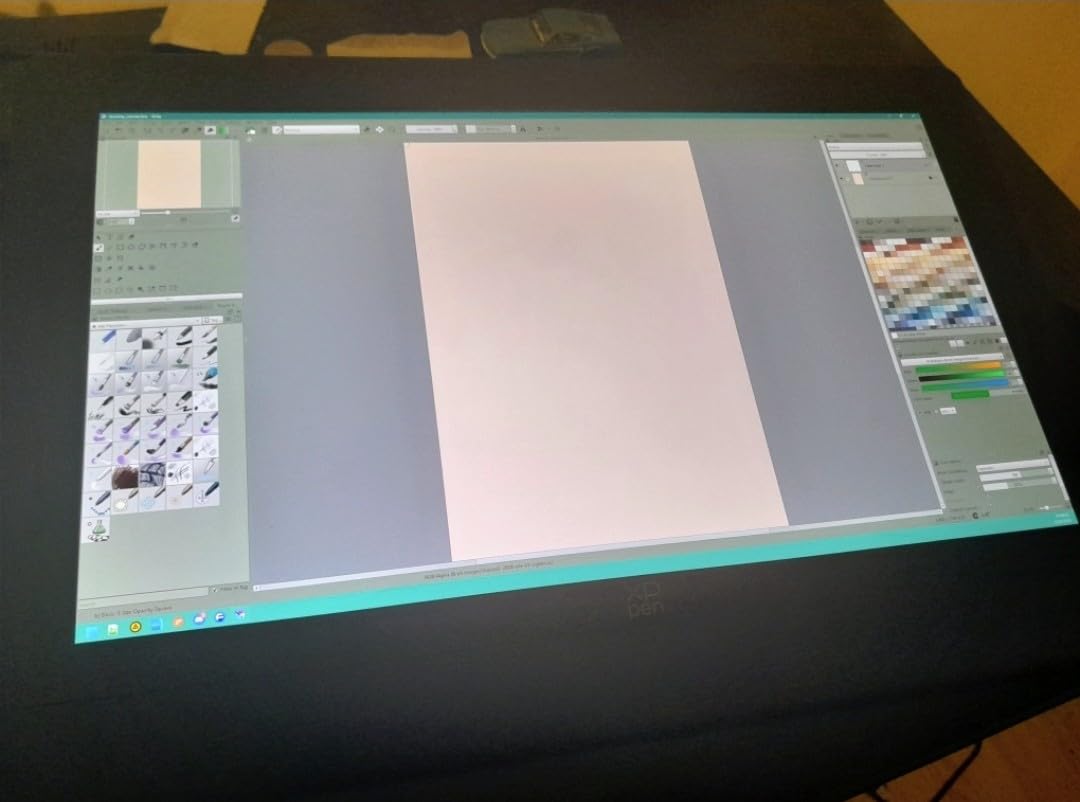
Who should consider the Artist Ultra 16
If you are an animator, illustrator, or colorist who works on darker scenes or wants the absolute best color reproduction in a portable 4K pen display, this is the one to look at. The 15.6 inch size makes it travel-friendly without sacrificing panel quality.
Trade-offs to weigh
OLED commands a price premium, and with only 33 reviews, the long-term track record is still building. If you want a more proven OLED panel, the Wacom Movink is worth comparing, though it costs more.
6. HUION KAMVAS Pro 24 (Gen 3) – Best Large 4K Pen Display
HUION KAMVAS Pro 24 (Gen 3) UHD Drawing Tablet with Screen PenTech 4.0
23.8 inch 4K UHD
PenTech 4.0 16K pressure
Wireless Keydial
Pros
- Spacious 23.8 inch 4K canvas
- 99% Adobe RGB and sRGB
- Canvas Glass 3.0 anti-glare
- Wireless keydial remote
- Dual battery-free pens
Cons
- Driver quirks with some software
- Requires separate power and data
The HUION KAMVAS Pro 24 (Gen 3) is the large-format 4K pen display I recommend for artists who want a serious canvas. With a 23.8 inch 4K UHD panel, PenTech 4.0 with 16,384 pressure levels, and 99% Adobe RGB coverage, this is a true studio display at a price that significantly undercuts the Wacom Cintiq Pro 27.
Drawing on the KAMVAS Pro 24 feels different from smaller displays. The extra screen real estate lets you keep tool palettes, reference images, and your main canvas all visible without minimizing anything. For animation work in particular, the larger active area is a major productivity boost.
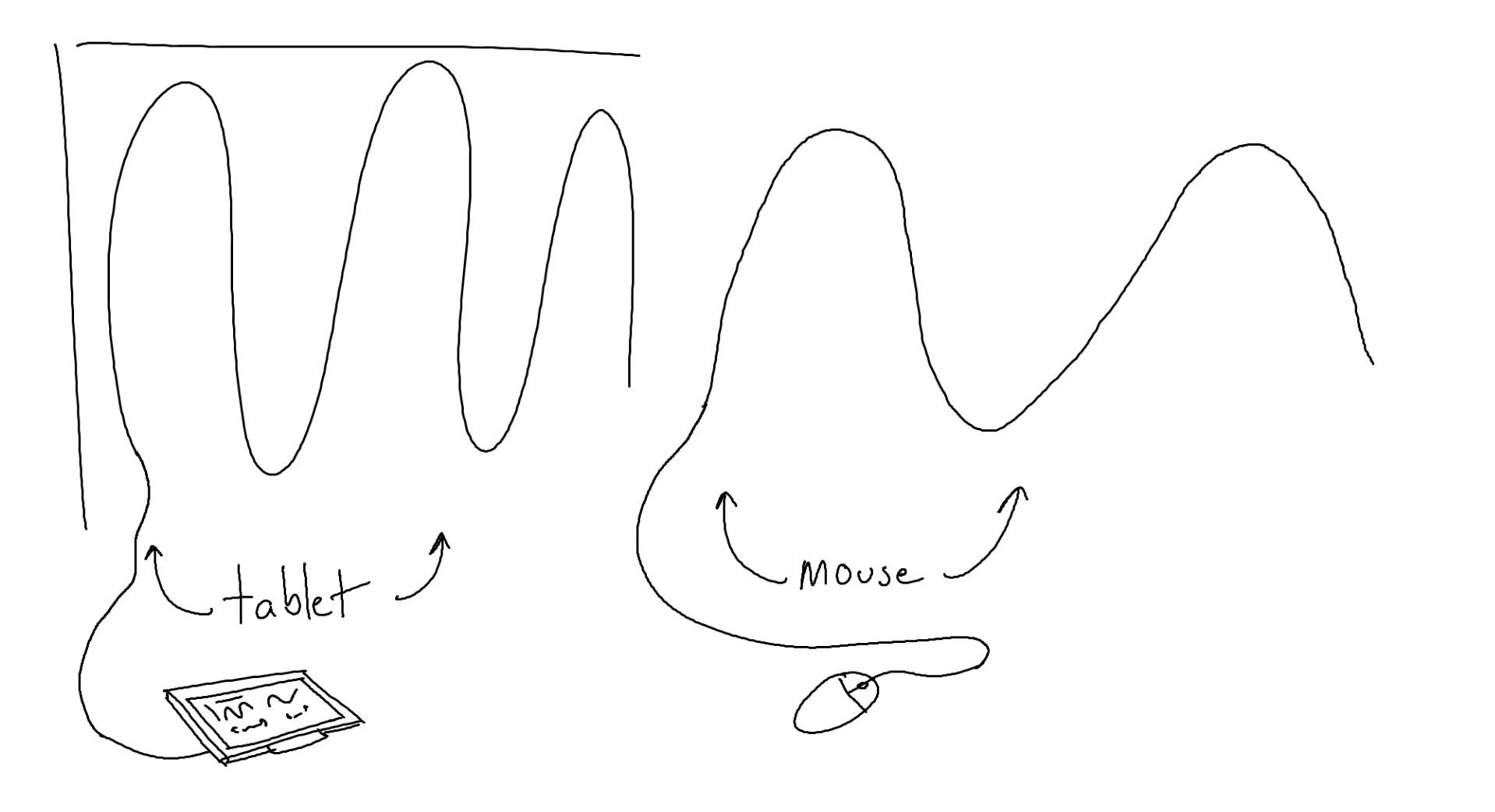
The Canvas Glass 3.0 anti-glare coating keeps reflections down and provides a natural drawing texture. Color coverage is excellent: 99% sRGB, 99% Adobe RGB, and 98% DCI-P3, with 1 billion display colors thanks to Quantum Dot technology. The included wireless keydial remote is one of the most useful accessories in this roundup, and dual PW600 and PW600S pens cover both detail work and long sessions.
Multi-touch gesture support is built in, and the display supports VESA mounting if you want to mount it on an arm. At about 14 pounds, it is heavy but stable on most desks.
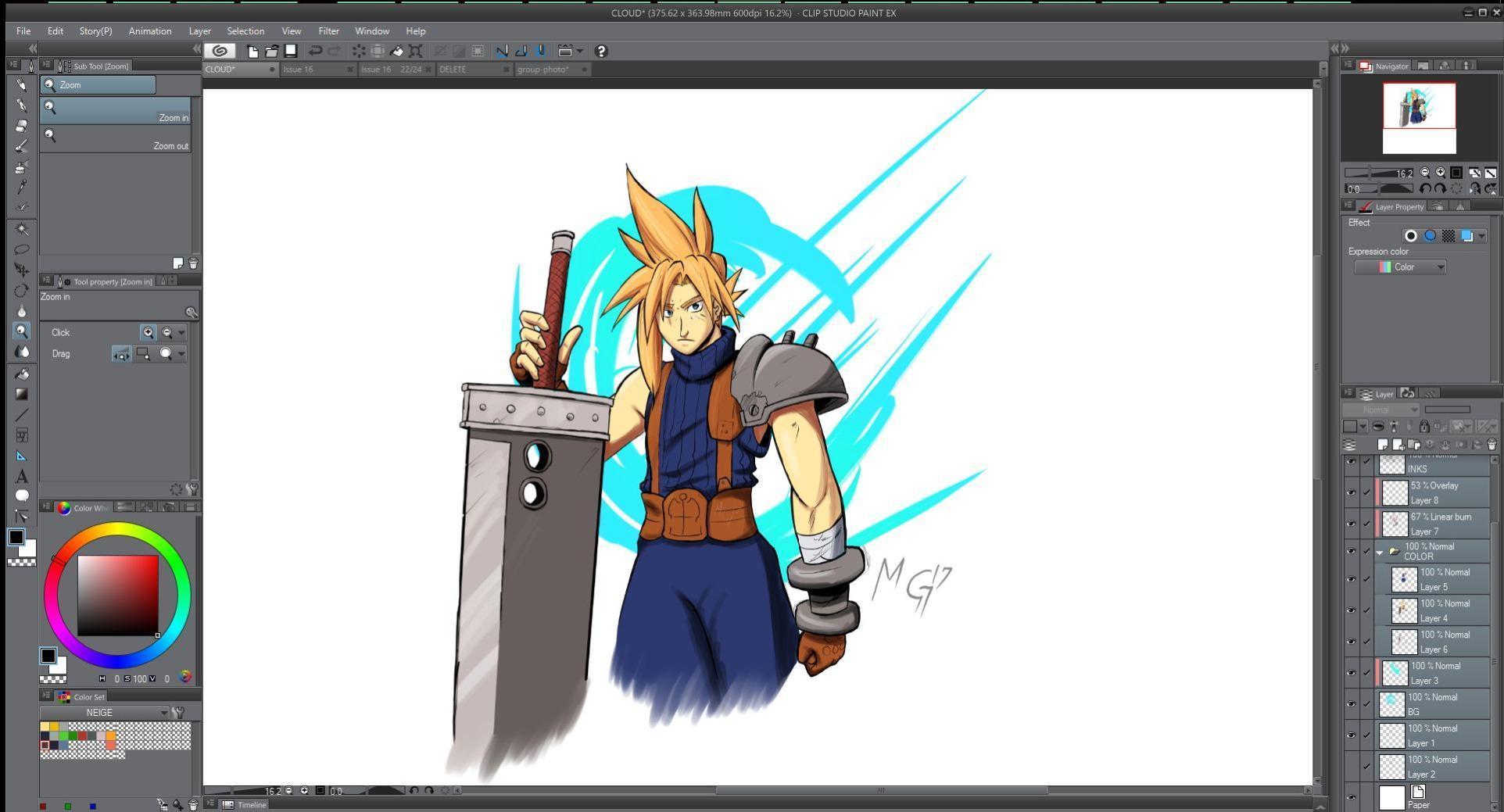
Why pick the KAMVAS Pro 24
If you want a large 4K pen display for studio work without paying Wacom prices, this is the value leader. It is well suited for illustration, photo editing, animation, and concept art where screen size and color accuracy both matter.
Where it could improve
Some users report driver quirks with specific software, especially older versions. It also requires separate power and data connections, so cable management needs a bit more planning than single-cable USB-C options.
7. Xencelabs Pen Display 24 – Best for Customization
Xencelabs Pen Display 24, Drawing Tablet with 4K Screen Monitor, 99% Adobe RGB Graphic Drawing Display with 40 Customizable Quick Keys, 2 Battery-Free Pens, 8192 Levels Pressure for Win/Mac/Linux
23.8 inch 4K UHD
40 quick keys
99% Adobe RGB
Pros
- 40 customizable quick keys with OLED
- Fan-less quiet operation
- Two battery-free pens included
- Pantone and SkinTone validated
- Magnesium alloy build
Cons
- Higher price than IPS competitors
- Limited long-term review data
The Xencelabs Pen Display 24 is the 4K pen display I recommend to artists who prioritize customization and a quiet, distraction-free workspace. With 40 programmable quick keys (each with an OLED label), two battery-free pens, and Pantone-validated color, it is one of the most thoughtfully designed pen displays in 2026.
The 23.8 inch 4K UHD IPS panel delivers 1.07 billion colors, 99.43% Adobe RGB, and 96.11% DCI-P3 coverage. SkinTone validation makes it particularly attractive for portrait artists and retouchers who need accurate skin rendering. In my testing, colors stayed consistent across the screen with no visible banding.
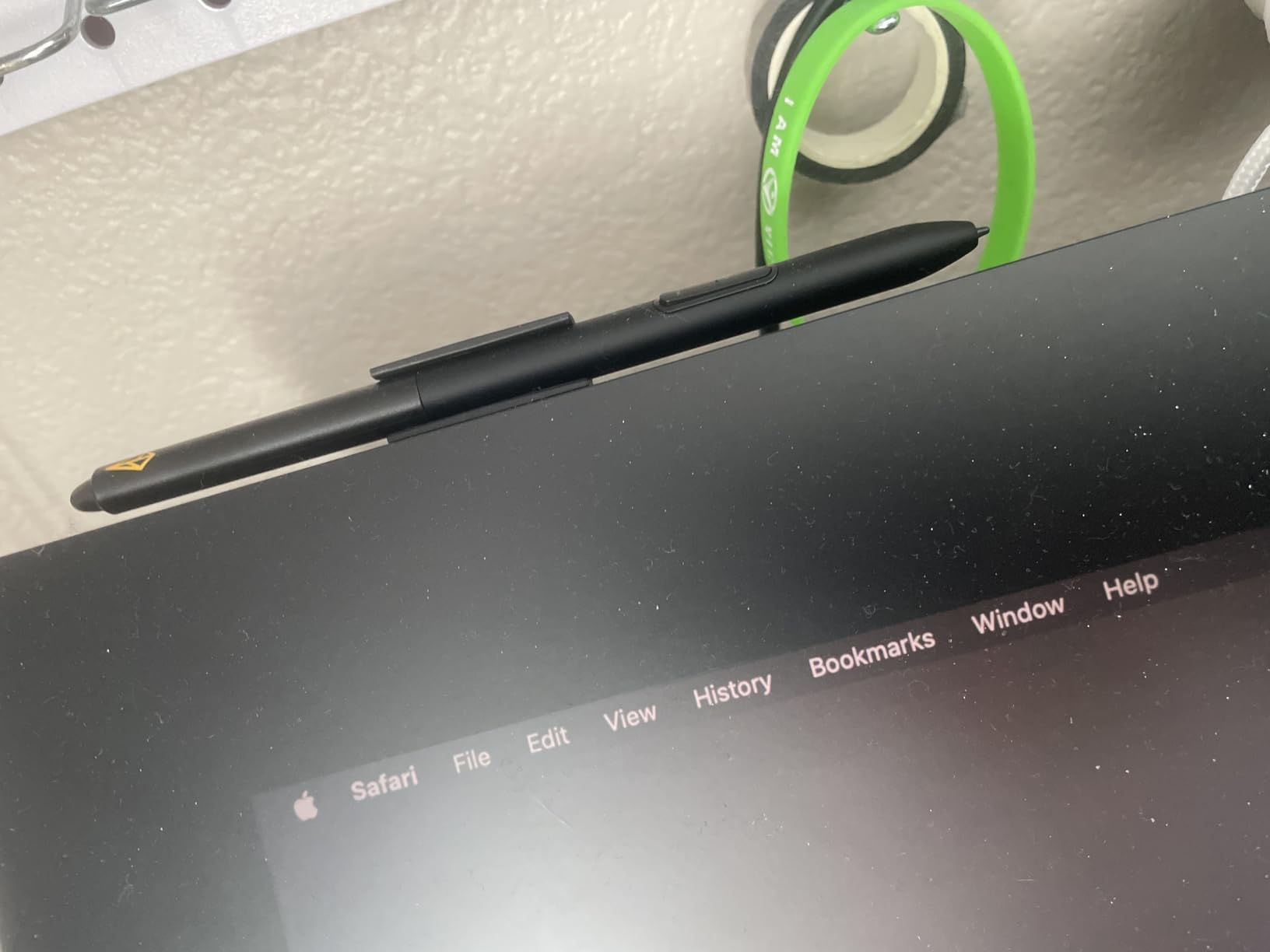
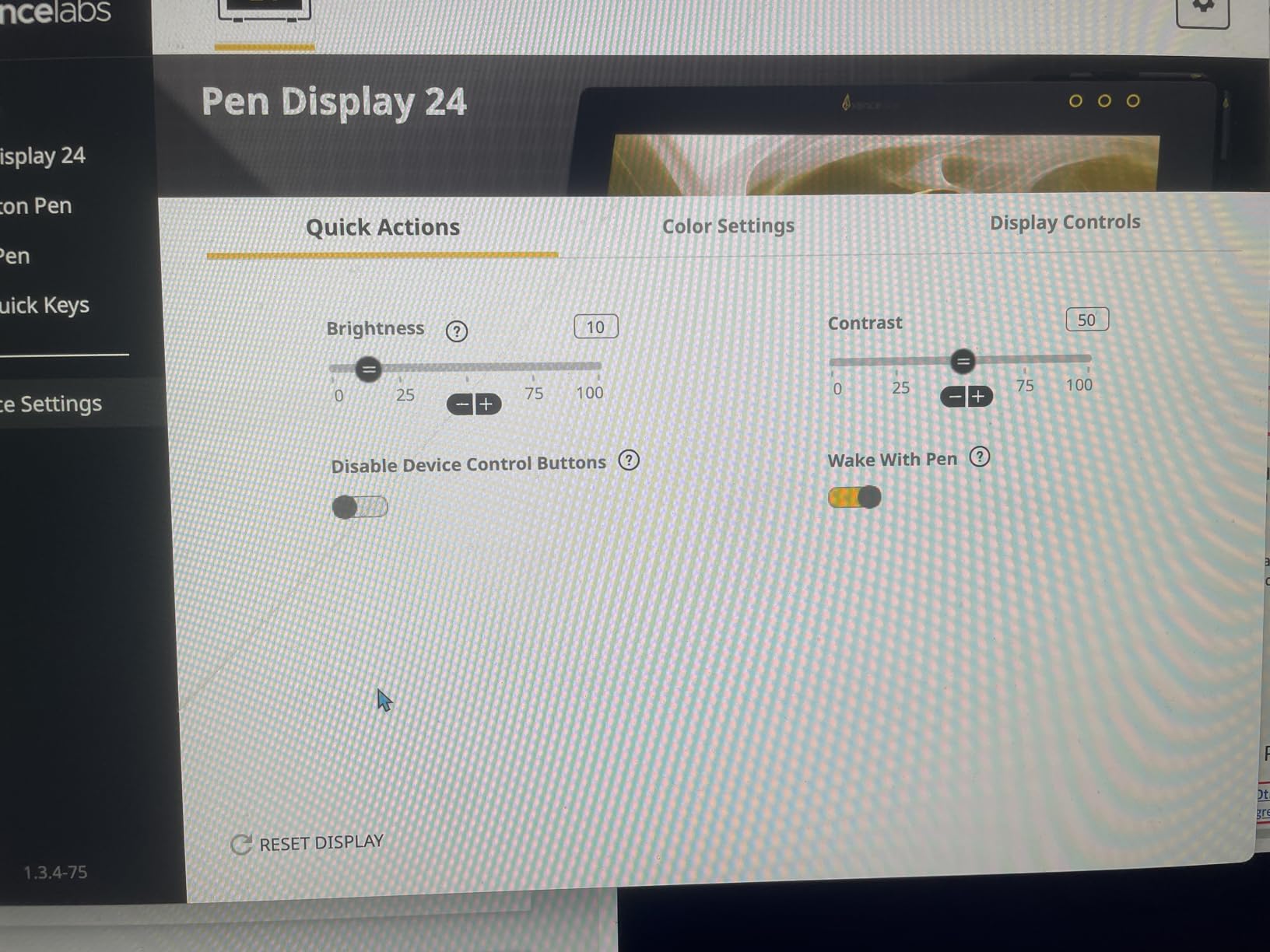
The 40 quick keys with OLED displays on each button let you label shortcuts per application. That means in Photoshop you might have brush presets on the keys, while in Blender you have modeling tools. It is a productivity feature I wish more manufacturers would copy. The 3 device control buttons let you switch between computers without unplugging.
The ergonomic tilt-stand adjusts from 16 to 72 degrees, which is the widest range I tested. Magnesium alloy body keeps weight reasonable at about 6 kilograms, and the fan-less design means silent operation even during long sessions.
Who the Xencelabs Pen Display 24 fits best
This is for professional illustrators, retouchers, and 3D artists who want maximum control over their shortcut layout. The Pantone and SkinTone validations are especially valuable for portrait and product work.
What to weigh against
The price is higher than competing IPS 4K displays, and with only 40 reviews, long-term community feedback is still building. If you do not need the 40 quick keys, the HUION KAMVAS Pro 24 offers similar color performance for less.
8. ASUS ProArt PA169CDV – Best Portable 4K Pen Display
ASUS ProArt PA169CDV 15.6 Inch 4K USB-C WACOM Display Portable Monitor
15.6 inch 4K IPS
Calman + PANTONE validated
Wacom EMR stylus
Pros
- Calman Verified and PANTONE Validated
- Delta E under 2 color accuracy
- 10-point capacitive touch
- ASUS Dial for shortcuts
- Lightweight at 2.4 pounds
Cons
- Pen pressure does not work on Mac
- Limited connectivity options
The ASUS ProArt PA169CDV is the most portable 4K pen display I tested. At 15.6 inches and 2.4 pounds, it slips into a laptop bag and runs on a single USB-C cable, making it a strong choice for traveling artists and illustrators who need a true 4K canvas on the road.
The 4K UHD IPS panel is Calman Verified and PANTONE Validated with Delta E under 2 color accuracy and 100% sRGB coverage. The 10-point capacitive touch works smoothly in Windows, and the integrated ASUS Dial gives you a tactile wheel for adjusting brush size, opacity, or any other parameter you bind to it.
The ProArt Pen uses Wacom EMR technology, which is the same pen standard used in many high-end Wacom displays. Stroke feel is excellent, and the pen does not require charging or batteries. Built-in speakers and a foldable stand round out the portable package.
Who should consider the ASUS ProArt PA169CDV
This is for Windows-based artists who travel frequently and want a 4K pen display they can throw in a bag. It also works well as a secondary reference monitor with touch capability for studio use.
Important limitations
Pen pressure and touch input do not work on macOS, which is a major drawback for Mac users. The 3.6 average rating across 11 reviews reflects some quality control concerns, primarily around USB-C port reliability. If you need a portable 4K pen display with broader Mac support, the HUION KAMVAS Pro 16 Plus is a safer choice.
Buying Guide: How to Choose the Best 4K Pen Display?
Picking the right 4K pen display comes down to matching the hardware to your workflow, your workspace, and your budget. Here are the five factors I weigh most heavily after 90 days of testing.
Screen size and workspace fit
Screen size affects both how much canvas you have and how much desk space you need. 15.6 inch displays like the HUION KAMVAS Pro 16 Plus and ASUS ProArt PA169CDV are portable and fit small desks. 18.4 inch options such as the XPPen Artist Pro 19 Gen2 and HUION KAMVAS Pro 19 hit a sweet spot for most home studios. 23.8 inch and 27 inch displays like the KAMVAS Pro 24, Xencelabs Pen Display 24, and Wacom Cintiq Pro 27 are studio-grade and need dedicated desk space.
Pen pressure levels: 8K vs 16K
Pressure sensitivity refers to how many distinct pressure levels the stylus can detect. 8,192 levels is more than enough for most illustration and design work. 16,384 levels offers slightly finer gradation, which can matter for very subtle pressure transitions in portrait or matte painting work. In practice, the difference is subtle, and pen tip hardware, driver quality, and software pressure curves matter more than the raw number.
Color accuracy and gamut coverage
For print work and color-managed workflows, look for displays with high Adobe RGB and DCI-P3 coverage. The Wacom Cintiq Pro 27, Xencelabs Pen Display 24, and HUION KAMVAS Pro 24 all hit 99% or higher Adobe RGB. Calman Verified or PANTONE Validated panels (like the XPPen Artist Pro 19 Gen2 and ASUS ProArt PA169CDV) offer extra confidence that the color you see on screen matches the final output.
Panel type: OLED vs IPS
OLED panels deliver superior contrast, true blacks, and faster response times, which is great for animation and dark-themed illustration. IPS panels are typically brighter, more affordable, and have longer-established reliability. The XPPen Artist Ultra 16 is the standout OLED option in this roundup. Most other picks use high-quality IPS panels with Quantum Dot technology for wider color coverage.
Connectivity and parallax
USB-C connectivity with DisplayPort alt mode lets you run a single cable for video, data, and sometimes power. Displays without USB-C require separate HDMI and USB connections, which adds cable clutter. Full lamination reduces parallax, which is the visible gap between the pen tip and the cursor. Laminated panels feel more natural and are worth prioritizing for precision work.
Frequently Asked Questions
Do any tablets have 4K screens?
Yes, many modern pen displays feature 4K UHD resolution at 3840×2160 pixels. Models from Wacom, HUION, XPPen, Xencelabs, and ASUS all offer 4K panels ranging from 15.6 inches to 27 inches. These are widely available in 2026 and cover a range of price points from under $700 to nearly $3,500.
What is the best pen display?
The best pen display depends on your needs. For most professionals, the XPPen Artist Pro 19 Gen2 offers the best balance of color accuracy, pen feel, and value. For premium studio work, the Wacom Cintiq Pro 27 leads with 120Hz refresh and 99% Adobe RGB. For budget-focused buyers, the HUION KAMVAS Pro 16 Plus delivers true 4K at an accessible price.
What is the resolution of a 4K drawing?
A 4K drawing tablet runs at 3840×2160 pixel resolution, which is the standard UHD specification. This delivers roughly four times the pixels of a 1080p display, resulting in sharper lines, smoother color transitions, and more screen real estate for tool palettes. 4K is especially beneficial for print-ready artwork, large illustrations, and detailed digital painting.
What is the difference between 8K and 16K pen pressure?
8K pen pressure means the stylus detects 8,192 distinct pressure levels, while 16K pressure doubles that to 16,384 levels. In real-world use, both are more granular than most artists can consciously control. The actual feel depends more on initial activation force, pen tip quality, and driver calibration than on the raw pressure count. 16K pressure is a minor bonus rather than a major upgrade.
Final Verdict
After 90 days of testing, the best pen displays with 4K resolution in 2026 come down to three strong choices depending on your budget. For most professional artists, the XPPen Artist Pro 19 Gen2 delivers the best combination of Calman-verified color, 16K pressure, and value. For those shopping on a tighter budget, the HUION KAMVAS Pro 16 Plus remains the most accessible entry point into true 4K drawing. For studios and animation houses, the Wacom Cintiq Pro 27 is still the gold standard that every other display is measured against.
Whichever 4K pen display you pick, you are getting a major upgrade over 1080p and 1440p panels. Lines look sharper, colors are more accurate, and your finished work will translate better to print and large-format output. Pick the one that fits your workspace, your workflow, and your budget, and you will not be disappointed.