
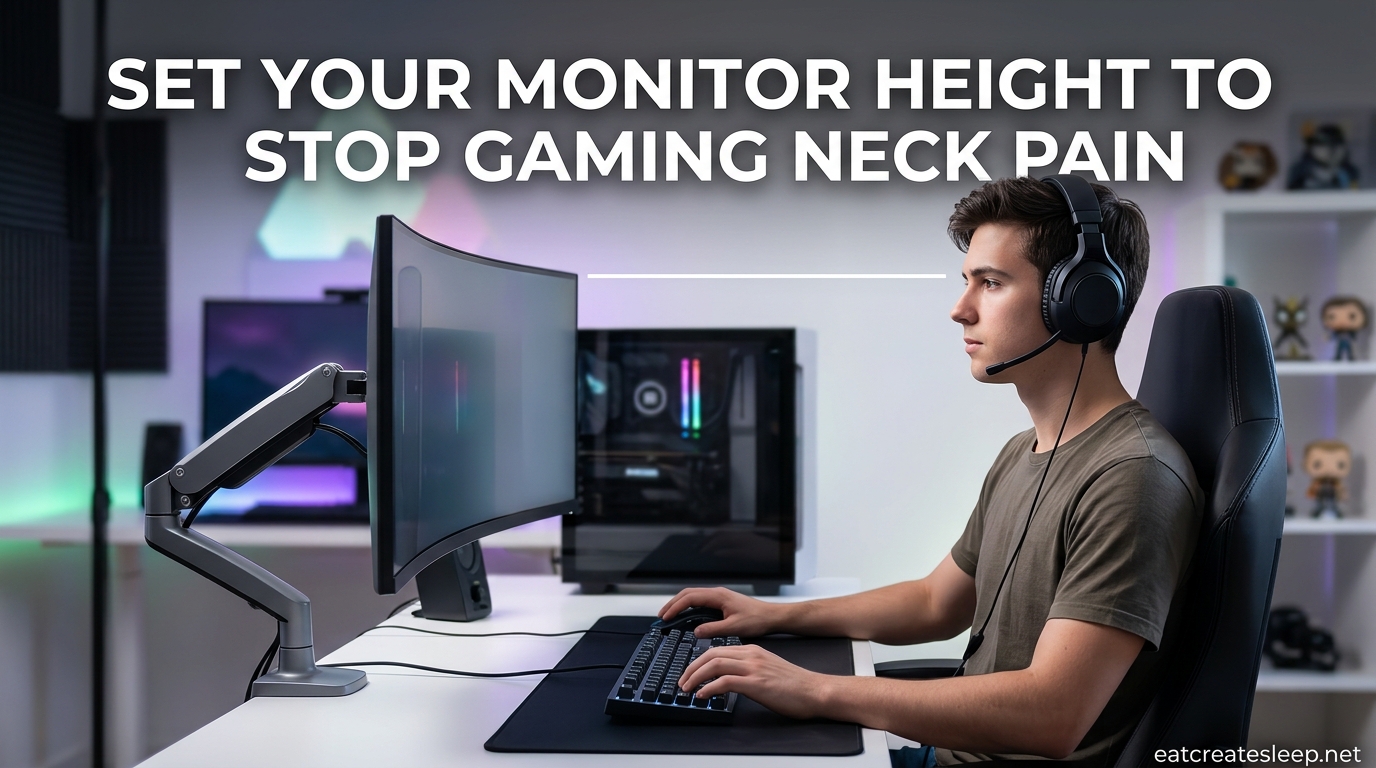
I spent three years gaming with my monitor sitting flat on the desk surface, wondering why my neck ached after every session. The fix took less than ten minutes and cost me nothing. If you want to learn how to position your monitor height to reduce neck strain while gaming, the basic rule is simple: the top third of your screen should sit at or slightly below eye level, letting your eyes naturally drift downward about 10 to 20 degrees to the center of the screen.
That tiny adjustment matters more than most gamers realize. When your monitor sits too low, you tilt your head forward for hours at a time. When it sits too high, you crank your chin upward to read HUD elements and cutscenes. Both positions load your neck muscles statically, and over weeks and months that static load turns into the dull, nagging pain players on r/pcgaming and r/Ergonomics describe as “gamer neck.”
I have helped friends, family members, and coworkers dial in their desk setups, and the pattern is always the same. The chair gets picked first, the monitor gets slapped on whatever stand it ships with, and nobody actually measures anything. By the end of this guide you will know exactly where your screen should sit, how far away it should be, and how to tell if it is currently too high or too low for your body.
Table of Contents
Why Monitor Height Causes Neck Strain
Your head weighs roughly 10 to 12 pounds in a neutral position. Every inch you tilt it forward adds about 10 pounds of effective load to your neck muscles. Tilt forward far enough while staring at a low monitor, and your neck is suddenly holding up the equivalent of a 40-pound bowling ball for four hours of ranked play.
That static loading is the root cause of most gaming-related neck pain. Your muscles were built to move, not to clamp your head in one position for half a day. Hold any muscle under constant tension and it fatigues, knots up, and eventually refers pain to your upper back, shoulders, and skull.
The r/pcgaming community describes the progression vividly. It often starts as “a little itch” between the shoulder blades that you shrug off after a session. Over months it becomes a constant knot that no amount of stretching quite releases. After a year or two, players report pain that distracts them mid-match and lingers long after they log off for the night. Physical therapy helps, but the underlying cause is usually the same desk setup they have been using since launch day.
What makes neck strain from gaming particularly sneaky is the delay between cause and effect. A single two-hour session on a badly positioned monitor will not hurt much. The damage is cumulative, building over hundreds of hours until one day your neck simply refuses to turn without pain. That is why setting up your monitor correctly now, before the pain arrives, is so much easier than rehabbing it later.
Neutral neck posture is the opposite of that slow decline. In neutral, your ears stack directly over your shoulders, your chin stays level, and the back of your neck stays long rather than crunched. Your eyes do most of the tracking work, not your spine. That is the posture you want to protect when you set your monitor height.
The Golden Rule: Top Third at Eye Level
The single most important principle is this: position the top third of your screen at or slightly below your seated eye level. This creates a natural downward gaze of about 10 to 20 degrees from horizontal to the center of the screen, which is the range your eyes can hold comfortably for long stretches without strain.
Notice that the rule says top third, not top edge. Many guides tell you to put the top of the monitor at eye level, which works fine for smaller screens but pushes large displays much too high. On a 32-inch monitor, the top edge at eye level forces you to look up at HUD elements, subtitles, and cutscenes. Aiming for the upper third instead keeps the bulk of the screen inside what ergonomists call the neutral gaze window, roughly 0 to 35 degrees below horizontal.
Within that window your eyes track easily, your neck stays stacked, and your shoulders stay relaxed against the chair back. Outside it, your body compensates in ways you barely notice. You tilt your head, you hunch your shoulders, you lean forward over the desk. Each compensation is a tiny strain that adds up over a multi-hour session into real, lasting discomfort.
The neutral gaze window concept also explains why a “one size fits all” monitor height recommendation fails. Taller players need their monitors slightly higher because their eye level sits further from the desk. Shorter players and younger gamers often need to drop the screen an inch or two below what a generic guide suggests. Measure your own eye level rather than copying someone else’s setup.
How to Position Your Monitor Height to Reduce Neck Strain While Gaming
If you want the step-by-step process, here is exactly how to position your monitor height to reduce neck strain while gaming. Work through these steps in order, because each one depends on the previous.
Step 1: Set your chair first. Adjust your chair so your feet sit flat on the floor (or on a solid footrest), your knees bend at about 90 degrees, and your elbows rest at desk height when your shoulders are relaxed. Everything else builds on this baseline, so do not skip it. If the chair is wrong, no amount of monitor fiddling will save your neck.
Step 2: Find your seated eye level. Sit back in the chair the way you actually game, not the way you think you should sit during a posture check. Have a friend hold a level, a yardstick, or a straight object across the front of your face at the corner of your eyes. Alternatively, rest a book flat on top of your head and note where the front edge points horizontally. That horizontal line is your eye level.
Step 3: Raise or lower the monitor. Adjust your monitor stand, arm, or risers so the top third of the screen lines up with that eye-level line. If you have a large monitor, aim for the upper third specifically. If you wear progressive or bifocal lenses, drop the screen an extra inch or two so you can read the lower portion of the panel without tilting your head back to look through the reading segment of your glasses.
Step 4: Check your gaze angle. Look straight at the center of the screen, where most of your gameplay happens. Your eyes should be looking slightly downward, about 15 degrees below horizontal. If you have to lift your chin to see the middle of the screen, the monitor is too high. If you have to drop your chin toward your chest, it is too low.
Step 5: Test for at least 15 minutes. Load up an actual gaming session and pay attention to your body. A correct setup feels almost boring because nothing hurts and nothing demands your attention. If your neck, shoulders, or upper back start to complain within the first quarter hour, stop and re-check the previous steps.
Step 6: Re-check monthly. Cushions compress, gas cylinders sink, and your seated posture slowly drifts over time. A quick monthly check with the book-on-head trick keeps the setup honest and catches small changes before they become painful patterns.
Monitor Height by Screen Size
Monitor size changes the math significantly. A 24-inch screen at the right height behaves very differently from a 34-inch ultrawide, because the physical distance from the top edge to the bottom edge of the panel shifts where the center of the screen lands relative to your eyes.
For a 24-inch monitor, aim for the top edge at or just below eye level. The screen is short enough that the center will naturally fall in the comfortable gaze window without extra effort.
For a 27-inch monitor, the sweet spot is slightly lower. Position the top edge at or just below eye level, with the top third of the screen sitting right at your horizontal line. This keeps the center of the panel about 15 degrees below horizontal, which is where most players report the least neck fatigue.
For a 32-inch monitor, drop the screen further than you probably expect. The top third should sit at eye level, which usually means the top edge sits about 2 to 3 inches above your horizontal line. The center of a 32-inch panel sits roughly 7 to 8 inches below the top edge, so you need that extra clearance to keep the center in the comfortable gaze window rather than forcing your eyes down toward the desk.
For a 34-inch ultrawide or a 49-inch super-ultrawide, height matters less than you might expect and curvature matters more. The horizontal centerline of the screen should align with or sit just below your eye level. Because these panels are wider than they are tall, the bottom edge does not drop as far as a standard 16:9 display, and you can get away with positioning the center of the screen close to eye level without forcing a downward gaze.
The key insight across all sizes: measure to the center of the screen, not the top edge. The center is where your eyes spend most of their time, and that is the number that actually determines whether your neck stays neutral or slowly tightens over a session.
Viewing Distance Guidelines
Distance is the second half of the equation, and it gets less attention than height despite being just as important. Even a perfectly height-matched monitor will strain your neck if it is too close (forcing you to lean back) or too far (forcing you to lean in to read text and track small enemies).
The general rule is an arm’s length, roughly 50 to 70 centimeters (20 to 28 inches) for most standard gaming monitors in the 24 to 27 inch range. Sit back in your chair with your shoulders relaxed, extend your arm fully toward the screen, and your fingertips should just barely touch the surface of the panel. If your palm covers the screen, you are too close. If your fingers fall well short, you are too far.
For larger monitors, push the screen back further. A 32-inch panel wants about 80 to 100 centimeters (31 to 39 inches) of distance. Closer than that and the screen fills too much of your field of view, forcing constant head movement to track action at the edges. Farther than that and fine details, like crosshairs, health bars, and minimap pings, become hard to read without leaning forward.
Desk depth often dictates the distance more than personal preference does. A standard desk is about 60 centimeters deep, which works well for a 24 to 27 inch monitor but is tight for a 32-inch panel. If your desk is shallow and your monitor is large, a monitor arm that clamps to the back edge of the desk can give you the extra few inches of clearance you need without buying a new piece of furniture.
Screen Tilt and Angle for Gaming
Once height and distance are dialed in, look at tilt. A slight backward tilt of 10 to 20 degrees from vertical is ideal for most setups. This angles the screen to meet your slightly downward gaze, so your eyes land perpendicular to the panel rather than hitting it at an awkward angle that distorts color and contrast.
Too much forward tilt (the top of the screen leaning toward you) is a common mistake. Players do this to fight glare from a nearby window, but it forces the neck forward to compensate and defeats the whole point of careful height adjustment. Too much backward tilt (the top leaning away from you) makes the top of the screen harder to read and can throw off your perceived height.
There is a persistent myth that pro gamers tilt their monitors for a competitive advantage. In reality, pros tilt their monitors sideways at LAN events to shield the screen from opponents sitting nearby, or to fit two panels side by side on a narrow tournament table. That LAN-tilt has nothing to do with ergonomics. At home, you want your screen flat to slightly tilted backward, never cranked sideways or angled aggressively.
If you play competitive shooters, think about where your crosshair sits relative to your eye line. The crosshair typically rests near the horizontal center of the screen, which is also where your gaze naturally lands when the monitor is at the right height. A well-placed monitor keeps your crosshair right at resting eye level, so you are not constantly correcting your aim with small neck movements that fatigue muscles over time.
Gaming-Specific Monitor Positioning
How you position your monitor height to reduce neck strain while gaming also depends heavily on what you actually play. Different genres place different demands on your eyes, your neck, and your reaction time, and a setup that feels great for one game may feel off for another.
For competitive FPS players (Valorant, CS2, Apex Legends), the crosshair zone is everything. Keep the center of the screen at or just below eye level so your crosshair sits right where your eyes naturally rest when you are alert but relaxed. Distance should be on the closer side of the arm’s length range so you can spot pixel-level movement at the edges of your vision quickly. Minimaps and HUD elements in the upper corners will still register in your peripheral vision without forcing head turns.
For RTS and MOBA players (League of Legends, StarCraft II, Dota 2), you spend more time scanning the minimap, which usually sits in a bottom or side corner of the screen. A monitor set slightly lower helps here, because you are already looking down toward the action most of the time. Avoid the temptation to crank the screen up to “see the whole battlefield,” because the extra height taxes your neck over the long matches these genres tend to produce.
For RPG and immersive single-player players (Cyberpunk 2077, Baldur’s Gate 3, Red Dead Redemption 2), distance and immersion matter more than split-second reaction time. A larger monitor pushed slightly further back, with the top third at eye level, gives you the cinematic feel without the chin-lift that comes from a screen mounted too high on the wall.
For large monitors (32 inches and up), the biggest risk is what ergonomists call “chin lift.” The taller panel tempts you to set the bottom edge flat on the desk, which pushes the top edge way above eye level and forces you to tilt your head up to read subtitles, notifications, and HUD elements. Resist that. Lower the monitor using a shorter stand or a low-profile mount so the top third sits where it actually belongs.
Signs Your Monitor Is Too High or Too Low
Sometimes the easiest way to fix your setup is to diagnose what is wrong first. Here is how to tell which direction you need to move the screen, based on how your body feels after a typical session.
Your monitor is probably too high if: your chin tilts up when you read the top of the screen, the back of your neck feels tight or sore after sessions, you find yourself slouching down in your chair to see comfortably, or you get tension headaches concentrated at the base of your skull.
Your monitor is probably too low if: you catch yourself leaning forward during gameplay without meaning to, the front of your neck aches, your upper back rounds into a hunch over the desk, you feel pressure between your shoulder blades, or you constantly crane your neck up to see HUD elements that sit at the top of the screen.
A quick self-test: sit at your setup the way you actually game and close your eyes for five full seconds. When you open them, your gaze should land naturally near the center of the screen without any head movement at all. If you have to look up or down to find the action, adjust the monitor in small increments until your open-eye gaze hits the center on its own.
Quick Fixes Without Buying New Gear
You do not need a $200 monitor arm to fix a bad setup. Most problems can be solved with what you already have around the house, and you can test the changes tonight.
If your monitor is too low, raise it with a stable stack of hardcover books, a ream of printer paper, or a wooden block cut to size. Aim small at first, adding an inch at a time, and re-test your gaze angle after each change with the eye-close trick from the previous section.
If your monitor is too high, lower it by removing risers, swapping to a shorter stand if your monitor shipped with one, or dropping your chair height a notch. Just remember that lowering your chair changes your arm and desk height too, so you may need to adjust your keyboard or add a footrest to keep your posture stacked from feet to head.
If your monitor tilt is wrong, most stands have a tilt adjustment hidden behind the panel. Check the back of the stand for a release lever or a thumbscrew you can loosen. A 10-degree backward tilt is usually all you need to align the screen with your downward gaze.
If your desk is too shallow for a large monitor, pull the desk away from the wall a few inches and clamp a budget monitor arm to the back edge. That extends the screen further back without a full furniture upgrade, and it gives you height and tilt adjustment for under $40 if you shop around.
Movement and the 20-20-20 Rule
Even a perfect setup cannot save you from a six-hour session with zero movement. Static posture is static posture, no matter how well your monitor is positioned or how ergonomic your chair claims to be.
The 20-20-20 rule comes from optometry and applies just as well to your neck as it does to your eyes. Every 20 minutes, look at something roughly 20 feet away for at least 20 seconds. That gives your eye muscles a break from the fixed focal distance of the screen and, just as importantly, gives your neck a chance to move out of its locked forward position.
For gaming specifically, work micro-breaks into natural pauses. Between matches, in a respawn queue, during a loading screen, or while waiting for a group to form, roll your shoulders slowly and gently tilt your head side to side. None of this requires logging off or disrupting your session. It just requires noticing the pause and using it rather than scrolling your phone in the same hunched position.
If your neck already hurts, the r/Ergonomics community is consistent on one point: stretches help, but they will not fix a bad setup. Fix the monitor height first, then add stretches as ongoing maintenance. Doing it the other way around is like bailing water out of a boat without plugging the leak first.
Dual Monitor and Ultrawide Considerations
If you run two monitors, the same rules apply, with one added wrinkle: your primary screen takes the eye-level position, and your secondary screen sits to the side at the same height. Angle the secondary monitor slightly toward you so you can glance at it with eye movement rather than a full head turn.
Vertical stacking, where one monitor sits directly above the other, is tempting for streamers and content creators but is rough on the neck over long sessions. Reserve it for screens you only check occasionally, like a chat window or analytics dashboard, never for your main gaming display. Constantly looking up and down between two stacked screens is a fast track to neck pain that no amount of stretching will undo.
For ultrawide and super-ultrawide panels, the curvature does some of the ergonomic work for you. A curved 34-inch or 49-inch screen wraps slightly into your field of view, which reduces the head-turning needed to track action at the far edges of the panel. Height-wise, treat the horizontal centerline of the panel as your guide and aim for it to sit at or just below eye level.
Common Mistakes to Avoid
Most setup mistakes come from treating the monitor as the starting point instead of the chair. Here are the recurring errors I see when helping people fix their gaming setups.
Setting the monitor before the chair. If you adjust your chair to fit the monitor instead of the other way around, you end up with compromised posture at every contact point. Always lock in your chair, desk, and keyboard height first, then bring the monitor to your eyes.
Ignoring tilt entirely. A perfectly positioned monitor with the wrong tilt still strains your eyes and neck over time. Check tilt every time you move the screen, even if it is just a small adjustment.
Leaving the monitor static for years. Cushions sink, gas cylinders drift, and your seated posture changes slowly. A setup that felt perfect in January may be an inch off by June without you noticing.
Skipping breaks because the setup feels fine. A good setup reduces strain, it does not eliminate it. Movement is still part of the equation, and the 20-20-20 rule exists for a reason.
Chasing the pro setup you saw on stream. What works for a sponsored streamer on a custom rig may not work for you at your desk with your body. Measure your own setup with your own body and trust those numbers over anyone else’s photo.
FAQs
What is the proper monitor height for reducing neck strain?
The proper monitor height for reducing neck strain places the top third of the screen at or slightly below your seated eye level, creating a natural downward gaze of about 10 to 20 degrees to the center of the screen. This keeps your neck in a neutral, stacked position.
Where should I position my monitor when gaming?
Position your monitor directly in front of you, at arm’s length (50 to 70 centimeters for a 24 to 27 inch screen, 80 to 100 centimeters for a 32 inch panel), with the top third of the screen at or just below eye level. Tilt the screen back 10 to 20 degrees so your eyes land perpendicular to the panel.
Why do pro gamers tilt their monitors?
Pro gamers tilt their monitors sideways mainly at LAN events to shield their screen from opponents sitting nearby, not for ergonomic reasons. At home, you want your screen flat to slightly tilted backward. Sideways tilting has no comfort or performance benefit for solo play.
How far should a 27 inch monitor be from your face?
A 27 inch monitor should sit about 50 to 70 centimeters (20 to 28 inches) from your face, roughly an arm’s length away. Sit back in your chair, fully extend your arm, and your fingertips should just barely touch the screen.
Conclusion
Once you know how to position your monitor height to reduce neck strain while gaming, the fix is usually just a few minutes of measuring and either a stack of books or a quick stand adjustment. The golden rule never changes: top third of the screen at or slightly below eye level, a slight downward gaze to the center, and about an arm’s length of distance. Tilt the panel back 10 to 20 degrees, set your chair first before touching the monitor, and re-check your setup every month or so to catch slow drift.
Take five minutes today to test your current setup with the eye-close trick from the diagnostic section. If your gaze lands naturally at the center of the screen when you open your eyes, you are in good shape. If it does not, you now have the exact steps to fix it. Your neck will thank you by the next ranked session.