
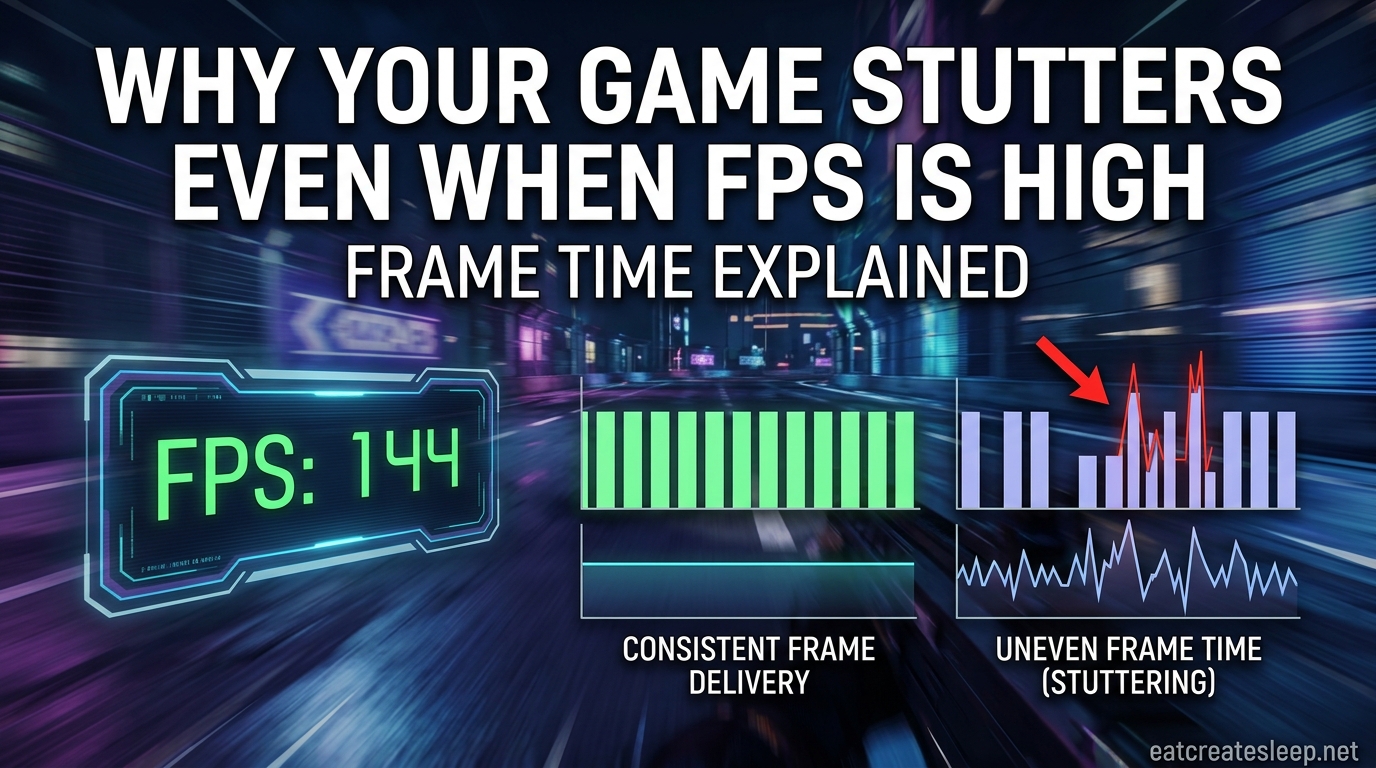
You just spent serious money on a fast GPU, a high-refresh monitor, and plenty of RAM. Your in-game FPS counter happily reads 144, 200, even 300 frames per second. And yet, the image on screen still hitches, freezes for a split second, or feels oddly choppy in the middle of a firefight. If that sounds familiar, you are not crazy, and your hardware is not broken. The problem is almost certainly not your average FPS at all. It is your frame time.
Frame time is the actual time, measured in milliseconds, that each individual frame takes to render and reach your screen. FPS is only an average of those frame times over one second. Those two numbers tell very different stories, and only one of them predicts how smooth your game actually feels. In this guide I will explain why your game stutters even when FPS is high, walk through what frame time really means, and give you a ranked diagnostic checklist you can run today.
Table of Contents
Frame Time Explained: The Metric That Actually Matters
Frame time is the duration, in milliseconds (ms), that a single frame spends being prepared by your CPU, rendered by your GPU, and pushed to your display. If a frame takes 6.9 ms, the math works out to roughly 144 frames per second. But that single number hides the real story.
Imagine ten frames in a row that each take 6.9 ms, followed by one frame that suddenly takes 22 ms because the game loaded a new texture. Over that one-second window your FPS counter still reports a healthy average. Your eyes, however, absolutely see that one frame sitting on screen three times longer than its neighbors. That is a stutter, and the FPS counter will never warn you about it.
This is why frame pacing, the consistency of frame-to-frame intervals, matters more than the raw frame count. Two systems averaging 144 FPS can feel completely different. One delivers every 6.9 ms like clockwork. The other swings between 4 ms and 15 ms constantly. Same average. Wildly different experience.
Reviewers and benchmarkers handle this by tracking the 1% low, which is the average frame time of the slowest 1% of frames. If your average is 144 FPS but your 1% low is 58 FPS, you are spending a noticeable slice of every second in stutter territory. That single number tells you more about perceived smoothness than the headline FPS ever will.
Here is a quick reference for the frame time each refresh rate demands to keep pace with the screen:
- 60 Hz – target frame time: 16.7 ms per frame
- 120 Hz – target frame time: 8.3 ms per frame
- 144 Hz – target frame time: 6.9 ms per frame
- 165 Hz – target frame time: 6.1 ms per frame
- 240 Hz – target frame time: 4.2 ms per frame
- 360 Hz – target frame time: 2.8 ms per frame
Notice how demanding 240 Hz and 360 Hz panels are. At 360 Hz, a single frame that takes 10 ms instead of 2.8 ms is more than three times too slow. The higher your refresh rate, the more obvious every frame time spike becomes, which is exactly why high-end systems feel paradoxically worse when pacing is off.
Why High FPS Can Still Stutter
High FPS stutter happens because FPS is an average and your perception is tuned to irregularity. Your brain is excellent at detecting rhythm breaks. When frames arrive at uneven intervals, you experience that as micro-freezes, judder, or hitching, regardless of what the average says.
Here is a concrete example. Suppose over a one-second window your GPU produces frames at these intervals: 5, 5, 5, 5, 5, 30, 5, 5, 5, 5, 5, 5, 5, 5, 5, 5, 5 ms. That is 16 frames in one second, which an on-screen counter would round to 16 FPS. Now imagine the same total work spread evenly: every frame takes about 9 ms. Still 16 FPS on average, but visually smooth. The first scenario stutters. The second does not. Same number on the counter.
This is also why competitive players often report that a capped 200 FPS feels smoother than an uncapped 350 FPS. The uncapped number wins the benchmark, but the capped version holds a tighter frame time. The takeaway: a steady lower FPS almost always beats a jittery higher one.
Higher refresh rate monitors make the problem worse in a second way. On a 60 Hz panel, a frame that takes 20 ms is only slightly longer than the 16.7 ms budget, so the stutter is small. On a 240 Hz panel, that same 20 ms frame is nearly five times the target, producing a very visible hitch. The hardware that is supposed to make things smoother also makes bad frame pacing impossible to ignore.
How to Read a Frame Time Graph
The single best skill you can learn for diagnosing stutter is reading a frame time graph. Most guides skip this, which is a shame because the graph tells you exactly what is wrong. Install MSI Afterburner with RivaTuner Statistics Server, or use CapFrameX or PresentMon, and capture a session in the game that is bothering you.
On a frame time graph, the horizontal axis is time and the vertical axis is milliseconds per frame. A perfectly paced game draws a flat horizontal line at your target frame time. For a 144 FPS cap, that line sits at 6.9 ms and never moves. Real-world graphs always wiggle a little. That is fine.
What you are hunting for are spikes, sudden vertical jumps where one frame took much longer than the others. A spike to 20 ms or 30 ms in a graph otherwise sitting at 7 ms is a visible stutter. The shape of the spike tells you something about the cause:
- Single isolated spikes every few seconds – usually background task interference, shader compilation, or a storage hitch.
- Periodic spikes at regular intervals – often a background service polling, an overlay refreshing, or a power management throttle cycling.
- Sustained elevated frame times during action – usually a CPU or game-thread bottleneck that only appears under load.
- Random spikes that move with the camera – often asset streaming, texture loading, or a driver issue.
Once you can match a spike pattern to a cause, you stop guessing and start fixing. The diagnostic section below uses this same logic.
Common Causes of Frame Time Spikes
Most high-FPS stutter cases trace back to a small set of repeat offenders. I will cover them roughly in order of how often they show up in forum threads on r/pcgaming, r/buildapc, and r/AMDHelp.
Shader Cache Issues
Modern game engines compile shaders on the fly the first time they encounter a new effect, material, or scene element. That compilation work happens on the CPU and can pause the render pipeline for tens of milliseconds. Once compiled, the result is cached so the same shader does not need to be rebuilt. Problems arise when the cache is too small, gets corrupted, or sits on slow storage.
Symptoms include stutter that gets better the longer you play in one session, then comes back the next time you launch the game. Fix this by enlarging the shader cache size in your GPU driver (NVIDIA users can bump it up to 10 GB or unlimited), and by making sure your cache lives on an NVMe SSD, not a spinning hard drive.
VBS and Memory Integrity on Windows 11
Virtualization-Based Security and its companion feature, Memory Integrity (HVCI), add overhead to every memory operation. On Windows 11 these are enabled by default, and many gamers report that disabling them removes a persistent low-grade stutter that nothing else fixes. The trade-off is a small reduction in security posture, so research this before flipping it off on a machine you do not fully control.
Forum users on r/pcgaming consistently describe this as the fix that finally smoothed out games after weeks of frustration. If you have tried everything else and you are on Windows 11, this is worth a careful look.
Background Apps and Overlays
Anything that periodically asks the CPU for attention will create frame time spikes. Common offenders include Discord overlay, NVIDIA GeForce Experience overlay, Steam overlay, Xbox Game Bar, RGB software, browser tabs with video playing, antivirus real-time scanning, and even some hardware monitoring tools that themselves poll every second.
The fix is methodical. Disable overlays one at a time and re-test. Many users discover that a single overlay was responsible for the entire problem. Pay special attention to anything that updates at a fixed interval, because those are the culprits behind periodic spikes on your frame time graph.
Audio Device Conflicts
This one is rarely mentioned but shows up constantly in forum reports. Certain USB audio devices, Bluetooth headsets, and audio enhancements (spatial audio, room correction) can cause DPC latency spikes that show up as frame time stutters. If your stutter appeared after switching headsets or enabling a new audio feature, suspect this. The tool of choice here is LatencyMon, which measures DPC and ISR execution times and points you at the offending driver.
Outdated or Rolled-Back Drivers
Windows Update sometimes silently replaces your GPU driver with an older one it considers more stable. That old driver can have known frame pacing bugs. Always install drivers directly from NVIDIA, AMD, or Intel, and consider using Display Driver Uninstaller (DDU) in safe mode to fully remove the old one before installing fresh. A clean driver install fixes a surprising number of mysterious stutter cases.
Multi-Plane Overlay (MPO)
MPO is a Windows display feature meant to reduce overhead when composing multiple on-screen elements. On some hardware combinations it causes flickering, stuttering, or full-screen issues. Disabling MPO via a registry edit is a known workaround for unexplained stutter. Treat this as a later-stage fix, not a first step.
Power Plans and Thermal Throttling
If your CPU or GPU is cycling between power states, you will see periodic frame time spikes as the hardware boosts and then throttles. Setting a high-performance power plan, ensuring your cooling is adequate, and checking for thermal throttling in HWInfo or Afterburner can eliminate these patterns. A machine that hits 90C during gameplay is almost certainly producing throttle-related stutters.
RAM Pressure and Paging
When your system runs low on physical RAM, Windows starts paging to disk, and every page fault is a multi-millisecond penalty. If you have 16 GB and you game alongside a browser with many tabs, you may be paging without realizing it. Close background applications, consider upgrading to 32 GB, and check Task Manager during gameplay to confirm RAM headroom.
How to Diagnose and Fix Game Stuttering With High FPS
Here is the diagnostic order I recommend, ranked by how often each step actually solves the problem. Work through it top to bottom rather than changing ten things at once, otherwise you will never know which fix worked.
Step 1: Capture a Frame Time Graph
Before changing anything, record a frame time graph with CapFrameX, PresentMon, or MSI Afterburner plus RTSS. Play for three to five minutes in a scene that stutters. Save the capture. This is your baseline. You will compare every future capture to this one to confirm whether your fix actually worked.
Step 2: Update Your GPU Driver Cleanly
Download the latest driver from your GPU vendor. Run DDU in safe mode to fully remove the existing driver. Install the fresh driver. Re-test and capture another graph. A large percentage of stutter complaints simply disappear here.
Step 3: Expand the Shader Cache
In your GPU control panel, set the shader cache size to at least 10 GB, or unlimited if available. Confirm your temp folder and shader cache location sit on a fast NVMe SSD. Re-test a game you have not played recently, since existing shaders are already cached.
Step 4: Disable Every Overlay
Turn off Discord in-game overlay, GeForce Experience overlay, Steam overlay, Xbox Game Bar, and any RGB or hardware-monitoring overlays. Test again. If the stutter improves, re-enable overlays one at a time until the culprit returns, then leave that one off.
Step 5: Set a High-Performance Power Plan
Switch Windows to the High Performance or Ultimate Performance power plan. Set your GPU power management mode in the driver control panel to prefer maximum performance. Confirm in HWInfo that your CPU and GPU are not thermal throttling under load.
Step 6: Check DPC Latency
Run LatencyMon for ten minutes while the game is running. If it reports a driver exceeding roughly 100 microseconds of DPC execution time, that driver is a likely cause. Common offenders include network adapters, audio drivers, and USB controllers. Update or replace the flagged driver.
Step 7: Test VBS and Memory Integrity
On Windows 11, try disabling Memory Integrity in Windows Security, then reboot and re-test. If stutter significantly improves, you have found your cause. Weigh the security trade-off before deciding whether to leave it off permanently.
Step 8: Cap Your Frame Rate
This step deserves its own section because of how often it works. Cap your FPS a few percent below your refresh rate using the in-game limiter or RTSS. We cover why in the next section.
Refresh Rate, VRR, and FPS Caps
Capping your frame rate slightly below your refresh rate is one of the most effective stutter fixes available, and almost nobody explains why. The reason is refresh alignment.
When your FPS exceeds your refresh rate, frames are sometimes delivered in the middle of a scanout, which forces the display to tear or the sync mechanism to delay the frame. When your FPS sits just below the refresh rate with VRR active, every frame lines up cleanly with a refresh cycle and frame pacing stays tight. The sweet spot is usually 3 to 5 FPS below your max refresh rate: 141 FPS on a 144 Hz panel, 160 on a 165 Hz panel, 235 on a 240 Hz panel.
If you have G-Sync, FreeSync, or another VRR technology, enable it. VRR adjusts the monitor refresh to match the GPU output, which eliminates the stutter caused by repeating frames at fixed refresh intervals. Pair VRR with a frame cap slightly below the max refresh rate and an in-game VSync off, and most pacing problems vanish.
Note that VRR has a refresh rate floor, typically around 40 Hz on older panels and 20 to 48 Hz on newer ones. If your FPS drops below that floor, VRR disengages and stutter returns. This is why capping to a frame rate you can actually sustain is better than chasing a high cap you cannot hold.
FAQs
Why is my game stuttering even though I have high FPS?
Your game stutters because FPS is an average and your eyes respond to frame-to-frame consistency. If most frames arrive in 6 ms but some take 20 ms, your FPS counter still reports a high number while you experience visible hitching. Frame pacing, not average FPS, determines smoothness.
Why does my game look choppy with high FPS?
Choppiness with high FPS usually comes from uneven frame delivery, sync mismatch between the GPU and monitor, overlay interference, shader compilation pauses, or DPC latency from a misbehaving driver. Reading a frame time graph will tell you which one applies to your case.
How to get rid of FPS stutters?
Update your GPU driver cleanly with DDU, expand the shader cache, disable overlays, set a high-performance power plan, run LatencyMon to find driver spikes, and cap your FPS a few frames below your refresh rate with VRR enabled. Work through these one at a time so you know which fix worked.
How to fix frame stuttering in games?
Start by capturing a frame time graph, then address causes in order of likelihood: drivers, shader cache, overlays, power and thermals, DPC latency, VBS and Memory Integrity, and finally an FPS cap slightly below your refresh rate with G-Sync or FreeSync on.
What is a good frame time for gaming?
A good frame time matches your refresh rate consistently. For 144 Hz that is around 6.9 ms with minimal variance, for 240 Hz around 4.2 ms, and for 60 Hz around 16.7 ms. More important than the absolute number is consistency, your 1% lows should sit close to your average.
What causes frame time spikes?
Frame time spikes come from shader compilation, background apps polling the CPU, overlay refreshes, audio driver DPC latency, thermal throttling, RAM paging, MPO, VBS overhead, and sync mismatches. A frame time graph will show the spike pattern, which points to the specific cause.
Conclusion
If your game stutters even when your FPS is high, the answer is almost always frame time, not frame rate. FPS tells you the average, frame time tells you the rhythm, and your eyes care about the rhythm. Once you start measuring frame time instead of chasing a bigger FPS number, the cause of your stutter becomes obvious and the fix becomes a short checklist rather than a guessing game.
Start with a frame time graph, work through the diagnostic steps in order, cap your FPS a few frames below your refresh rate, and let VRR handle the rest. Once you understand why your game stutters even when FPS is high (frame time explained), you will never look at a bare FPS counter the same way again.