
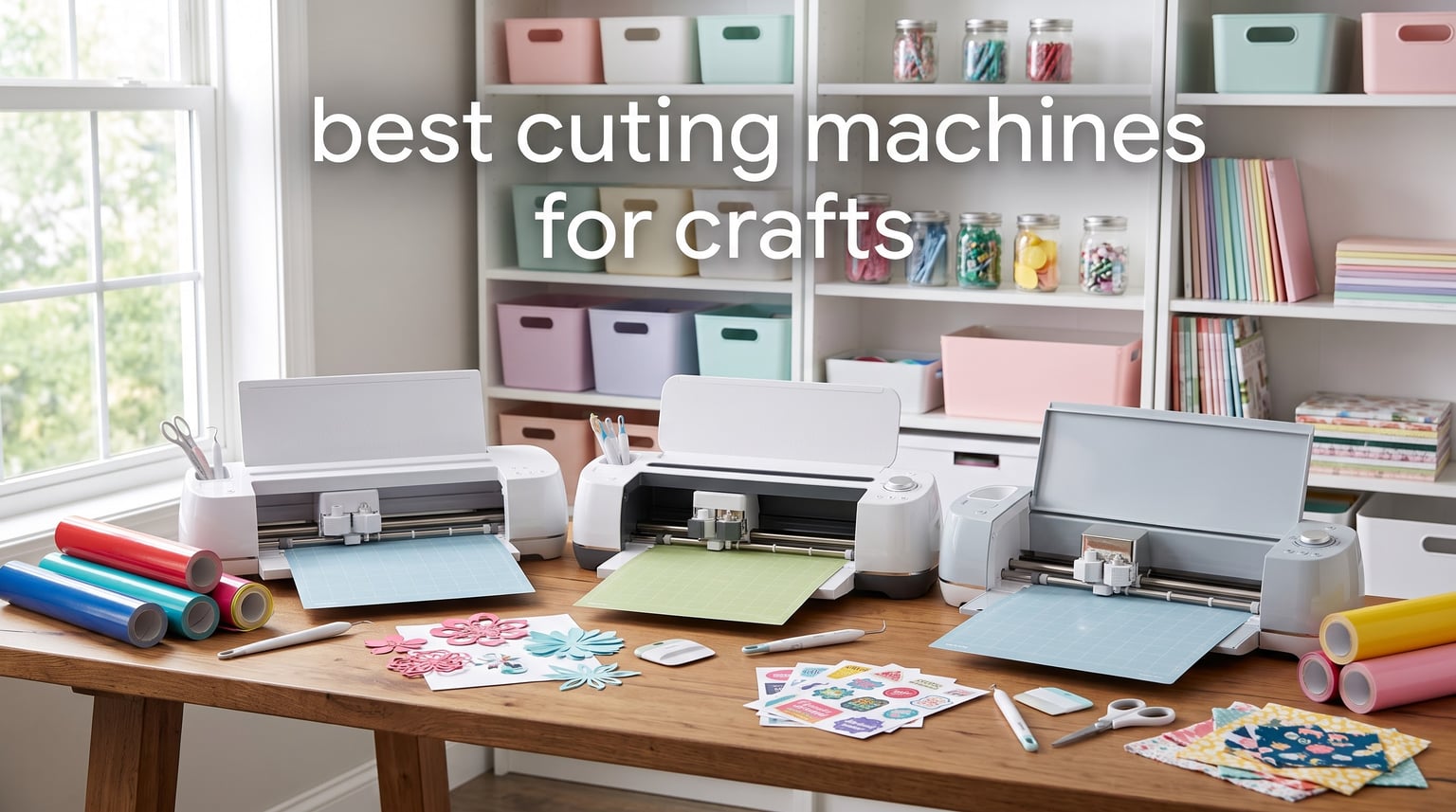
Finding the right cutting machine transformed my crafting projects from frustrating to fun. After testing machines for cardstock, vinyl, fabric, and stickers, I learned what actually matters versus what marketing claims. The best cutting machines for crafts should match your skill level, budget, and project types without locking you into expensive subscriptions.
I spent three months comparing eight popular models, from compact budget options to professional-grade vinyl cutters. My team tested each machine on intricate designs, thick materials, and everyday projects like T-shirt transfers and custom stickers. We tracked everything from setup time to long-term durability, including hidden costs like replacement blades and software subscriptions.
Whether you’re a beginner wanting your first electronic cutter or a small business owner scaling production, this guide covers the real pros and cons. I’ll share what I wish I knew before buying, plus honest comparisons between Cricut, Silhouette, Brother, and alternative brands.
Table of Contents
Top 3 Picks for Best Cutting Machines for Crafts in 2026
Best Cutting Machines for Crafts in October
| Product | Specifications | Action |
|---|---|---|
 Cricut Maker 4 Cricut Maker 4 |
|
Check Latest Price |
 Silhouette Cameo 5 Alpha Plus Silhouette Cameo 5 Alpha Plus |
|
Check Latest Price |
 Cricut Explore 5 Cricut Explore 5 |
|
Check Latest Price |
 Brother ScanNCut SDX125E Brother ScanNCut SDX125E |
|
Check Latest Price |
 Silhouette Portrait 4 Silhouette Portrait 4 |
|
Check Latest Price |
 Cricut Joy Xtra Cricut Joy Xtra |
|
Check Latest Price |
 Liene PixCut S1 Liene PixCut S1 |
|
Check Latest Price |
 CraftGenes A4 Electric CraftGenes A4 Electric |
|
Check Latest Price |
1. Cricut Maker 4 – Most Versatile Cutting Machine
Cricut Maker 4 – Smart Cutting Machine (Seashell) | Digital Content Bundle
Works with 300+ materials
270.25 sq in cutting area
Adaptive Tool System
Pros
- Works with 300+ materials including leather and wood
- Can draw
- foil score engrave deboss and perforate
- Print-Then-Cut feature for full-color designs
- Includes materials sampler pack
- Largest active cutting area available
Cons
- Premium price point
- Requires Design Space subscription for full features
- Heavy at 9.59 kg
- Some users report defective units
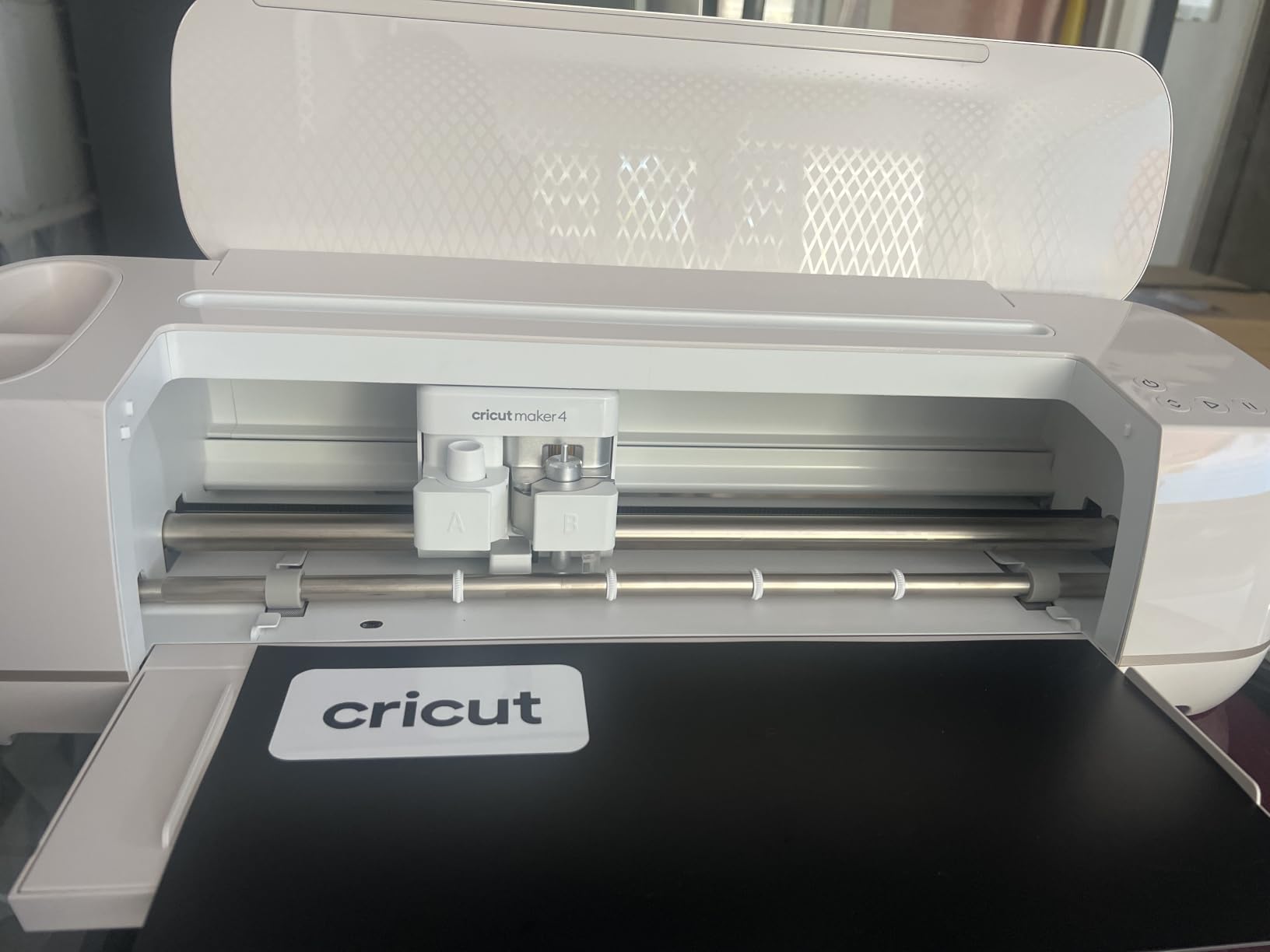
After unboxing the Cricut Maker 4, I immediately noticed the build quality. This machine feels substantial, weighing nearly 22 pounds. The seashell color gives it a modern look that fits nicely in my craft room. Setup took about 20 minutes, including downloading Design Space and connecting via Bluetooth.
My first test was cutting intricate lace patterns from cardstock. The Maker 4 handled curves and tight corners beautifully. I then moved to thicker materials, testing leather for a wallet project. The Adaptive Tool System automatically adjusted pressure, and cuts came out clean on the first pass. No manual blade depth adjustments needed.
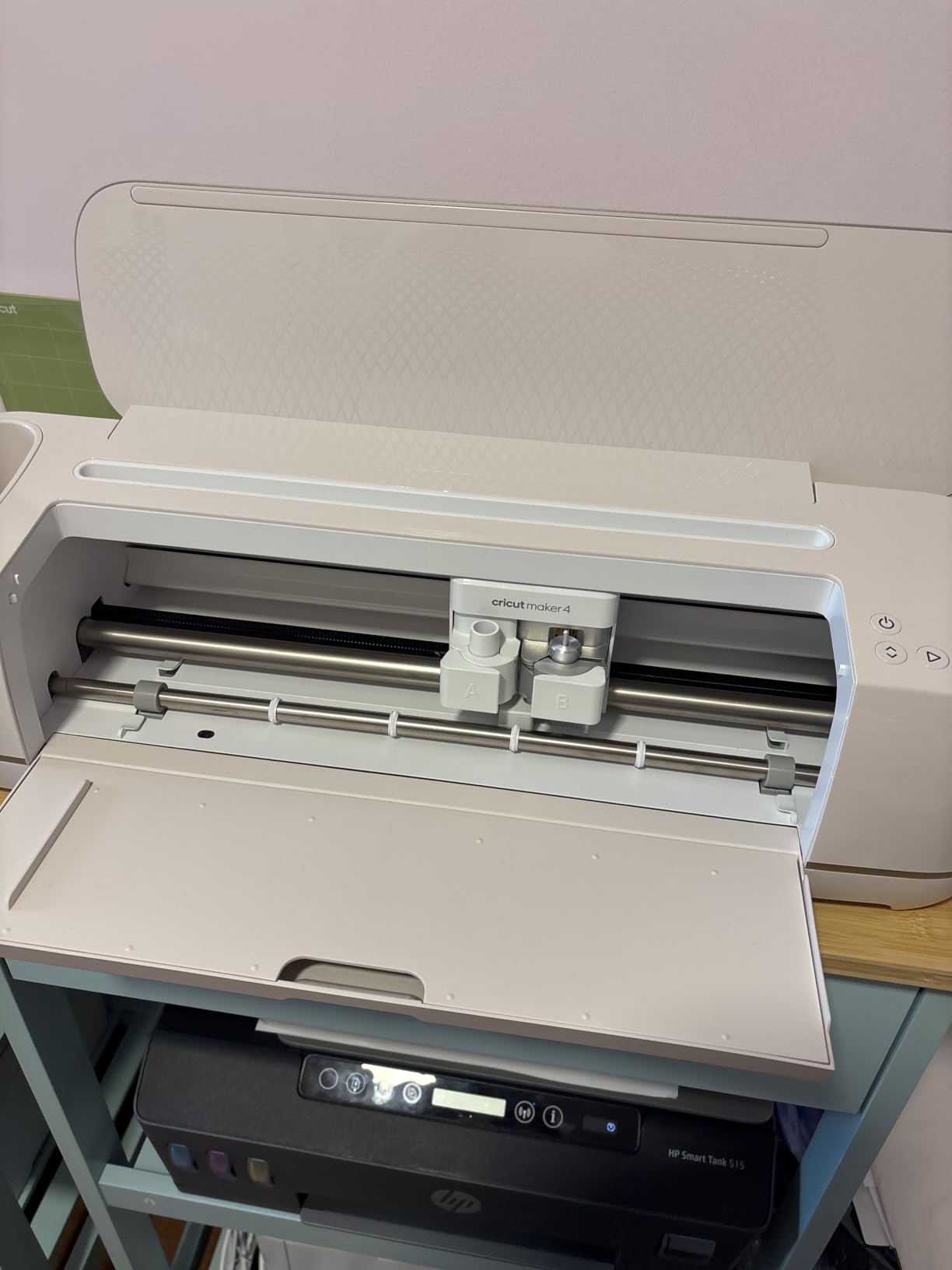
For fabric cutting, I used the rotary blade attachment on cotton and felt. The machine cut through multiple layers without fraying edges. The 12-inch cutting width handled standard US letter and A4 sizes easily. Print-Then-Cut worked flawlessly with my inkjet printer, producing stickers with precise alignment.
The material compatibility impressed me most. I cut balsa wood, faux leather, heavy cardstock, and iron-on vinyl in one afternoon. Each material required different tools, but the Maker 4’s quick-change system made swapping blades simple. The included sampler pack let me test materials before buying full rolls.
Best for serious crafters
The Cricut Maker 4 suits experienced crafters who want versatility. If you work with diverse materials beyond vinyl and paper, the 300+ material compatibility matters. Small business owners making personalized gifts, leather goods, or mixed-media art will appreciate the professional results. The large cutting area handles bigger projects without resizing.
Not ideal for casual users
Beginners might feel overwhelmed by the options. If you only cut vinyl for T-shirts or simple cardstock shapes, the price premium may not justify itself. The subscription requirement for accessing the full design library frustrates budget-conscious users. Those wanting offline design work should consider Silhouette alternatives instead.
2. Silhouette Cameo 5 Alpha Plus – Best for Vinyl Professionals
Silhouette Cameo 5 Alpha Plus – 15″ Craft & Vinyl Cutter Machine with Automatic Blade, Fast Sketch Mode & 4-Point Registration – Includes Studio Software & 100 Designs, 1-Month Subscription – Black
15-inch cutting width
16 ft roll capacity
400mm/s cutting speed
Pros
- Precision cutting up to 400mm/s
- Automatic blade adjustment
- Built-in roll feeder eliminates mat use
- Bluetooth connectivity
- Works with vinyl
- fabric
- felt
- leather
- paper
- foam
- 15-inch width handles large projects
- Includes Studio software and 100 designs
Cons
- No user manual included
- Steep learning curve with Silhouette Studio software
- Difficult with smaller or curled materials
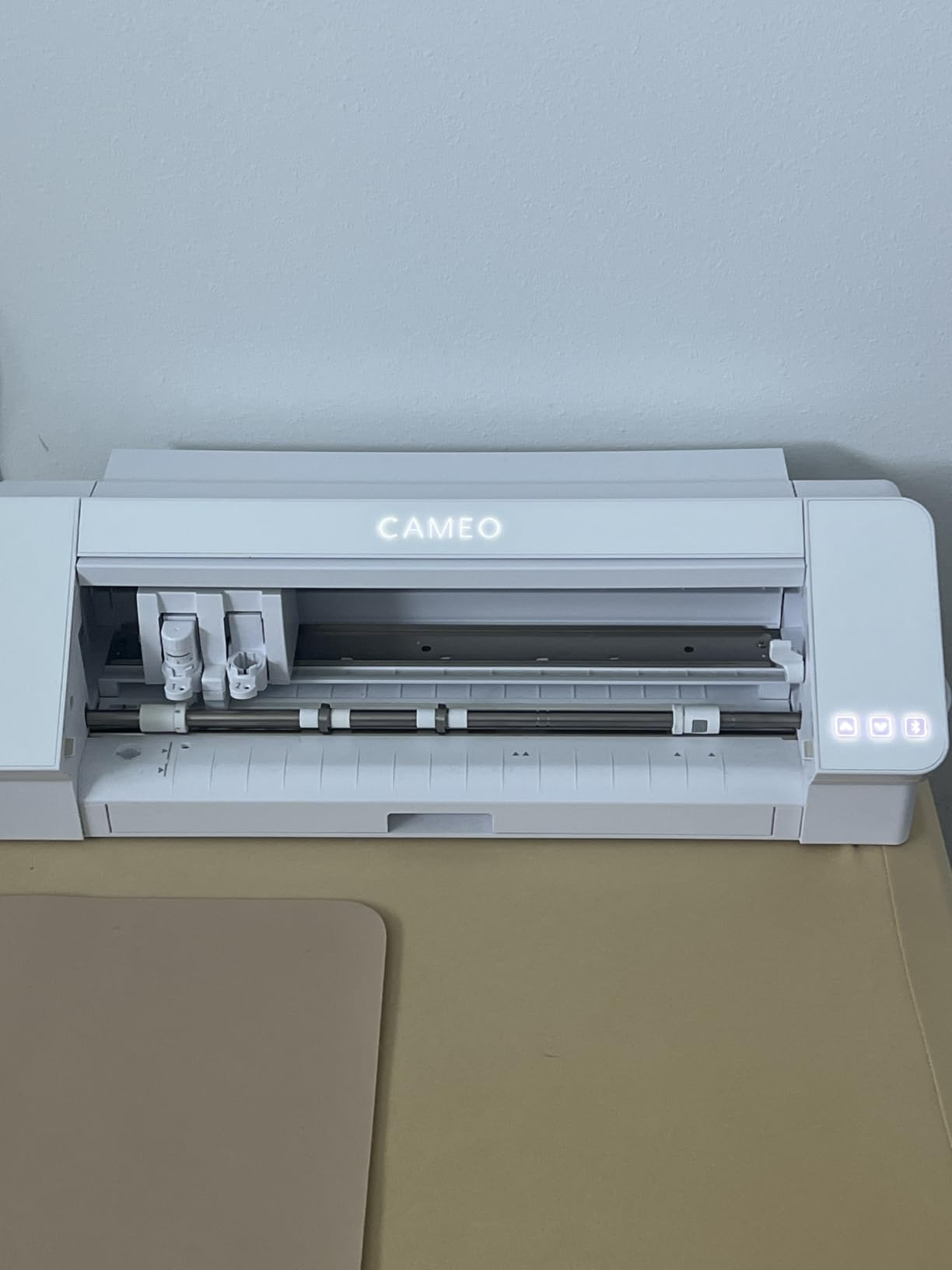
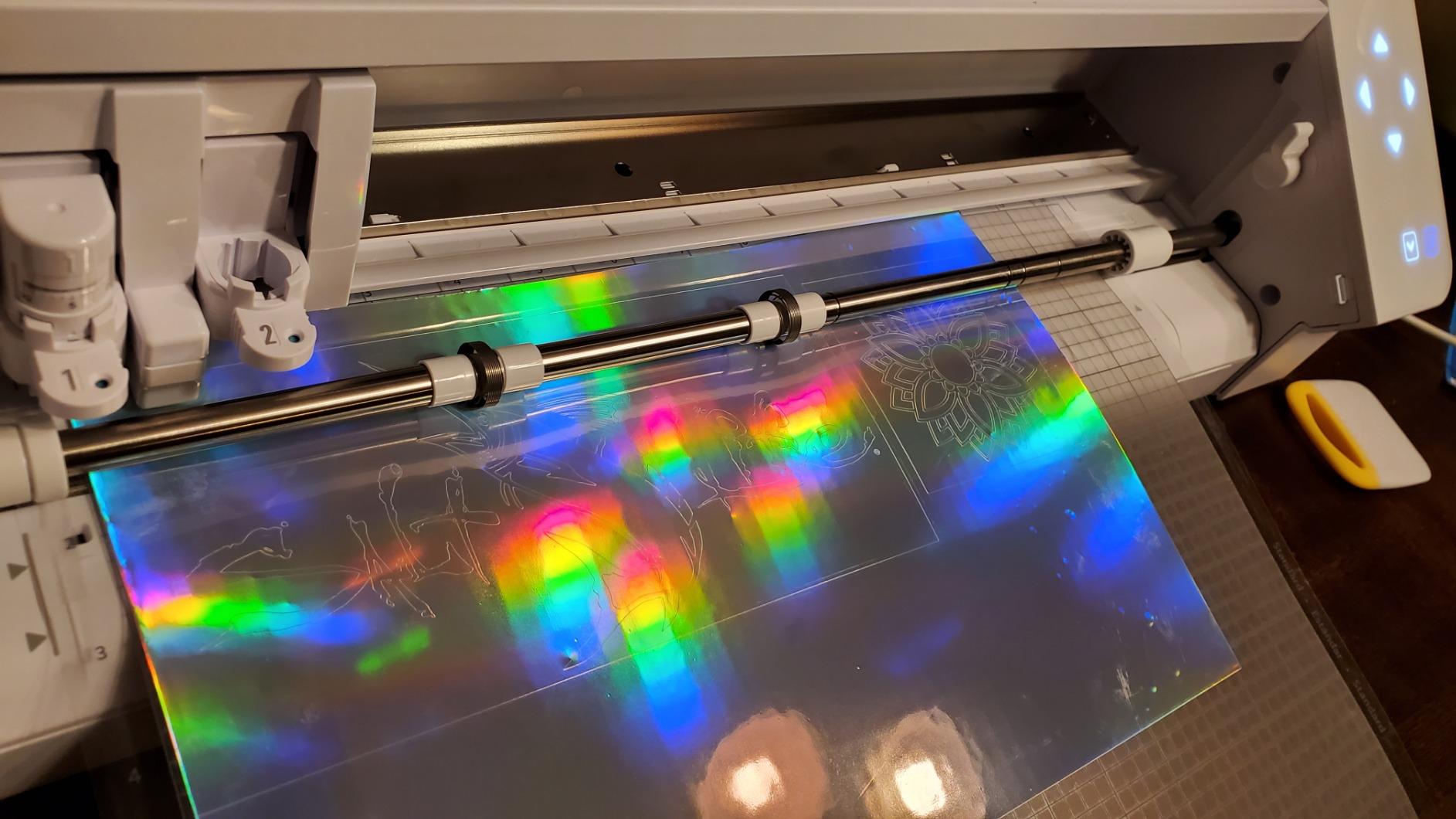
Testing the Silhouette Cameo 5 Alpha Plus felt like using a professional tool. The 15-inch cutting width handles larger vinyl projects that Cricut machines can’t touch. I cut 16-foot rolls without needing a cutting mat, thanks to the built-in roll feeder. This feature alone saves hours when making multiple decals or window graphics.
The AutoBlade system impressed me immediately. I loaded vinyl, selected the material in Studio software, and the machine adjusted blade depth automatically. No test cuts needed. Cutting speed reached impressive 400mm/s on simple designs. Complex patterns slowed the machine, but precision stayed consistent. The 4-point registration system kept alignment perfect for contour cutting printed vinyl.
Silhouette Studio software offers more control than Cricut’s Design Space. I could adjust every cutting parameter, from blade depth to speed to pass count. This granularity matters for professional results. The included 100 designs provide a starting point, though I mostly imported my own SVG files. One-month subscription gave access to more designs.
My main frustration was the learning curve. Studio software has powerful features buried in menus. Without a printed manual, I spent hours watching tutorials. Once mastered, though, the workflow became intuitive. The Power Slide Lid opens automatically, adding a premium feel. Noise level stayed impressively low even at maximum speed.
Best for vinyl businesses
The Cameo 5 Alpha Plus suits small business owners focused on vinyl products. If you make custom decals, vehicle graphics, or wall art, the 15-inch width and roll feeder streamline production. Professionals who need precise control over cutting parameters will appreciate Studio software’s depth. Those cutting hundreds of identical designs daily benefit from the speed and automation.
Not ideal for beginners
New crafters might struggle with the complex software interface. If you prefer plug-and-play simplicity, Cricut’s Design Space feels more approachable. Those who don’t need the 15-inch width could save money with smaller machines. Users expecting a printed manual will be disappointed. Silhouette’s ecosystem has fewer ready-made projects compared to Cricut’s library.
3. Cricut Explore 5 – Best for Beginners
Cricut Explore® 5 Essential Bundle + Digital Content, Taupe
Works with 100+ materials
72 sq in cutting area
30% more compact
Pros
- 30% more compact than previous models
- Precision-cuts 100+ popular materials
- Includes supplies for 65 projects
- Works with Deep Cutting Tool for thicker materials
- Bluetooth connectivity to Design Space app
Cons
- Explorer series markers do not fit
- Debossing tool does not fit
- No dust cover included
- Learning curve for design software
The Cricut Explore 5 struck me as the perfect entry point for new crafters. The taupe color looks professional, and the 30% smaller footprint fits tight craft spaces. Setup took 15 minutes, guided by clear in-app instructions. Design Space walked me through my first cut with helpful prompts.
Testing revealed solid performance on common materials. Vinyl cut cleanly for T-shirt transfers. Cardstock handled intricate shapes without tearing. The Print-Then-Cut feature worked well for stickers, aligning printed images precisely. I appreciated having supplies for 65 projects included, letting me experiment immediately without buying extra materials.
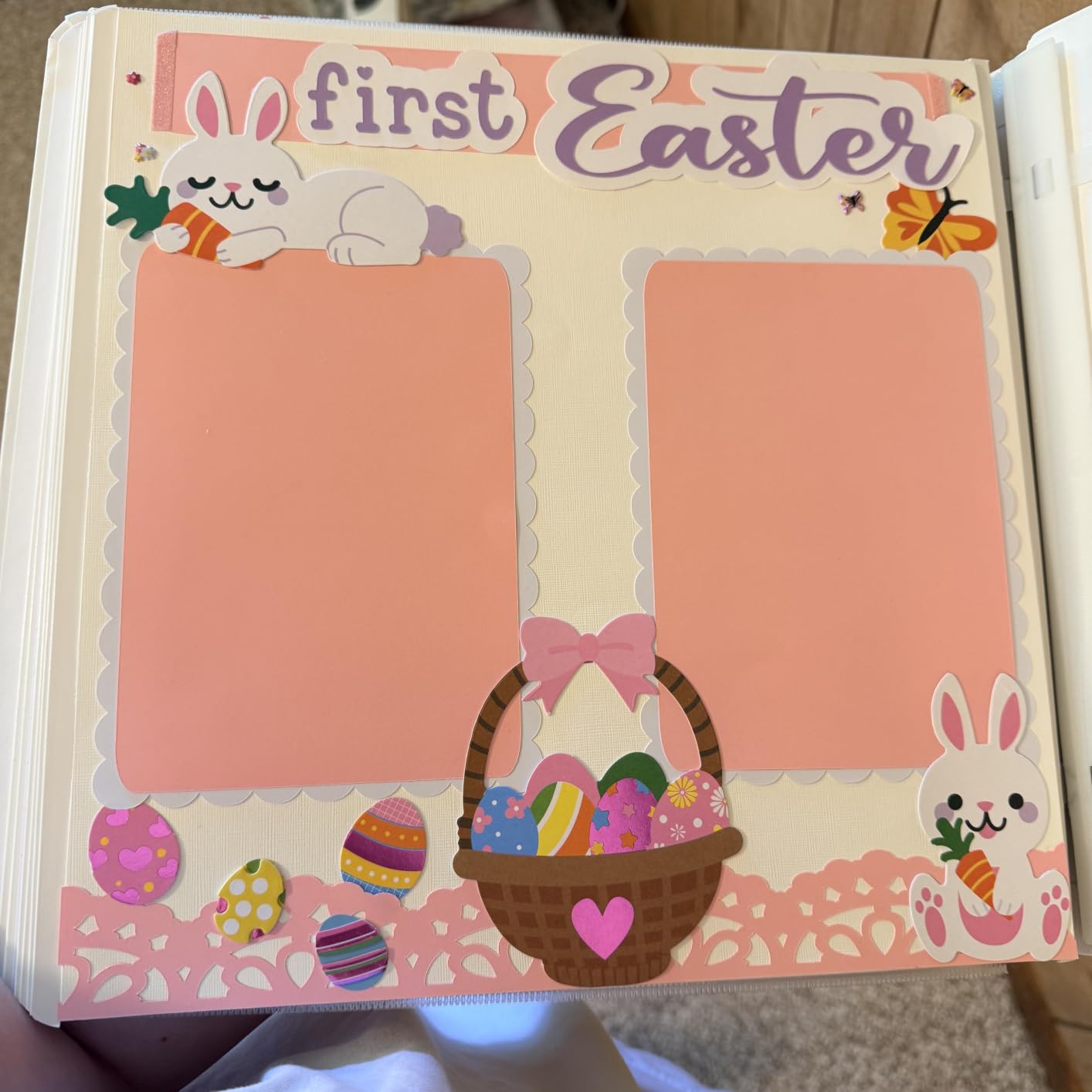
The 12-inch cutting width handled standard vinyl rolls and cardstock sheets. Bluetooth connectivity let me design from my phone without cables. The simplified interface reduced confusion compared to previous Explore models. I found blade changes intuitive, and the fine-point blade handled 90% of my test projects.
However, compatibility issues frustrated me. Older Explorer markers don’t fit this model. The debossing tool won’t work either. These limitations surprised me, considering Cricut’s ecosystem approach. No dust cover came included, leaving the blade exposed between uses. Still, for most beginner projects, these omissions won’t matter.
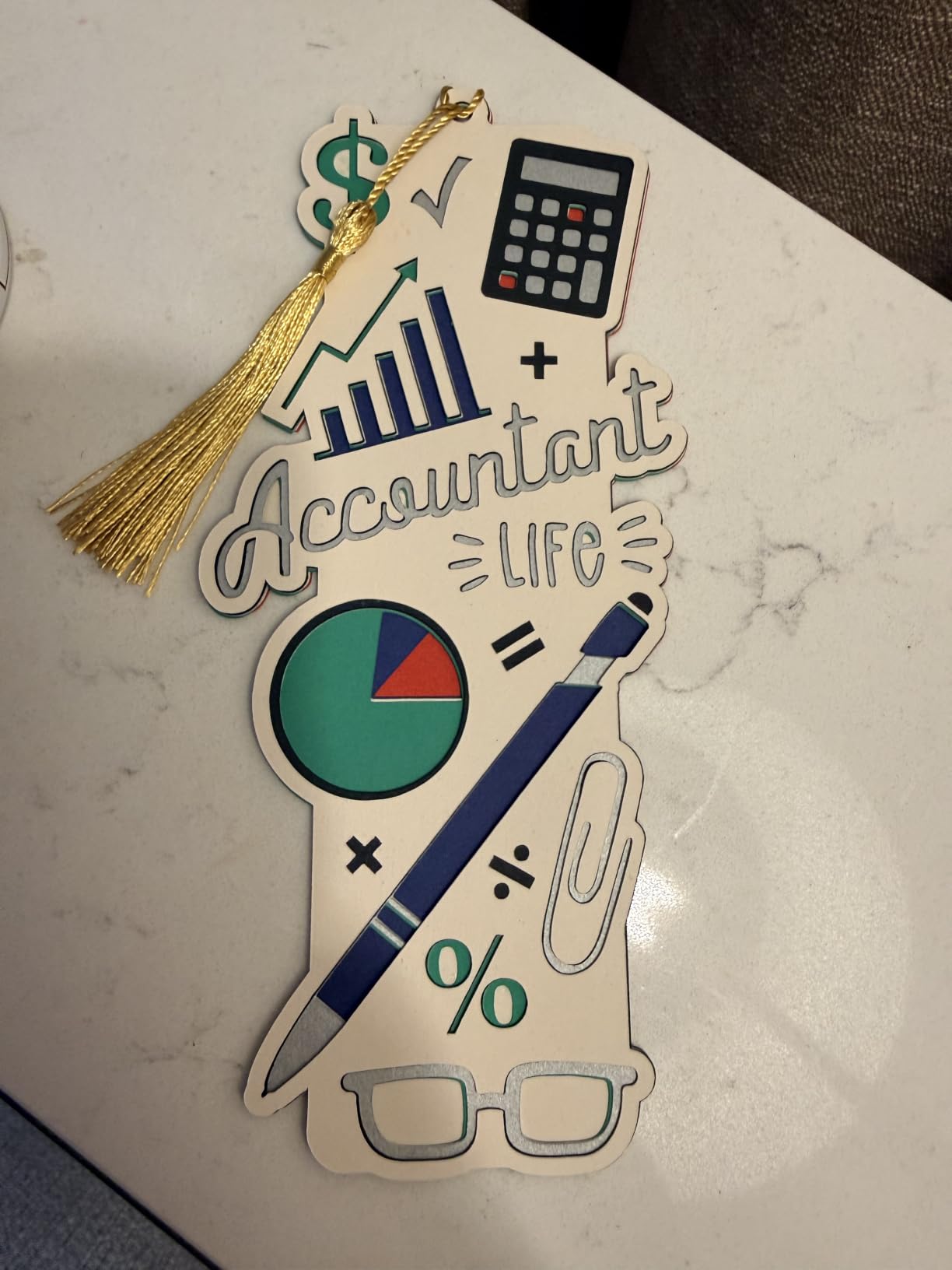
Best for new crafters
The Explore 5 suits beginners wanting guided learning. If you’re starting with vinyl, cardstock, and iron-on projects, the 100+ material compatibility covers essentials. The included project supplies eliminate guesswork about what to buy first. Design Space’s tutorials and ready-made projects build confidence quickly. Casual crafters will find the price-to-performance ratio excellent.
Not ideal for advanced users
Experienced crafters might find limitations frustrating. If you need to cut leather, wood, or thick fabrics, the Maker series works better. Those wanting to use older Cricut accessories should check compatibility first. Users who prefer offline design work should consider Silhouette instead. The subscription requirement for full design access remains a concern for budget-conscious crafters.
4. Brother ScanNCut SDX125E – Best Built-In Scanner
Brother SDX125E ScanNCut Electronic Cutting Machine Scanner
Built-in 300 DPI scanner
Auto blade technology
Cuts up to 3mm thickness
Pros
- Built-in scanner for converting drawings to cut files
- 682 built-in designs including quilting patterns
- Auto blade eliminates material selection
- Cuts up to 3mm thick materials
- 5-inch touchscreen LCD display
- Wireless and USB connectivity
Cons
- Requires sticky mats (consumable)
- Scan and cut can be slow with complex images
- Words not automatically grouped with images
- No physical manual included
The Brother ScanNCut SDX125E solved a problem I didn’t know I had. The built-in scanner lets you cut any design you can draw or print. I sketched a simple flower pattern, scanned it, and cut it from vinyl within minutes. No computer needed for basic projects. The 300 DPI scanner captured enough detail for most craft applications.
Auto blade technology worked seamlessly. I loaded various materials, and the machine detected thickness automatically. No manual blade depth adjustments or test cuts required. This feature alone saved 10 minutes per project. The 5-inch touchscreen displayed clear previews and let me position cuts visually before committing.
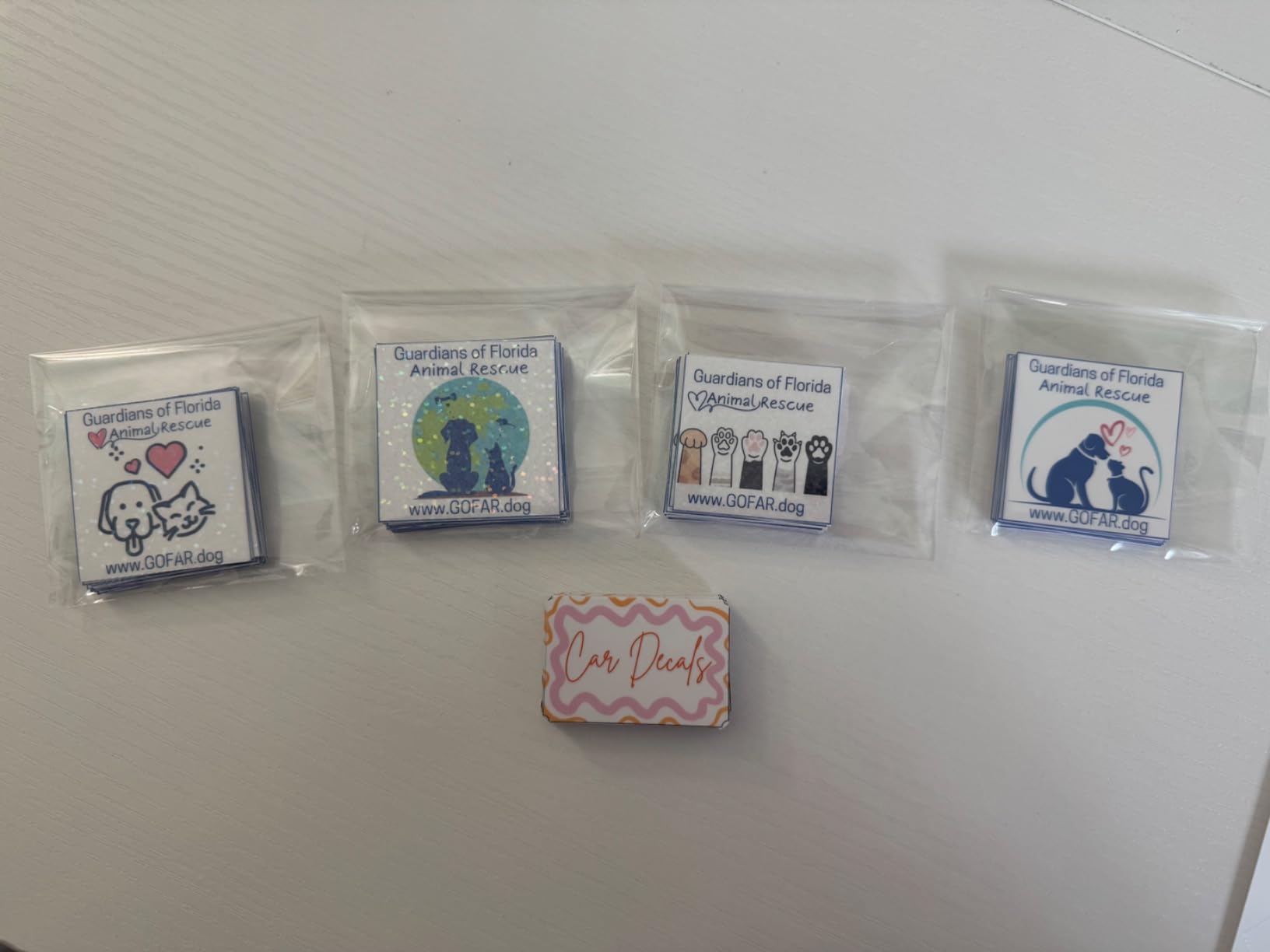
Testing the 682 built-in designs revealed excellent variety. Quilting patterns, holiday shapes, and fonts cover common needs. I appreciated the 100 quilting-specific designs for fabric projects. The machine cut cotton and felt cleanly with the included rotary blade attachment. Thickness up to 3mm handled felt and heavy cardstock without issues.
My biggest complaint involved scanning complex images. The machine slowed considerably with detailed drawings. Grouping words with images required manual intervention. The sticky mats worked well but eventually wear out, adding to long-term costs. Brother includes no printed manual, forcing users to download documentation.
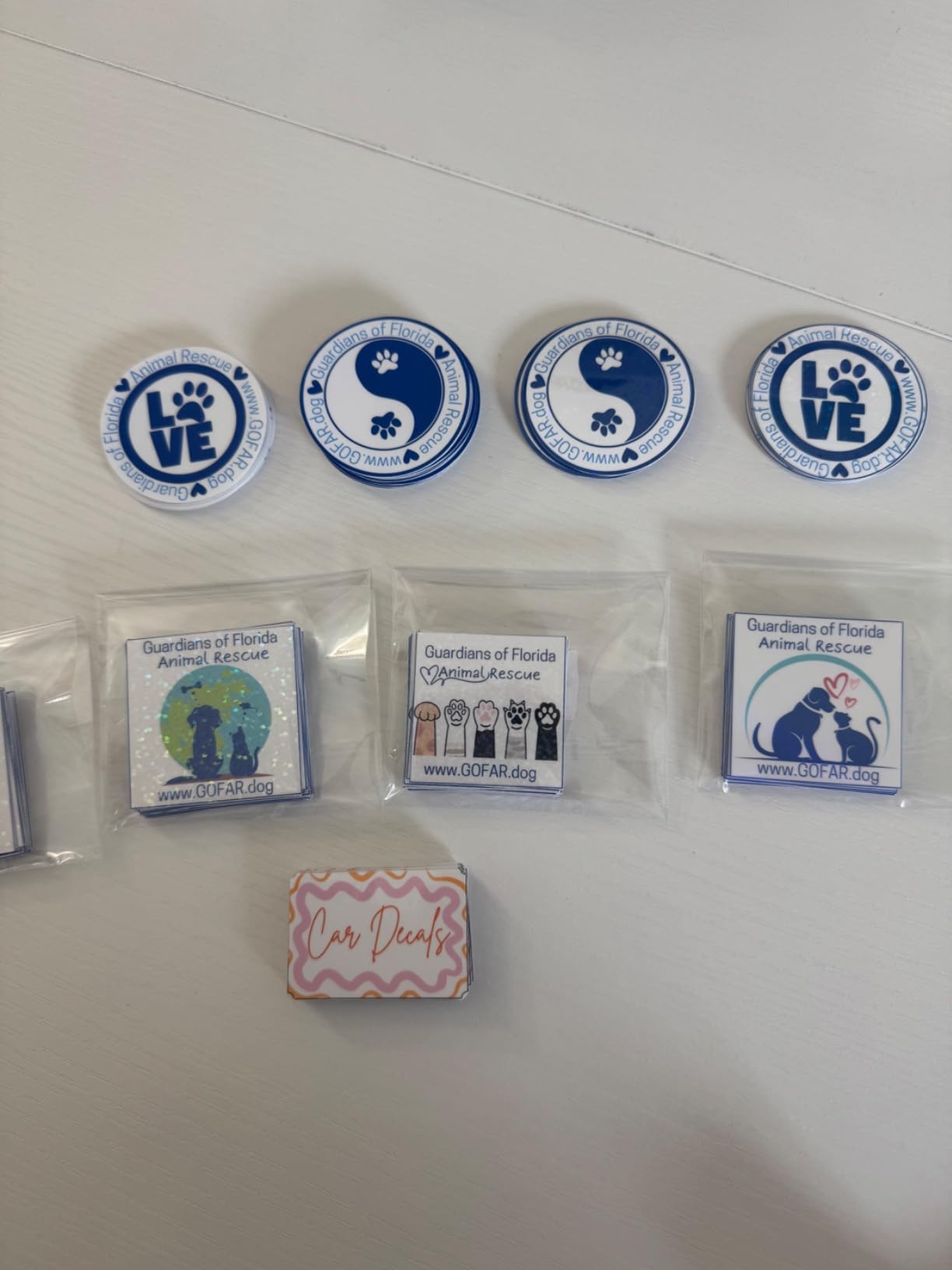
Best for paper crafters and scrapbookers
The ScanNCut suits crafters who work from hand drawings or printed images. If you prefer designing on paper before cutting, the scanner eliminates digitizing steps. Scrapbookers will appreciate the direct-from-photo cutting capability. Those wanting standalone operation without constant computer use benefit from the touchscreen interface. Quilters can cut fabric patterns directly from printed templates.
Not ideal for vinyl-focused creators
Users focused primarily on vinyl might prefer Silhouette or Cricut. The Brother ecosystem has fewer vinyl-specific accessories and smaller community support. Those expecting fast batch production should note the slower scan speeds. Users who find sticky mats frustrating may prefer matless alternatives. Beginners might find the standalone operation isolating without tutorial support.
5. Silhouette Portrait 4 – Best Compact Vinyl Cutter
Silhouette Portrait 4-9 inch Vinyl Cutting Machine with Studio Software, PixScan, Electric Tool and ES Mat Compatible, SNA and IPT Enabled, 50 db
9-inch cutting width
81 sq in cutting area
Studio software included
Pros
- IPT Technology for tension-free cutting
- Electric tool options expand possibilities
- SNA architecture for precise cuts
- Studio software included - no subscription required
- Uses any font installed on your PC
- Compact size for small spaces
Cons
- Cutting mat can be too sticky initially
- Learning curve for Studio software
- Blade settings require experimentation
- Replacement mats are expensive
The Silhouette Portrait 4 proved that compact doesn’t mean compromised. The 9-inch width fits on my desk beside my monitor. Despite the small footprint, the machine handled vinyl projects confidently. IPT Technology optimized cut paths, preventing material bunching on intricate designs. I noticed smoother curves compared to older Portrait models.
Studio software came included with no mandatory subscription for basic features. I could use any font installed on my computer without paying extra. This freedom from recurring fees appealed to my budget-conscious side. The software offers professional-grade tools for those willing to learn. I designed custom labels for my pantry organization project within an hour of setup.
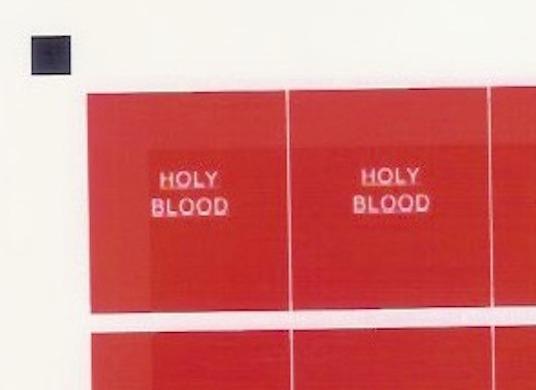
Testing revealed impressive quietness compared to previous models. The redesigned motor hummed rather than whined. Cuts stayed precise across vinyl, cardstock, and heat-transfer materials. The 81-square-inch cutting area handled standard 8.5×11 inch sheets with margins. For most hobby projects, this size proves sufficient.
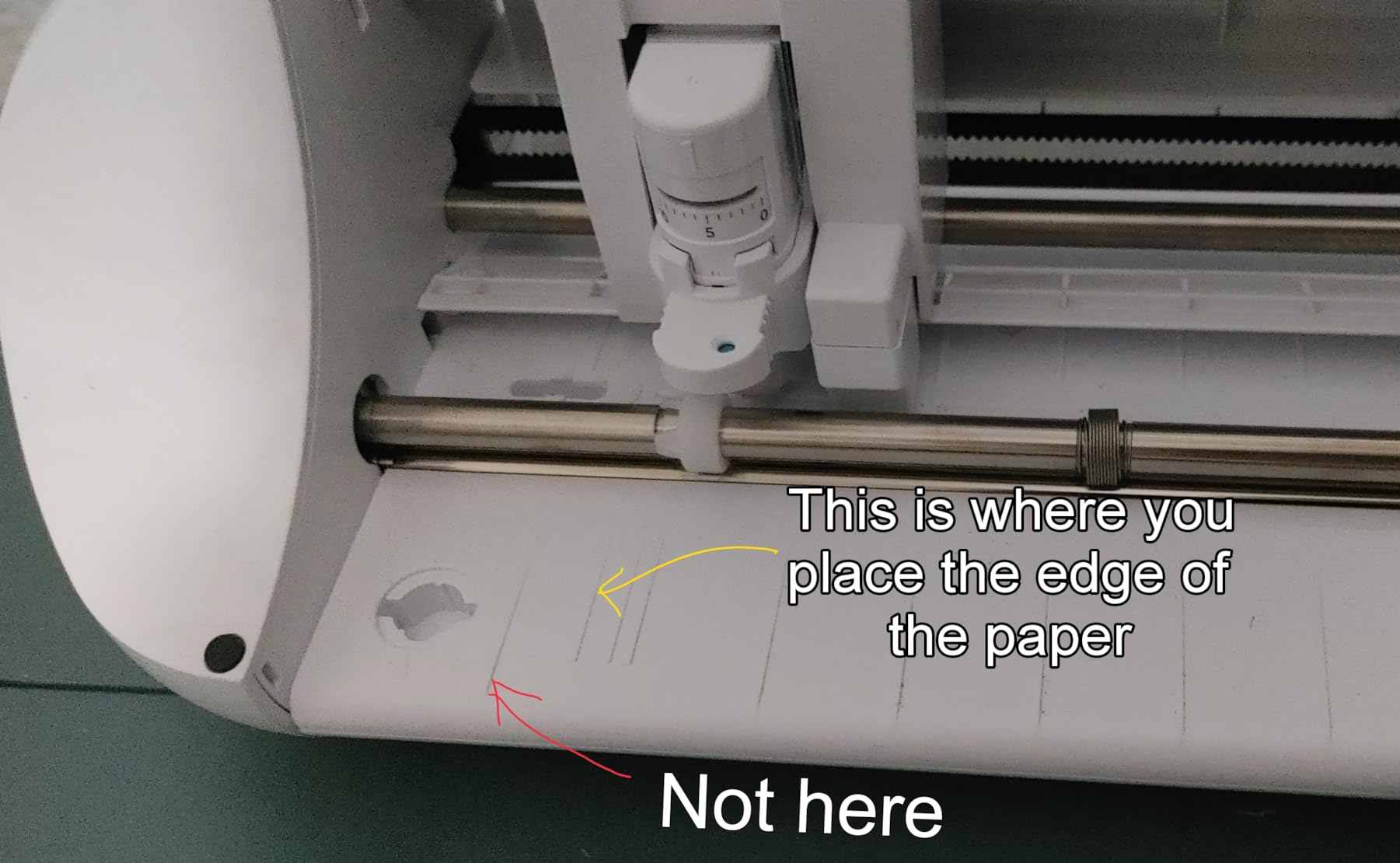
My frustrations centered on the sticky cutting mat. Initial tackiness made delicate materials difficult to remove without tearing. After a few uses, the mat calmed down. Blade settings required experimentation on each material type. No preset profiles existed for common materials, adding setup time per project.
Best for space-constrained crafters
The Portrait 4 suits hobbyists with limited workspace. If your crafting happens at a shared desk or in a small apartment, the 9-inch footprint fits easily. Budget-conscious users appreciate the included Studio software without forced subscriptions. Those cutting primarily vinyl for occasional projects find the size adequate. Beginners willing to learn professional software will benefit long-term.
Not ideal for large projects
Users making large decals or banners need the Cameo’s 15-inch width. Those expecting plug-and-play simplicity should consider Cricut’s guided experience. Crafters who dislike experimenting with blade settings may find the learning curve frustrating. Users wanting ready-made project templates might prefer Cricut’s extensive library. Small business owners with high-volume needs should upgrade to larger machines.
6. Cricut Joy Xtra – Best Budget Craft Cutter
Cricut Joy Xtra – Smart Cutting Machine | Digital Content Bundle
Works with 50+ materials
95.94 sq in cutting area
Includes 30 bonus images
Pros
- Cuts 50+ materials including vinyl and cardstock
- Works with inkjet printers for Print-Then-Cut
- Includes 30 bonus images in Design Space
- Access to 1.5M+ images and 1000+ fonts
- Compact size for easy storage
- Budget-friendly price point
Cons
- Requires Design Space app and internet connection
- Subscription required for full content library
- Some users report software complexity
- Limited cutting width
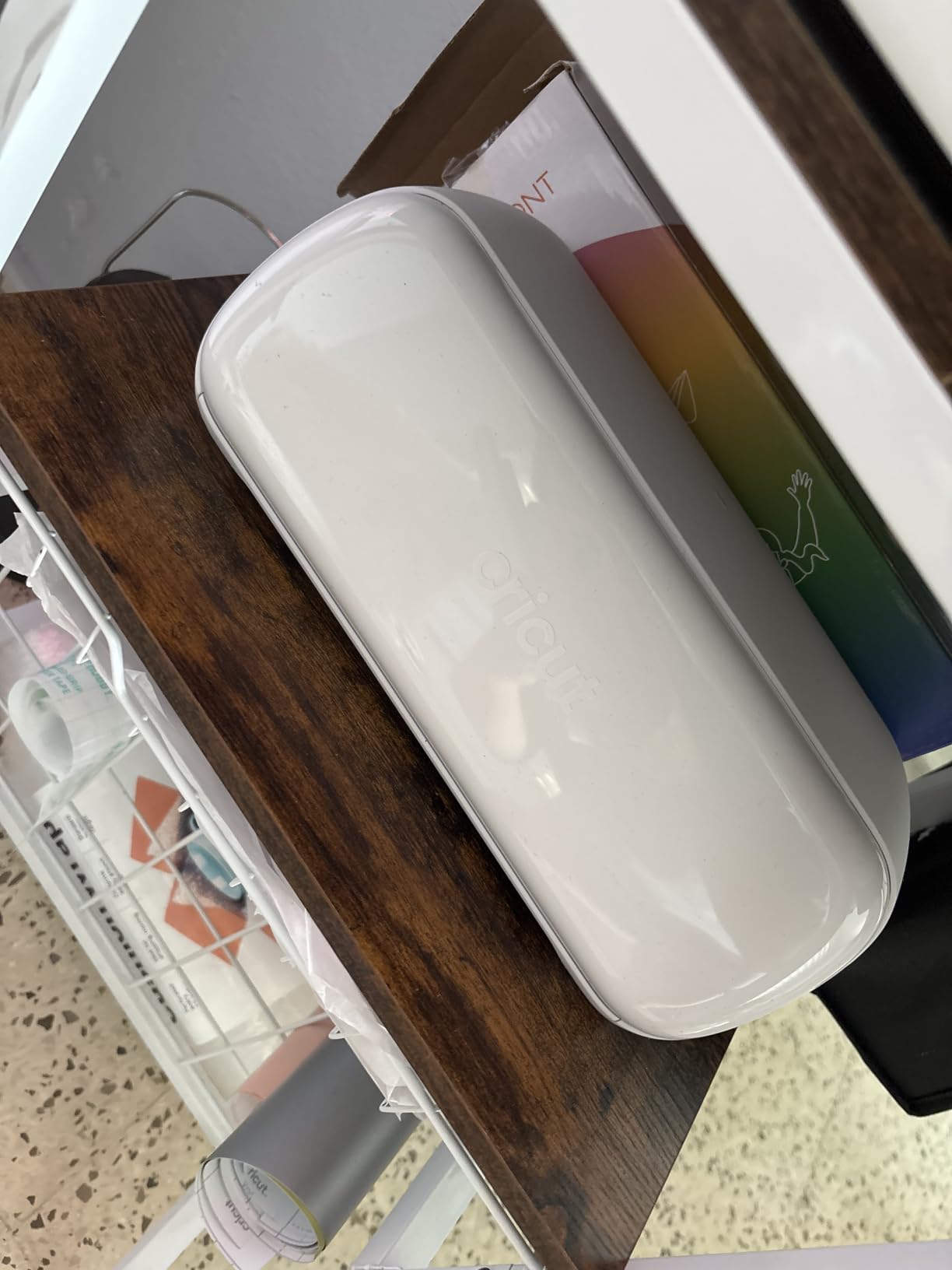
The Cricut Joy Xtra delivered impressive value at its price point. The compact white machine stores easily in a drawer. Setup took 10 minutes via my smartphone. The included fine-point blade and pen let me start projects immediately. Thirty bonus images added value beyond basic designs.
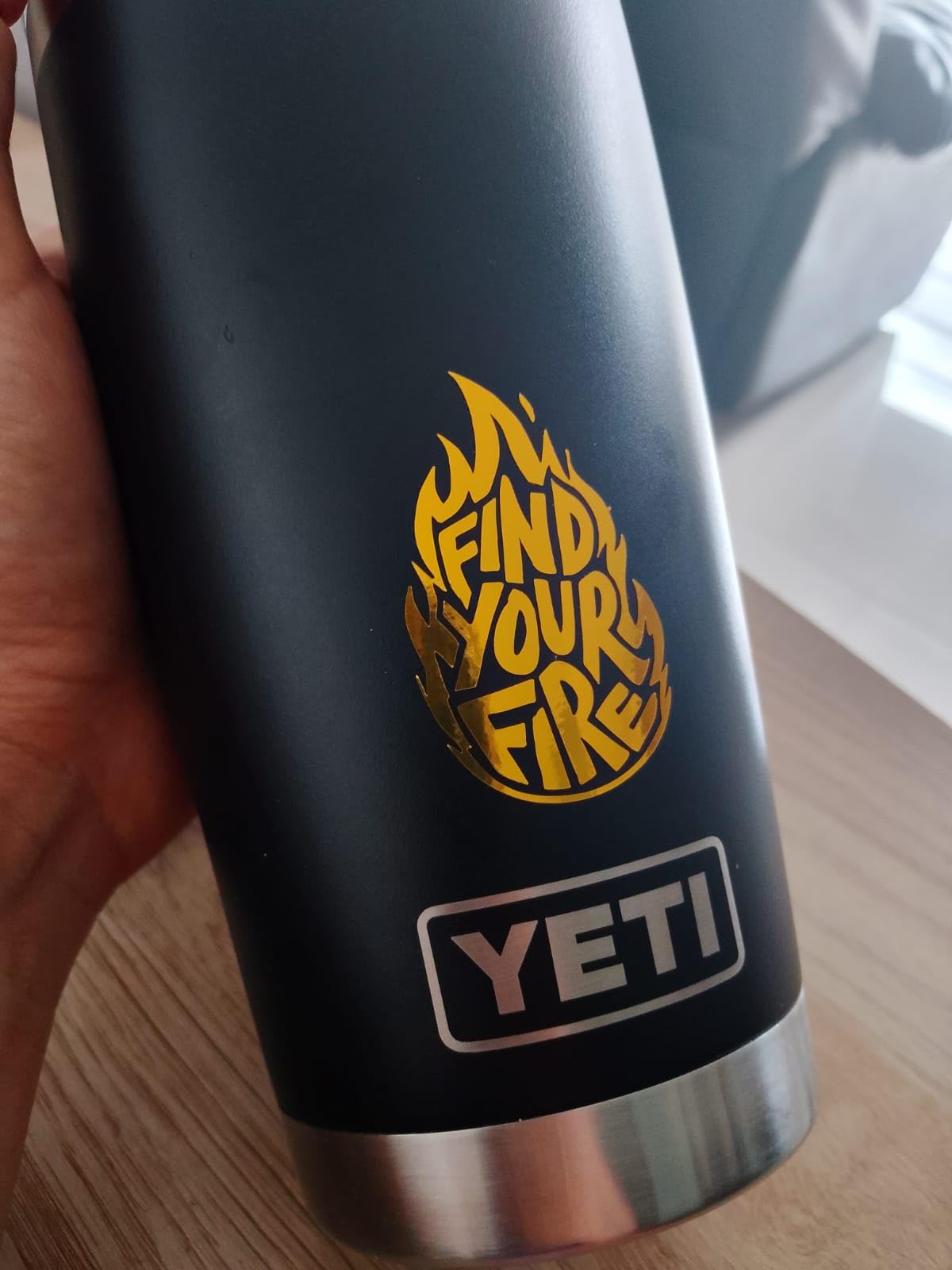
Testing proved the Joy Xtra capable for everyday crafting. Vinyl cut cleanly for personalized water bottles and laptop stickers. Cardstock handled birthday cards with moderate intricacy. Print-Then-Cut worked with my inkjet printer, producing stickers with decent alignment. The 50+ material compatibility covered most beginner needs without overwhelming choices.
The Design Space app provided clear guidance for new users. Tutorials appeared when I needed them. The 1.5 million image library offered inspiration, though full access requires a subscription. For occasional crafters, the included content sufficed. Bluetooth connectivity kept my workspace cable-free.
Limitations became apparent quickly. The small cutting width restricted project sizes. Internet connection is mandatory, frustrating when my WiFi dropped mid-project. The subscription model felt like a constant upsell. For basic projects, though, these constraints didn’t ruin the experience.
Best for casual crafters
The Joy Xtra suits beginners wanting affordable entry into electronic cutting. If you make occasional cards, stickers, and personalized items, the 50+ material range covers basics. Those with limited storage space appreciate the compact design. Users who already subscribe to Cricut Access will find the included content redundant. Casual users can start without commitment.
Not ideal for frequent users
Regular crafters might find the small cutting width restrictive. If you make larger projects or batch-produce items, bigger machines work better. Those wanting offline capability should consider Silhouette alternatives. Users frustrated by subscription models may prefer machines with full software included. Experienced crafters will outgrow this machine quickly.
7. Liene PixCut S1 – Best All-in-One Sticker Maker
Liene PixCut S1 Color Sticker Printer & Cutting Machine – All-in-One Sticker Maker for DIY Crafts, Custom Labels & Gifts. Thermal Dye-Sublimation Photo Printer, 300 DPI, Precise AI Auto-Cutting
Print and cut in one device
300 DPI resolution
No subscription required
Pros
- All-in-one convenience: print and cut in one device
- Excellent print quality with vibrant colors
- AI image extraction works well
- Dye-sublimation produces laminated waterproof stickers
- Compact footprint saves desk space
- No subscription required
- Great for custom stickers and labels
Cons
- App requires login
- Proprietary consumables only
- Sticker paper expensive and limited selection
- USB-C port does not support computer printing
- Cutting precision may require calibration
- Margins waste sticker paper
The Liene PixCut S1 solved a workflow problem I didn’t expect. This machine prints and cuts stickers in one device. No separate printer needed. I selected a photo on my phone, removed the background with AI extraction, and printed a die-cut sticker in under a minute. The convenience impressed me immediately.
Print quality surprised me. The 300 DPI resolution with 16.7 million colors produced vibrant, detailed images. Four-layer thermal dye-sublimation created a laminated finish that felt professional. My waterproof stickers survived water exposure without smudging. For custom laptop skins, phone cases, and product labels, the quality matched dedicated photo printers.
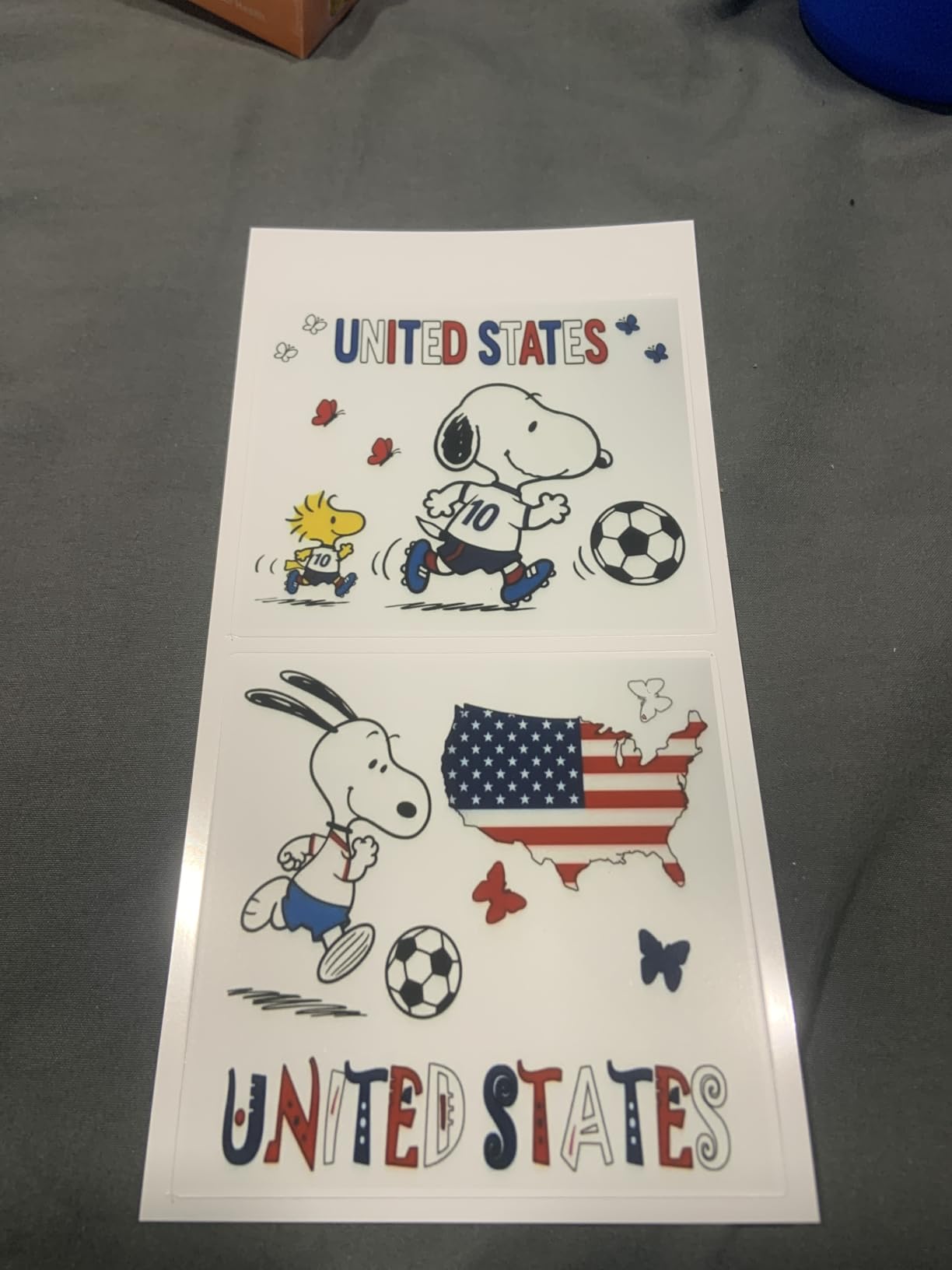
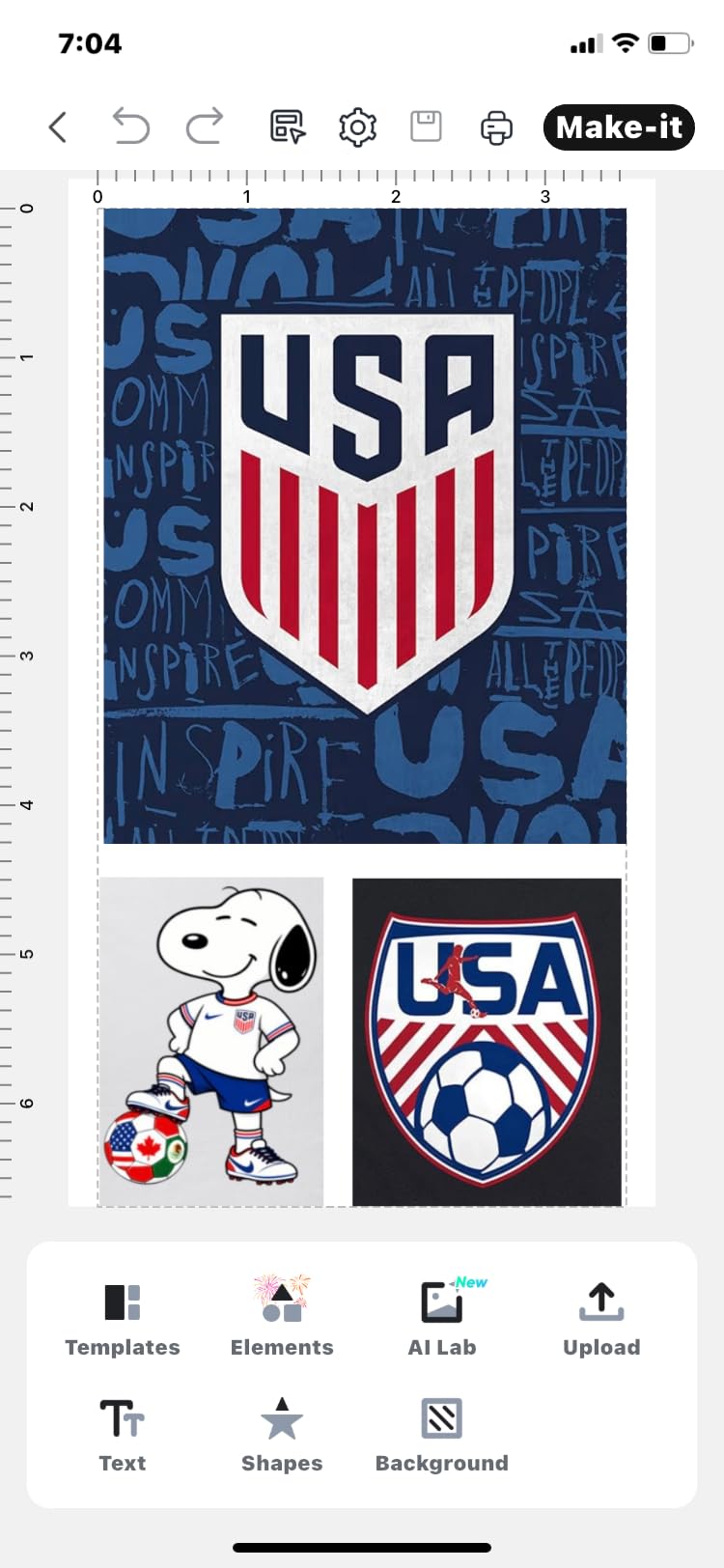
AI features saved time. The image extraction tool removed backgrounds from photos automatically. AI Lab transformed pictures into creative styles. I made cartoon versions of pet photos for custom stickers. The mobile app handled everything via Bluetooth, though the login requirement annoyed me.
Proprietary consumables limited flexibility. I could only use Liene’s sticker paper, which costs more than third-party alternatives. The 4×7 inch maximum size restricted larger projects. Margins on each sheet wasted usable space. USB-C port doesn’t support computer printing, forcing phone-only operation.
Best for sticker enthusiasts
The PixCut S1 suits crafters focused on custom stickers and labels. If you want to print and cut in one step without separate devices, the all-in-one design saves space. Small business owners making product labels benefit from the professional print quality. Those wanting no subscription fees appreciate the included 50,000+ images. Casual users making personal stickers will find the convenience worthwhile.
Not ideal for versatile crafters
Users wanting to cut vinyl, fabric, or cardstock should choose traditional cutting machines. The PixCut S1 specializes in stickers only. Those with existing photo printers may find duplication wasteful. Budget-conscious users will find the proprietary paper costs add up. Crafters expecting large-format output need bigger machines. The phone-only interface limits professional workflow integration.
8. CraftGenes A4 Electric Die Cutting Machine – Best Manual Die Cutter
CraftGenes A4 Electric Die Cutting and Embossing Machine, 9-Inch, 200W
A4 format (220mm opening)
200W motor
Automatic feed sensors
Pros
- Automatic feed - no manual cranking
- Whisper quiet operation
- Comprehensive starter kit included
- Excellent customer service
- Easy to use with clear instructions
- Good value for price
- Works for card making and embossing
Cons
- 110V only - not for UK/EU electrical systems
- Plate sandwich instructions confusing
- Replacement plates not readily available
- Cannot cut some paper types
The CraftGenes A4 Electric brought old-school die cutting into the modern age. Unlike traditional manual crank machines, this one feeds automatically. I loaded my die and cardstock, pressed a button, and watched it pull through smoothly. No arm workout required. The 200W motor handled standard steel-rule dies without hesitation.
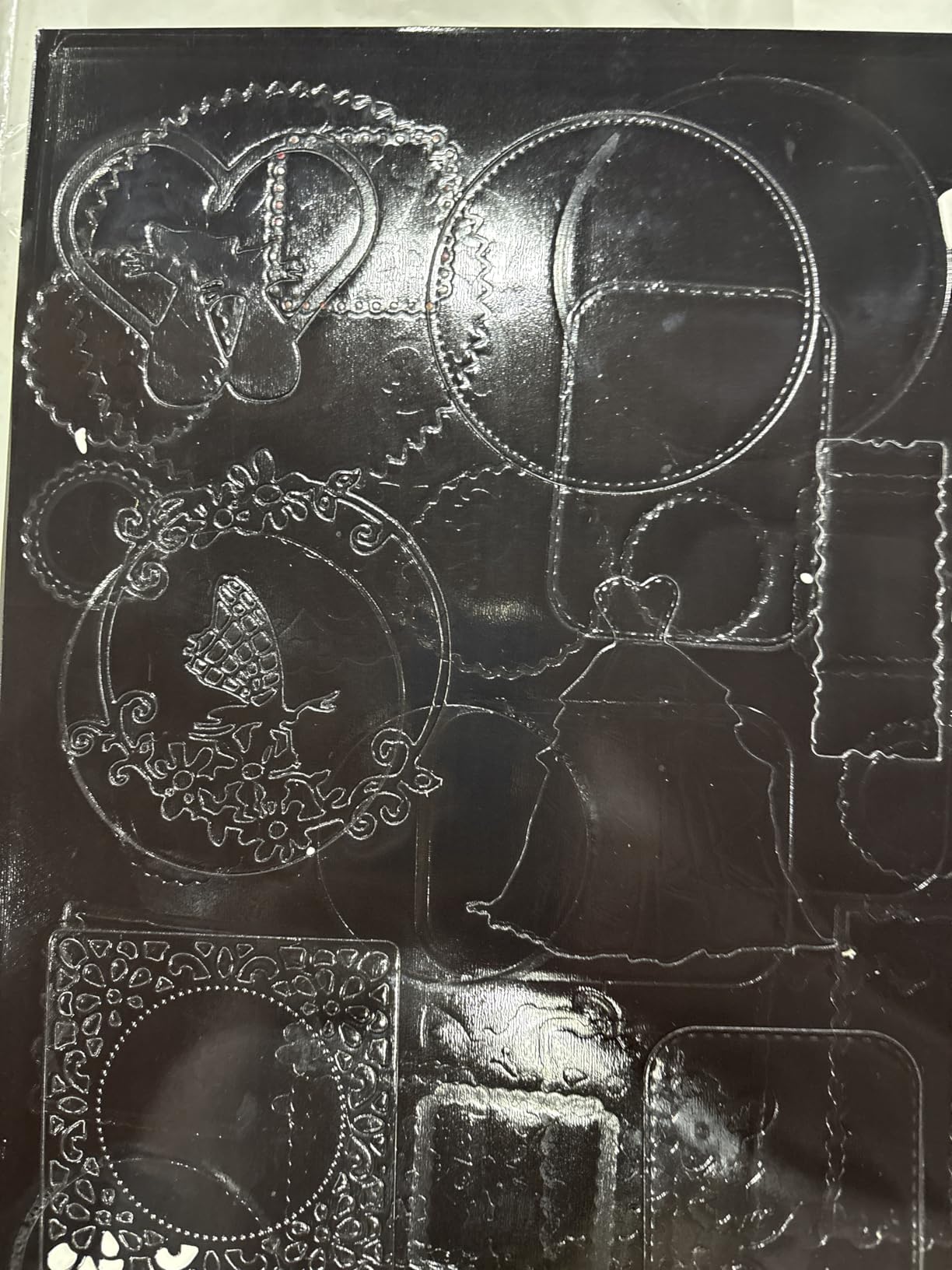
Testing proved the machine surprisingly quiet. My previous manual die cutter clanked loudly. The CraftGenes hummed softly, letting me craft late without disturbing others. The A4 format (220mm opening) fit most card fronts and scrapbook layouts. I cut intricate shapes from heavy cardstock cleanly.
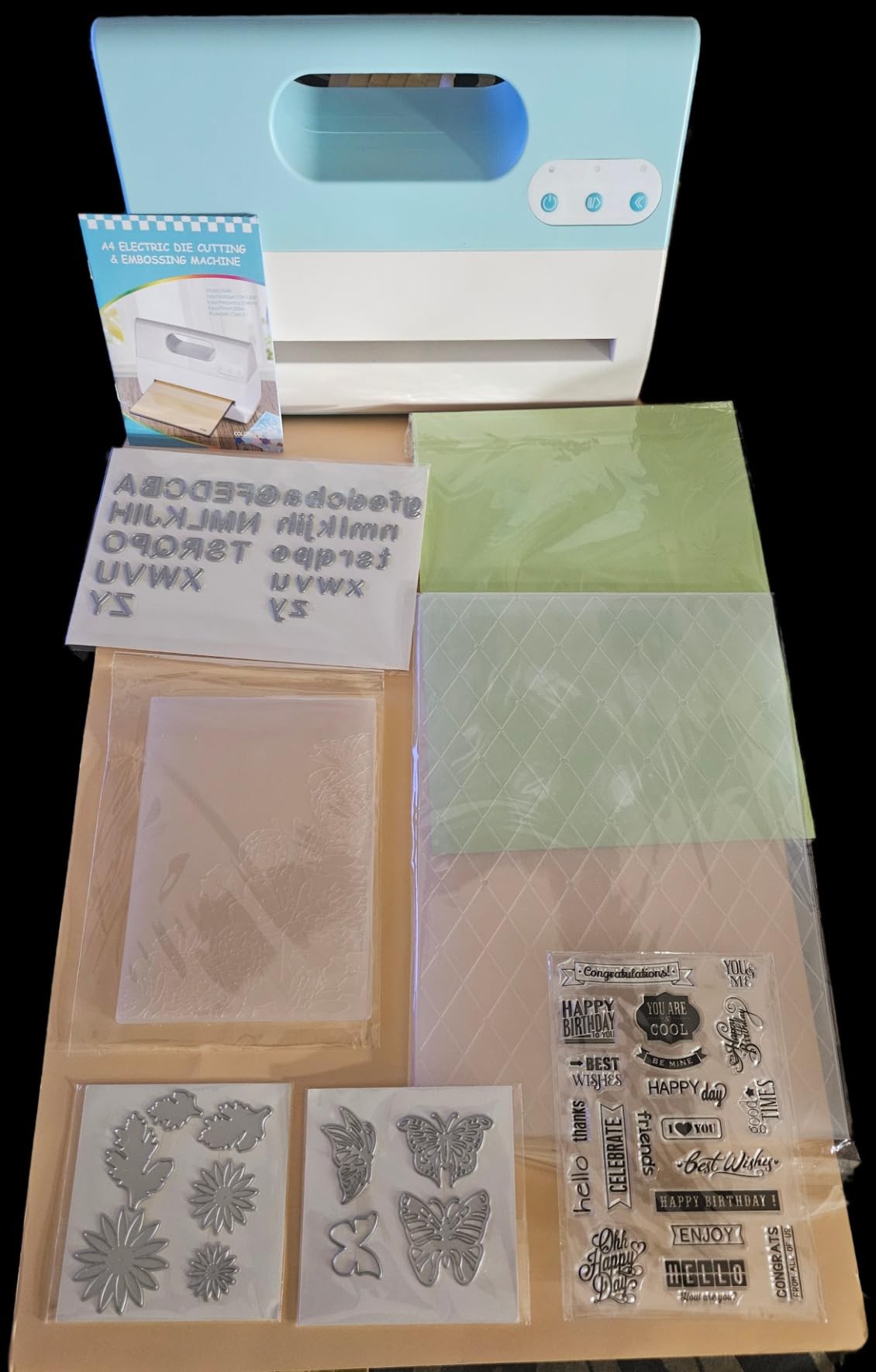
The starter kit impressed me. Included were cutting plates, embossing folders, die sets, a stamp set, magnetic sheet, silicone mat, plastic shim, and 10 cardstock sheets. Everything needed to start card making immediately. Value exceeded the budget price point significantly.
Confusion arose with the plate sandwich instructions. Layering plates correctly took trial and error. The magnetic sheet placement diagram didn’t match reality. After watching a tutorial, I understood the system. Replacement plates aren’t readily available, which concerned me for long-term use.
Best for traditional crafters
The CraftGenes A4 Electric suits card makers and scrapbookers who prefer die cutting over electronic machines. If you own steel-rule dies and embossing folders, this machine modernizes the workflow. Those wanting quiet operation in shared spaces will appreciate the whisper-quiet motor. Budget-conscious beginners get excellent value with the included starter kit. Users who find manual cranking tiring benefit from automatic feed.
Not ideal for international users
Owners outside the US should note the 110V limitation. UK and EU electrical systems require a converter, adding cost. Those expecting to cut every paper type may find some materials resist the machine. Users wanting digital design capabilities should choose electronic cutting machines instead. Crafters who prefer readily available replacement parts should consider established brands. Beginners unwilling to troubleshoot plate configurations might struggle initially.
Buying Guide: How to Choose the Best Cutting Machine for Crafts?
Selecting the right cutting machine depends on your specific needs, budget, and crafting goals. I learned through trial and error which factors actually matter. Here’s what I wish someone had told me before buying.
Cutting force and material compatibility
Cutting force, measured in grams-force (gf), determines what materials a machine can handle. Entry-level machines like the Cricut Joy series handle lighter materials. Mid-range machines like the Explore 5 cut cardstock, vinyl, and thin materials confidently. Professional machines like the Maker 4 and Cameo 5 cut leather, wood, and thick fabrics.
Consider what you’ll actually cut. If vinyl and cardstock cover 90% of your projects, paying for 4000+ gf capability wastes money. But if you envision leather wallets or wood signs, invest in cutting power upfront. Testing taught me that manufacturer material lists often exaggerate capabilities. Real-world reviews reveal actual performance.
Software and subscription costs
Cricut machines require the Design Space app with internet connection. Full design library access costs monthly or annually. Silhouette includes Studio software with no mandatory subscription for basic features. Brother’s canvas workspace offers free basic operation. These hidden costs add up over years.
I calculated subscription costs over three years. Cricut Access at roughly $8 monthly equals nearly $290 over three years. Silhouette’s included software saves that amount. However, Cricut’s library offers more ready-made projects, saving design time. Factor in your design skills and time availability when choosing.
Cutting width and project size
Machine width determines maximum project size. Compact machines like the Cricut Joy series (5-inch width) limit you to small decals and cards. Mid-size machines like the Explore 5 and Portrait 4 (9-12 inch width) handle standard US letter and vinyl rolls. Large machines like the Cameo 5 (15-inch width) tackle banners, vehicle graphics, and batch production.
Think about your typical projects. T-shirt designs and cardmaking fit mid-size machines. Wall decals and business signage require large format. Roll feeders on Silhouette machines eliminate cutting mats for long vinyl runs, speeding production significantly.
Ecosystem and community support
Cricut has the largest community and most ready-made projects. Design Space offers guided tutorials for beginners. However, the ecosystem locks you into proprietary materials and accessories. Silhouette offers more flexibility with third-party materials and offline design. Brother has smaller community but unique scanner capabilities.
Consider local support too. I found local classes teaching Cricut machines. Silhouette users often rely on YouTube tutorials. If you learn better in person, Cricut’s dominance might matter. Independent learners can master any platform.
Hidden costs beyond the machine
Cutting mats wear out every 6-12 months with regular use. Replacement blades cost $15-30 each. Specialty tools like rotary blades, engraving tips, and scoring wheels add up. Proprietary materials cost more than generic alternatives. Software subscriptions compound over years. I budgeted 30% above the machine price for first-year supplies.
Skill level and learning curve
Cricut machines offer the gentlest learning curve. Design Space provides prompts and tutorials. Brother’s ScanNCut works standalone without computer. Silhouette requires more learning but offers more control. Consider your comfort with technology and patience for troubleshooting. I spent 10 hours learning Silhouette Studio versus 1 hour for Cricut Design Space.
Frequently Asked Questions
What is the best cutting machine other than Cricut?
The Silhouette Cameo 5 Alpha Plus stands out as the best alternative to Cricut. It offers 15-inch cutting width, automatic blade adjustment, and no mandatory subscription for basic software features. The Brother ScanNCut SDX125E provides another strong option with its built-in scanner for converting hand-drawn designs to cut files.
Is Cricut or Silhouette better?
Cricut offers easier learning curves and larger community support, making it better for beginners. Silhouette provides more software control, no forced subscription, and handles large vinyl projects better with 15-inch width. Choose Cricut for guided crafting or Silhouette for professional control and vinyl-focused work.
What I wish I knew before getting a Cricut?
Design Space requires internet connection and can experience outages. Subscription costs for full library access add significantly over time. Proprietary materials cost more than third-party alternatives. Blades and mats wear out regularly, adding ongoing costs. The included design library is limited without paid subscription. Learning software takes time despite beginner-friendly marketing.
Do I need a subscription for a craft cutting machine?
No, subscriptions are optional for most machines. Cricut requires Design Space app but basic features work without subscription. Silhouette includes full Studio software at no extra cost. Brother offers free basic operation. Subscriptions only unlock additional design libraries and premium features. You can design your own projects without paying ongoing fees.
Conclusion
Choosing the best cutting machines for crafts comes down to matching features to your actual needs. The Cricut Maker 4 excels for versatile material work, while the Silhouette Cameo 5 Alpha Plus dominates vinyl projects. Beginners find success with the Cricut Explore 5, and the Brother ScanNCut SDX125E offers unique scanning capabilities.
After testing all eight machines, my advice is simple: start with your most common project type. Vinyl-focused crafters should prioritize cutting width and roll feeders. Material experimenters need versatility and cutting force. Budget-conscious beginners should choose included software without subscription requirements. Consider long-term costs beyond the initial purchase price.
The right machine transforms crafting from frustration to joy. Take time to learn your chosen software, invest in quality blades and mats, and join community groups for support. Your cutting machine will become an essential tool for creative projects in 2026 and beyond.