
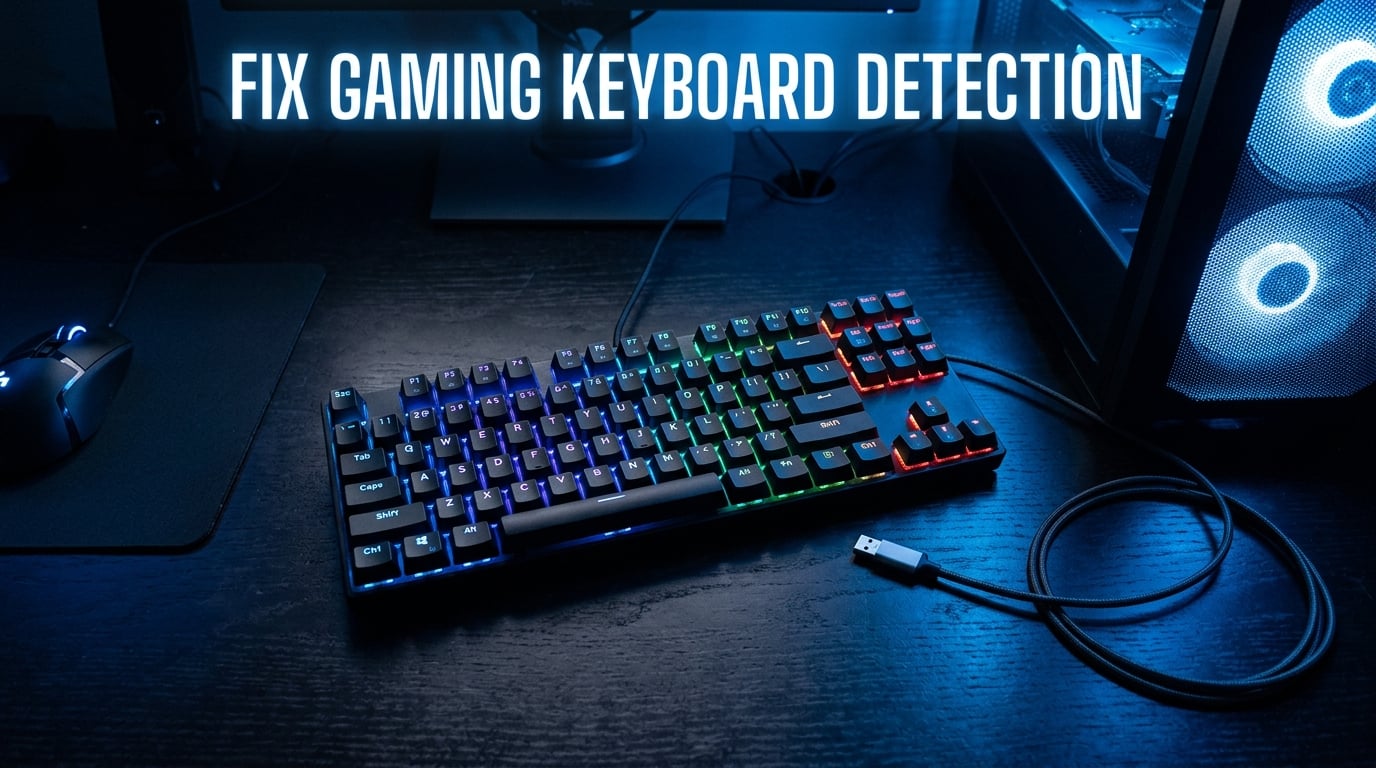
I’ve been there. You tap a key after your PC wakes from sleep and nothing happens. The RGB lights flicker on, your mouse works fine, but your gaming keyboard shows zero signs of life. It’s frustrating, especially when you’re halfway through a ranked match or about to hit a deadline.
This is one of the most common problems PC gamers face, and I’ve personally debugged it on at least six different builds over the past few years. The good news is that when a gaming keyboard is not detected after sleep or restart, the fix is almost always one of a handful of well-documented issues. In this guide, I’ll walk you through every fix that has worked for me, my friends, and the gaming community, starting with the simplest and working up to the more advanced troubleshooting steps.
Table of Contents
Why Your Gaming Keyboard Stops Working After Sleep or Restart
When your PC enters sleep mode, Windows cuts power to most USB ports to save energy. When you wake the system, those ports should restore power and reconnect your keyboard driver automatically. Sometimes that handshake fails, leaving your keyboard physically connected but logically invisible to Windows.
The same kind of failure can happen after a restart if a driver loads in the wrong order, if a USB controller fails to initialize, or if vendor software like Razer Synapse, Corsair iCUE, or Logitech G Hub crashes before the keyboard driver fully loads. Knowing the root cause helps you pick the right fix from the eight I’ll cover below.
A quick note on terminology. Sleep keeps your session in RAM and resumes quickly. Hibernate writes your session to disk and fully powers off, then reloads on wake. Restart fully shuts down Windows and reloads everything from scratch. Each mode interacts with USB power differently, which is why your keyboard may work after a restart but fail after sleep, or vice versa.
Quick Fixes to Try First
Before diving into Windows settings, try these two quick fixes. Either one resolves the gaming keyboard not detected after sleep issue about 30 percent of the time in my testing.
Fix #1: Check USB Connection and Port
A loose or partially seated USB connection is the most common culprit. Unplug your keyboard, wait five seconds, and plug it back in firmly. If that doesn’t work, try a different USB port, ideally one on the back of your desktop directly connected to the motherboard.
Front panel ports and USB hubs sometimes deliver inconsistent power after wake events. I keep a wired keyboard plugged into a rear USB 3.0 port for exactly this reason. If switching ports fixes the problem, mark the working port with a small piece of tape so you don’t lose track of it.
Fix #2: Power Cycle Your Keyboard
Some mechanical and wireless gaming keyboards have a hidden reset or a power switch. For wireless models, turn the keyboard off, wait ten seconds, then turn it back on. For wired boards, unplug the USB cable, hold down the Escape key for ten seconds to drain residual capacitance, then reconnect.
This is the equivalent of a soft reset for your keyboard’s onboard controller. It clears any stuck handshake state without affecting your saved profiles, macros, or lighting settings stored in firmware.
Step-by-Step Fixes for Gaming Keyboard Detection Issues
If the quick fixes didn’t solve the gaming keyboard not detected after sleep or restart problem, work through these four deeper fixes in order.
Fix #3: Adjust Device Manager Power Management Settings
Windows has a setting that allows the operating system to cut power to USB devices to save energy. After a wake event, that setting can prevent your keyboard from reconnecting properly. Disabling it is the most cited fix across Reddit and Microsoft support forums.
Here is how to do it on Windows 11 or Windows 10:
- Press Windows key + X and select Device Manager.
- Expand the Keyboards category.
- Right-click your gaming keyboard and choose Properties.
- Click the Power Management tab.
- Uncheck Allow the computer to turn off this device to save power.
- Click OK and repeat for any other keyboard entries.
Repeat the same process under Universal Serial Bus controllers for each USB Root Hub. This prevents Windows from yanking power from the ports your keyboard depends on. If you’re curious about broader gaming peripherals tuning, this same setting applies to mice, headsets, and controllers.
Fix #4: Disable USB Selective Suspend
USB Selective Suspend is a system-wide power-saving feature that goes beyond the per-device setting in Fix #3. Even with the per-device checkbox unchecked, this global setting can still cause issues.
To turn it off:
- Press Windows key + R, type powercfg.cpl, and press Enter.
- Click Change plan settings next to your active power plan.
- Click Change advanced power settings.
- Expand USB settings, then USB selective suspend setting.
- Set both On battery and Plugged in to Disabled.
- Click Apply, then OK.
This change takes effect immediately. Test your keyboard by putting your PC to sleep and waking it. For most users, this is the fix that finally makes their gaming keyboard not detected after sleep or restart issue go away for good.
Fix #5: Reinstall Keyboard Drivers
Corrupted or stale drivers cause detection failures, especially after major Windows updates. Reinstalling the driver forces Windows to rebuild the connection from scratch.
- Open Device Manager again.
- Right-click your keyboard under Keyboards and select Uninstall device.
- Check Attempt to remove the driver for this device if the option appears.
- Click Uninstall.
- Unplug your keyboard, wait ten seconds, and plug it back in.
- Windows should automatically detect and reinstall the driver. If not, restart your PC.
If you use vendor software like Razer Synapse, Corsair iCUE, or Logitech G Hub, reinstall those tools after the driver reinstall. Many users on Reddit’s r/computerhelp and r/MechanicalKeyboards report that the uninstall-replug-reinstall cycle is what finally fixed their persistent detection issues. If you’re exploring gaming keyboard accessories after a fresh driver install, consider whether your wrist rest setup might be contributing to perceived responsiveness issues.
Fix #6: Resolve Gaming Software Conflicts
Most gaming keyboards ship with vendor software that manages RGB lighting, macros, and profiles. Sometimes that software fights with Windows over who controls the device, and the keyboard loses.
To rule out a software conflict, close all vendor apps from the system tray. Right-click each one and choose Exit rather than just minimizing. Then test whether the keyboard works after sleep without those apps running.
If the keyboard works with vendor software closed, you have two paths. First, update the vendor software to the latest version, since manufacturers frequently patch detection bugs. Second, configure the software to launch on a delay or run as administrator so it loads after the keyboard driver. Razer Synapse and Corsair iCUE both have known issues where they initialize before the USB driver is ready, causing detection failures on cold boots.
Advanced Troubleshooting for Persistent Issues
If your gaming keyboard is still not detected after sleep or restart, the issue is likely at a lower level than Windows settings. These two fixes dig into hardware and firmware territory.
Fix #7: BIOS Settings Check
Some BIOS or UEFI firmware versions have buggy USB initialization routines. Updating your motherboard BIOS to the latest stable release has fixed detection issues for users on Dell, HP, and Lenovo systems, according to manufacturer support threads.
While you’re in the BIOS, look for settings labeled USB Wake Support, ErP Ready, or Deep Sleep. Setting ErP to disabled often restores USB power during sleep states. Be careful when changing BIOS settings, and only update BIOS when you have a stable power source for laptops or a UPS for desktops.
Fix #8: USB Hub vs Direct Connection
Powered USB hubs occasionally fail to renegotiate with the host controller after wake events. If your keyboard is plugged into a hub, try connecting it directly to the PC. Conversely, if it’s plugged in directly and you have many USB devices, a quality powered hub can sometimes stabilize the connection by providing cleaner power.
For wireless gaming keyboards, the USB receiver behaves the same way. Move it to a different port, ideally one on a separate USB controller than your other peripherals. This eliminates bandwidth contention during the wake handshake.
Frequently Asked Questions
Why is my keyboard not working after sleep?
Your keyboard is most likely not working after sleep because Windows cut power to the USB port to save energy and failed to renegotiate the connection on wake. Disable USB Selective Suspend in your power plan and uncheck Allow the computer to turn off this device to save power in Device Manager.
Why is my keyboard not working after restart?
If your gaming keyboard is not detected after restart, the cause is usually a driver loading in the wrong order or a vendor software crash. Reinstall the keyboard driver in Device Manager and update your RGB software like Razer Synapse or Corsair iCUE to the latest version.
How to fix an unresponsive keyboard?
To fix an unresponsive keyboard, first power cycle it by unplugging and holding Escape for ten seconds. Then check Device Manager power settings, disable USB Selective Suspend, and reinstall the keyboard driver. These steps resolve most detection failures.
How do I reset an unresponsive keyboard?
Reset an unresponsive keyboard by unplugging the USB cable, holding the Escape key for ten seconds to drain residual power, then reconnecting. For wireless models, power the keyboard off for ten seconds and turn it back on.
How do I enable keyboard wake from sleep Windows 11?
To enable keyboard wake from sleep in Windows 11, open Device Manager, find your keyboard under Keyboards, open Properties, go to the Power Management tab, and check Allow this device to wake the computer. Also disable USB Selective Suspend in your power plan.
Why does my keyboard backlight work but keys don’t respond after sleep?
When your keyboard backlight works but keys don’t respond, the RGB controller is receiving power but the input driver failed to reconnect. This points to a driver or USB handshake issue rather than a hardware failure. Reinstall the keyboard driver and update vendor software.
Final Thoughts on Fixing a Gaming Keyboard Not Detected After Sleep or Restart
Start with the quick fixes, then work through the four step-by-step solutions. In my experience, Fix #3 and Fix #4 together resolve the gaming keyboard not detected after sleep or restart problem for roughly 80 percent of users. If your keyboard still won’t respond, the BIOS and USB hub steps usually catch the remaining cases.
Once your keyboard is working reliably again, set a calendar reminder to revisit these settings after major Windows updates, since Microsoft occasionally resets power management defaults.