
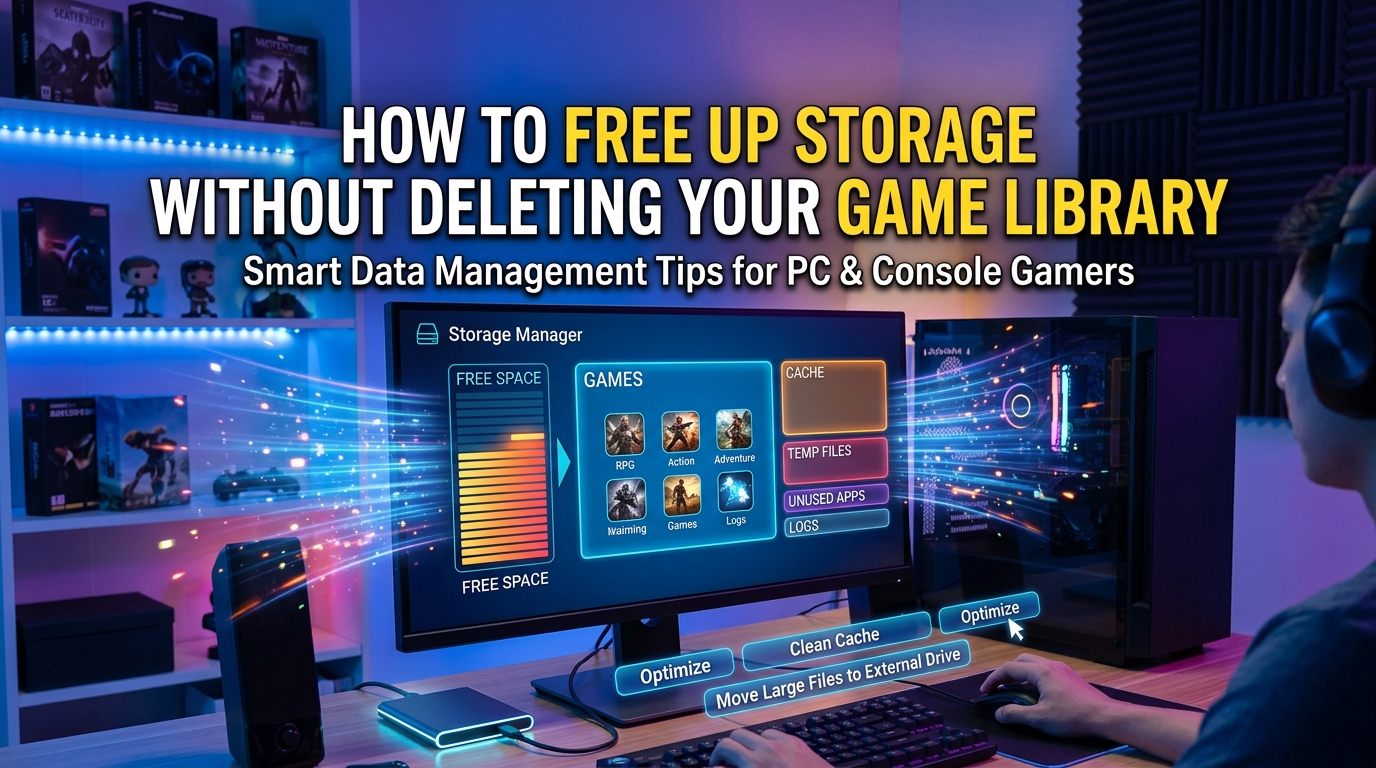
Running out of storage is the single most frustrating wall a gamer can hit. Modern AAA releases routinely eat 100 to 150GB, and a packed library can fill even a 1TB NVMe drive in a matter of weeks. The obvious answer is to delete games, but most of us do not want to lose access to a 90-hour RPG or a 120GB download we waited two days to install.
Learning how to free up storage without deleting your game library means taking back control of your console, PC, or handheld without sacrificing the titles you actually play. This guide breaks down every working method I have tested across PS5, Xbox Series X and S, Steam on Windows, and Nintendo Switch. Some tactics reclaim space instantly. Others prevent buildup from coming back.
None of these methods require you to uninstall a single game. You will move files, trim optional add-ons, silence auto-capture recordings that pile up silently, clear cached data you do not need, and lean on cloud saves so local space stays free. By the end, you will have a clear playbook for any platform you own.
Table of Contents
Quick Methods to Free Up Game Storage Right Now
If you only have five minutes, here are the fastest ways to reclaim space without uninstalling anything. Pick the one that fits your platform and run it tonight.
- Move a game to an external USB or M.2 SSD. Copy it off internal storage, then delete the original. The game stays playable from the external drive on PS5 and Xbox.
- Turn off auto-capture on PS5. Head to Settings > Captures and Broadcasts > Captures, then set auto-capture to off. Trophy clips can quietly eat 50 to 120GB over a year.
- Delete screenshots and old video clips. Sort by date and bulk-delete anything older than three months from your Capture Gallery or Xbox captures.
- Trim unused add-ons. Many games let you delete language packs, multiplayer components, or old DLC while keeping the base install intact.
- Clear the system cache. On PS5, boot into Safe Mode and choose Clear Cache. On Xbox, hold the power button for a hard reset. On PC, run Storage Sense.
- Move save files to the cloud. Enable PS Plus cloud saves, Xbox cloud saves, or Steam Cloud, then delete local save backups.
- Empty the download cache. On Steam, clear the download cache from Settings > Storage. On PS5, delete old download history remnants from the notifications menu.
These quick wins alone can free 30 to 200GB depending on how long you have let things pile up. The rest of this guide walks through each method in detail, with exact menu paths for every platform.
Understand What Is Eating Your Storage Space
Before you start freeing up space, you need to know what is actually consuming it. Most gamers assume their installed games are the only culprit, but that is rarely the whole picture. Storage on a modern console or gaming PC is split between several very different types of data.
Game data is the bulk of your storage. This includes the base install, patches, texture packs, and any add-ons you have downloaded. A single modern title like Call of Duty, Cyberpunk 2077, or Red Dead Redemption 2 can swallow 120 to 180GB on its own. This is the category you manage by moving games, not by deleting files manually.
Save data is tiny compared to game data. A typical save file runs between 5 and 50MB. Even a library of 50 games with multiple save slots rarely adds up to more than 5GB of local storage. You do not need to worry about saves eating your drive, but you should still move them to the cloud so you can safely delete local backups.
Captures are the hidden killer. PS5 auto-capture records a 30-second video clip every time you earn a trophy, and the same applies to Xbox achievement recordings. One Reddit user reported having 120GB of captures on a PS5 with only two main games installed. If you have never audited your Capture Gallery, this is where you will likely find your biggest surprise.
Cache and temporary files are leftover data from patches, installs, and system updates. PS5 stores these in the “Other” storage category, which is why that number looks bigger than it should. Xbox and Windows build up similar junk. This data is safe to clear and can quietly reclaim 10 to 30GB.
The bottom line is this: games are the biggest chunk, but captures and cache are the easiest wins. A tool like WizTree on PC or the built-in storage manager on PS5 and Xbox will show you exactly where your gigabytes are going before you make a single move.
Delete Unused Game Data, Add-Ons, and Expansions
One of the most overlooked ways to reclaim space is trimming add-ons you no longer use, while keeping the base game fully installed. This works differently from a full uninstall because the core game stays playable on your drive.
On PS5, select any game from your Game Library, press the Options button, and choose Select and Delete Content. This opens a breakdown of what is installed, including the base game, single-player and multiplayer components, language packs, and individual DLC packs. You can delete just the multiplayer pack if you only play solo, or strip out 4K texture packs you never actually load.
Call of Duty is a perfect example. The full install can exceed 180GB, but most players only touch one or two modes. Deleting the campaigns, spec ops, or Warzone content you do not play can free 50 to 100GB without uninstalling the multiplayer you actually use. Warzone itself allows granular add-on management from the in-game menu.
On Xbox, navigate to My Games and Apps > Manage Game and Add-Ons for any title. Here you can deselect specific packs, language files, and next-gen upgrades you do not need. Xbox makes this even easier by separating base game files from add-ons in the storage view.
On Steam, the process is game-dependent. Some titles, like Call of Duty and Destiny 2, expose add-on management directly in the DLC tab of the game properties menu. For other games, you may need to dig into the install folder and delete optional packs manually, though this should only be done if the developer confirms it is safe.
This method is a content gap most competitors bury. Trimming add-ons is faster than reinstalling a game, safer than manual file deletion, and can reclaim dozens of gigabytes from a single title you still actively play.
Move Games to External Storage (USB and M.2 SSD)
Moving games to external storage is the single most powerful method in this entire guide. It lets you reclaim the maximum amount of internal space while keeping every game ready to play. The exact steps depend on your platform, but the principle is the same everywhere: copy the game, then delete the original from your internal drive.
PS5 External Storage
The PS5 supports two expansion paths. USB extended storage handles PS4 games natively, meaning you can play them directly from a USB hard drive or SATA SSD. PS5 games can be stored on USB, but they must be moved back to internal storage or an M.2 SSD to play.
To set up USB extended storage, plug in a USB 3.0 or faster drive (250GB to 8TB), head to Settings > Storage > USB Extended Storage, and format it. The PS5 will format it automatically. Once formatted, go to your Game Library, press Options on any game, and select Move to USB Extended Storage.
For PS5-native games, install an M.2 NVMe SSD in the expansion slot. Sony requires a PCIe 4.0 NVMe drive with a heatsink, but once installed, you can play PS5 games directly from the M.2 drive without moving them back and forth. This is the closest thing to upgrading your console storage without buying a new console.
Xbox External Storage
Xbox Series X and Series S work similarly. USB drives can store and play Xbox One, Xbox 360, and original Xbox games directly. Xbox Series X and S optimized games can be stored on USB but must be moved back to the internal SSD or an official Storage Expansion Card to play.
To move games on Xbox, go to My Games and Apps, select a title, press the Menu button, and choose Move or Copy. Pick your destination drive and confirm. The Seagate and Western Digital Storage Expansion Cards slot directly into the back of the console and behave exactly like internal storage, with no speed penalty.
PC and Steam External Storage
On PC, you have the most flexibility. Any SATA SSD, NVMe drive, or even a fast USB 3.2 external SSD can host your Steam library. To move a game without redownloading, you can use Steam’s built-in Move Install Folder feature. Right-click a game in your library, go to Properties > Local Files > Move Install Folder, and pick another drive.
For bulk moves, the community-validated method from the Steam forums is even simpler. Copy the entire game folder from your SteamApps directory to your external drive, uninstall the game from Steam, then point Steam to the new location when you reinstall. Steam detects the existing files and skips the download entirely.
One Reddit user summed up the entire strategy in a single sentence: copy the game folder to an external HDD, uninstall it from Steam, then copy-paste it back when you choose to play again. This works for any game on any drive, and it costs you nothing more than a USB cable.
Manage Auto-Capture, Trophy Clips, and Screenshots
If you have never audited your Capture Gallery, you are almost certainly sitting on a hidden pile of wasted space. The PS5 auto-capture feature is the most notorious offender, but Xbox and PC have their own silent storage eaters.
On PS5, the auto-capture system records a 30-second video clip every time you earn a trophy. That is not a typo. Every single bronze, silver, gold, or platinum trophy triggers a recording, and those clips accumulate over months and years. GamingBible highlighted this trick as the single fastest way to reclaim PS5 storage, and for good reason.
To disable auto-capture on PS5, navigate to Settings > Captures and Broadcasts > Captures > Auto-Captures, and toggle the feature off. You can also choose to keep captures only for specific trophy types if you still want your platinums recorded.
Once disabled, head to your Capture Gallery on the home screen, sort your video clips by date, and delete anything you do not actually want to keep. PS5 users on Reddit regularly report freeing 50 to 120GB from this single cleanup pass.
Xbox records achievements and manual captures to internal storage by default. Go to Settings > Preferences > Capture and Share, and turn off automatic capture for achievements. Then open the Captures tab, filter by date, and delete old clips in bulk. Xbox also lets you upload captures to OneDrive or an external drive instead of storing them locally.
On PC, Steam, NVIDIA ShadowPlay, AMD ReLive, and Xbox Game Bar all have their own recording features. Each one defaults to a capture folder on your C: drive, and that folder grows indefinitely unless you intervene. Open each app’s settings, change the capture folder to an external drive, and set a maximum storage limit so old clips auto-delete.
The capture cleanup step alone is the single fastest way to reclaim space without uninstalling anything. If you only do one thing from this guide, audit your captures tonight.
Clear Cache and Temporary Files
Cache and temporary files are the junk mail of gaming storage. They build up silently from patches, installs, system updates, and background downloads, and they are completely safe to delete. The challenge is that every platform hides this data in a different place.
PS5 Cache Clearing
The PS5 stores cached data in the “Other” category of your storage breakdown. This number often looks far bigger than it should, and it grows every time you patch a game or install an update. The fix is to clear the cache through Safe Mode.
To do this, fully power off your PS5, then press and hold the power button until you hear the second beep (about seven seconds). Connect a controller via USB, select Clear Cache and Rebuild Database, then choose Clear System Software Cache. This process is safe, takes about two minutes, and typically reclaims 5 to 15GB.
Xbox Cache Clearing
Xbox does not have a dedicated cache clearing menu, but a hard reset accomplishes the same thing. Press and hold the power button on the front of the console for about ten seconds until it fully shuts down. Unplug the power cable for 30 seconds, plug it back in, and restart. This flushes the temporary cache and can resolve performance hiccups at the same time.
For a deeper clean, go to Settings > System > Storage, and look at the categories breakdown. Anything labeled as temporary, reserved, or system can usually be cleared through a reset or by removing old update files.
PC Cache Clearing with Storage Sense
Windows has the best built-in cleanup tool of any platform. Storage Sense, found at Start > Settings > System > Storage, runs automatically and removes temporary files, old Windows Update files, delivery optimization files, and items in your Downloads folder if you choose.
Turn Storage Sense on, then click Configure Storage Sense or run it now to customize what gets deleted. Enable the option to delete temporary files that apps are not using, and set the schedule to weekly or monthly. This keeps your gaming drive clean without any manual effort.
For a one-time deep clean, search for Disk Cleanup in the Start menu, select your system drive, and check every category except Downloads. This old-school tool still works on Windows 10 and Windows 11, and it can free 5 to 30GB in a single run.
For visualizing where your space is going, download WizTree or WinDirStat. Both tools scan your entire drive and display every folder sized by actual gigabyte usage, so you can spot the offenders instantly. WizTree is the faster option because it reads the NTFS Master File Table directly instead of scanning file by file.
Use Cloud Saves Instead of Local Storage
Cloud saves serve two purposes here. First, they protect your progress when you eventually do need to move or delete a game. Second, they let you delete local save backups that are sitting on your internal storage, which adds up faster than you might expect if you have multiple profiles or family members on the same console.
On PS5, PlayStation Plus members get 100GB of cloud save storage. Enable automatic uploads by going to Settings > System > Power Saving > Features Available in Rest Mode, and turn on Stay Connected to the Internet and Enable Turning On PS5 from Network. Then go to Settings > Saved Data and Game/App Settings > Saved Data > Console Storage, and enable Auto-Sync. Your saves upload automatically while the console is in rest mode.
Xbox cloud saves are even simpler because they are built into Xbox Live and work for every game by default. If you are signed into your Xbox profile, your saves sync automatically. There is no storage limit for individual saves, and you never have to manually manage upload settings.
On Steam, Steam Cloud does the same thing automatically for any game that supports it. Most modern Steam releases have Steam Cloud enabled. You can verify this by right-clicking a game, opening Properties, and checking the Steam Cloud box.
Nintendo Switch Online members get cloud saves for most titles, with a small number of exceptions like Animal Crossing and Splatoon. Enable automatic cloud backup in System Settings > Data Management > Save Data Cloud, then set Backup to On for every game.
Once your saves are safely in the cloud, you can delete the local copies from your internal storage. The save data itself is small, but across a family library with multiple profiles, the total can easily reach 5 to 10GB of reclaimed space.
Platform-Specific Storage Tips
Every platform has quirks, hidden menus, and unique storage tricks. This section pulls together the most useful commands and settings for PS5, Xbox, PC, and Nintendo Switch so you have everything in one place.
PS5 Storage Management
Check your current usage by going to Settings > Storage > Console Storage. This screen shows a breakdown of Games and Apps, Media Gallery, Saved Data, and Other. The Other category is where cache and temporary files hide, and it is the first place to investigate if your numbers look inflated.
To free up PS5 storage without deleting games, the priority order is: disable and clean auto-capture, move games to USB or M.2, trim add-ons, clear cache via Safe Mode, and delete local saves after syncing to PS Plus cloud. Together, these steps routinely reclaim 100GB or more on a console that has not been cleaned in months.
For PS4 games taking up excessive space, remember that they can be moved to and played directly from USB extended storage. This is faster than reinstalling and keeps your PS5 internal SSD clear for PS5-native titles.
Xbox Storage Management
Open My Games and Apps, then select Manage Game and Add-Ons for any title to see exactly what is installed and trim what you do not need. Xbox also lets you move multiple games at once by selecting them in the queue and choosing Move or Copy to an external drive.
For Xbox Series X and S optimized games, the Seagate and Western Digital Storage Expansion Cards are the only external storage option that plays them natively. USB drives are limited to Xbox One and backward-compatible titles.
Check the full storage breakdown at Settings > System > Storage. Xbox groups everything by category, and you can drill into each one to delete specific items without touching your installed games.
PC and Steam Storage Management
On Windows, the most important habit is keeping Storage Sense enabled at all times. Set it to run weekly and delete temporary files automatically. This alone prevents the slow accumulation of junk that fills gaming drives over time.
In Steam, open Settings > Storage to see every drive and every installed game with its size. You can move games between drives, uninstall add-ons, and clear the download cache from this single screen. The download cache, in particular, can grow to several gigabytes if you download and verify a lot of games.
For libraries that span multiple drives, use Steam Library Folders (Settings > Storage > Add Drive) to add an external or secondary SSD as a library location. Steam will then install new games there automatically when your primary drive runs low.
If your gaming drive is a smaller NVMe and your bulk storage is a larger SATA SSD, install heavy single-player games on the SATA drive and keep the NVMe for your operating system and competitive multiplayer titles where load times matter most.
Nintendo Switch Storage
The Switch has limited internal storage (32GB on the original and Lite, 64GB on the OLED model), but it supports microSD cards up to 2TB. Move games between internal storage and your microSD card by going to System Settings > Data Management > Move Data Between System and microSD Card.
To free up space on Switch without deleting games, archive games you are not currently playing. Archiving deletes the game data but keeps your save file and the game icon on your home screen, so you can redownload it instantly from the eShop without losing progress.
Switch Online cloud backups protect your saves, and screenshots can be transferred to a microSD card or deleted in bulk from the Album. Screenshots on Switch are small individually but accumulate quickly if you use the capture button often.
Prevent Storage Buildup Before It Starts
The best cleanup is the one you never have to do. A few simple habits and automated settings will keep your gaming storage from filling up again.
On Windows, keep Storage Sense on a weekly schedule. On PS5, disable auto-capture on day one of any new console setup. On Xbox, set captures to upload to OneDrive instead of internal storage. On Steam, point your library to your largest drive first, and set the download cache to clear on exit.
Audit your game library monthly. Sort by install size, identify anything you have not launched in three months, and either move it to external storage or archive it. This is a five-minute habit that prevents the storage crunch from ever becoming a crisis.
Finally, treat external storage as part of your gaming setup, not an optional accessory. A single 2TB USB SSD can hold an entire PS4 library, a full Steam backlog, or every Xbox One game you own, and it costs far less than the time it takes to redownload a 150GB title.
FAQs
How do I free up storage without deleting anything?
Move your games to an external USB or M.2 SSD, copy them off your internal drive, then delete the originals. The games stay playable from the external storage on PS5 and Xbox. You can also clear the system cache, disable auto-capture, delete old screenshots and video clips, and trim unused add-ons while keeping the base game installed.
How to free up space on PS5 without deleting games?
Disable auto-capture in Settings u0026gt; Captures and Broadcasts, delete old trophy clips from the Media Gallery, move games to USB extended storage or an M.2 NVMe SSD, trim unused add-ons, clear the system cache through Safe Mode, and upload saves to PS Plus cloud before deleting local copies. These steps can reclaim 100GB or more without uninstalling any game.
How to clear up space on Xbox without deleting games?
Move games to a Storage Expansion Card or USB drive from My Games and Apps u0026gt; Manage Game and Add-Ons. Turn off achievement auto-capture, delete old captures, trim unused DLC and language packs, and perform a hard reset to clear the cache. Xbox cloud saves also let you delete local save backups safely.
How to free up space on PC without deleting games?
Enable Windows Storage Sense at Settings u0026gt; System u0026gt; Storage to automatically delete temporary files. Move Steam games to another drive using Properties u0026gt; Local Files u0026gt; Move Install Folder. Clear the Steam download cache from Settings u0026gt; Storage, and use WizTree or WinDirStat to find large hidden files on your gaming drive.
What is the fastest way to free up storage?
The fastest single action is deleting accumulated video captures and screenshots. PS5 auto-capture alone can quietly fill 50 to 120GB with trophy clips. Disabling auto-capture and bulk-deleting old clips reclaims the largest amount of space in the shortest time, often in under ten minutes.
Can I move my PS5 game to extended storage to free space?
Yes. PS4 games can be moved to and played directly from USB extended storage. PS5 games can be stored on USB but must be moved back to internal storage or an M.2 NVMe SSD to play. For full-speed external play of PS5 games, install a PCIe 4.0 M.2 SSD in the expansion slot.
What to do if PS5 storage is full?
First, disable auto-capture and delete old captures from the Media Gallery. Next, move games to USB extended storage or an M.2 SSD. Trim unused add-ons from any installed game. Clear the cache through Safe Mode. Upload saves to PS Plus and delete local copies. If all else fails, archive PS4 games to USB and keep only active PS5 titles on internal storage.
Conclusion
Figuring out how to free up storage without deleting your game library comes down to a handful of repeatable tactics: move games to external storage, trim add-ons you do not play, silence auto-capture, clear the cache, and lean on cloud saves. None of these steps require you to uninstall a single title, and together they can reclaim 100GB or more on any platform.
The biggest wins come from the habits you rarely think about. Auto-capture recordings, screenshots, and cached patch files build up silently for months before you notice. A ten-minute audit of your Capture Gallery or Windows temporary files often frees more space than moving a game ever could.
Pick one method from this guide and run it tonight. Start with the captures cleanup, because it is the fastest and the most universally overlooked. Then work your way through external storage, add-on trimming, and cloud saves until your library breathes again. Your games stay where they are, and your storage finally has room for whatever you want to install next.