
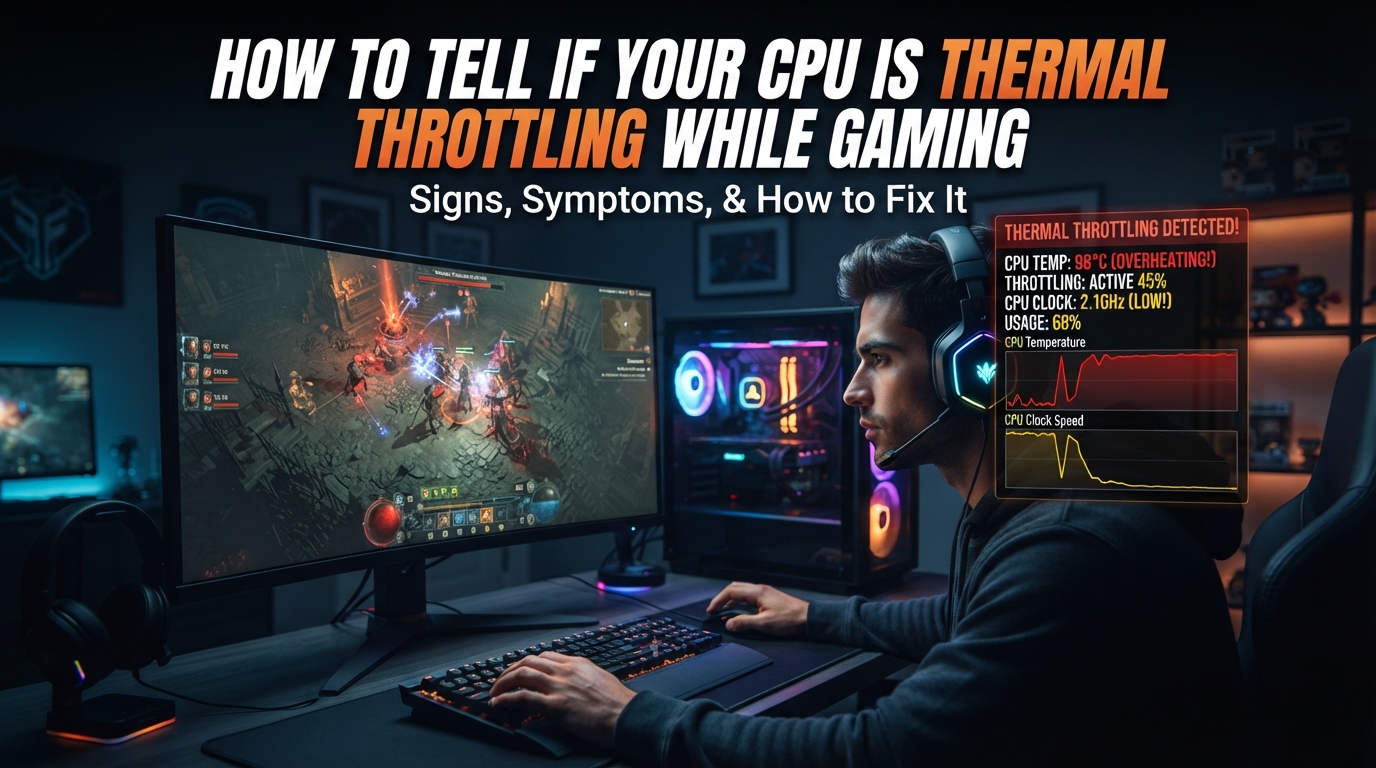
Every PC gamer has been there. You fire up your favorite title, frame rates look great for the first ten minutes, and then the game starts to feel sluggish. Frames stutter, the fan sounds like a hair dryer, and your K/D ratio tanks. If that pattern sounds familiar, you may be wondering how to tell if your CPU is thermal throttling while gaming. The good news is that CPU thermal throttling leaves a clear paper trail if you know which sensors to watch.
CPU thermal throttling is what happens when your processor automatically reduces its clock speed and voltage because the internal temperature has crossed a safe limit (usually 90-100C on modern chips). It is a built-in self-protection mechanism, not a bug. The problem is that this safety feature silently kills your gaming performance with FPS drops, micro-stutters, and frame pacing issues that often start 10-20 minutes into a session once heat has time to build up.
Our team has pored over thousands of HWiNFO log files from real gaming sessions, and the pattern is remarkably consistent across desktop and laptop builds. Roughly one in four “my game stutters” cases traces back to thermal throttling rather than a GPU bottleneck, a driver issue, or slow storage. Below we walk through how to confirm whether your specific CPU is throttling, which monitoring tools to trust, what temperature ranges actually mean, and how to fix the root cause without voiding your warranty.
Before we get into tools and stress tests, here is the fast checklist our team uses to spot CPU thermal throttling at a glance. If three or more of these sound like your rig, throttling is almost certainly the culprit:
- FPS drops or stuttering that starts 10-20 minutes into a gaming session and slowly gets worse
- CPU clock speed visibly drops below base clock during gameplay (watch the core clock sensor)
- Fan noise ramps up dramatically right before performance tanks
- Performance recovers if you pause the game for two to three minutes
- CPU temperature sits above 90C under load, or your CPU-Z multiplier is stuck low
Table of Contents
Quick Answer: Confirm CPU Thermal Throttling in Under Five Minutes
If you only have time for a five-minute check, this is the fastest way how to tell if your CPU is thermal throttling while gaming. You need one free tool (HWiNFO) and ten minutes of actual gameplay.
- Download HWiNFO64 (free) and launch it in sensors-only mode.
- Scroll to your CPU section and find these three sensors: Core Clock (or Effective Clock), CPU Package Temperature, and the Thermal Throttling flag.
- Launch your game, play for at least 15 minutes in a demanding scene, then alt-tab back to HWiNFO.
- If CPU Package Temperature is at or above 90C AND the Core Clock has dropped below your CPU’s base clock, you are thermal throttling.
- If the dedicated “Thermal Throttling” sensor reads “Yes” at any point in the log, that is a confirmed throttle event.
That is the entire test. The rest of this guide goes deeper into what each reading means, what the safe temperature ranges are for different CPUs, and how to actually fix throttling so it does not come back.
What Is CPU Thermal Throttling?
Thermal throttling is a protection mechanism built into every modern x86 processor. When the CPU’s internal temperature sensor approaches a hard limit called Tjmax (Thermal Junction Maximum), the processor lowers its operating frequency and voltage to shed heat. Lower frequency means less heat, but it also means less performance.
Tjmax is the maximum safe junction temperature set by the CPU manufacturer. On Intel 12th through 14th gen parts, Tjmax is typically 100C. On AMD Ryzen 7000 and 9000 series, the thermal limit is also around 95-100C depending on the SKU. Hitting Tjmax briefly is not dangerous; the chip is designed for it. The problem is sustained throttling that drags your clock speed down for entire gaming sessions.
When throttling kicks in, your CPU does not shut off. Instead, it drops in small increments – maybe 100 MHz at a time – until the temperature stabilizes below the throttle threshold. This is why thermal throttling feels like a slow performance bleed rather than a sudden crash. Your game keeps running, it just runs worse, and most players blame the game engine or their GPU before they suspect the CPU.
There are actually three distinct throttle categories that get lumped together under the word “thermal,” and they have different fixes:
- Thermal throttling: Triggered by actual temperature crossing Tjmax. Fixed by better cooling.
- Power limit throttling: Triggered by hitting a wattage ceiling set in BIOS (common on laptops). Fixed by raising PL1/PL2 limits or undervolting.
- Boost throttling (current limit): Triggered by current draw limits on Intel CPUs. Fixed by raising IccMax in Intel XTU.
HWiNFO reports each of these as separate flags, which is why it is the gold standard for diagnosis. Most forum users who say “my CPU is throttling” are actually seeing one of the latter two, not pure thermal throttling.
Signs Your CPU Is Thermal Throttling While Gaming
Symptoms are the first clue, but they are not proof on their own. Here are the six signs our team looks for, ranked from most reliable to least reliable.
1. Time-Based Performance Decay
This is the single most reliable symptom. If your game runs smoothly for the first 10 to 20 minutes and then performance falls off a cliff, thermal throttling is the prime suspect. Heat takes time to build up inside the CPU package, saturate the thermal paste, and overwhelm your cooler. A CPU bottleneck is constant from the first frame; thermal throttling has a clear time pattern.
A game running at a steady 90 FPS for 12 minutes and then dropping to 50 FPS for the rest of the session is a textbook throttle signature. The same game stuttering from the very first second is something else entirely.
2. FPS Drops Paired With Clock Speed Drops
Open MSI Afterburner’s on-screen display and watch the CPU core clock during gameplay. If you see the clock speed jump from 4.5 GHz down to 3.2 GHz or lower at the exact moment your FPS drops, your CPU is throttling. This is the visible fingerprint of throttling that no other cause produces.
3. Fan Noise Spikes Right Before Stutter
Your case fans and CPU cooler respond to temperature curves. If you hear fans ramp up dramatically and then notice FPS drops a few seconds later, your motherboard is begging the CPU to cool down. The fan spike is the precursor; the throttle is the consequence.
4. Performance Recovers After a Pause
Pause the game for two to three minutes and let temperatures drop. If frame rates return to normal when you resume, thermal throttling is confirmed. A GPU bottleneck, a CPU bottleneck, and storage stutter do not recover this way – they are structural limits that persist regardless of temperature.
5. CPU Temperature Sustained Above 90C
If your CPU Package Temperature sensor shows 90C or higher for sustained periods during gaming, you are in throttle territory on most modern chips. We cover the exact safe temperature ranges below, but as a rule of thumb: 70C is great, 84C is warm but fine, 90C is the warning zone, and 100C means throttling is happening.
6. Micro-Stutters and Frame Pacing Issues
Thermal throttling rarely produces a smooth frame rate drop. Because the CPU keeps adjusting its frequency in small steps, you get uneven frame pacing – a stuttering, rubberbanding feel rather than a clean “I am now capped at 40 FPS” effect. If your 1% lows are terrible but your average FPS looks fine in benchmarks, suspect throttling.
How to Tell if Your CPU Is Thermal Throttling While Gaming: Step-by-Step Detection
This is the full method our team uses. It takes about 30 minutes end to end and produces a log file you can review, share on Reddit, or compare against future fixes.
Step 1: Install HWiNFO64
Download HWiNFO64 (free for personal use) and run it in sensors-only mode. The installer version is fine; the portable version is fine. Sensors-only mode skips the system summary and goes straight to live sensor data, which is all you need.
Step 2: Enable Logging
At the bottom of the sensors window, check the “Logging file” box and choose a save location. HWiNFO will write a CSV file every second with every sensor value on your system. This log is your evidence.
Step 3: Locate the Critical Sensors
Scroll through the long sensor list and pin these specific fields. The CPU section is usually near the top:
- CPU Package Temperature – the main temperature reading
- Core #0-#n Effective Clock – real-time frequency per core
- Core #0-#n Distance to Tjmax – how close you are to the throttle limit (lower = closer)
- Thermal Throttling (Core #n) – binary Yes/No throttle flag
- Power Limit Throttling (Core #n) – separate flag for wattage limits
- Core VID – voltage being fed to the core
Step 4: Launch Your Game and Play Normally
Do not run a stress test. You want to measure real gaming behavior, not synthetic load. Pick your most demanding title, play a regular session for at least 20 minutes, and make sure to hit a heavy scene (a busy town, a big firefight, a rendered cutscene). Alt-tab back to HWiNFO every five minutes if you want a live peek.
Step 5: Stop Logging and Analyze
Close the game, stop the HWiNFO log, and open the CSV in any spreadsheet tool. Look for moments where Core Clock dropped sharply. Cross-reference those timestamps against CPU Package Temperature. If every clock drop corresponds with a temperature spike at or above 90C, you have confirmed thermal throttling.
Step 6: Confirm With a Stress Test (Optional)
If your gaming logs are inconclusive, run Cinebench R23 in a 10-minute loop while watching HWiNFO. This produces a controlled, repeatable load. If the CPU throttles under Cinebench but not under your game, your cooling can handle gaming but not synthetic load – that is fine. If it throttles under both, you have a real cooling problem that needs fixing.
Monitoring Tools Compared
Our team gets asked constantly which monitoring tool to use. Here is a side-by-side comparison of the four tools we actually recommend, with what each one is best for.
| Tool | Cost | Best For | What to Watch |
|---|---|---|---|
| HWiNFO64 | Free | Deep diagnosis and logging | Thermal Throttling flag, Core Effective Clock, CPU Package Temp, Distance to Tjmax |
| MSI Afterburner | Free | In-game overlay | On-screen CPU clock, CPU temp, frame time graph during gameplay |
| CPU-Z | Free | Quick multiplier check | Core multiplier value (lower than expected = throttling) |
| Intel XTU | Free (Intel only) | Benchmark and undervolting | “Thermal throttling” and “Power limit throttling” indicators during stress test |
For pure detection, HWiNFO64 is the gold standard that forum communities across Reddit, Tom’s Hardware, and Linus Tech Tips unanimously trust. It exposes every sensor on the chip, separates thermal throttling from power limit throttling, and writes a log file you can review later. MSI Afterburner complements it with the best in-game overlay for spotting clock drops the moment they happen.
CPU-Z is underrated as a throttle detector. Open it during gameplay and watch the Core Speed and Multiplier values. If your i7 is rated for a 33x multiplier at base clock and you see it stuck at 22x or 24x, you are throttling. This is the exact method a Dell XPS 15 owner on Super User used to confirm their i7-2720QM was throttling under load.
Intel XTU is for Intel owners who want to go beyond detection. Its built-in benchmark shows two clear throttle indicators – one for thermal, one for power limit. It is also the easiest tool for undervolting, which is one of the most effective fixes we cover below.
Safe CPU Temperature Ranges for Gaming
The most common questions we see are about specific temperature thresholds. Here is exactly what each temperature range means for your CPU during gaming.
| Range | CPU Temp | Status | What It Means |
|---|---|---|---|
| Ideal | 60-75C | Excellent | No throttling, plenty of thermal headroom, longevity is great |
| Warm | 75-85C | Fine | Normal for many laptops under load, still safe, no throttling on most CPUs |
| Hot | 85-95C | Warning | Borderline, some laptops throttle here, watch for clock drops |
| Critical | 95-100C | Throttling | Throttling is almost certainly happening, longevity may suffer long-term |
| Max | 100C+ | Sustained throttle | Modern CPUs are rated to survive this but performance is severely limited |
Is 70C Too Hot for a CPU?
No. 70C is excellent for a gaming CPU. Most modern chips idle in the 35-50C range and reach 65-80C under heavy gaming load with good cooling. If your CPU is sitting at 70C while gaming, your cooling is doing its job and you have nothing to worry about.
Is 84C Too Hot for a CPU?
84C is warm but safe for short bursts. Many gaming laptops routinely sit at 80-88C under sustained load because their cooling systems are physically limited. 84C is not throttle territory on most modern CPUs (Tjmax is typically 95-100C), but if you are seeing 84C you have less thermal headroom than ideal. Consider cleaning dust and checking airflow.
Is 90C Too Hot for a CPU?
90C is the warning zone. On most modern Intel and AMD CPUs, thermal throttling begins in the 90-95C range. If your CPU sits at 90C or higher for sustained periods during gaming, you are likely losing some performance. You should not ignore 90C – it means your cooling is overwhelmed and throttling is probably already happening.
Will 100C Damage a CPU?
Sustained 100C will not instantly kill a modern CPU – both Intel and AMD design their chips to operate at Tjmax (100C) without immediate damage. The CPU will heavily throttle to protect itself. However, running at 100C for months or years does accelerate electromigration and shortens the chip’s lifespan. Treat 100C as a clear sign something needs fixing, not as a normal operating temperature.
Thermal Throttling vs CPU Bottleneck vs GPU Throttling vs Storage Stutter
This is the single biggest point of confusion we see on Reddit and Tom’s Hardware. Many of the symptoms overlap, but the fixes are completely different. Here is the comparison table our team uses to tell them apart.
| Symptom | CPU Thermal Throttle | CPU Bottleneck | GPU Throttle | Storage Stutter |
|---|---|---|---|---|
| When it starts | 10-20 min into session | From first frame | 10-20 min into session | When new assets load |
| Gets worse over time? | Yes, gradually | No, constant | Yes, gradually | No, intermittent |
| Recovers after pause? | Yes, fully | No | Yes, fully | No |
| Best indicator | HWiNFO clock drop + high temp | GPU usage below 90% | GPU temp above 83C, clock drops | SSD/HDD activity spikes |
| Fix | Better cooling, repaste | Upgrade CPU or lower settings | Better GPU airflow | Faster SSD or more RAM |
If your stutter recovers after a two-minute pause, you have a thermal issue (CPU or GPU). If it does not recover, you have a structural bottleneck or a storage problem. The pause test is the fastest way we know to separate thermal from non-thermal causes.
To distinguish CPU thermal throttling from GPU thermal throttling, check which component is hot. If your CPU is at 95C and your GPU is at 65C, the CPU is your problem. If both are hot, fix CPU cooling first because the CPU throttle tends to drag down overall frame pacing more than GPU throttle does.
Hidden Throttles: When Your CPU Throttles at Normal Temperatures
Here is an edge case almost no guide covers. Some CPUs throttle at temperatures well below Tjmax because of power limit throttling or current limit throttling set in BIOS. This is incredibly common on gaming laptops and pre-built desktops where manufacturers cap wattage to keep the system quiet or to fit a smaller power supply.
If your CPU sits at 75C but you still see clock drops below base frequency, check the “Power Limit Throttling” flag in HWiNFO. If that flag reads Yes, you are hitting a wattage ceiling, not a temperature ceiling. This is not a cooling problem – no amount of thermal paste or fan upgrades will fix it.
The fix for power limit throttling depends on your platform. On Intel CPUs, install Intel XTU and raise the PL1 (long-term) and PL2 (short-term) power limits. On laptops, this may be locked by the manufacturer. In that case, undervolting is the only realistic option, because lowering voltage means the CPU can sustain higher clocks at the same wattage.
Reddit users on r/GamingLaptops and r/LenovoLegion report hitting these hidden throttles constantly. One user discovered their CPU was throttling at 80C because Lenovo had set a conservative 45W power limit. Raising it to 65W (within safe ranges for their chip) restored full boost clocks during gaming without raising temperatures significantly.
Desktop vs Laptop Thermal Throttling
Detection is the same on both platforms, but the causes and fixes differ significantly. Here is what to expect.
Desktop PCs
Desktop thermal throttling is usually caused by one of three things: dried-out thermal paste (more than two years old), dust buildup in the cooler fins, or poor case airflow (intake fans failing or installed backwards). Desktop owners have the most options: you can swap the CPU cooler, add case fans, reapply paste, or move to liquid cooling. Most desktop throttling cases our team sees are solved by cleaning dust and repasting.
Gaming Laptops
Laptops are harder. The cooling system is fixed, the fans are small, and the thermal paste is often low-quality from the factory. Gaming laptop CPUs routinely sit at 90-95C during heavy gaming and that is considered normal by manufacturers – not ideal, but normal. Your options are more limited: clean the fans with compressed air, use a cooling pad, undervolt the CPU, and in extreme cases replace the stock paste with a premium compound like Arctic MX-6 or Noctua NT-H2.
Liquid metal is sometimes recommended for laptops but our team does not suggest it for beginners. Liquid metal is electrically conductive, and a tiny application mistake can short and kill the motherboard. Quality thermal paste delivers 80% of the benefit with 1% of the risk.
BIOS Updates Can Change Throttle Behavior
One thing many users miss: BIOS updates from the manufacturer can quietly change thermal and power limits. If your CPU started throttling after a BIOS update, roll back to the previous version and see if the behavior stops. Reddit users on r/intel have documented multiple cases where a BIOS update reduced power limits to address stability issues, unintentionally causing throttle complaints.
How to Fix CPU Thermal Throttling While Gaming
Once you have confirmed that you are thermal throttling, here are the fixes in priority order – cheapest and easiest first.
Fix 1: Clean Dust With Compressed Air (Free)
This is the universally recommended first step across every forum we surveyed. Dust is the most common cause of throttling in PCs more than a year old. Power off the system, take it outside, and blow compressed air through the CPU cooler fins, the case fans, and the GPU heatsink. Hold the fans still with a finger so they do not spin freely and damage the bearings.
Fix 2: Improve Case Airflow ($10-30)
Check your fan configuration. A standard setup is two or three intake fans on the front and one exhaust fan on the rear. If you only have one fan, adding a second intake fan is the cheapest performance upgrade available. Make sure intake fans blow cool air in and exhaust fans blow hot air out – reversed fans are a common mistake in pre-built PCs.
Cable management also matters. A nest of cables blocking the front-to-back airflow path can raise CPU temperatures by 5-10C. Spend an afternoon with zip ties and route cables behind the motherboard tray.
Fix 3: Reapply Thermal Paste ($8-15)
Thermal paste dries out over 18-36 months and stops conducting heat effectively. Quality replacements like Arctic MX-6, Noctua NT-H2, or Thermal Grizzly Kryonaut cost under $15 and can drop CPU temperatures by 5-15C. Use a pea-sized amount in the center of the CPU and let the cooler pressure spread it. Do not spread it manually.
Fix 4: Undervolt the CPU (Free)
Undervolting means lowering the voltage the CPU receives while keeping the same clock speed. Less voltage means less heat, which means less throttling. On Intel CPUs, use Intel XTU or ThrottleStop to set a negative voltage offset (start at -0.05V and test for stability). Most Intel chips can handle -0.075V to -0.100V without issues. Modern AMD Ryzen CPUs use Curve Optimizer in the BIOS for the same effect.
Undervolting is one of the most effective free fixes for laptop throttling specifically. Laptops have very little thermal headroom, so dropping temperatures by even 5C can mean the difference between sustained boost clocks and constant throttling.
Fix 5: Upgrade the CPU Cooler ($30-100)
If you are on the stock Intel cooler, an upgrade is overdue. A quality tower air cooler like a Thermalright Peerless Assassin or a Noctua NH-U12S costs $30-50 and can cut temperatures by 15-25C under load. Liquid coolers (240mm AIOs) cost more but offer similar performance with cleaner aesthetics.
Fix 6: Cap Frame Rate or Lower Settings (Free)
If you cannot fix the hardware, reduce the load. Capping your frame rate at 60 FPS in demanding games means the CPU does not have to work at maximum output the entire session. Lower CPU load means lower temperatures, which means less throttling. This is a workaround, not a fix, but it can keep your system playable while you sort out a longer-term solution.
What About Disabling Thermal Throttling?
We get this question constantly and the answer is firm: do not disable thermal throttling. Thermal throttling exists to prevent permanent hardware damage. Some motherboards expose a toggle in BIOS, and tools like ThrottleStop can disable it on laptops, but doing so risks literally cooking your CPU. The community consensus on every forum we surveyed is unanimous on this point. Fix the root cause, do not disable the safety mechanism.
FAQs
Is 84 C too hot for a CPU?
84C is warm but safe for short bursts during gaming. Many gaming laptops routinely run at 80-88C under load because of their limited cooling. You are not in throttle territory yet (most modern CPUs throttle at 90-100C), but you have limited thermal headroom and should consider cleaning dust or improving airflow.
Is 70 C too hot for a CPU?
No, 70C is an excellent temperature for a gaming CPU. Most modern chips idle at 35-50C and reach 65-80C under heavy gaming load. If your CPU is at 70C while gaming, your cooling is performing well and you have nothing to worry about.
Will 100C damage a CPU?
Sustained 100C will not instantly kill a modern CPU because Intel and AMD design their chips to operate at Tjmax without immediate damage. The CPU will heavily throttle to protect itself. However, months or years at 100C does shorten lifespan through electromigration. Treat 100C as a sign to fix your cooling, not as normal operation.
Is 90 C too hot for a CPU?
90C is the warning zone where thermal throttling typically begins on modern Intel and AMD CPUs. If your CPU sits at 90C or higher for sustained periods during gaming, you are likely losing performance to throttling. Clean dust, check airflow, and consider repasting to bring temperatures back into the safe range.
How to tell if your CPU is thermal throttling while gaming on Windows?
Install HWiNFO64, run it in sensors-only mode, enable logging, and play your game for 15-20 minutes. Watch the CPU Package Temperature, Core Effective Clock, and the dedicated Thermal Throttling flag. If temperature is above 90C and clock speed drops below base clock, or the Thermal Throttling flag reads Yes, your CPU is throttling.
How to tell if your CPU is thermal throttling while gaming on a laptop?
The detection method is the same as on desktop: use HWiNFO64 to watch CPU temperature and the Thermal Throttling flag during gameplay. Gaming laptops often hit 90-95C under load by design, so some throttling is normal. If you see sustained clock drops below base frequency, clean the fans with compressed air, use a cooling pad, and consider undervolting via Intel XTU or ThrottleStop.
How to tell if CPU is thermal throttling (Reddit method)?
The Reddit-recommended method is HWiNFO64 for logging, MSI Afterburner for the in-game overlay showing CPU clock and temperature, and CPU-Z for a quick multiplier check. If your CPU-Z multiplier is stuck lower than its rated value under load, you are throttling. Share the HWiNFO log screenshot on r/buildapc or r/GamingLaptops for community help.
Is thermal throttling bad?
Brief thermal throttling is normal and not dangerous – the CPU is protecting itself as designed. Sustained throttling is bad for two reasons: it kills gaming performance with FPS drops and stuttering, and long-term it shortens CPU lifespan through sustained high temperatures. If your CPU throttles regularly during gaming, fix the cooling.
How to know if GPU is thermal throttling?
GPU thermal throttling is detected the same way: use HWiNFO or MSI Afterburner to watch GPU Temperature and GPU Core Clock during gameplay. GPUs throttle at a lower threshold than CPUs, typically around 83C for NVIDIA cards. If your GPU clock drops while temperature is above 83C, the GPU is throttling. Improve case airflow and clean the GPU heatsink to fix it.
How to disable thermal throttling?
You should not disable thermal throttling. Some BIOS menus and tools like ThrottleStop expose toggles, but disabling this safety mechanism risks permanent CPU damage from overheating. Instead, fix the root cause: clean dust, improve airflow, reapply thermal paste, or undervolt the CPU. The community consensus across Reddit and Tom’s Hardware is unanimous – never disable thermal throttling.
Conclusion
Learning how to tell if your CPU is thermal throttling while gaming comes down to watching three sensors in HWiNFO64: CPU Package Temperature, Core Effective Clock, and the Thermal Throttling flag. If your temperature is above 90C and your clock speed is dropping below base frequency during gameplay, you are throttling. If the dedicated flag reads Yes even once, that is a confirmed throttle event.
The five-minute detection method we walked through works on both desktop and laptop, on Intel and AMD, on Windows 10 and 11. Once you have confirmed throttling, work through the fix priority list – dust, airflow, thermal paste, undervolting, cooler upgrade – and you will have your CPU back to full boost clocks within a weekend. Your FPS, your frame pacing, and your hardware longevity will all thank you.