
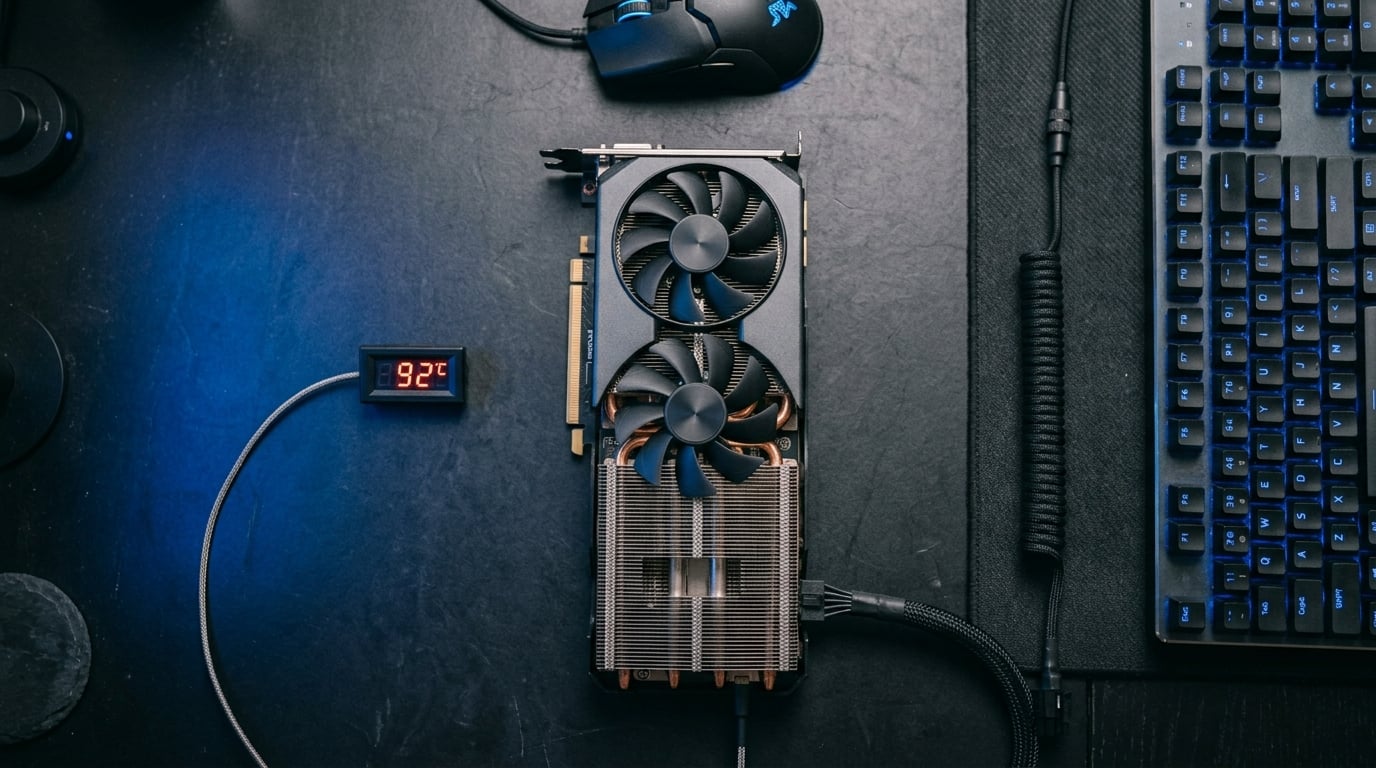
I remember the first time I noticed frame drops in Cyberpunk 2077 after 20 minutes of gameplay. My GPU was running hot, fans were screaming, and frame times were all over the place. I had no idea if it was the game, my CPU, or something else entirely. That moment pushed me to learn exactly how to tell if your GPU is thermal throttling during gaming, and what I found surprised me.
Thermal throttling is one of the most common causes of sudden performance drops during extended gaming sessions. It happens when your graphics card hits a temperature ceiling and automatically reduces its clock speed to protect itself. The result is stuttering, FPS drops, and a frustrating experience. In this guide, I’ll walk you through every sign, every temperature threshold, and every tool you need to detect throttling in real time.
Whether you’re gaming on a budget RTX 3060 or a flagship RTX 4090, throttling can affect any GPU. By the end of this article, you’ll know exactly how to monitor your hardware, read the warning signs, and fix the problem before it ruins another gaming session.
Table of Contents
What Is GPU Thermal Throttling and Why It Happens
GPU thermal throttling is a built-in safety mechanism that automatically reduces your graphics card’s clock speed when temperatures exceed safe operating limits. Modern GPUs from NVIDIA and AMD are designed to throttle before reaching temperatures that could cause permanent hardware damage. The threshold typically sits between 90C and 105C depending on the card model.
The Core Definition of GPU Thermal Throttling
When your GPU’s temperature sensor detects heat approaching its thermal limit, the card’s firmware reduces core clock speeds and voltage. This drop in performance lowers power consumption, which in turn reduces heat output. The cycle continues until temperatures stabilize at a safe level.
This isn’t a flaw. It’s a deliberate engineering decision. Without throttling, your GPU could reach temperatures that damage the silicon, the solder joints, or the surrounding components. Throttling is your card’s way of saying “I need to slow down before something breaks.”
Why GPUs Are Designed to Throttle
Graphics cards generate enormous amounts of heat during gaming. A high-end GPU like an RTX 4080 can draw 320W of power under full load. That energy mostly converts to heat, which has to leave the card through the cooler. When the cooler can’t keep up, throttling kicks in.
There are three main reasons throttling exists:
- Protect silicon from thermal damage at temperatures above 110C
- Maintain junction temperature limits on the GPU die
- Prevent VRAM overheating on memory modules like GDDR6X
Thermal Throttling vs CPU Throttling: Key Differences
CPU and GPU throttling share the same basic principle but behave differently in practice. CPUs typically throttle at 100C to 105C, while GPUs throttle at lower temperatures around 90C to 100C. GPUs also have separate sensors for the GPU die, VRAM, and hotspot temperatures, making their thermal data more complex to read.
Another key difference is duration. CPU thermal spikes often resolve quickly during gaming because CPUs have variable workloads. GPU thermal loads are more sustained, especially in games with locked frame rates or heavy shader workloads. This makes GPU thermal throttling more visible during long gaming sessions.
GPU Temperature Thresholds: When Is Too Hot Actually Too Hot
One of the most common questions I see on forums is whether a specific temperature reading is “too hot.” The answer depends on which temperature you’re measuring and what you’re doing with your GPU. Here’s a practical breakdown of the thresholds that matter most.
| Temperature Range | Status | What It Means |
|---|---|---|
| 30C to 50C | Idle / Light Load | Normal for desktop use and web browsing |
| 50C to 70C | Optimal Gaming Range | Ideal temperatures for extended gaming sessions |
| 70C to 80C | Warm but Acceptable | Normal for many GPUs under load, no throttling expected |
| 80C to 90C | Hot – Monitor Closely | Approaching thermal limit, check clock speeds for drops |
| 90C to 100C | Throttling Likely | GPU is actively reducing performance to cool down |
| 100C+ | Severe Throttling / Danger | Emergency thermal protection engaged, performance severely impacted |
The table above shows edge temperature readings, but modern GPUs also report a “hotspot” temperature. This measures the warmest point on the GPU die and usually runs 10C to 20C higher than the edge temperature. A 90C edge reading with a 110C hotspot is a strong throttling signal even if the edge sensor looks borderline.
Hotspot Temperature Explained
GPU hotspot sensors were introduced around the RTX 20-series and RX 5000 era. They give a more accurate picture of the actual silicon temperature. If your edge sensor reads 80C but your hotspot shows 100C, your GPU is operating at its thermal limit even though the edge reading looks safe.
Symptoms of GPU Thermal Throttling During Gaming
The most obvious sign of GPU thermal throttling is a sudden drop in frame rate during extended gameplay. If your game runs smoothly for the first 15 to 20 minutes and then becomes stuttery, throttling is a likely culprit. Here are the specific symptoms to watch for.
Frame Rate Drops and Stuttering
When a GPU throttles, clock speeds drop by 100 MHz to 300 MHz or more. This causes frame times to spike, which feels like stuttering or micro-stuttering in games. You might see your 60 FPS drop to 45 FPS or lower, with frame times going from a steady 16ms to inconsistent 22ms to 35ms intervals.
The key indicator is timing. If the stuttering starts after your GPU has been under load for several minutes, that’s a thermal pattern. Random stuttering that happens from the start of a session usually points to other issues like driver problems, CPU bottlenecks, or insufficient RAM.
Increased Fan Noise
Throttling often follows fan ramp-up. When your GPU hits 75C to 80C, fans typically ramp to 70 to 100 percent speed. If you hear the fans suddenly get louder followed by performance drops, that’s the classic thermal throttle pattern. The fans ramp up, the GPU still can’t cool fast enough, and clock speeds reduce.
Visual Artifacts and Screen Tearing
Severe thermal throttling can cause visual artifacts like flickering, screen tearing, or texture corruption. These appear because the GPU is operating outside its normal parameters. If artifacts only appear after extended gaming sessions and disappear when the card cools, thermal issues are the likely cause.
Performance Recovery After Cooling
One telltale sign of thermal throttling is that performance returns to normal after the GPU cools down. If you exit the game, wait 5 to 10 minutes, and then launch again, frame rates should be back to normal until the card heats up again. This cycle of good performance followed by degradation is a thermal signature.
How to Tell If Your GPU Is Thermal Throttling: Step-by-Step Detection
Detecting thermal throttling requires real-time monitoring of temperatures, clock speeds, and throttling status flags. I recommend using GPU-Z, HWiNFO64, and MSI Afterburner together because each tool shows different data points. Here’s the complete detection workflow.
Step 1: Download and Install Monitoring Software
You need three tools for comprehensive monitoring:
- GPU-Z from TechPowerUp (free) – shows clock speeds, temperatures, and sensor data
- HWiNFO64 (free version available) – shows detailed PerfCap reasons and throttling flags
- MSI Afterburner (free) – shows real-time on-screen display with temperatures, clock speeds, and frame rates
All three are free and run simultaneously without conflicts. GPU-Z gives you the cleanest sensor readout, HWiNFO64 provides the most detailed throttling information, and MSI Afterburner lets you see data while gaming.
Step 2: Configure HWiNFO64 for Throttling Detection
Open HWiNFO64 and enable “Sensors-only” mode. Scroll down to your GPU section and look for these critical readings:
- GPU Temperature – Edge sensor reading
- GPU Hot Spot Temperature – Junction temperature
- GPU Memory Temperature – VRAM junction temp (important for GDDR6X cards)
- GPU Clock – Current core clock in MHz
- GPU Memory Clock – Current memory clock
Right-click each sensor and select “Add to tray” or “Log to file” so you can track changes over time. The log file is especially useful for confirming throttling after a gaming session.
Step 3: Run a Stress Test to Induce Throttling
To confirm throttling, you need to push your GPU to 100 percent load for at least 15 minutes. Open a demanding game like Cyberpunk 2077, Red Dead Redemption 2, or run a benchmark like 3DMark Time Spy. If throttling happens during normal gaming, it will happen during sustained load.
Watch your clock speeds during the test. If your GPU starts at 2400 MHz and drops to 2100 MHz or lower after 10 minutes, that’s thermal throttling in action. The drop usually correlates with temperatures hitting 90C to 95C.
Step 4: Check the PerfCap Reason Flags
HWiNFO64 displays “PerfCap Reason” flags that tell you exactly why your GPU is not performing at its boost clock. The possible values include:
- Thermal – GPU is hitting temperature limits
- Power – Hitting power limit (TDP)
- Voltage – Voltage limit reached
- Utilization – Not fully loaded
If the “Thermal” flag is active, your GPU is thermal throttling. If only “Power” is active, your card is hitting its power limit but not thermal throttling. Many cards show multiple flags at once, which means multiple limits are being reached.
Step 5: Compare Boost Clock vs Actual Clock
Open GPU-Z and check the “Default Clock” versus the “GPU Clock” reading while gaming. If your GPU is rated for a 2520 MHz boost clock but the actual reading is 2200 MHz, you’ve lost about 320 MHz to throttling. This translates to roughly 10 to 15 percent lost performance during gameplay.
Reading PerfCap Reasons: Power, Voltage, and Thermal Limits
PerfCap reasons are the most direct indicator of why your GPU isn’t hitting its rated performance. Most users don’t know how to read these flags, which leads to confusion about whether throttling is actually happening. Let me break down each one.
Thermal PerfCap
Thermal PerfCap activates when the GPU temperature sensor reaches its thermal limit. For most modern GPUs, this happens at 90C to 92C. Once active, the GPU will continue reducing clock speeds until temperatures drop back below the throttle threshold. This creates the sawtooth pattern visible in clock speed graphs.
Power PerfCap
Power PerfCap activates when the GPU hits its power limit, also called TDP (Thermal Design Power). For example, an RTX 4070 has a 200W power limit. If the card tries to exceed this, clock speeds reduce until power draw stays within spec. Power throttling can happen even at low temperatures if the card simply runs out of power budget.
Voltage PerfCap
Voltage PerfCap activates when the GPU reaches its maximum voltage. Modern GPUs use dynamic voltage scaling, and exceeding the voltage limit can damage the silicon. If you see this flag, it usually means the card is boosting aggressively but hitting voltage limits before thermal limits.
Reading Multiple Flags Together
RTX 40-series laptop users frequently report seeing all three PerfCap reasons simultaneously during stress tests. This is normal for laptop GPUs because they have tighter thermal, power, and voltage limits than desktop cards. If you see multiple flags, focus on the one that persists longest. That’s the primary bottleneck.
Laptop vs Desktop GPU Throttling: Key Differences
Laptop GPUs throttle much more aggressively than desktop cards due to smaller coolers, restricted airflow, and manufacturer-set power limits. Understanding these differences helps laptop users set realistic expectations and find solutions.
Why Laptop GPUs Throttle More Often
A laptop GPU cooler has roughly 30 to 40 percent of the surface area of a desktop cooler. Combined with the heat from the CPU, VRM, and memory all sharing the same chassis, thermal management becomes much harder. Most gaming laptops will hit 85C to 90C within 15 minutes of gaming, even with good cooling designs.
Laptop-Specific Throttling Patterns
Laptop users often report throttling happening “after a few minutes” of gaming. This is the laptop cooler reaching its maximum capacity. Desktop users typically see throttling after 20 to 30 minutes because desktop coolers have more thermal headroom. If your laptop throttles consistently after 5 to 10 minutes, the cooling system may be undersized for the GPU or clogged with dust.
Boost Behavior in Laptops
Laptop GPUs often run at higher boost clocks initially, then settle into a lower sustained clock as thermal limits kick in. This dynamic boost behavior is designed to maximize benchmark scores while still maintaining safe temperatures. For consistent gaming performance, focus on the sustained clock speed after the first 10 minutes, not the initial boost.
How to Fix GPU Thermal Throttling During Gaming
Once you’ve confirmed throttling, there are several fixes ranging from free software tweaks to hardware upgrades. Try the software solutions first, then move to hardware if temperatures don’t improve.
Fix 1: Improve Case Airflow
Poor case airflow is the most common cause of GPU throttling in desktop systems. Ensure your case has at least two intake fans at the front and one exhaust fan at the rear. Cable management also matters: blocked airflow paths can raise GPU temperatures by 5C to 10C.
Fix 2: Clean Dust From GPU Heatsink and Fans
Dust accumulation reduces heatsink efficiency dramatically. After 12 to 18 months of use, most GPUs have enough dust buildup to raise temperatures by 10C to 15C. Use compressed air to clean the heatsink fins and fan blades. This is the cheapest fix and often the most effective.
Fix 3: Reapply Thermal Paste
Thermal paste degrades over time. After 3 to 5 years, the original paste may not transfer heat effectively from the GPU die to the cooler. Replacing it with high-quality thermal paste like Thermal Grizzly Kryonaut can reduce temperatures by 5C to 15C. This is an advanced fix requiring disassembly of the GPU cooler.
Fix 4: Undervolt Your GPU
Undervolting reduces the voltage sent to the GPU, which reduces power consumption and heat output. Using MSI Afterburner, you can lower the voltage by 50mV to 100mV while maintaining the same clock speeds. This often reduces temperatures by 10C without sacrificing performance. It’s free, reversible, and one of the most effective software fixes.
Fix 5: Set a Custom Fan Curve
Default fan curves often keep fans at low RPM until temperatures hit 70C or higher. Creating a custom fan curve that ramps fans earlier keeps temperatures lower and prevents throttling. In MSI Afterburner, set fans to 50 percent at 60C and 80 percent at 80C. The extra fan noise is worth avoiding frame drops.
Fix 6: Limit Frame Rate
If your monitor is 60Hz, capping your frame rate at 60 FPS reduces GPU load and heat output. Use RTSS (RivaTuner Statistics Server) or in-game frame limiters to cap FPS. Lower frame rates mean less work for the GPU, which means lower temperatures and less throttling.
Fix 7: Upgrade Cooling
If software fixes don’t help, consider upgrading your cooler. Aftermarket GPU coolers from Arctic, Noctua, or MSI can drop temperatures by 10C to 20C compared to stock coolers. This is the most expensive fix but provides the largest temperature reduction.
Can thermal throttling damage my GPU? Short answer: no. Throttling is a protection mechanism that prevents damage. However, sustained high temperatures (95C+) over years can reduce the lifespan of thermal paste, fans, and capacitors. Fixing throttling isn’t just about performance; it’s also about long-term hardware health.
Final Words on Detecting GPU Thermal Throttling
Learning how to tell if your GPU is thermal throttling during gaming comes down to monitoring three things: temperature, clock speed, and PerfCap reasons. Run HWiNFO64 during a gaming session, watch for temperatures above 90C, clock speeds dropping below rated boost, and the “Thermal” PerfCap flag appearing.
If you find throttling, start with free fixes like undervolting, custom fan curves, and cleaning dust. These resolve throttling for most users. If temperatures stay above 95C after these fixes, consider repasting the GPU or upgrading your cooler.
I’ve personally undervolted every GPU I’ve owned for the past five years, and I’ve never had thermal throttling issues even in demanding games. The combination of monitoring tools and smart software tuning keeps performance consistent and hardware safe. Give these steps a try, and you’ll know exactly what’s happening with your GPU the next time frame rates drop mid-game.
FAQs
Is 40C too hot for a GPU?
No. 40C is well within the safe idle temperature range for modern GPUs. At 40C, your graphics card is running cool, typically during web browsing, video playback, or light desktop tasks. No thermal throttling occurs at this temperature, and it’s a normal reading when the GPU isn’t under gaming load.
Is 70C too hot for a GPU?
No, 70C is a perfectly normal temperature during gaming. Most GPUs are designed to operate between 70C and 85C under full load. At 70C, you’re in the optimal temperature range with no risk of thermal throttling. Many high-performance GPUs actually run best at 70C to 75C.
Is 80C too hot for a GPU?
80C is hot but generally acceptable during gaming. At 80C, your GPU is working hard but still within safe operating limits. No thermal throttling should occur at this temperature for most modern cards. However, if temperatures consistently hit 80C+, consider improving case airflow or adjusting your fan curve to keep temperatures lower.
Is 90C too hot for GPU?
Yes, 90C is the threshold where thermal throttling typically begins. Most modern GPUs throttle between 90C and 95C to protect the silicon. If your GPU consistently reaches 90C during gaming, you will experience clock speed drops and reduced performance. Check your PerfCap reason flags in HWiNFO64 and consider improving cooling.
How to know if GPU is thermal throttling?
Use HWiNFO64 to monitor your GPU temperature, clock speed, and PerfCap reason flags during gaming. Thermal throttling is occurring if you see temperatures above 90C, clock speeds dropping below your rated boost clock, and the ‘Thermal’ PerfCap flag activating. Frame drops and stuttering after 10 to 20 minutes of gaming are also strong indicators.
Can thermal throttling damage my GPU?
No, thermal throttling itself cannot damage your GPU because it’s a protection mechanism designed to prevent damage. However, running at consistently high temperatures (95C+) for extended periods can shorten the lifespan of thermal paste, fans, and capacitors over years. Fixing throttling improves both performance and long-term hardware health.