
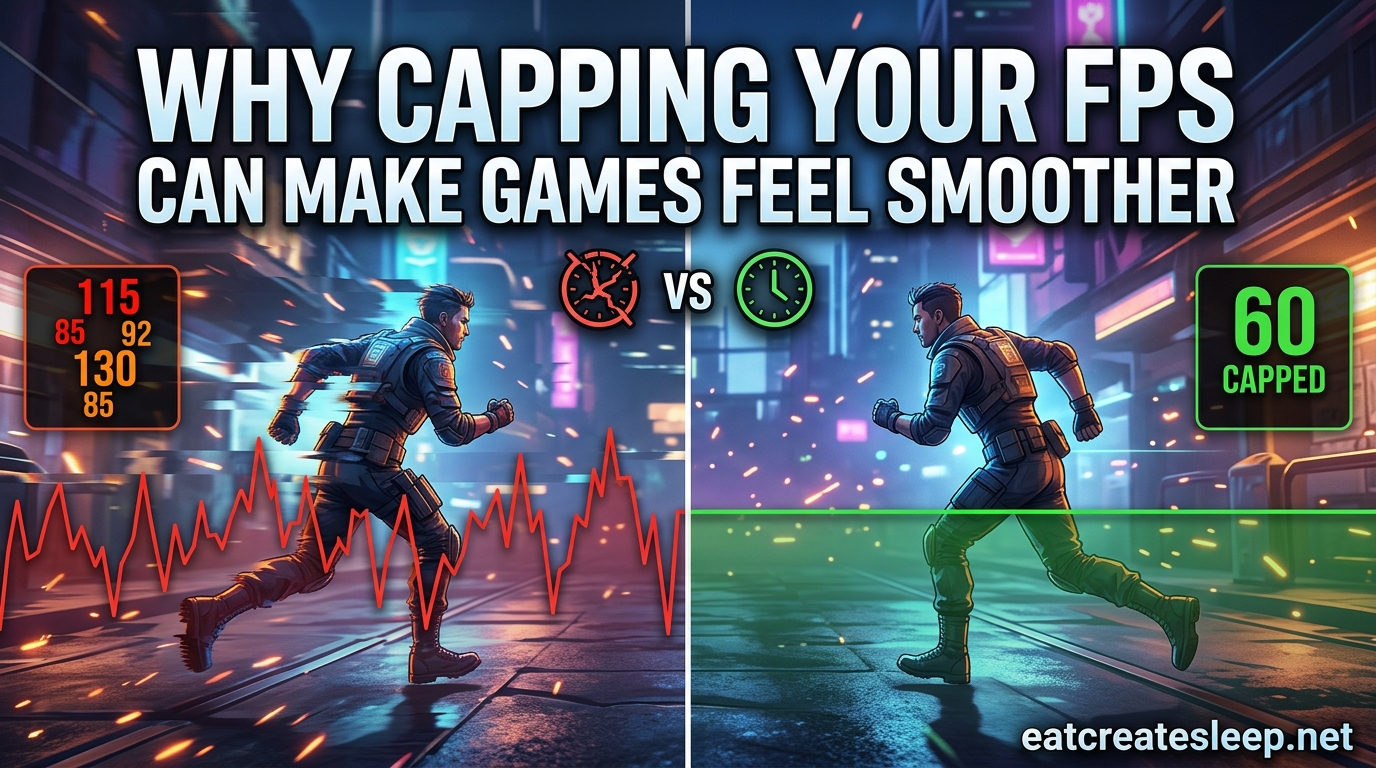
Capping your FPS can make games feel smoother because it locks your frame times to a steady rhythm that your monitor can actually display, instead of letting frames arrive in an uneven stream that produces microstutter and tearing. When your GPU stops racing to render hundreds of unused frames, every frame that hits your screen arrives on a predictable schedule. That consistency is what your eyes and brain read as “smooth,” even when the average frame rate number looks lower on a benchmark.
If you have ever wondered why a game feels buttery at a locked 60 FPS but jittery when the counter swings between 90 and 140, this article will explain exactly what is happening. We will break down the relationship between frame rate, frametime, refresh rate, input lag, and the 1% lows that matter more than averages. By the end you will know when to cap, where to cap, and what number to type in.
Table of Contents
What Does Capping Your FPS Actually Mean?
Capping your FPS means setting a hard ceiling on how many frames per second your game is allowed to render. Once that limit is reached, the engine waits before producing the next frame instead of pushing the GPU as fast as it can go. The result is a controlled, predictable stream of frames rather than a wild sprint.
A frame rate cap is different from VSync, although the two are related. A frame limiter only sets the maximum number of frames produced, while VSync forces those frames to sync with your monitor’s refresh cycle to prevent tearing. You can use a frame cap on its own, with VSync, or with a variable refresh rate (VRR) display like a G-Sync or FreeSync monitor.
The key idea is that an unlocked frame rate is not the same as a smooth frame rate. A game averaging 120 FPS could be delivering some frames in 5 milliseconds and others in 15 milliseconds. Those uneven gaps are what cause the judder you feel even when the FPS counter looks healthy.
Why Capping Your FPS Can Make Games Feel Smoother: The Frametime Secret
This is the part most guides skip, and it is the whole reason capping works. Your perception of smoothness is not really tied to average FPS. It is tied to frametime consistency, which is how long each individual frame takes to render and display.
Think of frametime like footsteps on a treadmill. If you walk at a perfectly even pace, the belt under you feels stable and smooth. Now imagine taking two fast steps, pausing, taking three slow steps, then sprinting for one step. Even if your average speed is the same, that uneven rhythm feels jerky and unpredictable. That is exactly what an unlocked frame rate does to your game.
When you cap your FPS, you tell the system to deliver frames on a fixed cadence. At 60 FPS, each frame should arrive every 16.6 milliseconds. At 120 FPS, every 8.3 milliseconds. At 144 FPS, every 6.9 milliseconds. When those gaps stay consistent, your brain stops noticing the individual frames and starts perceiving continuous motion. That is the smoothness you are after.
Unlocked frame rates break this rhythm because the GPU renders easy scenes in 3 milliseconds and heavy scenes in 18 milliseconds. Your monitor still refreshes at a fixed cadence, so some frames get displayed for one cycle, others for two or three, and the image stutters. Capping forces the system to wait, which evens out the cadence and removes the stutter even though the headline FPS number drops.
This is also why capping your FPS can make games feel smoother on high-refresh-rate monitors. A 144Hz or 240Hz display exposes frame timing inconsistencies more aggressively than a 60Hz panel, because the refresh window is so much shorter. The faster the monitor, the more you benefit from a locked frame rate.
Screen Tearing, VSync, and Refresh Rate Matching
Screen tearing happens when your GPU delivers a new frame in the middle of your monitor’s refresh cycle. The top half of the screen shows the new frame, the bottom half shows the old one, and you get a visible horizontal tear line that jumps around as you move the camera. The faster your frame rate climbs above your refresh rate, the more tear lines you see.
Capping your FPS at or just below your monitor’s refresh rate removes most tearing without needing VSync. Many forum users on r/buildapc and r/pcmasterrace recommend capping 2 to 3 frames below your max refresh rate when using G-Sync or FreeSync, which keeps you inside the VRR window and eliminates both tearing and the input lag VSync normally adds.
For a 144Hz monitor that means a cap around 141 FPS. For a 60Hz display, try 58 or 59 FPS. For a 240Hz panel, 237 FPS. The exact number is less important than staying just under the ceiling so the variable refresh rate tech can do its job.
Does Capping FPS Add Input Lag?
This is the most common worry from competitive players, and the honest answer is: it depends on how you cap. A poorly implemented frame limiter can add a few milliseconds of input lag, which matters in twitch shooters like Valorant or Counter-Strike 2.
In-game limiters and external tools like RTSS (RivaTuner Statistics Server) generally add the least input lag, often single-digit milliseconds. Driver-level caps through the NVIDIA Control Panel or AMD Adrenalin tend to add a small amount more. Reflex-style latency reduction features, like NVIDIA Reflex in supported games, can actually reduce input lag even with a cap engaged.
For competitive play, the goal is consistency, not absolute minimum latency. A capped frame rate with stable frametimes gives you predictable mouse response, which is more valuable than shaving 2 milliseconds off a frame that arrives 15 milliseconds late anyway. Most pro players cap their FPS in competitive games specifically because the consistency helps their aim.
For story games and casual play, the input lag difference is barely perceptible. A frame cap that prevents stutter and tearing will always feel better than an unlocked rate that lurches around.
How Capping Improves Your 1% Lows and 0.1% Lows
If you read hardware reviews, you have probably seen 1% lows and 0.1% lows listed alongside average FPS. These numbers represent the slowest 1% and 0.1% of frames during a benchmark. They are a much better indicator of perceived smoothness than the average.
Unlocked frame rates tend to produce wild swings in 1% lows because the GPU spikes to maximum performance in light scenes and then crashes down during heavy ones. Capping FPS tightens that range. When your average is locked at, say, 120 FPS, your 1% lows tend to stay close to 110 rather than dipping into the 70s.
This is why capping your FPS can make games feel smoother even when the average FPS reading is technically lower. A locked 120 FPS with 1% lows of 115 feels dramatically better than an unlocked 160 FPS with 1% lows of 85. Your eyes notice those dips, not the spikes.
Lower Temps, Quieter Fans, Longer Hardware Life
Rendering 300 frames per second when your monitor can only show 144 is wasted work. Your GPU still draws full power, generates maximum heat, and spins its fans at full speed to do nothing useful. Capping your FPS gives that hardware a break.
Forum users across r/nvidia and Steam Community consistently report 10 to 20 degree Celsius GPU temperature drops after capping FPS to match their monitor. Fan noise drops noticeably. Power consumption falls, which matters if you game on a laptop or pay for electricity. Long term, running cooler extends component lifespan and reduces the chance of thermal throttling during long sessions.
For story-driven games where you do not need 240 FPS, capping at 60, 90, or your refresh rate is essentially free performance in the form of a cooler, quieter, more efficient system.
When to Cap Your FPS vs Leave It Unlimited
Most of the time, capping is the right call. There are a few scenarios where leaving the frame rate unlocked makes sense, and a few where you absolutely should cap.
Cap your FPS when:
- You play on a 60Hz, 144Hz, or 240Hz monitor with G-Sync or FreeSync
- You notice screen tearing, microstutter, or frame rate swings of more than 30 FPS
- You play story games, RPGs, simulators, or anything where consistency beats raw speed
- Your GPU runs hot, loud, or draws more power than you want
- You want to record or stream without frame pacing issues
Leave FPS uncapped when:
- You play a competitive shooter on a high-refresh monitor and your system can comfortably stay above your refresh rate at all times
- You have VRR disabled and VSync off, and you specifically want minimum input lag at the cost of tearing
- You are benchmarking hardware and need to see maximum throughput
For most players on a 144Hz monitor, a cap around 141 FPS is the sweet spot. For 60Hz displays, 58 to 60 FPS. For 240Hz, somewhere around 237 FPS keeps you inside the VRR window. Adjust based on whether you value absolute lowest input lag or visual consistency more.
How to Cap Your FPS the Right Way in 2026
There are four common ways to cap your FPS, each with slightly different latency and compatibility tradeoffs. Here is how to set each one up.
Step 1: Try the in-game frame limiter first. Most modern games include a max frame rate setting in the graphics menu. This is usually the lowest input lag option because the engine itself handles the cap. Set it to your refresh rate minus 3 (for example, 141 on a 144Hz monitor) and test.
Step 2: Use the NVIDIA Control Panel or AMD Adrenalin driver limiter. In the NVIDIA Control Panel, open Manage 3D Settings, find Max Frame Rate, turn it on, and type your target. On AMD, open Gaming, then Graphics, then set Radeon Chill or Frame Rate Target Control. Driver caps work in every game but can add a small amount of input lag compared to in-game limiters.
Step 3: Use RTSS for frame pacing that beats in-game limiters. RivaTuner Statistics Server is a free tool that ships with MSI Afterburner. Add your game executable, set the framerate limit, and RTSS will enforce it with some of the best frame pacing available. Many enthusiasts consider RTSS the gold standard for capping your FPS because its frametime delivery is exceptionally consistent.
Step 4: Combine with G-Sync or FreeSync for the best result. Enable variable refresh rate in your driver, cap FPS 2 to 3 frames below your max refresh rate, and leave VSync off in-game and on in the driver if you want to be safe. This combo eliminates tearing, minimizes input lag, and produces the smoothest motion your monitor is capable of.
One important note: do not stack multiple limiters. If your in-game limiter is set to 141 and RTSS is also set to 141, you can introduce double-buffering stutter. Pick one method per game and stick with it.
FAQs
Does capping FPS make games smoother?
Yes. Capping FPS creates consistent frametimes, which is what your eyes actually perceive as smoothness. A locked 60 FPS with steady frame delivery feels smoother than an unlocked rate bouncing between 90 and 140 FPS.
Does higher FPS always mean smoother gameplay?
No. Higher average FPS only feels smoother when frametimes stay consistent. A high but unstable frame rate with poor 1% lows will feel jittery compared to a lower, locked frame rate with tight frame pacing.
Should I cap my FPS at 60 or 120?
Cap at your monitor’s refresh rate minus 2 to 3 frames. For a 60Hz monitor, 58 to 60 FPS is ideal. For a 120Hz panel, aim for 117 to 120 FPS. If you have a 144Hz monitor, 141 FPS is the common sweet spot for G-Sync and FreeSync users.
Does capping FPS help 1% lows?
Yes. Capping FPS reduces frame rate swings, which tightens your 1% and 0.1% lows toward your average. This is a major reason capped frame rates feel smoother than uncapped ones despite having a lower average FPS number.
Should I cap FPS at my monitor refresh rate?
Cap slightly below it. With G-Sync or FreeSync enabled, set your cap 2 to 3 frames under your max refresh rate so variable refresh rate stays active. Capping exactly at the refresh rate can push you outside the VRR window and reintroduce tearing or VSync input lag.
Conclusion
Understanding why capping your FPS can make games feel smoother comes down to one core idea: your brain reads consistency as smoothness, not raw speed. A locked frame rate delivers frames on a predictable rhythm, eliminates the dips that cause microstutter, and pairs cleanly with G-Sync or FreeSync to remove tearing without adding input lag.
Try capping your FPS a few frames below your refresh rate, enable VRR if your monitor supports it, and see how the game feels. Most players notice the difference inside the first few minutes. Once you experience a locked frame rate done right, going back to unlocked jitter feels like a step backwards.