
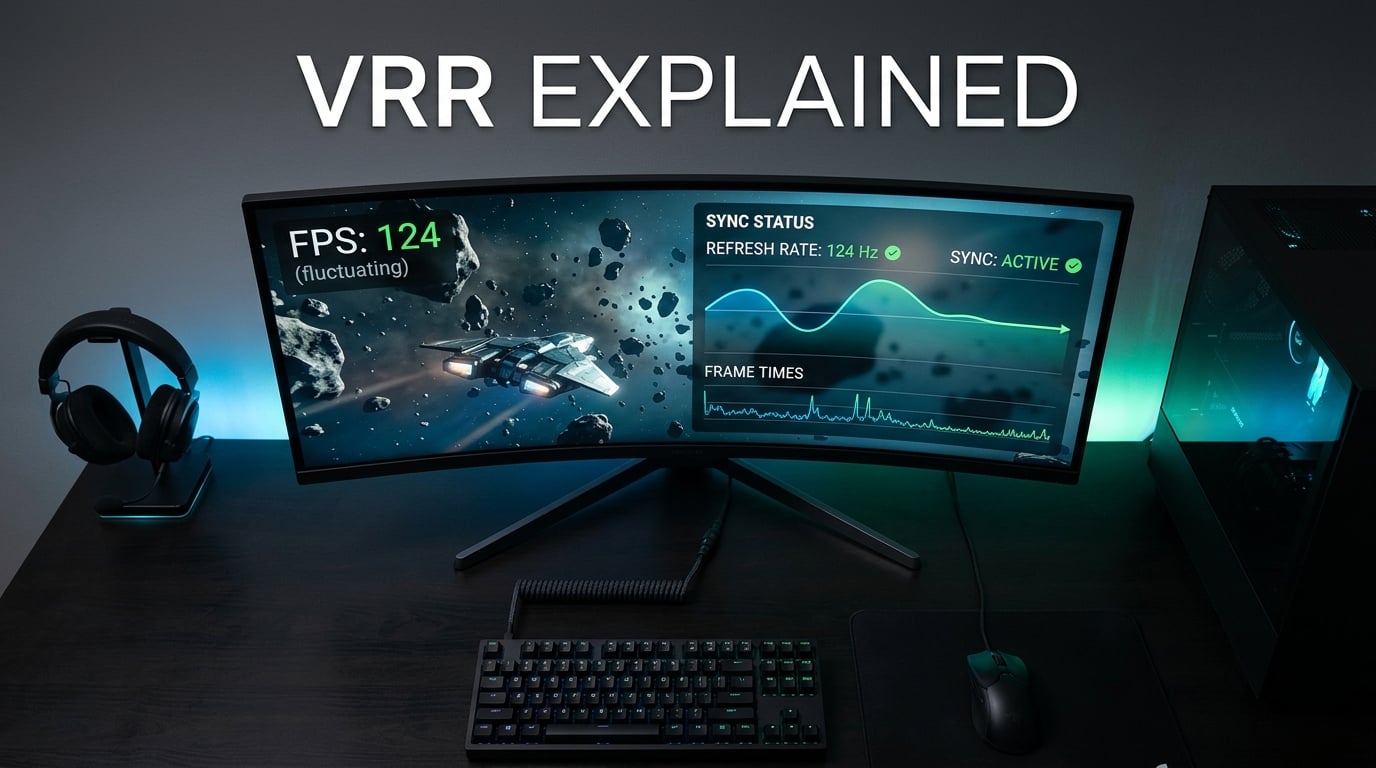
I remember the exact moment VRR clicked for me. I was playing a game where my frame rate kept bouncing between 60 and 95 fps. Without VRR, every dip caused a visible stutter. With VRR, the dips were still there but the picture stayed smooth.
That single experience taught me what VRR is really about: not raw frame rate, but consistent frame delivery. After testing dozens of monitors, gaming laptops, and TVs over the past several years, I have learned exactly when VRR is a game changer, and when it actively makes things worse.
This guide breaks down how variable refresh rate (VRR) actually works, the real benefits you can expect, and the specific situations where it does not help or even hurts your experience. Whether you are building a new PC gaming setup, picking a TV for console gaming, or troubleshooting flicker on your existing display, I will give you the practical details that matter.
Table of Contents
What Is Variable Refresh Rate and Why Does It Exist
Variable Refresh Rate (VRR) is a display technology that synchronizes your monitor or TV’s refresh rate to match the exact frame rate your GPU is producing at any given moment. Instead of forcing the GPU to fit a rigid schedule, the display adjusts itself in real time.
To understand why VRR exists, you first need to understand the problem it solves. Your GPU renders frames one at a time. Your display refreshes itself at a fixed rate (60Hz, 144Hz, 165Hz). When these two clocks are out of sync, you get visual artifacts that range from annoying to genuinely game-breaking.
There are two main problems VRR was created to fix:
- Screen tearing happens when your GPU sends a new frame in the middle of the display’s refresh cycle. The monitor shows parts of two different frames at once, creating a visible horizontal “tear” across the image.
- Stuttering happens when frame pacing becomes inconsistent. Even if your average frame rate is high, irregular delivery between frames feels jerky to your eyes.
VRR solves both by allowing the display to wait for each new frame before drawing it. The refresh cycle stretches or shortens to match exactly what your GPU produces. On a 144Hz VRR display running at 87 fps, the screen refreshes 87 times per second, perfectly matched to each incoming frame.
This is different from traditional V-Sync, which forces the GPU to either wait or duplicate frames to match a fixed refresh rate. V-Sync eliminates tearing but introduces input lag. VRR eliminates tearing without that input lag penalty, which is why it has become the default choice for modern gaming.
How VRR Actually Works Under the Hood
The technical mechanism behind VRR is straightforward once you understand the core concept. The display receives frame data from your GPU and dynamically adjusts the length of its refresh cycle to fit each frame’s natural duration.
On a traditional fixed-refresh display running at 60Hz, the panel refreshes every 16.67 milliseconds. If your GPU only finishes a frame in 14ms, the panel either displays the same frame twice (with V-Sync) or shows the new frame mid-refresh (causing tearing without V-Sync).
With VRR, the panel can extend its refresh window to 20ms, 25ms, or however long it takes the GPU to deliver the next frame. The monitor essentially says: “I will refresh as soon as a new frame is ready.” This is what makes the technology so effective at eliminating judder and tearing simultaneously.
There are a few technical details that matter in practice:
Low Framerate Compensation (LFC)
Every VRR display has a minimum and maximum refresh range. A monitor might support VRR from 48Hz to 144Hz, for example. When your frame rate drops below 48fps, Low Framerate Compensation kicks in. LFC duplicates frames intelligently to keep the refresh rate within the supported range while maintaining VRR’s tear-free benefits.
This is important because raw frame rates below the VRR floor would otherwise fall back to traditional behavior. LFC extends VRR’s usefulness into poorly optimized games or demanding scenes.
The VRR Range Matters
Not all VRR implementations are equal. A monitor with a 48-144Hz VRR range handles most modern games well. One with a 30-60Hz range is far more limited. Some displays advertise VRR but have narrow ranges that cause flickering or fall back to fixed refresh outside their sweet spot.
When shopping for a VRR display, always check the certified range. A wide range (like 30Hz to 240Hz) gives you the most flexibility, especially for games that fluctuate wildly.
Connection Standards: HDMI 2.1 and DisplayPort
VRR support depends on the connection between your GPU and display. DisplayPort 1.2a and later have supported Adaptive Sync (the VESA standard underlying FreeSync) since 2014. HDMI 2.1 added VRR support in 2020, which is why it took consoles a few more years to gain the feature.
If you are connecting via HDMI, make sure both your cable and ports are HDMI 2.1 rated. An older HDMI 2.0 cable will not transmit VRR signals even if your TV supports them.
The Real Benefits of VRR for Gamers
After spending time comparing VRR on and off across dozens of titles, I can confirm the benefits are real and noticeable. Here is what you actually gain.
Eliminated Screen Tearing
This is the headline benefit. With VRR active, you will not see horizontal tears during fast camera movement or rapid action. For competitive shooters where a single frame can decide a gunfight, this matters more than people realize.
Smoother Frame Rate Fluctuations
Modern games rarely hold a perfectly steady frame rate. VRR makes those dips and spikes far less noticeable. A game bouncing between 70 and 90 fps looks much smoother with VRR than without, because each frame is delivered without judder.
One of our team members described it best: “VRR makes 50 fps feel like a steady 50, not a jerky ride between 45 and 60.” That perception is exactly what frame pacing consistency delivers.
Reduced Input Lag Compared to V-Sync
V-Sync forces your GPU to wait for the next refresh cycle, adding latency. VRR does not have this penalty because the display adjusts its timing to the GPU, not the other way around.
According to testing data from Blur Busters and Digital Foundry, the input lag difference between VRR and V-Sync is typically 8 to 16ms, which is significant in competitive games.
Better Visual Consistency
Because every frame is delivered cleanly without tearing or duplication, the overall image looks cleaner. Combined with HDR, the result feels far more polished than gaming on a fixed-refresh display without these technologies working together.
When VRR Doesn’t Help (and When It Actually Hurts)
Here is the part most guides skip. VRR is not magic. In specific scenarios, it does nothing, and in others, it can actually degrade your experience. I have hit every one of these personally.
VRR Flicker at Low Frame Rate Edges
One of the most common complaints on forums like Reddit’s r/Monitors and r/XboxSeriesX is VRR flicker. This typically appears when your frame rate hovers near the bottom of the display’s VRR range.
The cause is gamma or backlight adjustments that occur with each refresh rate change. When your fps bounces between 38 and 48 on a 48Hz-floor VRR display, the screen brightness pulses subtly but noticeably. This is annoying in dark games like horror titles or anything with dim UI.
Solutions include setting a frame cap above the flicker threshold, lowering in-game settings to keep fps comfortably above the floor, or using a display with a wider VRR range.
Frame Rates Between 70 and 90 FPS
Strange as it sounds, VRR does not feel as smooth in this range as you might expect. The issue relates to overdrive behavior. Most monitors tune their pixel overdrive settings for fixed refresh rates like 60Hz, 120Hz, and 144Hz. When VRR fluctuates through mid-range frame rates, overdrive may misfire, causing inverse ghosting or dull transitions.
Several forum threads confirm this. Some gamers report games feeling “unsmooth at 70 to 90 FPS even with VRR enabled,” which is a real response time consistency issue, not a VRR problem per se.
Capped Frame Rates Below Native Refresh
If you are already capping your frame rate to match a divisor of your refresh rate (like locking 60 fps on a 60Hz display), VRR offers little benefit. You are not in a fluctuating state, so the technology has nothing to synchronize.
In fact, some competitive gamers deliberately turn VRR off in this scenario. Testing shows turning off VRR gives about 0.2ms decrease in input lag, which is small but matters at the very top tier of competition.
Low Refresh Rate Displays
On a 60Hz monitor with a 48-60Hz VRR range, VRR does very little. The range is too narrow to handle most real-world fluctuations. A 60Hz panel also refreshes slowly enough that any single dropped frame is highly visible regardless of VRR.
If you are still gaming on a 60Hz display without VRR, upgrading to at least 144Hz with VRR is where you start seeing real benefits. Below that threshold, your money is better spent on the panel itself.
Fixed Frame Rate Console Games
Some console games lock to 30 or 60 fps with no fluctuation. In these cases, VRR has nothing to do. The frame rate is steady, so the display refreshes at a constant rate anyway.
However, many modern console titles use dynamic resolution scaling or have uncapped frame rates, which is exactly where VRR helps.
G-Sync vs FreeSync vs Adaptive Sync Compared
The three main VRR standards often get confused. Here is a clear breakdown of what each one means and how they differ.
Adaptive Sync is the underlying VESA standard built into DisplayPort since 2014. FreeSync is AMD’s certification program for Adaptive Sync monitors. G-Sync is NVIDIA’s hardware-based VRR solution that originally required a proprietary chip, though NVIDIA now also certifies some Adaptive Sync monitors as “G-Sync Compatible.”
Quick Comparison
- Adaptive Sync (VESA standard): Open standard, works over DisplayPort 1.2a+, no licensing fee, baseline VRR implementation.
- FreeSync (AMD): FreeSync uses Adaptive Sync with AMD-tested quality tiers: FreeSync (basic), FreeSync Premium (120Hz minimum at 1080p with LFC), and FreeSync Premium Pro (added HDR and low latency certification).
- G-Sync (NVIDIA): Original G-Sync requires a proprietary hardware module for guaranteed quality. Modern G-Sync Compatible displays use Adaptive Sync but are validated by NVIDIA for quality.
In practice, FreeSync Premium and G-Sync Compatible perform nearly identically for most users. The differences show up mainly at the edges of the VRR range or with specific overdrive behaviors.
If you have an NVIDIA GPU, you can use FreeSync monitors via G-Sync Compatible mode (on most Pascal and newer GPUs). If you have an AMD GPU, FreeSync works natively, and many G-Sync monitors also support it.
How to Enable and Verify VRR (Practical Steps)
Knowing VRR exists is one thing. Getting it working properly is another. Here are the steps I use to enable and confirm VRR on both PC and console.
On PC (Windows)
- Open NVIDIA Control Panel or AMD Software, then go to display settings.
- Enable G-Sync, FreeSync, or Adaptive Sync for your monitor.
- In Windows Display Settings, set your refresh rate to the panel’s maximum.
- Make sure your cable supports the required standard (DisplayPort 1.2a+ or HDMI 2.1).
On Xbox Series X/S
- Go to Settings, then TV & display options.
- Select Video modes, then toggle Variable refresh rate on.
- Confirm your TV supports HDMI 2.1 VRR.
On PS5
- Go to Settings, then Screen and Video.
- Enable VRR.
- For individual games, toggle “Apply VRR” in the game’s video settings if available.
Verifying VRR Is Working
The easiest way to verify VRR is with an online test like the one from VESA or by using FrameView from NVIDIA. These tools show your real-time refresh rate, which should fluctuate with your frame rate if VRR is active.
You can also use the in-game frame counter in many titles (often toggled with a hotkey like F3 or Ctrl+F) and watch for fluctuations matching your GPU load.
Frame Cap Recommendations
From extensive forum discussion and Digital Foundry testing, the consensus is to use an arbitrary frame cap about 5 to 10 fps below your maximum refresh rate. This keeps you solidly within the VRR range and avoids the flicker zone at the bottom edge.
For a 144Hz display, capping at 138 fps in your GPU control panel gives you smooth VRR performance across most games. For a 120Hz TV, capping at 115 works well.
Frequently Asked Questions About VRR
Does VRR really matter?
Yes, VRR matters most when your frame rate fluctuates below your display’s maximum refresh rate. It eliminates screen tearing without the input lag penalty of V-Sync, and reduces visible stutter from inconsistent frame pacing. On fixed-refresh displays running at steady frame rates, VRR adds little.
What are the downsides of VRR?
The main downsides include VRR flicker at low frame rate edges (around the minimum VRR threshold), inconsistent overdrive performance in mid-range frame rates like 70 to 90 fps, and a small input lag penalty of about 0.2ms compared to fixed refresh. Some displays also have narrow VRR ranges that limit real-world usefulness.
Does 60Hz vs 120Hz really matter?
For VRR to provide noticeable benefits, 120Hz or higher is strongly recommended. At 60Hz, the refresh range is too narrow for VRR to handle most fluctuations effectively. At 120Hz and above, the wider range accommodates more variable frame rates and the higher base refresh makes each frame look cleaner.
How to make sure VRR is working?
Enable VRR in your GPU control panel (NVIDIA Control Panel or AMD Software) or in your console’s display settings, confirm your cable supports DisplayPort 1.2a+ or HDMI 2.1, then use a tool like VESA’s VRR test or NVIDIA FrameView to watch your real-time refresh rate fluctuate with frame rate. If the refresh stays locked at your maximum, VRR is not active.
Final Verdict on Variable Refresh Rate in 2026
Variable refresh rate is one of those technologies that delivers exactly what it promises, as long as your hardware supports it properly. For gamers dealing with fluctuating frame rates, VRR is a genuine quality of life improvement that removes tearing and reduces stutter without the input lag cost of V-Sync.
Just remember that VRR is not universally helpful. If you are playing locked 60 fps games on a 60Hz display, you will not notice a difference. If your frame rate bounces around the bottom edge of your VRR range, you may experience flicker. The best experience comes from a high-refresh display with a wide VRR range, paired with a frame cap set 5 to 10 fps below the maximum.
For anyone building a new setup in 2026, VRR should be on your requirements list alongside high refresh rate and low response time. It is no longer a premium feature; it is the baseline for modern gaming displays.