
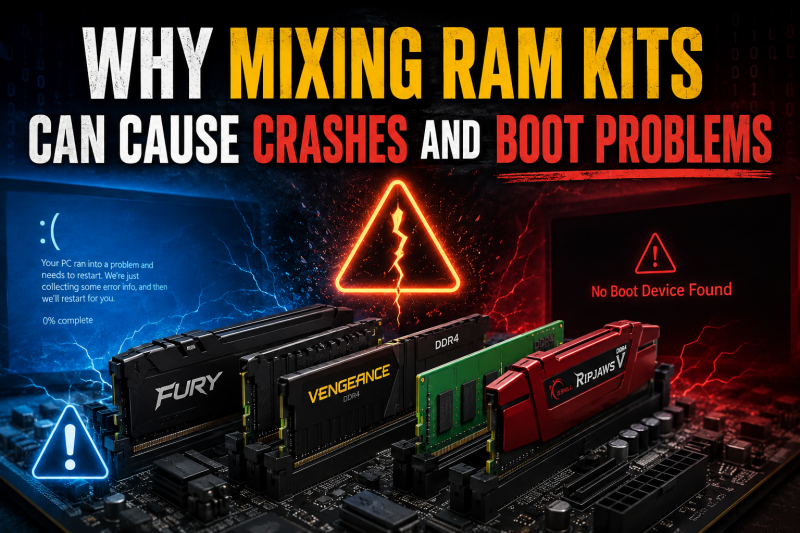
Yes, mixing RAM kits can absolutely cause crashes, blue screens, freezes, and boot failures, even when the sticks look similar on paper. Your motherboard and CPU memory controller are designed to work with a single matched kit, and when you add modules with different specifications, the entire system is forced to find a fragile compromise that often breaks down under load.
Common symptoms include random reboots, MEMORY_MANAGEMENT blue screens, games crashing to the desktop, the system refusing to POST, or the BIOS quietly clocking your memory down to a much slower speed than you paid for. I have seen all of these first-hand after adding a second kit to a build that was perfectly stable, and the troubleshooting rabbit hole is longer than most people expect.
In this guide I will walk through exactly why mixing RAM kits can cause crashes and boot problems, covering the weakest link principle, memory training failures, XMP/EXPO profile issues, dual-channel breakdowns, and the practical steps you can take to stabilize a system that has already gone sideways. The goal is to give you both the technical “why” and a clear path forward.
This matters because RAM problems are deceptive. A mixed kit can pass every quick test, run benchmarks fine for an hour, then crash your PC at 2 a.m. during a long render or a ranked match. Understanding the root cause saves you from weeks of frustration and pointless part-swapping.
Table of Contents
What Does Mixing RAM Kits Actually Mean?
Mixing RAM means installing memory modules that were not sold or binned together as a single matched kit. That covers obvious cases like pairing a Corsair Vengeance kit with a G.Skill TridentZ kit, but it also covers a case most people get wrong: buying two separate kits of the same model number. Even if both boxes say “DDR4-3200 CL16,” they were not manufactured, tested, or binned as one unit.
A matched kit is a set of sticks that the vendor verified can run together at the advertised speed and timings on the same memory controller. The Serial Presence Detect (SPD) chip on each stick is programmed with the manufacturer’s tested profile, and those profiles are only validated within that specific kit.
This is why two “identical” kits bought a year apart can still misbehave. Silicon varies between production batches, the binning differs, and the second kit may have shipped with newer SPD data or a revised PCB layout. From the memory controller’s perspective, they are strangers, and strangers need to negotiate.
Why Mixing RAM Kits Can Cause Crashes and Boot Problems
The root cause is something engineers call the weakest link principle. When multiple memory modules are installed, the BIOS has to pick one set of operating parameters that every stick can tolerate. It reads the SPD data from each module, finds the lowest common speed, the loosest common timings, and the highest common voltage, and then forces the entire memory subsystem to run at that compromise.
In practice, that means a 3600MHz stick mixed with a 3200MHz stick will run both at 3200MHz, but only if the timings also happen to align. They usually do not, so the BIOS may drop further to a JEDEC fallback like 2133MHz or 2666MHz just to get the system to boot. Users on r/buildapc frequently report their system “defaulting to lower MHz than expected” after adding a second kit, and this is exactly why.
The negotiation happens during a process called memory training, which runs every time you power on. The CPU’s Integrated Memory Controller (IMC) sends test patterns to the RAM, measures what works, and locks in the timings. With mixed kits, the IMC has to satisfy conflicting SPD data, and on higher-speed kits it simply runs out of headroom. The training either fails outright (no POST) or passes with marginal timings that crash later.
This is the single most important concept to internalize: mixing RAM kits can cause crashes and boot problems because the system is no longer running any of the sticks at their validated settings. Every module is running off-spec, and off-spec memory is unstable memory.
Speed and Frequency Mismatch Issues
The most visible mismatch is clock speed. RAM is rated in megatransfers per second (MT/s), often marketed as MHz, and that number directly controls memory bandwidth. When you mix a 3600MHz kit with a 3200MHz kit, the BIOS must drop everything to the slower speed, and the performance loss can be significant.
Manufacturers and reviewers have measured bandwidth drops of 30 to 50 percent when a high-speed kit is dragged down to match a slower partner, especially if the BIOS then refuses to enable XMP and falls all the way back to JEDEC defaults. That is a meaningful hit in memory-sensitive workloads like integrated graphics gaming, rendering, and large dataset processing.
Speed mismatch is also asymmetric in the damage it causes. The slower stick is happy. The faster stick is being underclocked, but more importantly, its tighter internal binning was tuned for higher speed, and running it slower with mismatched timings can push it into a state the manufacturer never validated. The stick is not broken, but it is no longer in its comfort zone.
A real example from the buildapc community: a user mixed a TridentZ 3000MHz kit with a 3200MHz kit, and the XMP profile would not engage at all. The system only ran stably at 2666MHz with JEDEC timings. The advertised speeds on both boxes were useless.
Timing and Latency Mismatches (CAS Latency)
Clock speed gets all the marketing attention, but CAS Latency (CL) and the secondary timings are just as critical for stability. CL measures how many clock cycles the memory waits before responding to a request, and lower is generally better. A 3200MHz CL16 kit and a 3200MHz CL18 kit run at the same speed, but the CL18 stick takes longer to answer.
When you mix kits with different timings, the BIOS has to find a timing set that satisfies both. It usually picks the looser timings, which slows the faster stick down. Worse, the secondary timings (tRCD, tRP, tRAS, and a long list of sub-timings) rarely line up between two different kits, and the IMC has to pick values that may not be optimal for either one.
This is why two same-speed sticks from different brands can still crash. The advertised numbers match, but the SPD-programmed detail timings do not, and the IMC ends up running on a compromise nobody tested. Users on Tom’s Hardware forums repeatedly note that “even with the same speed and brand, mixing two kits causes random crashes,” and timing mismatch is usually the invisible culprit.
XMP and EXPO Profile Failures With Mixed RAM
Intel XMP (Extreme Memory Profile) and AMD EXPO (Extended Profiles for Overclocking) are pre-programmed overclocking profiles stored on the RAM’s SPD chip. They contain the vendor’s tested high-speed settings, and they are the reason your 3600MHz kit actually runs at 3600MHz instead of the JEDEC baseline of 2133MHz or 4800MHz on DDR5.
Here is the catch: XMP and EXPO profiles are validated only for the kit they ship on. The vendor tested those specific sticks together on a specific set of motherboards. The profile does not know about, and is not tuned for, any other module installed in the system.
When you install two kits, the motherboard typically lets you enable the XMP profile from one of them, but it applies those aggressive timings to every stick. If the second kit cannot keep up, you get one of these outcomes: the system fails to POST and reverts to defaults after a few retries; the system boots but crashes the moment a real load hits memory; or it boots and then hard-freezes during a stress test.
Forum users describe this constantly: “XMP profile enables but causes instant crashes.” The fix is usually to disable XMP entirely and run on JEDEC defaults, or to manually tune the timings to a middle ground, which is tedious and risky if you do not know what you are changing.
If you must run mixed kits, expect to live without XMP. That alone usually costs you the performance you were trying to add by installing more RAM in the first place.
Dual-Channel Mode Failures
Modern CPUs run memory in dual-channel mode (or quad-channel on HEDT platforms), which roughly doubles memory bandwidth by letting the CPU talk to two sticks in parallel. For this to work, the controller needs matching capacity and ideally matching timings in each channel.
Mixed kits often break dual-channel in subtle ways. If you install an 8GB stick in channel A and a 16GB stick in channel B, the controller enters what Intel calls Flex mode: 8GB on each side runs in dual-channel, and the remaining 8GB on the larger stick runs in single-channel. You gain capacity but lose bandwidth on part of the memory.
The bigger problem is when the kits differ in speed, timings, or rank organization. The IMC may drop both channels to single-channel mode, or refuse to engage the higher-speed profile, simply because it cannot synchronize the two sides. Users report systems where the BIOS shows single-channel operation after adding a second, mismatched kit, and the performance hit shows up clearly in benchmarks.
For gaming, especially on integrated graphics or with a CPU that is heavily dependent on memory bandwidth (some Ryzen generations are notoriously sensitive), losing dual-channel can drop frame rates by 20 percent or more. You added RAM and your games got slower. That is the dual-channel failure mode in one sentence.
Memory Training Failures and Boot Loops
Memory training is the process the BIOS runs every cold boot to figure out which timings actually work on the installed sticks. The CPU sends a sequence of test patterns at progressively tighter settings, measures which ones pass, and locks in the best stable configuration. On modern DDR4 and especially DDR5 systems, training can take 30 seconds to a minute on the first boot after a change.
When you mix RAM kits, the training algorithm is the thing that usually fails. The IMC tries to find a timing set that works for every stick, and on mismatched kits it can hit a dead end where no common setting is stable. The motherboard then either reverts to safe JEDEC defaults or refuses to POST at all.
The symptoms are distinctive: the system powers on, the DRAM debug LED on the motherboard stays lit, the screen stays black, and after several retries the BIOS either falls back to a slow default or shuts down. Users describe “boot loops with mixed RAM,” “no POST when all four sticks installed but works individually,” and three-beep or five-beep codes depending on the BIOS vendor.
Memory training failures are why a mixed kit can pass MemTest86 for hours and still crash in real use. Training found a marginal setting that survives synthetic tests but breaks under the unpredictable access patterns of real applications. Resetting the CMOS and retraining sometimes helps, but often the only real fix is removing the mismatched sticks.
Rank Configuration and Capacity Mismatches
Memory sticks come in single-rank and dual-rank configurations, which refers to how the DRAM chips are organized into banks the controller can access. Dual-rank sticks can deliver slightly better performance in some workloads, but they also place more stress on the IMC because the controller has to manage twice as many ranks.
Mixing single-rank and dual-rank sticks is a common cause of instability that never shows up in the marketing numbers. A 16GB single-rank stick paired with a 16GB dual-rank stick has the same capacity, but the IMC has to deal with different electrical loading on each channel, and many motherboards simply will not run four mixed ranks at high speed.
Capacity mismatches have a similar effect. An 8GB stick and a 16GB stick in the same channel force the controller into Flex mode and create an asymmetric population that the BIOS was never validated for. The system may boot, but performance is unpredictable and stability is fragile. This is one of the most common configurations people try, and one of the most likely to crash.
Common Symptoms of Incompatible Mixed RAM
Mixed RAM problems masquerade as other issues. Knowing the signature symptoms helps you identify the cause quickly instead of chasing a GPU or driver problem that does not exist. The most common signs include:
- MEMORY_MANAGEMENT blue screen (0x0000001A): the classic BSOD for memory subsystem failures, often accompanied by 0x00000050 (PAGE_FAULT_IN_NONPAGED_AREA).
- Random reboots under load: the system passes idle tests but crashes during games, rendering, or large file operations.
- Game crashes to desktop without error: especially in memory-heavy titles or after extended play sessions.
- DRAM debug LED staying lit: the motherboard cannot complete memory training and is stuck before POST.
- System runs at lower-than-advertised speed: Task Manager or CPU-Z shows the RAM running at JEDEC defaults instead of the rated XMP speed.
- Corrupted files or filesystem errors: marginal memory can write bad data silently, which shows up later as random file corruption.
- Boot loops: the system powers on, fails to POST, restarts, repeats, sometimes eventually falling back to safe defaults.
If you see two or more of these after a RAM change, mixed-kit instability is the prime suspect until proven otherwise.
How to Troubleshoot Boot Problems From Mixed RAM
If your system is already misbehaving after a RAM swap or addition, work through these steps in order. They go from least invasive to most disruptive, and most mixed-RAM issues can be resolved by the third or fourth step.
Step 1: Test each stick individually. Pull every module, install just one stick in the slot your motherboard manual recommends for single-DIMM operation (usually slot A2), and boot. Repeat for every stick. This isolates whether one stick is actually defective versus the combination being unstable. A surprising number of “mixed RAM” problems turn out to be one bad stick.
Step 2: Reset the CMOS. Power down, unplug, remove the CMOS battery for five minutes (or short the clear-CMOS jumper), and reinstall. This forces the BIOS to re-run memory training from scratch instead of reusing stale, unstable timings. Many boot-loop cases resolve here.
Step 3: Disable XMP and EXPO. Enter the BIOS and turn off any memory overclocking profiles. Run on JEDEC defaults. If the system becomes stable, XMP was pushing the mixed kit past what it could tolerate. You can try re-enabling XMP later on the matched kit alone, but for mixed kits the default profile is your safest operating mode.
Step 4: Manually set conservative JEDEC timings. If you want to push beyond baseline stability, manually set the speed and primary timings to a conservative middle ground (for example, 2933MHz CL18 if you have a 3200MHz and a 3600MHz kit). Leave secondary timings on Auto. This is fiddly but often gets mixed kits to run reliably.
Step 5: Update the BIOS. Memory training algorithms improve with every BIOS release, and DDR4 and DDR5 platforms in particular see meaningful stability improvements over their lifespan. A newer BIOS may handle your mixed-kit configuration more gracefully than the version that shipped on the board.
Step 6: Reorder the sticks across slots. Try moving the matched-kit sticks to slots A2 and B2 (the standard dual-channel slots) and the mismatched sticks to A1 and B1, or remove the mismatched sticks entirely. Slot population order matters, and many boards only support high speeds when specific slots are used.
Step 7: Stress-test before declaring victory. Run MemTest86 for at least four passes and TestMem5 or OCCT memory test for an hour. Synthetic stability does not guarantee real-world stability, but a failure here is conclusive. Passing is a strong signal that your mixed kit is at least marginally usable.
When Mixing RAM Actually Works
To be fair, mixing RAM is not always a disaster. The buildapc community has a vocal contingent pointing out that “the hysteria about mixing RAM sticks is way overblown,” and they have a point under specific conditions.
Mixing is most likely to succeed when the sticks are the same brand, same model, same speed, same capacity, and ideally from the same production batch. Two identical kits bought together, installed as four matching sticks, often run fine, especially at moderate speeds where the IMC has plenty of headroom.
Lower speeds are dramatically more forgiving. JEDEC DDR4-2666 or DDR5-4800 kits are far more likely to coexist than 4000MHz or 6400MHz overclocked kits, because the IMC is not being pushed near its limits. Enterprise and server memory is also generally more flexible because it follows tighter JEDEC standards and avoids XMP-style overclocking entirely.
The honest summary: mixing can work, sometimes for years, but it works by luck, not by design. If you need guaranteed stability for production work or competitive gaming, do not bet on it.
Best Practices for RAM Upgrades
The cleanest way to avoid every problem in this article is to plan your RAM upgrade correctly from the start. A few simple habits save enormous amounts of troubleshooting later.
Buy one matched kit sized for your future needs. If you think you might want 32GB eventually, buy a 2x16GB matched kit now instead of a 2x8GB kit with plans to add another 2x8GB later. The matched kit is validated as a unit and will run at its advertised speed; two separate kits probably will not.
Replace, do not add. When upgrading, sell the old kit and replace it entirely with a new larger matched kit. Trying to combine old and new sticks is the source of nearly every problem described above.
Check the motherboard QVL. Every motherboard vendor publishes a Qualified Vendor List of memory kits they have actually tested on that board. Sticking to a QVL-listed kit does not guarantee success, but it dramatically improves the odds and gives you a support path if something goes wrong.
Verify speeds and ranks. If you absolutely must add memory, match the new kit’s speed, timings, voltage, capacity, and rank configuration to the existing one as closely as possible. Same SKU from the same vendor is the realistic best case.
FAQs
Can mixing RAM cause crashes?
Yes. Mixing RAM kits forces the system to run all sticks at compromised, unvalidated settings, which commonly causes random crashes, blue screens, and application failures under memory load. The crashes can appear hours or days after boot because the unstable timings only break under specific access patterns.
Is it bad to mix RAM kits?
Mixing RAM kits is generally a bad idea because each kit was tested and binned only as a self-contained unit. Two kits, even of the same model, were not validated to run together, and the system has to compromise on speed and timings to accommodate both. The result is often instability, performance loss, or boot failures.
Can RAM cause boot problems?
Yes. RAM issues are one of the most common causes of boot failures, including no POST, beep codes, DRAM debug LEDs staying lit, and boot loops. When mixed RAM fails memory training, the motherboard cannot establish a stable set of timings and either reverts to safe defaults or refuses to start entirely.
Can swapping RAM cause problems?
Swapping RAM can cause problems if the new sticks have different speed, timings, voltage, or rank configuration from the old ones, or if they are installed in the wrong slots. Even a clean swap to a matched kit can fail until you reset the CMOS and let the BIOS retrain memory from scratch.
Can you mix RAM brands with the same speed?
Mixing RAM brands with the same advertised speed sometimes works but is not guaranteed. Speed is only one specification; timings, voltage, rank configuration, and SPD-programmed detail settings also need to align. Two same-speed kits from different brands frequently have different secondary timings that cause instability even though the headline number matches.
Why does XMP fail with mixed RAM?
XMP profiles are validated only for the specific matched kit they ship on. When you install two kits, enabling XMP applies the aggressive timings from one kit to every stick, including the second kit that was never tested at those settings. The second kit cannot keep up, and the system either fails to POST or crashes under load.
The Bottom Line on Mixing RAM Kits
The short answer is yes, mixing RAM kits can cause crashes and boot problems, and the reason is simple: every stick ends up running at settings nobody validated. The weakest link principle, memory training failures, broken XMP profiles, and lost dual-channel bandwidth all flow from that one fact.
If you are building or upgrading, buy one matched kit sized for your needs, check the motherboard QVL, and resist the urge to add a second kit later. If you have already mixed kits and your system is unstable, work through the troubleshooting steps above, and if stability still eludes you, remove the mismatched sticks and replace them with a single validated kit.