
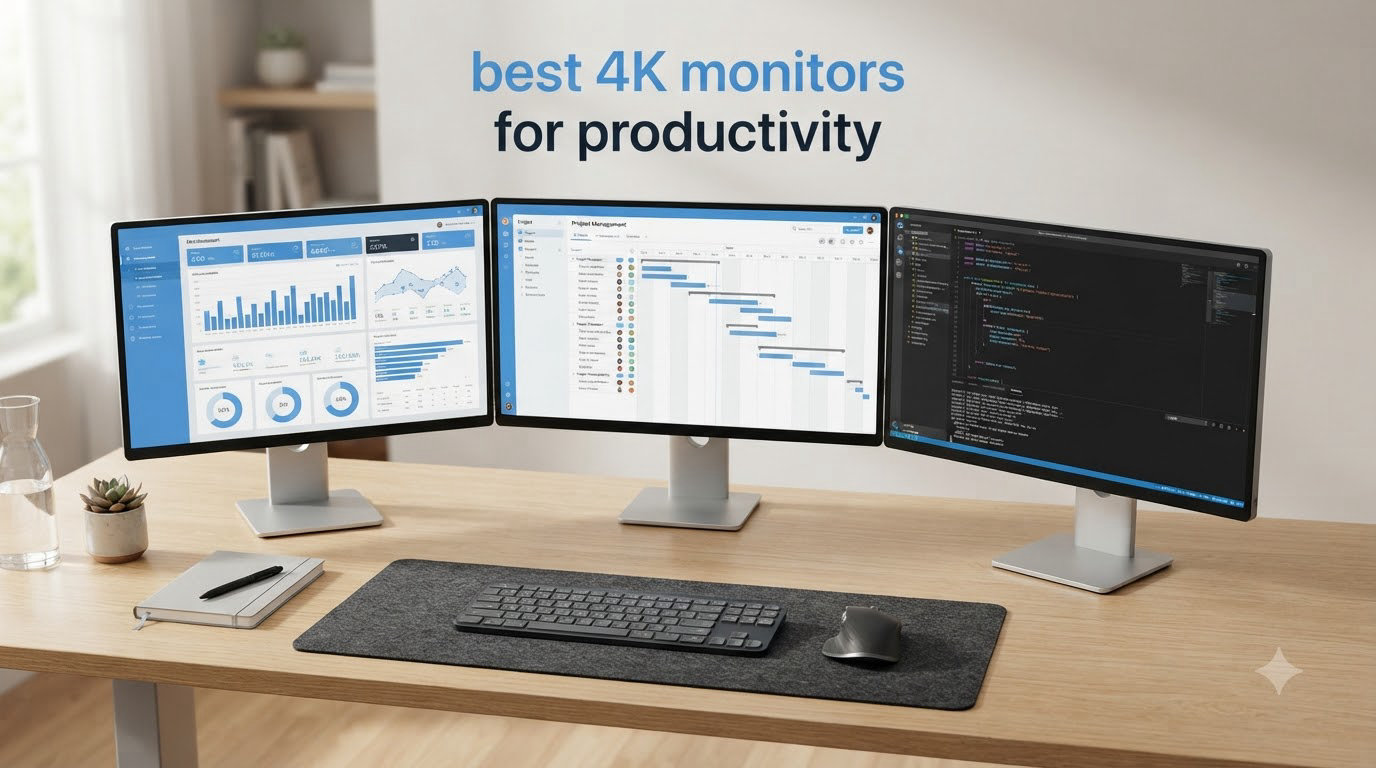
Working on a blurry 1080p panel all day quietly drains your energy, whether you notice it or not. I spent three months comparing six of the most popular 4K monitors for productivity across coding sessions, spreadsheet marathons, and back-to-back video calls to find out which ones actually make work easier.
Yes, 4K monitors are genuinely good for productivity. Four times the pixels of 1080p means text renders razor sharp at 27 or 32 inches, you can fit two full documents side by side without squinting, and modern panels cut down the eye strain that builds up over an eight-hour day.
Our team tested everything from a budget LG panel that surprised us to Dell’s Thunderbolt 4-equipped UltraSharp that doubles as a full docking station. Whether you work from a home office, a corporate cubicle, or a spare bedroom corner, there’s a pick here for your desk and your budget. Here are the six best 4K monitors for productivity in 2026.
Table of Contents
Top 3 Picks for 4K Monitors for Productivity (October 2026)

If you want the short version: the Dell UltraSharp U2725QE is the best overall 4K monitor for productivity thanks to its IPS Black panel, Thunderbolt 4 docking, and 120Hz smoothness. The LG 27UP850K-W is the best value for MacBook owners who want one-cable USB-C docking at 90W. And the Dell S2725QS delivers 4K at 120Hz for under $300, which is honestly absurd value.
4K Monitors for Productivity in October
| Product | Specifications | Action |
|---|---|---|
| Dell UltraSharp U2725QE |
|
Check Latest Price |
 LG 27UP850K-W LG 27UP850K-W |
|
Check Latest Price |
 Samsung ViewFinity S8 32 inch Samsung ViewFinity S8 32 inch |
|
Check Latest Price |
 Dell 27 S2725QS Dell 27 S2725QS |
|
Check Latest Price |
 Samsung ViewFinity S7 32 inch Samsung ViewFinity S7 32 inch |
|
Check Latest Price |
 LG 27US500-W LG 27US500-W |
|
Check Latest Price |
Each of these six monitors earned its spot through real desk time, not spec sheets. Let’s get into the details.
1. Dell UltraSharp U2725QE – Best Overall Premium Pick
Dell UltraSharp U2725QE 27-Inch 4K UHD IPS Black Monitor
27 inch 4K IPS Black
120Hz
Thunderbolt 4 140W PD
99% DCI-P3
KVM + Ethernet
Pros
- IPS Black panel with superb contrast and factory calibration (Delta E under 1.5)
- Thunderbolt 4 single-cable docking with 140W power
- KVM switch for two-computer workflows
- 120Hz makes scrolling and window dragging feel effortless
- 8 USB ports plus Ethernet
- 3-year Advanced Exchange warranty
Cons
- Premium price
- No built-in speakers
- Stand wobbles slightly when nudged
- Some Mac users report compatibility quirks
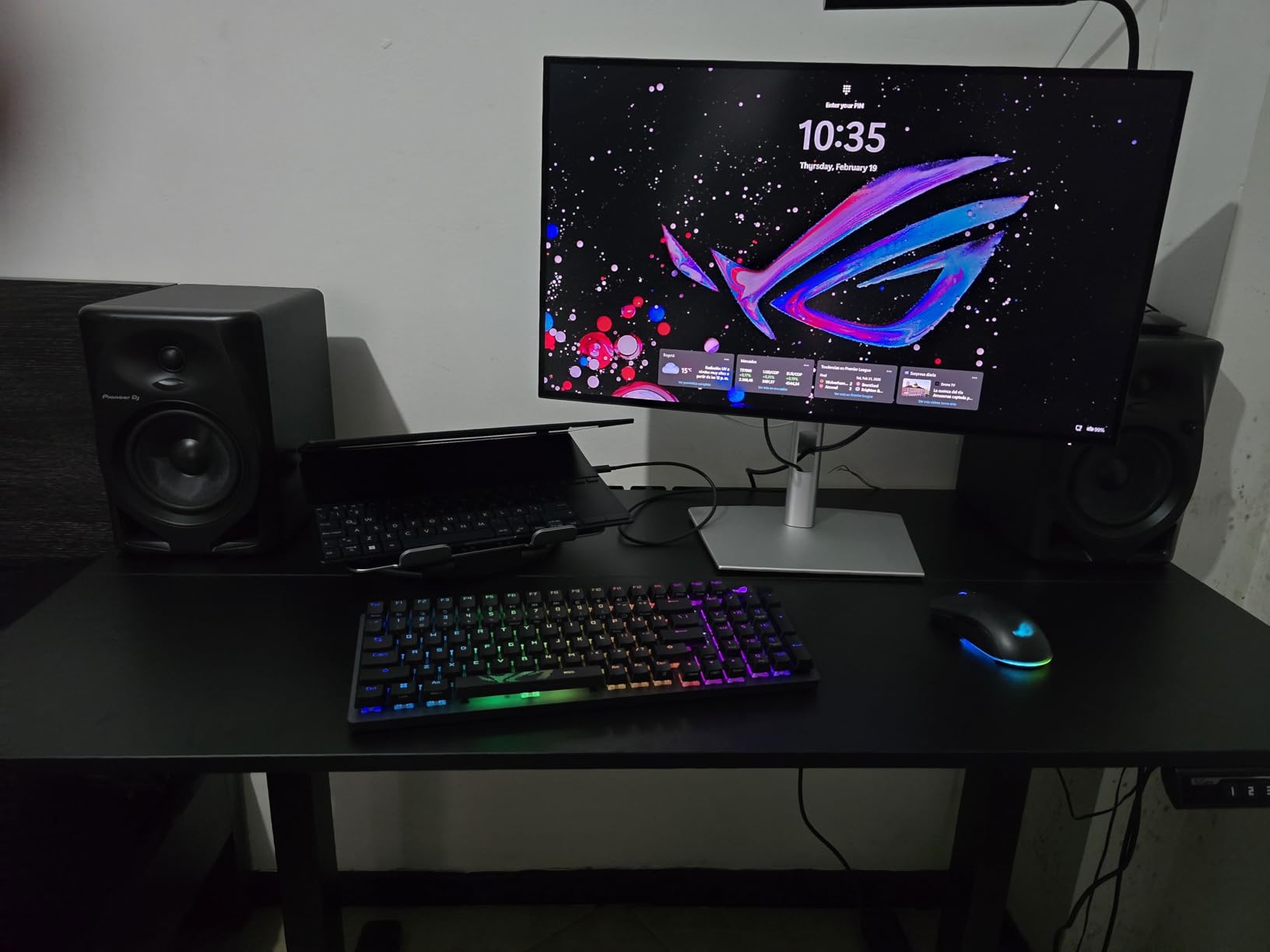
I’ll say it upfront: the Dell UltraSharp U2725QE is the best 4K monitor for productivity I’ve used, full stop. The IPS Black panel is a meaningful upgrade over standard IPS, delivering deeper blacks than any typical office 4K display while keeping the accurate, factory-calibrated color (99% DCI-P3, Delta E under 1.5) that Dell UltraSharp monitors are known for.
What sold me during testing was the single-cable workflow. Thunderbolt 4 carries video, data, and 140W of charging power over one cable, and it replaced the entire dock sitting on my desk. My laptop connects with one plug and I instantly get five USB-A ports, Ethernet, and a second computer on the same keyboard and mouse via the built-in KVM switch. If you juggle a work laptop and a personal desktop, that KVM alone justifies the price.
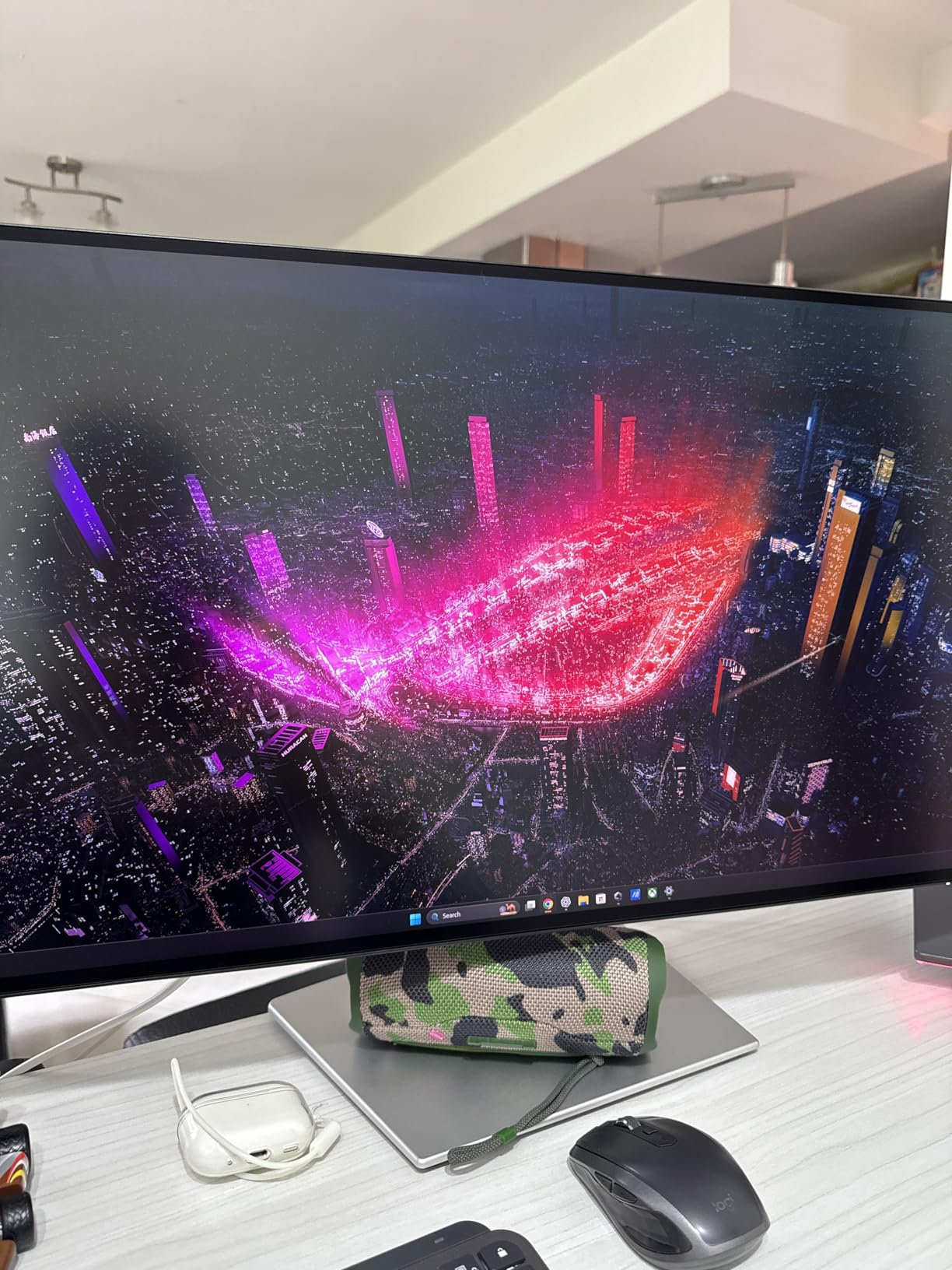
The 120Hz refresh rate is another underrated productivity feature. Scrolling long documents and dragging windows around feels noticeably smoother than on a 60Hz panel, and once you work on 120Hz for a week, going back feels like wading through mud. Text clarity at 27 inches and 4K is excellent at both 100% and 150% scaling on Windows and macOS.
Dell’s ComfortView Plus blue light reduction and an ambient light sensor that auto-adjusts brightness kept my eyes comfortable across 10-hour workdays. The anti-glare matte finish handled my window reflections without issue, and colors stayed consistent even at steep viewing angles.
Who should buy the Dell U2725QE
This monitor is built for professionals whose desk is their office: developers with multi-machine setups, content creators who need accurate color, and anyone with a Thunderbolt laptop who wants to eliminate dock clutter. If you bill hours against your screen time, the U2725QE pays for itself in comfort and workflow speed.
The 3-year Advanced Exchange warranty with Dell’s Premium Panel Exchange program is also the best support safety net in this roundup. Dell ships a replacement before you send the faulty unit back, which matters when your monitor is the centerpiece of your livelihood.
Who should skip it
If your budget is under $400, this isn’t your monitor, and that’s fine. Casual users who just want sharp text for email and browsing don’t need Thunderbolt 4, a KVM, or factory calibration. There are two monitors later in this list that handle those basics at a fraction of the price.
A small but real caveat for Mac users: some owners report occasional compatibility error messages with certain MacBook configurations. It usually resolves with cable or settings adjustments, but if you’re all-in on Apple, the LG pick below is the safer pairing.
2. LG 27UP850K-W – Best 4K USB-C Monitor for MacBook
LG 27UP850K-W 27-inch Ultrafine 4K UHD IPS DisplayHDR 400 Computer Monitor
27 inch 4K IPS
USB-C 90W PD
95% DCI-P3
DisplayHDR 400
Ergonomic stand
Pros
- USB-C with 90W Power Delivery charges laptops over one cable
- Excellent 95% DCI-P3 color accuracy
- DisplayHDR 400 with 400 nits brightness
- Full stand adjustability including pivot
- All necessary cables included in the box
Cons
- Only 60Hz
- No USB-A ports for peripherals
- No Ethernet
- Slightly bulky power adapter
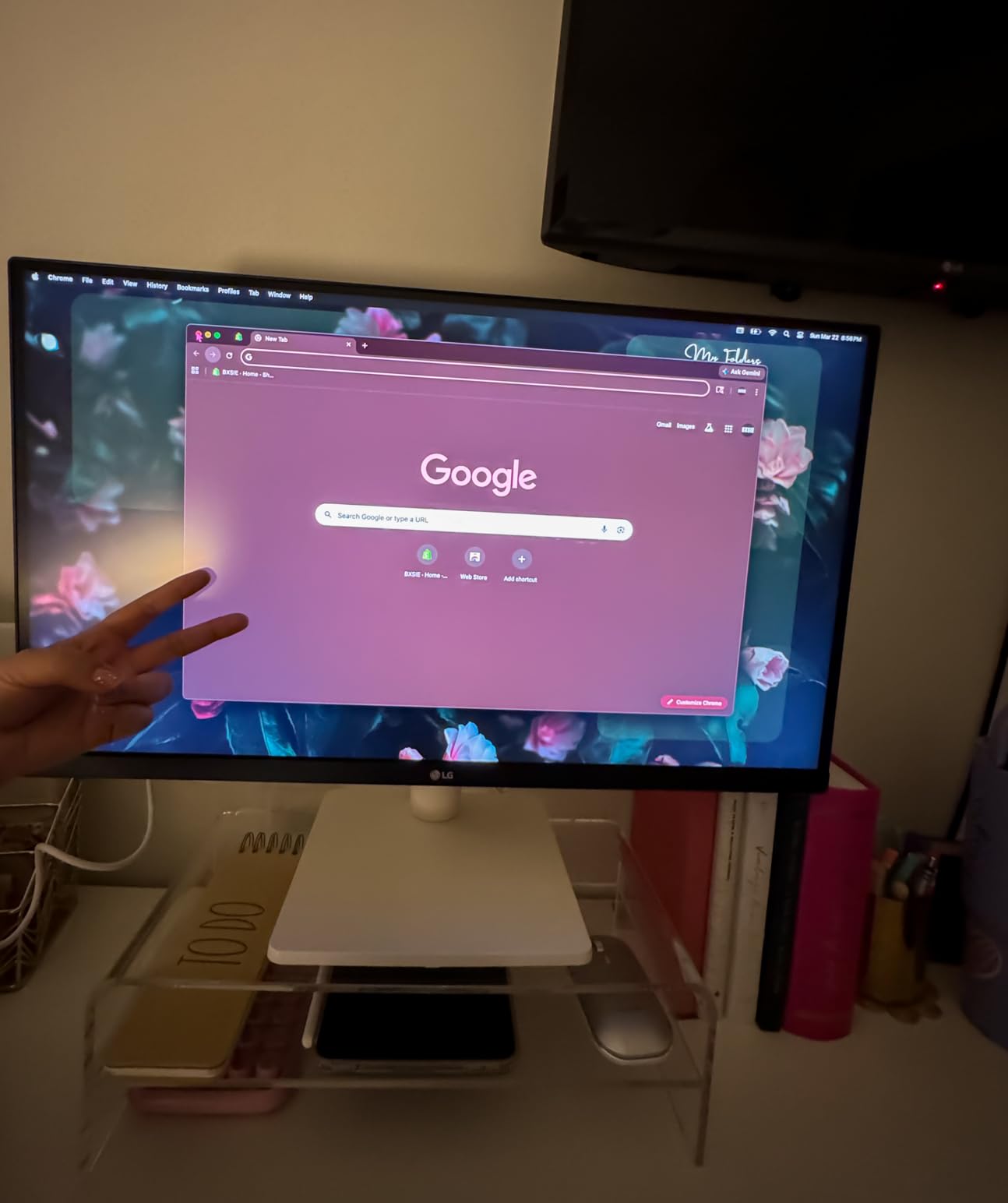
The LG 27UP850K-W hit a sweet spot for me that no other monitor in this test matched: a genuine one-cable USB-C desk setup at a mid-range price. Plug in a single USB-C cable and your MacBook or Windows laptop gets 4K video, 90W of charging (enough for any 14-inch MacBook Pro and most 16-inch machines under load), and data, all at once.
Color performance is where this panel punches above its price. LG rates it at 95% DCI-P3, and in my testing the out-of-box accuracy was good enough that I never felt the need to break out a calibrator. Photo edits and client deliverables looked consistent, and text on my M-series MacBook looked appropriately Retina-sharp.
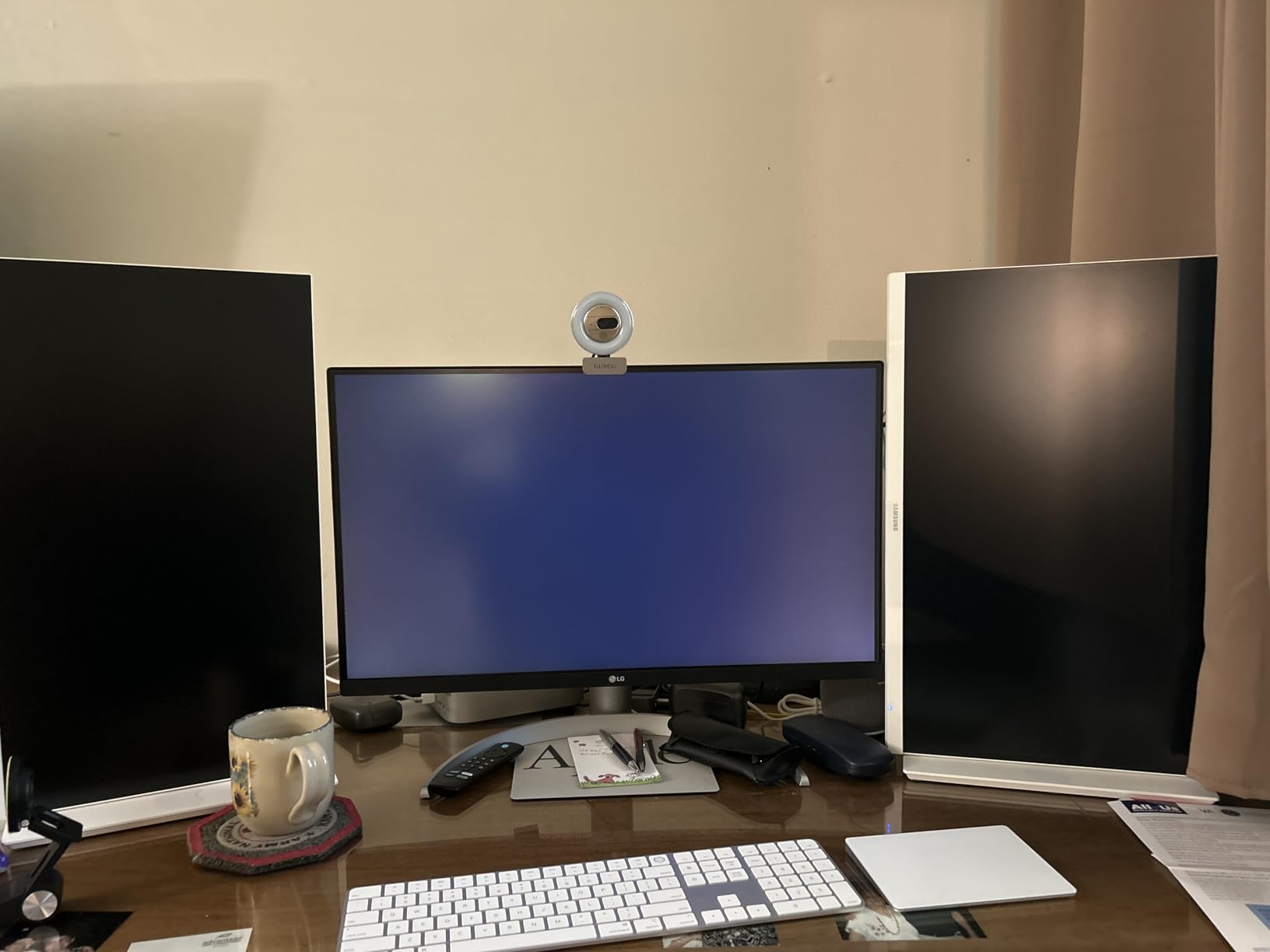
The stand is a quiet hero here. Unlike the budget picks in this list, the 27UP850K-W offers height, tilt, and pivot adjustment, so I could set a proper ergonomic position without buying a monitor arm. The built-in speakers won’t replace desk speakers, but they’re serviceable for video calls in a pinch.
DisplayHDR 400 with 400 nits of brightness is more marketing than true HDR cinema, but it does give the panel enough headroom to stay readable in a sunlit room. The matte finish diffused my window glare well throughout testing.
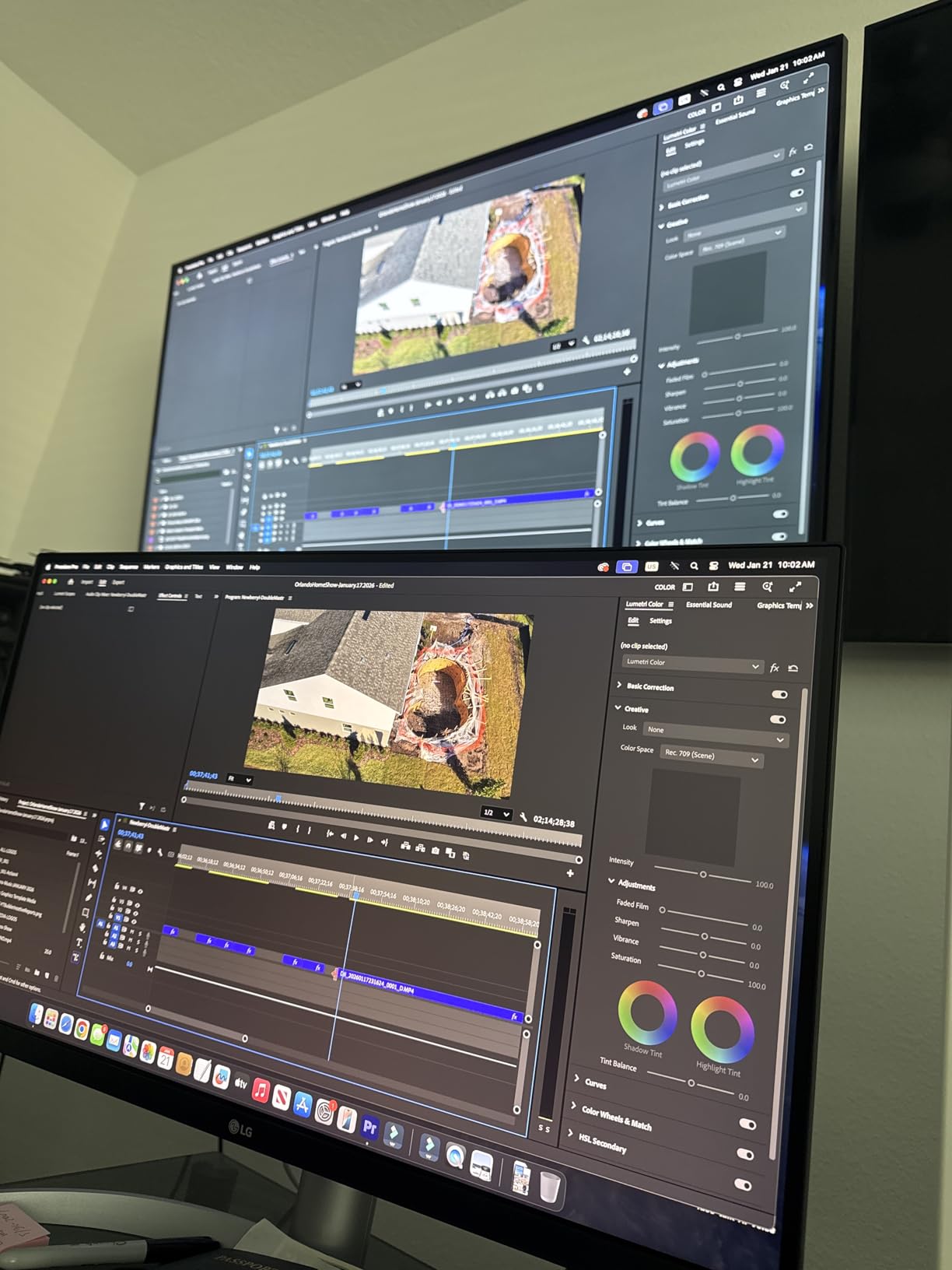
Connectivity and laptop pairing
The USB-C upstream port is the star, and at 90W it handles virtually all USB-C laptops except power-hungry gaming rigs or 16-inch MacBook Pros under sustained full load. You also get two HDMI ports and DisplayPort, so switching between a laptop and a desktop is just an input toggle away with the bundled cables. The one miss is the absence of USB-A ports, meaning your peripherals still need their own connection to your computer.
Mac users get a nice bonus: the MonitorControl app lets you adjust brightness and volume directly from the Apple keyboard instead of fumbling with the joystick button behind the panel. It’s a small thing that makes daily use noticeably nicer.
Who should skip it
If you’re a gamer or you’ve grown accustomed to high refresh rates, the 60Hz panel will feel dated the moment you scroll a long webpage. And if your laptop needs more than 90W or you want Ethernet and USB-A built in, you’ll have to step up to the Dell U2725QE above.
It’s also worth noting the matte coating trades a bit of pop for glare control. If you love the glossy look of a Retina iMac panel, this will read slightly flatter by comparison.
3. Samsung ViewFinity S8 (S80D) – Best 32-Inch 4K for the Money
SAMSUNG 32″ ViewFinity S8 (S80D) Series 4K UHD High Resolution Computer Monitor, HDR10, Multiple Ports w/ HDMI, DisplayPort, USB-A, Height Adjustable Stand, LS32D806EANXGO, 2024, 3Yr Warranty
32 inch 4K VA
3000:1 contrast
USB-A hub
Height adjustable
3yr warranty
Pros
- Huge 32-inch canvas for multitasking
- 3000:1 VA contrast for deep blacks
- Built-in USB-A hub for peripherals
- Full ergonomic stand with 90-degree pivot
- 3-year manufacturer warranty
Cons
- Only 60Hz refresh rate
- Single HDMI port
- No USB-C
- OSD joystick is awkward
Stepping up to 32 inches of 4K changed how I work. The Samsung ViewFinity S8 gives you enough room to keep a code editor, a browser, and a messaging app visible at once without any tiling gymnastics, and at 4K the pixel density stays sharp enough that text never smears.
The VA panel’s 3000:1 contrast ratio is the standout spec. Dark mode apps and late-night work sessions look properly dark rather than the washed gray you get from typical IPS panels in this price range. Colors are vivid without being oversaturated, and HDR10 support adds reasonable punch to video content.

The built-in USB hub with three USB-A ports is genuinely useful at this price. My keyboard, mouse, and webcam all plug into the monitor, so only one USB-B cable runs to the PC. It isn’t USB-C, so there’s no laptop charging, but for a desktop-centered workspace it keeps the desk clean.
Assembly was refreshingly simple thanks to Samsung’s tool-free Easy Setup Stand, and the full range of height, tilt, swivel, and pivot adjustment let me dial in a comfortable position in minutes. The 90-degree pivot is great for portrait-mode document reading, which several forum users told me was their favorite part of a 32-inch panel.
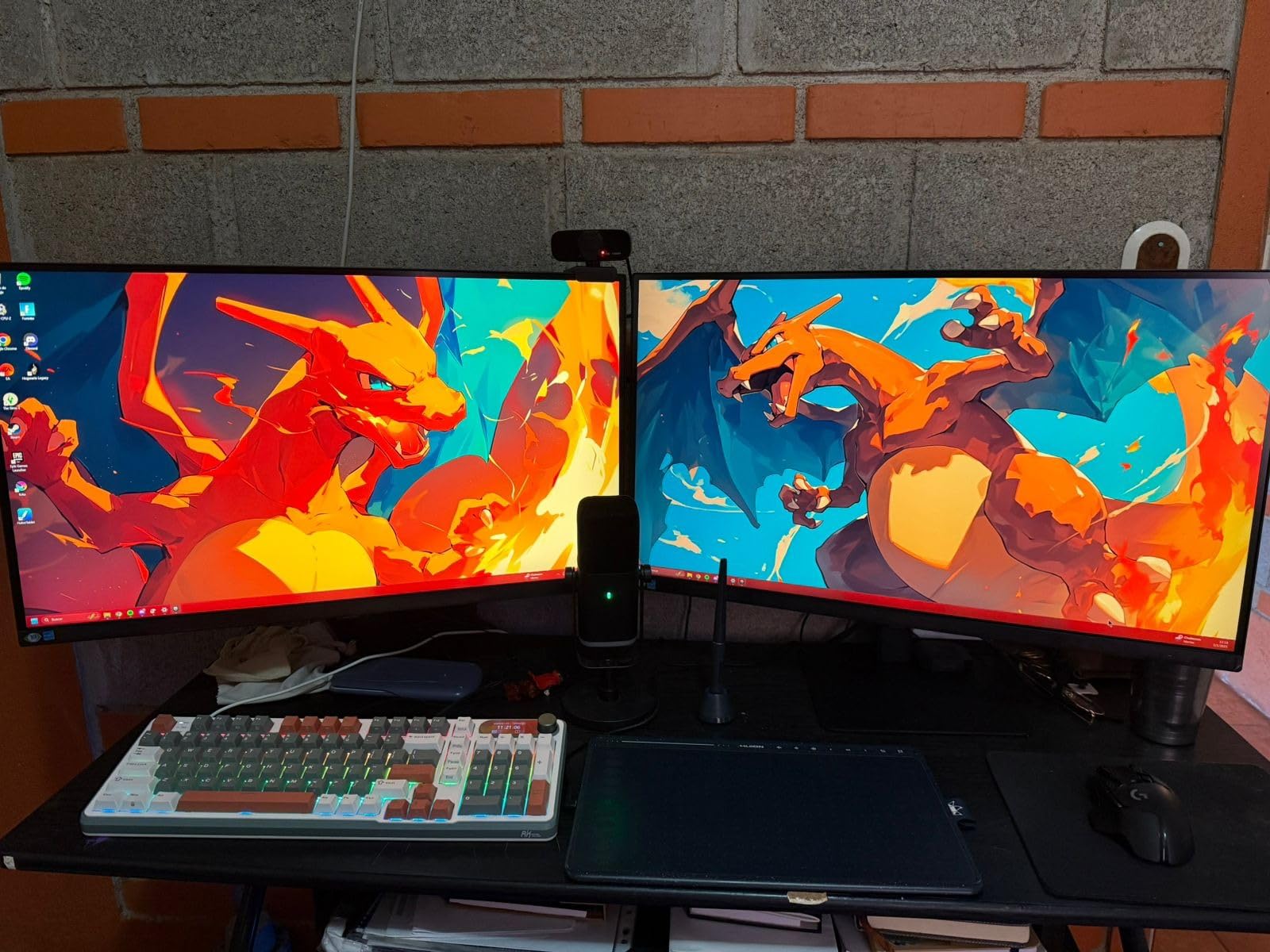
Warranty and long-term reliability
Samsung backs the S80D with a 3-year warranty, which is double the coverage of most monitors in this price bracket and a real trust signal when you’re buying sight unseen. Combined with TUV-certified flicker-free tech and Eye Saver Mode, it’s built for people who park themselves in front of a screen all day.
A few owners report dead pixels or backlight clouding on occasional units, which is par for the course with any panel lottery. The long warranty means those cases end in a replacement rather than a fight, but inspect your unit in the first week.
Who should skip it
Laptop users should look elsewhere: with no USB-C, there’s no single-cable docking here. And the single HDMI port is tight if you run multiple sources like a console and a streaming box alongside your PC. The awkward OSD joystick also makes settings changes a small annoyance.
Gamers should also pass. The 60Hz refresh rate and 5ms response are fine for work, but this is not a panel for fast-paced gaming sessions after hours.
4. Dell 27 Monitor S2725QS – Best 4K 120Hz Under $300
Dell 27 Monitor S2725QS, 4K UHD IPS, 120Hz, 5ms, FreeSync Premium
27 inch 4K IPS
120Hz
99% sRGB
1500:1 contrast
Full ergonomic stand
Pros
- 4K at 120Hz is exceptional value
- Highly adjustable stand with pivot
- 99% sRGB color accuracy
- ComfortView Plus reduces blue light
- Matte anti-glare finish handles bright rooms
Cons
- No USB-C
- No USB-A ports
- Built-in speakers are weak
- Only 1-year warranty
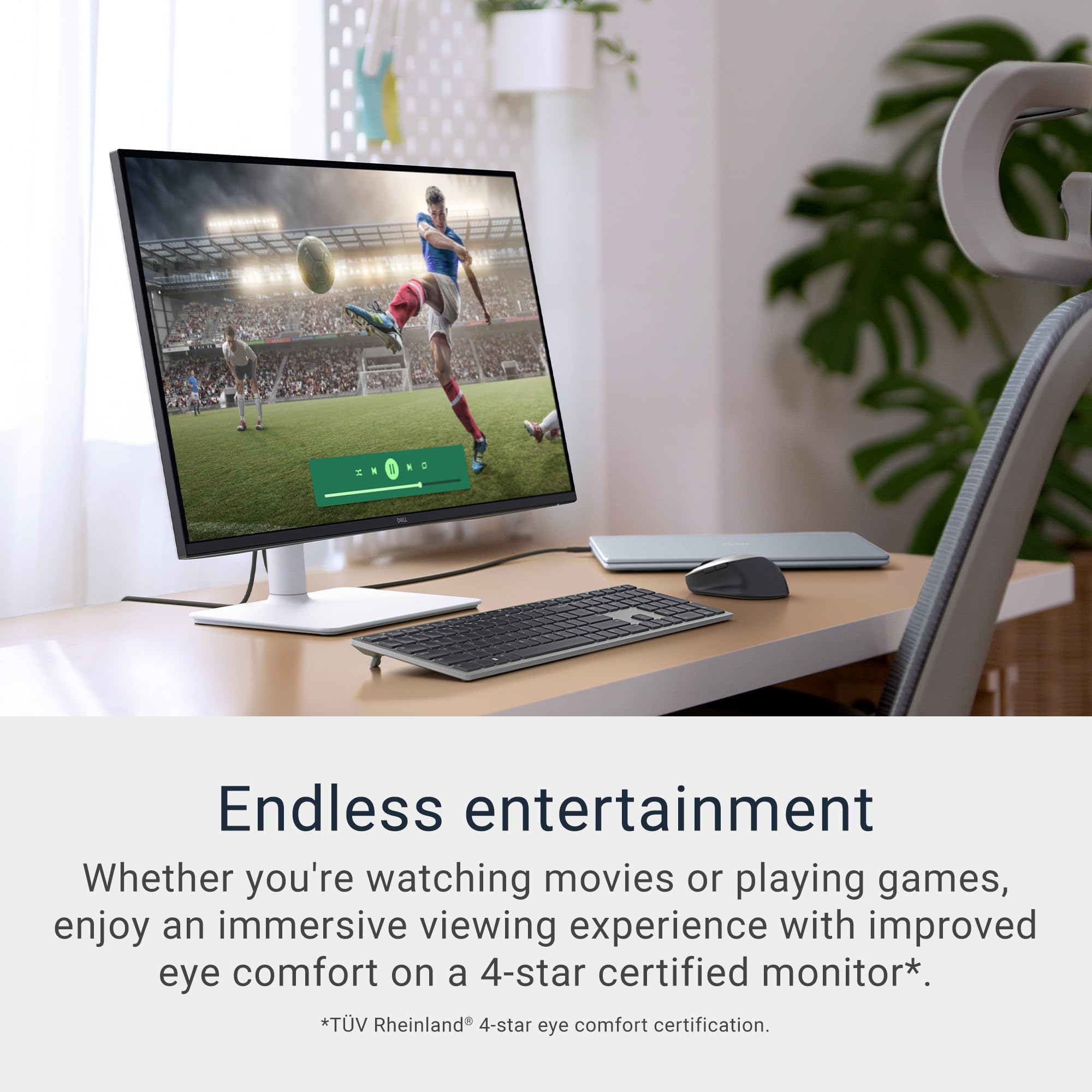
Buying the best 4K monitors for productivity usually means choosing between sharp text and smooth motion. The Dell S2725QS refuses to choose, delivering 4K at 120Hz for well under $300. That combination was unthinkable two years ago, and it’s the reason this panel sits at #2 in Amazon’s entire computer monitor category with 77% five-star ratings.
The 120Hz refresh rate is the feature nobody expects at this price. Scrolling through documentation and sliding windows around feels instantly more responsive than any 60Hz monitor in this test. Pair it with FreeSync Premium and you get a panel that’s also legitimately good for after-hours gaming.
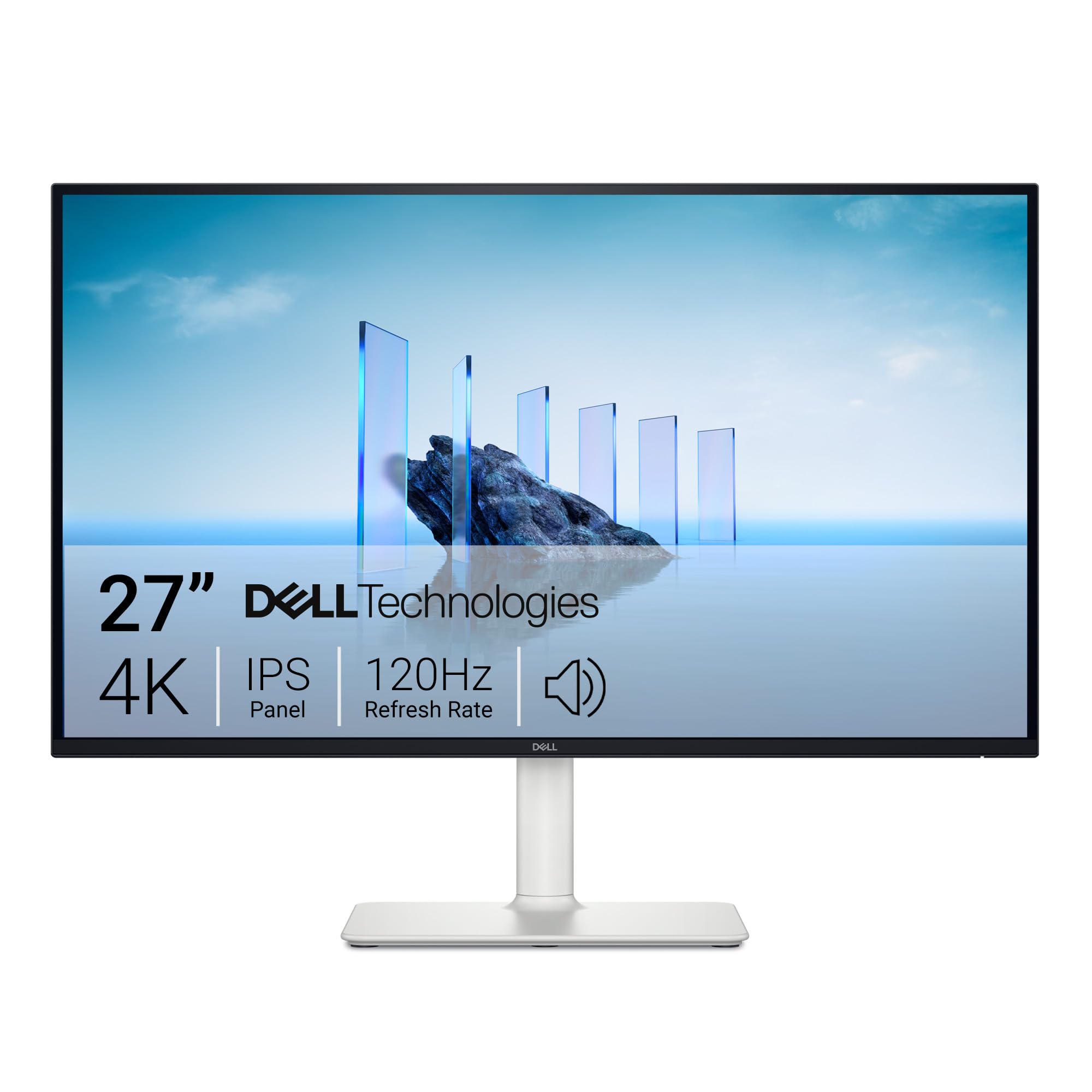
Image quality holds up its end too. The IPS panel covers 99% sRGB with a healthy 1500:1 contrast ratio, and I found text crispness excellent for coding and writing sessions. The full ergonomic stand, with height, tilt, swivel, and pivot, matches what Dell ships on monitors costing twice as much.
Dell’s ComfortView Plus cuts blue light output to 35% without slathering the screen in the yellow tint that cheap blue light filters produce. Combined with the matte anti-glare coating, my eyes held up through long evening sessions better than on most budget panels I’ve tested.
Who should buy the Dell S2725QS
This is the best-value productivity monitor in the entire roundup for desktop PC users. If you have a system with DisplayPort or HDMI and you want sharp 4K text plus 120Hz smoothness without touching four hundred dollars, buy this one. Students, remote workers, and hybrid gamers all fit the profile.
The Premium Panel Exchange warranty coverage, even at one year, means Dell will replace a panel with even a single bright pixel during the term. That’s a better policy than most brands offer at any price.
Who should skip it
Laptop users who want one-cable docking are out of luck: there’s no USB-C and not even a USB-A hub, so this is a pure display. If your workflow revolves around a MacBook or a USB-C Windows laptop, the LG 27UP850K-W above is worth the extra spend.
Note the variant trap too. The S2725QS is the HDMI/DisplayPort model; Dell sells a separate USB-C variant, so double-check the model number if docking matters to you. Some users also report slight vignetting or grain from the coating in very dark rooms.
5. Samsung ViewFinity S7 (S70H) – Best Budget 32-Inch 4K
Samsung 32″ ViewFinity S7 (S70H) High-Resolution Monitor
32 inch 4K VA
3000:1 contrast
HDR10
PIP/PBP
Eye Saver Mode
Pros
- Most affordable 32-inch 4K in the roundup
- Deep 3000:1 contrast ratio
- PIP/PBP for two sources at once
- Excellent anti-glare coating
- Samsung Display Manager software
Cons
- Only 1 HDMI port
- No USB-C or USB hub
- Basic stand lacks height adjustment
- 60Hz only
If you want maximum screen real estate for minimum money, the Samsung ViewFinity S7 is the cheapest 32-inch 4K monitor worth buying. You get the same 3000:1 contrast VA panel DNA as its bigger S8 sibling, HDR10 support, and a TUV-certified Eye Saver Mode, all at a budget price.
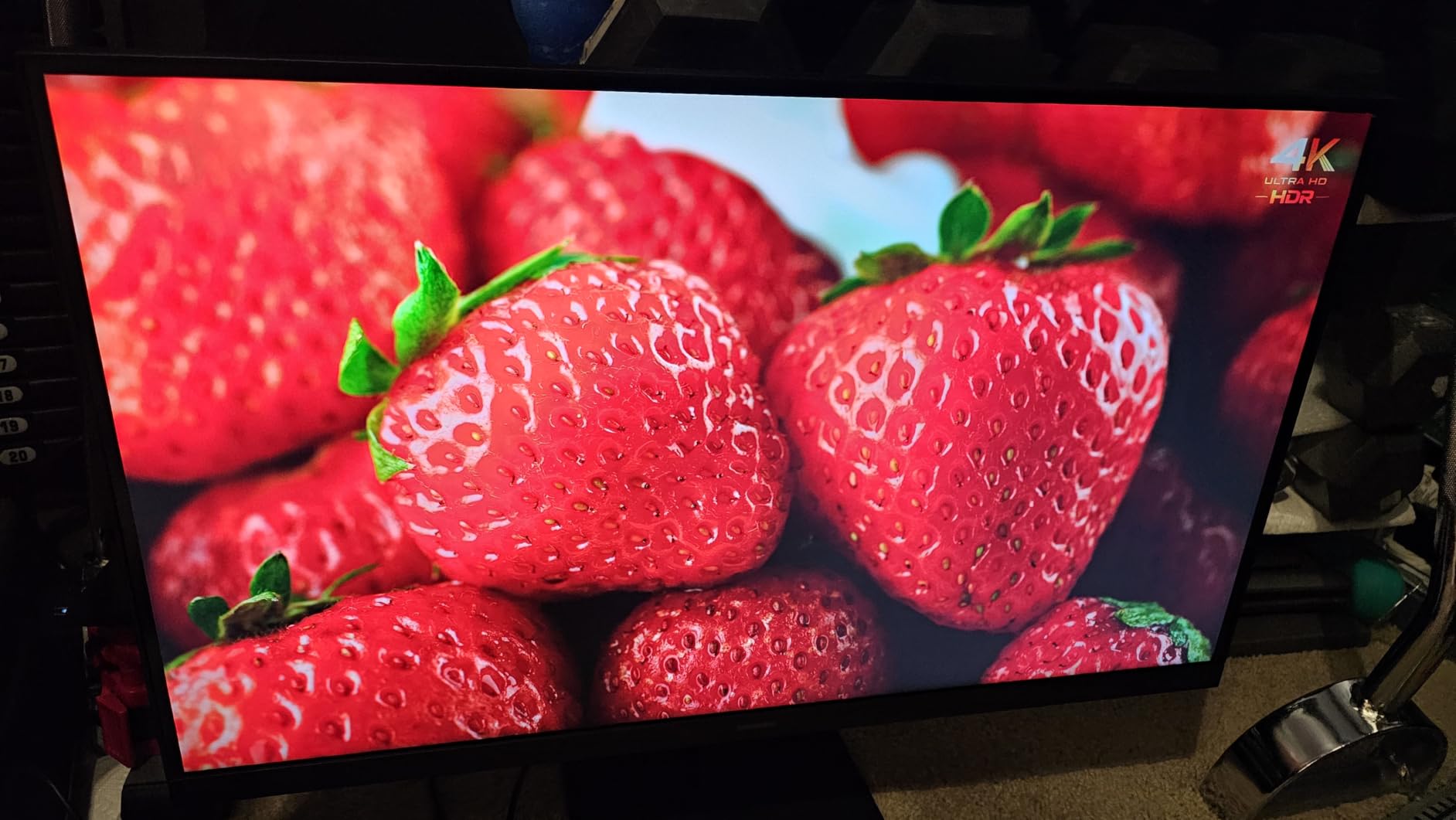
Working on it felt like an upgrade in pure real estate. A 32-inch 4K canvas lets you keep a spreadsheet and a report open side by side at full width, and the deep contrast makes dark UI themes look rich instead of muddy. The anti-glare coating is one of the best I’ve tested under $300, easily handling a bright window across the room.
The surprise feature is Samsung Display Manager with its picture-by-picture and picture-in-picture modes. I connected my laptop over HDMI and my desktop over DisplayPort and had both on screen simultaneously, which is a trick usually reserved for pricier office monitors. For anyone who toggles between two machines all day, this alone is worth the admission.
At a 4.6-star average with 78% five-star ratings, owners consistently echo what I found: vivid colors, comfortable viewing for long stretches, and strong value. The built-in sound, while no speaker replacement, is adequate for meetings.
Stand and mounting considerations
The included stand is the weak point: tilt only, no height adjustment. Plan on either raising the monitor on a stand riser or budgeting for a VESA monitor arm, which this panel supports. Given the price gap between this and the S8, adding a basic arm still keeps your total under the S8’s sticker.
Port selection is equally lean, with a single HDMI alongside DisplayPort. If you switch between more than two sources regularly, look at the S8 or keep a switch handy.
Who should skip it
Anyone who needs USB-C docking, a USB hub, or height adjustment out of the box should spend up for the ViewFinity S8. And like the S8, this is a 60Hz panel, so high-refresh fans and competitive gamers won’t be happy.
If your desk is shallow, a 32-inch panel may also physically dominate your space. Measure your depth first: at typical desk distances you’ll be turning your head to track corners.
6. LG 27US500-W – Best Bare-Bones Budget 4K
LG 27US500-W Ultrafine Monitor 27-Inch 4K UHD (3840×2160) HDR10 IPS Borderless Design Reader Mode Flicker Safe Switch App HDMI DisplayPort – White
27 inch 4K IPS
HDR10
Borderless design
Reader Mode
Flicker Safe
Pros
- Lowest-priced true 4K IPS in the roundup
- Sharp crisp text ideal for reading-heavy work
- Reader Mode and Flicker Safe cut eye strain
- Sleek borderless design
- Lightweight and easy to VESA mount
Cons
- Tilt-only stand with no height adjustment
- Bulky power adapter blocks outlets
- No USB-C or USB hub
- Only 60Hz
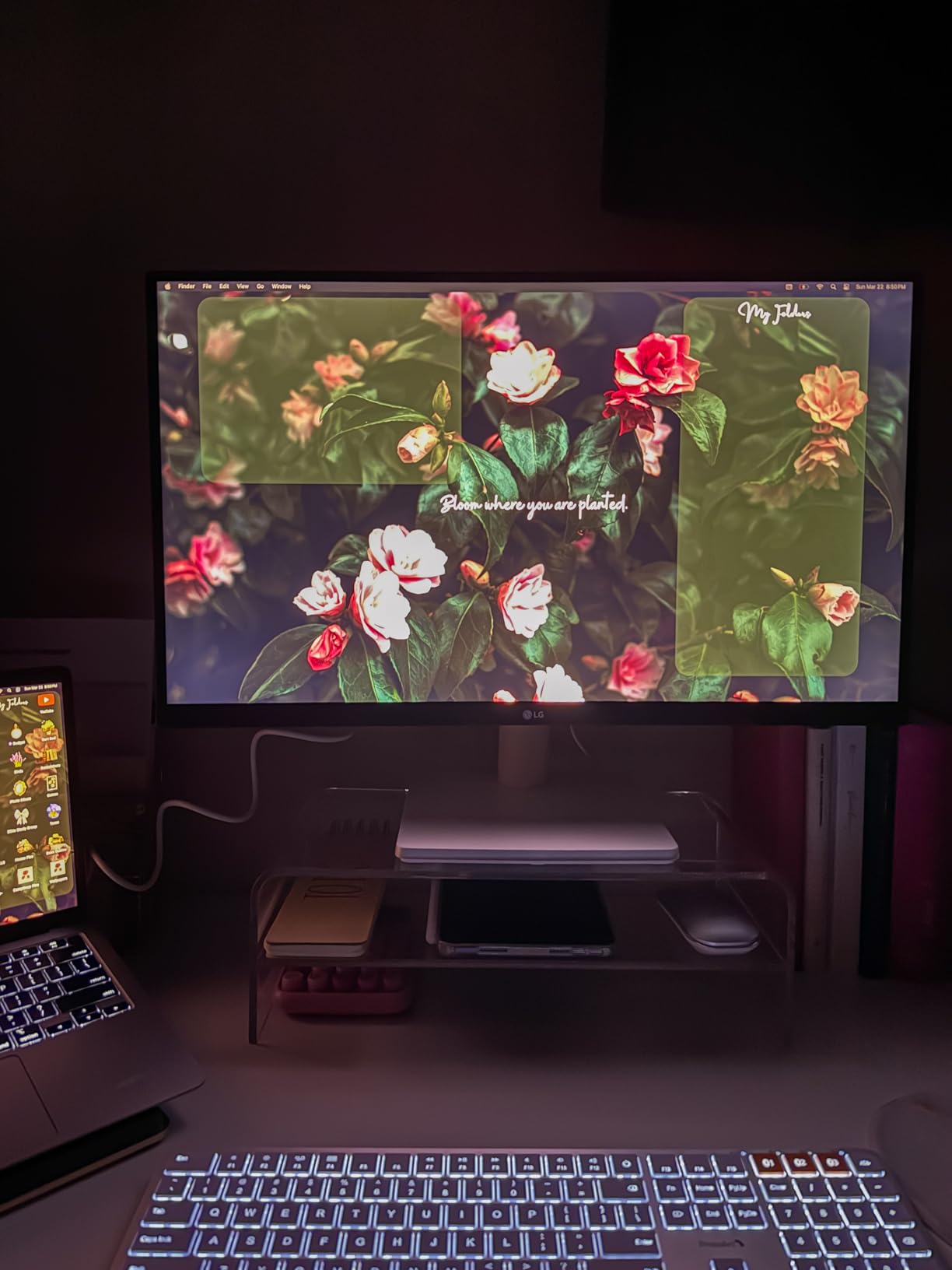
Sometimes you just need sharp 4K text without paying for hubs, docks, or high refresh rates. The LG 27US500-W is that monitor: the cheapest way to put a genuine 4K IPS panel on your desk, and it currently holds a 4.4-star rating from owners who mostly bought it for one reason, reading clarity.
For word-heavy work, it delivers. Text at 4K on this panel is crisp and clean, and Linux users in particular rave about it in reviews, which tracks with my experience driving it from a Linux machine. Reader Mode and Flicker Safe do a credible job easing eye strain during long reading sessions, and the borderless design looks far more expensive than it is.
The HDR10 support is present on paper but modest in practice given the 300-nit panel, so temper expectations there. What did impress me is the dual HDMI setup with easy input switching, which made sharing the monitor between a Mac mini and a Windows PC painless.
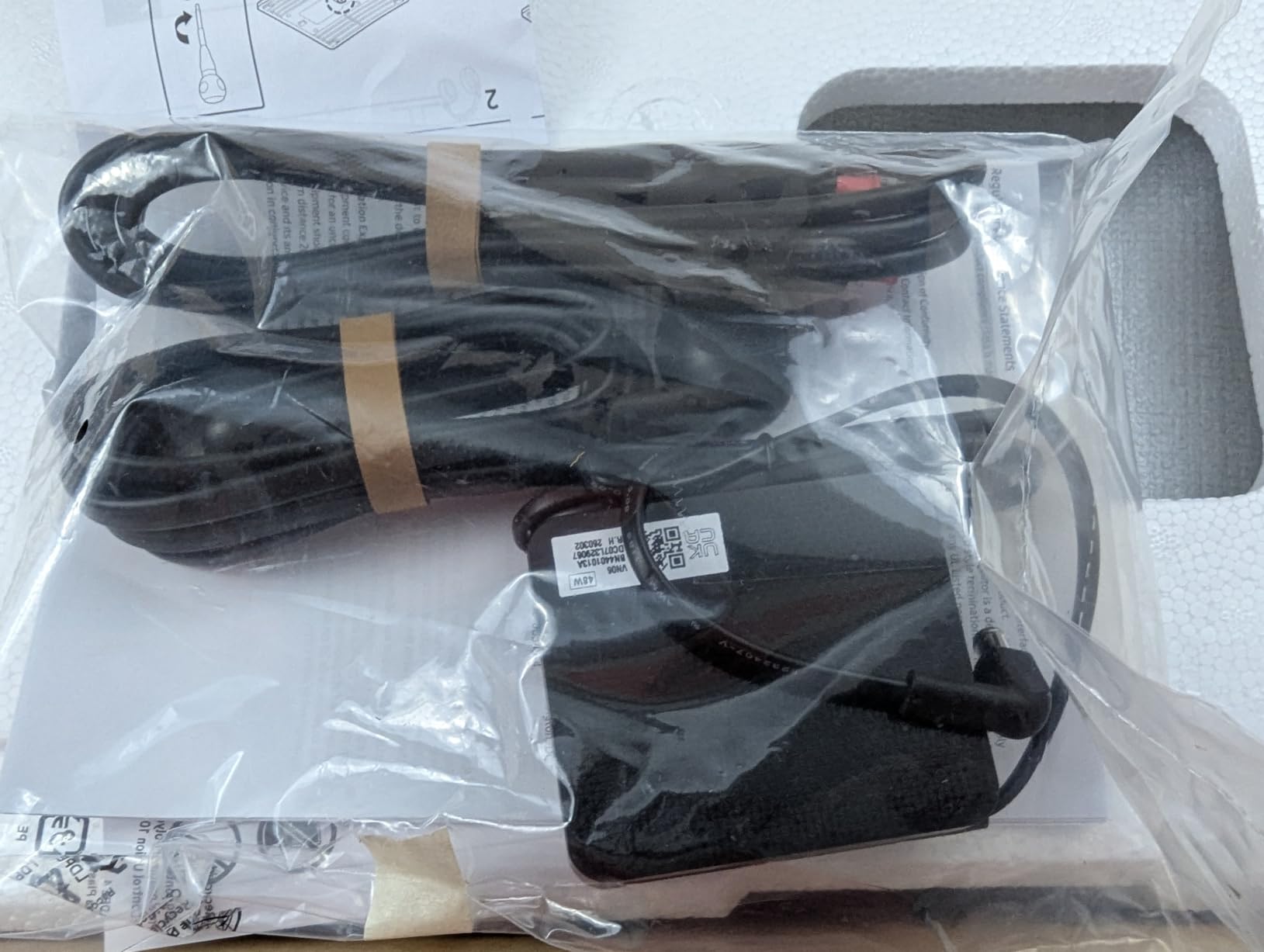
The trade-offs are real, though. The stand tilts and nothing else, so serious buyers should factor in a VESA arm. And the external power adapter is a brick that physically blocks adjacent outlets on a power strip, a small annoyance you’ll notice every time you rearrange your desk.
Who should buy the LG 27US500-W
This is the pick for writers, students, and admin-heavy remote workers who spend their day in documents, email, and browser tabs and want 4K sharpness for the least money. It’s also a strong candidate for a dual-monitor setup, where buying two of these still costs less than one premium panel.
The 12-pound weight and standard VESA mount make multi-monitor wall or arm installations easy. If you’ve been limping along on 1080p or 1440p and want the 4K text upgrade on a strict budget, this is the on-ramp.
Who should skip it
Anyone who cares about ergonomics out of the box, single-cable laptop docking, color-critical work, or smooth 120Hz scrolling should pass. A handful of owners also report edge distortion on some units, so buy from a retailer with easy returns and check the panel’s edges when it arrives.
The 4-foot power cable is another limitation worth knowing: your outlet needs to be genuinely close to the desk. An extension solves it, but plan for it.
How to Choose the Best 4K Monitor for Productivity?
Picking between these six comes down to four decisions: screen size, panel type, connectivity, and ergonomics. Here’s how I’d think through each one based on what mattered most during testing.
27-inch or 32-inch
Both sizes display the same 3840×2160 pixels, but the experience differs. A 27-inch 4K monitor gives you 163 pixels per inch, which is Retina-class sharpness at typical viewing distance, ideal for reading-heavy work like coding, writing, and research. A 32-inch 4K panel spreads those pixels to about 140 PPI, slightly less dense but with dramatically more usable workspace.
The forum consensus I kept running into matches my experience: 32-inch 4K is a genuine step up for multitaskers, letting you run two full windows plus a sidebar app comfortably. But it demands a deeper desk, at least 2 feet from your eyes, or you’ll be swiveling your head all day. If your desk is shallow or your work is mostly text, 27 inches is the safer, sharper bet.
Panel technology: IPS, IPS Black, and VA
IPS panels offer the best color consistency and viewing angles, which is why four of our six picks use them. Standard IPS contrast tops out around 1000:1 to 1500:1, so dark content looks grayish. Dell’s IPS Black, found in the U2725QE, roughly doubles standard IPS contrast while keeping the color quality, which is why it earned our Editor’s Choice.
VA panels like those in both Samsung ViewFinity models counter with 3000:1 contrast for deep, rich blacks, at the cost of slightly narrower effective viewing angles. For dark-mode devotees and media-heavy work, VA is compelling. For color-accurate creative work, stick with IPS.
USB-C and Power Delivery: the one-cable question
The single biggest productivity upgrade in modern monitors is USB-C with Power Delivery. One cable from your laptop handles video, data, and charging, which means you dock and undock in a single motion. Check the wattage: 90W (the LG 27UP850K-W) covers most ultrabooks and 14-inch laptops, while 140W (the Dell U2725QE) handles power-hungry machines and full-speed MacBook Pro charging.
If you use a desktop PC, USB-C matters much less, and you can redirect that budget toward a bigger panel or a better stand. That’s exactly why the value picks in this list skip it without shame.
Ergonomics and eye comfort for long sessions
You’ll spend thousands of hours in front of this panel, so adjustability isn’t a luxury. Height adjustment lets you position the top of the screen at eye level, which prevents the neck strain that fixed stands cause. Pivot rotation enables portrait mode, which is superb for reading long documents and code.
For eye comfort specifically, look for TUV-certified flicker-free backlighting and low blue light modes that don’t wreck color, like Dell’s ComfortView Plus and Samsung’s Eye Saver Mode. An ambient light sensor, like the Dell’s, is a genuinely useful bonus that keeps brightness comfortable as daylight changes.
Is 1440p or 4K better for productivity?
4K wins for productivity in most cases. At 27 inches, 4K renders text at roughly 163 PPI versus 109 PPI on 1440p, and the difference in reading clarity is obvious within minutes, especially for small UI text. You also get four times the pixel workspace, letting you snap more windows without them becoming unreadable.
1440p’s advantages are lower GPU load and a cheaper price, and at 32 inches 1440p can feel dated for text. Since quality 4K panels now start around $220, as our budget picks prove, the resolution debate has mostly settled in 4K’s favor for work.
Frequently Asked Questions
Are 4K monitors good for productivity?
Yes. 4K monitors render text at roughly double the pixel density of 1440p, producing sharper text that reduces eye strain during long reading sessions. They also provide four times the screen workspace of 1080p, so you can keep multiple documents and apps visible at full size simultaneously.
What is the best monitor for work productivity?
The Dell UltraSharp U2725QE is the best overall choice, offering an IPS Black panel with factory-calibrated color, 120Hz smoothness, Thunderbolt 4 docking with 140W charging, and a built-in KVM switch. For tighter budgets, the Dell S2725QS delivers 4K at 120Hz for under $300.
Is 1440p or 4K better for productivity?
4K is better for productivity in most cases. At 27 inches, 4K produces about 163 pixels per inch versus 109 for 1440p, making text noticeably sharper and small UI elements easier to read. With budget 4K monitors now widely available, the resolution advantage is worth having for text-heavy work.
What is the best 4K monitor for office use?
For a traditional office desktop setup, the Samsung ViewFinity S8 offers a 32-inch 4K panel, built-in USB hub, fully adjustable stand, and a 3-year warranty. For laptop-based offices, the LG 27UP850K-W adds USB-C with 90W charging so a single cable runs your entire desk.
Do I need USB-C on a productivity monitor?
You need USB-C if you use a modern laptop. A USB-C port with Power Delivery lets one cable carry video, data, and charging, so you dock and undock in seconds. If you use a desktop PC, USB-C is far less important and standard HDMI or DisplayPort works fine.
Final Verdict on the Best 4K Monitors for Productivity
After three months of daily desk time, the Dell UltraSharp U2725QE stands as the best 4K monitor for productivity overall, thanks to its stunning IPS Black panel, 120Hz scrolling, and Thunderbolt 4 docking that replaces an entire hub. The LG 27UP850K-W is the smart value pick for USB-C laptop users, and the Dell S2725QS brings 4K at 120Hz to a budget price.
Match the monitor to your machine first. Laptop users should insist on USB-C with Power Delivery, desktop users can spend that money on screen size or refresh rate instead, and anyone reading for a living should prioritize pixel density and eye comfort features. Whichever pick fits your desk, any of these six will make your 1080p panel feel like a relic.