
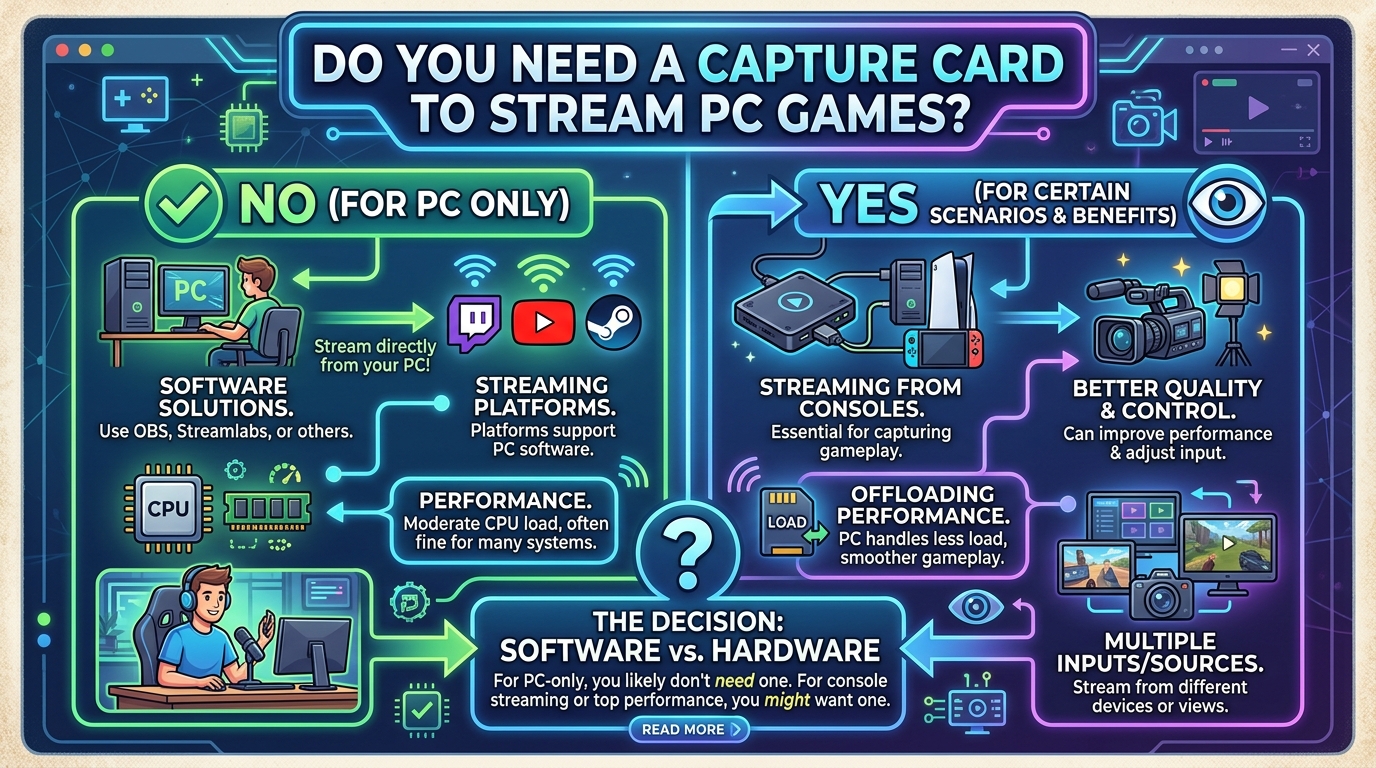
No, you do not need a capture card to stream PC games from a single computer. If you are playing and streaming on the same PC, software like OBS Studio can grab your game’s video output directly from your graphics card and broadcast it to Twitch, YouTube, or Kick with no extra hardware in between.
This is one of the most common questions new streamers ask, and the answer surprises a lot of people who assume they need to buy a capture card before going live. The marketing around capture cards from brands like Elgato and AVerMedia can make it seem like a mandatory purchase, but for the vast majority of PC streamers, it simply is not.
In this guide, I will break down exactly when you do and do not need a capture card, how OBS Studio captures your game without one, the role of hardware encoders like NVENC and AMD VCE, and a step-by-step OBS setup you can follow today. I will also address the persistent myth that capture cards “offload” encoding work, because that misunderstanding leads a lot of people to spend money they do not need to spend.
Table of Contents
Can I Stream on PC Without a Capture Card? The Quick Answer
Yes, you can stream on PC without a capture card, and most PC streamers do exactly that. OBS Studio and other streaming software capture your game’s video output directly from your graphics card using a method called Game Capture. You do not need a capture card to stream PC games from the same computer you are gaming on.
The only scenarios where a capture card becomes necessary are streaming from a game console (PlayStation 5, Xbox Series X, Nintendo Switch), running a dual-PC setup, or connecting an external camera like a DSLR. If none of those apply to you, save your money.
What Is a Capture Card?
A capture card is a hardware device that takes a video and audio signal from an external source, like a game console or camera, converts that signal into a digital format, and sends it to your computer over USB or a PCIe connection. Your streaming software, usually OBS Studio, then picks up that signal and broadcasts it.
Think of it as a translator between a device that outputs video over HDMI and your PC, which needs that video in a form it can process. The capture card sits in the middle, grabbing the HDMI signal and turning it into something OBS can display as a source.
How a Capture Card Works: The Signal Flow
The signal flow is straightforward once you picture it. Your source device, say a PlayStation 5, outputs video over HDMI. That HDMI cable plugs into the capture card’s input. The capture card’s onboard chip converts the incoming HDMI signal into a digital video stream. That stream then travels to your computer through a USB cable (for external cards) or a PCIe slot (for internal cards). OBS Studio recognizes the capture card as a video source and adds it to your scene.
Most capture cards also offer HDMI passthrough, which sends the original signal to your TV or monitor at the same time, so you can play the game with zero latency while the captured version goes to your PC for streaming. This is why console streamers need them: there is no other way to get the console’s HDMI output into OBS on your PC.
Internal PCIe vs External USB Capture Cards
Capture cards come in two main forms. Internal cards install directly into a PCIe slot on your motherboard, like a graphics card would. Examples include the Elgato Game Capture 4K60 Pro and AVerMedia Live Gamer 4K. They tend to offer higher bandwidth and lower latency, which matters if you are capturing 4K60 or high refresh rate signals.
External cards are small boxes that connect via USB, often USB-C or USB 3.0. The Elgato Cam Link and AVerMedia Live Gamer ULTRA fall into this category. They are portable, easy to set up, and work with laptops. The trade-off is that USB bandwidth can be a bottleneck for very high resolution or frame rate capture.
For PC game streaming specifically, neither type helps you, because the problem they solve, getting an external HDMI signal into your PC, does not exist when the game is already running on that same PC.
Why You Do Not Need a Capture Card for PC Streaming
The fundamental reason you do not need a capture card for PC streaming is that your game’s video output is already on your computer. When you play a game on PC, the graphics card renders frames and sends them to your monitor. OBS Studio can intercept those frames directly, before they ever leave the system. There is no external HDMI signal to capture, because everything is happening inside one machine.
A capture card is designed to solve a different problem: bringing an external video signal into your PC. When the source is already your PC, adding a capture card would mean routing your GPU’s output out of the computer through HDMI, into the capture card, and back into the same computer. That loop adds latency, costs money, and provides no benefit. It is, in the most literal sense, a solution looking for a problem that does not exist.
OBS Game Capture vs Display Capture: What Actually Matters
This is where most guides go silent, and it is one of the most practical things you need to understand. OBS Studio offers several ways to capture your PC’s video, and the one you choose has a real impact on performance and quality.
Game Capture is OBS’s preferred method. It works by hooking directly into the game’s rendering pipeline through DirectX, Vulkan, or OpenGL. Instead of recording your screen, OBS grabs the game’s frames at the moment they are created, before they are composited with your desktop, overlays, or other windows. This is efficient because OBS only processes the game frames, not your entire display.
Display Capture takes a different approach. It records your entire monitor output, including the desktop, taskbar, browser windows, and anything else visible on screen. Because it captures everything, it uses more resources. Forum users on Reddit consistently report that Display Capture causes higher FPS drops and frame pacing issues compared to Game Capture, especially on mid-range hardware.
The practical takeaway: use Game Capture whenever possible. It is faster, cleaner, and more private (you will not accidentally stream your desktop or notification popups). Only fall back to Display Capture when Game Capture does not work with a particular game, which is rare but does happen with some older titles or games running in exclusive fullscreen mode.
Hardware Encoders: NVENC, AMD VCE, and Intel Quick Sync
This is the piece that makes capture cards unnecessary for the vast majority of PC streamers. Modern graphics cards and CPUs include dedicated hardware encoders, separate chips whose only job is to compress video for streaming or recording. Using them does not compete with your game for GPU or CPU resources in any meaningful way.
NVIDIA’s encoder is called NVENC, and it is built into every GeForce RTX and GTX card from the GTX 1660 onward. The current generation, sometimes called NVENC 8th gen on RTX 40 series cards, produces quality that rivals or matches older capture card encoders. In OBS, you select “NVIDIA NVENC H.264” or “NVIDIA NVENC HEVC” as your encoder, and the dedicated chip handles the compression while your GPU’s main cores keep rendering the game.
AMD’s equivalent is called VCE (Video Coding Engine) on older cards and VCN (Video Core Next) on newer Radeon RX cards. It works the same way: a dedicated encoding chip on the GPU that OBS can use. In OBS, it appears as “AMD HW H.264” or “AMD HW HEVC.” Quality is competitive with NVENC on recent generations, and AMD has closed the gap significantly in the past few years.
Intel’s Quick Sync Video is built into Intel integrated graphics (the Iris Xe and UHD Graphics in most Intel CPUs). If you have an Intel CPU with integrated graphics and a discrete NVIDIA or AMD GPU for gaming, you can actually use Quick Sync for encoding on the iGPU while your discrete GPU handles the game. This is a popular trick for streamers who want zero encoding overhead on their main GPU.
The point: your PC almost certainly already has a hardware encoder. That encoder does the same job a capture card’s onboard encoder would do, and it does it without requiring you to buy, install, or configure additional hardware.
The Encoding Offloading Myth, Debunked
This is the single biggest misconception in the capture card space, and it needs a clear debunking. You will see claims, including on some manufacturer blogs, that adding a capture card to a single-PC setup will “offload the encoding workload from your CPU and GPU” and improve your in-game performance. This is not true, and understanding why is worth a few minutes.
Here is what actually happens. When you add a capture card to a single-PC streaming setup, your GPU still has to render the game. Your encoder, whether it is NVENC on your GPU or a separate chip, still has to compress the video. The only difference is that the video now takes a pointless round trip: out of your GPU, through an HDMI cable, into the capture card, back into your PC over USB or PCIe, and into OBS. The capture card’s own encoder is not doing the streaming encode in a single-PC setup, because OBS is still the one producing the final stream output.
The confusion comes from dual-PC setups, where the capture card genuinely does serve a purpose. In a dual-PC configuration, the capture card receives the gaming PC’s video and sends it to a separate streaming PC, which handles the encoding. In that scenario, the gaming PC’s CPU and GPU are freed from encoding work. But that benefit only exists because there are two computers involved.
On a single PC, the capture card cannot offload anything, because the same computer is still doing both jobs. Elgato, to their credit, says this clearly on their own site. AVerMedia’s blog has previously claimed otherwise, and that claim is misleading. If anyone tells you a capture card will boost your FPS on a single-PC stream, they are either confused or trying to sell you something.
The real performance cost of PC streaming comes from the encoder, not from the capture method. Switch from CPU-based x264 software encoding to NVENC hardware encoding, and you will see a much bigger performance improvement than any capture card could ever provide.
When You DO Need a Capture Card
Capture cards are not useless hardware. There are several legitimate scenarios where they are the right tool, and in some cases the only tool, for the job. Here is when a capture card actually earns its place in your setup.
Streaming From a Console (PS5, Xbox Series X, Nintendo Switch)
This is the big one. If you want to stream PlayStation 5, Xbox Series X, or Nintendo Switch gameplay with overlays, alerts, a webcam, and the production quality that OBS provides, you need a capture card. Consoles output video over HDMI, and there is no software-only way to get that HDMI signal into OBS on your PC.
Yes, the PS5 and Xbox have built-in streaming directly to Twitch and YouTube. But those built-in options are limited. You cannot add custom overlays, you cannot run alerts, you cannot use a scene layout with a webcam corner, and you cannot multistream to multiple platforms at once. If you want any of that, you need to get the console’s video into OBS on your PC, and that means a capture card.
For Nintendo Switch, the situation is even clearer. The Switch has no built-in streaming capability at all, so a capture card is mandatory if you want to broadcast Switch gameplay.
Dual-PC Streaming Setups
A dual-PC setup uses one computer for gaming and a second computer dedicated to encoding and streaming. The gaming PC outputs its video over HDMI to a capture card connected to the streaming PC. The streaming PC runs OBS, handles the encoding, manages overlays and alerts, and sends the final stream to Twitch or YouTube.
The advantage is that the gaming PC does zero encoding work, which can improve game performance in CPU-heavy titles or at very high bitrates. This is popular among competitive streamers, sim racers, and anyone pushing 4K or high frame rate content where every bit of GPU and CPU overhead matters.
The disadvantage is cost and complexity. You need two capable computers, a capture card, two monitors (or a KVM switch), and a network connection between them, often via a dedicated Ethernet cable or NDI. For most streamers, especially those just starting out, a single powerful PC with NVENC encoding delivers the same quality with far less hassle.
DSLR and External Cameras
If you want to use a DSLR, mirrorless camera, or camcorder as your webcam, you need a way to get that camera’s HDMI output into your PC. Capture cards like the Elgato Cam Link 4K and AVerMedia Live Streamer CAP 4K are designed exactly for this. They are small, USB-based devices that turn a camera into a high-quality webcam source for OBS.
This is a legitimate and common use case, and it has nothing to do with game capture. The capture card here is serving as a video input device for your camera, not as a game streaming tool.
Remote Play: A No-Capture-Card Alternative for Consoles
There is one workaround for console streaming that does not require a capture card, and it is worth knowing about. Both PlayStation and Xbox offer remote play apps that let you view and control your console from a PC over your home network.
PS5 Remote Play and the Xbox app for Windows both render the console’s video on your PC screen. From there, OBS can capture that window using Window Capture or Display Capture, just like it captures a PC game. The quality is slightly lower than a direct HDMI capture, and there can be minor latency, but for casual console streaming it works surprisingly well and costs nothing.
How to Stream PC Games Without a Capture Card: OBS Setup Guide
If you have decided to skip the capture card, and you should for PC streaming, here is how to get OBS Studio set up and streaming in about 15 minutes. These steps assume you are on Windows with a recent NVIDIA, AMD, or Intel GPU.
Step 1: Download and install OBS Studio. Get it from obsproject.com, not a third-party site. The installer is free and handles everything. Launch OBS once installed and run the automatic setup wizard, which will test your system and recommend base settings for your hardware.
Step 2: Add a Game Capture source. In the Sources panel at the bottom of the OBS window, click the plus button and select Game Capture. Name it something obvious like “Gameplay.” Leave the mode on “Capture any fullscreen application” if you want OBS to automatically grab whatever game you launch, or switch to “Capture specific window” if you want to target a particular game.
Step 3: Configure your encoder. Go to Settings, then Output, and set Output Mode to Advanced. Under the Streaming tab, look for the Encoder dropdown. If you have an NVIDIA GPU, choose “NVIDIA NVENC H.264.” For AMD, choose “AMD HW H.264.” For Intel integrated graphics, choose “QuickSync H.264.” Do not choose x264 (CPU encoding) unless you have no hardware encoder available, because it will compete with your game for CPU resources.
Step 4: Set your bitrate. For Twitch, aim for 6000 kbps if your upload speed supports it, which most home internet connections do. For YouTube, you can go higher, 9000 to 12000 kbps for 1080p60. Set your keyframe interval to 2 seconds, which is what Twitch requires. Use the CBR (Constant Bitrate) rate control setting for live streaming.
Step 5: Set your resolution and frame rate. Under Settings, Video, set Base (Canvas) Resolution to your monitor’s native resolution, typically 1920×1080 or 2560×1440. Set Output (Scaled) Resolution to 1920×1080 for streaming, because that is what Twitch and most YouTube setups expect. Set FPS to 60 if you are streaming fast-paced games, or 30 for slower content.
Step 6: Add your webcam and overlays. Click the plus button in Sources again and add Video Capture Device for your webcam. Add Image sources for overlays, alert boxes, and any graphics. Arrange them in the preview window. You can also install Stream Elements or Streamlabs desktop alert widgets as browser sources for follower and donation alerts.
Step 7: Connect your streaming platform. Go to Settings, Stream, and paste your stream key from Twitch, YouTube, or Kick. Click Start Streaming and you are live. Run a test stream with a private or unlisted broadcast first to confirm everything looks right before going public.
Minimum PC Specs for Streaming Without a Capture Card
One of the most common questions on Reddit streaming communities is whether a given PC can handle streaming without a capture card. The answer depends on what you are playing and at what quality, but here are reasonable baselines.
For 1080p60 streaming of moderately demanding games, you want at least a six-core CPU (an Intel Core i5-10400 or AMD Ryzen 5 3600 as a floor), 16 GB of RAM, and a GPU with a hardware encoder. On the NVIDIA side, a GTX 1660 Super or anything newer will work. On AMD, a Radeon RX 5600 XT or newer. For more demanding games or higher quality streams, an RTX 3060 or RX 6600 XT and up will give you headroom.
Internet matters too. You need at least 10 Mbps upload for a clean 1080p60 stream at 6000 kbps, with overhead for your game’s network traffic and anything else happening on your connection. A wired Ethernet connection is strongly recommended over Wi-Fi for stability.
If your PC is older or weaker than these baselines, you may see FPS drops when streaming, but that is an encoder problem, not a capture card problem. A capture card will not help. Upgrading your GPU to something with a better hardware encoder, or dropping your stream resolution to 720p60, will.
FAQs
Can I stream on PC without a capture card?
Yes. OBS Studio can capture your game directly from your graphics card using Game Capture, and your GPU’s hardware encoder (NVENC, AMD VCE, or Intel Quick Sync) handles the video compression. You do not need a capture card to stream PC games from the same computer you are gaming on.
Do I need a capture card for a gaming PC?
No. If you are streaming PC games from the same gaming PC you play on, a capture card serves no purpose. OBS captures the game output directly from your GPU. A capture card only becomes necessary for console streaming, dual-PC setups, or connecting an external camera like a DSLR.
Will streaming without a capture card reduce my FPS?
Streaming will use some GPU or CPU resources, but using a hardware encoder like NVENC keeps the impact minimal, usually 3 to 8 percent on a mid-range GPU. Adding a capture card to a single-PC setup will not reduce this further, because the same computer still does the encoding work.
What is needed to stream games on PC?
You need a gaming PC with a hardware encoder, streaming software like OBS Studio, a stable internet connection with at least 10 Mbps upload for 1080p60, and optionally a microphone and webcam. A capture card is not required for PC game streaming.
Do PC streamers use capture cards?
Most PC streamers do not use a capture card. They use OBS Studio with Game Capture and their GPU’s hardware encoder. Capture cards are more common among console streamers, dual-PC setups, and creators using DSLR cameras.
Is NVENC better than a capture card?
For single-PC streaming, NVENC is functionally equivalent to or better than a capture card, because both use a dedicated hardware encoder. NVENC is already on your GPU, costs nothing extra, and produces excellent quality on RTX 30 and 40 series cards. A capture card adds no quality benefit on a single PC.
Can I use a webcam without a capture card?
Yes. Standard USB webcams plug directly into your PC and appear as a Video Capture Device in OBS with no capture card needed. You only need a capture card if you want to use a DSLR, mirrorless camera, or other HDMI-output camera as your webcam.
Conclusion: Skip the Capture Card for PC Streaming
If you take one thing from this article, let it be this: you do not need a capture card to stream PC games. OBS Studio, paired with the hardware encoder already on your GPU, captures and encodes your gameplay with no extra hardware required. Save the capture card for when you start streaming from a console, building a dual-PC setup, or connecting a DSLR.
Download OBS Studio, follow the setup steps above, and run a test stream tonight. The path from “thinking about streaming” to “actually streaming” is shorter and cheaper than the marketing makes it look.