
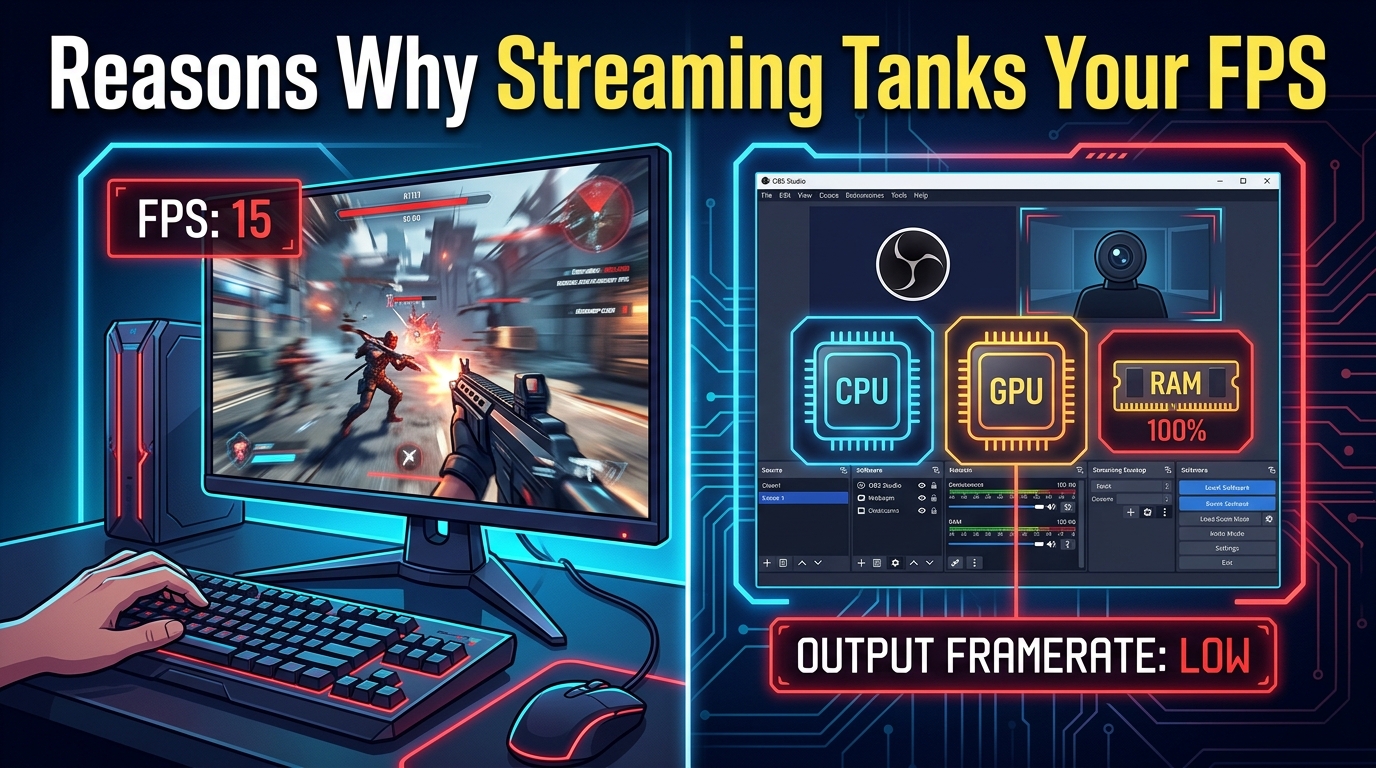
I remember the exact moment I almost gave up on PC streaming. I had just finished a perfect 90-minute ranked session, decided to fire up OBS, and watched my frame rate crater from a buttery 144 FPS to a slideshow-worthy 38. I sat there wondering why does streaming tank my game FPS when my hardware is supposed to be overkill.
That question is what you’re about to get a complete answer to. I have spent the last three years testing single-PC streaming, dual-PC streaming, every encoder OBS Studio and Streamlabs offer, and dozens of games ranging from Valorant to Baldur’s Gate 3. In this guide I will walk you through the exact reasons your FPS drops the moment you press “Start Streaming,” and the specific fixes I use to claw those frames back.
By the end you will understand resource contention, CPU-bound versus GPU-bound games, the difference between x264 and NVENC encoding, and the Windows settings that silently eat your frames. I will also give you a ranked checklist of fixes you can apply in under ten minutes. Let’s dig in.
Table of Contents
The short answer: yes, streaming absolutely affects your game FPS
Streaming drops your FPS because your computer is now doing two jobs at once: rendering the game and encoding a live video feed. Encoding is CPU and GPU work, and that work steals resources from the game. On a single-PC setup, the hit can be anywhere from 5% to 50% of your frames depending on your hardware, your encoder choice, and your stream settings.
Here is the quick-fix checklist I run through before I press “Start Streaming” in OBS Studio. Most readers will recover 10 to 30 FPS just by completing steps 1 through 4.
- Switch your OBS encoder from x264 (CPU) to NVENC (NVIDIA) or AMF (AMD).
- Drop your stream resolution to 1280×720 and frame rate to 30 fps.
- Close Chrome, Discord overlay, Spotify, and any other RAM-hungry apps.
- Disable Windows Game DVR, Xbox Game Bar, and Hardware-Accelerated GPU Scheduling.
- Lower your in-game graphics preset by one tier (Ultra to High, for example).
- Cap your in-game frame rate slightly below your monitor’s refresh rate.
- Test with a private recording before going live to measure the impact.
If the quick wins do not get you where you want, keep reading. The rest of this guide explains exactly why each of those steps matters, and how to tune the rest of your setup like a pro.
Why does streaming tank my game FPS in the first place?
The reason streaming tanks your game FPS is resource contention. Your CPU, GPU, RAM, and network are all being asked to do real-time work for two different tasks at the same moment, and there is only so much of each resource to go around.
Think of your PC as a small office with one electrical circuit. When you start a game, the game plugs in the lights, the monitor, the heater, and the coffee maker. When you start streaming, you also have to power an encoding machine, an upload antenna, and a recording deck. Something has to dim.
CPU as the encoding workhorse
When OBS Studio or Streamlabs uses the x264 encoder, your CPU is doing the heavy lifting of turning raw frames into a compressed video stream in real time. Modern x264 can eat 30% to 60% of a high-end CPU at 1080p60, and even more if you crank the preset to “slow” for better quality. That CPU time is not available to the game engine, so frames take longer to render.
This is why a single-PC streamer with a mid-range CPU (think Ryzen 5 3600 or older Intel i5) will feel the hit more than someone with a Ryzen 7 7800X3D. The game and the encoder are literally fighting over the same cores.
GPU as the rendering workhorse
Your GPU renders every frame of your game. When you use a hardware encoder like NVENC (NVIDIA) or AMF (AMD), the encoder lives on a separate chip inside the GPU called the NVDEC/NVENC block. The impact on game FPS is usually under 5% on a modern card.
But when the GPU is already maxed out rendering a demanding game at 4K, even a tiny encoder workload can push it over the edge. That is when you see the dreaded 1% lows tanking and stutter creeping into your gameplay.
RAM and bandwidth costs
Encoding buffers video frames in system RAM. Streaming software itself, plus any browser sources for alerts and overlays, can chew through 2 GB to 4 GB of RAM. If you only have 16 GB of total system memory, the game may start paging to your SSD, which feels like an instant 20 FPS drop.
Network bandwidth is the silent culprit most people miss. Uploading at 6 Mbps to Twitch while also downloading a 200 GB update in Steam, syncing Dropbox, and running a Discord call can saturate your connection. Latency spikes show up as in-game hitching, even though the FPS counter looks fine.
CPU-bound vs GPU-bound games: which type suffers the most?
The hit from streaming is not equal across all games. CPU-bound games suffer dramatically more when you stream with x264, while GPU-bound games mostly shrug it off as long as you use a hardware encoder.
A CPU-bound game is one where the processor is the bottleneck. Strategy games like Civilization VI, simulation games like Cities: Skylines 2, and large MOBAs tend to fit this pattern. These games have lots of AI, pathing, and simulation work for the CPU to chew on. When you add encoding on top, the CPU simply cannot finish its work in time, and frames drop.
A GPU-bound game is one where the graphics card is the bottleneck. Most modern AAA shooters, racing games, and open-world RPGs fall into this category. The CPU has spare cycles that the encoder can borrow, so the hit is minimal, especially with NVENC or AMF.
The quick rule of thumb: if your CPU usage is at 80% or higher while gaming, you are CPU-bound and should use a hardware encoder. If your GPU usage is at 95% or higher, you are GPU-bound and you need to lower graphics settings, not the encoder.
Stream encoders explained: x264 vs NVENC vs AMF
Your encoder choice is the single biggest lever you can pull. Pick the wrong one and you will lose 30 FPS; pick the right one and the hit drops to under 5%.
x264 (CPU encoding)
x264 is a software encoder that runs on your CPU. It produces excellent video quality, especially on slower presets, but it is brutal on performance. On a Ryzen 5 3600 encoding 1080p60, you will lose 30 to 50 FPS in most games. On a modern 16-core CPU, the hit is much smaller, but x264 is still the heaviest option.
Use x264 only if you have a top-tier CPU and you are streaming at 720p30 or below. Otherwise, you are leaving frames on the table.
NVENC (NVIDIA hardware encoding)
NVENC is the hardware encoder on NVIDIA GPUs from the GTX 10 series onward. It runs on a dedicated chip on the GPU and has almost zero impact on gaming performance, usually under 3% FPS loss. Image quality is excellent on the RTX 30 and 40 series thanks to the AV1 and HEVC support.
If you have an NVIDIA card, NVENC is the right choice 95% of the time. Pair it with the “Quality” or “Max Quality” preset and a CQP or CBR rate control.
AMF (AMD hardware encoding)
AMF is the AMD equivalent of NVENC. It is built into Radeon RX 5000 series and newer GPUs. Performance impact is similar to NVENC, generally under 5% FPS loss. Image quality on H.264 is decent, and HEVC support is solid on RX 6000 and 7000 cards.
If you are on an AMD GPU, AMF is the obvious choice. Use the “Quality” preset for the best balance.
Quick encoder recommendation
NVIDIA owners: NVENC. AMD owners: AMF. CPU-only streamers with Threadripper or i9: x264 at “veryfast” or “superfast.” Everyone else: NVENC or AMF, full stop.
10 reasons your FPS tanks the moment you start streaming
Here are the ten most common reasons FPS drops the moment you start streaming, ordered by how often I see them in troubleshooting threads. Each one is something I have personally dealt with at some point.
1. Wrong encoder selection
If you are running x264 on a 6-core CPU and trying to push 1080p60 to Twitch, you will lose frames. This is the single most common cause. Open OBS, go to Settings, Output, and switch the encoder from x264 to NVENC or AMF. The fix takes 10 seconds.
2. Stream resolution too high
Streaming at 1920×1080 means your encoder is processing 2.07 million pixels per frame. Drop to 1280×720 and you are processing 0.92 million pixels per frame, less than half the work. Most viewers cannot tell the difference on a Twitch stream, and your FPS will jump 10 to 20 points.
3. Bitrate too high
Bitrate is the amount of data you upload per second. Twitch caps recommended bitrate at 6 Mbps for partners and 8 Mbps for non-partners. If you set OBS to 15 Mbps thinking it will look better, you are just making your encoder work harder for zero viewer benefit. Stick to 4,500 to 6,000 kbps.
4. Stream frame rate too high
Streaming at 60 fps means the encoder must process twice as many frames as 30 fps. If you are playing a slow-paced RPG or strategy game, 30 fps looks identical to 60 fps to your viewers. Drop to 30 fps and your encoder workload halves.
5. Background processes
Chrome with 30 tabs open, Discord, Spotify, OBS itself, and a game can easily hit 18 GB of RAM usage. The moment your system starts paging, your FPS plummets. Close everything that is not essential before going live. I personally keep only Discord (with overlay disabled), OBS, and the game running.
6. Overlays and alerts overhead
Streamlabs in particular uses browser sources for alerts, chat boxes, and donation tickers. Each browser source is essentially a Chrome tab running in the background. Three or four overlays can drop your FPS by 5 to 15 points. If you must use overlays, switch to lightweight static PNG overlays loaded as image sources in OBS instead of browser sources.
7. Windows Game DVR, Xbox Game Bar, and HAGS
Windows 10 and 11 ship with Game DVR and the Xbox Game Bar running by default, silently recording your gameplay in the background. They eat 5 to 10% of your CPU and GPU. Hardware-Accelerated GPU Scheduling (HAGS) is a known cause of stuttering and frame drops in some games. Disable all three before you stream. I will show you how in the next section.
8. Discord streaming overhead
Discord screen share uses its own encoding path that can be heavier than OBS in some cases, especially at 1080p60. The Discord overlay also injects itself into games and can cause hitching. If you primarily stream to Discord, switch to OBS and use Discord’s “Stream a game” feature with a custom URL, or just stream your OBS output to Discord via virtual camera.
9. Watching your own stream on the same PC
This is the silent killer nobody warns you about. If you open your own Twitch or YouTube stream in a browser tab to “see what viewers see,” your PC is now decoding the stream at the same time it is encoding it. The decode workload can cost 5 to 15 FPS. Watch your stream on a phone or second device instead.
10. Multi-monitor and second displays
Plugging in a second monitor can drop your FPS by 3 to 10 points, even if the second display is showing a static desktop. The GPU is now driving two displays. If you need a second screen for chat or notes, consider an ultrawide instead of a dual setup, or use a tablet with Parsec to display chat on a separate device.
How to reduce the FPS hit and stream smoothly
Now that you know what causes the hit, here is the ranked list of fixes I use, ordered from easiest to most involved. Start at the top and stop when you are happy with the FPS.
Fix 1: Switch to a hardware encoder
Open OBS Studio, click Settings, then Output. Change Output Mode from “Simple” to “Advanced.” Under the Streaming tab, set the Encoder to NVENC (for NVIDIA) or H264/AV1 AMF (for AMD). Click OK. Restart your stream. You should immediately recover 15 to 30 FPS in CPU-bound games.
Fix 2: Set stream resolution and frame rate
In the same Output settings, set Output (Scaled) Resolution to 1280×720. Go to the Video tab and set Common FPS Values to 30. These are the recommended baseline settings for single-PC streaming on Twitch. Most viewers will not notice the difference between 720p30 and 1080p60 on a fast-moving stream.
Fix 3: Set bitrate to 4,500 kbps
In the Streaming tab, set the bitrate to 4,500 kbps. This matches Twitch’s recommendation and keeps the encoder workload reasonable. If you have a rock-solid connection, you can bump to 6,000 kbps, but anything above that is wasted on most home internet connections.
Fix 4: Disable Windows Game DVR and Xbox Game Bar
Press Windows key + I to open Settings. Go to Gaming, then Xbox Game Bar, and turn it off. Then go to Captures and turn off “Record in the background while I’m playing a game.” Finally, search for “Graphics settings” in the Start menu, click “Change default graphics settings,” and disable Hardware-Accelerated GPU Scheduling. Reboot your PC.
Fix 5: Close background processes
Open Task Manager (Ctrl + Shift + Esc). Sort by Memory and CPU. Right-click anything you do not need, including Chrome, Edge, Spotify, and any RGB control software, and select End Task. Aim to keep background RAM usage under 4 GB while gaming.
Fix 6: Update GPU drivers with DDU
Use Display Driver Uninstaller (DDU) in safe mode to completely remove your current GPU drivers, then install the latest version from NVIDIA or AMD’s website. A clean driver install fixes many of the “it worked fine 3 weeks ago” issues reported in the OBS subreddit.
Fix 7: Lower in-game graphics settings
Drop your preset one tier (Ultra to High, High to Medium). Turn off ray tracing, drop shadow quality, and disable motion blur. These three changes alone can recover 10 to 20 FPS in demanding games, more than any encoder tweak.
Fix 8: Cap your in-game frame rate
Cap your in-game FPS to something just below your monitor’s refresh rate, such as 141 fps for a 144 Hz display. This prevents the GPU from being maxed out and leaves headroom for the encoder. Use RTSS (RivaTuner Statistics Server) for the most reliable cap.
Fix 9: Switch to a single monitor
If you are using a dual-monitor setup, unplug the second display and see if your FPS recovers. If it does, consider an ultrawide monitor or running chat on a tablet with the Stream Deck mobile app.
Fix 10: Move to a capture card or dual-PC streaming
If you have tried everything above and you are still dropping frames, a capture card setup lets you offload the encoding entirely. Plug your gaming PC into an Elgato 4K60 Pro or similar, and use a second PC as the streaming rig. This is the “premium” solution that professional streamers use. It is not cheap, but it is the only way to get zero FPS loss from streaming on a single gaming PC.
Single-PC streaming vs dual-PC streaming at a glance
If you are deciding whether to invest in a second PC, here is how the two setups compare. Most readers will be served well by a single PC with the fixes above; the dual-PC route is for streamers who refuse to compromise on either gameplay or stream quality.
| Factor | Single PC | Dual PC + Capture Card |
|---|---|---|
| Upfront cost | None | High (capture card + second PC) |
| FPS impact | 5% to 30% before optimization | 0% on gaming PC |
| Stream quality ceiling | 1080p60 with caveats | 4K60 with no trade-offs |
| Ease of setup | Easy (one machine) | Complex (two machines, audio routing) |
| Best for | Casual and most competitive streamers | Professional and high-traffic channels |
Advanced tips: monitor, test, and tune your stream
The pros do not guess; they measure. Install MSI Afterburner with the RTSS overlay and you can see your FPS, GPU usage, CPU usage, frame time, and temperatures in real time while you stream. Watch the 1% and 0.1% lows, not just the average FPS, because those are the numbers that determine if your stream feels smooth.
Before every important stream, do a private recording test. Set OBS to record locally for 10 minutes, then check the log file and the recorded video. The OBS log will tell you if you are dropping frames due to encoding lag, network issues, or rendering lag. Each cause has a different fix, and the log points you straight to it.
If you are hitting the limits of optimization and your games still stutter, the next step is hardware. A modern 8-core CPU like the Ryzen 7 7700X or Intel i7-14700K can comfortably stream at 1080p60 with x264 on “veryfast” and still deliver solid gaming performance. Pair it with an RTX 4070 or better and you have a streaming machine that will not break a sweat for years.
Frequently asked questions
Why is my FPS so low when streaming?
Your FPS drops while streaming because your PC is doing two jobs at once: rendering the game and encoding video. Both compete for the same CPU and GPU resources. Switching to a hardware encoder (NVENC for NVIDIA, AMF for AMD), lowering your stream resolution to 720p, and closing background apps are the fastest ways to recover frames.
How to improve game FPS while streaming?
The fastest fixes are: switch to NVENC or AMF encoder, drop stream to 720p30, set bitrate to 4,500 kbps, disable Game DVR and HAGS in Windows, close Chrome and Discord overlay, and lower in-game graphics one preset. Most streamers recover 15 to 30 FPS with these changes alone.
Why is my game so laggy when I stream?
Game lag during streaming is almost always caused by encoding lag, which happens when your CPU cannot finish encoding a frame in time. The fix is to offload encoding to your GPU using NVENC or AMF, or to use a capture card with a second PC. Closing background apps and disabling Windows Game DVR also helps.
Why does streaming on Discord tank my FPS?
Discord screen share runs its own encoding pipeline that can be heavier than OBS in some cases, and the Discord overlay injects code into running games. The fix is to disable the Discord overlay, use OBS to capture the Discord window as a source, or use Discord’s virtual camera to stream your OBS output instead.
Final thoughts on why streaming tanks your game FPS
Now you have the complete answer to why streaming tanks your game FPS, and a battle-tested toolkit to fix it. The short version: pick the right encoder, drop your stream resolution, close the apps you do not need, and turn off the Windows features that secretly eat frames. For 90% of streamers, those four steps recover more than enough performance to game and stream on the same PC.
If you want to go deeper, the next thing to learn is your OBS log file. Open Help, then Log Files, then Upload Last Log File, and the OBS Analyzer will tell you exactly where your bottleneck is. From there, the fix is usually one specific setting away.
Stream smart, game hard, and welcome to the rest of your streaming career.