
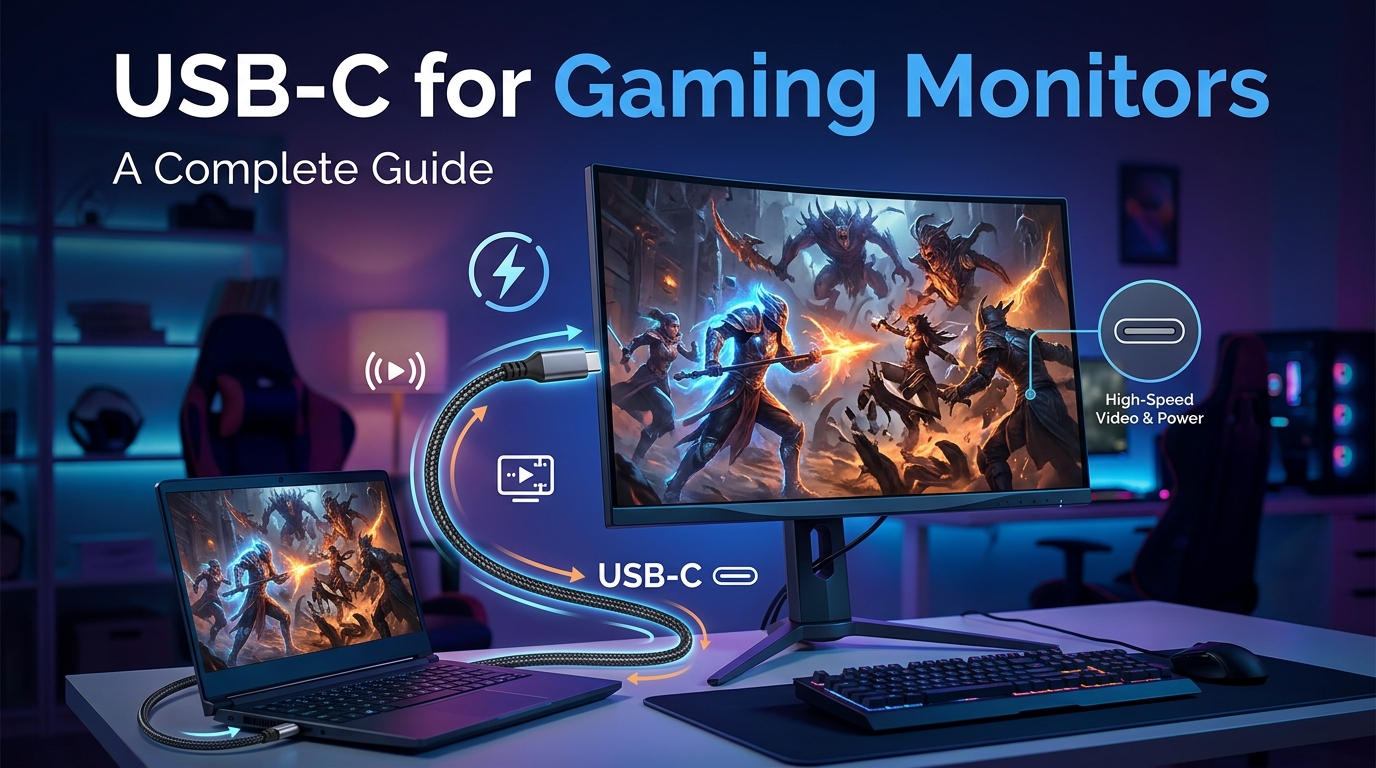
USB-C for gaming monitors works well when you need a single-cable setup for a laptop, but it can cause problems like refresh rate drops, random disconnects, and FPS loss when bandwidth or cable quality cannot keep up. In short, USB-C is good for gaming when your monitor, port, and cable all support DisplayPort Alt Mode with enough bandwidth for your target resolution and refresh rate, and it becomes a liability the moment any of those three bottlenecks.
If you have ever plugged a laptop into a USB-C monitor expecting a clean 144Hz signal only to get a black screen, stuttering, or a panel that tops out at 60Hz, you already know the frustration. This guide on USB-C for gaming monitors: when it helps and when it causes problems breaks down exactly where the standard shines, where it falls apart, and how to fix the most common issues gamers run into in 2026.
Our team spent time pulling real user reports from communities like r/UsbCHardware, Linus Tech Tips forums, and Tom’s Hardware threads to back up the technical details with actual gaming experiences. The goal is simple: help you decide whether USB-C is the right choice for your gaming monitor, and if you already use it, show you how to get it running without the headaches.
Table of Contents
How USB-C Actually Works for Gaming Displays
USB-C is not really a video standard on its own. The connector is just the shape. What does the heavy lifting for gaming monitors is a feature called DisplayPort Alt Mode, which lets the USB-C port carry a full DisplayPort video signal alongside data and power.
At the same time, USB Power Delivery (PD) handles charging. This is what allows a single USB-C cable to push video to your monitor, charge your laptop, and carry data for peripherals like a keyboard or mouse all at once. The catch is that the total bandwidth inside the cable has to be shared between all of those jobs.
For gaming, that sharing matters. A standard USB-C port with DisplayPort Alt Mode over four lanes can carry roughly 25.92 Gbps of video data using HBR3 signaling, which is enough for 4K at 60Hz or 1440p at 144Hz. Higher refresh rates like 4K 144Hz need DisplayPort 1.4 with DSC (Display Stream Compression) or a Thunderbolt 4 / USB4 connection.
This is the foundation for every benefit and every problem you will read about below. When USB-C works, it is because all three pieces (port, cable, and monitor) agree on bandwidth. When it fails, it is almost always because one of those three is the bottleneck.
When USB-C Helps Your Gaming Setup
USB-C for gaming monitors is genuinely useful in specific scenarios, and it is worth understanding where it earns its place before we get into the problems.
The Single-Cable Advantage
The biggest win is desk clutter. One cable handles video, audio, USB data, and power. For laptop gamers especially, this means docking and undocking takes seconds instead of plugging in four separate cables.
Gamers on Reddit consistently highlight this as the main reason they switched to USB-C monitors. One r/UsbCHardware user described moving from a tangle of HDMI, DisplayPort, USB-A, and a separate charging brick to a single USB-C connection as the best desk upgrade they made in 2026. The simplicity alone improved their daily setup.
Power Delivery for Laptops
USB Power Delivery means your monitor charges your laptop while you game. Many USB-C gaming monitors deliver 65W to 100W over the same cable carrying the video signal. That eliminates a separate power brick on your desk.
Be aware that there is a trade-off. When a monitor pushes full power delivery, it sometimes has to reduce the bandwidth available for video. BenQ, for example, has noted that USB-C works well for gaming but power delivery is often dialed back to prioritize video bandwidth. This is why some USB-C monitors cap charging at lower wattage when gaming.
Built-In USB Hub and KVM Functionality
Most USB-C gaming monitors double as a USB hub. You plug your mouse, keyboard, headset, and external drive into the monitor, then a single USB-C cable connects everything to your laptop or PC. This is essentially a free KVM switch.
For gamers who switch between a work laptop and a gaming rig on the same monitor, this is huge. You plug one cable into whichever machine you are using, and your peripherals instantly follow. No switching inputs on your keyboard or fighting with a separate KVM box.
Multi-Monitor Daisy Chaining
DisplayPort Alt Mode supports daisy chaining through MST (Multi-Stream Transport). In theory, you can run two monitors from a single USB-C port on your laptop. In practice, bandwidth limits how far this goes. Two 1440p 60Hz displays usually work, but two 4K panels or anything at high refresh rates tends to fall apart.
For a productivity-adjacent gaming setup where you game on one screen and keep Discord or a stream on the other, daisy chaining through USB-C can work. Just do not expect to run two 144Hz gaming displays from one cable.
Travel and Portable Gaming
If you game on a portable monitor or take your setup on the road, USB-C is the only sane option. A single cable from your laptop or handheld to a 15-inch or 17-inch portable display gives you a second screen with no extra power adapter. This is where USB-C shines for gaming and where dedicated HDMI or DisplayPort simply cannot compete.
When USB-C Causes Problems for Gamers
This is where USB-C for gaming monitors stops being convenient and starts costing you performance. Most of the pain points below come straight from real forum threads, and they are the reason this article exists.
Refresh Rate Caps and Bandwidth Limits
The single most common complaint is that USB-C monitors refuse to run at their advertised refresh rate. You buy a 144Hz or 165Hz panel, plug in over USB-C, and the monitor tops out at 60Hz, 75Hz, or 120Hz.
This happens because not every USB-C port supports full DisplayPort Alt Mode. Some laptops and docks limit Alt Mode to two lanes instead of four, which cuts available video bandwidth in half. The monitor works, but it cannot run high refresh rates because the pipe is too narrow.
One user on Linus Tech Tips reported buying a 144Hz USB-C monitor and only getting 60Hz until they realized their laptop’s USB-C port was capped at two-lane Alt Mode. The fix was to use a different port or fall back to HDMI.
FPS Drops During Gameplay
Real users on Tom’s Hardware and Reddit have reported losing 50 FPS in games like League of Legends and Fortnite when switching from HDMI to USB-C. The monitor and cable are technically working, but in-game performance tanks.
This is usually tied to USB-C to DisplayPort cable overhead, adapter-induced latency, or the system struggling to manage power delivery and video on the same cable. Competitive gamers who need every frame tend to abandon USB-C for this reason.
If you are playing fast-paced shooters at 144Hz or 240Hz, USB-C is rarely the best path. A direct DisplayPort cable removes the variable and keeps frame times consistent.
Random Disconnects
“Why does my USB-C monitor keep disconnecting?” is one of the most asked questions across gaming forums. The screen goes black for a second, the monitor re-enumerates, and your game either stutters or crashes outright.
Common causes include flaky cables, loose USB-C ports (especially on laptops), power fluctuations when USB PD renegotiates, and driver conflicts when the system tries to manage the monitor as both a display and a USB device. Opening a heavy app can trigger a disconnect because the system briefly shifts bandwidth or power priorities.
Gamers report this most often during graphically intense moments, which is the worst possible timing. The fix usually involves replacing the cable, locking power delivery to a fixed wattage, or switching to a dedicated video output.
Black Screen and No Signal Issues
Black screen on a USB-C gaming monitor usually points to one of three things: the port does not support Alt Mode at all, the cable cannot handle the bandwidth, or the monitor’s USB-C input is limited compared to its DisplayPort or HDMI inputs.
A surprising number of USB-C monitors have a USB-C port that only carries data and power, not video. Plugging a laptop into that port gives you charging and USB but no picture. Always confirm the port supports DisplayPort Alt Mode before assuming the monitor is broken.
Cable Fraying and Failure
Forum users repeatedly call out cable quality as a major pain point. USB-C cables that ship with monitors or come cheap from third-party sellers often fray near the connector, develop intermittent connections, or simply fail to meet the bandwidth spec they claim.
A fraying cable is not just a nuisance. It causes random disconnects, refresh rate drops, and black screens that look like monitor or GPU faults. Many users have RMA’d perfectly good monitors only to discover the cable was the problem.
For gaming, you want a cable rated for the bandwidth your resolution and refresh rate require. A 4K 144Hz signal needs a cable certified for at least 32.4 Gbps (DisplayPort 1.4 equivalent) over its Alt Mode lanes.
Laptop Detection Failures After Sleep
Another common complaint is that the monitor does not wake up after the laptop sleeps or the lid is closed and reopened. The laptop fails to re-detect the USB-C display, forcing the user to unplug and replug the cable.
This is a handshaking issue between the laptop’s USB-C controller, the monitor, and the operating system. Updating firmware on the monitor, BIOS on the laptop, and graphics drivers often helps, but some combinations simply never behave well.
USB-C vs HDMI vs DisplayPort for Gaming
If you only care about raw gaming performance, the hierarchy is clear. DisplayPort is the top choice for desktop gaming, HDMI is a close second with strong TV and console support, and USB-C is best reserved for laptop-focused setups where convenience outweighs raw performance.
DisplayPort 1.4 with DSC handles 4K 144Hz and 1440p 240Hz without issue on a quality cable. DisplayPort 2.1 pushes even further. HDMI 2.1 supports 4K 120Hz and 1440p 144Hz natively, which covers most modern gaming monitors. USB-C with DisplayPort Alt Mode matches DP 1.4 at best, but only if both the port and cable are full-spec.
The deciding factor is almost always bandwidth per connector. DisplayPort and HDMI ports on a desktop GPU are dedicated video outputs with no shared bandwidth. USB-C has to split its lanes between video, data, and power, which is why it underperforms in head-to-head gaming tests.
For a desktop gaming rig, plug straight into DisplayPort and save USB-C for peripherals. For a laptop gamer, USB-C is fine for casual play but switch to a direct USB-C to DisplayPort cable if you want higher refresh rates from a monitor that supports it.
Troubleshooting USB-C Gaming Monitor Problems
If your USB-C gaming monitor is acting up, work through the following steps in order. Each one isolates a different part of the chain so you can find the actual bottleneck instead of guessing.
Step 1: Identify the Bottleneck
Every USB-C display problem is a cable, port, or monitor issue. Test in this order to find the culprit fast.
First, swap in a known-good USB-C cable rated for video. If the problem goes away, your cable was the bottleneck. This fixes a surprising number of disconnect, black screen, and refresh rate issues.
Next, try a different USB-C port on your laptop or PC. Many machines have multiple USB-C ports and only some support DisplayPort Alt Mode. Check your laptop’s spec sheet to confirm which ports carry video.
Finally, plug the same monitor in over HDMI or DisplayPort. If it works perfectly on a different input, your USB-C path is the problem, not the monitor.
Step 2: Fix Refresh Rate Caps
If your monitor tops out below its advertised refresh rate over USB-C, open your graphics control panel and check the refresh rate dropdown. Sometimes Windows defaults to 60Hz even when higher rates are available.
If higher rates are missing entirely, your USB-C port or cable is limiting bandwidth. Try a shorter cable, a higher-spec cable, or a different port. A USB-C to DisplayPort adapter cable sometimes unlocks higher refresh rates than a straight USB-C to USB-C connection because it forces a dedicated DP signal.
Step 3: Resolve Random Disconnects
Random disconnects during gaming are usually power or cable related. Start by replacing the cable, then check whether your monitor has a firmware update. Monitor makers quietly release firmware that fixes USB-C stability.
On the laptop side, update BIOS, chipset drivers, and graphics drivers. Disable USB selective suspend in your power plan, which is a common cause of intermittent USB-C dropouts. If your monitor lets you lock power delivery to a fixed wattage, do it, so the system is not constantly renegotiating.
Step 4: Clear Black Screen and No Signal Issues
For black screens, confirm the USB-C port on the monitor actually supports Alt Mode video. Many monitors have USB-C ports meant only for data and charging. The video input is often a separate port or a different USB-C connector.
Inspect the USB-C port on your laptop for dust or lint buildup. A dirty port causes poor pin contact, which leads to intermittent video. A wooden toothpick or a can of compressed air is usually enough to clear it without damaging anything.
Step 5: Test With a Direct Cable
If nothing else works, bypass USB-C entirely with a USB-C to DisplayPort cable from your laptop to the monitor’s DP input. This forces a dedicated DisplayPort signal and removes all the bandwidth-sharing complications of USB-C. It is the most reliable way to get high refresh rates from a USB-C equipped laptop to a gaming monitor.
Keep in mind this sacrifices power delivery and USB hub features. You are trading convenience for stability and performance, which is the right call for serious gaming sessions.
FAQs
Is a USB-C monitor good for gaming?
A USB-C monitor is good for gaming when your laptop port, cable, and monitor all support DisplayPort Alt Mode with enough bandwidth for your target resolution and refresh rate. It works well for casual laptop gaming at 60Hz to 144Hz, but competitive gamers chasing 144Hz or 240Hz at high resolutions usually get better results with a direct DisplayPort or HDMI connection.
Why does my USB-C monitor keep disconnecting?
USB-C monitor disconnects are usually caused by a faulty cable, a port that does not fully support DisplayPort Alt Mode, USB power delivery renegotiation, or USB selective suspend in your power settings. Replace the cable first, then update monitor firmware and laptop BIOS, and disable USB selective suspend. Locking power delivery to a fixed wattage on the monitor also helps.
What causes USB-C ports to stop working?
USB-C ports stop working due to dust or lint buildup in the connector, firmware or driver corruption, physical damage to the port, or power surges. Dirty ports are the most common cause and can be cleaned with compressed air or a wooden toothpick. If cleaning does not help, update chipset drivers and BIOS, then test the port with another device to confirm whether the port itself has failed.
What are signs of a dirty USB-C port?
Signs of a dirty USB-C port include intermittent video signal, random disconnects, the monitor only working when the cable is held at a certain angle, slow or failed charging, and the system failing to detect the monitor at all. If the connector feels loose or the connection is unreliable, lint and dust buildup is the most likely culprit.
Making the Right Call on USB-C for Gaming
USB-C for gaming monitors: when it helps and when it causes problems comes down to matching your use case. For laptop gamers, portable setups, and anyone who values a clean desk over squeezing out maximum frame rates, USB-C is a legitimate option in 2026. For competitive desktop gaming at 144Hz or 240Hz, DisplayPort or HDMI remains the smarter choice.
Before committing to USB-C, verify that your laptop port supports four-lane DisplayPort Alt Mode, buy a cable rated for your target bandwidth, and keep a USB-C to DisplayPort adapter as a backup for the days when USB-C decides to misbehave. That small piece of insurance is what separates a frustrating gaming setup from one that just works.