
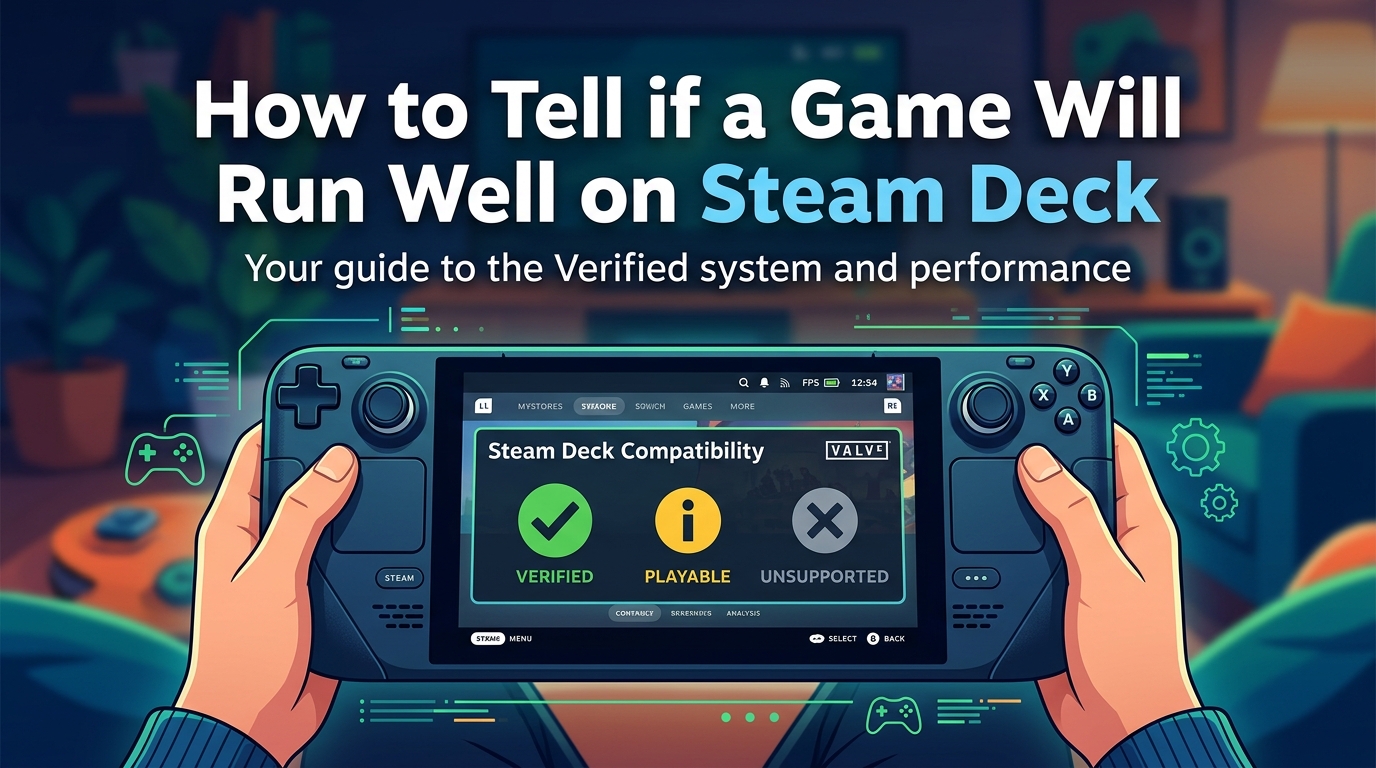
Buying a game only to discover it will not run on your Steam Deck is a frustrating waste of money. I have been there, and the fix is easier than most people think. If you want to know how to tell if a game will run well on Steam Deck before buying it, the answer is sitting right inside Steam and a few free community tools.
This guide walks you through the exact steps I use to check Steam Deck compatibility before every purchase. We will cover the four official compatibility badges, the ProtonDB rating system, anti-cheat red flags, and how to do the check from your PC before you even own a Deck. By the end, you will never have to guess again.
Table of Contents
Quick Answer: How to Know if a Game Runs Well on Steam Deck
To know if a game runs well on Steam Deck, check the compatibility badge on the game’s Steam Store page or in your Library. Verified games work perfectly out of the box, Playable games run with minor tweaks, Unsupported games will not launch, and Unknown games have not been tested. For community-tested data, look up the title on ProtonDB to see real user reports.
Understanding Steam Deck Compatibility Ratings (Verified, Playable, Unsupported, Unknown)
Valve assigns one of four ratings to every game that has been tested for Steam Deck compatibility. These badges show up on the Steam Store page, in search results, and in your library. Learning what each one means is the foundation of every pre-purchase check.
What Does Deck Verified Mean?
A Deck Verified game is one that Valve has personally tested and confirmed works flawlessly on the handheld. This means full controller support, no text input issues, the game renders correctly at the Deck’s 1280×800 resolution, and it runs smoothly. If you see the green checkmark, you can buy with total confidence.
What Does Playable Mean on Steam Deck?
A Playable game runs on the Deck but needs some manual work from you. This might mean launching it through a compatibility tool, tweaking launch options, or dealing with a virtual keyboard for text input. Playable games are not broken, but they are not seamless either. Expect 10-30 minutes of setup the first time.
What Does Unsupported Mean on Steam Deck?
An Unsupported game is one that Valve has confirmed will not work on the Deck under any normal circumstance. This usually happens with games that use anti-cheat software the Deck cannot run, or games with kernel-level Windows dependencies. Skip these unless you love tinkering.
What Does Unknown Mean on Steam Deck?
An Unknown game has not been tested by Valve yet. This is the trickiest category. The game might run perfectly, or it might be totally broken. You need to check ProtonDB or community reports to find out. I treat Unknown as a yellow flag and dig deeper before buying.
Here is a quick comparison of what to expect from each status:
- Verified: Works perfectly, no tweaks needed, full controller support, smooth performance
- Playable: Runs with minor manual configuration, may need virtual keyboard or Proton selection
- Unsupported: Confirmed not working, usually due to anti-cheat or system requirements
- Unknown: Not yet tested, requires ProtonDB research or a leap of faith
How to Check Steam Deck Compatibility on Your PC Before Buying
This is the part most guides skip, and it is the most important part of the question. You can absolutely check Steam Deck compatibility before buying a game from your desktop. Here is exactly how I do it.
Step 1: Open the Steam Store Page for the Game
Navigate to the game’s Steam Store page in any browser. Scroll down to the section labeled “Steam Deck Compatibility” near the system requirements area. The badge appears right there, even if you do not own a Deck.
Step 2: Hover Over the Compatibility Badge
When you hover your mouse over the badge, a tooltip pops up explaining why the game earned that rating. For Verified games, you will see all four test categories checked off. For Playable games, you will see which category failed, like “Input” or “Display.”
Step 3: Use the Great on Deck Filter
Open the Steam Store and search for any game. On the left sidebar, scroll down to the “Deck Compatibility” filter. You can filter search results to only show Verified, Playable, Unsupported, or Unknown games. The “Great on Deck” tab in the main navigation is also a curated list of verified titles.
Step 4: Check Your Library Before Buying a Deck
Valve created a special URL just for this. Go to store.steampowered.com/steamdeck/mygames in your browser. It will scan your entire Steam library and show you exactly how many of your existing games are Verified, Playable, Unsupported, or Unknown. I checked mine and found 73% of my library was already playable.
How to Check Compatibility on Your Steam Deck
Once you have a Steam Deck in hand, checking compatibility is even easier. The handheld shows compatibility badges natively in its gaming-mode interface.
Step 1: Open Your Library in Gaming Mode
Press the Steam button to bring up the main menu, then select “Library.” Every game in your collection will display its compatibility badge as a small icon next to the title. Verified games get a green checkmark, Playable gets a yellow play button, Unsupported shows a red X, and Unknown shows a gray question mark.
Step 2: Read the Compatibility Details
Tap on any game to see its details page. At the top, you will see the compatibility badge. Press A on it to bring up a full breakdown of Valve’s test results. The Deck will tell you exactly which of the four testing categories (Input, Display, Seamlessness, System Support) the game passed or failed.
Step 3: Use the Store on the Deck
If you are browsing for new games on the Deck itself, the Steam Store shows compatibility badges on every product tile and search result. You can filter the store by compatibility status on-device as well. Just tap the filter icon on the Store page.
Using ProtonDB as a Pre-Purchase Research Tool
ProtonDB is a community-run website that tracks how well Windows games run through Valve’s Proton compatibility layer on Linux. Since the Steam Deck runs a Linux-based OS, ProtonDB reports are extremely useful for predicting performance, especially for Unknown games.
What Are the ProtonDB Rating Tiers?
ProtonDB users submit reports that are aggregated into four rating tiers. Here is what each one means:
- Platinum: Runs perfectly out of the box with zero configuration. Equivalent to Deck Verified.
- Gold: Runs well with minor tweaks, like selecting a specific Proton version. Usually works on Deck.
- Silver: Runs but has noticeable issues like stuttering or text glitches. May need workarounds.
- Bronze: Barely runs, major issues, not recommended for handheld play.
- Borked: Does not run at all under Proton.
How to Use ProtonDB Before Buying
Search for the game at protondb.com. Read the most recent reports, since Proton versions change over time. A game that was Bronze two years ago might be Platinum today. Pay attention to reports from users with Steam Deck hardware specifically, not just generic Linux users, since performance can differ between desktop and handheld.
ProtonDB Warning: Do Not Blindly Trust Old Ratings
The Steam Deck community has a running joke: do not blindly rely on ProtonDB. Ratings are user-submitted and can be outdated or inaccurate. Always check the date of the latest report. I cross-reference ProtonDB with the official Steam Deck badge and recent Reddit threads for the most accurate picture.
Anti-Cheat Software: The Hidden Compatibility Killer
Many popular online games simply will not work on Steam Deck because they use anti-cheat software that does not support Linux. This is the single biggest reason a game ends up Unsupported.
Common Anti-Cheat Systems That Block Steam Deck
- Easy Anti-Cheat (EAC): Used by Fortnite, Apex Legends, Dead by Daylight. EAC added Linux support in 2022, so some games work, but many publishers have not enabled it.
- BattlEye: Used by PUBG, Destiny 2, Arma 3. BattlEye also added Linux support, but again, only if the publisher enables it.
- Vanguard (Riot Games): Used by Valorant and League of Legends. Vanguard runs at kernel level and is the most aggressive anti-cheat. It is fully unsupported on Steam Deck.
- Denuvo: Not strictly anti-cheat, but anti-tamper software that sometimes blocks Proton compatibility.
How to Check Anti-Cheat Compatibility
Before buying a competitive multiplayer game, search “[game name] Steam Deck anti-cheat” on Google or Reddit. If the answer is no, the game will not work regardless of its Deck Verified status. Some of the biggest online games like Destiny 2 remain completely unplayable on Deck in 2026.
What to Do When a Game Shows No Compatibility Badge at All
If a game has no badge, it is either very new, very old, or a non-Steam title. For new releases, check ProtonDB and wait a few weeks for the community to test. For old games, ProtonDB is your best friend. For non-Steam games (Epic, GOG, Battle.net), the badge system does not apply. You will need to add them as non-Steam shortcuts and test Proton versions manually.
How to Check Game File Size Before You Buy
Worried a game will eat your Deck’s storage before you even install it? Every Steam Store page shows the approximate download size near the system requirements. The Steam Deck OLED base model has 512GB of storage, and the original LCD model has 64GB, 256GB, or 512GB depending on the tier. Always check the file size against your free space before clicking buy.
FAQs
How do I know if a game runs well on Steam Deck?
Check the compatibility badge on the game’s Steam Store page. Verified games run perfectly, Playable games need minor tweaks, Unsupported games will not launch, and Unknown games have not been tested yet. For untested games, look up real user reports on ProtonDB before buying.
What should I know before buying a Steam Deck?
Check your existing Steam library using the special URL store.steampowered.com/steamdeck/mygames to see what percentage of your games are compatible. Make sure the storage tier matches your library size. Plan for Linux-based limitations with anti-cheat games, and consider the Steam Deck OLED for the best display.
How to tell if a game can run on Steam Deck?
Look for the Deck Verified badge on the Steam Store page. If the game is Verified, it works perfectly. If it is Playable, it needs some manual configuration. If it is Unsupported, it will not run. If it shows no badge, check ProtonDB for community reports before purchasing.
Can you test a game on Steam before buying?
Steam does not offer a free trial system for most games. However, you can check ProtonDB for free user reviews and watch performance tests on YouTube. Some publishers like Sega and EA occasionally offer timed demos during Steam Next Fest events.
What to check before buying a used Steam Deck?
Check the screen for dead pixels, test both thumbsticks and triggers for stick drift, verify the battery holds a charge, inspect the shoulder buttons, make sure the microSD card slot works, and confirm the serial number is not banned. Also check that it is not registered to a different Steam account.
How to check how big a game is on Steam before buying?
Visit the game’s Steam Store page and scroll to the system requirements section. The approximate download size is listed there. Compare this against your available storage before purchasing, especially if you have the 64GB LCD model.
Final Thoughts: Pre-Purchase Steam Deck Compatibility in 2026
Knowing how to tell if a game will run well on Steam Deck before buying it comes down to a 30-second routine. Check the Steam Store page badge, cross-reference with ProtonDB if the status is Unknown, and confirm the game does not use a Linux-incompatible anti-cheat system. With the Steam Deck OLED now widely available in 2026 and Valve continuing to expand Verified support, more games than ever work flawlessly out of the box.
Start with the store.steampowered.com/steamdeck/mygames link to see how your existing library stacks up. If 70% or more of your games are already Verified or Playable, you are in great shape. If a game you want is Unknown or Playable, weigh whether a few minutes of setup is worth your money. And if it is Unsupported, save your cash and look for an alternative.