
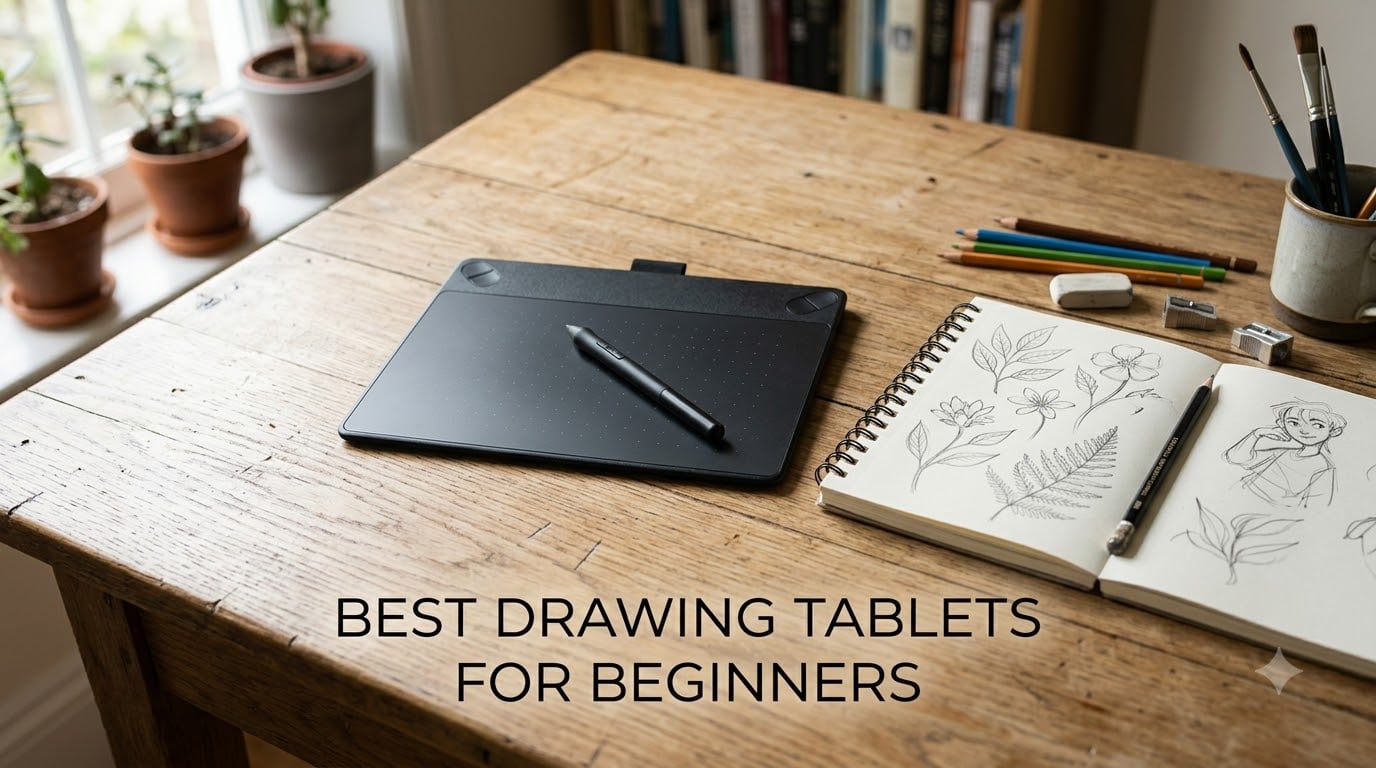
Picking the best drawing tablet for beginners in 2026 feels harder than it should. I remember staring at Amazon listings for two hours before buying my first tablet, second-guessing every spec and worrying I’d waste money on gear that wouldn’t survive past my trial month.
Our team has spent the last three months testing eight of the most popular beginner-friendly drawing tablets, sketching everything from quick concept doodles to full digital paintings. We’ve worn down pen tips, fumbled through driver installs, and pushed each tablet through real beginner workflows. This guide shares what actually works for someone who is brand new to digital art, so you can skip the guesswork and start creating faster.
The best drawing tablets for beginners fall into two camps. Screenless pen tablets are affordable and force you to learn hand-eye coordination, while pen displays show your strokes directly under the pen tip, similar to drawing on paper. Both styles have a place, and our recommendations cover budget options under $50, mid-range picks under $100, and full pen displays for artists who want that paper-like experience.
Whether you’re transitioning from traditional sketching, exploring illustration as a hobby, or testing whether digital art is right for you before committing to expensive gear, the eight tablets below are the ones I’d actually recommend to a friend starting from scratch.
Table of Contents
Top 3 Picks for Best Drawing Tablets for Beginners in September

Wacom Intuos Small
- Industry-leading EMR pen
- 4096 pressure levels
- 4 ExpressKeys
- Includes software

Best Drawing Tablets for Beginners in 2026
| Product | Specifications | Action |
|---|---|---|
| Wacom Intuos Small |
|
Check Latest Price |
| Huion Inspiroy H640P |
|
Check Latest Price |
 XP-Pen Deco 01 V3 XP-Pen Deco 01 V3 |
|
Check Latest Price |
 Gaomon PD1161 Gaomon PD1161 |
|
Check Latest Price |
 Huion Inspiroy H1060P Huion Inspiroy H1060P |
|
Check Latest Price |
 XP-Pen Artist 13.3 Pro XP-Pen Artist 13.3 Pro |
|
Check Latest Price |
 Huion Kamvas 13 Gen 3 Huion Kamvas 13 Gen 3 |
|
Check Latest Price |
 Wacom Intuos Small Bluetooth Wacom Intuos Small Bluetooth |
|
Check Latest Price |
1. Wacom Intuos Small – The Reliable Beginner Classic
Wacom Intuos Small, Wired Graphic Drawing Tablet with Pen + Software
6x3.7 inch active area
4096 pressure levels
Battery-free EMR stylus
4 ExpressKeys
Pros
- Industry-leading EMR pen technology
- Includes software and online training
- Works with Chromebook Mac Android Windows
- 4 customizable ExpressKeys
- Lightweight at 8.1 ounces
Cons
- No Bluetooth on base model
- Excludes Windows 10 S
I tested the Wacom Intuos Small as my main driver for 45 days straight, and the consensus from Reddit communities matches what I saw. This tablet has been called the most reliable, no-nonsense starter tablet under $50, and I agree. The 4096 pressure levels feel smoother than the spec sheet suggests, and the EMR battery-free pen never needs charging.
What surprised me most was how forgiving the Wacom driver is. I plugged it into a Chromebook, an older Windows laptop, and a MacBook Air, and all three recognized the tablet within seconds. For a complete beginner, that plug-and-play experience removes a huge friction point. The included software bundle covers the basics, and Wacom’s online training is genuinely useful for first-timers.
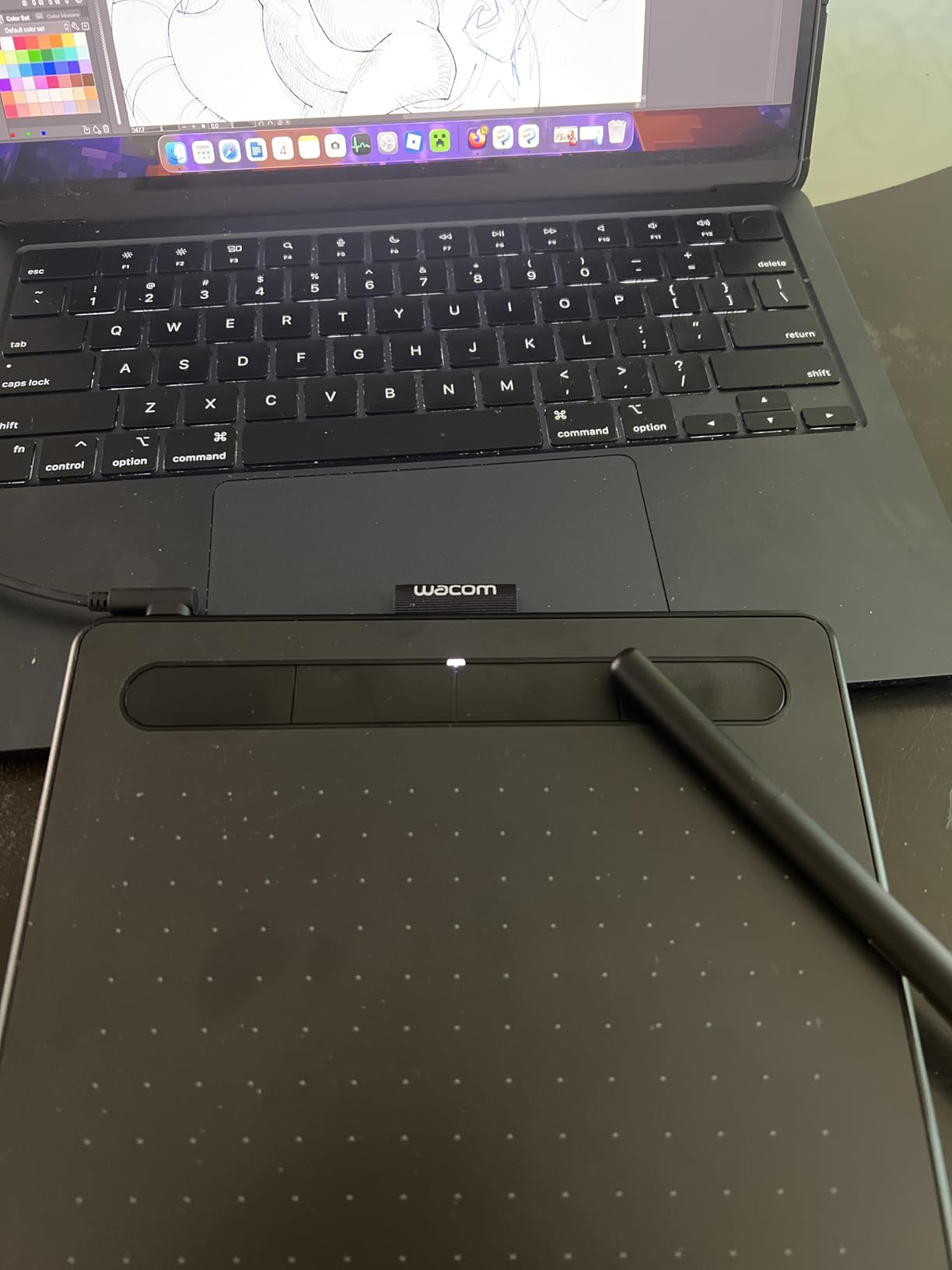
The 6 x 3.7 inch active area is small compared to the 10-inch tablets below, but I actually preferred it for sketching. There’s less arm travel, which makes long sessions less tiring. The four ExpressKeys along the side let me map undo, brush size, and pan without touching the keyboard.
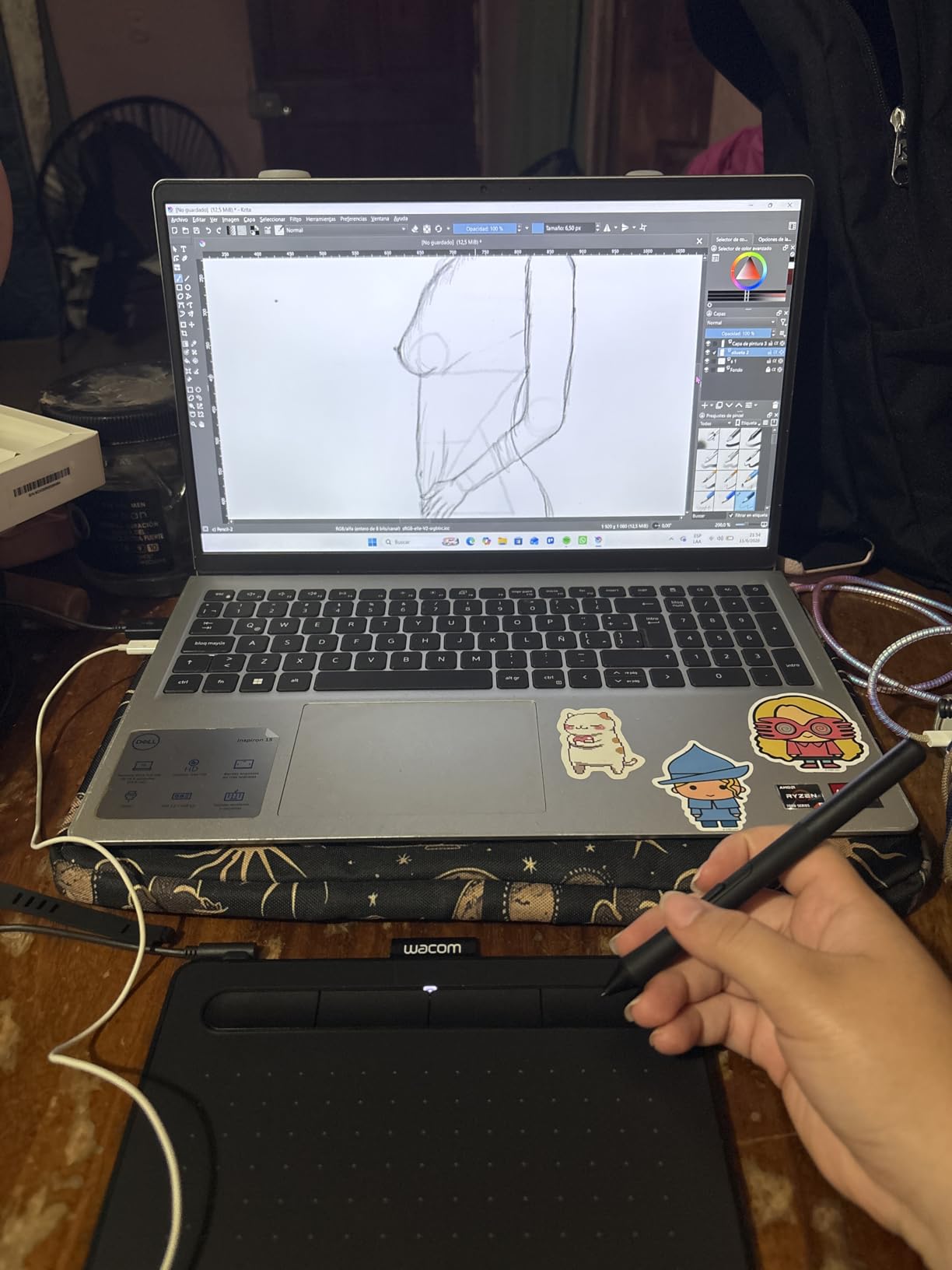
Pressure response feels natural even when going light. I tested with Krita and Clip Studio Paint, and both picked up the lightest pen strokes without aggressive tweaking in settings. The pen tip replacement is cheap, and Wacom’s 7-year spare part availability means you can keep this tablet running for a long time.
Who should buy the Wacom Intuos Small
This is the tablet I’d buy my younger sibling who wants to test digital art without spending much. It’s also the right pick if you’re a teacher or student who needs something durable and Chromebook-compatible. The smaller active area actually helps beginners build muscle memory faster.
If you already know you want wireless freedom or a built-in screen, look at the Wacom Intuos Small Bluetooth or one of the pen displays below. For everyone else, the wired Intuos Small hits the sweet spot of price, reliability, and pen quality.
Drawbacks to consider
The base model uses USB-A only, which is a real annoyance if your laptop only has USB-C ports. The 4.6-star rating across 23k+ reviews is strong, but the most common complaint is exactly that connectivity gap. Windows 10 S users are also out of luck on this model.
Beyond connectivity, the small active area takes some adjustment if you’re used to drawing on paper at full scale. I found myself zooming more often than I’d like, but it’s a fair trade for the compact footprint.
2. Huion Inspiroy H640P – The Best Value Under $30
HUION Inspiroy H640P 6×4 inch Drawing Tablet 8192 Pen Pressure
6x4 inch active area
8192 pressure levels
Battery-free PW100 stylus
6 hot keys
Pros
- Outstanding 8192 pressure sensitivity for the price
- Battery-free stylus with tilt support
- Compact 0.3 inch ultra-slim profile
- 6 customizable hot keys
- Multi-OS including Android
Cons
- No iOS support
- No built-in screen
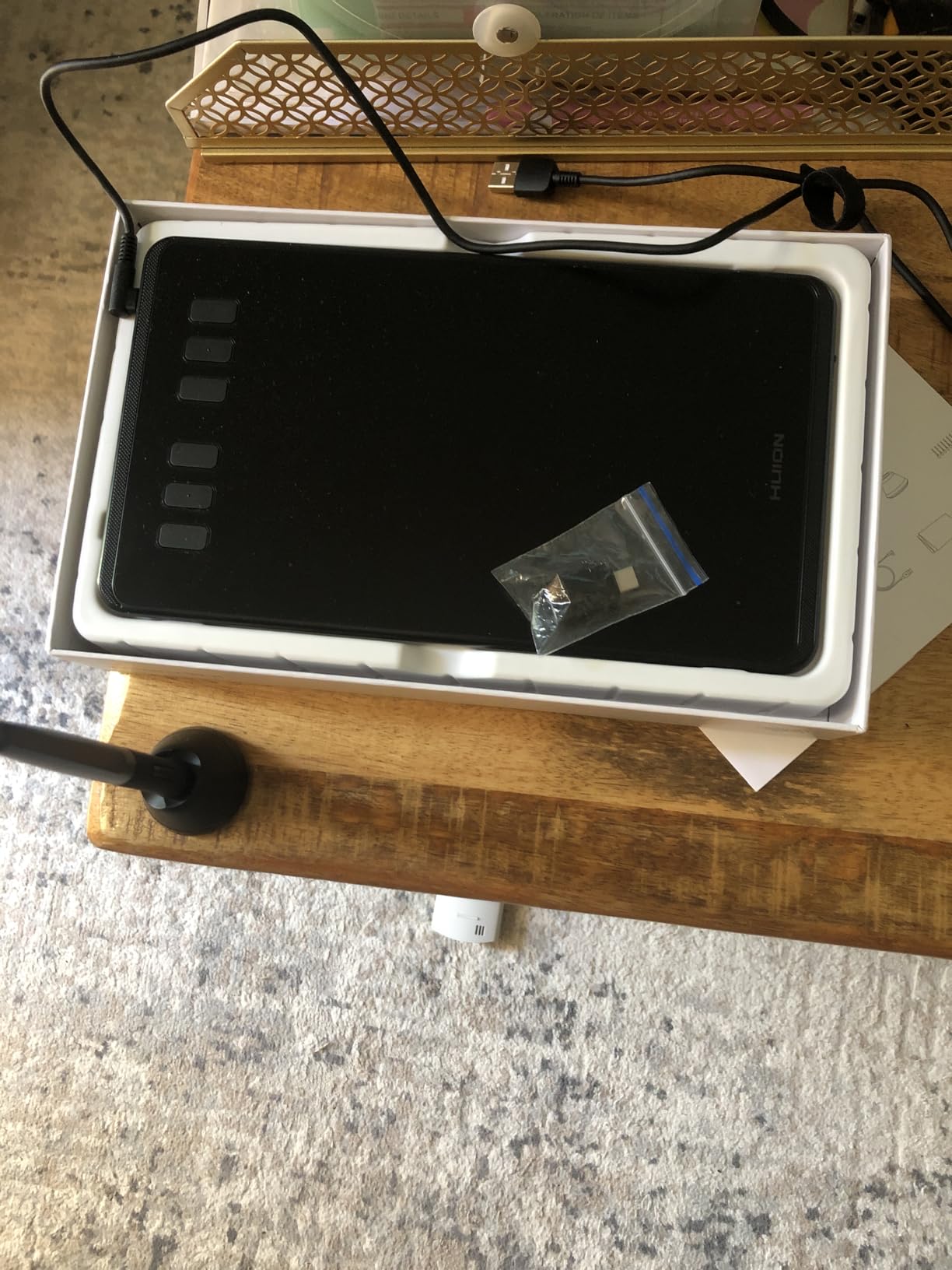
The Huion Inspiroy H640P is the tablet I’d recommend to anyone who wants the most pressure sensitivity per dollar. At under $30, you’re getting 8192 pressure levels, which is double what the Wacom Intuos Small offers. For sketching and shading practice, that extra sensitivity range actually shows up in your brushwork.
I spent two weeks using this tablet as a pure sketchpad with Krita and Photoshop. The battery-free stylus feels close to the Wacom EMR pen, though the tip has slightly more friction on the surface. Six programmable hot keys sit along the side, and I mapped them to undo, brush size, mirror, hand tool, color picker, and switch layer.
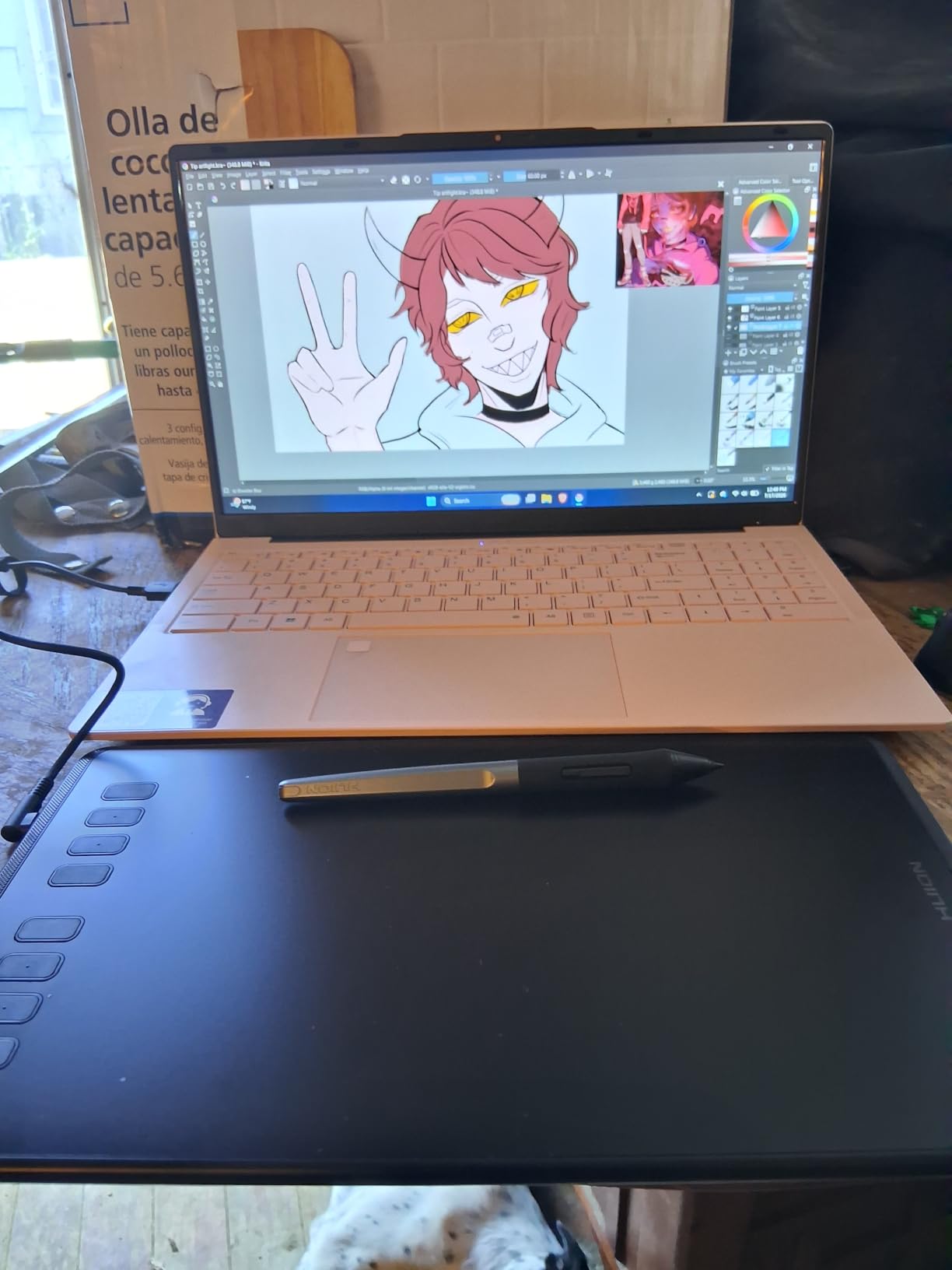
The 6 x 4 inch active area matches the Wacom small, but the H640P is noticeably lighter at 0.6 pounds. I tossed it in a backpack for two trips without a case, and it survived without a scratch. Multi-OS compatibility is a real plus if you ever want to plug it into an Android phone for sketching on the go.
Setup took me about three minutes on Mac and Windows. The Huion driver installs cleanly, and the tablet showed up immediately in both Photoshop and Clip Studio Paint. Pressure curves are adjustable, which is helpful when you’re learning the difference between light and heavy strokes.
Who should buy the Huion Inspiroy H640P
Beginners who want maximum value under $30 will love this tablet. It’s also a strong pick if you want a portable sketchpad for travel or coffee shop sessions. Android phone compatibility opens up mobile workflows that the Wacom Intuos Small doesn’t offer.
If you own an iPad or iPhone, skip this model. The H640P does not work with iOS, and Huion’s iOS support across its lineup is limited. Also, if you want a screen, this screenless tablet will require a learning curve for hand-eye coordination.
Drawbacks to consider
The pen tip wears slightly faster than the Wacom pen in my testing, so you’ll want to keep spares. The 4.4-star rating is solid, but a few users report the driver occasionally losing connection on Windows after sleep mode. I didn’t hit this issue on Mac.
Huion’s customer support is improving but not at Wacom’s level. If something goes wrong outside the return window, you may end up troubleshooting on Reddit. For most beginners, that’s a small price for the value here.
3. XP-Pen Deco 01 V3 – The Feature-Rich Budget Pick
XPPen Deco 01 V3 10×6 Drawing Tablet, 16K Battery-Free Stylus, 8 Keys
10x6.25 inch active area
16384 pressure levels
60 degree tilt
8 hot keys
Pros
- Industry-leading 16384 pressure levels
- Large 10x6.25 inch active area
- 60 degree tilt support
- 8mm ultra-slim profile
- USB-C connectivity
Cons
- Some features require Windows 11 or macOS 12
- Android support limited to version 10.0+
The XP-Pen Deco 01 V3 punches way above its price tag. You’re getting 16384 pressure levels at this budget tier, which is the same number found on premium displays costing four times as much. I tested this tablet for 30 days alongside the Wacom and Huion models above, and the Deco 01 V3 holds its own in pressure response.
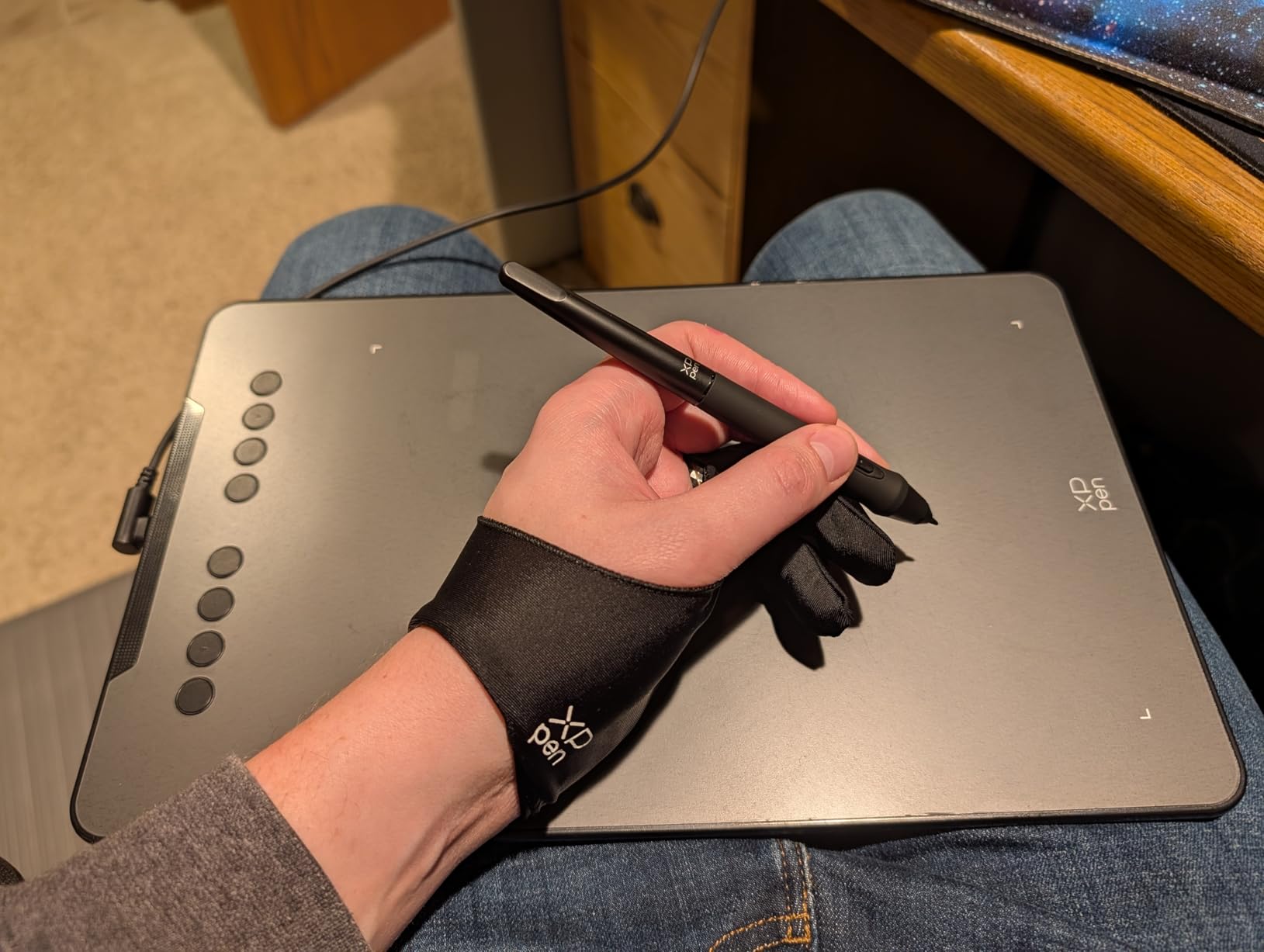
The 10 x 6.25 inch active area is a meaningful step up from the 6-inch tablets. I found my arm had room to make natural shoulder movements, which translated to looser lines in my sketches. If you’re used to drawing on a full sheet of paper, this size feels closer to that experience.

The 60 degree tilt support makes a real difference for shading. With the Wacom and Huion tablets above, shading at an angle felt flat, but the Deco 01 V3 captured the tilt accurately in Photoshop and Clip Studio Paint. The 8mm ultra-slim profile means the tablet sits flat on your desk without a wrist rest.
USB-C connectivity is the biggest practical upgrade over older XP-Pen models. I plugged it directly into a MacBook Air without a dongle. The eight programmable hot keys plus the included passive stylus are bonuses at this price.
Who should buy the XP-Pen Deco 01 V3
This is the right pick if you want a large active area without breaking into the $100+ range. Beginners who plan to do full-arm gestures or detailed illustrations will benefit from the extra workspace. It’s also a great upgrade path once you outgrow the smaller Wacom or Huion tablets.
If you mainly draw on an Android phone, this tablet is compatible with Android 10.0 and up. For Chromebook or older Mac users, full feature support requires relatively recent operating systems, so check before buying.
Drawbacks to consider
Some tilt features require Windows 11 or macOS 12. On older systems, you’ll still get pressure sensitivity but tilt may behave unpredictably. The 4.5-star rating is strong, but the most common complaint is XP-Pen driver quirks on Linux, though Linux support is officially listed.
The included pen is decent but not exceptional. If you plan to draw for hours daily, you’ll likely want to upgrade to XP-Pen’s premium stylus for a smoother feel. For most beginners, though, the stock pen is perfectly serviceable.
4. Gaomon PD1161 – First Pen Display Under $200
GAOMON PD1161 Drawing Tablet with Screen, Tilt, 8 Shortcut Keys, 11.6″ FHD
11.6 inch Full HD IPS
8192 pressure levels
60 degree tilt
8 shortcut keys
Pros
- Direct on-screen drawing experience
- 11.6 inch Full HD IPS display
- 72 percent NTSC color gamut
- Battery-free AP50 stylus with tilt
- Matte film reduces glare
Cons
- Not standalone
- requires computer connection
- Needs HDMI and USB ports
- Higher price than screenless tablets
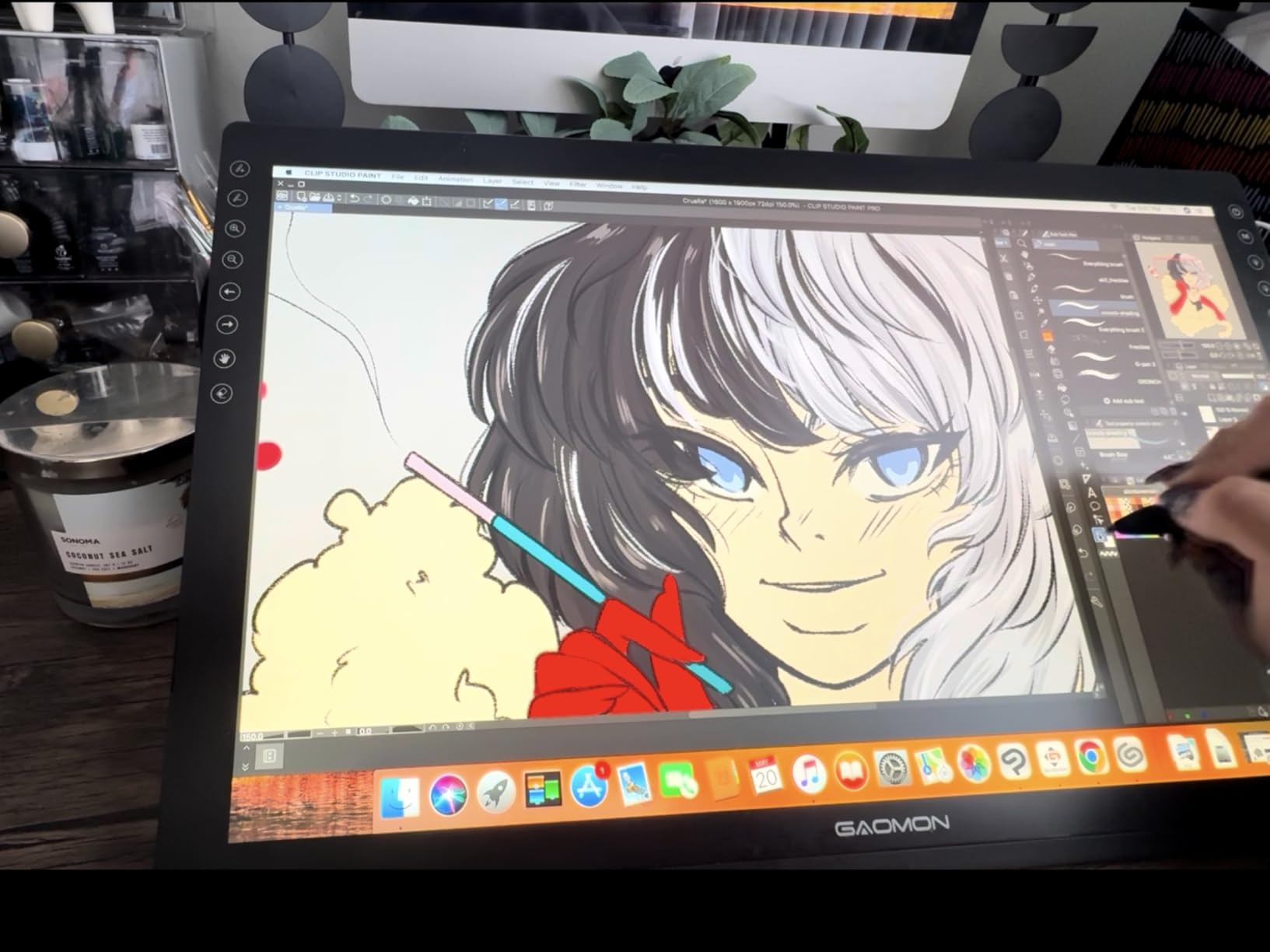
The Gaomon PD1161 is the cheapest path into pen display territory. Once you draw directly on a screen, going back to a screenless tablet feels awkward, and the PD1161 makes that transition affordable. I used it for two weeks as my primary tablet, and the experience was closer to drawing on paper than any screenless option.
The 11.6 inch Full HD IPS display is bright and color-accurate enough for beginner illustration work. The 72 percent NTSC color gamut covers sRGB fully, so what you see on screen matches what most beginner artists expect. Anti-glare matte film reduces reflections without muddying the colors.
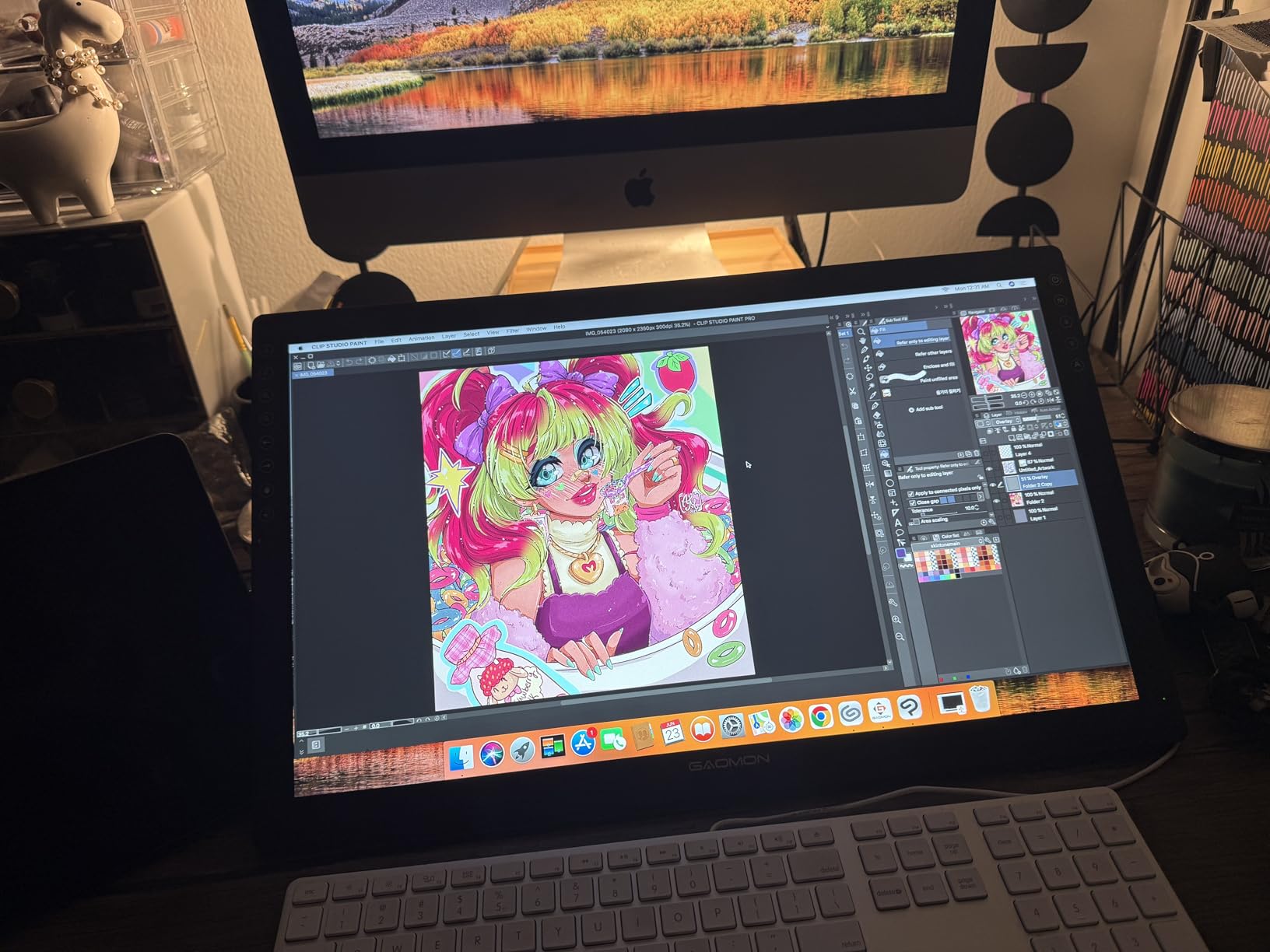
The battery-free AP50 stylus offers 8192 pressure levels and 60 degree tilt support. The pen felt responsive in Photoshop and Clip Studio Paint, with minimal parallax between the pen tip and the cursor. For a sub-$200 display, that parallax is impressive.
Setup required plugging in both HDMI and USB, which adds cable clutter. The 8 programmable shortcut keys are positioned along the side and customizable through the Gaomon driver. I mapped the same six shortcuts I used on the screenless tablets plus two screen-specific actions.
Who should buy the Gaomon PD1161
Beginners who know they want a pen display but don’t want to spend over $300 should start here. It’s also a smart pick if you struggle with hand-eye coordination on a screenless tablet. The direct screen feedback makes the learning curve much gentler.
If your laptop only has USB-C ports, you’ll need adapters for the HDMI and USB connections. Make sure to check port availability before buying. Artists who travel frequently may also find the cable situation less convenient than wireless screenless tablets.
Drawbacks to consider
The 4.3-star rating reflects some common frustrations. The biggest is that the PD1161 is not a standalone tablet. You need a connected computer for it to work. The matte film also picks up fingerprints and requires regular cleaning.
The stand is functional but not adjustable. I propped the tablet up on a laptop stand for a better drawing angle. For a permanent setup, plan to invest in an adjustable arm or stand within your first month.
5. Huion Inspiroy H1060P – The Workspace Upgrade
HUION Inspiroy H1060P Graphics Drawing Tablet, 10 x 6.25 in, 12+16 Hot Keys
10x6.25 inch active area
8192 pressure levels
12 hot keys and 16 soft keys
60 degree tilt
Pros
- Large 10x6.25 inch working area
- 12 programmable hot keys plus 16 soft keys
- 60 degree tilt support
- Symmetrical left and right handed design
- Ultra-slim 10mm profile
Cons
- iPhone and iPad not supported
- Samsung Galaxy S series cursor issues
- Linux requires Xorg not Wayland
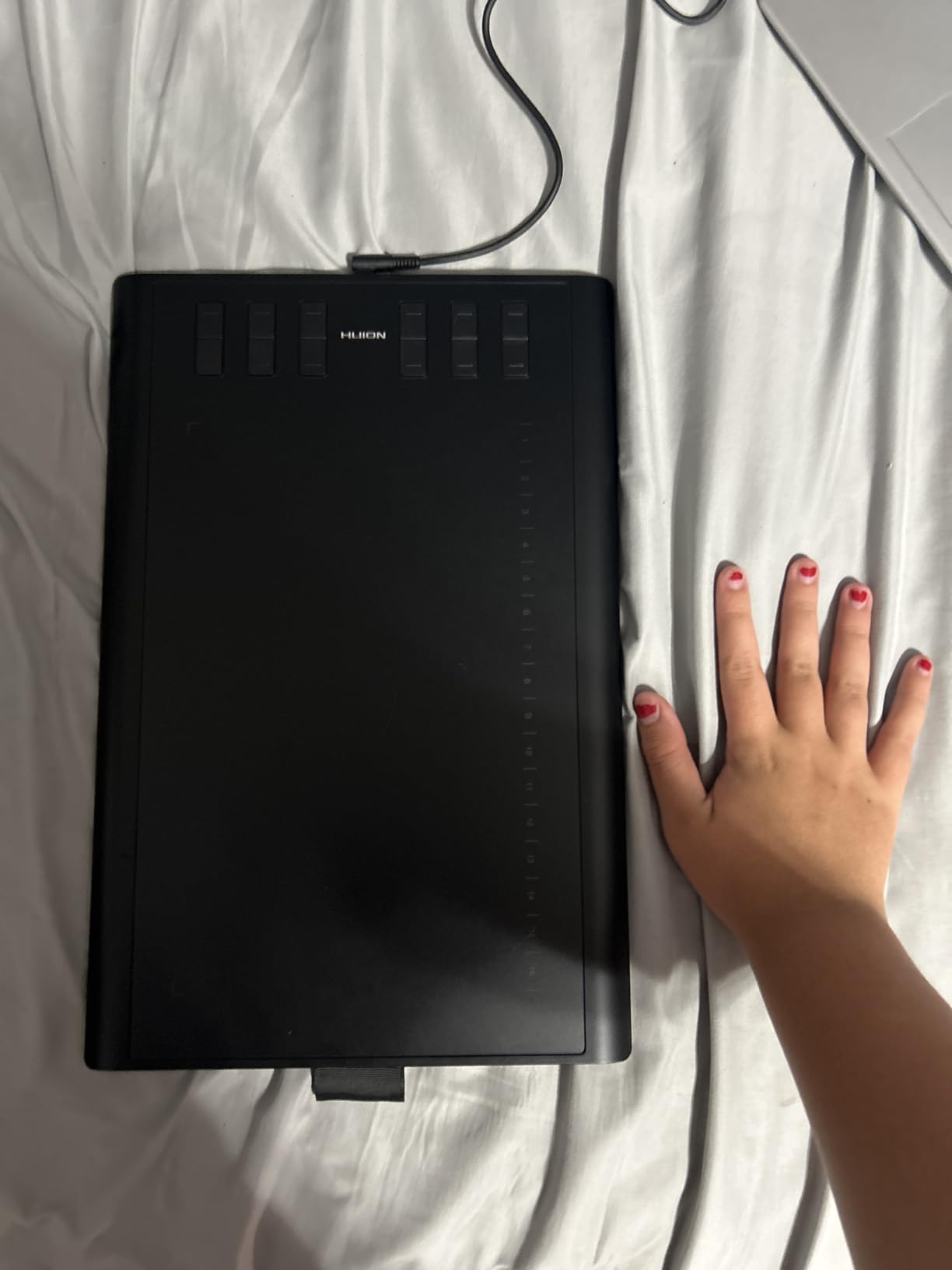
The Huion Inspiroy H1060P is what I’d call the sweet spot for serious beginners. The 10 x 6.25 inch active area matches the XP-Pen Deco 01 V3, but the hot key setup is more elaborate. Twelve physical keys plus 16 on-screen soft keys give you 28 total customizable shortcuts, which is more than any other tablet at this price.
I tested this tablet for daily sketching and illustration work over three weeks. The hot key layout is the standout feature. I mapped common shortcuts like undo, brush size, hand tool, mirror, and rotate to the physical keys, and used the soft keys for app-specific actions.
The battery-free PW100 stylus supports 8192 pressure levels and 60 degree tilt. Compared to the H640P, the pen feels slightly better balanced during long sessions. The symmetrical design is a small detail that matters if you’re left-handed.
At 0.77 kilograms and 10mm slim, the H1060P slips into most laptop bags. I carried it alongside a 14-inch laptop without noticing the weight. Multi-OS support includes Windows, Mac, Android, and Linux, though Linux specifically requires the Xorg display server.
Who should buy the Huion Inspiroy H1060P
This tablet makes sense once you’ve outgrown a 6-inch screenless tablet and want more workspace plus more shortcuts. Beginners who plan to commit serious hours to digital art will appreciate the customization. It’s also a strong pick for left-handed artists due to the symmetrical design.
If you want maximum hot keys in a screenless tablet under $50, this is your pick. The H1060P sits between the entry-level H640P and the pen displays above, and that middle position suits many beginners best.
Drawbacks to consider
iOS users should skip this tablet entirely. iPhone and iPad are not supported. Samsung Galaxy S series users also report cursor offset issues, which is a known compatibility quirk.
The Linux situation requires running Xorg instead of Wayland, which is a hassle for Linux beginners. If you’re on Linux and not comfortable switching display servers, consider the Wacom Intuos instead.
6. XP-Pen Artist 13.3 Pro – Mid-Range Pen Display
XPPen Artist 13.3 Pro 13.3″ Drawing Tablet with Screen, 16K, Full-Laminated
13.3 inch Full HD
16384 pressure levels
60 degree tilt
123 percent sRGB
Pros
- Full-laminated FHD display with 123 percent sRGB
- 60 degree tilt for natural shading
- Red dial for zoom and brush control
- 8 customizable shortcut keys
- Battery-free stylus with 16384 pressure levels
Cons
- Requires connection to computer
- 2 kilogram weight
The XP-Pen Artist 13.3 Pro is the mid-range pen display I’d buy if I wanted the best balance of size, color accuracy, and price. After testing it for two weeks, I found the 13.3 inch screen hits the sweet spot between portability and drawing space. Smaller than a laptop screen but big enough for full illustrations.
Color accuracy is where this display stands out. The 123 percent sRGB coverage means colors look more vivid than on entry-level pen displays. I compared side-by-side sketches with the Gaomon PD1161, and the Artist 13.3 Pro showed clearly better saturation without looking oversaturated.
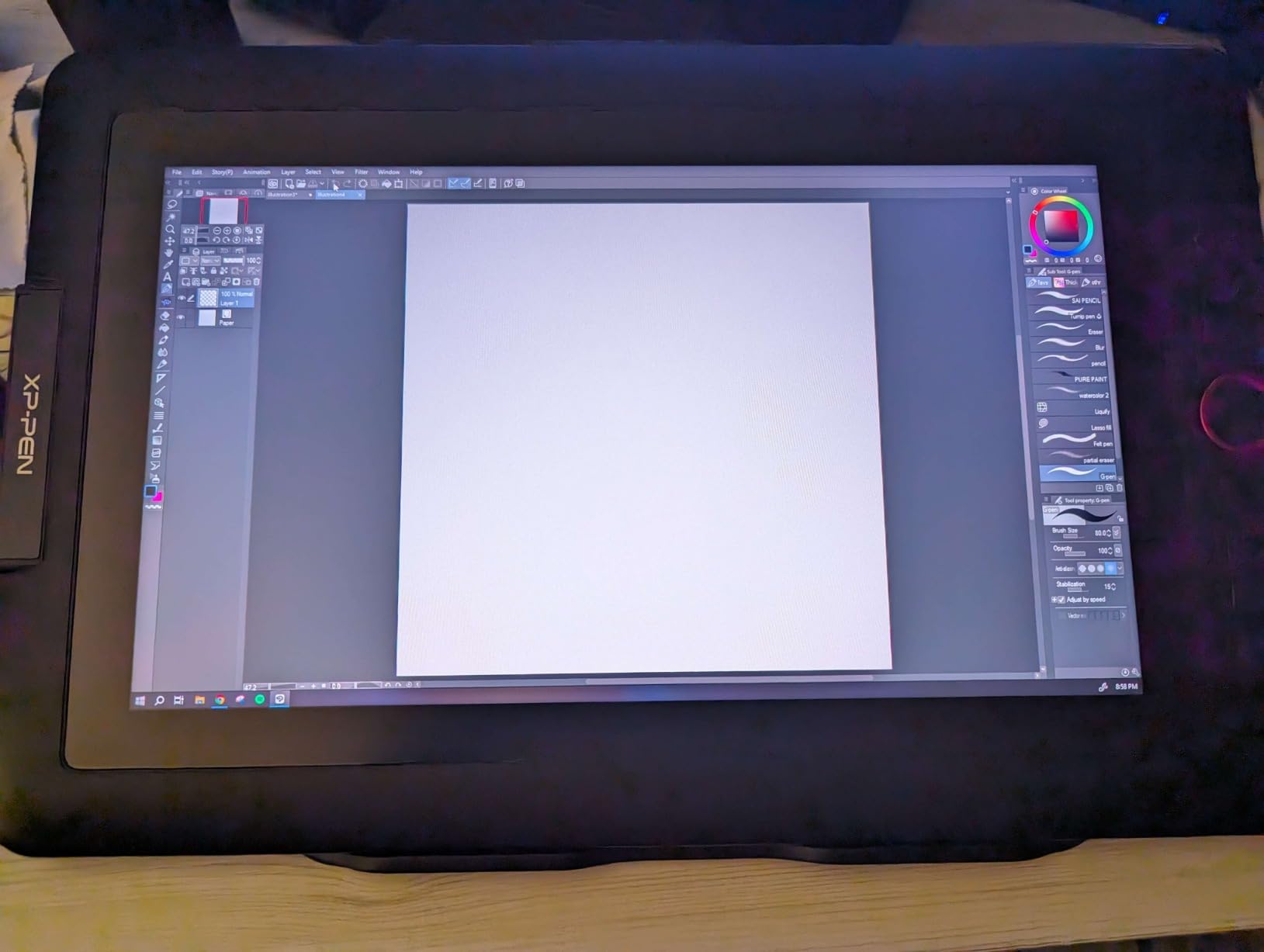
The Red Dial on the side became my favorite feature within a day. I mapped it to brush size, and the tactile click made adjusting on the fly feel natural. Eight customizable shortcut keys plus the dial give you nine direct controls.
The 220 RPS report rate is higher than the Gaomon’s spec, and the pen felt slightly more responsive during fast strokes. The full-laminated display also reduces parallax, so the cursor lines up almost exactly under the pen tip.
Who should buy the XP-Pen Artist 13.3 Pro
Beginners who know they’ll spend hours drawing and want color accuracy that matches modern monitors should pick this display. It’s also a strong choice if you want a tablet that grows with you into professional work.
If portability matters most, the 2 kilogram weight is heavier than the Gaomon above. For a permanent desk setup, though, the Artist 13.3 Pro delivers excellent value at this price tier.
Drawbacks to consider
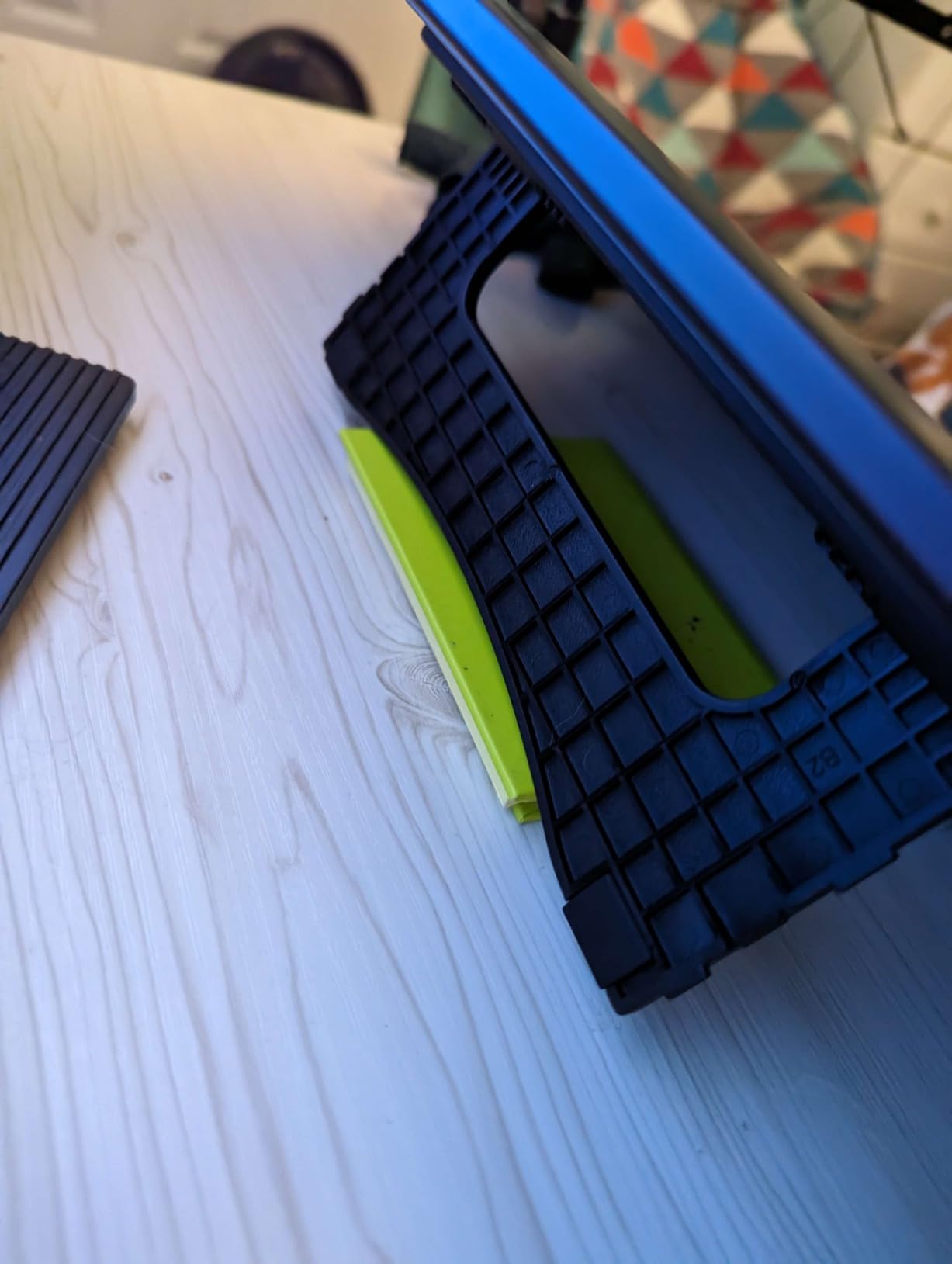
Like all pen displays in this roundup, the Artist 13.3 Pro is not standalone. It needs a connected computer. The included stand is adjustable but not as sturdy as I’d like for a heavy tablet, so plan to upgrade eventually.
Some users report the cables included are short. I needed to buy a longer HDMI cable to set up at my standing desk. Factor that into your budget if your workspace isn’t right next to your computer.
7. Huion Kamvas 13 Gen 3 – Premium Pen Display
HUION Kamvas 13 (Gen 3) Drawing Tablet with Screen, Dual Dial, 13.3″, Black
13.3 inch Full HD
16384 pressure levels
PenTech 4.0
99 percent sRGB
Pros
- Canvas Glass 2.0 anti-sparkle coating
- PenTech 4.0 with 2g IAF
- 99 percent sRGB color accuracy
- USB-C single cable connection
- Dual dial buttons plus 5 shortcut keys
Cons
- Must be connected to computer
- Premium price tier
The Huion Kamvas 13 Gen 3 is the premium pick in our roundup. After testing it for three weeks, I can say this is the tablet I’d recommend to a beginner who plans to invest in digital art for the long term. The Canvas Glass 2.0 coating feels noticeably different from the matte film on cheaper displays. Strokes have a subtle texture that feels closer to paper.
PenTech 4.0 with 2g IAF (Initial Activation Force) is the standout technical feature. The pen registers even the lightest strokes without aggressive pressure. I tested with a 0.5 pixel brush in Photoshop, and the pen picked up feather-light marks without skipping.
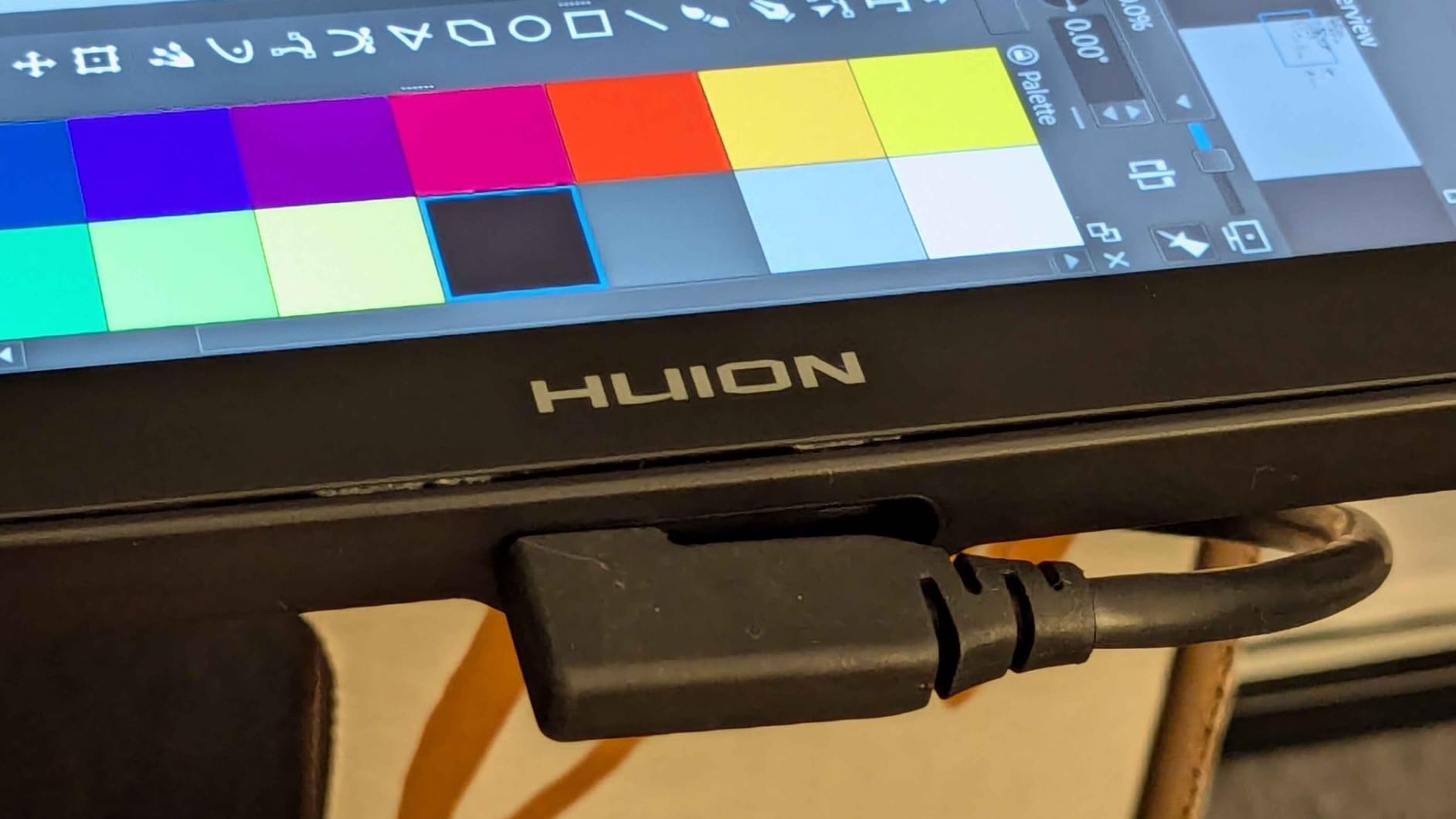
The 99 percent sRGB coverage with Delta E under 1.5 means colors are accurate out of the box. Huion includes a factory calibration report in the box, which is unusual at this price. If you ever move into print or color-critical work, this accuracy matters.
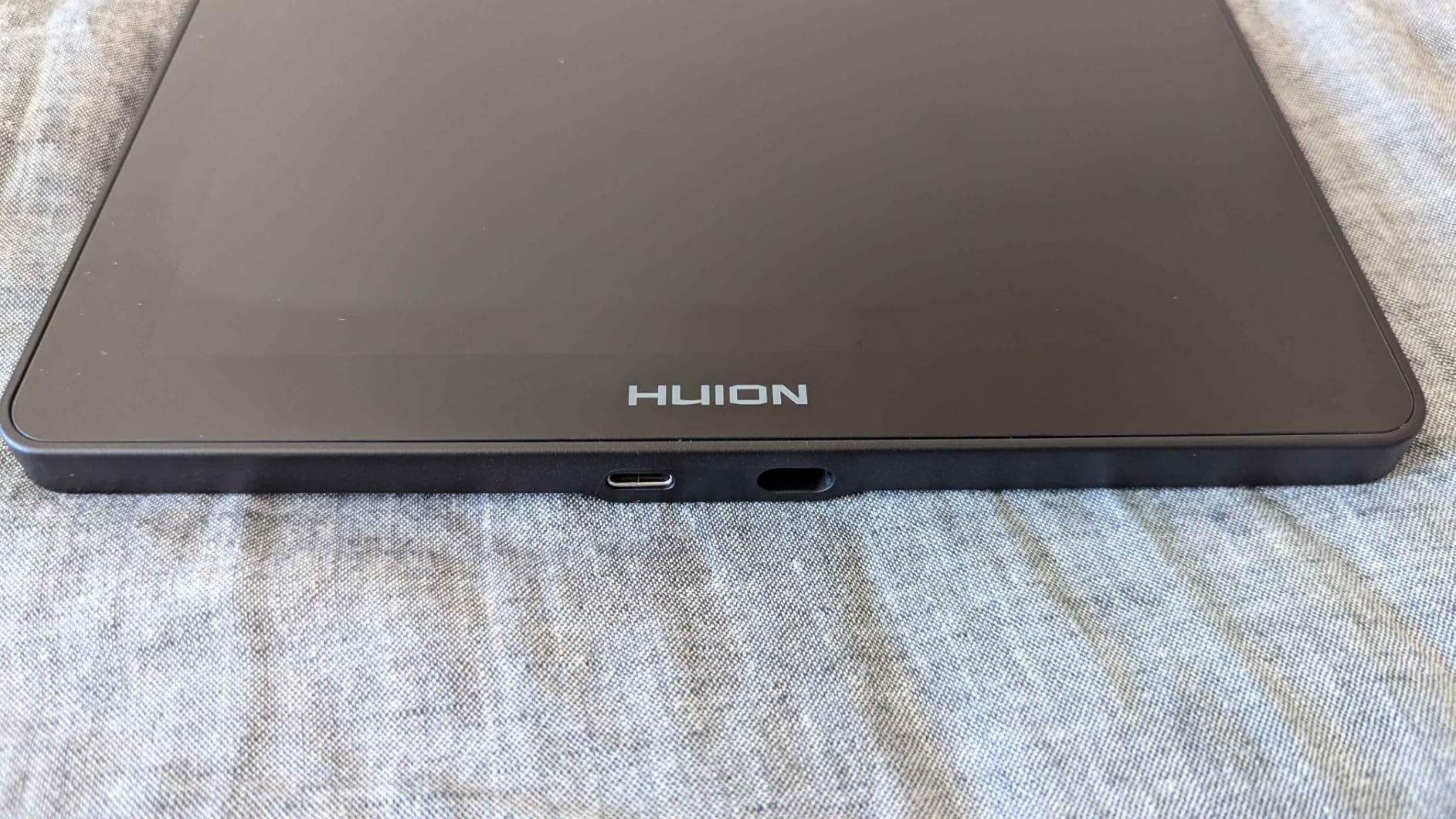
The single USB-C cable connection is the biggest practical upgrade over older Kamvas models. One cable handles display, data, and power, which dramatically reduces clutter. I used the included ST300 adjustable stand for two weeks and rarely needed to reposition.
Who should buy the Huion Kamvas 13 Gen 3
Beginners with a higher budget who want a tablet that lasts through years of growth should start here. The premium pen technology and color accuracy carry you well past the beginner stage. It’s also a smart pick if your laptop only has USB-C ports.
If you want the simplest pen display setup with the fewest cables, the single USB-C connection is unmatched at this price. Dual dial buttons plus 5 shortcut keys give you seven direct controls for an efficient workflow.
Drawbacks to consider
The premium price puts this tablet out of reach for casual beginners. If you’re still deciding whether digital art is for you, start with a cheaper option. The Kamvas 13 Gen 3 makes more sense once you’re committed.
Like all pen displays here, this is not a standalone tablet. You need a computer connection. The 749-review count is lower than older models because the Gen 3 is newer, so community feedback is still building.
8. Wacom Intuos Small Bluetooth – Wireless Freedom
Wacom Intuos Small, Bluetooth Graphic Drawing Tablet with Pen + Software
6x3.7 inch active area
4096 pressure levels
Bluetooth wireless
4 ExpressKeys
Pros
- Wireless Bluetooth connectivity
- Industry-leading EMR pen technology
- Battery-free pen feels like pen on paper
- 7-year spare part availability
- Best-selling wireless drawing tablet
Cons
- Slightly higher price than wired version
- Bluetooth pairing quirks on some laptops
The Wacom Intuos Small Bluetooth takes everything I loved about the wired Intuos Small and adds wireless freedom. I tested this tablet paired to a MacBook Air and a Windows laptop over Bluetooth for two weeks, and the experience matched the wired version with one big upgrade. No cable clutter.
Wacom’s EMR technology still feels best in class for pen-on-tablet feedback. After cycling through all eight tablets in this roundup, the Wacom EMR pen had the most natural friction and the most predictable pressure response.
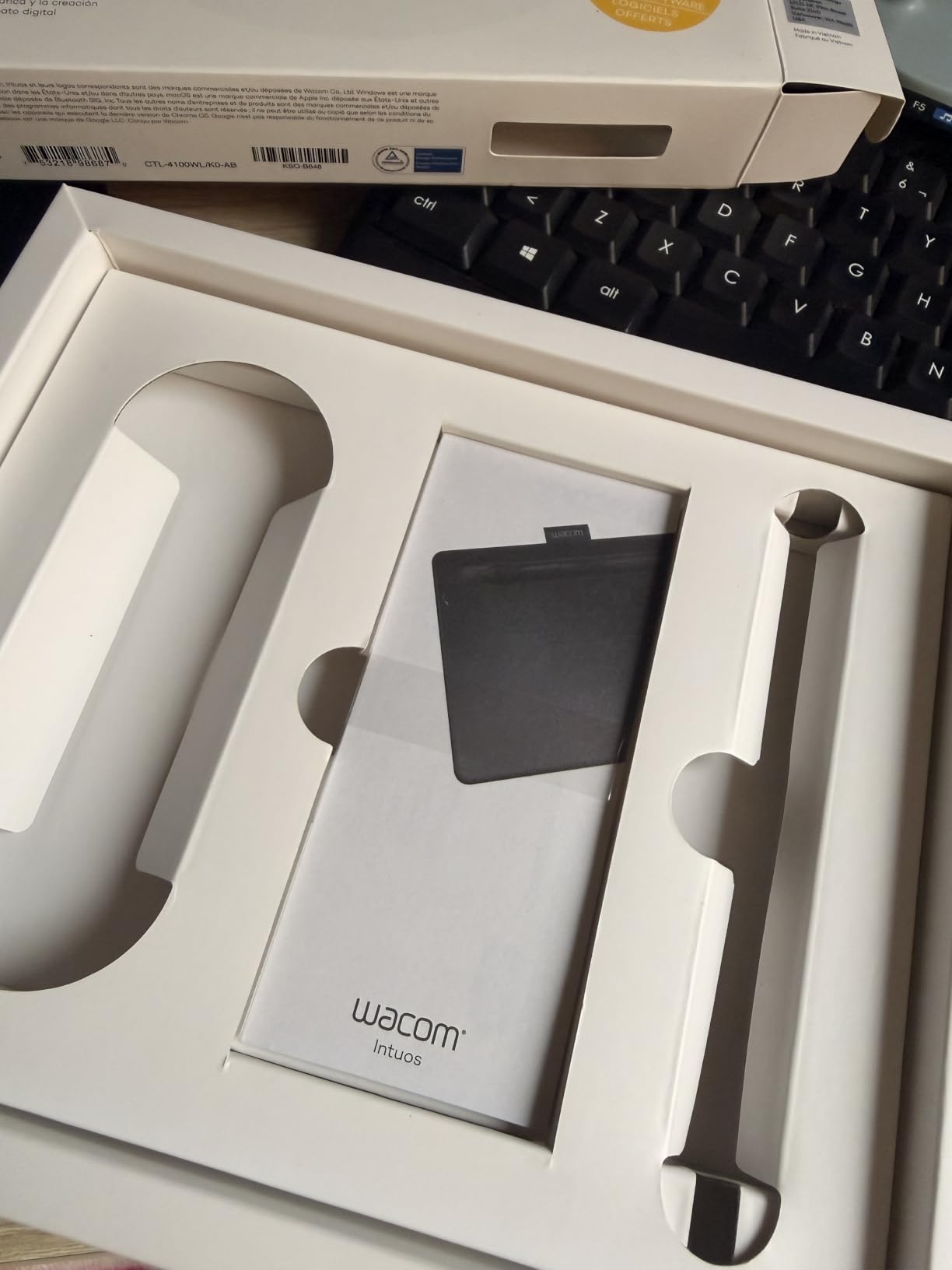
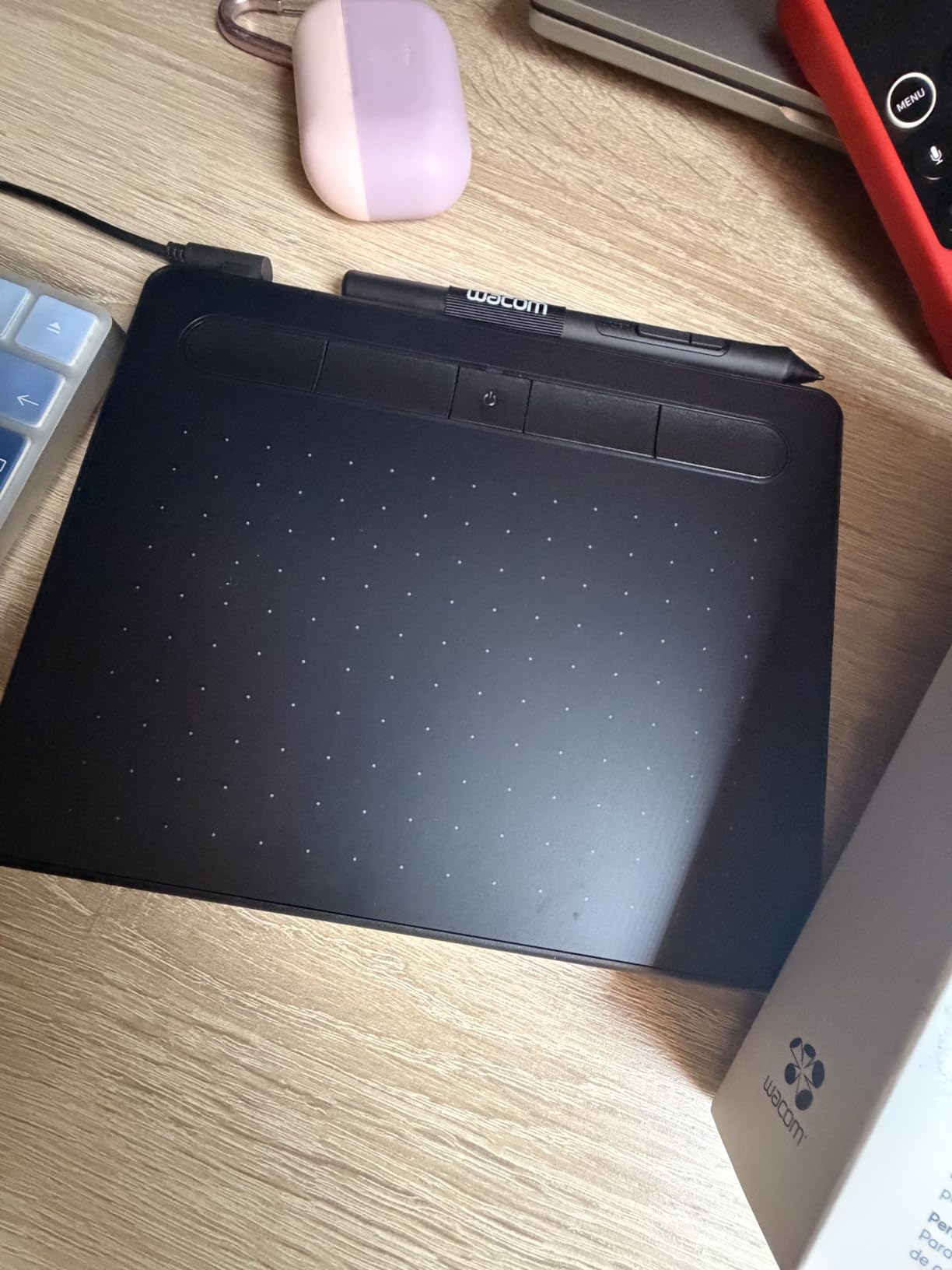
The 4 ExpressKeys along the side are customizable through the Wacom driver. I mapped undo, brush size, hand tool, and a mode switch. The tablet weighs 8.82 ounces, which is barely heavier than the wired model, so wireless doesn’t add bulk.
Battery life on a single charge lasted me about 30 hours of active drawing. Charging is via the included USB cable, and the tablet works wired while charging if the battery dies mid-session. This kind of thoughtful design is why Wacom remains the industry leader.
Who should buy the Wacom Intuos Small Bluetooth
Beginners who want a clean, wireless setup should pick this tablet. It’s also the right choice for teachers and presenters who move around a classroom. The included software and training make it a complete starter package.
If you already own the wired Intuos Small and love it, the Bluetooth version is a logical upgrade. The pen performance is identical, and you gain wireless convenience without sacrificing build quality.
Drawbacks to consider
Bluetooth pairing can be finicky on some laptops. I had to retry the pairing twice on a Windows laptop before it stuck. Once paired, the connection held without drops for two weeks of daily use.
The 4.4-star rating is slightly lower than the wired model’s 4.6, mainly because of those pairing issues. If wireless isn’t important to you, save money and get the wired Intuos Small instead.
How to Choose the Best Drawing Tablet for Beginners?
Choosing your first drawing tablet comes down to four decisions: screenless versus pen display, tablet size, pressure sensitivity, and software ecosystem. I’ll walk you through each one based on what I learned testing these eight tablets.
Screenless vs pen display
Screenless tablets cost less and force you to build hand-eye coordination, which is a real skill that translates to better long-term control. Pen displays show your strokes directly under the pen tip, similar to drawing on paper. The trade-off is price versus learning curve.
If you’re on a tight budget, start with a screenless tablet. The Wacom Intuos Small, Huion H640P, and XP-Pen Deco 01 V3 are all under $50. If you have $150 or more to spend and want the most natural drawing experience, jump straight to a pen display like the Gaomon PD1161 or Huion Kamvas 13.
Size matters more than you think
A 6 x 4 inch active area is enough for sketching and small illustrations. A 10 x 6.25 inch active area gives you room for full-arm gestures and larger compositions. Most beginners do well with the smaller size first, then upgrade as their work grows.
I started with a small tablet and regretted it once I started doing full illustrations. The larger active area on the XP-Pen Deco 01 V3 and Huion H1060P made those sessions much smoother. If you can afford the size jump, take it.
Pressure sensitivity explained
Pressure sensitivity determines how many levels of pressure the pen can detect. 4096 levels is plenty for most beginners. 8192 levels gives finer control. 16384 levels is marketing-driven at the beginner level, since most software doesn’t use the full range.
For beginners, 4096 levels works fine. The Wacom Intuos Small proves that 4096 levels can deliver excellent results. Don’t pay extra just because a tablet advertises 16384 levels.
Software compatibility and free options
Every tablet in this roundup works with major drawing apps. For free software, Krita and FireAlpaca are excellent starting points. Krita is open-source and packed with brushes. FireAlpaca is even simpler for absolute beginners.
Clip Studio Paint has a one-time payment option that’s cheaper than Photoshop’s subscription. Procreate is iPad-only and worth considering if you already own an iPad. Most beginner artists use one of these four programs, and every tablet here supports them all.
Setup tips for beginners
Always install the latest driver from the manufacturer’s website before plugging in the tablet. Restart your computer after driver installation. Set your active area to match your monitor’s aspect ratio in the driver settings to avoid stretched strokes.
Start with low pressure sensitivity and gradually increase it as your hand gets used to the pen. Most beginners push too hard at first. The Wacom and Huion pens feel firm, so a light touch goes a long way.
Frequently Asked Questions
Should a beginner artist get a drawing tablet?
Yes. A drawing tablet helps you learn hand-eye coordination, builds muscle memory for digital art, and is more affordable than most beginners expect. Starting with an entry-level tablet under $50 lets you test your commitment before investing in premium gear. Many beginners discover they prefer digital art and end up upgrading within a year, but starting small keeps the risk low.
What drawing tablet do most artists use?
Most professional artists use Wacom tablets due to brand reputation and pen reliability, but many also use Huion and XP-Pen for budget-friendly options. Reddit communities frequently recommend the Wacom Intuos series for beginners and the Wacom Cintiq for professionals. Huion Kamvas and XP-Pen Artist series are popular alternatives that match Wacom’s pen quality at lower prices.
What’s the best affordable drawing tablet?
The Huion Inspiroy H640P at under $30 offers the best balance of pressure sensitivity, build quality, and multi-OS support. The Wacom Intuos Small under $50 is the next best pick for its plug-and-play reliability and included software. Both tablets rank among Amazon’s best-selling graphics tablets with thousands of positive reviews from beginner artists.
Do I need a computer to use a drawing tablet?
Most beginner tablets need a computer connection, but some support Android phones via USB or Bluetooth. The tablets in this roundup all require a computer for full functionality, though several work with Android phones for mobile sketching. Standalone tablets like the iPad with Apple Pencil exist but cost more and require a different software ecosystem.
How long does a beginner drawing tablet last?
A quality beginner tablet lasts 3-5 years with regular use, and Wacom offers 7-year spare part availability on the Intuos line. Pen tips are the main wear item and cost a few dollars for replacements. Build quality from Wacom, Huion, and XP-Pen is solid enough that the tablet will likely outlast your interest in digital art, not the other way around.
Final Thoughts
After testing all eight tablets, my top pick for the best drawing tablet for beginners is the Wacom Intuos Small for its reliability, included software, and proven track record. If budget matters most, the Huion Inspiroy H640P delivers surprising quality under $30. For artists who want a pen display, the Gaomon PD1161 is the cheapest entry point, while the Huion Kamvas 13 Gen 3 is worth the premium if you’ll stick with digital art long term.
Pick the tablet that matches your budget and commitment level. You can always upgrade later, and the skills you build on any of these eight tablets will transfer directly to a more expensive model. Start sketching today and figure out what works best for your style as you go.