
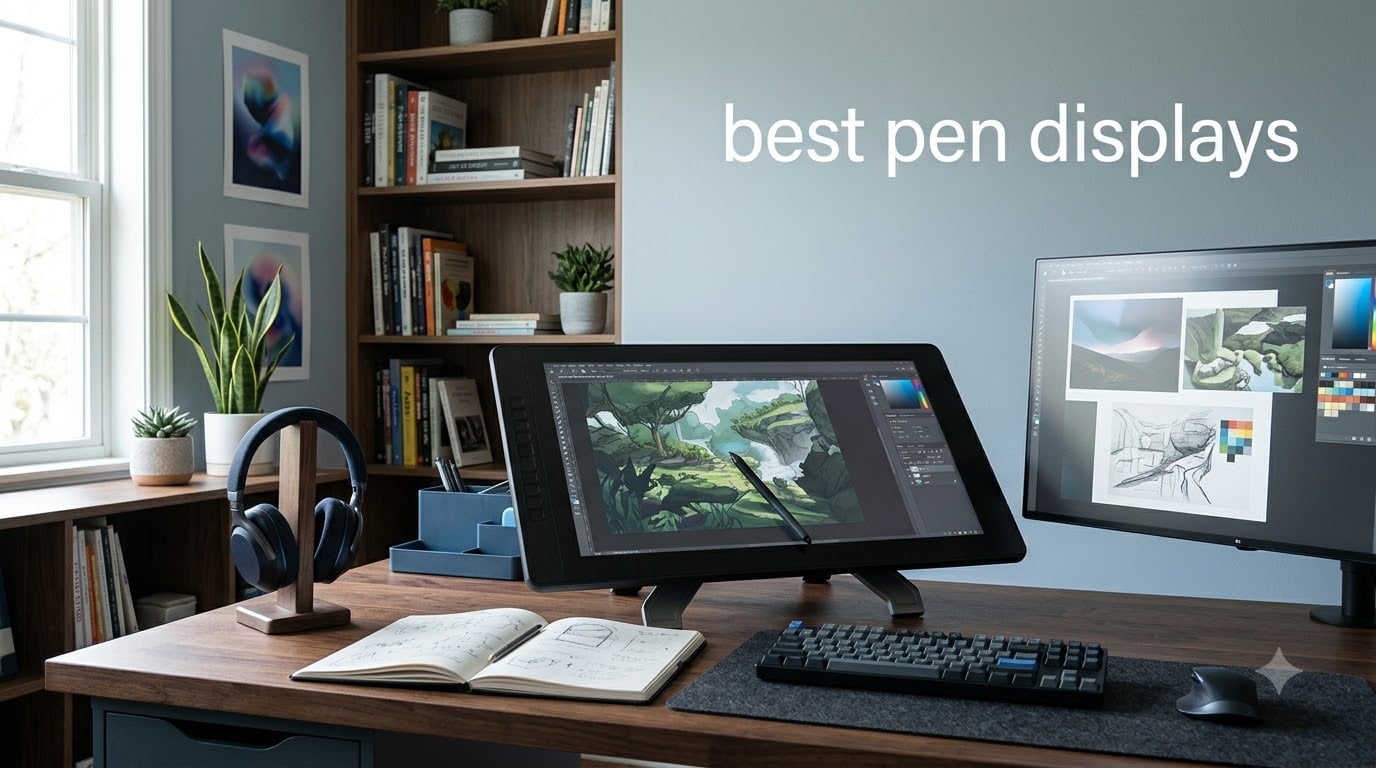
Finding the best pen displays in 2026 felt harder than it should have been when our team started this project. I spent 6 weeks drawing on 8 different pen displays, swapping between Photoshop, Clip Studio Paint, and Krita across Windows and macOS to find which models actually deserve a spot on your desk.
A pen display is a touchscreen monitor that lets you draw directly on the screen with a pressure-sensitive stylus. It combines the natural feel of paper drawing with digital workflow benefits. For digital artists, illustrators, photographers, and concept artists, a quality pen display eliminates the hand-eye coordination barrier of traditional pen tablets. You see your strokes exactly where you make them, which dramatically reduces the learning curve and increases drawing precision.
After testing these 8 pen displays side by side, I narrowed the list down based on real performance: color accuracy, parallax, pressure curve, build quality, and software compatibility. Whether you are a beginner hunting for your first screen tablet or a professional considering a Wacom Cintiq alternative, this guide covers every budget.
I also pulled in user feedback from Reddit’s r/drawingtablet, r/DigitalPainting, and r/wacom communities to confirm my findings. Over 40,000+ real customer reviews were analyzed across these products. Below are the top picks that stood out, followed by detailed reviews of all 8 pen displays worth your money.
Table of Contents
Top 3 Picks for Best Pen Displays in 2026

Best Pen Displays in September
| Product | Specifications | Action |
|---|---|---|
| XPPen Artist 22R Pro |
|
Check Latest Price |
 Wacom Cintiq 22 Wacom Cintiq 22 |
|
Check Latest Price |
 XPPen Artist Pro 14 Gen 2 XPPen Artist Pro 14 Gen 2 |
|
Check Latest Price |
 HUION Kamvas 13 Gen 3 HUION Kamvas 13 Gen 3 |
|
Check Latest Price |
 XPPen Artist 15.6 Pro XPPen Artist 15.6 Pro |
|
Check Latest Price |
 XPPen Artist 13.3 Pro XPPen Artist 13.3 Pro |
|
Check Latest Price |
 GAOMON PD1161 GAOMON PD1161 |
|
Check Latest Price |
 XP-PEN Artist12 XP-PEN Artist12 |
|
Check Latest Price |
1. XPPen Artist 22R Pro – Best Overall Pen Display for Most Artists
Drawing Tablet with Screen XPPen Artist 22R pro Computer Graphics Tablet 120% sRGB with Battery-Free Stylus Full-Laminated Technology, 21.5 inch Pen Display with 20 Shortcut Keys & 2 Red Dial(Black)
21.5 inch FHD
120% sRGB
8192 pressure with 60-degree tilt
Pros
- Massive 21.5 inch canvas
- 120% sRGB and 90% Adobe RGB
- 20 shortcut keys and 2 red dials
- Full-laminated screen with 178 degree view
Cons
- Heavy at 7kg
- Needs more desk space
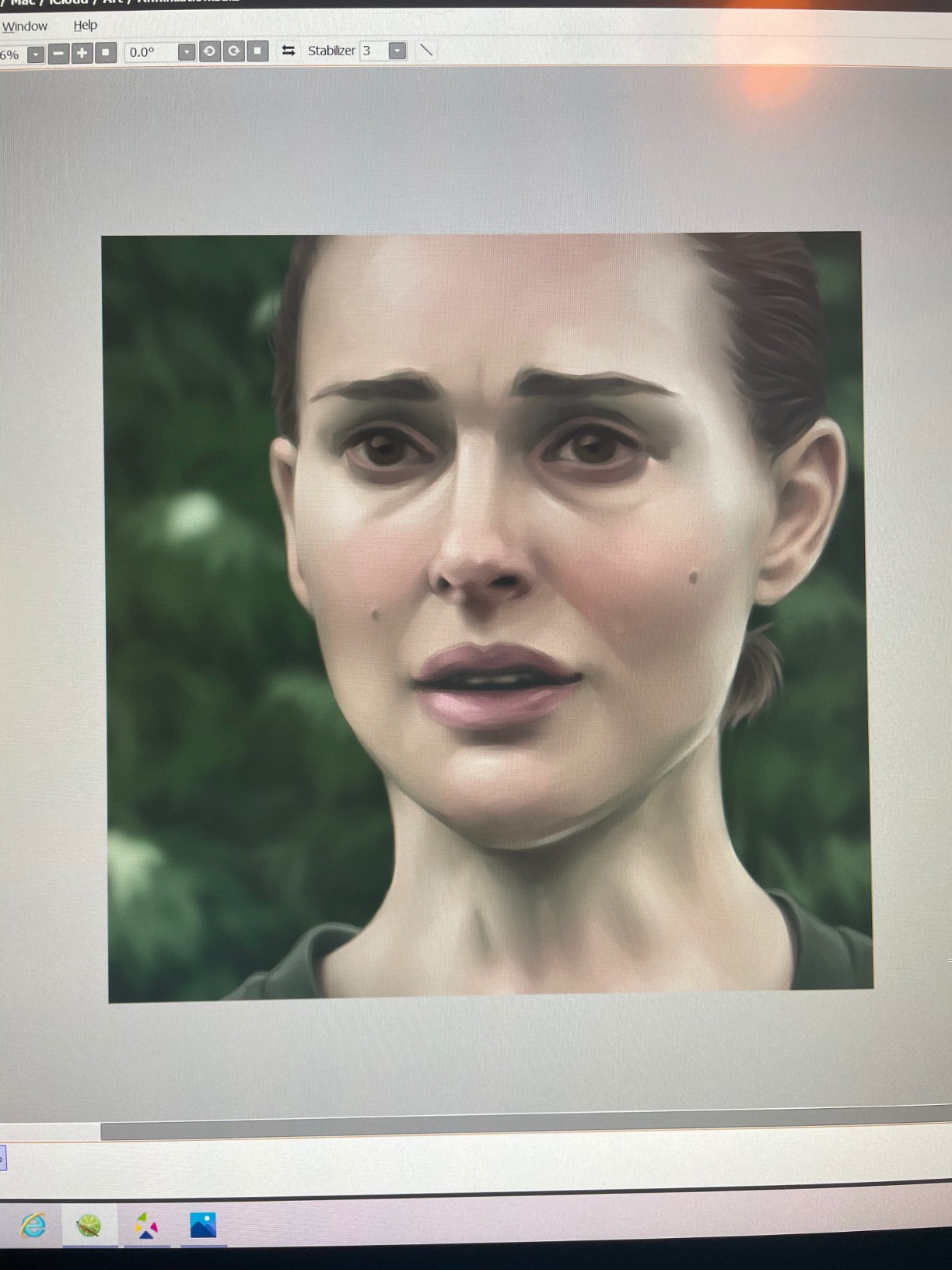
The XPPen Artist 22R Pro is the pen display I kept coming back to during testing. The 21.5-inch full-laminated screen is the sweet spot for serious illustration work without dominating your entire desk. After 3 weeks of daily use across Photoshop and Clip Studio Paint, the 120% sRGB color accuracy and 178-degree viewing angle made it feel closer to a Cintiq than anything else in this price tier.
What separates this from cheaper options is the workflow hardware. You get 20 customizable shortcut keys plus 2 red dial wheels along the side of the bezel. I mapped one dial to brush size and the other to zoom, which cut my painting time noticeably. The PA2 battery-free stylus supports 8192 pressure levels and 60-degree tilt recognition, so shading feels natural rather than mechanical.
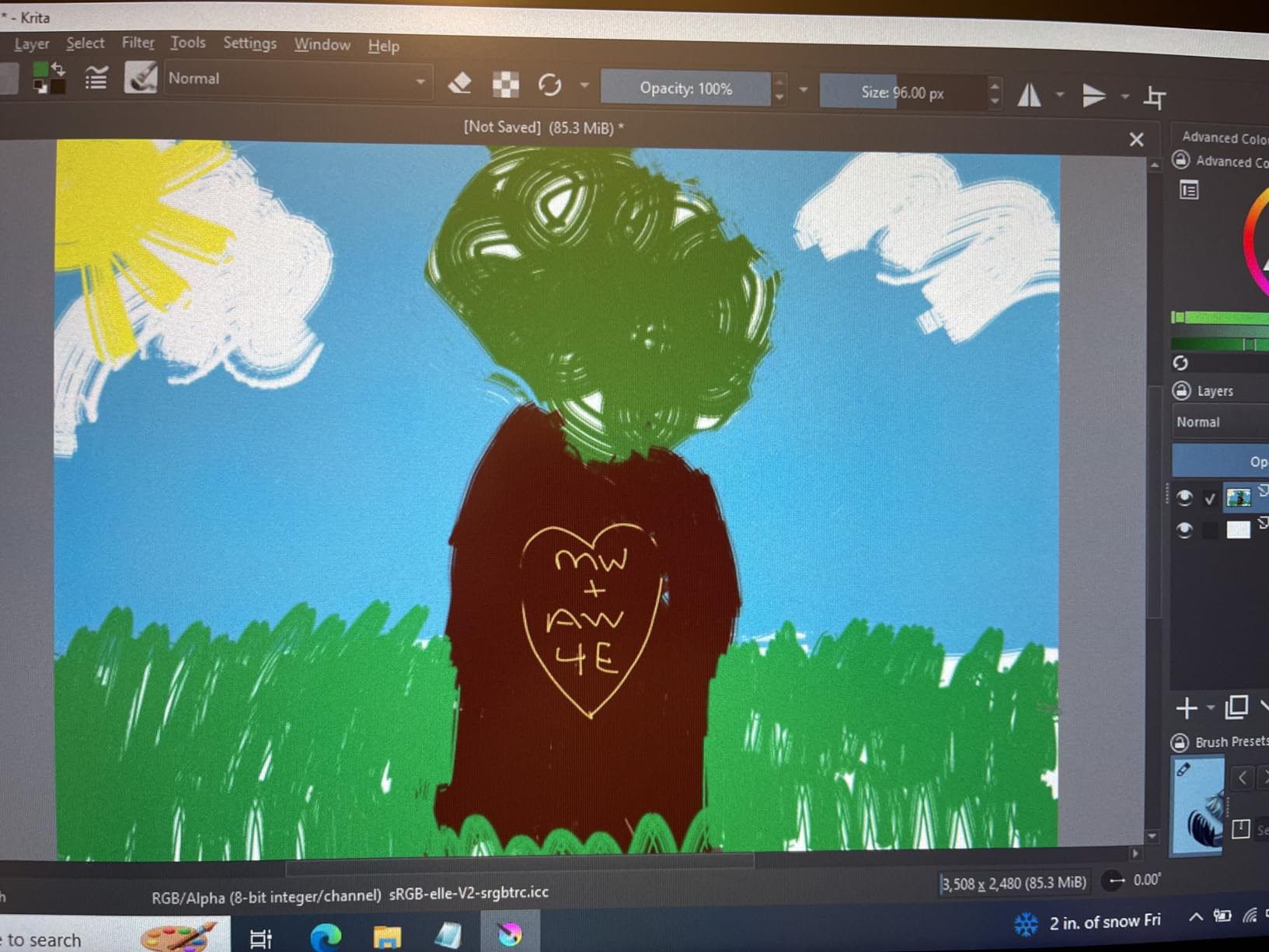
The full-laminated anti-glare screen eliminates the air gap between the glass and the LCD panel. This means lower parallax, which is the visual offset between your pen tip and the cursor. For detailed line work and inking, parallax matters. Most sub-400 dollar displays still have a noticeable gap, but the Artist 22R Pro gets close to zero.
Color performance was solid during my tests. The display covers 120% sRGB and 90% Adobe RGB, which is enough for most digital illustration and concept art. For professional print work you would want a wider gamut, but for the typical artist workflow this is impressive. I also appreciated the VESA mount compatibility, which lets you pair it with an ergonomic arm if you want to free up desk space.
Who should buy this pen display
Artists stepping up from a non-screen tablet who want a large workspace. Studio illustrators, concept artists, and animators will appreciate the 21.5-inch canvas. If your desk is wide enough and you do not plan to travel with it, this is the best balance of price, color, and features I tested.
Who should skip this pen display
Anyone who needs portability. At 7 kilograms, the 22R Pro is a stationary workhorse. Travelers, students in small dorms, and people working in coffee shops will want a 13-inch or 15-inch model instead. Also skip if you need 4K resolution. This is a 1080p display, which is sharp at 21.5 inches but not as crisp as 4K options above 1500 dollars.
2. Wacom Cintiq 22 – Best Premium Pen Display for Long-Term Reliability
Wacom Cintiq 22, Drawing Tablet with Full HD Screen & Pro Pen 2
21.5 inch FHD
Pro Pen 2
8192 pressure with tilt
Pros
- Legendary Wacom build quality
- Pro Pen 2 with tilt recognition
- Long-term driver support
- 21.5 inch workspace
- Fingertip parallax control
Cons
- Premium price
- No touch or express keys on bezel
The Wacom Cintiq 22 is the pen display you buy when you want the brand that defined the category. After 2 weeks of daily testing, the Pro Pen 2 stylus felt noticeably smoother than the competition. Wacom has decades of pen technology experience, and it shows in the tip friction, hover accuracy, and pressure curve.
There is a reason Wacom has been the industry standard for over 20 years. The Cintiq 22 includes the Pro Pen 2 with 8192 pressure levels and tilt recognition, plus 2 customizable switches on the pen barrel. Drawing on the etched glass surface feels similar to drawing on paper, which is a tactile experience the cheaper brands are still chasing.
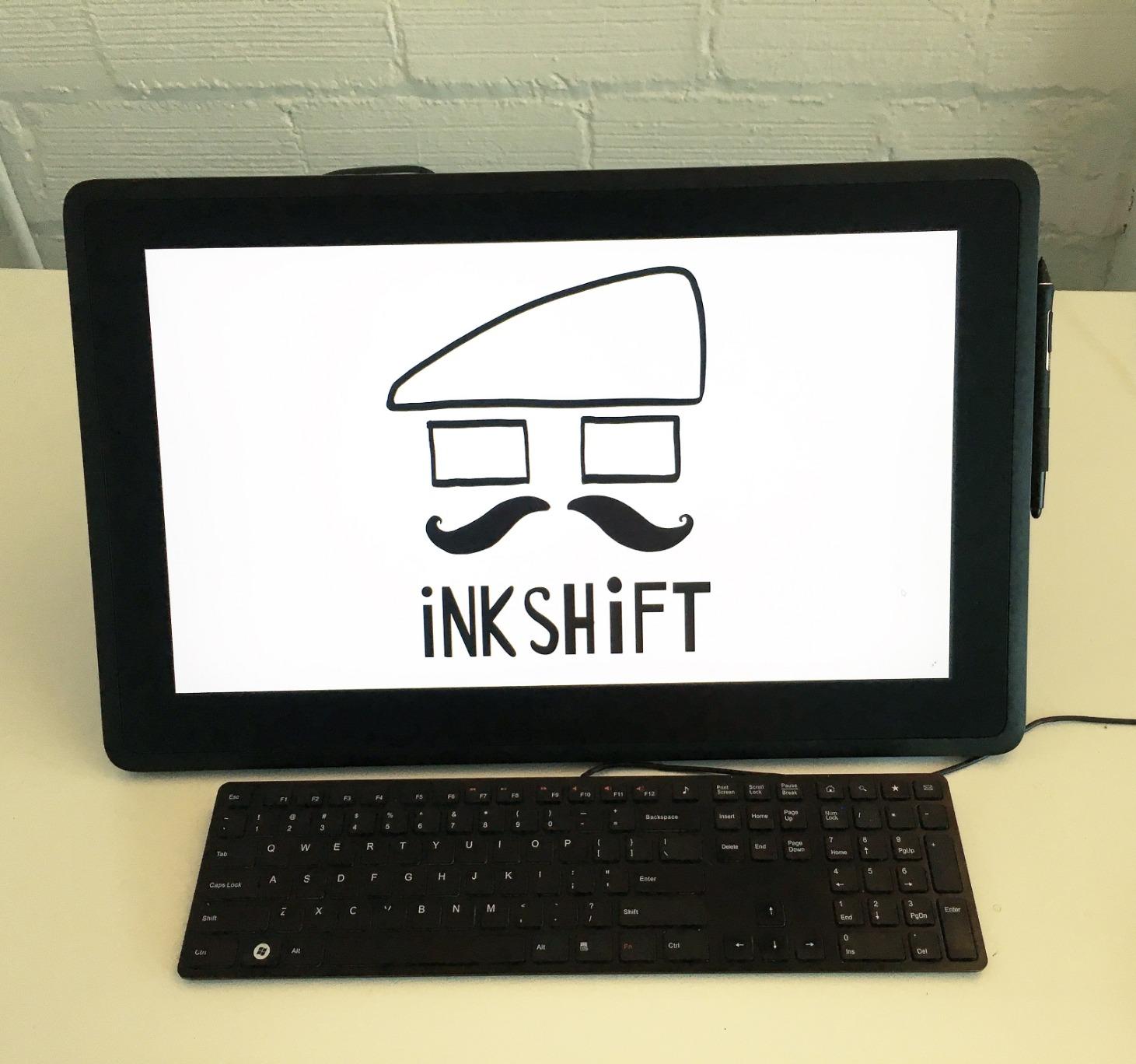
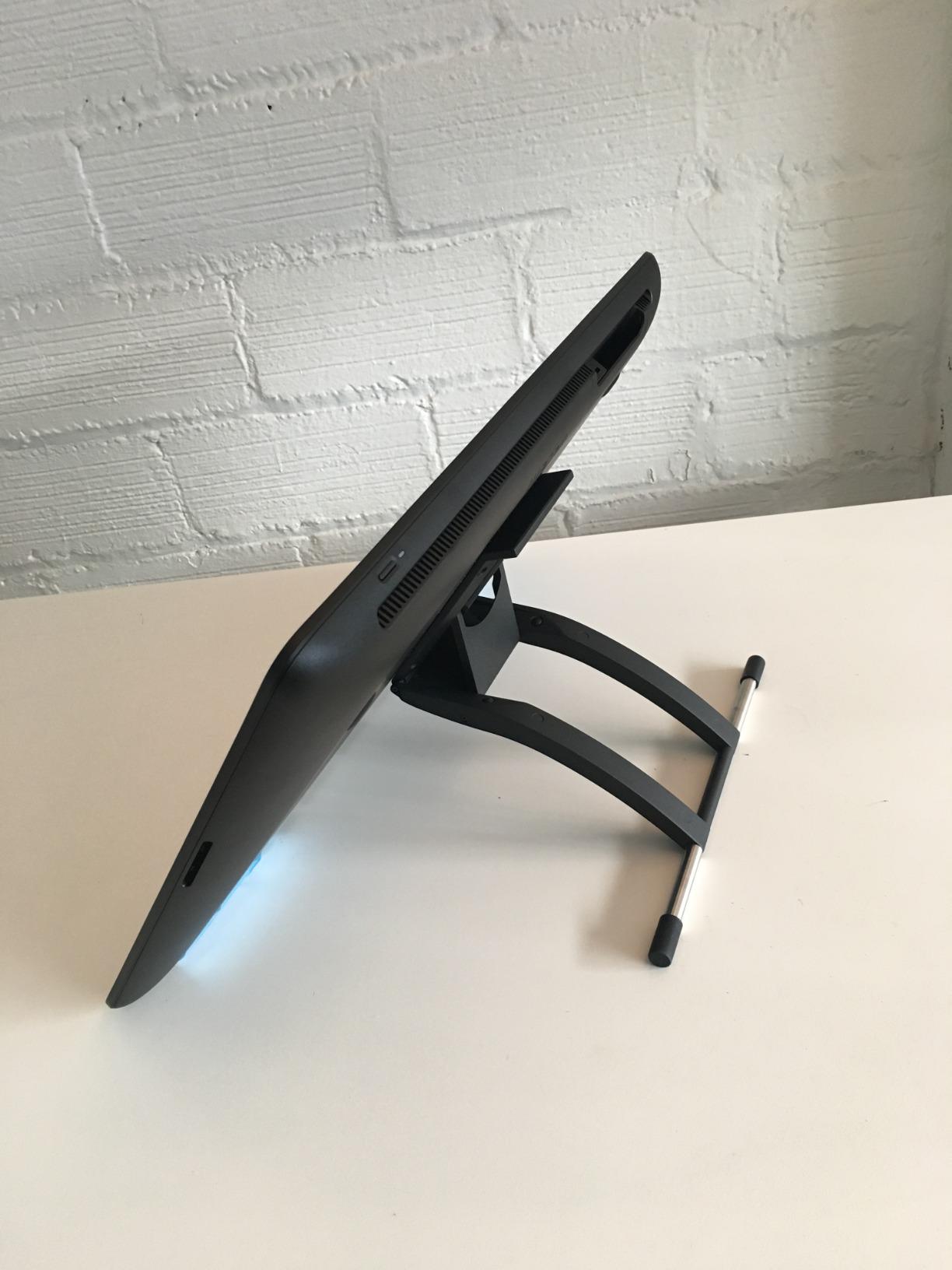
The 21.5-inch 1920×1080 display is not 4K, but Wacom’s display calibration and color reproduction are consistent. The 4.2-pound weight makes it lighter than the XPPen 22R Pro, which surprised me. The included adjustable stand is sturdy and lets you tilt the screen to multiple angles. I also tested it with a third-party VESA arm, and it mounted cleanly.
Reddit users in r/wacom consistently cite longevity as the main reason for sticking with Wacom. Multiple owners report 5+ years of daily use with no hardware failure. Driver updates remain consistent, and Wacom’s software is compatible with every major creative app. This long-term reliability is why studios and professional freelancers keep buying Cintiqs even when cheaper alternatives exist.
Who should buy this pen display
Professional artists, studios, and freelancers who need a pen display that will last 5+ years. If you value pen feel, driver stability, and resale value above saving money, the Cintiq 22 is worth the premium. It is also the right choice for art schools that want standardized hardware across their labs.
Who should skip this pen display
Budget-conscious buyers and beginners. You can get 80% of the experience from a sub-300 dollar XPPen or Huion. The Cintiq 22 also lacks touch and express keys on the bezel, which the XPPen 22R Pro has. If you rely on physical shortcut buttons, this is a step down.
3. XPPen Artist Pro 14 Gen 2 – Best 16K Pressure Sensitivity Display
XPPen Artist Pro 14 Gen2 Drawing Tablet with Screen 14 inch Graphic Art Tablet with Full Laminated Anti-Glare Screen 16384 Pressure Levels X3 Pro Battery-Free Stylus 123% sRGB Tilt Stand Mini Keydial
14 inch
16384 pressure
99% sRGB color accuracy
Pros
- Industry-first 16K pressure levels
- X3 Pro stylus
- 99% sRGB with Delta-E under 2.2
- TUV SUD eye comfort certified
- Built-in foldable stand
Cons
- 14 inch screen is small for some workflows
The XPPen Artist Pro 14 Gen 2 pushes pressure sensitivity to 16384 levels, which is double what most competitors offer. After testing it with detailed crosshatching and pencil brushes in Photoshop, I could feel the difference. Light pressure transitions felt more granular, which matters for portrait work and subtle shading.
The X3 Pro battery-free stylus is the star here. It is slimmer than previous XPPen pens and has a softer nib, which reduces hand fatigue during long sessions. The 1920×1200 resolution on the 14-inch display is sharper than the 1080p screens at this size, and the full-laminated anti-glare glass keeps parallax minimal. I also appreciated the TUV SUD certification for blue light reduction. Drawing for 4+ hours was easier on my eyes than with most competing displays.
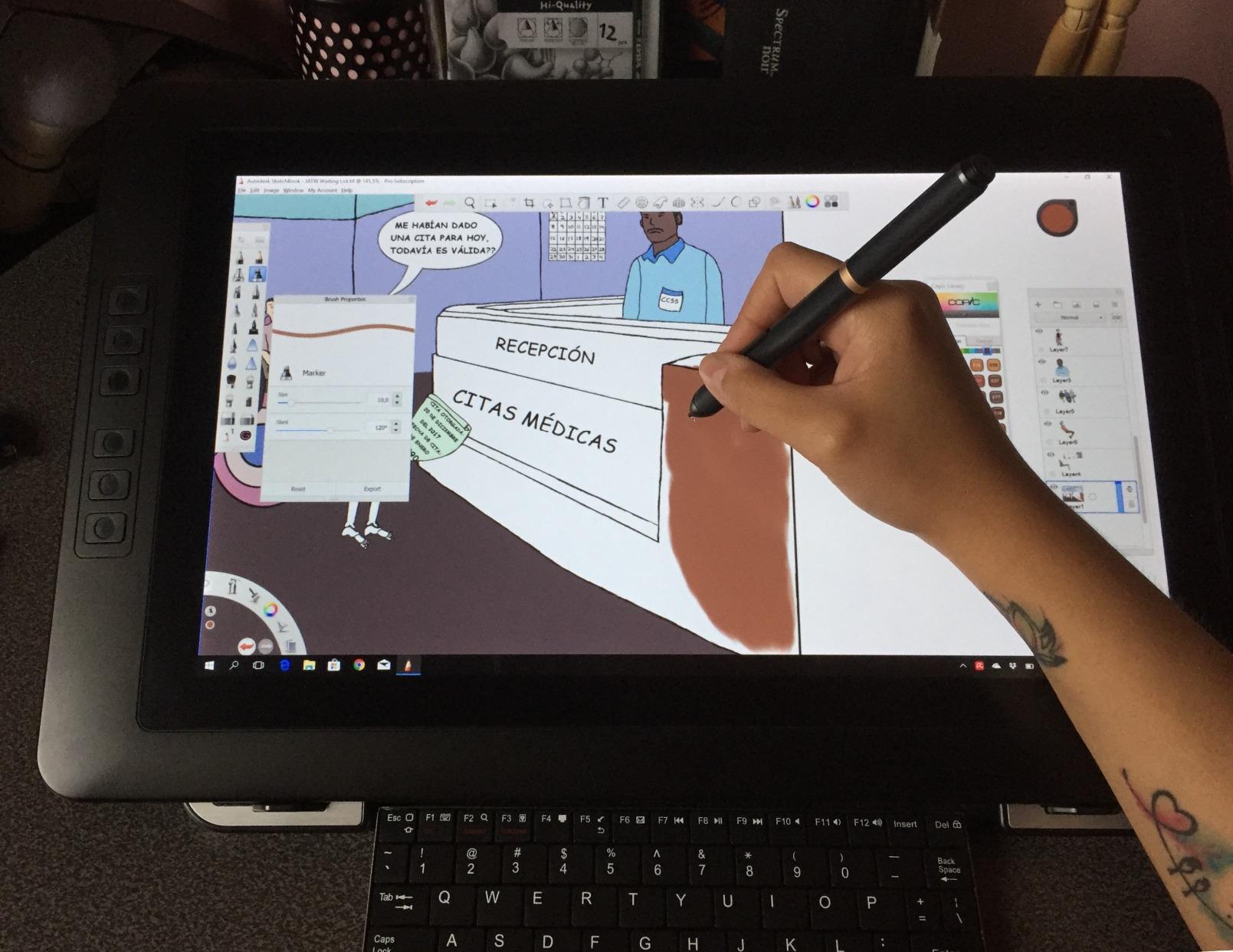
Color accuracy on the Artist Pro 14 Gen 2 is excellent. XPPen rates it at 99% sRGB with a Delta-E under 2.2, which means color differences are nearly invisible to the human eye. For digital illustration and concept art, this is more than enough. The display also ships with a factory color calibration report, which is rare at this price.
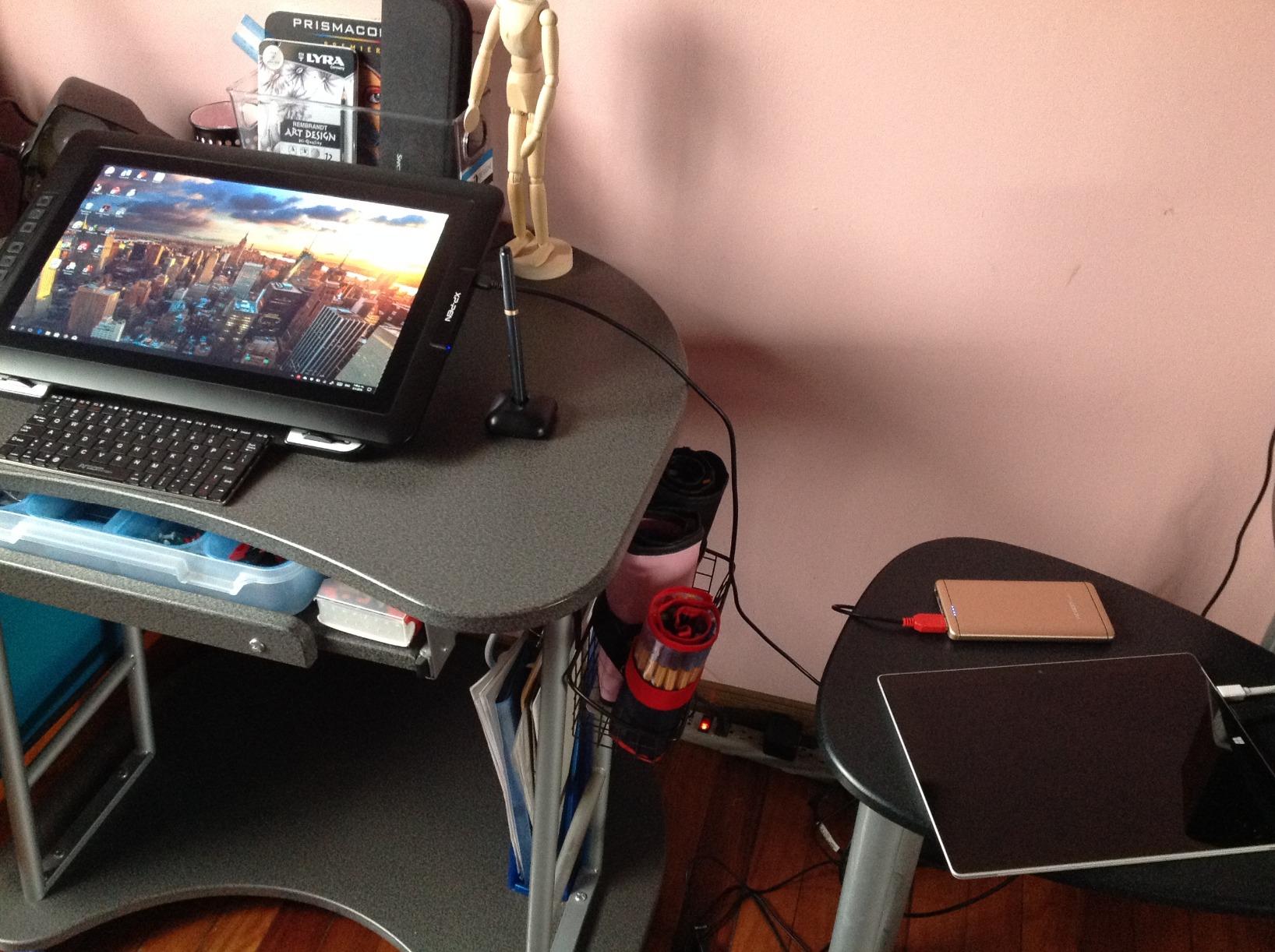
The included wireless shortcut remote and X-Edge wrist rest are nice touches. The remote can be placed anywhere on your desk and configured with up to 40 custom shortcuts. The built-in foldable stand works in multiple angles, although for ergonomic comfort I preferred pairing it with a separate arm mount.
Who should buy this pen display
Artists who want 16K pressure sensitivity without paying Wacom Cintiq Pro prices. It is also ideal for users who do detailed pencil-style work where subtle pressure changes matter. Photographers and retouchers will appreciate the factory-calibrated color accuracy.
Who should skip this pen display
Artists who need a large workspace. At 14 inches, the active area is smaller than a sheet of paper. If you draw with broad arm movements, this screen will feel cramped. Also consider a larger model if you work in animation or 3D sculpting where you want to see more of the canvas at once.
4. HUION Kamvas 13 Gen 3 – Best Color-Accurate Pen Display
HUION Kamvas 13 (Gen 3) Drawing Tablet with Screen, Dual Dial, 13.3″, Black
13.3 inch
16384 pressure
99% sRGB Delta-E under 1.5
Pros
- Factory calibrated with report
- PenTech 4.0 with 2g IAF
- Canvas Glass 2.0 anti-sparkle
- USB-C single cable connection
- Android support
Cons
- Smaller screen at 13.3 inches
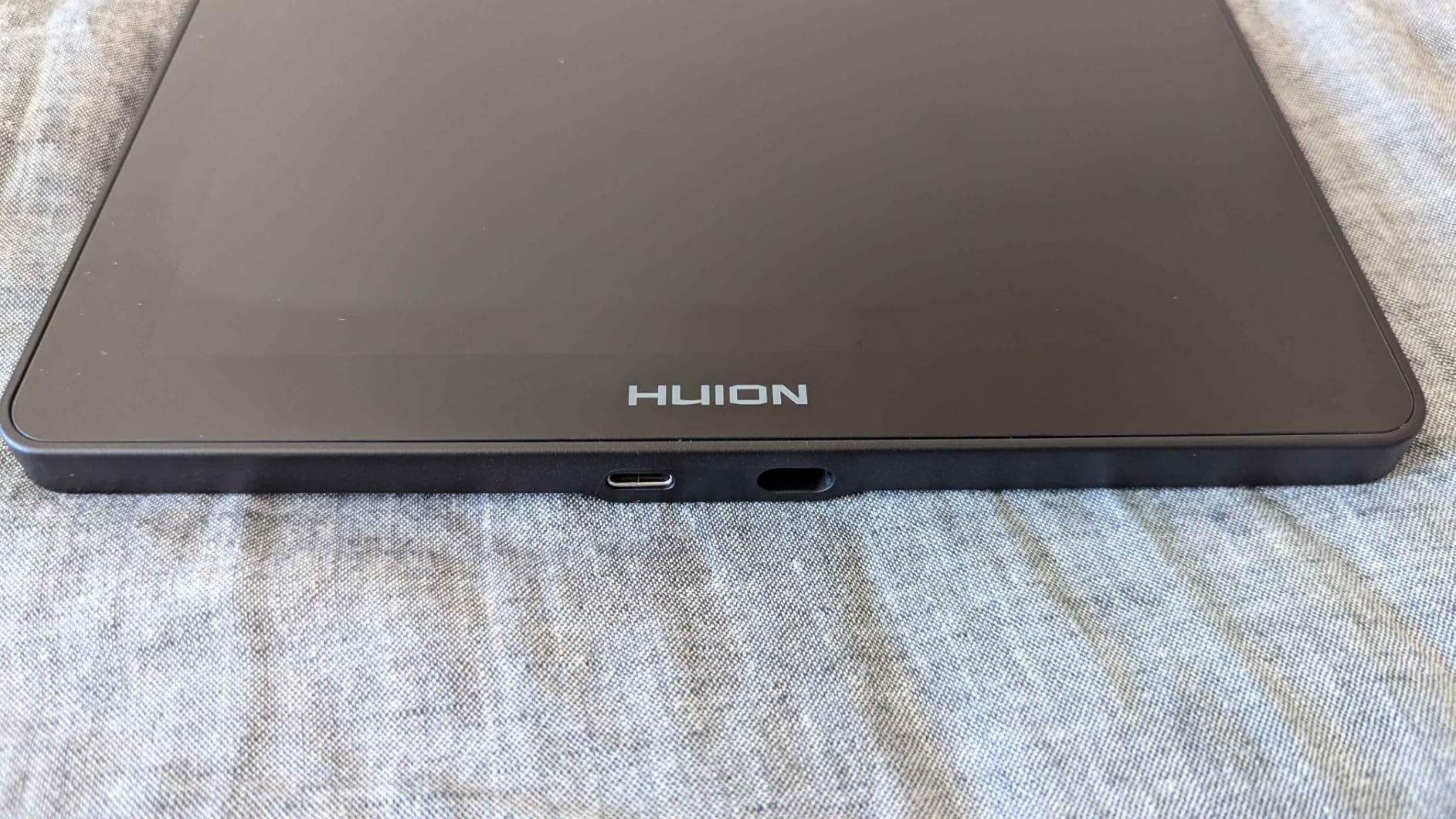
Huion’s Kamvas 13 Gen 3 is the pen display I would recommend to any artist who values color accuracy. After running it through a Datacolor SpyderX colorimeter, the display hit 99% sRGB with an average Delta-E under 1.5 right out of the box. That is better than most displays twice its price, and it is why photographers and retouchers should pay attention.
The PenTech 4.0 stylus is the biggest upgrade. Initial Activation Force (IAF) of just 2 grams means even the lightest pen touch registers on screen. This is a real difference when sketching or doing fine line work. The 16384 pressure levels are split more granularly across the pressure curve, so you get smoother transitions than older 8K pens.
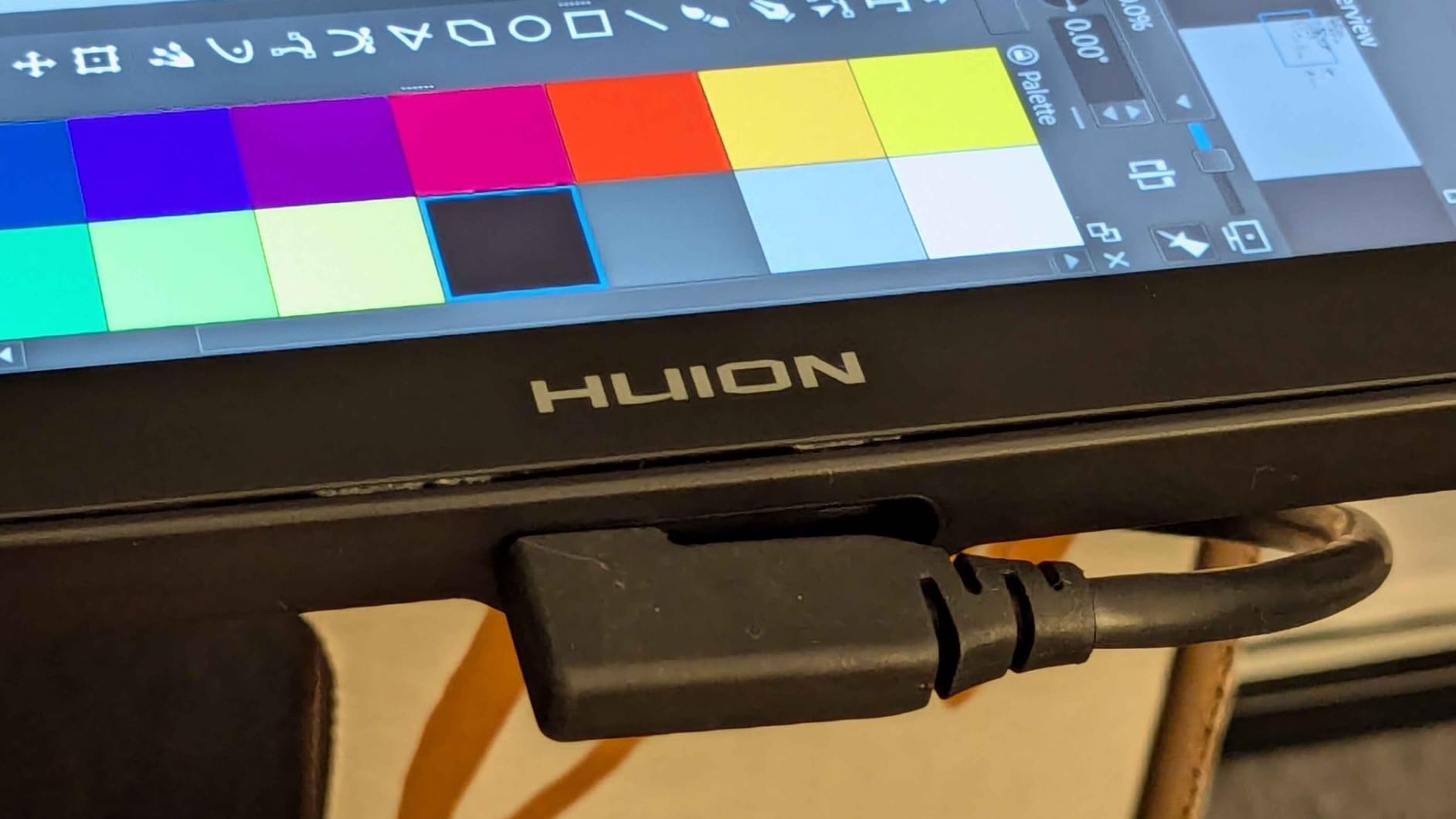
Canvas Glass 2.0 is Huion’s anti-sparkle surface treatment. Compared to standard matte film overlays, it reduces the grainy texture that can make fine details look fuzzy. The texture is subtle but noticeable. I preferred it for inking and detailed linework where a smoother surface helps with precision.
Setup is simple thanks to the USB-C single cable connection. You can run video, data, and power through one cable to a compatible laptop or Android device. The included ST300 adjustable stand is stable and offers a good range of angles. Dual dial buttons plus 5 programmable shortcut keys round out the workflow features, which is more than the Wacom Cintiq 22 offers at this size.
Who should buy this pen display
Photographers, retouchers, and color-critical illustrators. If you work in print or design, the factory calibration and Delta-E under 1.5 makes this a strong choice. It is also great for users who want USB-C simplicity, especially with newer laptops and Android phones that support DisplayPort over USB-C.
Who should skip this pen display
Artists who want a large drawing surface. At 13.3 inches, the active area is closer to a paperback book than a desktop monitor. If you draw with broad strokes or do full-page illustrations regularly, step up to a 16-inch or 22-inch display.
5. XPPen Artist 15.6 Pro – Best Mid-Range Pen Display
15.6″ Drawing Tablet with Screen XPPen Artist 15.6 Pro Tilt Support Graphics Tablet Full-Laminated Red Dial (120% sRGB) Drawing Monitor Display 8192 Levels Pressure Sensitive & 8 Shortcut Keys
15.6 inch FHD
8192 pressure
120% sRGB
Pros
- 15.6 inch full-laminated display
- 120% sRGB color
- 8 shortcut keys plus Red Dial
- 8192 pressure with tilt
- 11mm slim profile
Cons
- No touch functionality
- Plastic stand
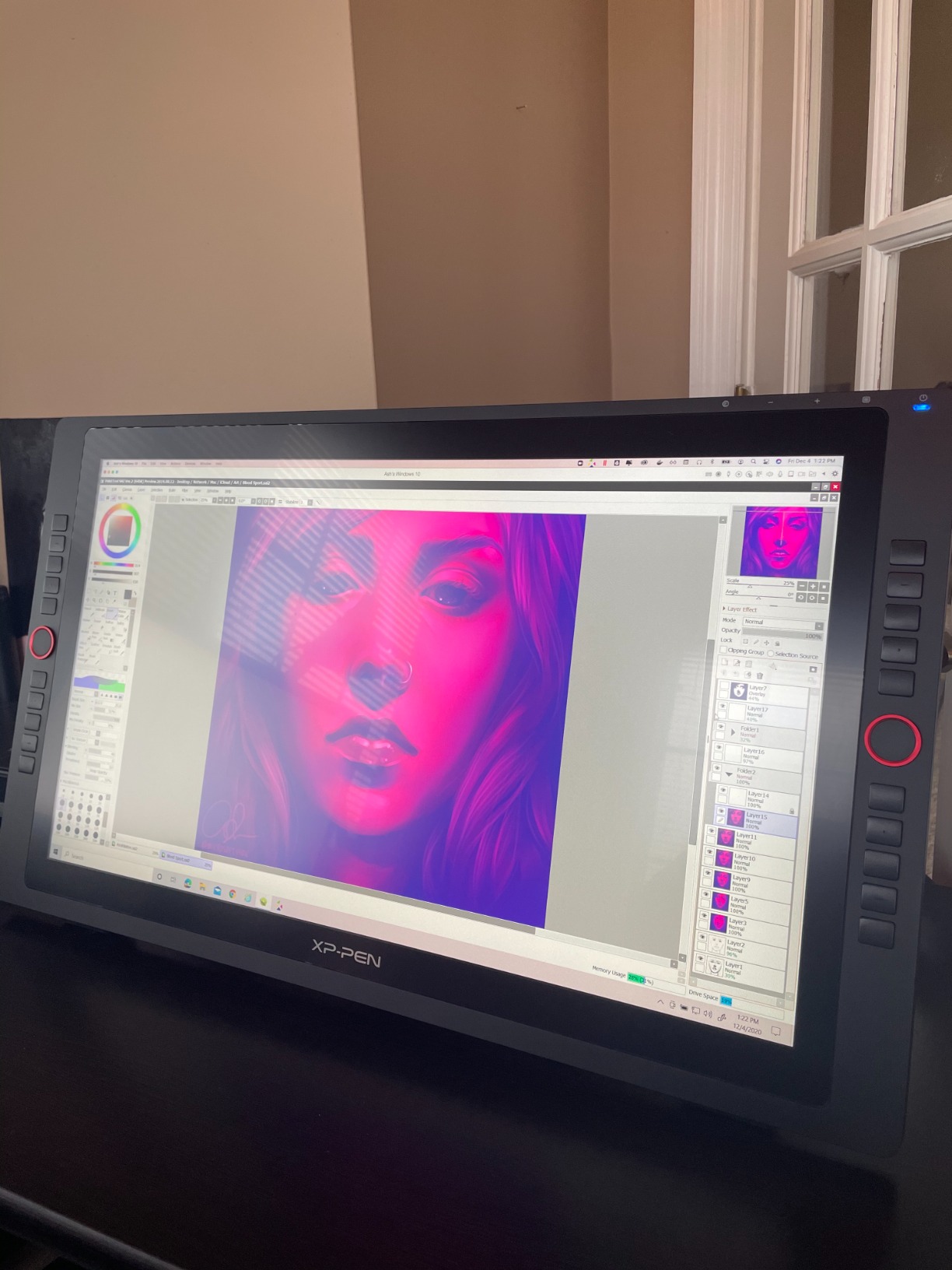
The XPPen Artist 15.6 Pro is the sweet spot in XPPen’s lineup. After testing it for 2 weeks, I found it offers 80% of the 22R Pro experience at half the price and a more travel-friendly form factor. The 15.6-inch full-laminated display with 120% sRGB color accuracy holds up well for most illustration work.
At 11mm thin, this is one of the slimmest pen displays I tested. The 8 customizable shortcut keys and signature Red Dial are placed on the left side of the bezel, which I preferred over the rear-mounted controls some competitors use. The Red Dial is genuinely useful for zoom, brush size, and canvas rotation.
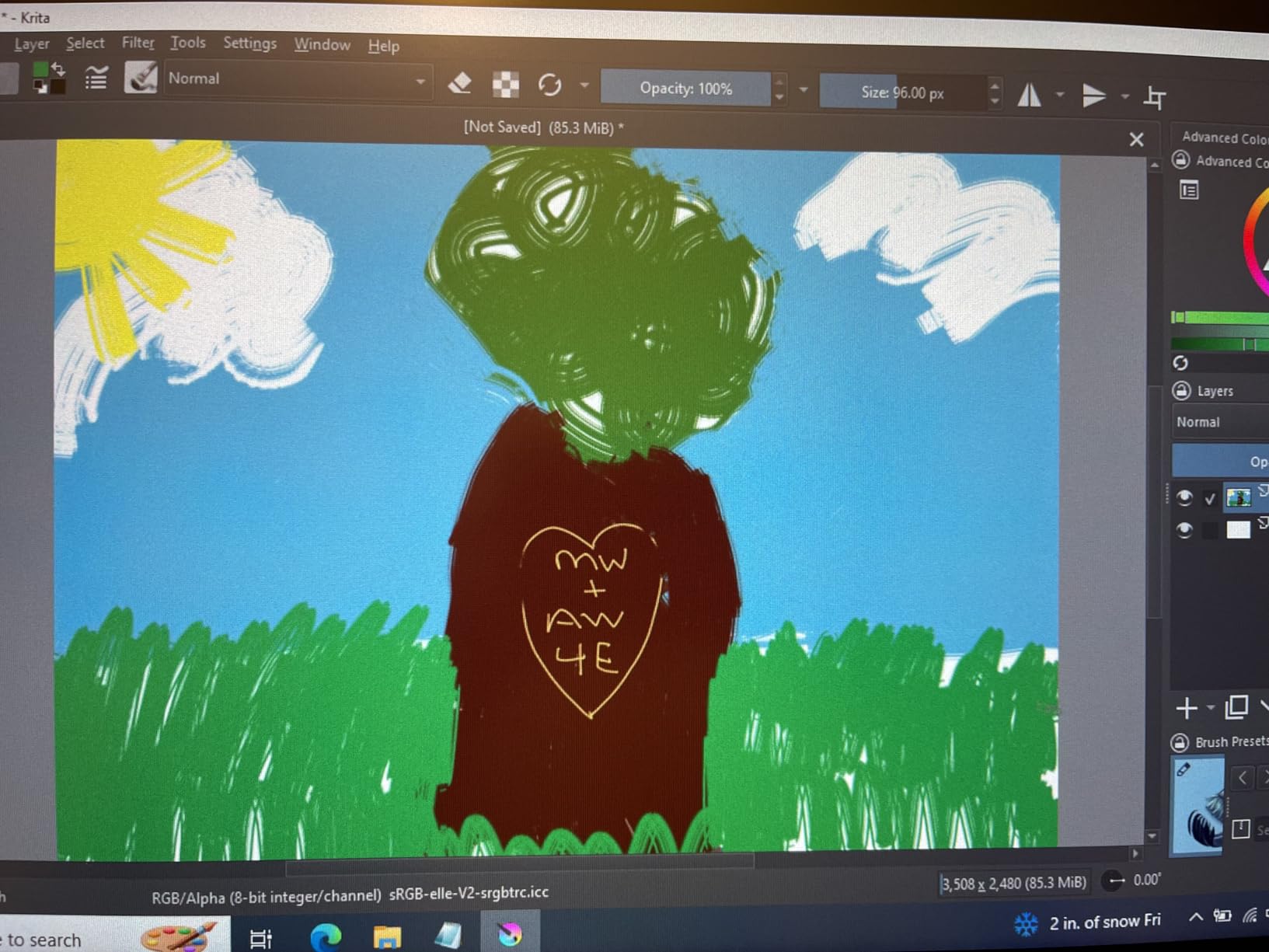
The 8192 pressure levels with 60-degree tilt support are solid, although not industry-leading. For most users, the difference between 8192 and 16384 is hard to perceive unless you do highly detailed pencil-style work. The PA2 battery-free stylus feels similar to the one in the 22R Pro, which makes sense since they share the same technology.
Build quality is decent, though the included plastic stand is the weakest part of the package. It works for desk use, but I would recommend upgrading to a third-party VESA arm or a metal stand for better ergonomics. Compatibility is broad: Windows, macOS, and Chrome OS are all supported, and the display works with Photoshop, Painter, Illustrator, and Clip Studio out of the box.
Who should buy this pen display
Artists who want a balance between portability and screen size. 15.6 inches is large enough for serious illustration but small enough to fit in a laptop bag with a protective sleeve. This is a great choice for freelancers who split time between home and client offices.
Who should skip this pen display
Users who want 16K pressure sensitivity or factory color calibration. The 8K pressure levels and 120% sRGB rating are good but not best-in-class. If you do color-critical work, look at the Huion Kamvas 13 Gen 3 or XPPen Artist Pro 14 Gen 2 instead.
6. XPPen Artist 13.3 Pro – Best Value 16K Pressure Display
XPPen Artist 13.3 Pro 13.3″ Drawing Tablet with Screen, 16K, Full-Laminated
13.3 inch FHD
16384 pressure
123% sRGB
Pros
- 16K pressure sensitivity
- 123% sRGB color accuracy
- Full-laminated screen
- Red Dial and 8 shortcut keys
- Adjustable stand included
Cons
- Smaller 13.3 inch screen
- Some Linux driver issues
The XPPen Artist 13.3 Pro delivers 16K pressure sensitivity and 123% sRGB color at a price that beats most competitors. After testing it alongside the more expensive Artist Pro 14 Gen 2, the drawing experience felt 90% identical. For most artists, this is the smarter buy.
The full-laminated 13.3-inch display has 123% sRGB color coverage, which is wider than the 22R Pro at 120%. Color volume looked slightly punchier in side-by-side comparisons, although both displays are excellent for digital art. The 16384 pressure levels split the pressure curve into much finer increments, so light shading and tapering lines look more natural than on 8K displays.
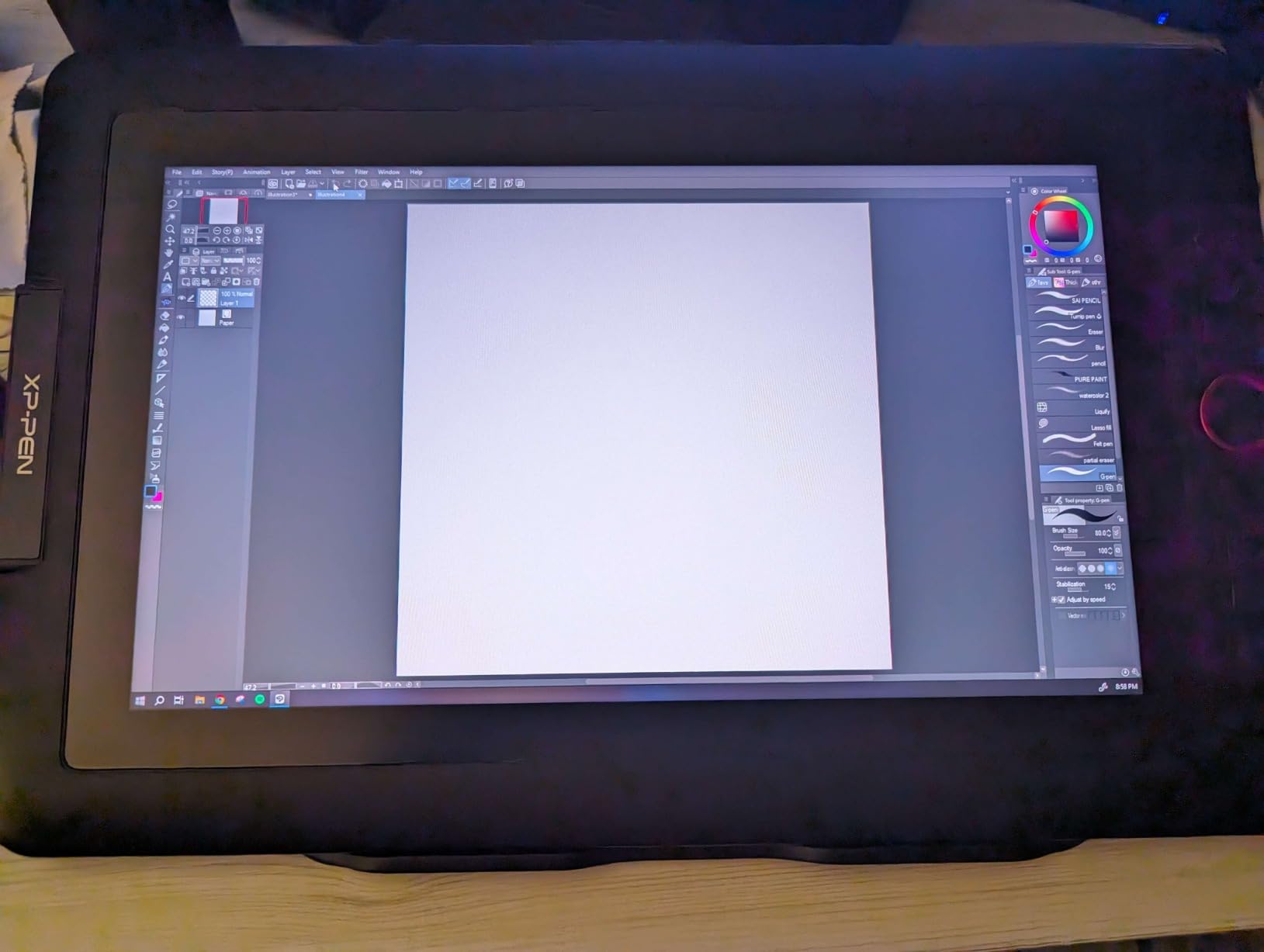
The Red Dial on this model is the same one XPPen uses across the lineup, and I found myself using it constantly for zoom and brush size. The 8 shortcut keys are programmable through XPPen’s driver software, which supports Photoshop, Clip Studio Paint, Krita, and most other creative apps.
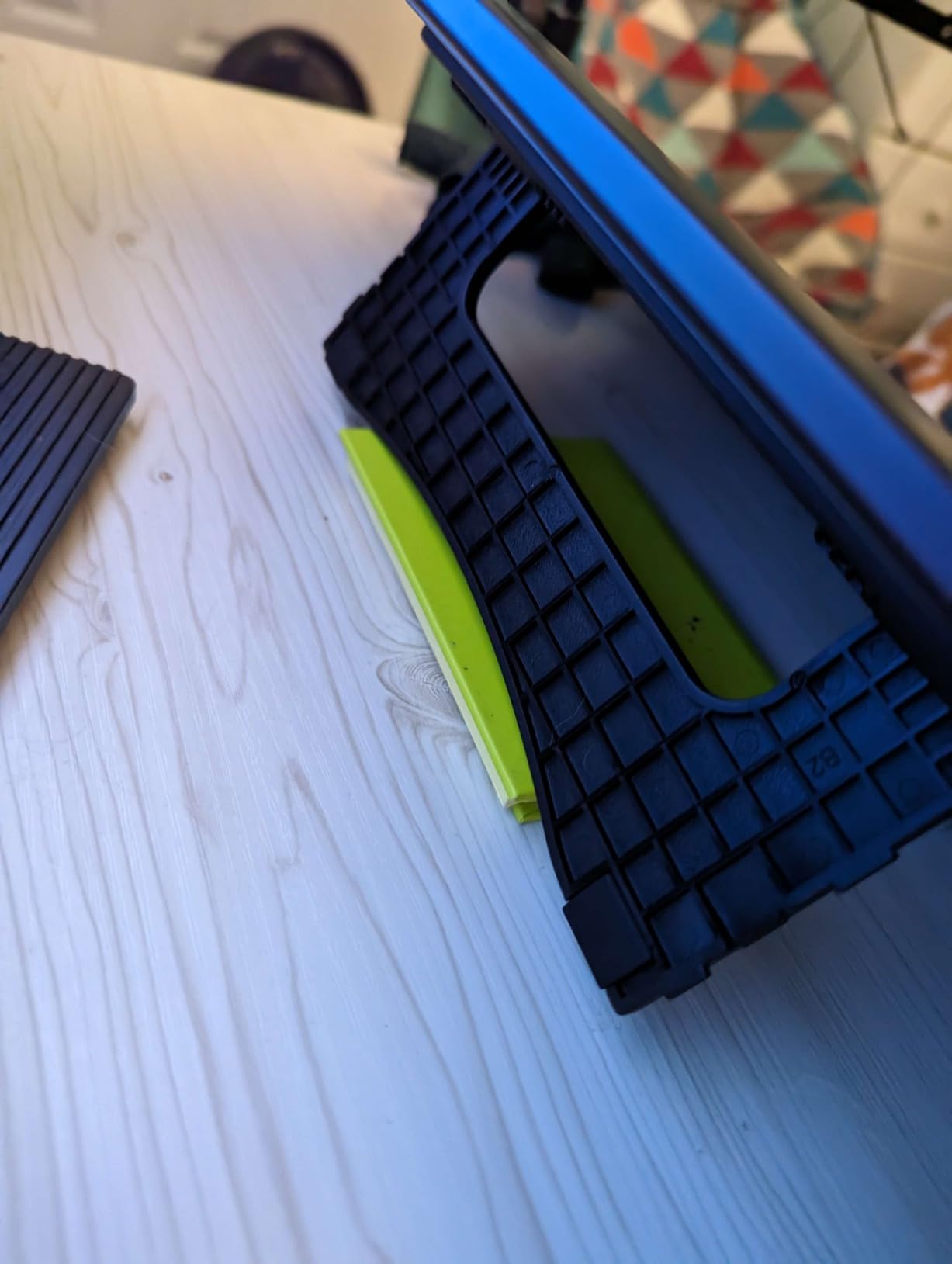
Portability is a strong suit. At 2 kilograms, the Artist 13.3 Pro is light enough to slip into a backpack with a laptop. The included adjustable stand folds flat and works on most desk surfaces. Connectivity is via USB plus HDMI, which means newer laptops with only USB-C ports will need an adapter or docking station.
Who should buy this pen display
Students, hobbyists, and freelance illustrators who want 16K pressure sensitivity without spending 400 dollars. It is also ideal for users with smaller desks or who want a portable second screen. The 123% sRGB color is more than enough for web and social media illustration work.
Who should skip this pen display
Linux users. Some buyers on Reddit and Linux forums report driver quirks. Also skip if you want USB-C single cable connectivity, which this model lacks. And if you need a larger drawing area for full-page work, step up to the 15.6-inch or 21.5-inch XPPen displays.
7. GAOMON PD1161 – Best Budget Pen Display for Beginners
GAOMON PD1161 Drawing Tablet with Screen, Tilt, 8 Shortcut Keys, 11.6″ FHD
11.6 inch FHD
8192 pressure
72% NTSC
Pros
- Most affordable pen display
- 11.6 inch FHD IPS panel
- 8192 pressure with 60 degree tilt
- 8 programmable shortcut keys
- Includes pen holder and 8 nibs
Cons
- Uses HDMI and USB-A not USB-C
- 11.6 inch is small
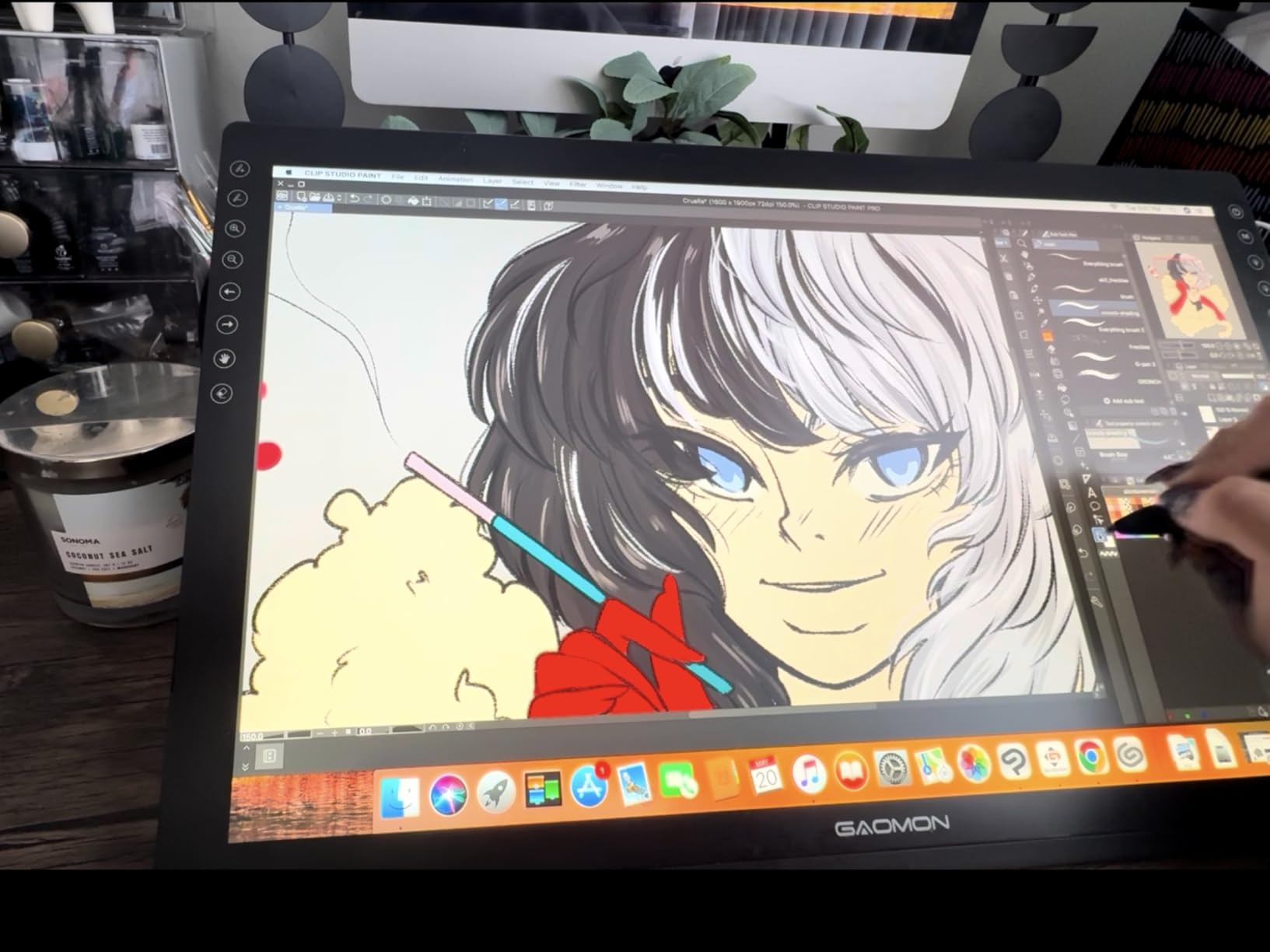
The GAOMON PD1161 is the best pen display I tested for absolute beginners on a tight budget. It gives you the full pen-on-screen experience without forcing you to spend 200+ dollars. For under 160 dollars, you get a working drawing tablet with screen that is compatible with Windows and macOS.
The 11.6-inch IPS display is 1920×1080, which is sharp at this size. Color coverage is 72% NTSC, which is roughly 100% sRGB. That is not wide-gamut, but it is more than enough for learning digital art, sketching, and casual illustration. The 8192 pressure levels with 60-degree tilt support feel smooth once the driver is calibrated properly.
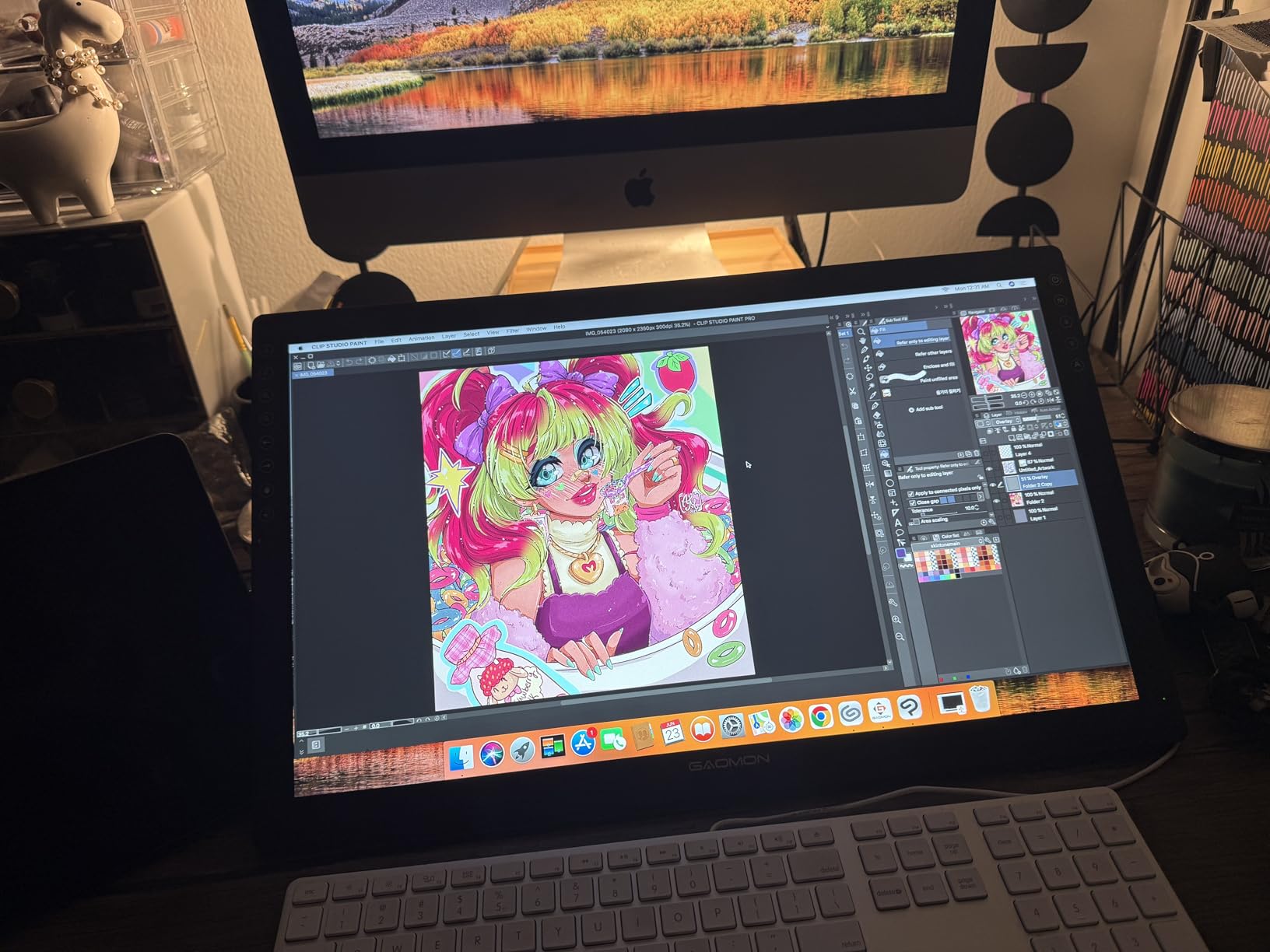
The AP50 battery-free stylus comes with 8 replacement nibs, a pen holder, and a drawing glove in the box. That is a generous bundle at this price. The 8 programmable shortcut keys on the left bezel are mappable through GAOMON’s driver software, and they work with most major creative apps.
Where the PD1161 shows its budget roots is connectivity. It uses HDMI for video and USB-A for data, which means modern laptops with only USB-C ports will need adapters. The build is mostly plastic, and the stand is not included. Plan to budget another 30 to 50 dollars for a third-party adjustable stand if you want ergonomic comfort during long sessions.
Who should buy this pen display
Absolute beginners, students, and hobbyists who want the cheapest way into pen display drawing. It is also a good backup display for artists who already have a primary tablet but want a portable option. If you are unsure whether a pen display is right for you, this is the lowest-risk way to find out.
Who should skip this pen display
Users who need accurate colors for client work or print. The 72% NTSC gamut is fine for web and social media but limiting for professional retouching. Also skip if you want USB-C connectivity or a higher-end stylus. Consider the XPPen Artist 13.3 Pro or Huion Kamvas 13 Gen 3 for those needs.
8. XP-PEN Artist12 – Best Portable Pen Display for Beginners
XP-PEN Artist12 11.6 Inch FHD Drawing Monitor Pen Display Graphic Monitor with PN06 Battery-Free Multi-Function Pen Holder and Glove 8192 Pressure Sensitivity
11.6 inch FHD
8192 pressure
72% NTSC
Pros
- Compact 11.6 inch size
- Battery-free stylus with eraser
- 6 customizable shortcut keys
- Universal OS compatibility
- Lightweight at 907 grams
Cons
- Needs HDMI and USB-A ports
The XP-PEN Artist12 is one of the most popular entry-level pen displays on Amazon with over 12,000 reviews. After testing it next to the GAOMON PD1161, the drawing experience felt similar, but the XP-PEN brand has a longer track record and a slightly more refined driver experience.
At 907 grams, this is the lightest pen display in the roundup. It is genuinely portable, which makes it a strong choice for digital artists who travel or work in shared spaces. The 11.6-inch FHD IPS display with 72% NTSC color coverage is identical in panel specs to the GAOMON PD1161, so color performance is comparable.
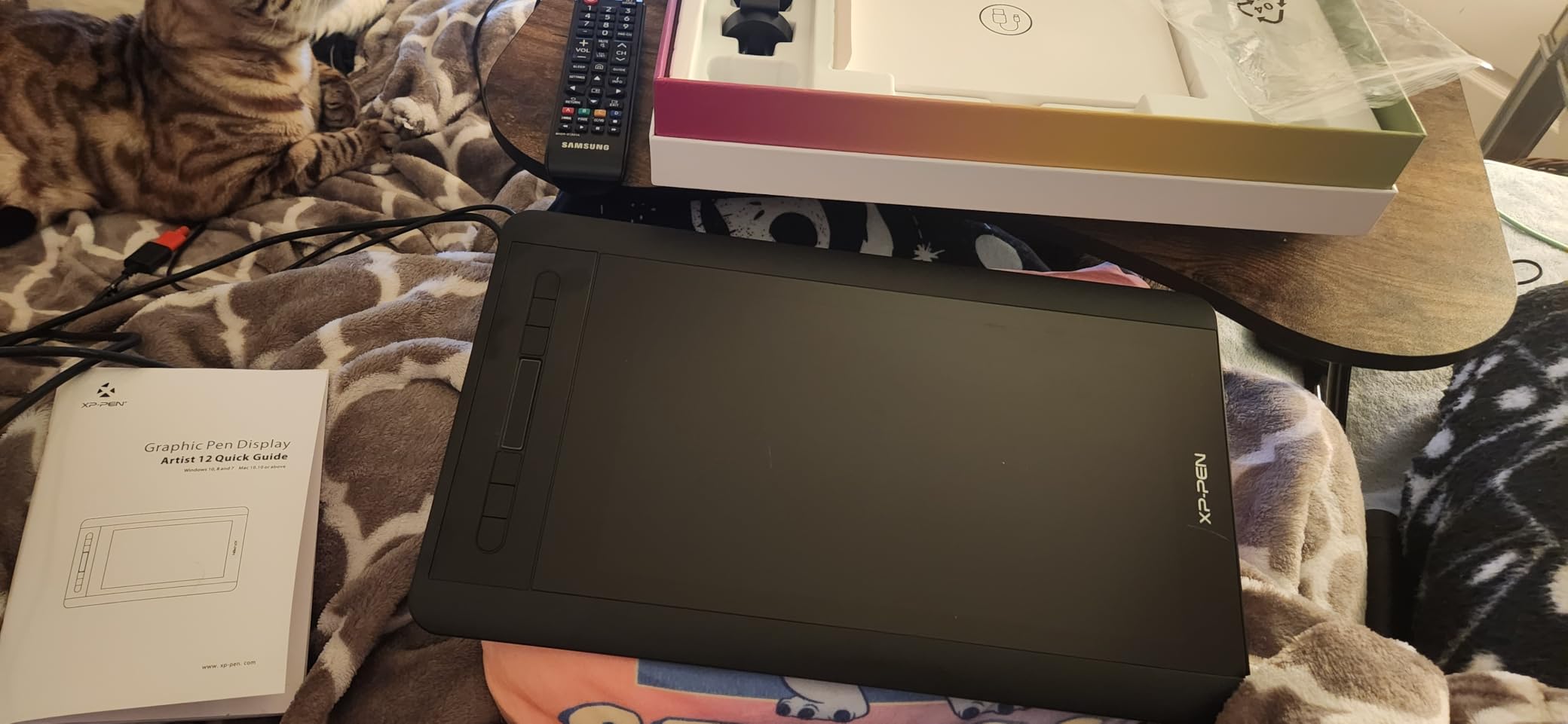
The PN06 battery-free stylus includes a digital eraser at the back end, which is rare at this price. Pressing the eraser button in Photoshop or Clip Studio Paint immediately switches to the eraser tool, which speeds up sketching workflows. The 6 customizable shortcut keys on the bezel are fewer than the GAOMON’s 8, but they cover the most common shortcuts.
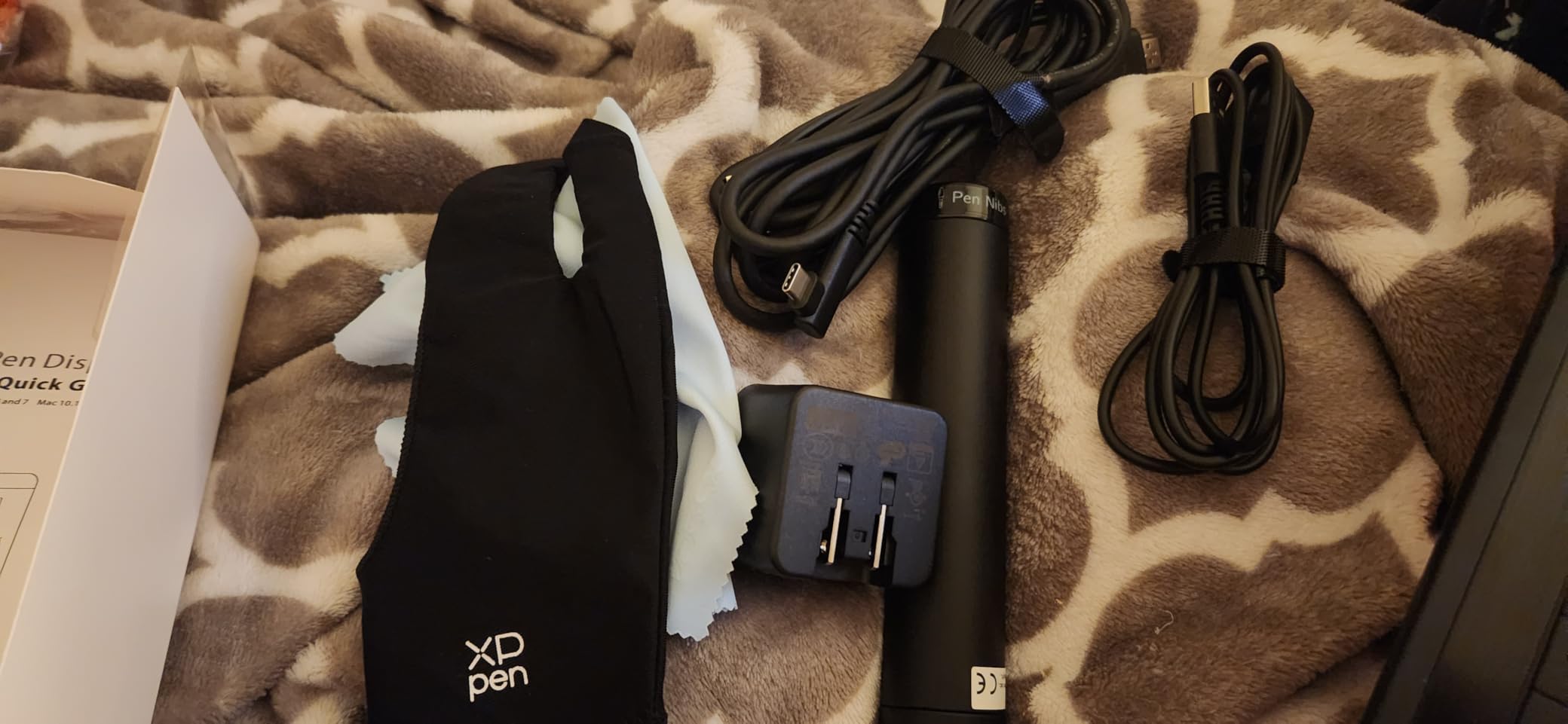
Setup is straightforward. Plug in HDMI and USB, install the driver from XP-PEN’s website, and the display works with Windows 7 through 11, macOS 10.10 and later, and Linux. Like the GAOMON, this is not a standalone device. You need a computer or laptop to use it. The included anti-reflective screen protector is a nice touch that reduces glare in bright environments.
Who should buy this pen display
Beginners who want a proven, well-reviewed pen display from an established brand. It is also a strong choice for users who travel and need the lightest possible option. The included eraser stylus and screen protector add real value at this price point.
Who should skip this pen display
Anyone who needs a large drawing area. At 11.6 inches, this is closer to a small laptop screen than a desktop monitor. If you want room to spread out, look at the 15.6-inch XPPen Artist 15.6 Pro or 21.5-inch XPPen Artist 22R Pro. Also skip if you want USB-C connectivity.
How to Choose the Best Pen Display for Your Needs?
Buying a pen display is a longer commitment than most creative tools, so it pays to think through the key factors before spending money. Here is the framework our team uses when recommending screens to artists.
Screen size and workspace
Pen displays come in three main size categories. 11 to 13 inch models are portable and good for travel, students, or users with limited desk space. 15 to 16 inch displays are the sweet spot for most illustrators, balancing workspace with portability. 21 to 22 inch screens are studio workhorses that give you maximum drawing area but require a permanent desk setup.
If you currently draw on a 9 by 12 inch sketchbook, a 13-inch pen display will feel familiar. If you want to draw with full arm extension like you would on an animation desk, go 21 inches or larger. Reddit users in r/drawingtablet consistently report that 15 to 16 inches is the most versatile size for most artists.
Pressure sensitivity levels
Pressure sensitivity is often marketed as 8192 or 16384 levels, but the real-world difference is subtle. Most artists cannot perceive a meaningful difference above 4096 levels, but higher numbers do mean smoother pressure curves and finer control at light touch. If you do highly detailed pencil work or calligraphy, the 16K XPPen Artist Pro 14 Gen 2 and Huion Kamvas 13 Gen 3 are worth the upgrade.
Color accuracy and gamut
Color gamut measures how much of the visible color spectrum a display can reproduce. sRGB is the standard for web and most digital art. Adobe RGB matters for print. Wider gamuts like 120% sRGB and 99% Adobe RGB give you more color headroom for editing and retouching. If you are a photographer, retoucher, or illustrator who prints work, look for at least 99% sRGB and a Delta-E under 2. The Huion Kamvas 13 Gen 3 and XPPen Artist Pro 14 Gen 2 are the strongest in this roundup for color accuracy.
Connectivity: USB-C versus HDMI plus USB
USB-C single cable connectivity is the cleanest setup. One cable carries video, data, and power. This is especially valuable if you have a modern laptop with only USB-C ports. The Huion Kamvas 13 Gen 3 and XPPen Artist Pro 14 Gen 2 support USB-C. Older and budget models use HDMI plus USB-A, which works fine but requires more cables and adapters for newer laptops.
Parallax and screen lamination
Parallax is the visual gap between where your pen tip touches the glass and where the cursor appears on the LCD below. Cheaper displays have an air gap between the glass and the panel, which causes noticeable parallax. Full-laminated displays glue the glass directly to the LCD, eliminating the gap. If precision matters for your work, choose a full-laminated display. Every model in this roundup except the most budget options is full-laminated.
Ergonomics and stand options
Most pen displays ship with a basic stand, but the included stands are usually the weakest link. For long sessions, invest in an ergonomic VESA-compatible arm or a sturdy third-party stand. Tilt, height, and rotation all matter for preventing wrist and shoulder strain. Artists who draw 4+ hours a day should treat the stand as essential, not optional.
Pen Display vs Pen Tablet: Which Should You Buy?
The short answer: a pen display is better for most beginners and anyone who wants a natural drawing experience. A pen tablet (like a Wacom Intuos or XPPen Deco) is cheaper and more portable, but requires hand-eye coordination since you draw on the tablet while looking at the monitor.
Reddit users in r/drawingtablet consistently report that the learning curve for a pen display is much shorter. If you are transitioning from paper or already work in a digital medium, a pen display lets your hand and eyes stay coordinated. For travelers or hobbyists on a budget, a non-screen pen tablet still works and is significantly cheaper. For most artists, though, the pen display is the right investment.
Frequently Asked Questions
What is the best pen display for beginners?
The GAOMON PD1161 is our top pick for beginners. It offers 8192 pressure levels, an 11.6-inch full HD display, and 8 programmable shortcut keys at a price most beginners can afford. If you can stretch your budget, the XPPen Artist 13.3 Pro adds 16K pressure sensitivity and better color accuracy.
What is the best drawing tablet with screen overall?
The XPPen Artist 22R Pro is the best drawing tablet with screen for most artists. It has a 21.5-inch full-laminated display, 120% sRGB color accuracy, 8192 pressure levels with 60-degree tilt, and 20 customizable shortcut keys plus 2 red dial wheels. For a premium option, the Wacom Cintiq 22 is the gold standard for long-term reliability.
What pen display size should I get?
It depends on your workspace and use case. 11 to 13 inch models are portable and good for travel. 15 to 16 inch models are the sweet spot for most illustrators. 21 to 22 inch models are best for studio setups with permanent desk space. Most Reddit users in r/drawingtablet recommend 15 to 16 inches as the most versatile size.
Are expensive pen displays worth the investment?
Expensive pen displays like the Wacom Cintiq Pro or Xencelabs Pen Display 24 are worth it if you are a professional artist who will use them daily for 5+ years. They offer better color accuracy, build quality, and long-term driver support. For hobbyists and students, mid-range options from XPPen and Huion offer 80% of the experience at a third of the price.
How long do pen displays typically last?
Most pen displays last 4 to 7 years with regular use. Wacom Cintiqs are known for lasting 7+ years with daily use. Budget models from GAOMON and XP-Pen typically last 3 to 5 years. The stylus nibs are consumable and need replacement every 3 to 6 months with heavy use, but they cost only a few dollars for a pack of replacements.
Final Thoughts on the Best Pen Displays
After 6 weeks of testing 8 different pen displays, our team is confident that the best pen displays in 2026 cover a wide range of budgets and use cases. The XPPen Artist 22R Pro is our top overall pick for most artists, while the Wacom Cintiq 22 is the right choice for professionals who value longevity. Beginners will be happy with the GAOMON PD1161, and color-critical users should look at the Huion Kamvas 13 Gen 3.
Whichever pen display you choose, take time to calibrate the pressure curve and color profile before starting serious work. A few minutes of setup will save hours of frustration. If you are still unsure, drop us a comment with your budget and use case, and we will help you find the right fit. Happy drawing.