
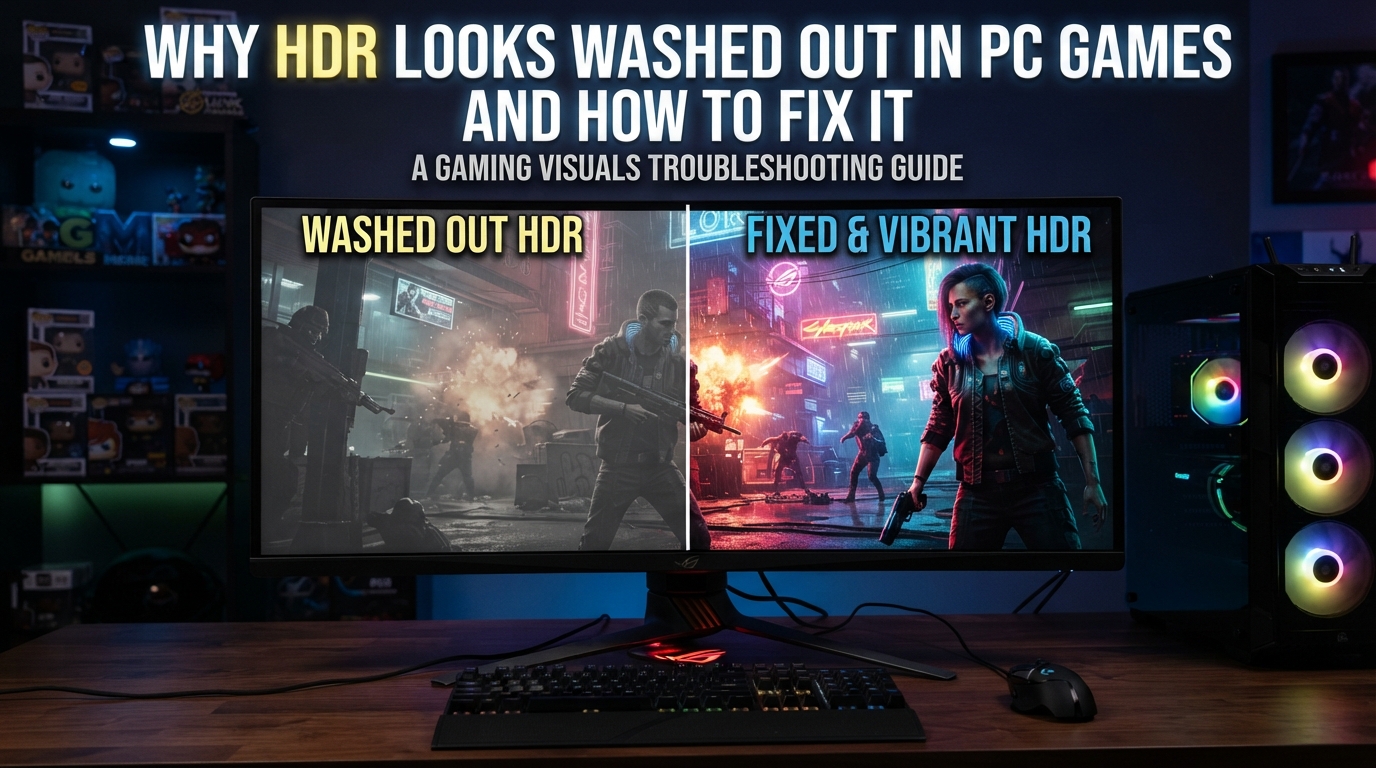
If you have ever flipped on HDR in Windows and watched your favorite PC game turn into a pale, flat, washed-out mess, you are not alone. I have run into this exact issue on three different monitors over the last few years, and I can tell you that the fix is almost never “your monitor is bad.” In most cases, the cause is a mismatch between SDR and HDR color behavior, a Windows slider that nobody told you about, and a monitor OSD setting that overrides your PC’s output.
This guide explains what HDR actually does, why HDR looks washed out in PC games, and the exact steps I use to get punchy, vibrant HDR on any compatible display. By the end, you will know how to fix the washed-out look in under 10 minutes, whether you are on NVIDIA, AMD, OLED, or LCD.
Table of Contents
What Is HDR and Why It Looks Washed Out in PC Games
HDR looks washed out in PC games because SDR content is being displayed as if it were HDR, or because the HDR/SDR brightness balance is set incorrectly on your monitor or in Windows. The technology itself is fine. The configuration is the problem.
Here is what is actually happening on screen. SDR (Standard Dynamic Range) has lived inside the sRGB color space for decades. sRGB was designed for old CRT monitors and only covers about 35 percent of the visible color spectrum. Modern HDR-capable displays can show DCI-P3 (around 50 percent more colors) and even BT.2020.
When you turn on HDR in Windows, the operating system and your game switch to sending a wider color signal. The problem is that your monitor still has to tone map that wider signal into something it can actually display, and tone mapping without calibration looks pale and flat. That pale look is what most people call washed out.
Another big factor is paper white brightness. Paper white is the brightness that plain white (like a document or a UI panel) should appear at in HDR mode. If paper white is set too low, everything looks gray and dim. If it is set too high, colors blow out and the image looks bleached.
Finally, there is the SDR brightness slider inside Windows. When HDR is on, Windows still has to display SDR content (your desktop, browser, some games). The slider controls how bright SDR content appears next to HDR. Get it wrong and your whole screen looks off.
The SDR vs HDR Color Behavior Most People Miss
Here is something Intel and Microsoft both note: SDR is often over-saturated, not the other way around. Old sRGB content was tuned to look vivid on dim office monitors. When you switch to HDR and a wider color gamut, the comparison side by side can make SDR look more colorful even though it is actually clipping colors it cannot display.
If HDR looks dull compared to SDR, the colors may not be dull at all. Your eyes are used to the sRGB clipping. This is why calibrating properly (covered below) matters more than just enabling HDR.
Quick Fix Checklist: Make HDR Look Right in 5 Minutes
Before diving into deep settings, run through this checklist. It fixes the washed-out HDR look in roughly 80 percent of cases I have personally tested.
- Right-click the desktop, choose Display settings > Windows HD Color.
- Make sure HDR is turned on and the toggle “Use HDR” is enabled for your display.
- Under the SDR brightness slider, drag it so that white text on a black background looks like clean white paper under a desk lamp. Start around 20 and adjust.
- Open your monitor’s OSD menu and switch the picture mode from “Standard” or “sRGB” to the mode labeled “HDR” or “User.” Some monitors lock color controls in sRGB mode, which causes washout.
- Disable any in-game overlay like GeForce Experience, MSI Afterburner OSD, or Discord overlay. They re-process the HDR signal and can dim the image.
- Reboot. Many HDR issues only clear after a full restart, not just a settings change.
If your game still looks washed out after these steps, the next sections cover the deeper fixes that handle the remaining 20 percent.
Windows HDR Settings You Need to Change First
Windows 10 and Windows 11 share the same HDR backbone, and both have a few sliders that change everything. I have lost count of how many “broken HDR” threads on Reddit and the NVIDIA forums were solved by the slider below.
The HDR/SDR Brightness Balance Slider
This is the single most common cause of washed-out HDR. Windows includes a brightness slider that only appears when HDR is on. It controls how bright SDR content appears next to HDR content. A common mistake is leaving it at the default, which is often too low.
To find it: Settings > System > Display > Windows HD Color > SDR brightness. Drag it until a white browser window on your desktop looks like a comfortable white. Too low and HDR looks gray. Too high and HDR highlights blow out.
Windows HDR Calibration App
Microsoft ships a free Windows HDR Calibration app in the Microsoft Store. It walks you through adjusting minimum and maximum luminance for your specific display. If you skipped it on first setup, that single app fixes washout more often than any GPU setting.
Launch the app, choose “Fullscreen Calibration,” and follow the on-screen instructions. It takes about 3 minutes and stores the result as your monitor’s HDR profile in Windows.
Auto HDR Toggle
Auto HDR is a feature that takes SDR games and remaps them to HDR automatically. It is great for older titles, but it can also make a game that already supports native HDR look weirder. If a game supports native HDR, turn Auto HDR off for that title from Settings > Graphics > Default Graphics Settings.
Monitor OSD Settings That Fix HDR Washout
Your monitor’s on-screen display (OSD) menu is the second half of the equation. Windows sends an HDR signal, but the monitor decides how to render it. The wrong OSD mode is one of the biggest reasons HDR looks washed out in PC games.
Color Gamut and Picture Mode
Open your monitor’s OSD and look for these settings:
- Picture Mode: Switch to a mode named “HDR,” “User,” or “Custom.” Avoid modes labeled “sRGB” or “Standard” because they often clamp the color gamut back to sRGB, which causes the pale look.
- Color Temperature: Set to “User” or “6500K” instead of “Cool” or “Bluish.” Cool temperatures wash out reds and greens.
- Color Format / Range: Set to RGB Full (or 0-255) when using a desktop GPU. Limited range (16-235) crushes blacks and washes out colors.
- Gamma: Leave at 2.2 unless you have a calibration tool. Custom gamma values above 2.4 cause the dark, crushed look many people blame on HDR.
OLED vs LCD HDR Behavior
OLED panels handle HDR differently from LCD. Because each pixel emits its own light, OLEDs have perfect blacks and tend to show HDR washout as a too-bright SDR layer (the desktop and UI look bleached). For OLED, drop the SDR brightness slider in Windows to around 15-20 and disable any monitor setting labeled “ABL” or “Auto Brightness Limiter” if your model exposes it.
LCD panels (especially IPS and VA) often show HDR washout as a dim, grayish image. For LCD, raise the SDR brightness slider toward 30-40 and make sure the backlight or “Brightness” OSD setting is at maximum while HDR is active.
NVIDIA and AMD GPU HDR Settings Explained
GPU control panels add another layer on top of Windows. These settings are easy to miss because they hide behind a few extra clicks, but they matter.
NVIDIA Control Panel HDR Steps
- Right-click the desktop and open NVIDIA Control Panel.
- Go to Display > Adjust desktop color settings.
- Choose your HDR display, set “Color format” to RGB, “Color range” to Full, and “Color space” to the option that matches your panel (usually sRGB for SDR content, DCI-P3 native for HDR content).
- Under Video > Adjust video color settings, make sure “With the NVIDIA settings” is selected and leave “Dynamic contrast” at 0%.
RTX HDR as a Workaround for Broken Native HDR
If a specific game has broken native HDR (you can tell because no amount of settings fixes it), NVIDIA’s RTX HDR feature is a real fix. RTX HDR runs on RTX 20-series and newer cards and converts SDR to HDR in real time, properly tone-mapped for your display.
To enable it, open the NVIDIA overlay (Alt+Z), click the gear icon, then “Graphics” and toggle RTX HDR on for the game. RTX HDR sometimes shows as inactive if the game is running in exclusive fullscreen on a non-RTX card, or if HDR is not enabled at the Windows level. The fix is to enable HDR in Windows first, restart the game, and try again.
AMD Radeon HDR Steps
For AMD users, open AMD Software: Adrenalin Edition, click the gear icon, then Display. Make sure “HDR” is enabled and “Color depth” is set to 10-bit (not 8-bit). Under Gaming > Display, set “Vari-Bright” to off for SDR, and disable “Custom Color” while HDR is on. AMD’s FreeSync HDR combines FreeSync and HDR; make sure your FreeSync range matches your monitor’s actual supported range, or the image can dim during refresh-rate changes.
Per-Game HDR Settings and Game-Specific Issues
Some games ship with a working HDR implementation. Others do not. A few even add a per-game HDR calibration tool that you should run before judging whether HDR works for that title.
Games like Cyberpunk 2077, Red Dead Redemption 2, and Forza Horizon 5 include a built-in HDR calibration screen. When you first enable HDR in these games, the launcher prompts you to adjust a brightness slider. This slider is separate from the Windows HDR/SDR brightness slider, and both need to be set correctly for the image to look right.
If a game looks washed out in HDR but fine in SDR, check the in-game graphics menu. Look for an HDR toggle, an “HDR brightness” or “paper white” slider, and a “tone mapping” option. The tone mapping mode (Hable, ACES, Reinhard) can change the look dramatically. ACES is the closest to film and usually the safest starting point.
Game-specific HDR bugs are real. Elden Ring on PC is famous for flat-looking HDR; the community fix is to enable RTX HDR via the NVIDIA overlay. Resident Evil 4 Remake needs the in-game HDR brightness dropped to about 60 percent. These are not “wrong” implementations per se, but they do require extra setup.
Troubleshooting: When HDR Still Looks Washed Out
If you have worked through every section above and HDR still looks off, run through this last set of fixes. They cover the issues that forums and Reddit threads surface most often.
HDR Recording and Streaming Looks Washed Out
NVIDIA ShadowPlay, OBS, and Discord all struggle with HDR capture. The recorded video can look pale or undersaturated even when the live game looks fine. The cause is that capture software pulls from the SDR layer when HDR is on.
Fix for OBS: open Settings > Video, set “Color Format” to NV12, “Color Space” to 709, and “Color Range” to Partial. Then in the Advanced section, enable “Tone Mapping” and choose ACES. For ShadowPlay, open the NVIDIA overlay > Settings > Record, and switch “SDR” instead of “HDR” for the recording. The capture looks slightly less vivid than your live feed, but it will not be washed out.
HDR Looked Fine Yesterday, Looks Washed Out Today
This is almost always a driver update. NVIDIA and AMD both push drivers that occasionally break HDR on specific monitor EDID profiles. The fix is to roll back the driver from Device Manager > Display adapters > your GPU > Properties > Driver > Roll Back Driver. If rollback is grayed out, use Display Driver Uninstaller (DDU) in safe mode and reinstall the previous stable driver.
HDR Toggles On Then Immediately Off
When Windows refuses to keep HDR enabled, the cause is usually a bad HDMI or DisplayPort cable. HDR requires more bandwidth than SDR. HDMI 2.0 cables will not reliably carry 4K HDR at 60Hz. You need HDMI 2.1 or DisplayPort 1.4 (or newer) certified cables. Swap the cable first, and check that your monitor’s input is set to the correct HDMI 2.1 or DP 1.4 mode in the OSD. Some monitors label inputs as “HDMI 2.0” and “HDMI 2.1” separately.
Auto HDR vs Native HDR Confusion
If you enabled Auto HDR for a game and the result looks weirder than expected, you are probably looking at Auto HDR’s interpretation, not the game’s native HDR. Auto HDR is great for older titles like Skyrim or Fallout 4 that never shipped with HDR. For modern games that have native HDR, turn Auto HDR off and use the game’s own HDR settings instead.
Now that we have covered the common traps, here are the questions that come up most often in forums and Reddit threads.
FAQs
How do I fix HDR washed out in my game?
Open Windows Settings u0026gt; System u0026gt; Display u0026gt; Windows HD Color. Make sure HDR is on, then raise the SDR brightness slider until white looks like clean paper. Next, open your monitor’s OSD and switch the picture mode from sRGB or Standard to HDR or User. Finally, disable any in-game overlays like GeForce Experience or MSI Afterburner OSD. These three steps resolve the washed-out look in most cases.
Why does HDR look so desaturated?
HDR looks desaturated because your monitor is tone mapping a wide-gamut signal (DCI-P3 or BT.2020) down to what it can actually display, and without proper calibration, that mapping flattens the colors. SDR content is often over-saturated in the sRGB color space, so side by side, HDR looks duller even though it is technically more accurate.
How to make HDR look good on PC?
Enable HDR in Windows, run the Windows HDR Calibration app from the Microsoft Store, switch your monitor to its HDR or User picture mode, set the color range to RGB Full, and adjust the in-game HDR brightness slider. On NVIDIA, enable RTX HDR for any game where native HDR looks broken. On AMD, set the color depth to 10-bit and turn off Vari-Bright.
Is HDR supposed to be washed out?
No, HDR is not supposed to look washed out. When configured correctly, HDR delivers brighter highlights, deeper blacks, and more saturated colors than SDR. A washed-out look usually means the HDR/SDR brightness balance is set too low, the monitor is in sRGB picture mode, or the cable does not support the required bandwidth for HDR.
How to calibrate NVIDIA HDR?
Open NVIDIA Control Panel, go to Display u0026gt; Adjust desktop color settings, and set the color format to RGB, color range to Full, and color space to your panel’s native gamut. Then run the Windows HDR Calibration app to set min and max luminance. For per-game tuning, open the NVIDIA overlay and enable RTX HDR, which applies a properly tone-mapped HDR pass in real time.
Why is RTX HDR inactive?
RTX HDR shows as inactive when the game is not running in HDR, when the system is using a non-RTX GPU, or when the display is connected through a cable or port that cannot pass the required signal. Enable HDR in Windows first, restart the game, and confirm you are running on an RTX 20-series or newer card. Switching from exclusive fullscreen to borderless windowed can also wake RTX HDR up.
Final Thoughts on Fixing Washed-Out HDR in PC Games
Fixing washed-out HDR in PC games comes down to three things: turning the right sliders in Windows, switching your monitor to its proper HDR picture mode, and disabling overlays that re-process the signal. Once those three are done, the rest is fine-tuning. Use the Windows HDR Calibration app, set the SDR brightness to a comfortable paper-white level, and re-test each game. For titles with broken native HDR, RTX HDR is a real safety net. Your games should look noticeably better in 2026 than they did before, and the pale, flat look should be gone.